> ## Documentation Index
> Fetch the complete documentation index at: https://docs.flowx.ai/llms.txt
> Use this file to discover all available pages before exploring further.
# Business filters
> An optional attribute, from the authorization token, that can be set to restrict access to process instances based on a business specific value (for example, bank branch name).
Business filters provide an additional layer of access control for runtime process instances by restricting access based on business-specific attributes such as bank branch, department, or region.
**Important distinction:** Business filters only apply to **runtime access** (container apps, task manager). They do not affect access in **FlowX Designer**, which is controlled by workspace and project-level permissions.
**Use case example**: in a banking app, you might need to ensure that only users from a specific branch can view and interact with process instances initiated from that branch.
## How business filters work
Business filters work in combination with runtime permissions, not as a replacement for them.
### Access control by context
| Context | Access controlled by |
| ---------------------------- | -------------------------------------------------------- |
| **FlowX Designer** | Workspace and project-level permissions only |
| **Container apps (runtime)** | Runtime permissions AND business filters (both required) |
Business filters add an additional restriction layer but do not bypass existing runtime permissions. Both conditions must be satisfied for a user to access a process instance.
## Prerequisites
Before configuring business filters, ensure you have:
* Access to your identity provider (IdP) configuration
* Organization administrator role to manage user attributes
* Understanding of your business access requirements (for example, which users should access which process instances)
## Configuration
Follow these steps to implement business filters in your app.
### 1. Configure the identity provider mapper
Configure a mapper in your identity management platform to add the business filter attribute to the authorization token as a claim. This mapper creates the connection between user attributes and the token claim that gets evaluated at runtime.
The business filter attribute must always be available on the token under the same key. Inconsistent mapper configuration can cause access control issues in production environments.
View detailed instructions for configuring the user attribute mapper
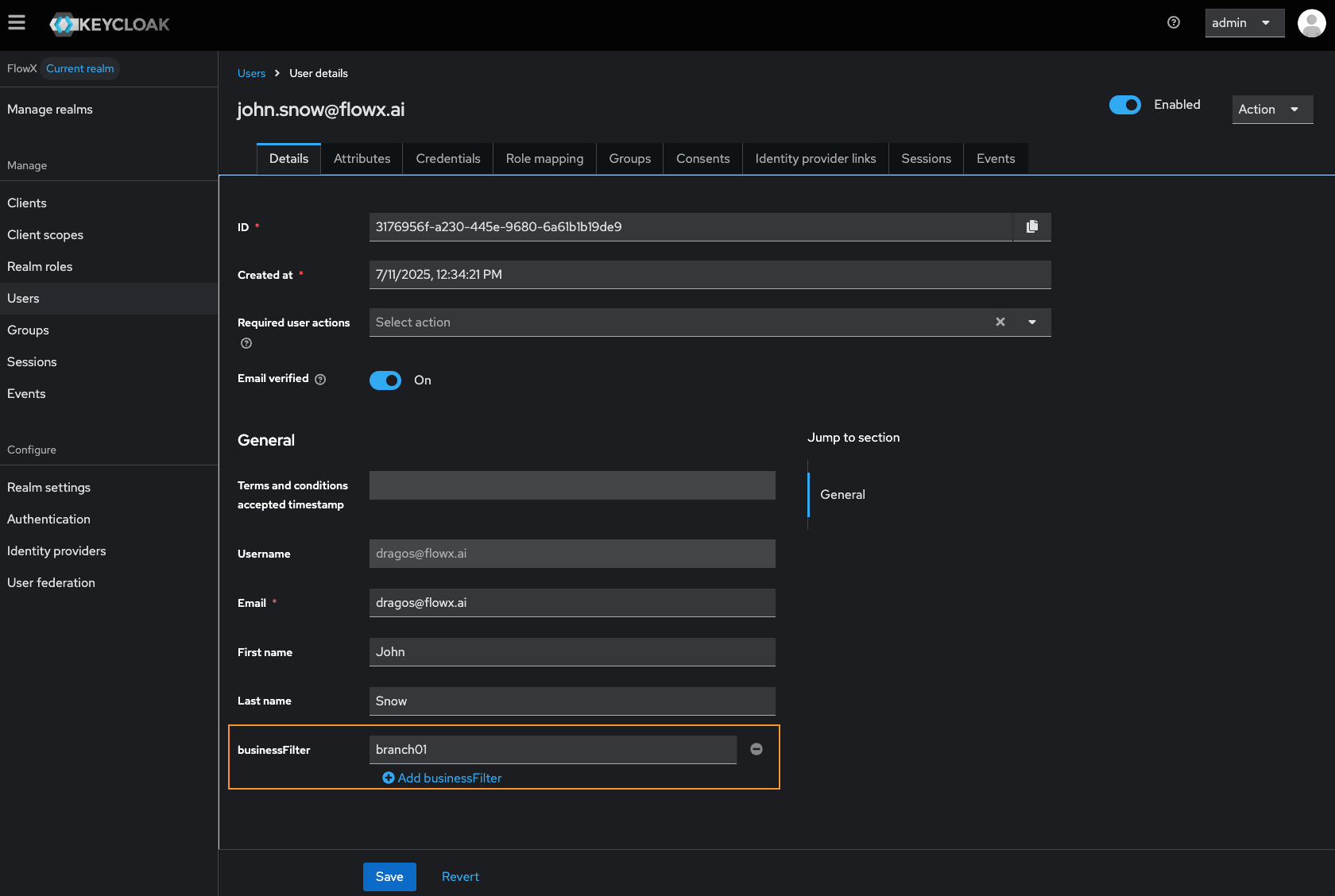
After configuration, the `businessFilter` attribute becomes visible at the user level:
### 2. Assign business filter values to users
Assign business filter values to users through one of the following methods:
* **Identity provider**: Directly in the user profile settings
* **FlowX Designer**: Through the user management interface
**Important:** Business filter values must be set directly on user attributes in your identity provider, not only inherited from groups.
When assigning business filters in FlowX Designer, you must use the `businessFilter` key.
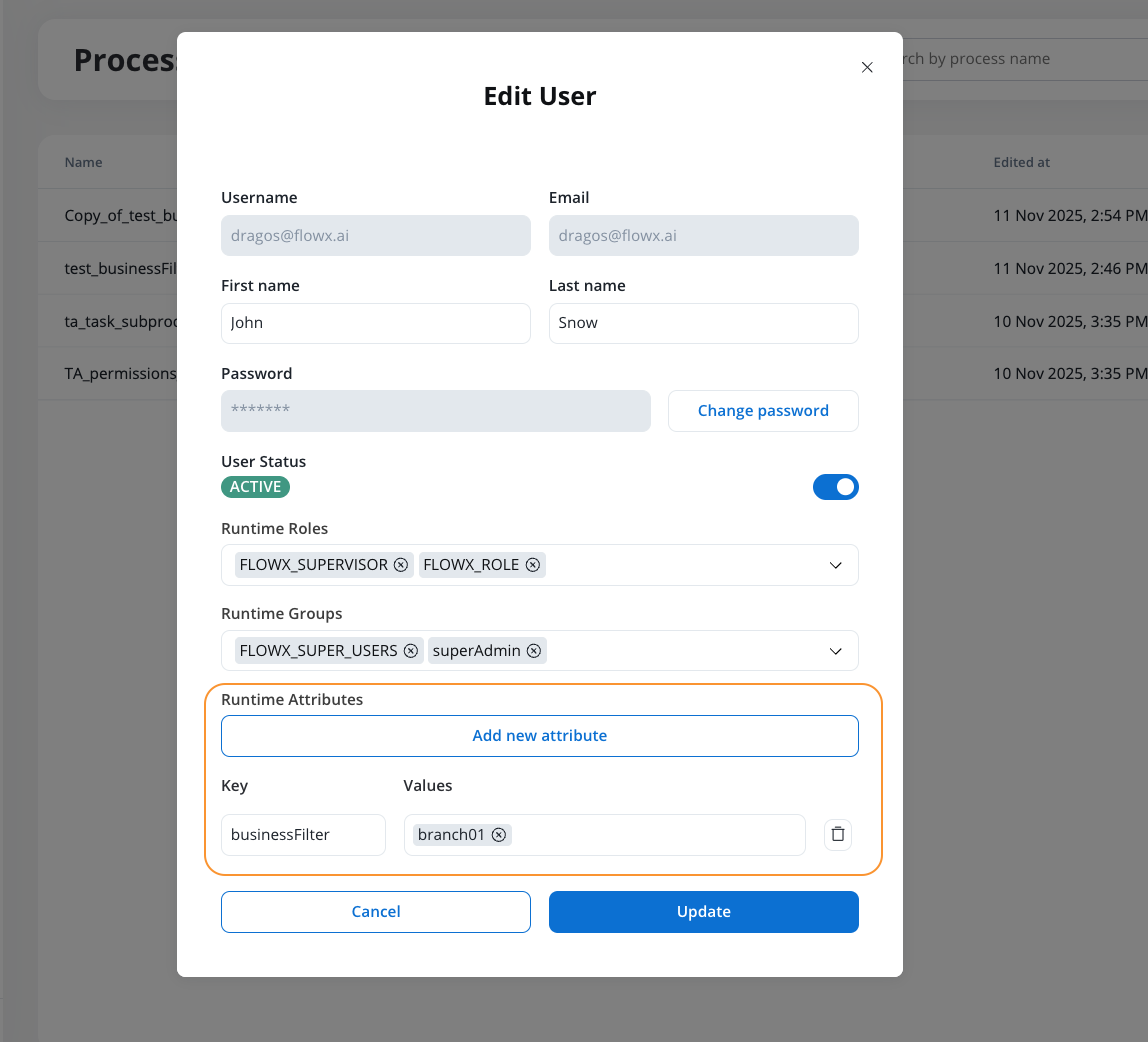
Users can have multiple business filter values assigned. For example: `["branch_01", "branch_02"]`
**Technical note:** While group-level attributes can propagate to the JWT via mappers, Task Manager uses a different mechanism to filter assignable users. It queries user attributes directly from the identity provider when listing users for task assignment. This means business filters must exist as direct user attributes, not only as group memberships.
### 3. Set business filters in process definition
Add a [**business rule action**](../../building-blocks/actions/business-rule-action/business-rule-action) in your process definition to store the business filter values in the process parameters.
**Syntax:**
Single value:
```javascript theme={"system"}
output.put("task", {"businessFilters": ["branch_01"]});
```
Multiple values:
```javascript theme={"system"}
output.put("task", {"businessFilters": ["branch_01", "branch_02"]});
```
**Important:** When configuring the business rule action node that sets `task.businessFilters`, you must also enable the **Update Task Manager** toggle in the node configuration. This ensures that the business filter values are properly propagated to Task Manager.
**Best practice:** Set business filters early in the process flow, typically on an automatic action at the start of the process.
## Runtime behavior
Once business filters are configured on a process instance, access restrictions apply based on the context:
We have a process instance with the business filter value `"branch_01"` (added in the process definition) and a user with the business filter value `"branch_01"`. The second user does not have the business filter value.
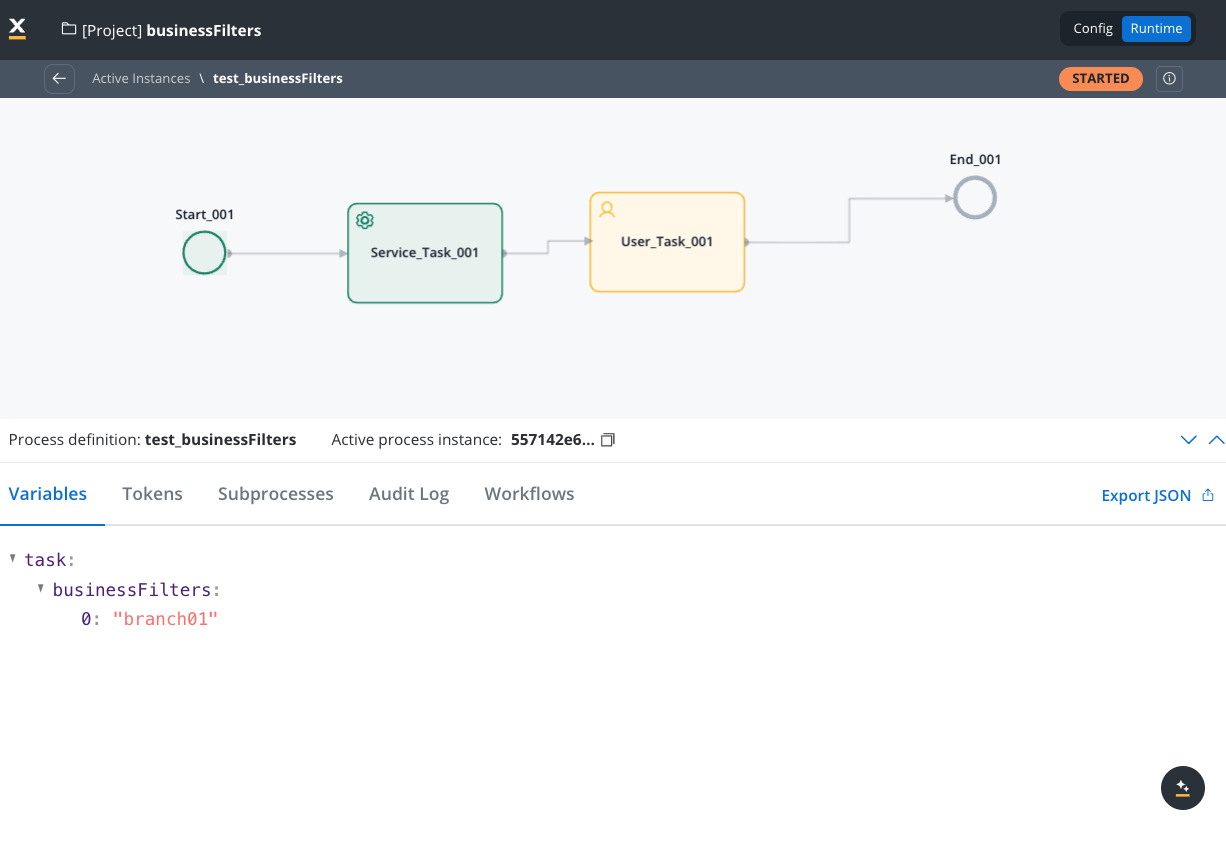

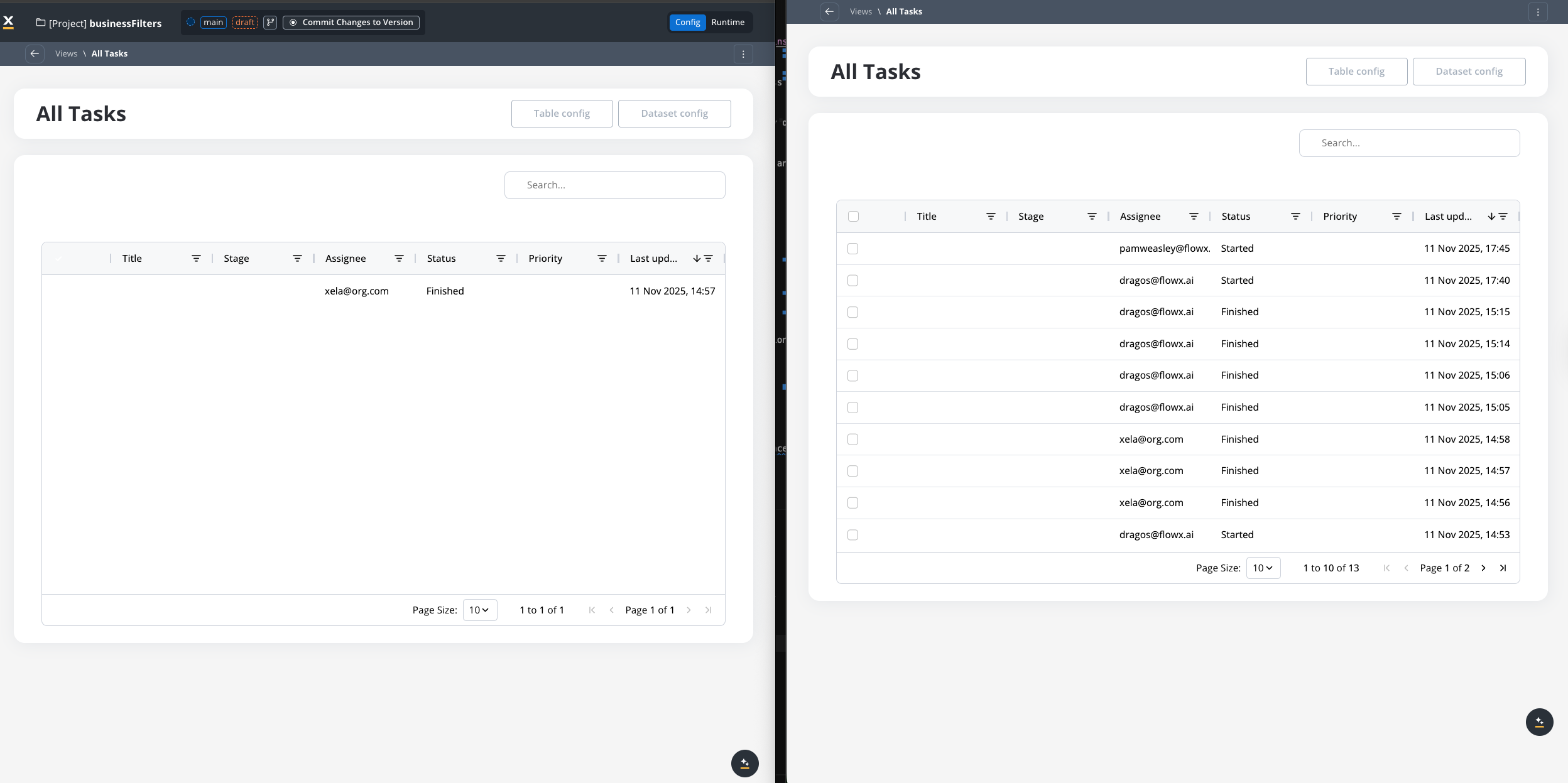
Business filters are applied to the process instance at runtime.
* in the left screen there is a user with the business filter value `"branch_01"` (the process instance is visible to this user)
* in the right screen there is a user without the business filter value (the process instance is not visible to this user)
### Task manager
Only users with matching business filter values can view and interact with tasks from the process instance.
When assigning or reassigning tasks to other users, the list of assignable users is filtered based on business filters. The system queries user attributes directly from the identity provider to determine which users can be assigned to a task.
Business filter checks apply to the tasks themselves. Custom views remain controlled by Designer permissions.
### Container apps
Only users with matching business filter values can execute READ operations on the process instance, such as:
* GET status
* GET details
### Designer
Business filters do not apply in FlowX Designer. All users with appropriate project permissions can view the process instance regardless of their business filter values.
## Example scenario
This example demonstrates how to restrict access to process instances based on bank branch affiliation.
### Setup
**Step 1**: configure the identity provider mapper for the `businessFilter` attribute.
**Step 2**: assign business filter values to users:
* User A: `"branch_downtown"`
* User B: No business filter assigned
**Step 3**: add a business rule in your process definition:
```javascript theme={"system"}
output.put("task", {"businessFilters": ["branch_downtown"]});
```
### Expected behavior
When a process instance runs with this configuration:
| User | Business filter | Runtime access | Designer access |
| ------ | ------------------- | ----------------------------------------------- | ----------------------------------------- |
| User A | `"branch_downtown"` | ✓ Can access | ✓ Can access (if has project permissions) |
| User B | None | ✗ Cannot access (even with runtime permissions) | ✓ Can access (if has project permissions) |
This demonstrates that:
* Business filters enforce runtime restrictions
* Designer access remains independent of business filters
* Runtime permissions alone are insufficient without matching business filter values