> ## Documentation Index
> Fetch the complete documentation index at: https://docs.flowx.ai/llms.txt
> Use this file to discover all available pages before exploring further.
# OCR plugin
> The OCR (Optical Character Recognition) plugin is a tool that enables you to read barcodes and extract handwritten signatures from .pdf documents.
Before using the OCR service for reading barcodes and extracting signatures, please note the following requirements:
* All \*.pdf documents that are sent to the OCR service for reading barcodes and extracting handwritten signatures should be scanned at a minimum resolution of 200DPI (approximately 1654x2339 px for A4 pages)
* Barcode is searched on the top 15% of each image (scanned page)
* Signatures are detected on boxes with a border: 4px black solid
* Only two signatures per image (scanned page) are detected.
The plugin supports **1D Code 128** barcodes. For more information, see the [Code 128 documentation](https://graphicore.github.io/librebarcode/documentation/code128.html).
## Using the OCR plugin
You can utilize the OCR plugin to process generic document templates by either using a specific flow on FlowX.AI (HTML template) or any other document editor.
Using a specific flow on FlowX.AI offers several advantages:
* Centralized management of templates and flows within a single application.
* Access to template history and version control.
### Use case
1. Prepare and print generic document templates.
2. End-users complete, sign, and scan the documents.
3. Upload the scanned documents to the flow.
4. FlowX.AI validates the template (barcode) and the signatures.
### Scenario for FlowX.AI generated documents
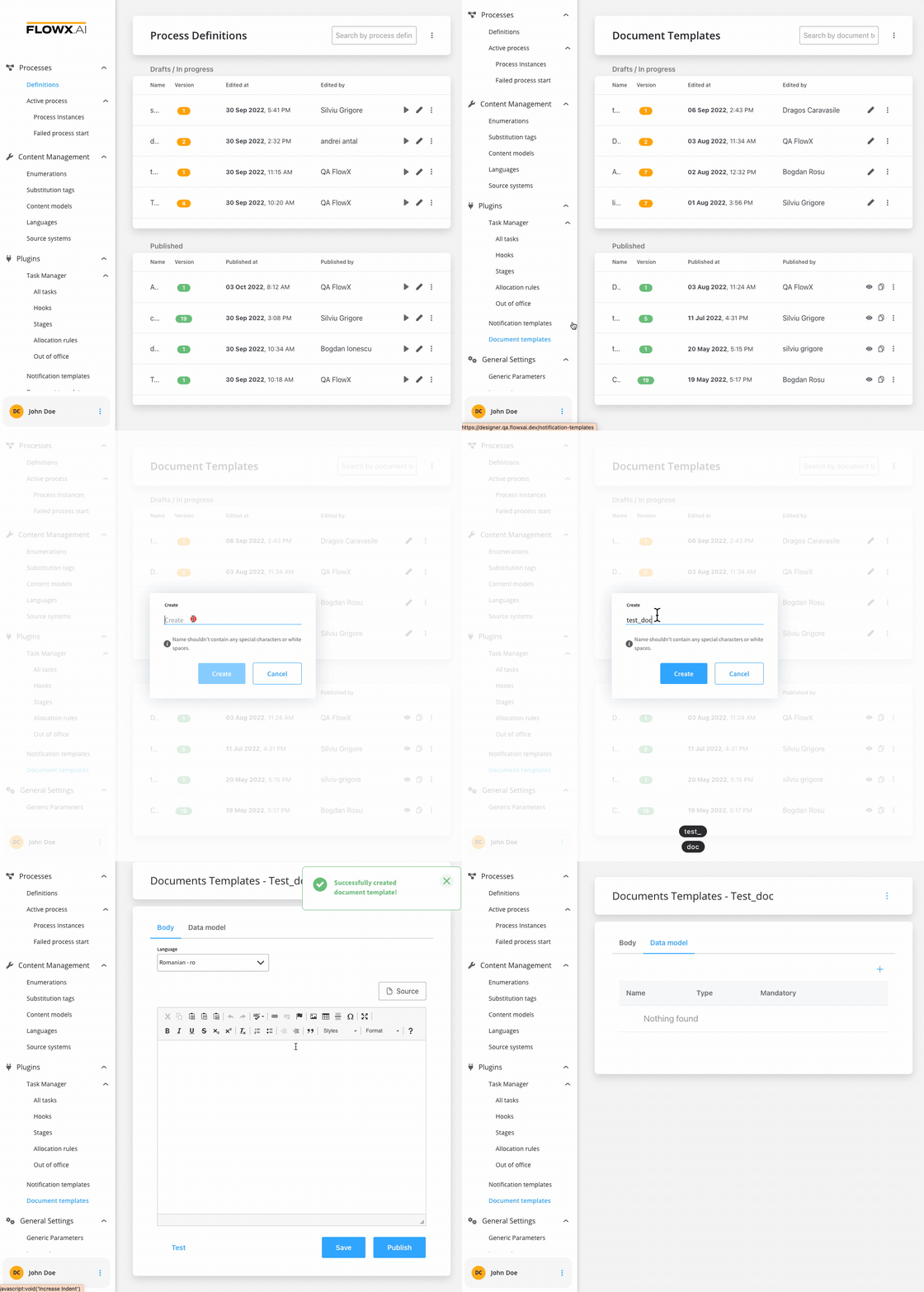
1. Utilize the [**Documents plugin**](../../core-extensions/content-management/documents-plugin/documents-plugin-overview) to create a [**document template**](../../core-extensions/content-management/documents-plugin/generating-from-html-templates).
2. Create a process and add a [**Kafka Send Action**](../../../building-blocks/node/message-send-received-task-node#configuring-a-message-send-task-node) to a [**Send Message Task**](../../../building-blocks/node/message-send-received-task-node#send-message-task) node. Here you specify the [**Kafka topic**](../../../platform-overview/frameworks-and-standards/event-driven-architecture-frameworks/intro-to-kafka-concepts#topics) (address) where the template will be generated.
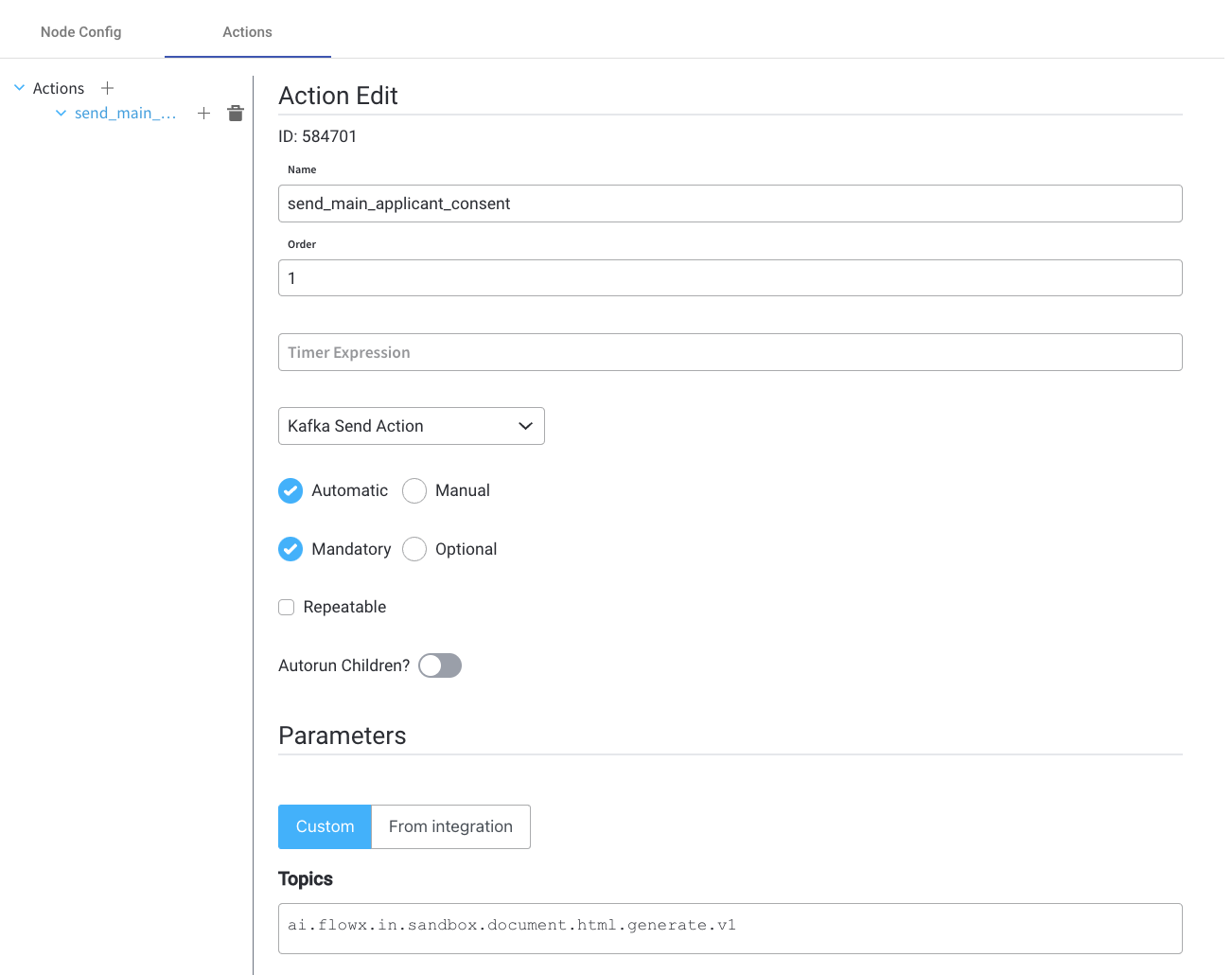
The Kafka topic for generating the template must match the topic defined in the **`KAFKA_TOPIC_DOCUMENT_GENERATE_HTML_IN`** variable. Refer to the [**Kafka configuration guide**](../../../../setup-guides/flowx-engine-setup-guide/engine-setup#configuring-kafka) for more details. For additional information, please see the [**Documents plugin setup guide**](../../../../setup-guides/documents-plugin-setup).
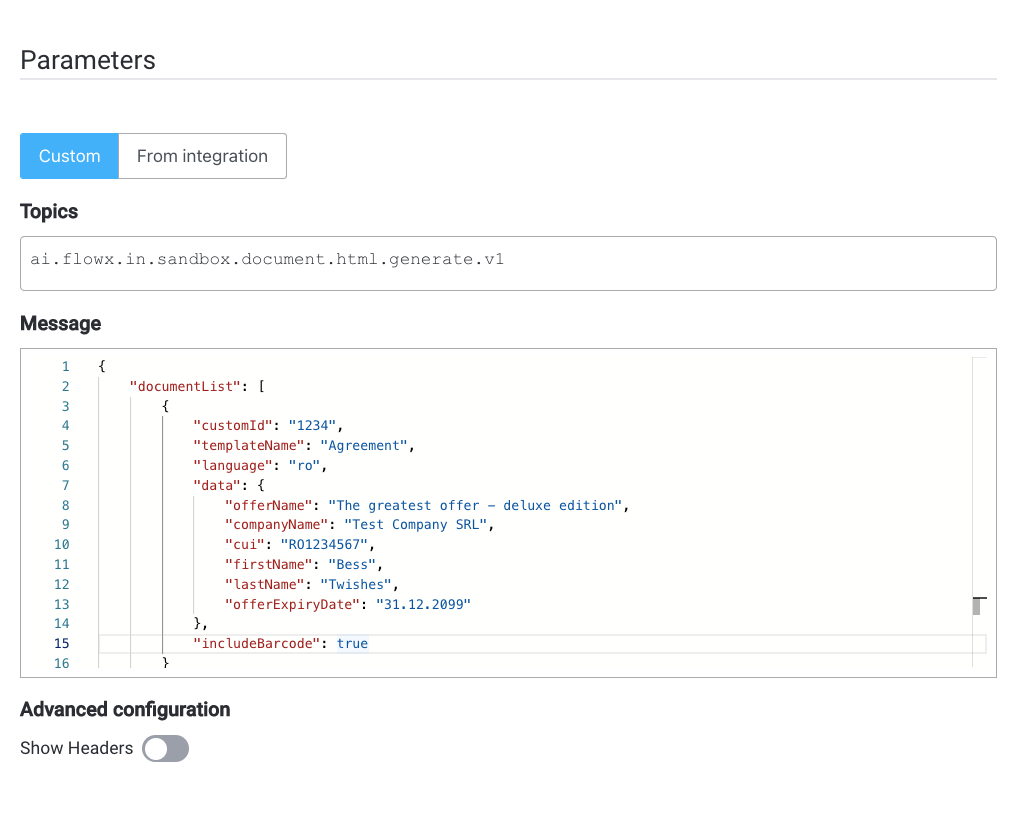
3. Fill in the **Message**. The request body should include the following values:
* **documentList** - a list of documents to be generated, including properties such as name and values to be replaced in the document templates
* **customId** - client ID
* **templateName** - the name of the template to be used
* **language**
* **includeBarcode** - true/false
* **data** - a map containing the values that should replace the placeholders in the document template, the keys used in the map should match those defined in the HTML template
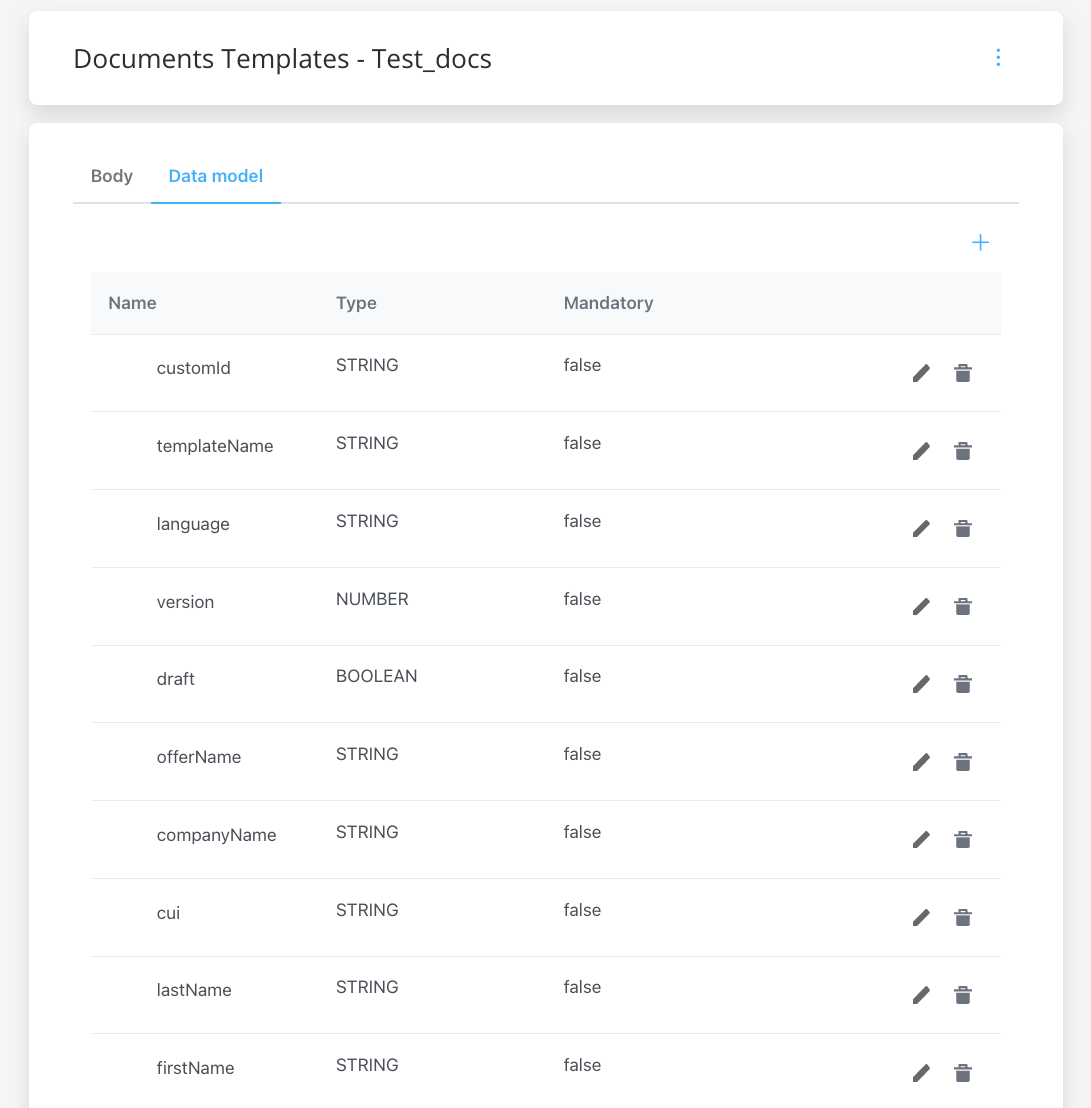
The `data` parameters must be defined in the document template beforehand. For more information, check the [**document template**](../../core-extensions/content-management/documents-plugin/generating-from-html-templates) section.
4. Add a **barcode**.
* to include a **default barcode**, add the following parameter to the message body: `includeBarCode: true`.
* to include a **custom barcode**, set `includeBarCode: false` and provide the desired data in the `data` field
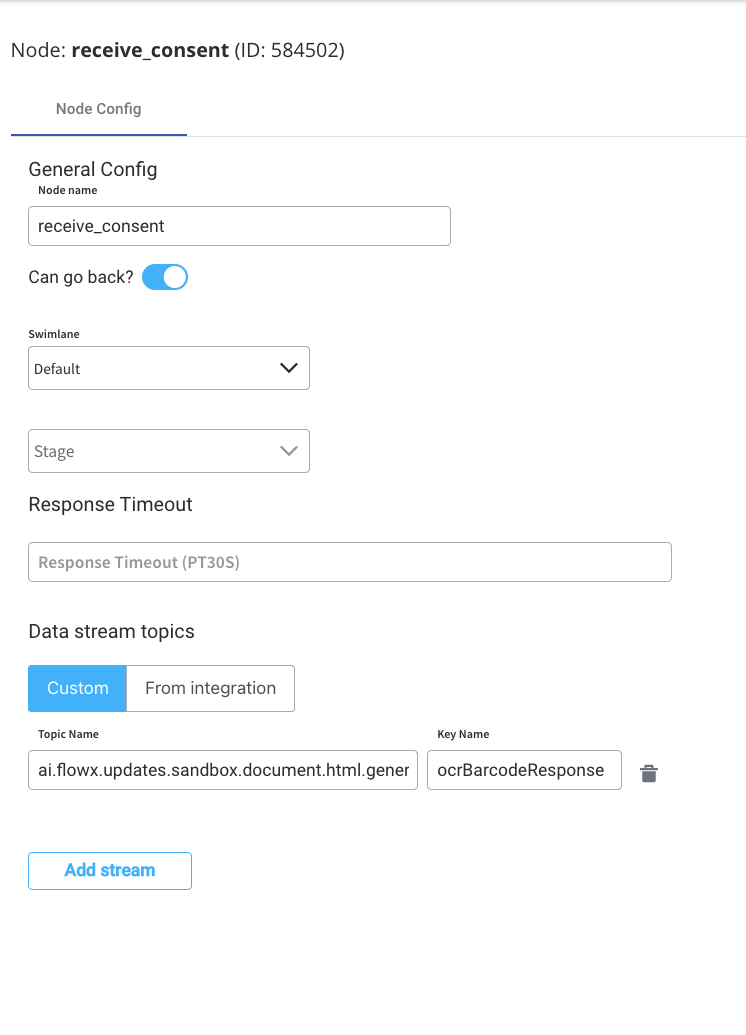
5. Add a [**Receive Message Task**](../../../building-blocks/node/message-send-received-task-node#receive-message-task) node and specify the topic where you want to receive the response.
Ensure that the topic matches the one defined in the **`KAFKA_TOPIC_DOCUMENT_GENERATE_HTML_OUT`** variable.
6. Add a [**User Task**](../../../building-blocks/node/user-task-node) node and configure an [**Upload file**](../../../building-blocks/actions/upload-file-action) action to send the file (defined by the **`KAFKA_TOPIC_DOCUMENT_PERSIST_IN`** variable) to the storage solution (for example, S3).
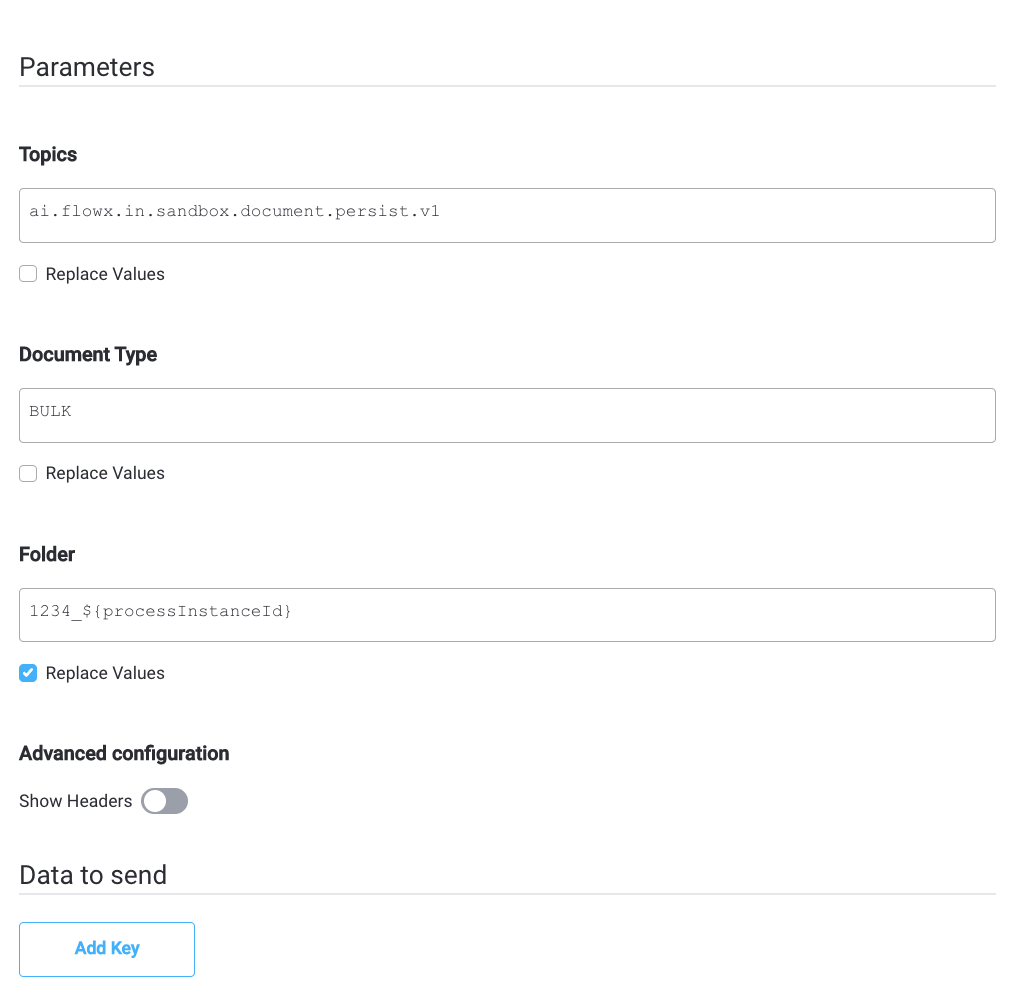
7. Next, the response will be sent back to the Kafka topic defined by **`KAFKA_TOPIC_DOCUMENT_PERSIST_OUT`** environment variable through a callback action/subprocess.
8. Next, send the response to the OCR Kafka topic defined at **`KAFKA_TOPIC_OCR_IN`** variable (representing the path to the S3 file).
9. Display the result of the OCR validation in the Kafka topic defined at **`KAFKA_TOPIC_OCR_OUT`**.
For the OCR request and response message formats, refer to the [OCR plugin setup guide](../../../../setup-guides/plugins-setup-guide/ocr-plugin-setup).
The env vars above (`KAFKA_TOPIC_OCR_IN`, `KAFKA_TOPIC_OCR_OUT`) are configured on the **Document Plugin** side. The standalone **OCR Plugin** uses its own env vars (`KAFKA_INPUT_TOPIC`, `KAFKA_OUTPUT_TOPIC`) — see the [OCR plugin setup guide](../../../../setup-guides/plugins-setup-guide/ocr-plugin-setup#kafka-configuration) for details.
### Setup guide
Refer to the OCR plugin setup guide for detailed instructions on setting up the OCR plugin.