> ## Documentation Index
> Fetch the complete documentation index at: https://docs.flowx.ai/llms.txt
> Use this file to discover all available pages before exploring further.
# PostgreSQL Database
> Connect to PostgreSQL databases as a data source in FlowX workflows and run SQL queries against them.
export const release_0 = "5.10"
SaaS · {release_0}
**Available on SaaS with FlowX.AI {release_0}.** This feature is live on managed (SaaS) deployments now. Self-hosted deployments receive it with the next LTS release.
## Overview
PostgreSQL Database is a relational data source type that lets you connect FlowX workflows to **PostgreSQL databases that your organization manages independently**. You configure a connection, save named SQL queries against the schema, and call those queries from workflows.
Connect with host, database, schema, and credentials, with an optional SSL toggle
Monaco editor with SQL syntax highlighting, schema-aware autocomplete, and a side panel that lists tables, columns, primary keys, and foreign keys
Run any saved query with sample parameters and inspect the response: rows for SELECT, affected-row information for INSERT / UPDATE / DELETE
Reference PostgreSQL queries from the Database Operation node alongside other data sources
***
## Prerequisites
* A PostgreSQL database accessible from your FlowX deployment
* A database user with the privileges your queries require (typically `SELECT`, `INSERT`, `UPDATE`, `DELETE` on the target schema, plus read access to the system catalogs for schema discovery)
* Network connectivity between the `nosql-db-runner` service and the PostgreSQL instance
* For SSL connections: appropriate certificates configured on the PostgreSQL instance and trusted by the FlowX deployment
***
## Creating a PostgreSQL Database data source
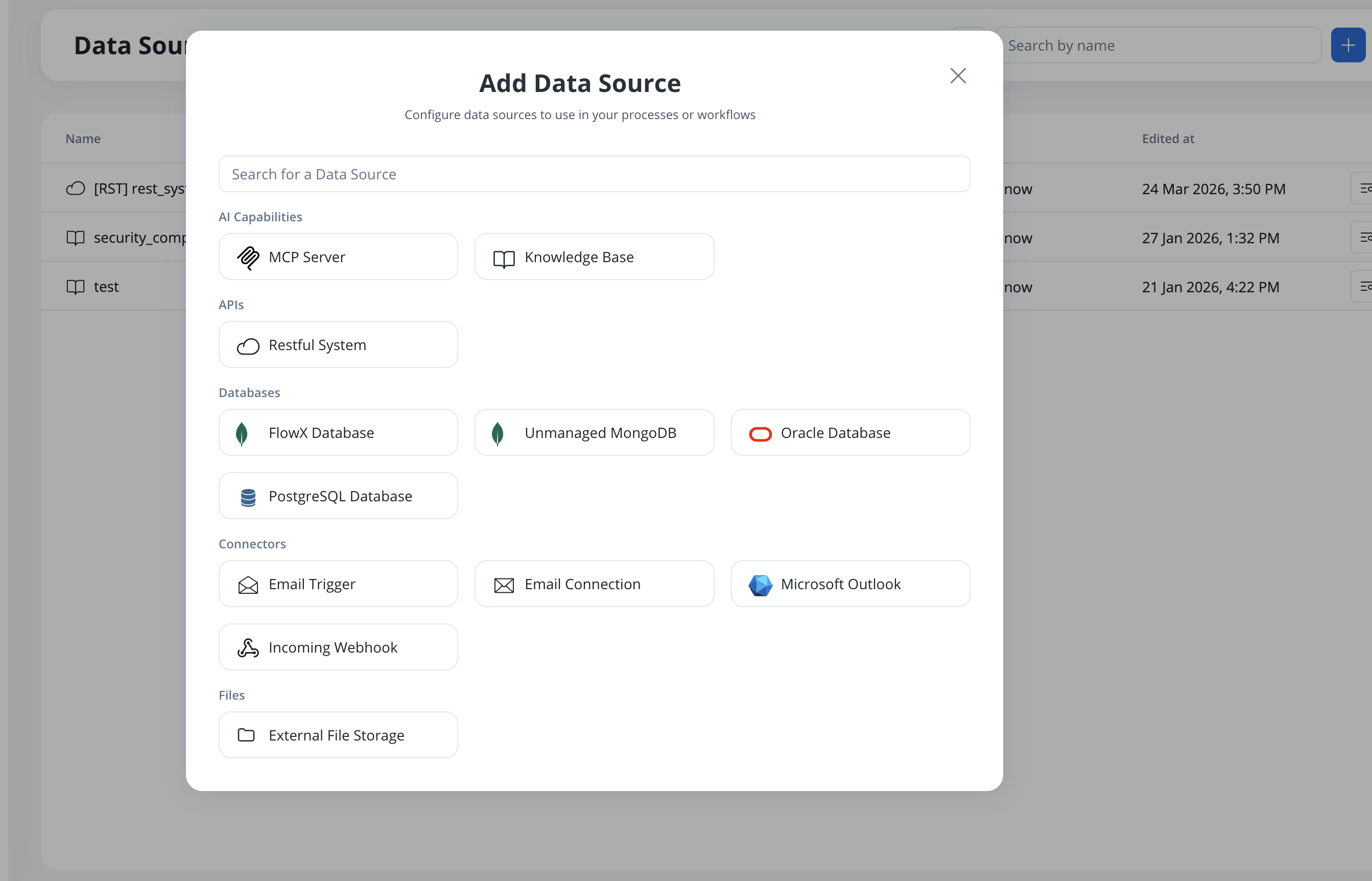
Navigate to **Integration Designer** → **Data Sources** in your project.
Click **New Data Source** to open the creation modal. In the **Databases** category, select the **PostgreSQL Database** tile, give the data source a name, and click **Create**.
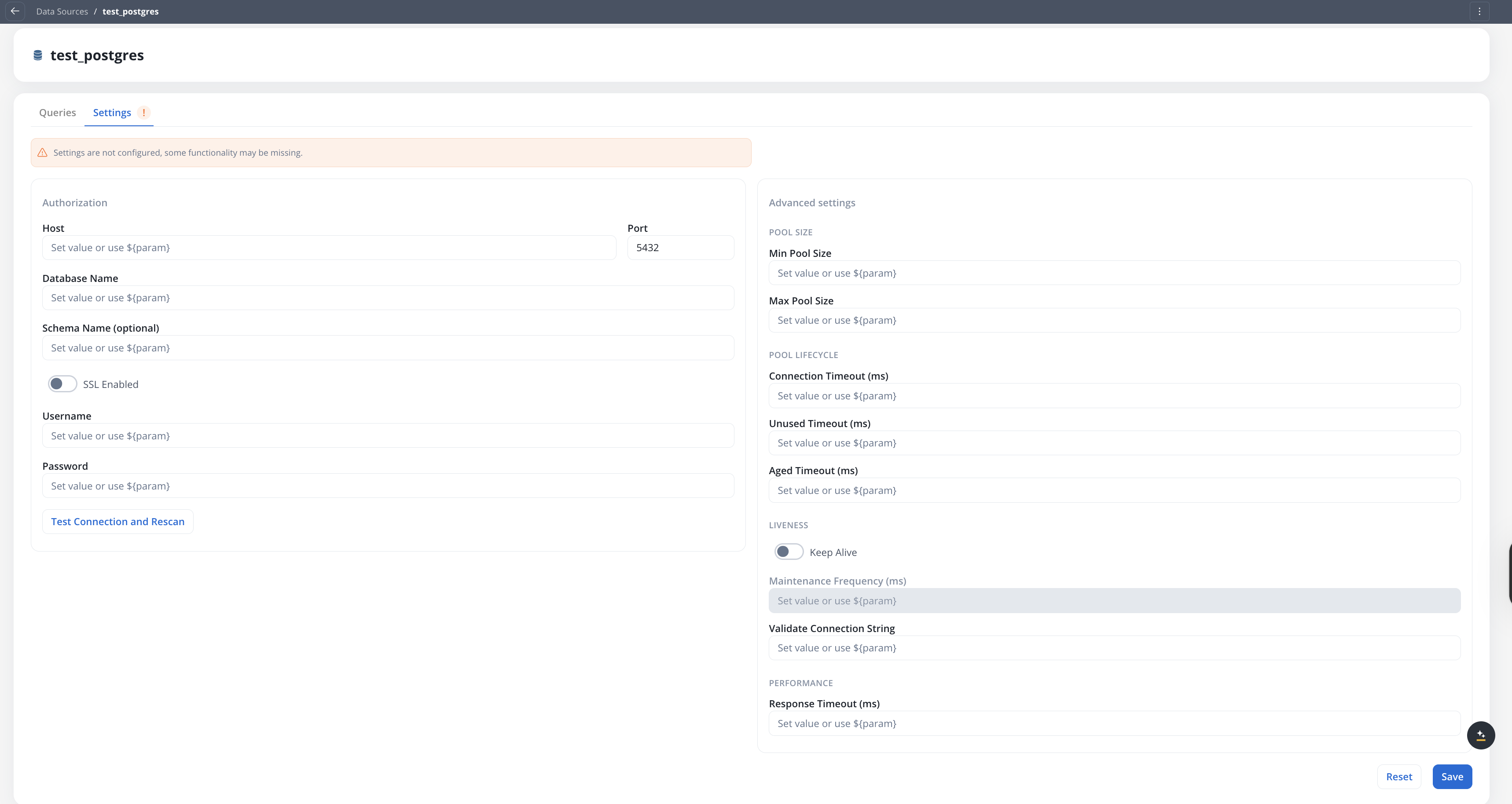
On the **Settings** tab, fill in the connection fields:
| Field | Description |
| ----------------- | ----------------------------------------------------- |
| **Host** | PostgreSQL server hostname or IP |
| **Port** | PostgreSQL port (default `5432`) |
| **Database Name** | The database to connect to |
| **Schema Name** | Optional. The schema to use for queries and discovery |
| **SSL Enabled** | Toggle SSL on or off for the connection |
| **Username** | Database username |
| **Password** | Database password |
Each field accepts configuration parameters for environment-specific values.
Click **Test Connection and Rescan** to verify connectivity and refresh the schema cache.
The data source is created even if the connection test fails, so you can save partial configuration and resolve connectivity later. Return to the **Settings** tab and click **Test Connection and Rescan** once the issue is fixed.
Click **Save** to create the data source.
The **Settings** tab holds the connection fields and the **Advanced settings** panel:
***
## Queries
Each PostgreSQL Database data source holds a list of named SQL queries. A query is a single parameterized SQL statement that you can call from a workflow.
### SQL editor
Open the **Queries** tab on the data source, then click **New query** to open the editor:
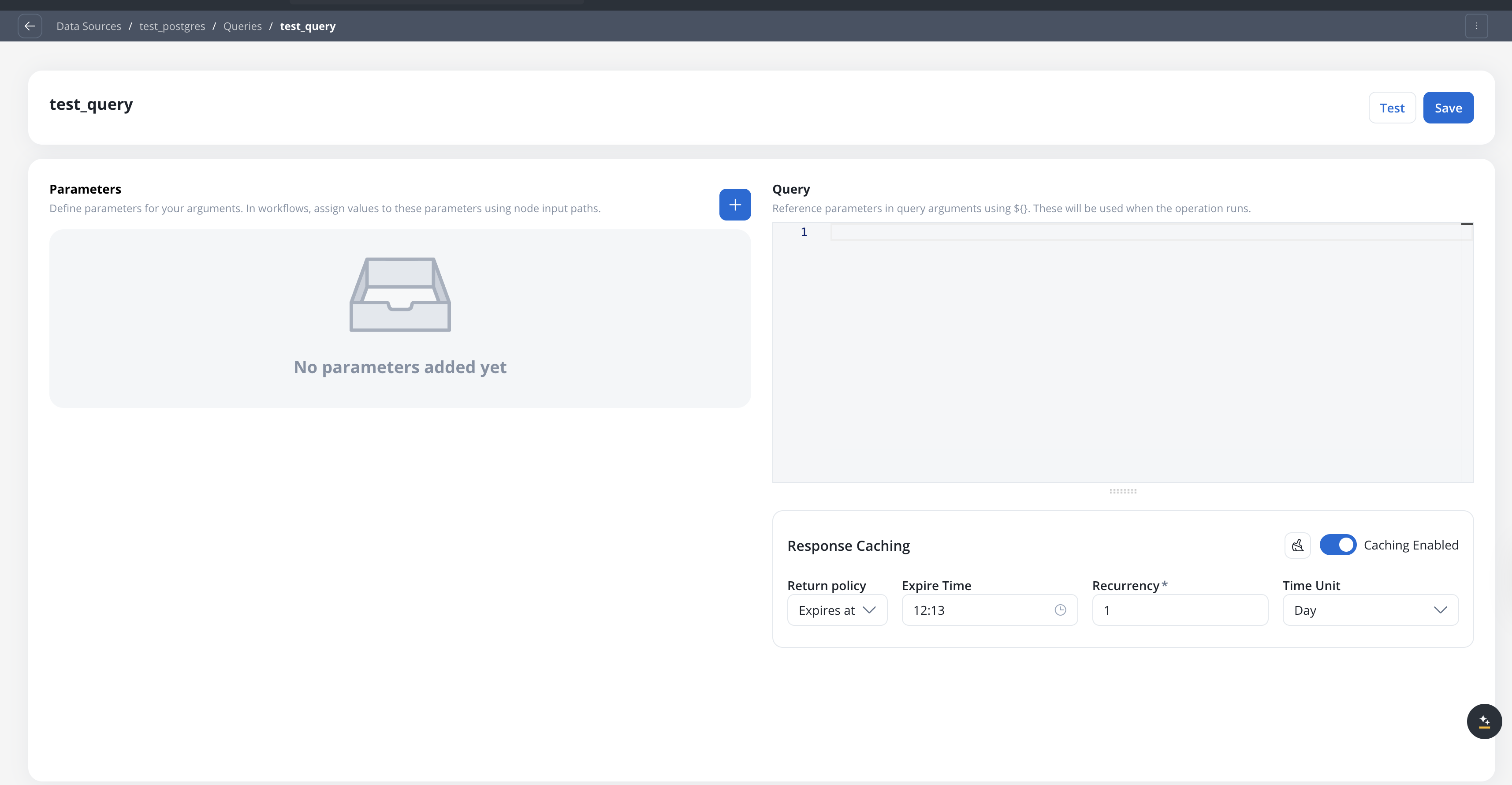
* **Query**: Monaco editor with SQL syntax highlighting and schema-aware autocomplete. Reference parameters in the query using `${paramName}` interpolation, as noted by the hint above the editor.
* **Parameters**: declare each parameter with a type, then in workflows assign values to them using node input paths. Supported types are `STRING`, `NUMBER`, `BOOLEAN`, `ENUM`, `DATE`, `CURRENCY`, and `OBJECT`.
* **Schema awareness**: discovered tables, columns, and primary/foreign keys feed the editor's autocomplete so you can reference schema objects as you type.
Use **Test** to run the query and **Save** to persist it.
The Monaco editor ships a full SQL language definition. Autocomplete suggestions cover SQL keywords and operators, table and column names parsed from the saved schema context, and `${paramName}` interpolations resolved from the parameters panel. Hover and bracket matching match the rest of the FlowX code editors.
### Testing a query
Click **Test** to open the test modal:
* **Parameters**: supply values for declared parameters.
* **Query and tables**: view the SQL and the resolved schema context.
* **Response**: for `SELECT`, results render as both a table and JSON, along with `totalCount`, `responseTime` (in milliseconds), and `responseSize`. For `INSERT` / `UPDATE` / `DELETE`, the response reflects the affected rows. Errors are returned with a database error `code` and `message` (for example, a PostgreSQL `SQLSTATE` such as `42P01: relation does not exist`).
The modal warns before discarding unsaved changes.
### Response caching
Query responses can be cached from the **Response Caching** panel in the editor. Turn on **Caching Enabled**, then choose how long a cached response stays valid:
* **Expires after** a fixed duration from each request.
* **Expires at** a specific time, on a recurrence (for example, daily).
Caching cuts repeated database round-trips for stable data, using the same policy model as [endpoint response caching](./integration-designer#rest-endpoint-caching).
***
## Views, functions, and stored procedures
Beyond plain `SELECT` and DML statements, the schema browser discovers **views**, **functions**, and **stored procedures** as distinct entity types, so you can reference them the same way you reference tables.
| Entity | How to call it |
| --------------------- | -------------------------------------------------------------------------------------------------------------------------------------------------------------------------------- |
| **Views** | Query like any table: `SELECT * FROM monthly_revenue WHERE month = ${m}`. Non-updatable views are read-only. |
| **Functions** | Call in a `SELECT`: `SELECT * FROM get_active_orders(${customer_id})` for set-returning functions, or `SELECT calculate_vat(${amount}, ${country}) AS vat` for scalar functions. |
| **Stored procedures** | Invoke with `CALL`: `CALL create_invoice(${order_id}, ${issue_date})`. |
Discovered functions and procedures show their signatures in the schema browser, so you can see the expected parameters before writing the call.
***
## Using in workflows
PostgreSQL queries are called from the existing **Database Operation** node in workflows.
On the workflow canvas, drag a **Database Operation** node onto the workspace.
In the node configuration panel, pick the PostgreSQL data source. The query picker then lists only the queries saved on that data source.
Map workflow inputs to the query's parameters. Map the response (rows or affected-row information) to a workflow variable.
Scoping the picker to the selected data source keeps PostgreSQL queries, Oracle queries, and MongoDB operations separate, even when several data source types exist in the same project.
***
## Deployment
No new microservices are required. PostgreSQL Database queries run inside the existing **`nosql-db-runner`** service, which bundles the PostgreSQL JDBC driver. Each PostgreSQL data source uses its own HikariCP connection pool.
### Configuration defaults
The following defaults apply to all relational database data sources and can be tuned via environment variables on the `nosql-db-runner` service:
| Environment Variable | Description | Default |
| ----------------------------------------------- | ------------------------------------------ | ------- |
| `FLOWX_JDBC_CONNECTIONS_CACHE_MAX_ENTRIES` | Maximum cached JDBC connection pools | `100` |
| `FLOWX_JDBC_CONNECTIONS_CACHE_TTL` | Time-to-live for cached connection pools | `1d` |
| `FLOWX_SQL_DEFAULTS_MAX_POOL_SIZE` | Maximum HikariCP pool size per data source | `5` |
| `FLOWX_SQL_DEFAULTS_CONNECTION_TIMEOUT_SECONDS` | JDBC connection timeout | `10` |
| `FLOWX_SQL_DEFAULTS_ROW_LIMIT` | Default row cap on `SELECT` responses | `1000` |
| `FLOWX_SQL_DEFAULTS_QUERY_TIMEOUT_SECONDS` | Query execution timeout | `30` |
### Per-data-source advanced settings
Each PostgreSQL data source can override the global defaults from its **Advanced settings** panel, grouped into **Pool size**, **Pool lifecycle**, **Liveness**, and **Performance**. Fields left empty inherit the global value:
| Setting | Description |
| ------------------------------ | --------------------------------------------------------------------------------------- |
| **Min Pool Size** | Minimum number of connections kept open in the pool |
| **Max Pool Size** | Maximum number of connections in the pool |
| **Connection Timeout (ms)** | Maximum time to wait for a connection from the pool |
| **Unused Timeout (ms)** | Time an idle connection may sit in the pool before being retired |
| **Aged Timeout (ms)** | Maximum lifetime of a pooled connection |
| **Keep Alive** | Keep-alive probing for pooled connections |
| **Maintenance Frequency (ms)** | Interval between pool housekeeping runs. Editable only when **Keep Alive** is turned on |
| **Validate Connection String** | Query used to validate connections before use |
| **Response Timeout (ms)** | Per-query execution timeout for this data source |
Ensure the `nosql-db-runner` service has network access to your PostgreSQL instance. If PostgreSQL is behind a firewall, configure the appropriate network rules.
***
## Related resources
Connect to Oracle databases with the same query and workflow experience
Managed MongoDB data storage within FlowX
Connect to externally managed MongoDB instances
Deployment configuration for the database runner service