> ## Documentation Index
> Fetch the complete documentation index at: https://docs.flowx.ai/llms.txt
> Use this file to discover all available pages before exploring further.
# Oracle Database
> Connect to Oracle databases as a data source in FlowX workflows and run SQL queries against them.
## Overview
Oracle Database is a relational data source type that lets you connect FlowX workflows to **Oracle databases that your organization manages independently**. You configure a connection, save named SQL queries against the schema, and call those queries from workflows.
Connect via Service Name or SID, with an optional SSL toggle
Monaco editor with SQL syntax highlighting, schema-aware autocomplete, and a side panel that lists tables, columns, primary keys, and foreign keys
Run any saved query with sample parameters and inspect the response: table view for SELECT, affected-row count for INSERT / UPDATE / DELETE
Reference Oracle queries from the Database Operation node alongside other data sources
***
## Prerequisites
* An Oracle Database 19c, 21c, or 23ai instance accessible from your FlowX deployment
* A database user with the privileges your queries require (typically `SELECT`, `INSERT`, `UPDATE`, `DELETE` on the target schema, plus `SELECT` on data dictionary views for schema discovery)
* Network connectivity between the `nosql-db-runner` service and the Oracle instance
* For SSL connections: appropriate certificates configured on the Oracle instance and trusted by the FlowX deployment
***
## Creating an Oracle Database data source
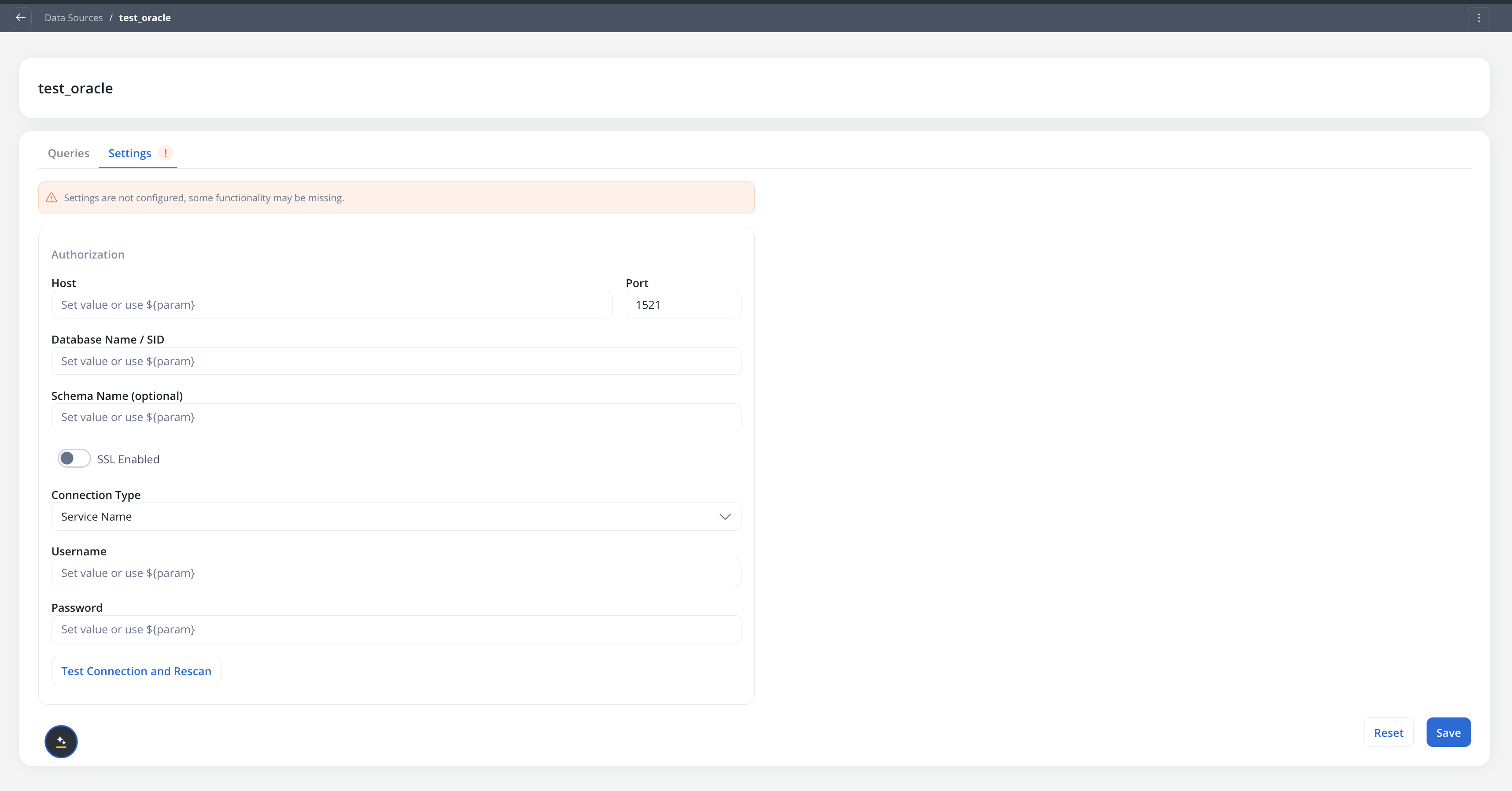
Navigate to **Integration Designer** → **Data Sources** in your project.
Click the **+** button to open the **Add Data Source** dialog. In the **Databases** category, select **Oracle Database**.
Fill in the connection fields:
| Field | Description |
| ----------------------- | --------------------------------------------------------- |
| **Host** | Oracle server hostname or IP |
| **Port** | Oracle listener port (default `1521`) |
| **Database Name / SID** | The service name or SID, depending on the connection type |
| **Schema Name** | Optional. The schema to use for queries and discovery |
| **SSL Enabled** | Toggle SSL on or off for the connection |
| **Connection Type** | **Service Name** or **SID** |
| **Username** | Database username |
| **Password** | Database password |
Each field accepts configuration parameters for environment-specific values.
Click **Test Connection and Rescan** to verify connectivity and refresh the schema cache.
The data source is created even if the connection test fails, so you can save partial configuration and resolve connectivity later. Return to the **Settings** tab and click **Test Connection and Rescan** once the issue is fixed.
Click **Save** to create the data source.
***
## Queries
Each Oracle Database data source holds a list of named SQL queries. A query is a single parameterized SQL statement that you can call from a workflow.
### SQL editor
Open the **Queries** tab on the data source, then click **New query** to open the editor:
* **Query area**: Monaco editor with SQL syntax highlighting and schema-aware autocomplete. Use Oracle-native bind variables (`:paramName`); they're auto-detected from the query text and surfaced in the parameters panel.
* **Parameters panel** (left): declare each bind parameter with a type. Supported types are `STRING`, `NUMBER`, `BOOLEAN`, `DATE`, and `CURRENCY`.
* **Schema browser** (right): pick a table from the dropdown to inspect its columns. Primary-key and foreign-key badges appear next to column names. Hover a foreign-key badge to see the referenced table and column.
The Monaco editor ships a full SQL language definition. Autocomplete suggestions cover SQL keywords and operators, table and column names parsed from the saved schema context, and `:paramName` interpolations resolved from the parameters panel. Hover and bracket matching match the rest of the FlowX code editors.
### Testing a query
Click **Test query** to open the test modal:
* **Parameters**: supply values for declared bind parameters.
* **Query and tables**: view the SQL and the resolved schema context.
* **Response**: for `SELECT`, results render as both a table and JSON, with `totalCount` and `executionTimeMs`. For `INSERT` / `UPDATE` / `DELETE`, the response is `affectedRows`. Errors include the Oracle `sqlState` and message (for example, `ORA-00942: table or view does not exist`).
The modal warns before discarding unsaved changes.
***
## Stored procedures, functions, and views
Beyond plain `SELECT` and DML statements, Oracle Database queries can also target **views**, **functions**, and **stored procedures**. The schema browser discovers each as a distinct entity type, so you can reference them the same way you reference tables.
| Entity | How to call it |
| --------------------- | ------------------------------------------------------------------------------------------------------------------------------------------------------------------------------------------------------ |
| **Views** | Query like any table: `SELECT * FROM V_MONTHLY_REVENUE WHERE month = :m`. Non-updatable views are read-only; an `UPDATE` against one is rejected. |
| **Scalar functions** | Wrap in a `SELECT` against `dual`: `SELECT FN_CALCULATE_VAT(:amount, :country) AS vat FROM dual`. |
| **Table functions** | Wrap in `TABLE(...)`: `SELECT * FROM TABLE(FN_GET_ACTIVE_ORDERS(:customer_id))`. |
| **Stored procedures** | Call inside an anonymous PL/SQL block: `BEGIN SP_CREATE_INVOICE(:order_id, :issue_date, :invoice_id, :invoice_pdf); END;`. Output parameters and `REF CURSOR` results are returned as described below. |
A function that has `OUT` (or `IN OUT`) parameters cannot be called from a `SELECT` — only from a PL/SQL block. To use a function inside a `SELECT`, it must take `IN` parameters only and return its value via `RETURN`.
### Returning data from stored procedures
A stored procedure returns its results through **output parameters**. Because output parameters are not part of the SQL result set by default, you must declare them explicitly so the engine knows what to read back.
Declare the output parameters in a `-- OUT:` comment at the top of the script, before the `BEGIN` block. List each parameter as ` `, separated by commas:
```sql theme={"system"}
-- OUT: p_count NUMBER, p_status VARCHAR2
BEGIN
my_package.my_procedure(p_count => :p_count, p_status => :p_status);
END;
```
Rules:
* The declaration must come at the top of the script, before the `BEGIN` block.
* `` must exactly match the corresponding output parameter in the procedure's signature (`p_count` here maps to the procedure's `p_count` OUT parameter).
* `` must match the parameter's declared type in the procedure — for example `NUMBER`, `VARCHAR2`, or `DATE`.
If an output parameter is not declared this way, the script runs but no data is returned for it.
This comment-based declaration is the current convention for surfacing procedure output. Procedure output parameters and Oracle `REF CURSOR` results are unwrapped into the response result set, so the calling workflow can map them to variables like any other query response.
***
## Using in workflows
Oracle queries are called from the existing **Database Operation** node in workflows.
On the workflow canvas, drag a **Database Operation** node onto the workspace.
In the node configuration panel, pick the Oracle data source. The query picker then lists only the queries saved on that data source.
Map workflow inputs to the query's bind parameters. Map the response (rows or `affectedRows`) to a workflow variable.
Scoping the picker to the selected data source keeps Oracle queries and MongoDB operations separate, even when both data source types exist in the same project.
***
## Deployment
No new microservices are required. Oracle Database queries run inside the existing **`nosql-db-runner`** service, which bundles the Oracle JDBC driver. Each Oracle data source uses its own HikariCP connection pool.
### Configuration defaults
The following defaults apply to all Oracle data sources and can be tuned via environment variables on the `nosql-db-runner` service:
| Environment Variable | Description | Default |
| ----------------------------------------------- | ------------------------------------------ | ------- |
| `FLOWX_JDBC_CONNECTIONS_CACHE_MAX_ENTRIES` | Maximum cached JDBC connection pools | `100` |
| `FLOWX_JDBC_CONNECTIONS_CACHE_TTL` | Time-to-live for cached connection pools | `1d` |
| `FLOWX_SQL_DEFAULTS_MAX_POOL_SIZE` | Maximum HikariCP pool size per data source | `5` |
| `FLOWX_SQL_DEFAULTS_CONNECTION_TIMEOUT_SECONDS` | JDBC connection timeout | `10` |
| `FLOWX_SQL_DEFAULTS_ROW_LIMIT` | Default row cap on `SELECT` responses | `1000` |
| `FLOWX_SQL_DEFAULTS_QUERY_TIMEOUT_SECONDS` | Query execution timeout | `30` |
### Per-data-source advanced settings
Each Oracle data source can override the global defaults from its **Advanced settings** panel in the Integration Designer. Fields left empty inherit the global value:
| Property | Description |
| ------------------------------ | ---------------------------------------------------------------- |
| **connectionTimeoutMs** | Maximum time to wait for a JDBC connection from the pool |
| **idleTimeoutMs** | Time an idle connection may sit in the pool before being retired |
| **maxLifetimeMs** | Maximum lifetime of a pooled connection |
| **maintenanceFrequencyMs** | Interval between pool housekeeping runs |
| **queryTimeoutMs** | Per-query execution timeout for this data source |
| **keepAlive** | Keep-alive probing for pooled connections |
| **preparedStatementCacheSize** | Number of prepared statements cached per connection |
| **validationQuery** | Query used to validate connections before use |
Ensure the `nosql-db-runner` service has network access to your Oracle instance. If Oracle is behind a firewall, configure the appropriate network rules.
***
## Related resources
Managed MongoDB data storage within FlowX
Connect to externally managed MongoDB instances
Overview of all data source types and workflow building
Deployment configuration for the database runner service