> ## Documentation Index
> Fetch the complete documentation index at: https://docs.flowx.ai/llms.txt
> Use this file to discover all available pages before exploring further.
# Microsoft Outlook
> Connect to Microsoft Outlook via MS Graph API to read and send emails directly from your FlowX.AI processes, using Azure AD authentication for native Outlook integration.
## Overview
Microsoft Outlook is a data source type in Integration Designer that provides native Outlook connectivity through the Microsoft Graph API. Unlike the [Email Trigger](./email-trigger) (IMAP) and [Email Sender](./email-sender) (SMTP) data sources, Microsoft Outlook uses Azure AD authentication and the MS Graph API for a unified read and send experience.
Use cases include:
* **Email-triggered workflows**: Automatically start processes when emails arrive in an Outlook mailbox
* **Customer communication**: Send emails and replies directly from business processes
* **Document processing**: Trigger workflows when emails with attachments are received
* **Unified inbox management**: Read and send from the same data source configuration
Microsoft Outlook supports three scope modes:
* **Read Emails** — monitor a mailbox and trigger processes
* **Send Emails** — send emails from processes via notification templates
* **Read & Send Emails** — both capabilities in a single data source
### When to use Microsoft Outlook vs Email Trigger / Email Sender
FlowX.AI offers two ways to connect to email: **Microsoft Outlook** (MS Graph API) and **Email Trigger** / **Email Sender** (IMAP/SMTP). Choose based on your mail provider and requirements.
| | Microsoft Outlook | Email Trigger + Email Sender |
| -------------------- | ------------------------------------------------------------------ | ------------------------------------------------------ |
| **Protocol** | MS Graph API | IMAP (read) + SMTP (send) |
| **Authentication** | Azure AD (client credentials) | Username + password / app password |
| **Read + Send** | Single data source (Read & Send scope) | Two separate data sources |
| **Reply threading** | Native — uses MS Graph message ID to maintain conversation threads | Manual — requires `Message-ID` header forwarding |
| **Provider support** | Microsoft 365 / Outlook only | Any IMAP/SMTP-compatible mail server |
| **Best for** | Organizations using Microsoft 365 | Gmail, self-hosted mail servers, or mixed environments |
If your organization uses Microsoft 365, the Outlook data source is the recommended approach. It simplifies configuration by combining read and send into a single data source with Azure AD authentication.
***
## How it works
Create an app registration in Azure AD with the required MS Graph permissions for your scope.
Configure the connection in Integration Designer with your Azure AD credentials and select the desired scope.
For **Read** scope: link to a Message Start Event node and activate from Manage Triggers.
For **Send** scope: link to a notification template and use the Send Notification action.
FlowX.AI monitors the mailbox (Read) or sends emails (Send) through the MS Graph API.
***
## Creating a Microsoft Outlook data source
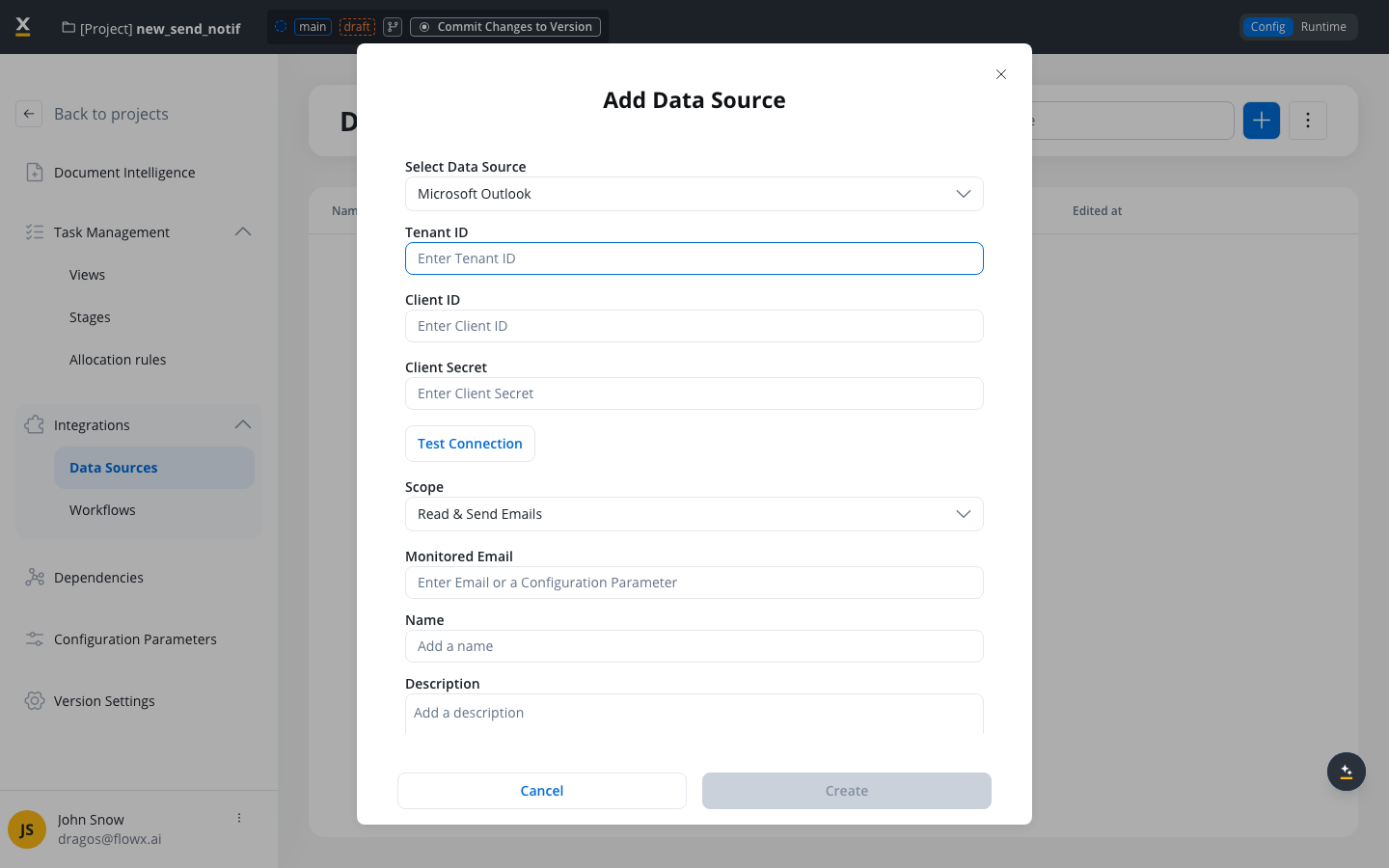
### Prerequisites
Before configuring a Microsoft Outlook data source, ensure you have:
* Access to Integration Designer with appropriate permissions
* An Azure AD app registration with the required MS Graph API permissions:
| Scope | Required permissions (any one) |
| ---------------------- | -------------------------------------------------- |
| **Read Emails** | `Mail.Read`, `Mail.ReadBasic`, or `Mail.ReadWrite` |
| **Send Emails** | `Mail.Send` or `Mail.ReadWrite` |
| **Read & Send Emails** | One read permission + one send permission |
* Azure AD credentials: **Tenant ID**, **Client ID**, and **Client Secret**
MS Graph permissions must be configured as **Application permissions** (not Delegated) in your Azure AD app registration, since the connection uses client credentials flow.
### Step 1: Access Integration Designer
1. Navigate to **FlowX Designer** → **Your workspace** → **Projects** → **Your project** → **Integrations** → **Data Sources**
2. Click the **+** button to open the **Add Data Source** dialog
3. Select **Microsoft Outlook** as the data source type
### Step 2: Configure authentication
The Azure AD tenant ID for your organization.
This field accepts configuration parameters. Use `${configParam}` syntax to reference environment-specific values.
The application (client) ID from your Azure AD app registration.
This field accepts configuration parameters for environment-specific credentials.
The client secret generated in your Azure AD app registration.
Store sensitive credentials in configuration parameters and reference them here using `${configParam}` syntax.
### Step 3: Test the connection
Click the **Test Connection** button to verify your Azure AD credentials:
| Result | Message | Action |
| --------- | -------------------------------- | ------------------------------------------ |
| ✅ Success | "Established connection" | Proceed to configure scope |
| ❌ Error | "Failed to establish connection" | Check Azure AD credentials and permissions |
The data source can be created even if the test connection fails. If the test fails on creation, you will be redirected to the **Authorization** tab with a failed connection message instead of the **Settings** page.
### Step 4: Configure scope and email
The email capabilities for this data source:
| Option | Description |
| ---------------------- | ---------------------------------------------------------- |
| **Read Emails** | Monitor a mailbox and trigger processes when emails arrive |
| **Send Emails** | Send emails from processes via notification templates |
| **Read & Send Emails** | Both read and send capabilities |
The email address of the mailbox to monitor or send from.
**Validation:** Must be a valid email format.
This field accepts configuration parameters for environment-specific values.
### Step 5: Name and description
A unique, descriptive name for the Microsoft Outlook data source.
**Validation rules:**
* Required field
* Must be unique within the project
* Only letters, numbers, and these characters allowed: `[]`, `()`, `.`, `_`, `-`
* Minimum 3 characters, maximum 50 characters
Optional description explaining the purpose of this data source.
Click **Create** to save the data source.
***
## Settings page
After creating the data source, configure monitoring and validation settings in the **Settings** tab. The available settings depend on the selected scope.
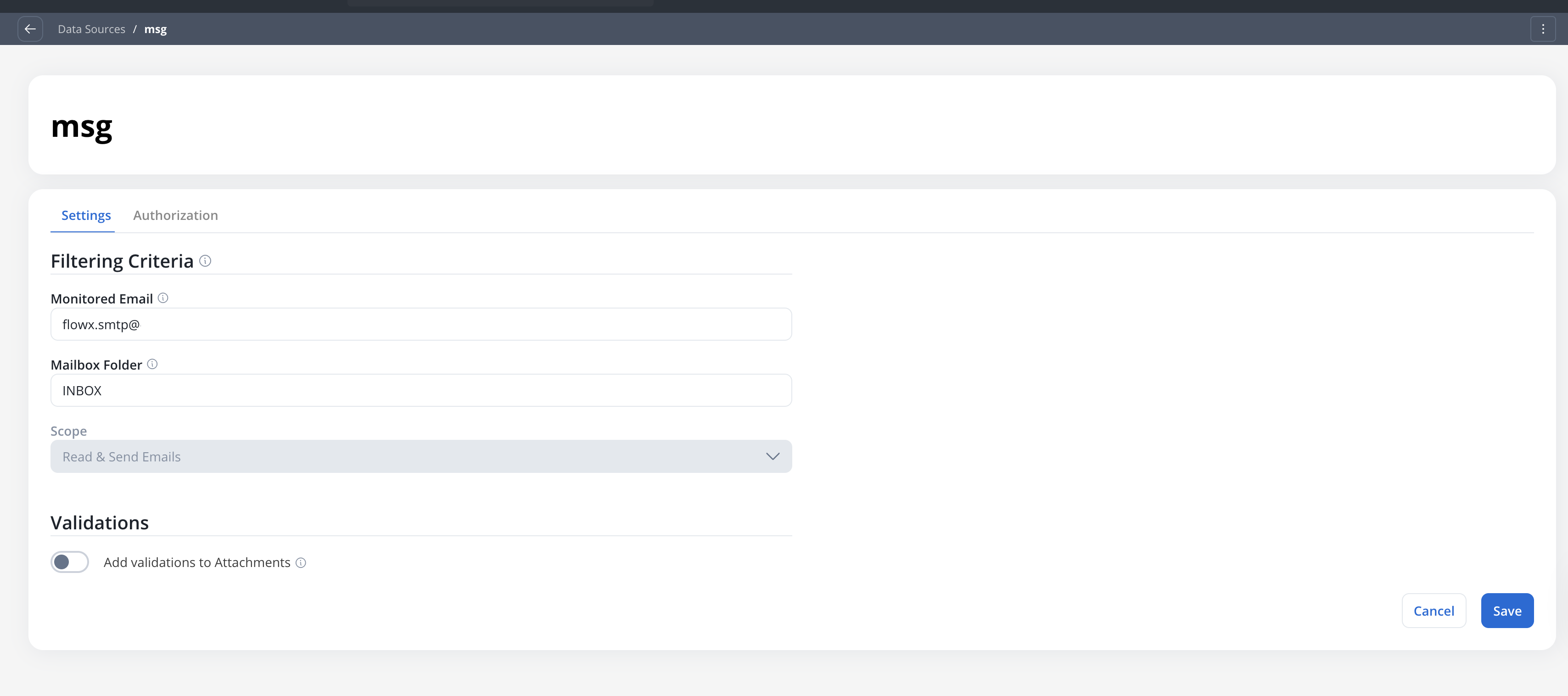
### Read scope settings
For data sources with **Read Emails** or **Read & Send Emails** scope:
#### Filtering criteria
The email address that will be monitored. Editable after creation.
This field accepts configuration parameters.
The mailbox folder to monitor for incoming emails.
**Default:** `Inbox`
Supported well-known folder names:
* `Inbox`, `Sent`, `Drafts`, `Deleted`, `Junk`, `Archive`, `Outbox`
This field accepts configuration parameters for environment-specific folder names.
Displays the scope selected during creation. This field is read-only.
#### Attachment validations
Toggle **ON** the **Add validations to Attachments** option to configure validation rules for incoming email attachments.
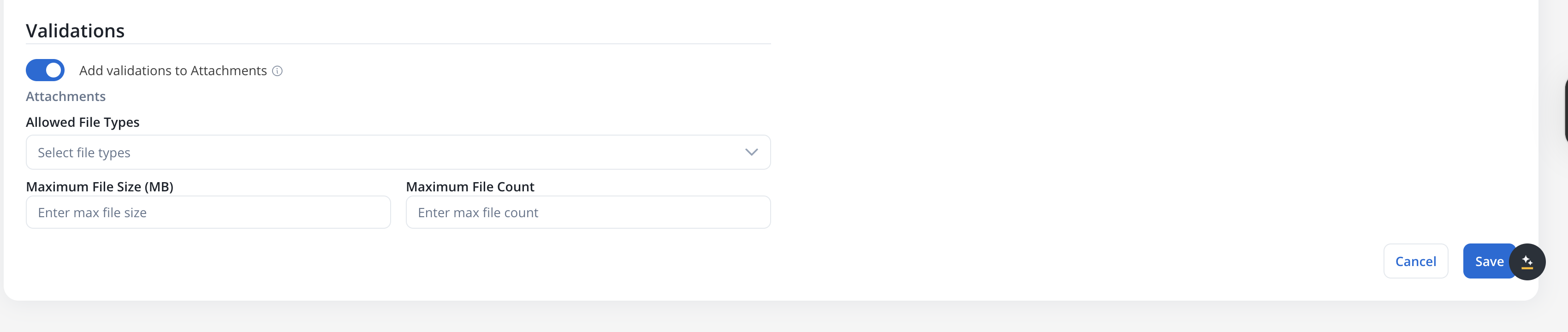
If any validation fails, the email will not be processed and a warning will appear in the **Failed Triggers** section in Runtime.
Restrict which attachment file types are accepted:
| Type | Extensions |
| -------- | ---------------------------------------- |
| PDF | `.pdf` |
| DOCUMENT | `.doc`, `.docx`, `.txt` |
| IMAGE | `.png`, `.jpg`, `.jpeg`, `.tif`, `.tiff` |
| EXCEL | `.xls`, `.xlsx`, `.csv` |
| ZIP | `.zip` |
Leave empty to accept all file types.
Maximum allowed size per attachment file.
**Maximum:** 25 MB
Maximum number of attachments allowed per email.
All fields in the Settings section accept configuration parameters, enabling environment-specific configurations.
### Send scope settings
For data sources with **Send Emails** scope only, the Settings tab shows a simplified view:
The email address used as the sender ("From" address) for outgoing emails.
Displays the scope selected during creation. This field is read-only.
Send-only data sources do not display the **Mailbox Folder** or **Attachment Validations** fields, since those apply only to the Read scope. Sent emails are automatically saved to the Sent Items folder.
***
## Authorization page
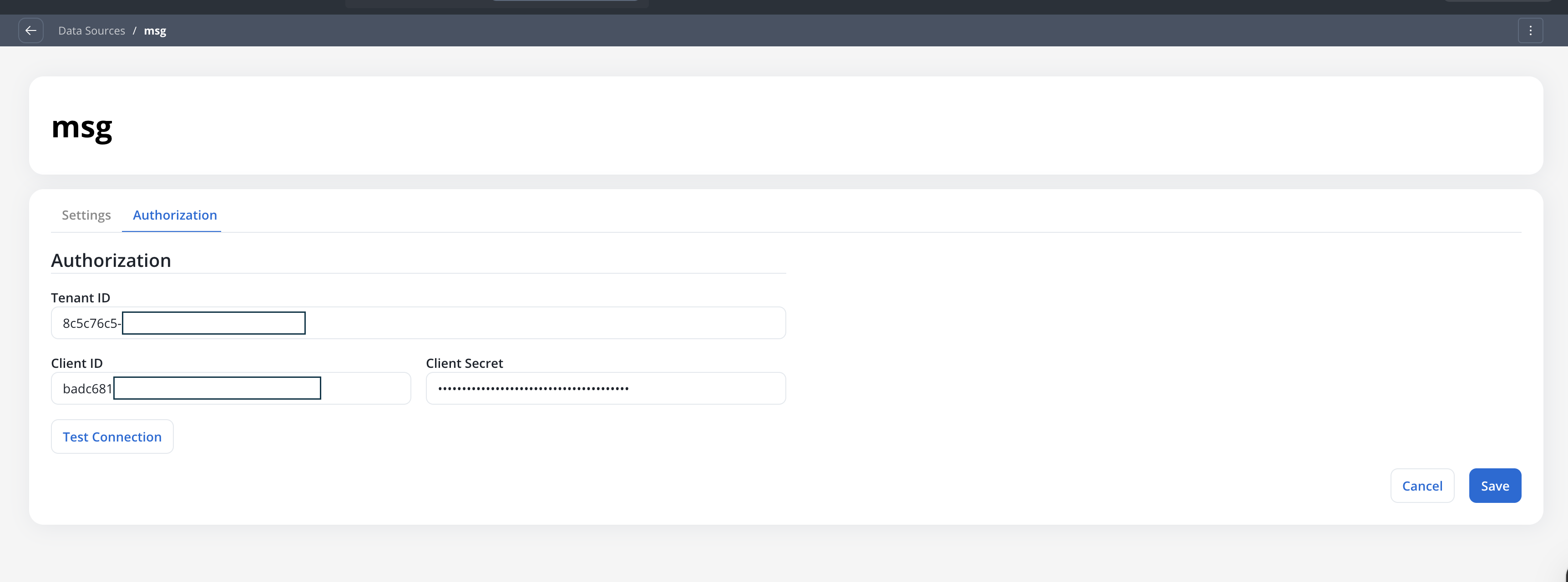
The **Authorization** tab displays the Azure AD credentials and allows you to update them or re-test the connection:
Azure AD tenant ID.
Azure AD application (client) ID.
Azure AD client secret.
Click **Test Connection** to verify the credentials. The test validates both the authentication and the required MS Graph permissions for the configured scope.
***
## Connecting to processes
### Reading emails (process trigger)
To trigger processes when emails arrive:
Open your process definition and add a **Message Start Event** (Start Catch Message) node.
In the node configuration, set **Trigger Type** to **Microsoft Outlook**. Then select the Microsoft Outlook data source (only data sources with **Read** or **Read & Send** scope are shown).
Navigate to **Runtime Settings** → **Manage Triggers** and activate the trigger.
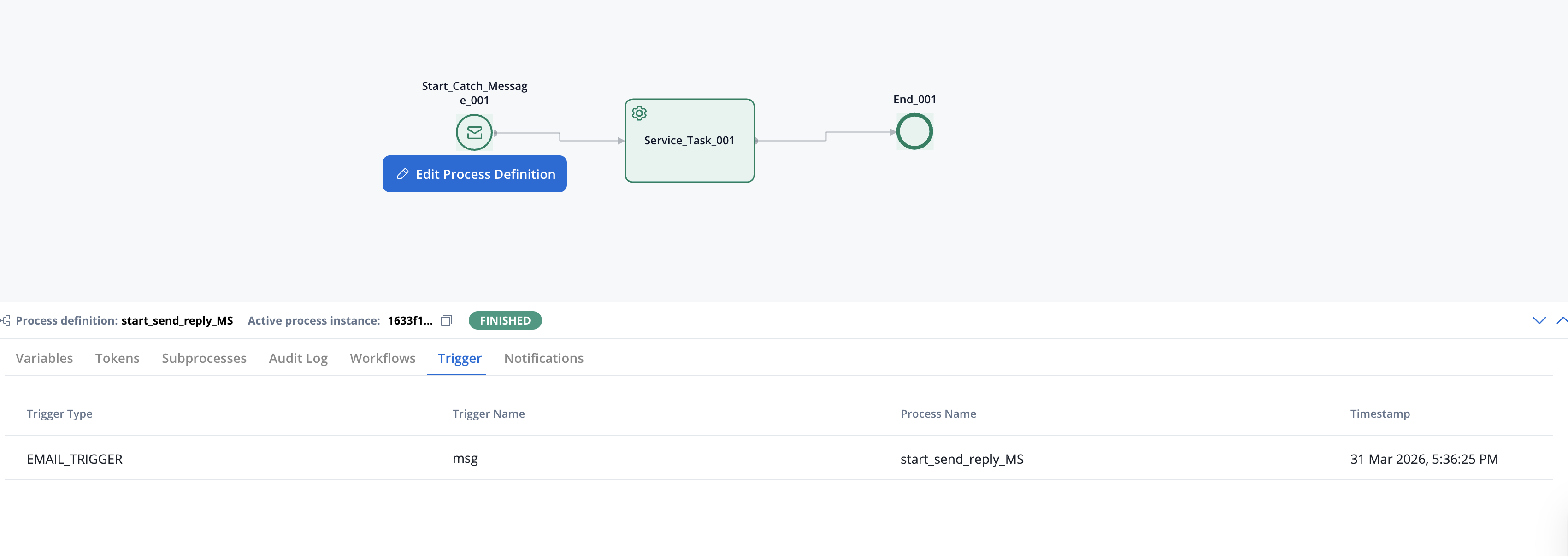
The trigger must be activated from **Manage Triggers** in Runtime Settings before email monitoring begins.
The Microsoft Outlook data source polls for new emails every **30 seconds** by default, using the same polling scheduler as the Email Trigger (configurable via `EMAIL_GATEWAY_IMAP_POLLING_INTERVAL`). Each polling cycle processes up to **50 messages** (configurable via `EMAIL_GATEWAY_MS_GRAPH_MAX_MESSAGES_PER_POLL`). Emails with the same timestamp as the last processed email are deduplicated automatically using their internet message ID.
### Sending emails (notification template)
To send emails from processes:
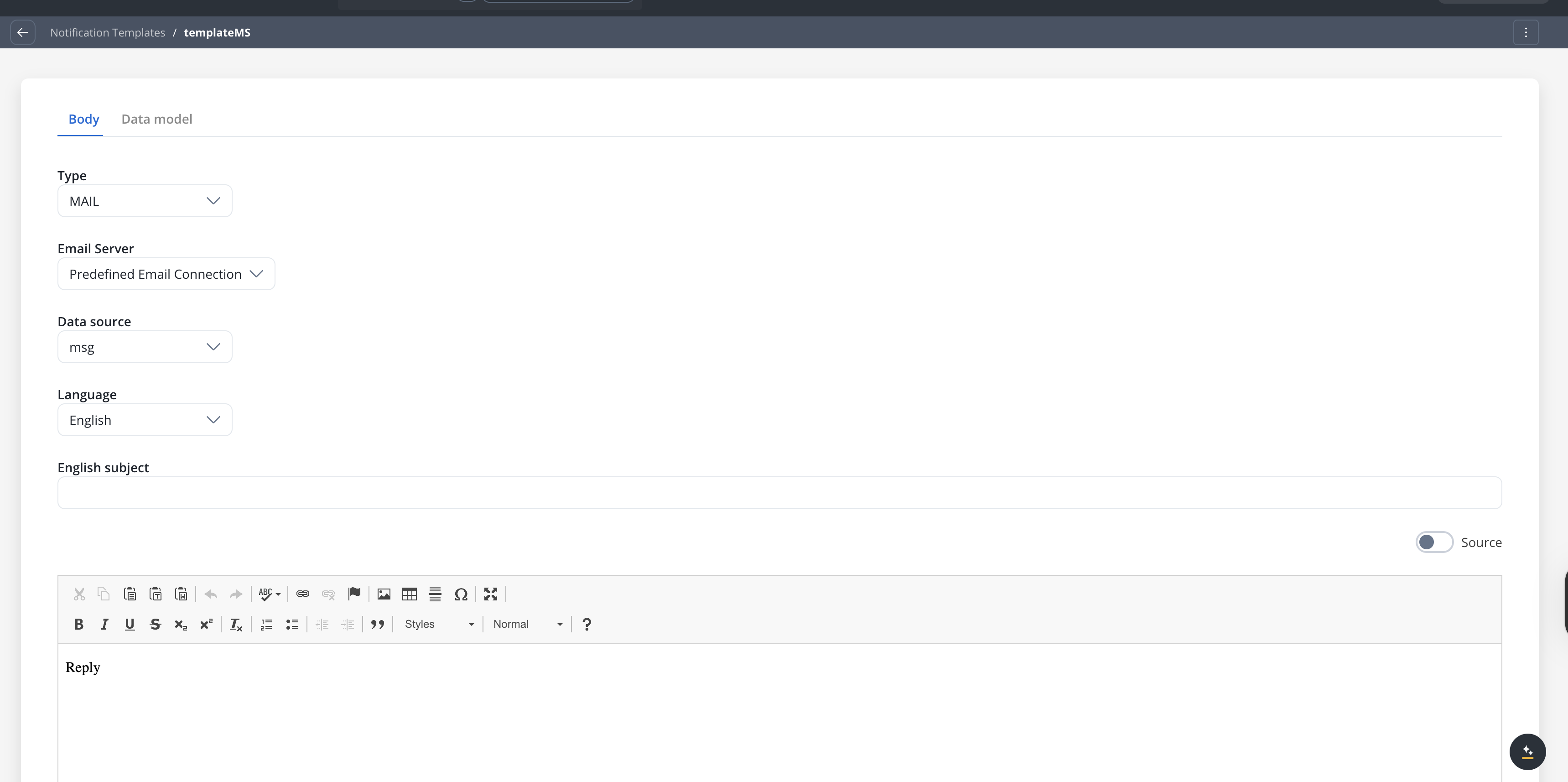
Open a notification template and set **Email Server** to **Predefined Email Connection**. Select the Microsoft Outlook data source (only data sources with **Send** or **Read & Send** scope are shown).
Add a [Send Notification](../../building-blocks/actions/send-notification-action) action to a process node and select the notification template.
### Replying to received emails
Microsoft Outlook supports replying to emails received via the Read scope, maintaining the original conversation thread in the recipient's inbox.
Add a [Send Notification](../../building-blocks/actions/send-notification-action) action to a process node. In the action configuration, turn on the **Reply to received emails** toggle.
Specify the process key that holds the original email's header parameters (e.g., `emailMessage.headerParams`). This is required when the reply toggle is on.
By default, the reply is sent to the original sender. You can override this by adding explicit **Receivers**, **CC**, or **BCC** addresses. Duplicate recipients are automatically removed.
The reply mechanism uses the `x-ms-graph-message-id` header from the original email to thread the reply correctly. If this header is not available, the system falls back to the standard `Message-ID` header and looks up the original message via the MS Graph API. Sent replies are automatically saved to the Sent Items folder.
***
## Email data schema
When an email triggers a process, the following data structure is available in your process variables:
```json theme={"system"}
{
"emailMessage": {
"subject": "Support Request #12345",
"dateTime": "2026-01-15T10:30:00Z",
"sender": "customer@example.com",
"body": "Email body content...",
"fileAttachments": [
{
"filePath": "email-attachments/proc-123/invoice.pdf",
"downloadPath": "/api/internal/files/uuid-456/download"
}
],
"headerParams": {
"Message-ID": "",
"x-ms-graph-message-id": "AAMk..."
}
}
}
```
### Schema fields
| Field | Type | Description |
| ------------------------------------ | ----------------- | -------------------------------------- |
| `subject` | string | Email subject line |
| `dateTime` | string (ISO 8601) | Timestamp when email was received |
| `sender` | string | Sender's email address |
| `body` | string | Email body content |
| `fileAttachments` | array | List of attachment metadata objects |
| `fileAttachments[].filePath` | string | Storage path in Document Plugin |
| `fileAttachments[].downloadPath` | string | API path to download the file |
| `headerParams.Message-ID` | string | Standard email message identifier |
| `headerParams.x-ms-graph-message-id` | string | MS Graph message ID (used for replies) |
***
## Managing triggers at runtime
### Manage Triggers
Navigate to **Runtime Settings** → **Manage Triggers** to view and control Microsoft Outlook email triggers.
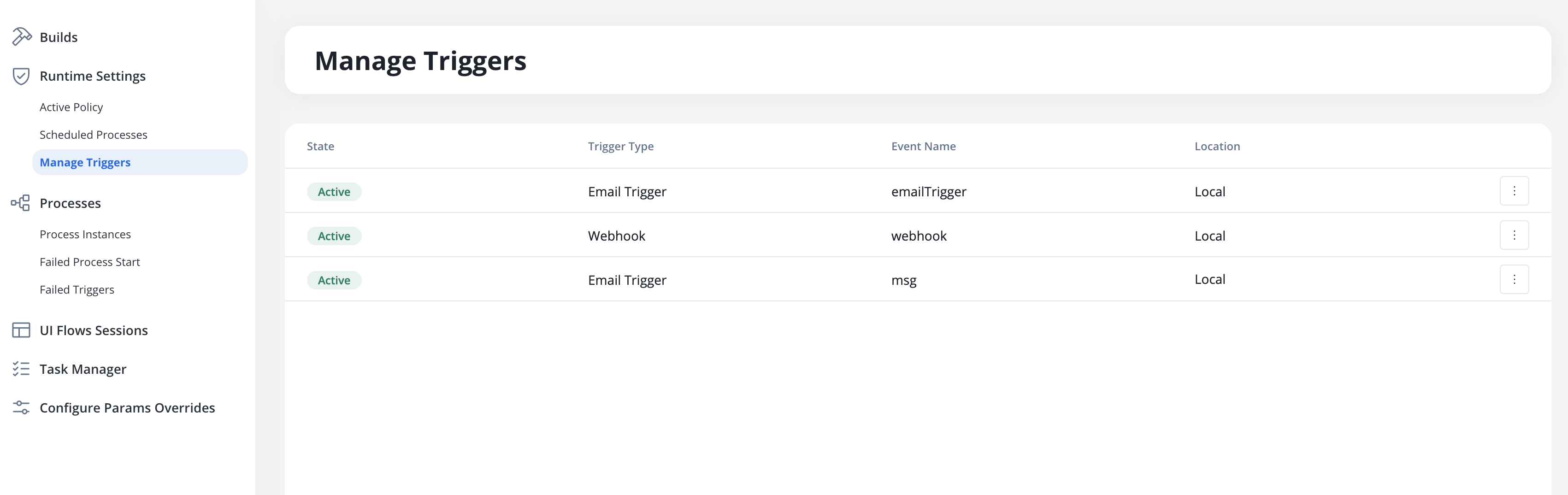
| Column | Description |
| ---------------- | ---------------------------------------------------- |
| **State** | Current status: `Active` or `Inactive` |
| **Process Name** | The process definition linked to this trigger |
| **Trigger Type** | "Email Trigger" for Microsoft Outlook email triggers |
| **Event Name** | The Microsoft Outlook data source name |
| **Location** | Project and branch information |
### Activation requirements
For a Microsoft Outlook trigger to appear in Manage Triggers:
1. Microsoft Outlook data source must be created with **Read** or **Read & Send** scope
2. Data source must be linked to a Message Start Event node
3. The process must be part of a build in the **Active Policy**
### Failed Triggers
When emails fail validation or processing errors occur, they appear in the **Failed Triggers** section under **Runtime Settings**.
Failed triggers display the timestamp, trigger name, cause type, context (e.g., sender address), and detailed error messages. Click a row to open the details page with full diagnostic information.
#### Common failure causes
**Message:** "The file `{filename}` could not be uploaded because it is not on the list of permitted file types."
**Resolution:** Update the **Allowed File Types** in the data source Settings tab, or ask the sender to use an accepted format.
**Message:** "`{filename}` is too large. Maximum allowed: 25 MB"
**Resolution:** The attachment exceeds the configured maximum file size. Ask the sender to reduce the file size.
**Message:** "File limit exceeded. For this trigger there is a limit of `{limit}` per email."
**Resolution:** The email has more attachments than allowed. Ask the sender to split attachments across multiple emails.
**Message:** "MS Graph connection failed: \[error details]"
**Resolution:** Azure AD credentials may have expired or been revoked. The system retries once on 401/403 errors by refreshing the cached client. If the retry also fails, go to the **Authorization** tab, verify the Tenant ID, Client ID, and Client Secret, and click **Test Connection**. Regenerate the client secret in Azure AD if it has expired.
**Message:** "MS Graph application is missing required permissions: \[list]. Please add these as Application permissions in Azure AD and grant admin consent."
**Resolution:** The Azure AD app registration is missing one or more required MS Graph permissions. Add the listed permissions as **Application permissions** (not Delegated) in the Azure portal and ensure **admin consent** has been granted.
***
## Use case: document processing with auto-reply
This example walks through a complete email-triggered workflow: an email with an attachment arrives, the process extracts and classifies the document, then replies to the sender with a confirmation.
Configure a data source with **Read & Send Emails** scope, pointed at your intake mailbox (e.g., `documents@company.com`). Set attachment validations to accept PDF and DOCUMENT types with a 25 MB size limit.
Create a process with a **Message Start Event** node configured to trigger from the Outlook data source. The email data is available in process variables under `emailMessage`.
Use the email schema fields in Script or Business Rule nodes to route the process:
```javascript theme={"system"}
// Access email fields in a Script node
var subject = input.get("emailMessage").get("subject");
var sender = input.get("emailMessage").get("sender");
var attachments = input.get("emailMessage").get("fileAttachments");
// Route based on subject keywords
if (subject.contains("invoice")) {
output.put("documentType", "INVOICE");
} else {
output.put("documentType", "GENERAL");
}
```
Use the `fileAttachments[].downloadPath` to retrieve the file from the Document Plugin for classification, data extraction, or storage.
Add a **Send Notification** action with the **Reply to received emails** toggle turned on. Set the reply header to `emailMessage.headerParams`. The reply is threaded under the original email in the sender's inbox.
Navigate to **Runtime Settings** → **Manage Triggers** and activate the trigger to begin monitoring.
***
## Best practices
Store Azure AD credentials (Tenant ID, Client ID, Client Secret) in configuration parameters for secure, environment-specific management.
Configure file type, size, and count limits for Read scope to prevent processing of unwanted or oversized attachments.
Regularly review the Failed Triggers section to identify issues with email processing or connection problems.
Grant only the minimum required MS Graph permissions for your scope. Use `Mail.Read` instead of `Mail.ReadWrite` if you only need read access.
***
## Troubleshooting
Common causes:
* **Invalid credentials**: Verify Tenant ID, Client ID, and Client Secret in Azure AD
* **Missing permissions**: Ensure the app registration has the required MS Graph application permissions
* **Permissions not consented**: Admin consent may be required for application permissions
* **Expired client secret**: Generate a new client secret in Azure AD
Check:
1. Does the data source have **Read** or **Read & Send** scope?
2. Is the trigger **Active** in Manage Triggers?
3. Is the correct mailbox folder configured?
4. Do incoming emails pass attachment validation rules?
5. Review Failed Triggers for error details
Check:
1. Does the data source have **Send** or **Read & Send** scope?
2. Is the data source linked to a notification template?
3. Is the notification template's **Email Server** set to **Predefined Email Connection**?
4. Does the Azure AD app have `Mail.Send` permission?
5. Review process instance logs for error details
Required MS Graph **application permissions** by scope:
| Scope | Required permission |
| ----- | -------------------------------------------------- |
| Read | `Mail.Read`, `Mail.ReadBasic`, or `Mail.ReadWrite` |
| Send | `Mail.Send` or `Mail.ReadWrite` |
Ensure:
* Permissions are set as **Application** (not Delegated)
* **Admin consent** has been granted
* The app registration is in the correct Azure AD tenant
***
## Related resources
Configure IMAP connections to trigger processes from incoming emails
Configure SMTP connections to send emails from processes
Send emails and reply to received emails from process nodes
Configure message-based and email-based process triggers
Learn about other data source types and workflow creation
Use environment variables for flexible configurations