> ## Documentation Index
> Fetch the complete documentation index at: https://docs.flowx.ai/llms.txt
> Use this file to discover all available pages before exploring further.
# Using Knowledge Base in workflows
> Learn how to query Knowledge Bases using Custom Agent and Context Retrieval nodes in workflows.
## Overview
Knowledge Bases can be integrated into workflows to enable AI agents and Context Retrieval nodes to query them for contextual information when generating responses.
**Not available in v5.4**: Workflow-based content ingestion (adding, updating, or deleting Knowledge Base content from workflows) is planned for a future release. Currently, you can only upload content manually through the Knowledge Base interface.
## Choosing the right approach
There are two ways to query Knowledge Bases in workflows:
| Approach | Node | When to use |
| ------------------------ | --------------------------------------------------------------------------- | ------------------------------------------------------------------------------------------------------------------ |
| **Integrated RAG** | [Custom Agent](/5.9/docs/platform-deep-dive/integrations/custom-agent-node) | You want the AI to retrieve chunks and generate a response in a single step |
| **Standalone retrieval** | [Context Retrieval](/5.9/ai-platform/agent-builder/context-retrieval) | You want raw chunks returned without LLM processing, so you can filter, transform, or route them before generation |
***
## Using knowledge bases in custom agent nodes
Custom Agent nodes can query Knowledge Bases to retrieve contextual information when generating responses.
### Configuring custom agent with knowledge base
Add a Custom Agent node to your workflow
Set up the basic agent configuration (operation prompt, etc.)
In the **Knowledge Base** section, enable the Knowledge Base feature
Choose a Knowledge Base from the available options
Set the query parameters for retrieving chunks
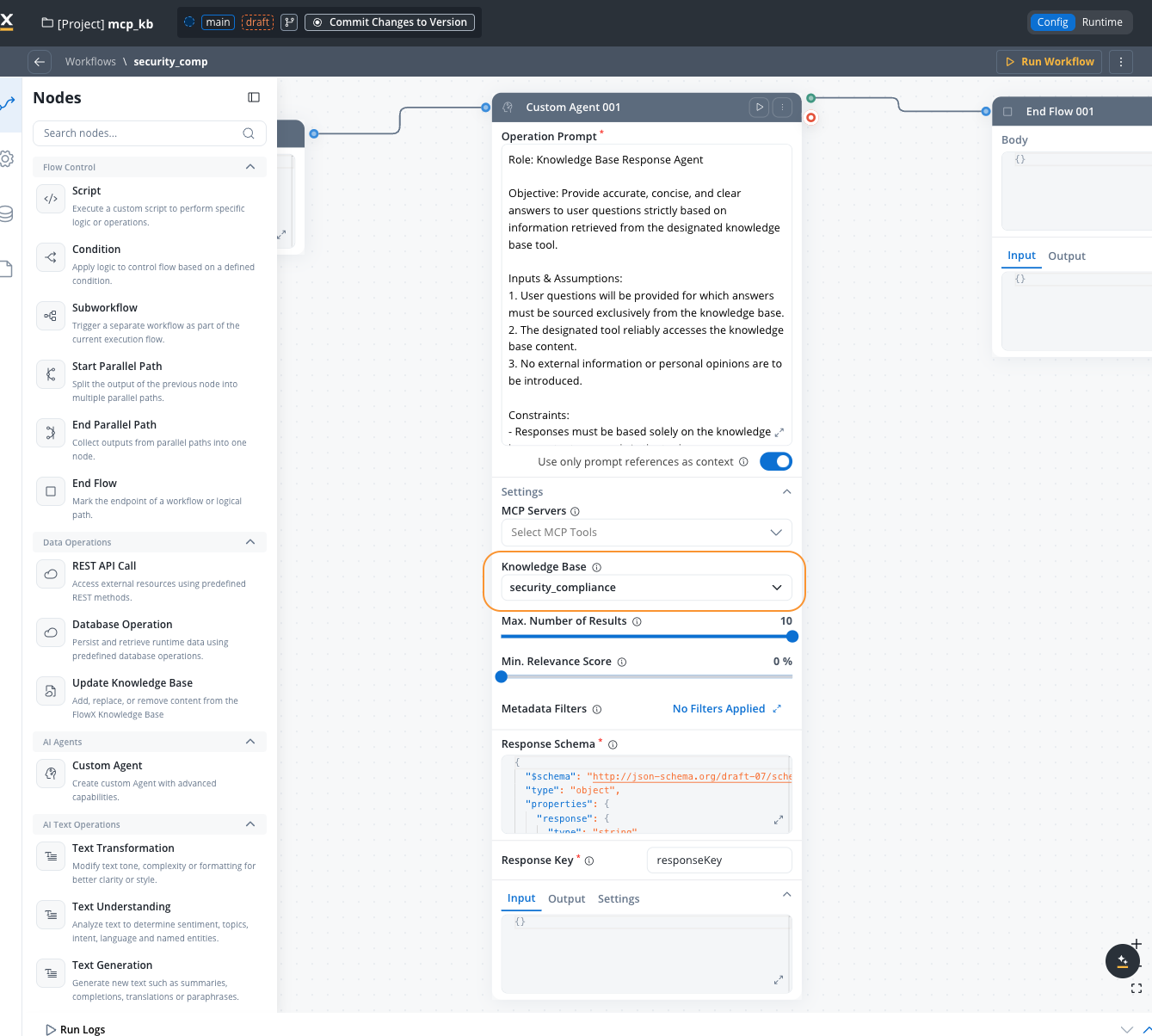
### Knowledge base query configuration
Select the Knowledge Base that the agent should query
Maximum number of chunks to retrieve (1-10). Default: 5
Minimum relevance score threshold (0-100%). Only chunks above this score will be included. Default: 70%
Refine retrieved chunks using the query builder. Click the **Metadata Filters** button to open a modal where you can compose structured filter conditions.
Each condition is a **field / operator / value** triple. Operators vary by metadata key type (equals, not equals, contains, in, not in, before, after, exists, etc.). Conditions can be grouped and combined with **AND** or **OR**.
To restrict results to a specific store, add a condition on the system metadata key `source`.
The button label shows how many filters are currently active (e.g., "3 Filters Applied" or "No Filters Applied").
The Metadata Filters modal supports typed operators, AND/OR logic, and grouping. See [Filtering by metadata](./managing-content#filtering-by-metadata) for the full operator list.
Toggle **ON** to enable advanced metadata filter expressions for more complex filtering logic. When turned on, you can write expression-based filters instead of using the structured filter UI.
**Default:** `false`
***
## Using knowledge bases in context retrieval nodes
Context Retrieval nodes retrieve relevant data from Knowledge Bases or conversation memory using semantic, keyword, or hybrid search. Unlike Custom Agent nodes, Context Retrieval nodes are dedicated to chunk retrieval without agent reasoning -- they are available under **Data Operations** in the workflow node palette.
### Configuring context retrieval with knowledge base
Add a **Context Retrieval** node from the **Data Operations** category in the workflow editor
Choose between **Knowledge Base** or **Memory** (Memory is only available in conversational workflows)
If using Knowledge Base as the source, select a Knowledge Base from the available options
Enter the search query, typically a process variable expression (e.g., `${userMessage}`)
Expand **Settings** to configure search type, max chunks, min relevance, metadata filters, and re-ranking
### Context retrieval configuration
The data source to retrieve context from.
**Options:**
* **Knowledge Base** — search a connected Knowledge Base
* **Memory** — search conversation memory (conversational workflows only)
Select the Knowledge Base to query. Only visible when **Source** is set to **Knowledge Base**.
The search query used to retrieve relevant chunks. Supports process variable expressions.
**Example:** `${userMessage}`
The strategy used for retrieving context.
**Options:**
* **Hybrid** (default) — combines semantic and keyword search
* **Semantic** — vector-based similarity search
* **Keywords** — traditional keyword matching
How many relevant chunks to return (1-10).
**Default:** `5`
The threshold a chunk must meet to be included in results (0-100%). Only visible when search type is **Hybrid** or **Semantic**.
**Default:** `70%`
Refine results by filtering chunks based on their metadata properties. Click the button to open the query builder modal where you can compose structured filter conditions.
Each condition is a **field / operator / value** triple. Operators vary by metadata key type (equals, not equals, contains, in, not in, before, after, exists, etc.). Conditions can be grouped and combined with **AND** or **OR**.
The button label shows how many filters are currently active.
Typed operators, AND/OR logic, and grouping are supported. See [Filtering by metadata](./managing-content#filtering-by-metadata) for the full operator list.
Toggle **ON** to enable advanced metadata filter expressions for more complex filtering logic.
**Default:** `false`
Toggle **ON** to re-rank retrieved chunks before they are returned, improving result quality.
**Default:** `false`
***
### How the agent uses knowledge base
When a Custom Agent node executes with Knowledge Base enabled:
1. **Query generation**: The agent analyzes the user's input and generates a search query
2. **Chunk retrieval**: The Knowledge Base is queried using semantic search
3. **Relevance filtering**: Only chunks meeting the minimum relevance score are returned
4. **Context inclusion**: Retrieved chunks are added to the agent's context
5. **Response generation**: The agent generates a response using the retrieved information
```mermaid theme={"system"}
sequenceDiagram
participant User
participant Agent
participant KB as Knowledge Base
participant LLM
User->>Agent: User query
Agent->>KB: Search query
KB->>Agent: Relevant chunks
Agent->>LLM: Query + chunks
LLM->>Agent: Generated response
Agent->>User: Response with context
```
### ReAct model with knowledge base
When using the ReAct (Reasoning and Acting) model, the agent can:
* **Reason**: Determine if Knowledge Base information is needed
* **Act**: Query the Knowledge Base as a tool
* **Iterate**: Make multiple queries if needed for comprehensive answers
**Example ReAct flow:**
```
User: "What are the new features in version 2.5?"
Agent Reasoning: I need to search the Knowledge Base for version 2.5 information
Agent Action: Query Knowledge Base with "new features version 2.5"
Knowledge Base: Returns 3 relevant chunks about version 2.5 features
Agent Reasoning: I have enough information to answer the question
Agent Response: "Version 2.5 introduces three major features..."
```
## Viewing Knowledge Base results
When a Custom Agent node queries a Knowledge Base during a workflow run, you can inspect the retrieved chunks directly in the workflow run console.
### Knowledge Base tab
A **Knowledge Base** tab appears in the node console (alongside Logs, Input, Output, and Tools) when a node has KB results. For each Knowledge Base queried, the tab displays:
| Field | Description |
| ------------------------ | ---------------------------------------------------------------------- |
| **Knowledge Base name** | The name of the queried KB (links to the KB data source configuration) |
| **Number of Results** | The `topK` value used for the query |
| **Min. Relevance Score** | The minimum relevance threshold (as a percentage) |
| **Chunks** | Expandable list of retrieved chunks |
Each chunk entry shows:
* **Relevance score** — how closely the chunk matches the query (percentage)
* **Store** — the name of the store the chunk belongs to
* **Chunk content** — the actual text (expandable, collapsed to 6 lines by default)
* **Submitted Content** — button to view the full chunk content in an overlay panel
* **Metadata** — any metadata associated with the chunk (if present)
Use the Knowledge Base tab to debug retrieval quality. If the agent returns inaccurate answers, check whether the retrieved chunks contain the expected information and whether relevance scores are appropriate.
KB results also appear inline in the **Logs** tab for AI nodes and are aggregated at the workflow level in the overall workflow console.
***
## Example workflows
### Dynamic documentation updates
Update product documentation whenever a new release is deployed:
```yaml theme={"system"}
Workflow: Product Release
Nodes:
1. Receive Release Data
2. Knowledge Base Operation
- KB: "Product Documentation KB"
- Operation: "Replace Content"
- Store: "Release Notes ${release.version}"
- Content: "${release.documentation}"
3. Notify Support Team
```
### Customer support with contextual AI
Use Knowledge Base in a customer support chatbot:
```yaml theme={"system"}
Workflow: Customer Support Chat
Nodes:
1. Receive Customer Message
2. Custom Agent Node
- Model: GPT-4
- Knowledge Base: "Support Documentation KB"
- Min. Relevance: 75%
- Max Results: 5
3. Send Response to Customer
```
### Multi-source knowledge ingestion
Aggregate information from multiple systems:
```yaml theme={"system"}
Workflow: Weekly Knowledge Update
Nodes:
1. Fetch from CRM System
2. Append to KB
- Store: "CRM Updates"
3. Fetch from Documentation Site
4. Append to KB
- Store: "Documentation"
5. Fetch from Support Tickets
6. Append to KB
- Store: "Support Insights"
```
## Error handling
### Common errors and solutions
**Error:** `Store "Example" does not exist in Knowledge Base "KB Name"`
**Cause:** Attempting to append or replace content in a non-existent store
**Solution:**
* Verify the store name is correct
* Use "Append Content" which creates the store if it doesn't exist
* Check for typos in store names
**Error:** `Failed to parse JSON content`
**Cause:** The content provided is not valid JSON
**Solution:**
* Ensure workflow variables contain valid JSON
* Validate JSON structure before passing to Knowledge Base operation
* Check for special characters that may break JSON formatting
**Error:** `Knowledge Base "KB Name" not found or not accessible`
**Cause:** The Knowledge Base doesn't exist or you don't have permissions
**Solution:**
* Verify the Knowledge Base exists in the project or dependencies
* Check access permissions for the Knowledge Base
* Ensure the Knowledge Base is published if using from dependencies
**Error:** `Failed to process content into chunks`
**Cause:** Error occurred while creating chunks from the content
**Solution:**
* Check console logs for detailed error messages
* Verify the content is in the expected format
* Retry the operation
* Contact support if the issue persists
## Best practices
### Agent configuration
**Custom Agent with Knowledge Base:**
* Start with a higher minimum relevance score (70-80%) to avoid irrelevant results
* Adjust max results based on your use case (fewer for focused answers, more for comprehensive coverage)
* Test different queries to understand chunk retrieval behavior
* Monitor console logs to optimize configuration
### Relevance score management
**Optimizing relevance scores:**
* **Chunk size matters**: If chunks are too large and queries are small, relevance scores will be low because the query doesn't cover all the content. If you find yourself setting minimum relevance score to 0%, this may indicate your chunks are too large.
* **Let the agent determine relevance**: Consider ordering chunks by relevance (descending) and letting the agent evaluate which chunks are relevant, rather than filtering by minimum relevance score. The agent can see if chunks are relevant and make better decisions.
* **System prompt guidance**: If you want to manage relevance filtering, add instructions to your system prompt such as: "If you don't find any relevant information in the provided chunks, just say 'I cannot find this information'."
* **Empty results handling**: The Knowledge Base tool returns an empty list when no results are found. Ensure your agent handles empty results gracefully and informs users when information is not available.
### Performance
**Optimize performance:**
* Keep stores focused and organized by topic
* Add a metadata filter on the `source` system key when you know which store contains relevant information
* Avoid ingesting extremely large documents without proper structuring
* Regular cleanup of deprecated stores
* **Consider removing max results limit**: Instead of limiting the number of chunks, order them by relevance (descending) and let the agent process all relevant chunks. This allows the agent to make better decisions about which information to use.
## Limitations
**Current limitations:**
* Only one Knowledge Base per Custom Agent node or Context Retrieval node
* Cannot ingest documents directly from Document Plugin
* Structured metadata filters cover common operators and AND/OR grouping. For filtering logic that cannot be expressed in the query builder (for example, arbitrary JSON expressions), toggle **Use advance metadata filters**.
## Using Context Retrieval nodes
The **Context Retrieval** node performs a standalone RAG search against a Knowledge Base and returns raw chunks without calling an LLM. This gives you full control over how retrieved information is used in your workflow.
### When to use Context Retrieval
* You need to inspect or filter chunks before passing them to an AI node
* You want to combine results from multiple Knowledge Bases
* You need chunk metadata (relevance scores, stores) for routing decisions
* You're building a multi-step RAG pipeline with custom processing between retrieval and generation
For full configuration details, see the [Context Retrieval node documentation](/5.9/ai-platform/agent-builder/context-retrieval).
***
## Next steps
Understand store management in detail
## Related resources
Complete guide to Custom Agent nodes
Standalone Knowledge Base retrieval without LLM
Overview of all workflow node types including Context Retrieval
Understanding workflow variables and data