> ## Documentation Index
> Fetch the complete documentation index at: https://docs.flowx.ai/llms.txt
> Use this file to discover all available pages before exploring further.
# Knowledge Base integration
> Learn how to create and manage FlowX Knowledge Bases to provide AI agents with contextual information from static documents and dynamic data feeds.
## Overview
The FlowX Knowledge Base integration enables you to ingest static documents into contextual Knowledge Bases that AI agents can query when preparing responses. This integration provides a centralized repository for information that can be semantically searched and retrieved by AI agents during workflow execution.
Knowledge Bases use vector embeddings and semantic search to find the most relevant information for AI agent queries.
## Key features
* **Centralized content management**: Upload documents into organized Knowledge Bases
* **Multiple stores**: Manage content by splitting it across different stores for better organization
* **Semantic search**: AI agents can find relevant information using natural language queries
* **Multiple search modes**: Choose between hybrid, semantic, or keyword search algorithms
* **Testing capabilities**: Test queries and operations in isolation before adding them to workflows
* **Content versioning**: Append, replace, or delete stores with full traceability
* **Relevance scoring**: Understand which content chunks are most relevant for agent responses
* **Audit trail**: Track all store operations with user and timestamp information
* **Version tracking**: Knowledge Base entries are tied to app versions for consistency
## How it works
```mermaid theme={"system"}
graph LR
A[Upload Documents] -->|Ingest| B[Knowledge Base]
B -->|Chunk & Index| D[Vector Database]
E[Custom Agent Node] -->|Query| D
D -->|Return Chunks| E
E -->|Generate Response| F[AI Service]
```
### High-level workflow
1. **Create Knowledge Base**: Add a new Knowledge Base data source in Integration Designer
2. **Ingest content**: Upload documents into stores
3. **Automatic chunking**: Content is automatically split into chunks and indexed for semantic search
4. **Query in workflows**: AI agents query the Knowledge Base to find relevant information
5. **Monitor usage**: Track which chunks are used and their relevance scores in console logs
## Main capabilities
### Content ingestion
Upload PDF documents directly from the Knowledge Base admin interface
### Content management
Manage content by organizing it into separate stores for better control and traceability
Update existing stores by appending new information or replacing it entirely
Remove stores and all associated chunks when they're no longer needed
### AI agent integration
AI agents can use Knowledge Bases with the ReAct (Reasoning and Acting) model to:
* Find relevant information based on user queries
* Understand which stores provided the information
* See relevance scores for retrieved chunks
* Make informed decisions based on contextual knowledge
## Stores
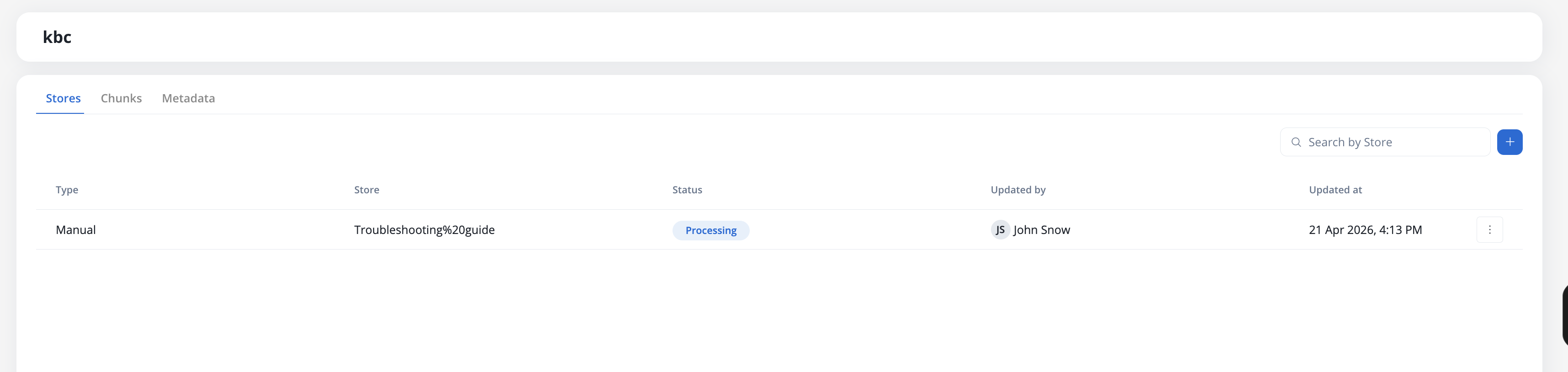
Stores represent individual collections of information within a Knowledge Base. Each store can be:
* **Manual**: Files uploaded through the Knowledge Base admin interface
* **Workflow**: Content ingestion through workflow operations. The Update Knowledge Base node accepts a file path, so workflows can ingest content uploaded earlier in the run (5.8.0+)
### Store lifecycle
```mermaid theme={"system"}
stateDiagram-v2
[*] --> New: Create
New --> Processing: Upload/Ingest
Processing --> Ready: Complete
Processing --> Failed: Error
Ready --> Processing: Update
Ready --> Failed: Partial failure
Ready --> MarkedForRemoval: Delete
Failed --> Processing: Retry
MarkedForRemoval --> [*]
```
Stores progress through the following states:
| State | Description |
| -------------- | ----------------------------------------------------------------- |
| **New** | Store created, awaiting content |
| **Processing** | Content is being uploaded, chunked, and indexed |
| **Ready** | Content is fully processed and available for queries |
| **Failed** | Processing encountered an error, or content is partially degraded |
| **Deleting** | Store is scheduled for deletion |
### Audit trail
All store operations are tracked in the audit trail with full traceability:
| Field | Description |
| ------------------ | -------------------------------------------------------------------------------------------------------- |
| **Operation type** | `ADD_CONTENT_SOURCE`, `REPLACE_CONTENT_SOURCE`, `DELETE_CONTENT_SOURCE`, `ADD_CONTENT`, `REMOVE_CONTENT` |
| **Triggered by** | How the operation was initiated: Manual, API, Workflow, or Test |
| **User** | The user who performed the operation (for manual operations) |
| **Status** | Final operation state: Completed or Failed |
| **Timestamp** | When the operation occurred |
Use the audit trail to track who made changes to Knowledge Base content and when, which is useful for compliance and troubleshooting.
## Search modes
Knowledge Bases support three search algorithms that determine how queries are matched against stored content:
| Search Mode | Description | Best For |
| ------------ | ------------------------------------------------------------------------------- | ----------------------------------------------------------------- |
| **Hybrid** | Combines semantic and keyword search for balanced results | General-purpose queries where both meaning and exact terms matter |
| **Semantic** | Uses vector embeddings to match by meaning, not exact words | Natural language questions, conceptual queries |
| **Keyword** | Term-based matching that also finds closely related words, not just exact terms | Precise lookups, technical terms, codes, identifiers |
Start with **Hybrid** search mode for most use cases. Switch to Semantic for conversational queries or Keyword for exact term lookups.
***
## Chunks and search
Chunks are small snippets of content that are indexed in the vector database for semantic search. When an AI agent queries a Knowledge Base, the most relevant chunks are returned based on:
* **Content similarity**: Semantic meaning of the query vs. chunk content
* **Relevance score**: Percentage indicating how relevant the chunk is (0-100%)
* **Metadata filters**: Optional filters built from typed operators and AND/OR logic — see [Filtering by metadata](./managing-content#filtering-by-metadata)
You can test different query parameters to see which chunks are returned and their relevance scores before using the Knowledge Base in production workflows.
## Use cases
### Product documentation assistant
Create a Knowledge Base with product documentation and allow AI agents to answer customer questions based on the latest documentation.
### Policy compliance
Upload company policies and compliance documents. AI agents can reference these when processing requests to ensure compliance.
### Dynamic knowledge updates
Upload updated documents to Knowledge Bases to keep AI agent knowledge current. Content can be managed manually through the admin interface or programmatically through workflows and APIs.
### Multi-source information synthesis
Organize information across multiple stores and let AI agents synthesize information from different sources to provide comprehensive answers.
## Limitations
**Current limitations:**
* AI agents can only use one Knowledge Base per Custom Agent node
* Documents received from integrations cannot be directly ingested (Document Plugin links are treated as strings)
* Store renaming is not available
***
## Creating a knowledge base
### Prerequisites
Before you begin, ensure you have:
* Access to FlowX Designer with appropriate permissions
* A project where you want to add the Knowledge Base
* Content ready to ingest (PDF documents or JSON data)
### Setup steps
To add a new Knowledge Base data source:
Go to **FlowX Designer** → **Workspaces** → **Your workspace** → **Projects** → **Your project** → **Integrations** → **Data Sources**
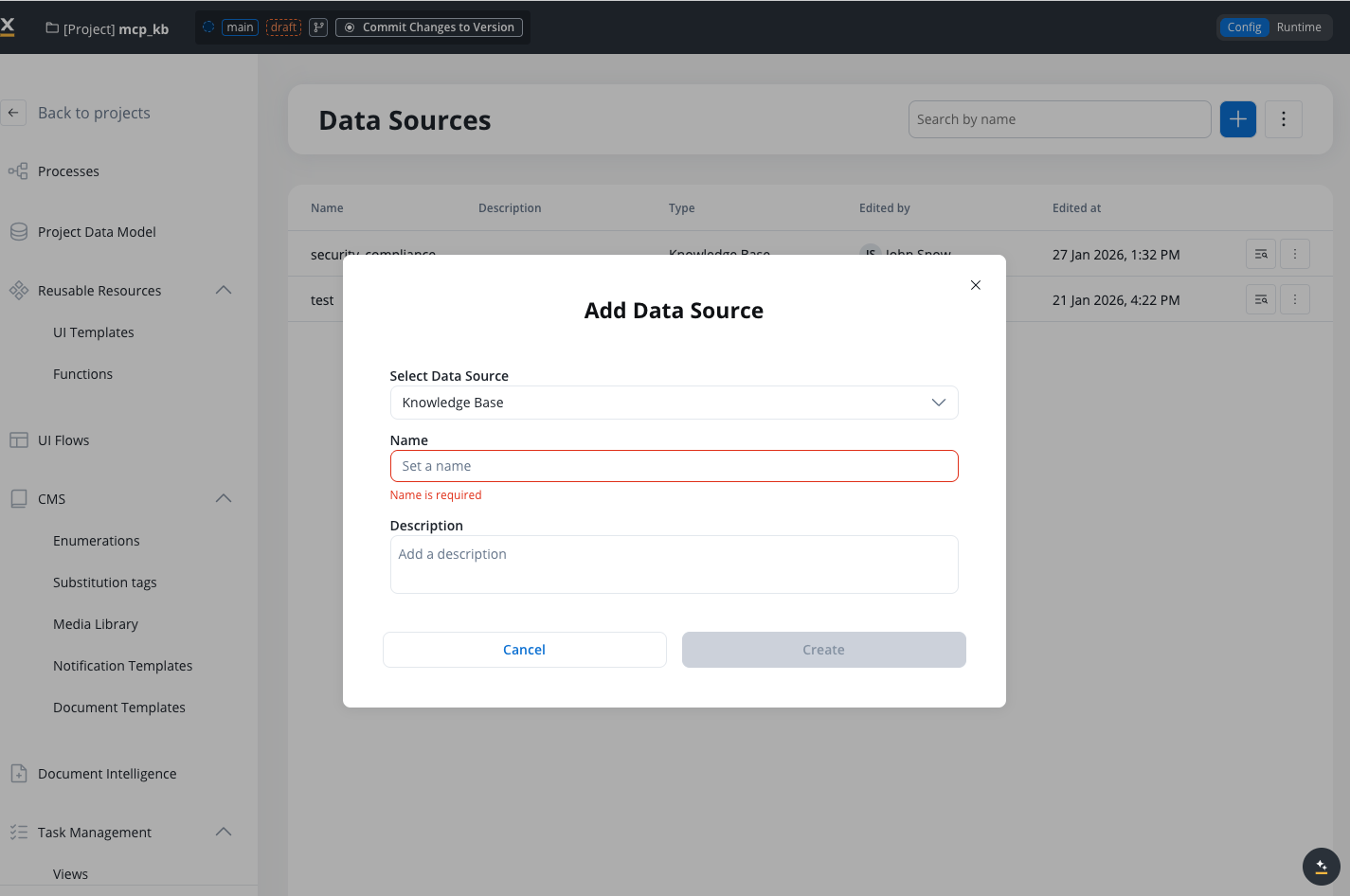
Click **Add New Data Source** and select **FlowX Knowledge Base** as the data source type
Fill in the required fields with the following information
### Configuration fields
#### Name
The unique identifier for your Knowledge Base within the project.
**Validation rules:**
* **Required**: Field cannot be empty
* **Uniqueness**: Must be unique within the project
* **Special characters**: Only letters, numbers, and the following characters are allowed: `[]`, `()`, `.`, `_`, `-`
* **Length**: Minimum 3 characters, maximum 50 characters
#### Description
An optional description explaining the purpose and contents of the Knowledge Base.
Provide additional context about what information this Knowledge Base contains and how it should be used.
### Example configuration
Here's an example of a well-configured Knowledge Base:
```yaml theme={"system"}
Name: Product Documentation KB
Description: Contains all product documentation, user guides, and FAQ documents for the customer support AI agent
```
### After creation
Once you've created a Knowledge Base, you'll see three tabs:
View and manage all stores ingested into the Knowledge Base
Search and view the individual chunks created from your content
Define custom metadata keys used to filter and scope retrieval

***
## Next steps
Upload documents and manage stores
Query Knowledge Bases from workflows
Test queries and operations before production use
## Related resources
Integration Designer and data sources
Using AI agents in workflows
Integration ecosystem overview