> ## Documentation Index
> Fetch the complete documentation index at: https://docs.flowx.ai/llms.txt
> Use this file to discover all available pages before exploring further.
# Incoming Webhooks
> Trigger FlowX processes when an external system sends an HTTP POST. Secure with API keys, event-driven, no polling.
## What is an incoming webhook?
A webhook is an HTTP endpoint that an external system calls to notify FlowX when an event happens. Instead of FlowX polling for updates, the third-party system sends an HTTP POST the moment something occurs — and FlowX starts a process in response. Common uses include receiving events from payment processors, CRMs, ERPs, or CI/CD pipelines.
## Overview
Incoming Webhooks allow external systems to trigger FlowX processes by sending HTTP POST requests to a generated URL. Each webhook gets a unique, cryptographically secure API key for authentication — no IMAP setup, no polling, just a direct HTTP call.
Use webhooks when you need to:
* **Receive events from third-party platforms** (payment processors, CRMs, ERPs) that support outbound webhooks
* **Trigger processes from CI/CD pipelines** or internal tools via simple HTTP calls
* **Replace polling-based integrations** with event-driven process starts
Each webhook gets a unique, secure API key included in the URL
Webhook body and HTTP headers are forwarded to the process instance as variables
Activate, deactivate, and manage webhook URLs from Runtime Settings
No server settings needed — create the data source, connect to a process, activate
***
## How it works
In Integration Designer, create a new data source and select **Incoming Webhook**. Provide a name and optional description. No connection settings are required.
In your process definition, add a **Message Start Event** node. Set the **Trigger Type** to **Incoming Webhook** and select your webhook data source.
Commit the version, then go to **Runtime** → **Manage Triggers**. The webhook appears as **Deactivated**. Click the action menu and select **Activate**.
From the trigger's action menu, select **Get URL**. Copy the generated URL (includes the API key as a query parameter) and configure it in your external system.
When the external system POSTs JSON to the webhook URL, the `webhook-gateway` service validates the API key, publishes the event to Kafka, and the process engine starts a new process instance.
***
## Creating a webhook data source
Go to **Integrations** → **Data Sources** in your project.
Click **+** and select **Incoming Webhook** as the data source type.
| Field | Required | Description |
| --------------- | -------- | -------------------------------------------------------------------------------- |
| **Name** | Yes | A unique name for the webhook (3–50 characters, letters, numbers, `[] () . _ -`) |
| **Description** | No | Purpose or context for this webhook |
Click **Create**. The webhook data source is ready to be connected to a process.
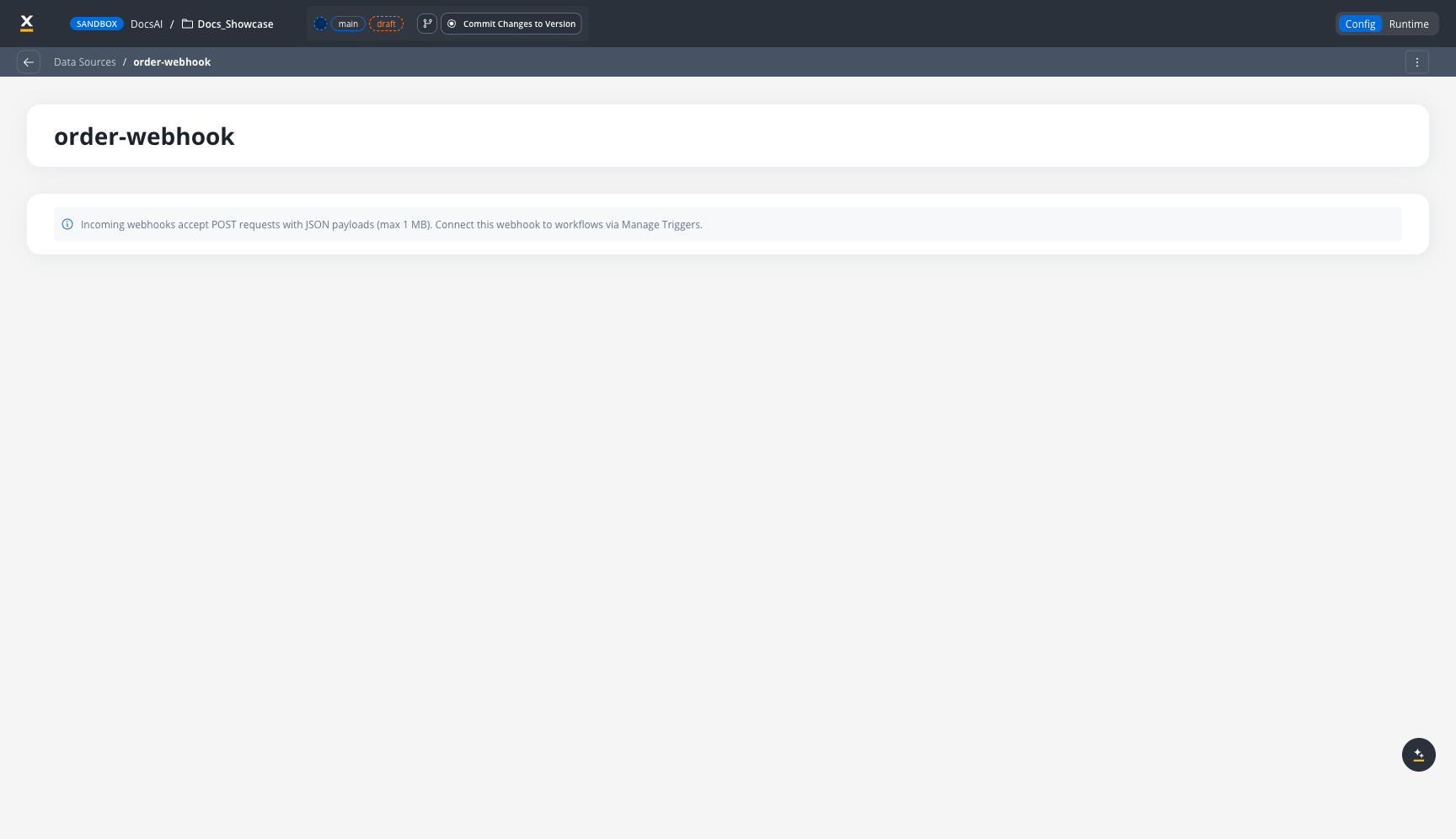
Incoming Webhooks accept POST requests with JSON payloads (max 1 MB). No connection settings, credentials, or polling configuration is needed.
When deleting a webhook data source, deactivate it first and remove the URL from any third-party systems that use it. Deleting the webhook in FlowX does not notify external systems — they will continue sending requests that return errors.
***
## Connecting to a Message Catch Event
A webhook can drive two kinds of message catch events:
| Event placement | Trigger type set on the webhook | What the webhook does |
| ------------------------------------ | ------------------------------- | ----------------------------------------------- |
| **Message Start Event** | `START_PROCESS` | Creates a new process instance on each POST |
| **Message Catch Intermediate Event** | `RESUME_PROCESS` | Resumes a process instance waiting on the catch |
The trigger type is set automatically based on which kind of event the webhook is attached to — there is no separate toggle to configure.
### On a Message Start Event
Open the process in the Process Designer.
Drag a **Message Start Event** from the Start Events section of the node palette onto the canvas.
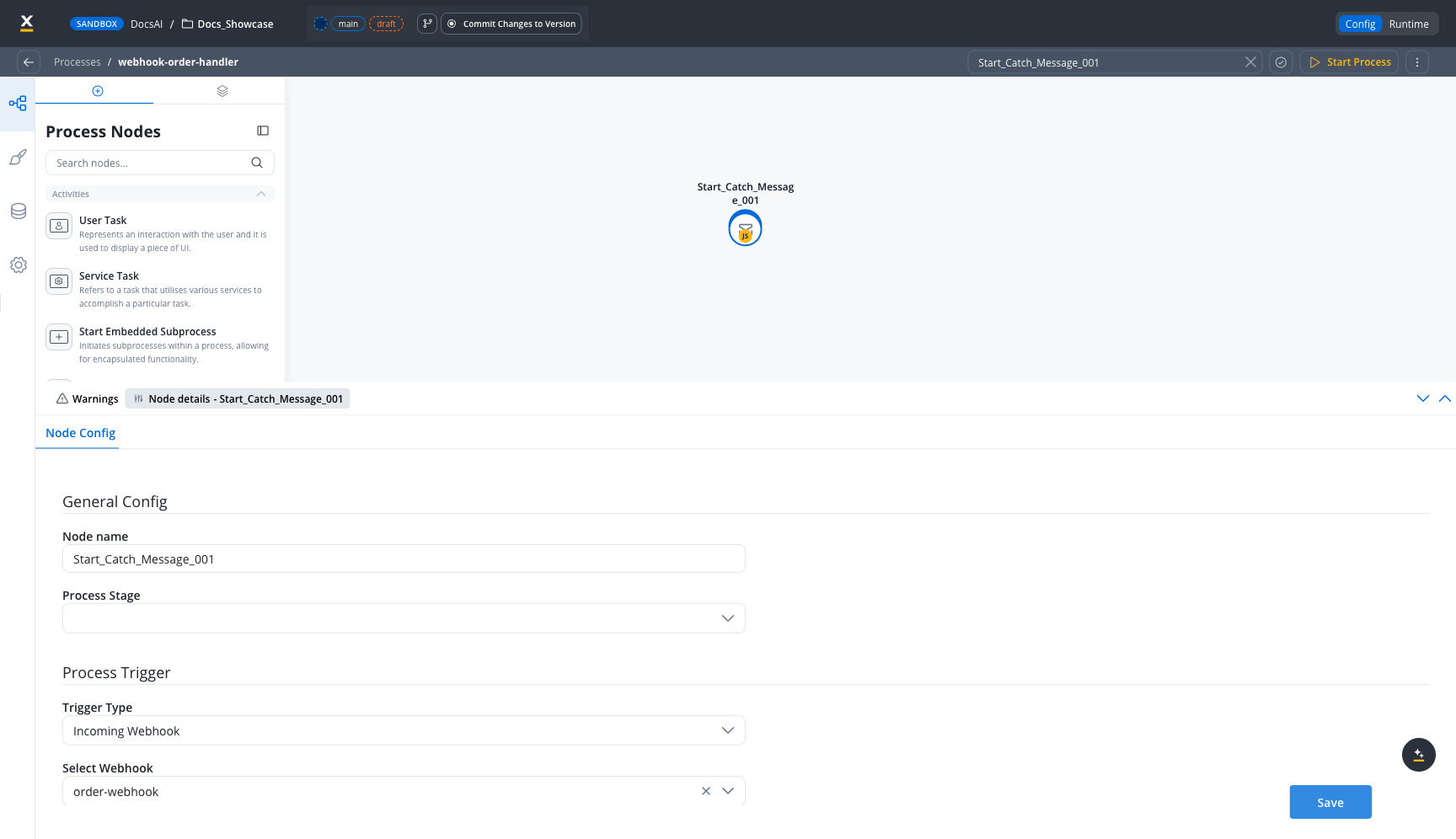
In the node configuration panel, under **Process Trigger**:
* Set **Trigger Type** to **Incoming Webhook**
* In **Select Webhook**, choose your webhook data source from the dropdown
Click **Save** to persist the configuration.
### On a Message Catch Intermediate Event
Use a webhook on an intermediate catch event to resume a process instance that is waiting for an external signal — for example, a callback from a third-party document scanner, a downstream system confirming an enqueued job, or a manual operator action delivered over HTTP.
From the node palette, drag a **Webhook Trigger** message catch event onto the canvas at the point where the process should pause.
In the node configuration panel, set the **Data Source** dropdown to the webhook that drives this catch event. The **Webhook Correlation Key** field appears as read-only and shows the correlation key defined on the webhook itself — included here so you can see how incoming requests are matched.
Set **Process Correlation Key** to a business or process variable from the data model (for example, `applicationId`, `orderId`). At runtime this value is matched against the incoming payload to identify which waiting process instance to resume.
Set **Process Key** to the data-model path where the incoming webhook payload should be stored when the catch fires.
Click **Save** to persist the configuration.
The same webhook data source can drive multiple intermediate catch events as long as the Process Correlation Key disambiguates which instance to resume. Without a valid correlation match, the inbound request is rejected.
#### Webhook Correlation Key path syntax
The **Webhook Correlation Key** points into the incoming webhook payload. It uses dotted-path notation and supports array indices in square brackets, so deeply nested provider payloads can be addressed directly.
| Path pattern | Resolves to |
| ------------------------------------------------- | ---------------------------------------------------------------------- |
| `application.applicationId` | `payload.application.applicationId` |
| `entry[0].changes[0].value.messages[0].text.body` | The first inbound text-message body in a Meta WhatsApp webhook payload |
| `data.orders[2].id` | The `id` of the third element of the `orders` array |
Array index syntax (`field[N]`) is supported in correlation keys, so the canonical Meta WhatsApp resume path works as-is. Paths like `entry[0]...` resolve directly and no longer need to be flattened in the producer before posting.
If the path does not resolve in an incoming request (missing field, index out of bounds, null leaf), the request is rejected and the waiting process instance is not resumed.
{/* TODO 5.9.0: capture screenshot of intermediate catch event with webhook trigger once feature/integration-designer/webhooks-updates merges to master; document where Webhook Correlation Key is defined on the webhook data source */}
***
## Managing webhooks at runtime
### Activating a webhook
For a webhook to appear in Manage Triggers:
1. The webhook data source must be created
2. The webhook must be connected to a Message Start Event node
3. The version must be committed
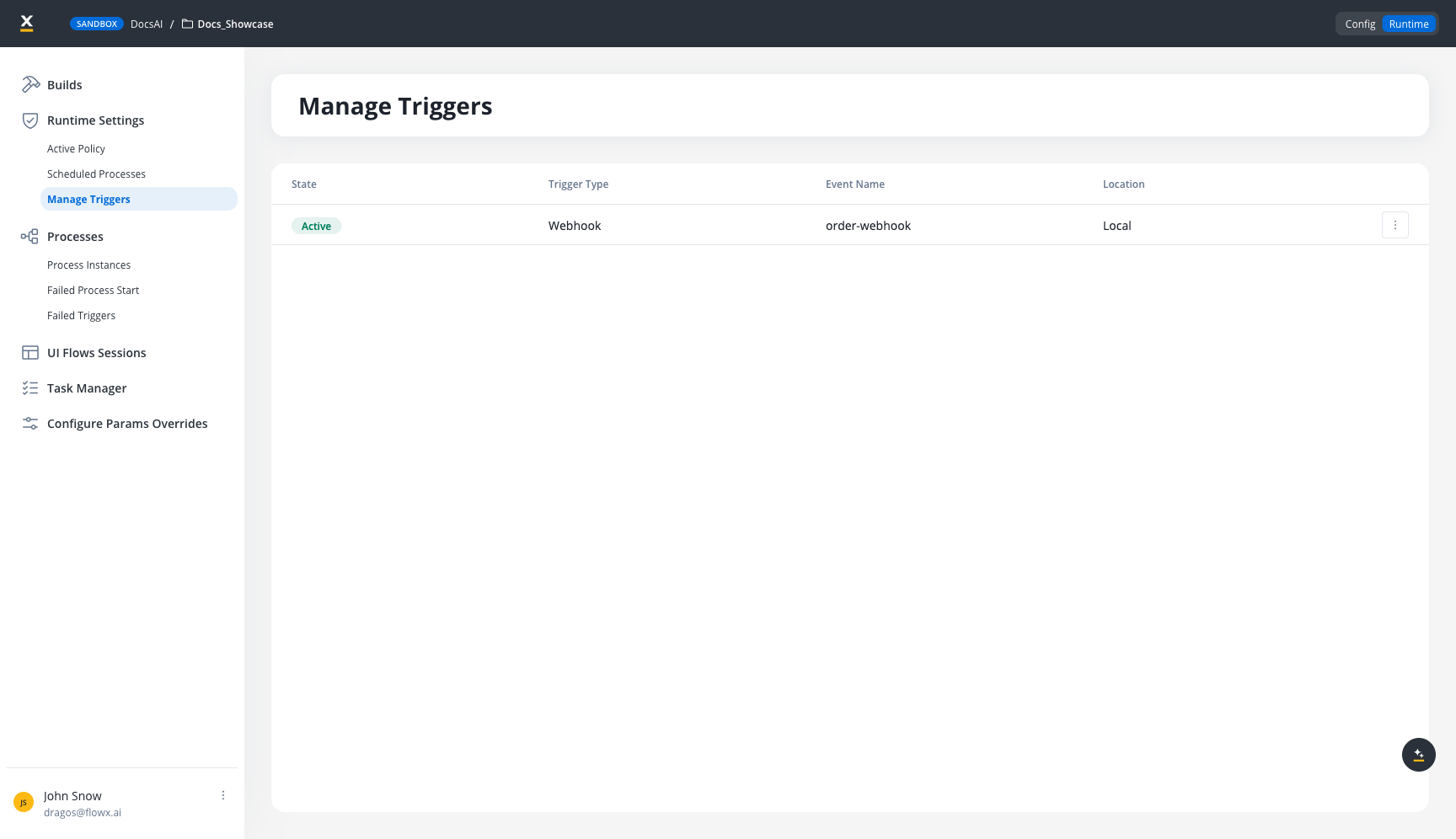
Navigate to **Runtime** → **Manage Triggers** to view and control webhooks:
| Column | Description |
| ---------------- | ------------------------------ |
| **State** | `Active` or `Deactivated` |
| **Trigger Type** | `Webhook` |
| **Event Name** | The webhook data source name |
| **Location** | Project and branch information |
Use the action menu (three-dot icon) to:
* **Activate** — Start accepting webhook requests
* **Deactivate** — Stop accepting requests. The API key and URL are preserved, so you can reactivate later without reconfiguring external systems.
* **Get URL** — View and copy the webhook URL with API key
A single webhook can trigger multiple processes — add the same webhook data source to Message Start Event nodes in different process definitions. Each incoming request starts all connected processes.
***
### Webhook URL and API key
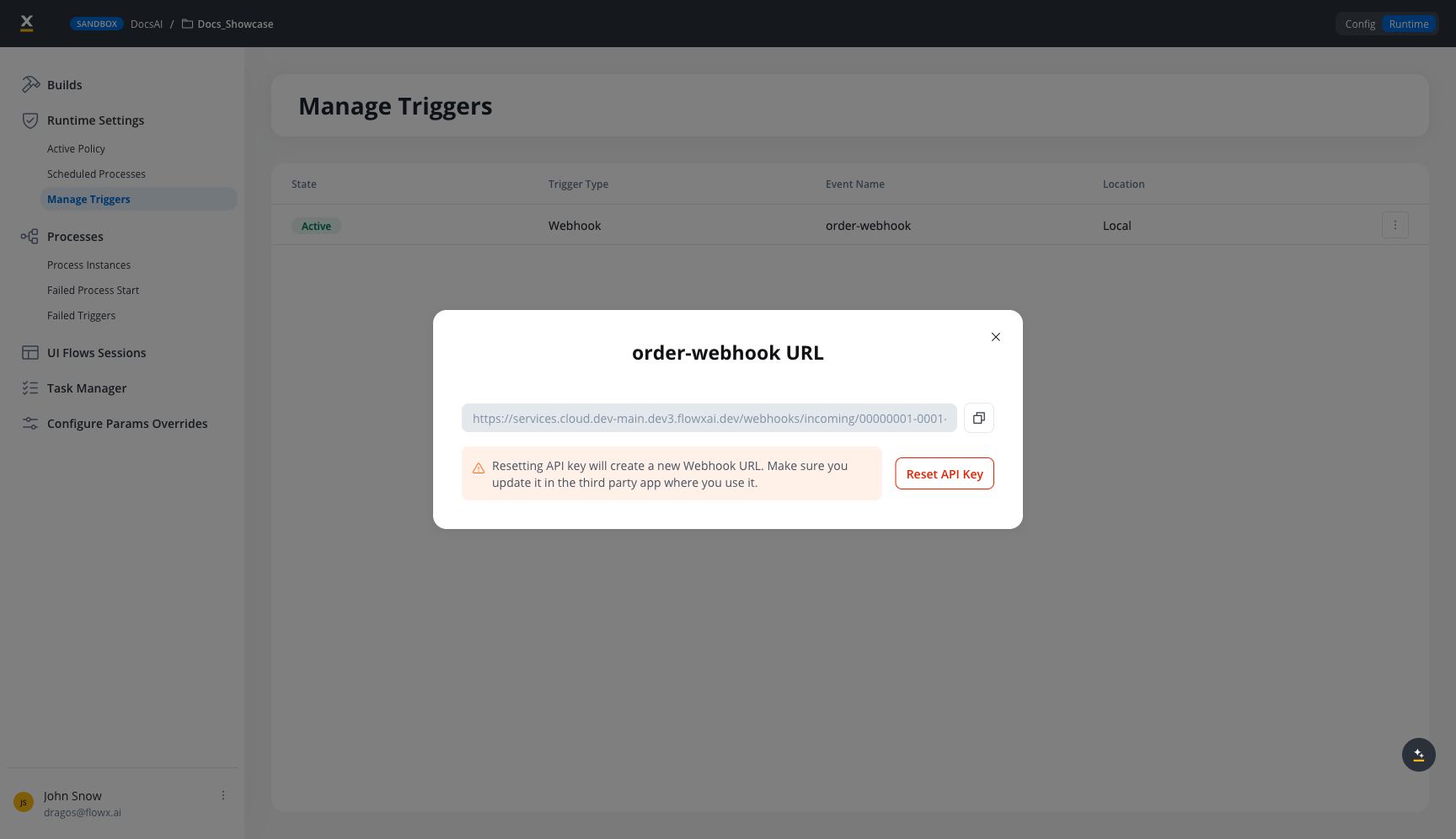
When you activate a webhook and select **Get URL**, a modal displays:
* **Webhook URL** — The full URL including the API key as a `flowxApiKey` query parameter
* **Copy button** — Copies the URL to clipboard
* **Reset API Key** — Generates a new API key (invalidates the previous URL)
**URL format:**
```
https://{services-host}/webhooks/incoming/{orgId}/{workspaceId}/{appId}/{resourceDefinitionId}?flowxApiKey={apiKey}
```
Resetting the API key creates a new webhook URL. Update the URL in all third-party systems that use it, or they will receive `401 Unauthorized` errors.
***
## Provider adapters
When a webhook is created in the Integration Designer, the **Settings** tab now exposes:
* **Provider** — `GENERIC`, `SLACK`, or `META`. Once saved, the provider becomes immutable; create a new webhook to switch.
* **Provider secret** — the signing secret(s) obtained from the provider (for example, the Slack app's signing secret, or the Meta verify token + app secret pair). Stored encrypted; can be rotated independently of the API key.
For SaaS-hosted secrets you can also reference a config parameter using the `${configParam.name}` placeholder syntax — placeholders are resolved at registration time the same way LLM provider secrets are.
### Generic provider
The default. No signature validation is performed; authentication relies on the FlowX `flowxApiKey` and HTTPS. Use `GENERIC` for systems that do not sign their webhooks, or where signature validation is handled inside the process via a business-rule action on the raw headers.
### Slack provider
Performs Slack's standard signature check on every incoming request:
| Header | Purpose |
| --------------------------- | ----------------------------------------------------------------------------------- |
| `X-Slack-Signature` | HMAC-SHA256 signature of the version, timestamp, and raw body, prefixed with `v0=`. |
| `X-Slack-Request-Timestamp` | Unix timestamp; rejected if more than **5 minutes** out of skew. |
Requests that fail signature verification, that miss either header, or that arrive without a configured signing secret are rejected with `401 Unauthorized`.
Slack's URL-verification handshake is handled automatically — a `url_verification` POST with a `challenge` field receives the `challenge` value back as JSON, before the request is forwarded to the process. No process configuration is required for the handshake.
### Meta provider
Covers WhatsApp, Messenger, Instagram, and Threads. Meta-platform integrations share a common subscription model and signature scheme; the `META` adapter handles both.
Meta webhooks require **two** secrets, configured as masked inputs in the **Settings** panel:
| Field | Purpose |
| ---------------- | --------------------------------------------------------------------------------------------------------------------------------- |
| **Verify token** | Used during the GET URL-verification handshake. Choose any string and configure the same value on the Meta App developer console. |
| **App secret** | The Meta App secret. Used to verify the `X-Hub-Signature-256` HMAC on every POST. |
Both values are stored together as a JSON-packed pair in the existing webhook secret field, encrypted at rest. Both are required; saving without either returns `WEBHOOK_META_SECRETS_REQUIRED 400`.
**GET URL verification.** Meta sends a GET request with `hub.mode=subscribe`, `hub.verify_token`, and `hub.challenge` query parameters when you save the webhook in the Meta App configuration. The gateway:
1. Confirms `hub.mode=subscribe`.
2. Confirms `hub.challenge` is present.
3. Compares the received `hub.verify_token` to the configured **Verify token** using a constant-time check.
4. Echoes the `hub.challenge` value back as plain text on success.
A mismatch or missing parameter returns `403 Forbidden` — Meta does not finalise the subscription.
**POST signature verification.** Every POST is signed by Meta with an `X-Hub-Signature-256` header (`sha256=`). The gateway recomputes the HMAC-SHA256 of the raw body with the configured **App secret** and rejects mismatches with `401 Unauthorized`.
### Path / provider mismatch
If a request hits the URL for one provider but the webhook registration is configured with a different provider, the gateway returns `400 Bad Request`. Always use the URL shown in the **Get URL** modal — it carries the correct provider segment for the registration.
***
## Webhook payload
When an external system POSTs to the webhook URL, the following data is available in the process instance:
```json theme={"system"}
{
"webhookMessage": {
"dateTime": "2026-03-23T15:30:00Z",
"payload": {
"orderId": "ORD-12345",
"status": "completed",
"amount": 299.99
},
"headers": {
"Content-Type": ["application/json"],
"X-Custom-Header": ["value"]
}
}
}
```
| Field | Type | Description |
| ---------- | ----------------- | ------------------------------------------------------------------------------------------------------------------------------------------------------------------------------ |
| `dateTime` | string (ISO 8601) | Ingestion time at FlowX — when `webhook-gateway` received the request. If the provider includes its own event timestamp in the payload, use that for the original event time. |
| `payload` | object or string | The POST request body (parsed as JSON if valid, raw string otherwise) |
| `headers` | object | All HTTP headers from the incoming request. Each header maps to an array of values — access the first value with `webhookMessage.headers.Content-Type[0]` in process variables |
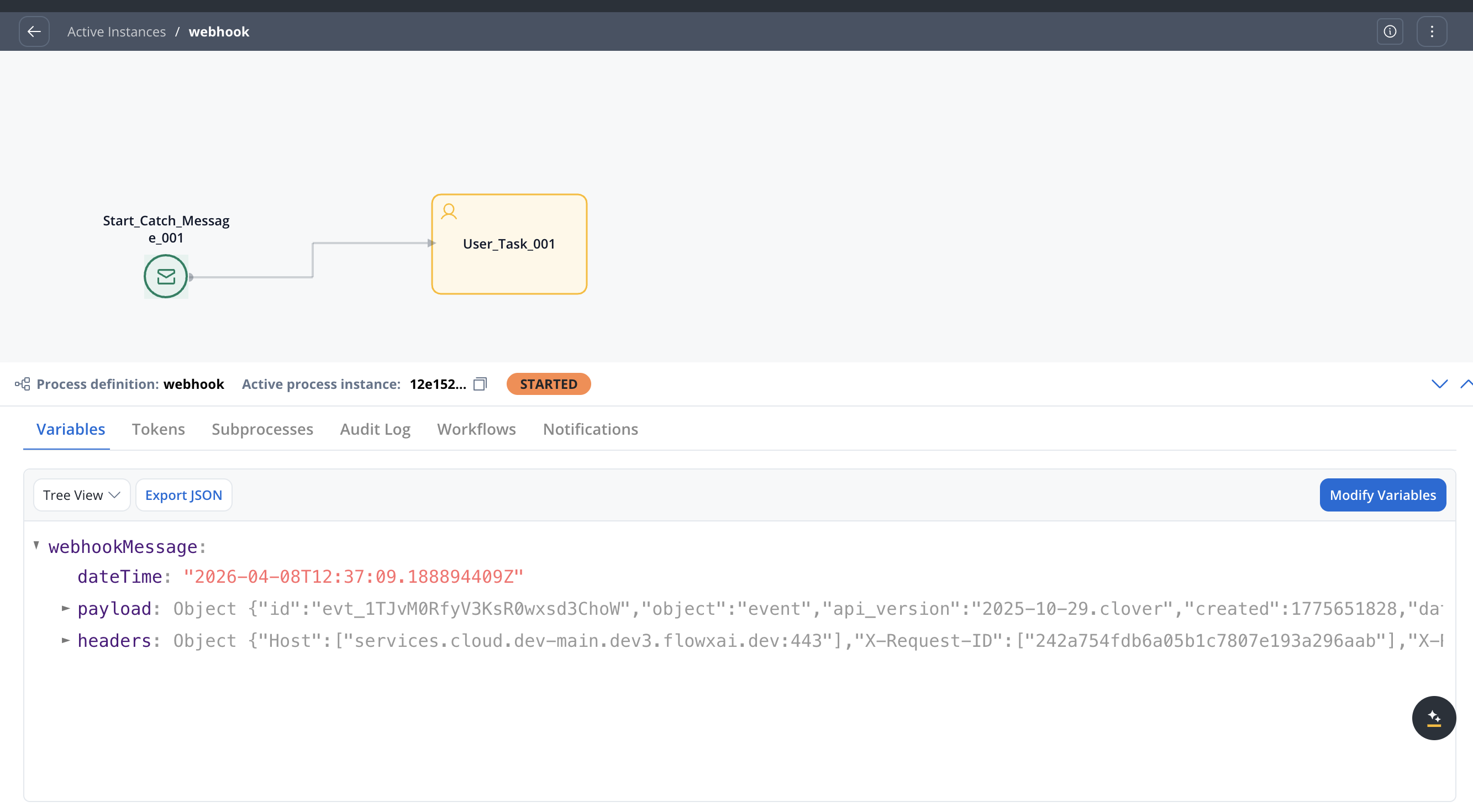
`headers` includes values added by the FlowX ingress in addition to what the caller sent — typically `X-Forwarded-For`, `X-Real-IP`, `X-Request-ID`, `X-Forwarded-Host`, `X-Forwarded-Proto`. These are useful for logging and tracing but should not be confused with provider-supplied headers.
The maximum payload size is **1 MB**. Requests exceeding this limit are rejected.
***
## Authentication
Webhook authentication uses API keys:
* Each webhook registration gets a unique **32-byte, base64-URL-encoded** API key
* The key is passed as the `flowxApiKey` query parameter in the webhook URL
* Validation uses **constant-time comparison** to prevent timing attacks
* Invalid or missing keys return `401 Unauthorized`
* Inactive webhooks return `404 Not Found`
FlowX validates provider signatures only for [providers with a built-in adapter](#provider-adapters). For the `GENERIC` provider — and for any third-party signature scheme without a dedicated adapter (`Stripe-Signature`, GitHub's `X-Hub-Signature-256` outside the Meta family, etc.) — signature headers are forwarded to the process in `webhookMessage.headers` but no validation is performed. Authentication for `GENERIC` registrations relies on the FlowX API key and HTTPS. The raw request body is not preserved after JSON parsing, which makes in-process HMAC verification impractical — for unsupported providers, design integrations assuming API key + HTTPS is the only authentication layer, or request a built-in adapter.
***
## Error handling
| HTTP Status | Cause | Resolution |
| --------------------------- | --------------------------------------------- | ---------------------------------------------------------------- |
| `200 OK` | Webhook accepted and published to Kafka | — |
| `400 Bad Request` | Malformed payload (not valid JSON) | Verify the POST body is valid JSON |
| `401 Unauthorized` | Invalid or missing API key | Check the `flowxApiKey` parameter matches the active webhook URL |
| `404 Not Found` | Webhook registration not found or deactivated | Verify the webhook is activated in Manage Triggers |
| `413 Payload Too Large` | Request body exceeds 1 MB | Reduce the payload size or split into multiple requests |
| `500 Internal Server Error` | Processing error | Check webhook-gateway service logs |
Failed webhook events appear in **Runtime** → **Failed Triggers** with details about the failure cause.
***
## Best practices
Always use HTTPS URLs in production to protect the API key in transit
Add validation logic in your process to handle unexpected or malformed payloads gracefully
Regularly check the Failed Triggers section for webhook processing errors
Use the Reset API Key feature to rotate webhook credentials, then update the URL in external systems
***
## Related resources
Configure message-based and webhook process triggers
Start processes from incoming emails via IMAP
Build integration workflows and manage data sources
Deploy and configure the webhook-gateway microservice