> ## Documentation Index
> Fetch the complete documentation index at: https://docs.flowx.ai/llms.txt
> Use this file to discover all available pages before exploring further.
# FlowX Database
> Store and access structured data between processes and applications
## What is FlowX Database?
FlowX Database (FlowX DB) is a persistence layer that allows you to store structured data independently of process instances. This enables you to:
* Share data between different process instances
* Store and retrieve data across multiple processes
* Create a persistent data store within the FlowX ecosystem
* Access structured data without directly interacting with external systems
FlowX Database is powered by the **nosql-db-runner** microservice, which provides MongoDB functionality within the FlowX ecosystem. This service supports both **native MongoDB** and **Azure Cosmos DB (MongoDB API)**, enabling you to choose the database backend that best fits your infrastructure needs while maintaining FlowX's workflow integration capabilities.
For more information about the **nosql-db-runner** service and CosmosDB considerations, see the [NoSQL DB Runner documentation](../../../setup-guides/nosql-db-runner).
## Key concepts
Collections are containers for storing documents in FlowX Database. Each collection:
* Stores documents with similar structure
* Has a unique identifier
* Can be accessed from different processes
* Functions similarly to a database table, but with more flexibility
Collections are created and managed through the Data Sources section in the Integration Designer.
Operations define the actions you can perform on a collection. FlowX Database supports the full range of essential MongoDB operations:
| Operation | Description | MongoDB Docs |
| ------------ | --------------------------------------------- | ------------------------------------------------------------------------------------------------------ |
| `find` | Retrieve multiple documents based on criteria | [MongoDB find()](https://www.mongodb.com/docs/manual/reference/method/db.collection.find/) |
| `findOne` | Retrieve a single document | [MongoDB findOne()](https://www.mongodb.com/docs/manual/reference/method/db.collection.findOne/) |
| `insertOne` | Add a single document | [MongoDB insertOne()](https://www.mongodb.com/docs/manual/reference/method/db.collection.insertOne/) |
| `insertMany` | Add multiple documents at once | [MongoDB insertMany()](https://www.mongodb.com/docs/manual/reference/method/db.collection.insertMany/) |
| `updateOne` | Modify a single document | [MongoDB updateOne()](https://www.mongodb.com/docs/manual/reference/method/db.collection.updateOne/) |
| `updateMany` | Modify multiple documents at once | [MongoDB updateMany()](https://www.mongodb.com/docs/manual/reference/method/db.collection.updateMany/) |
| `deleteOne` | Remove a single document | [MongoDB deleteOne()](https://www.mongodb.com/docs/manual/reference/method/db.collection.deleteOne/) |
| `deleteMany` | Remove multiple documents at once | [MongoDB deleteMany()](https://www.mongodb.com/docs/manual/reference/method/db.collection.deleteMany/) |
Each operation is configured with specific parameters that determine how it interacts with the data.
## Prerequisites
Before working with FlowX Database, you should have a solid understanding of:
Basic knowledge of MongoDB operations, document structure, and query syntax
Understanding of JSON payloads and data formatting
Familiarity with Create, Read, Update, and Delete operations in database systems
Knowledge of query parameters like filters, sorting, projection, and pagination
If you're new to MongoDB, we recommend reviewing the [MongoDB Manual](https://www.mongodb.com/docs/manual/) before working with FlowX Database operations.
## Benefits of FlowX Database
Share data between different process instances, enabling more complex workflows and business scenarios
Store data structured according to your needs, independent of external systems
Enable new business cases that require persistent data across multiple processes
Reduce the need for creating custom connectors to external systems for basic data persistence
Integrate with workflows through the existing workflow designer
Perform all standard Create, Read, Update, and Delete operations on your data
Handle multiple documents efficiently with insertMany, updateMany, and deleteMany operations
Use MongoDB's query syntax to filter, sort, and project your data
## How to use FlowX Database
### Creating a collection
Navigate to the 'Integrations' section in the left sidebar of FlowX Designer, then click on 'Data Sources'.
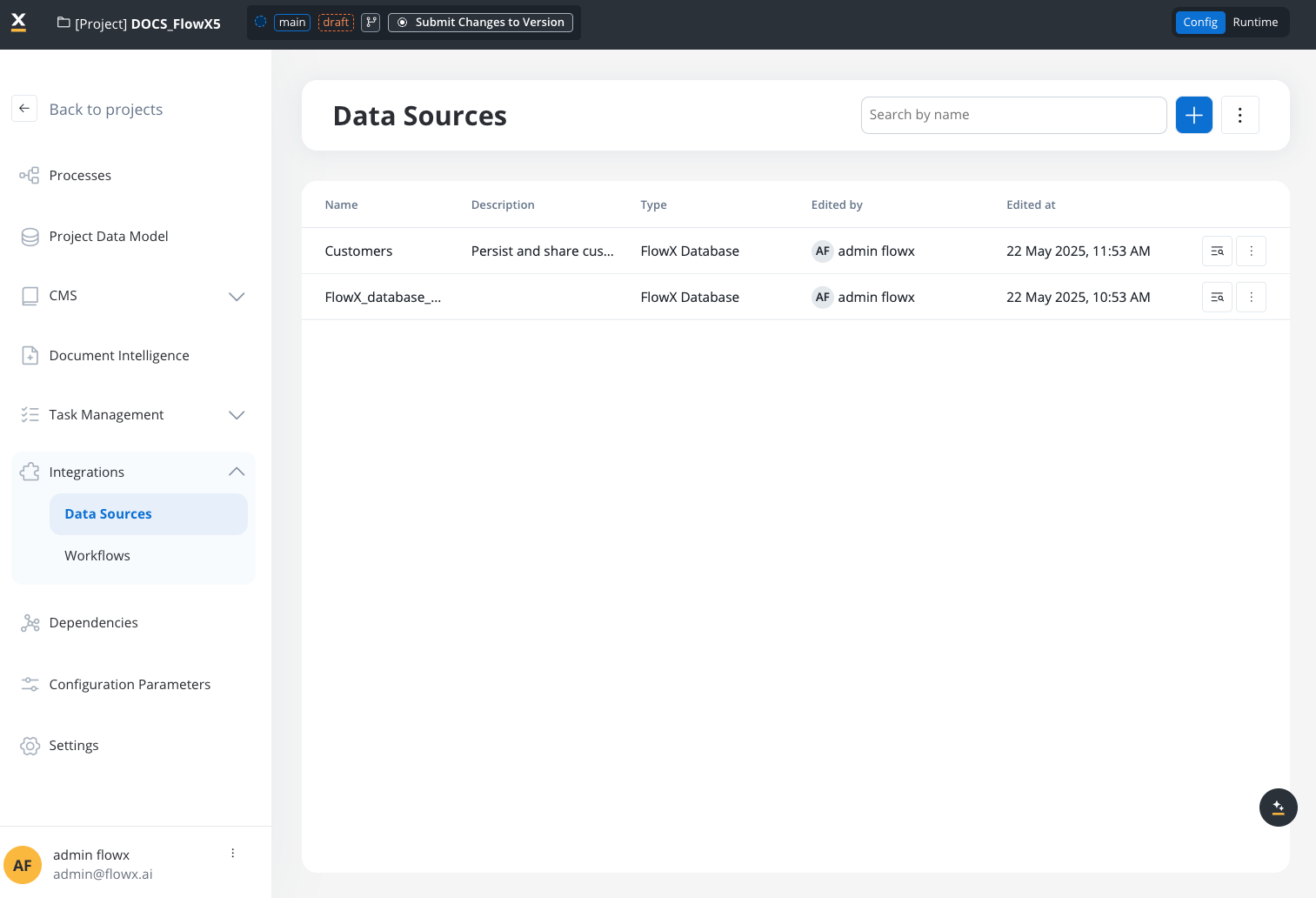
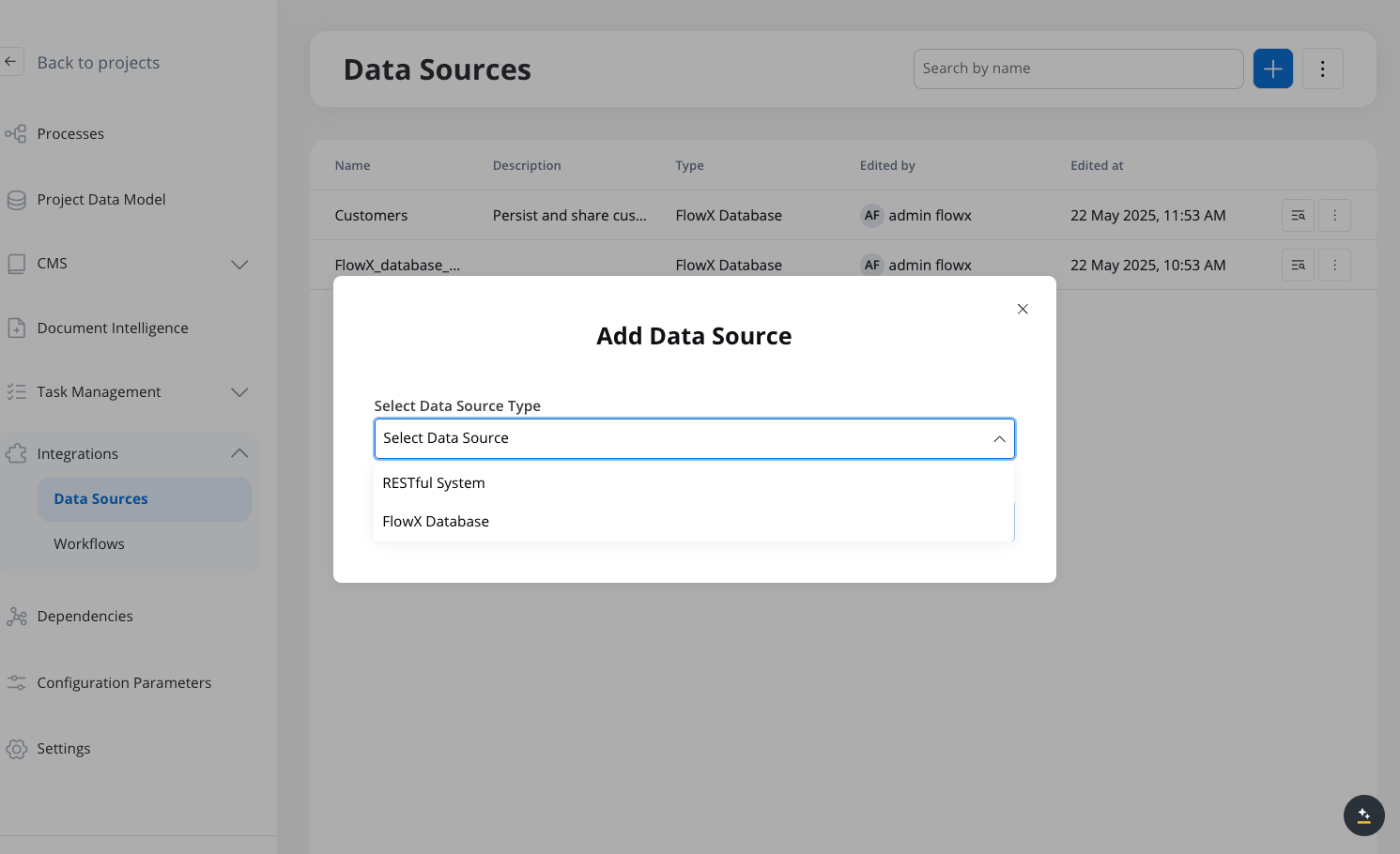
Click the "+" button to add a new Data Source. In the "Add Data Source" dialog, select "FlowX Database" from the dropdown list.
Provide a name and description for your collection. The name will be used to identify this database collection in your workflows.
**Data Model Required**: You must have a data model defined before creating a FlowX Database collection. The data model becomes the schema for your database collection and defines the structure of documents that will be stored.
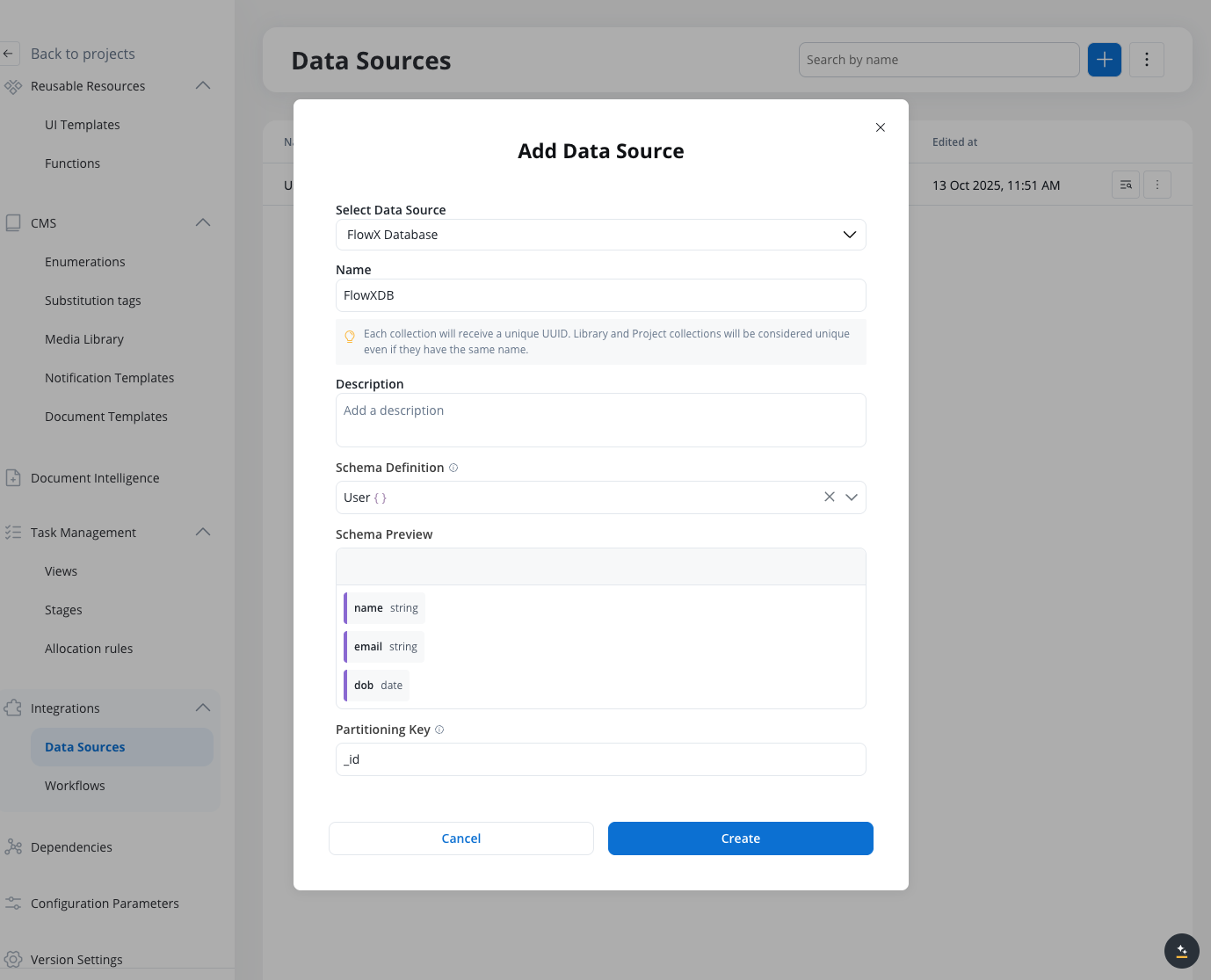
* **Schema Definition**: Define the schema for your collection (the selected schema enhances auto-completion but does not enforce validation during insert or update)
* **Partitioning Key**: The attribute used to partition data in your collection. By default, this is set to the `id` attribute, but you can specify a different field based on your data model.
Click "Create" to save the collection in FlowX Database. Your new collection will appear in the Data Sources list with the type "FlowX Database".
Each FlowX Database data source represents a collection in the underlying MongoDB database. When you create a new data source with the FlowX Database type, you're essentially creating a new collection where your documents will be stored.
### Viewing collection data
Go to the collection you want to view in the 'Data Sources' section.
Click the 'Documents' section within the collection.
You'll see a listing of currently saved documents in the collection.
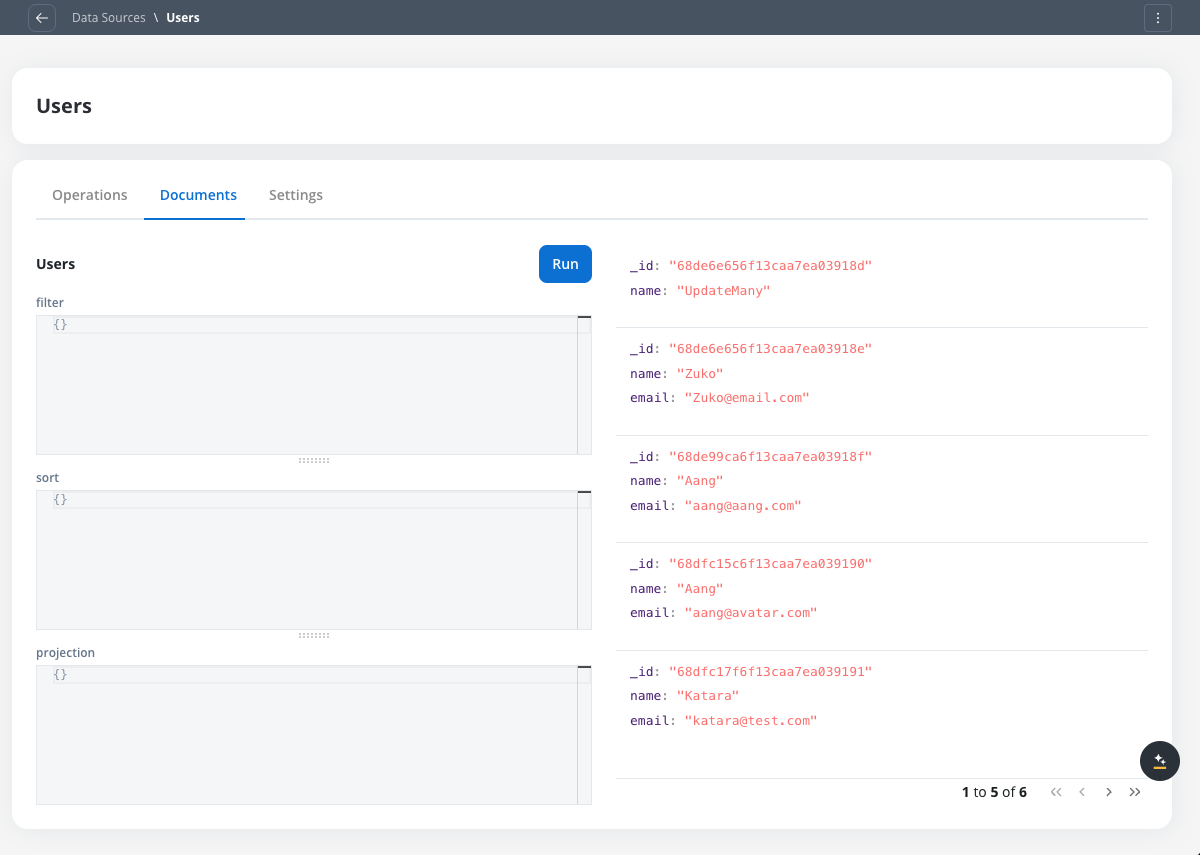
Use the search functionality to find specific documents in the collection. You can add queries to filter documents, sort them, and use projections to choose what content from each entry you want to see.
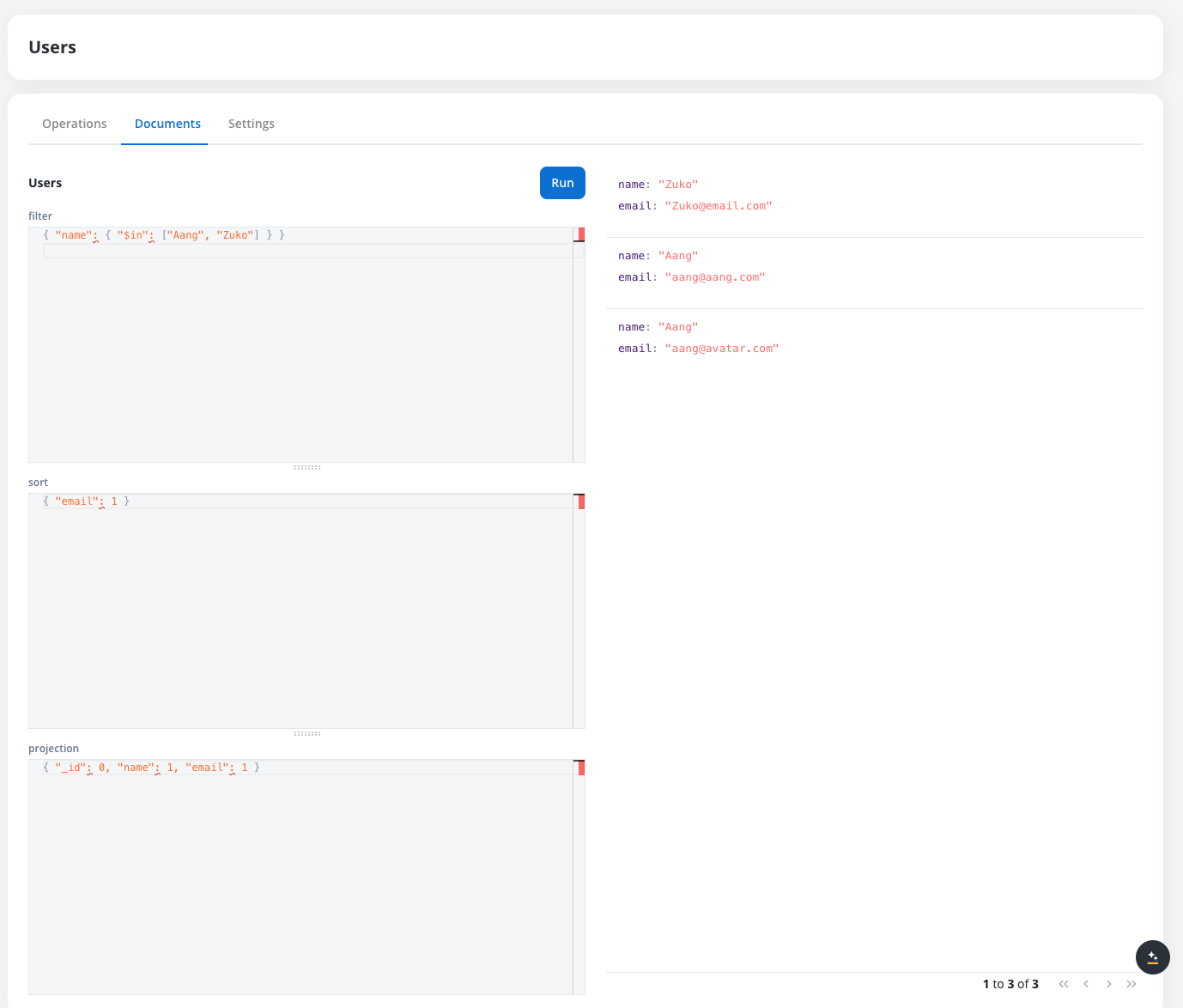
FlowX Database currently relies on MongoDB’s native sorting behavior for query results.
All sorting is performed using MongoDB’s default binary comparison rules.
### Managing collection settings
Each FlowX Database collection has a **Settings** tab where you can configure performance optimizations:
Navigate to your collection and click on the 'Settings' tab.
Create indexes for your collection to improve query performance. Indexes are particularly important for large collections as they significantly reduce query execution time.
Create indexes on fields that you frequently use in filter conditions, sort operations, or queries to optimize performance.
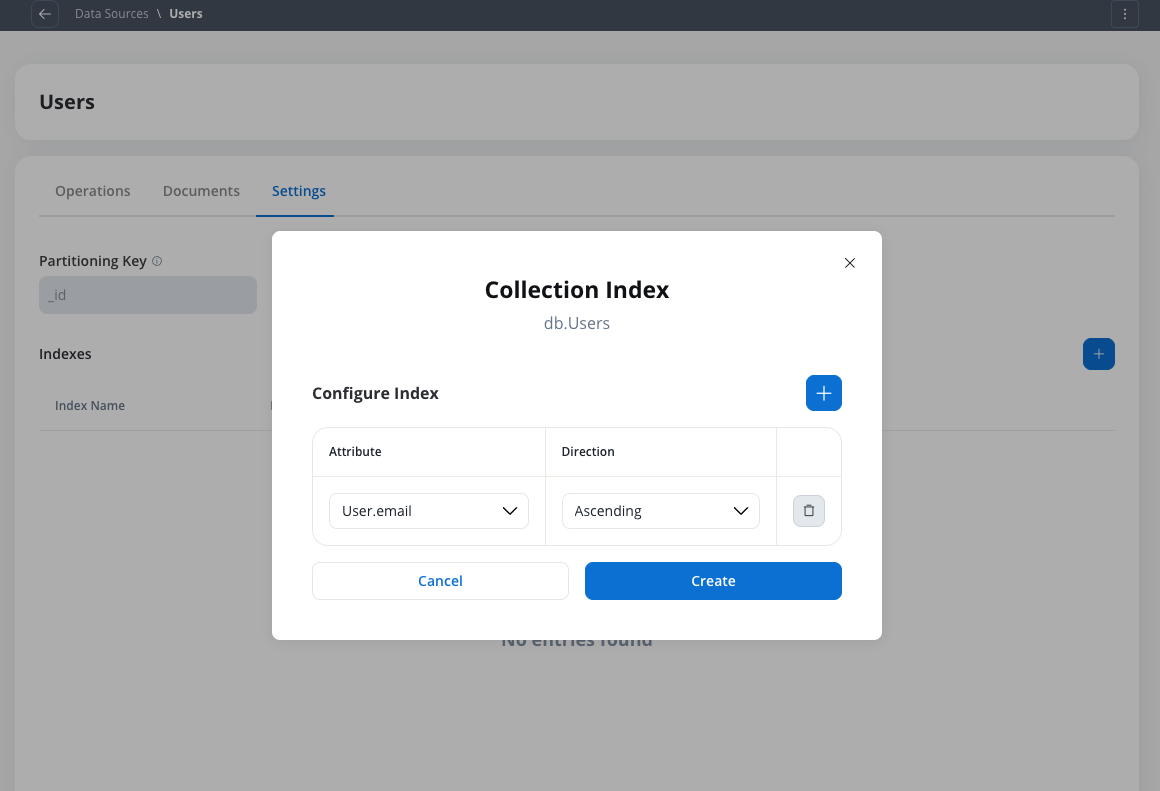
Defining indexes in the Settings tab saves them as **configuration only** — they are not applied to the actual MongoDB collection immediately. To apply indexes, you must go to the **Runtime** view of your project or library, open the **Builds** section, and select **Apply Indexes** from the build's context menu. Only one build per project or library can have indexes applied at a time. Applying indexes on a new build will automatically replace any previously applied indexes that differ.
For more details, see [Builds](/5.9/docs/projects/runtime/builds#apply-indexes).
For large collections with thousands of documents, proper indexing is crucial for maintaining good query performance. Consider indexing frequently queried fields before your collection grows large.
### Creating database operations
Navigate to your FlowX Database collection in the Data Sources section.
Click the "+" button to create a new operation.
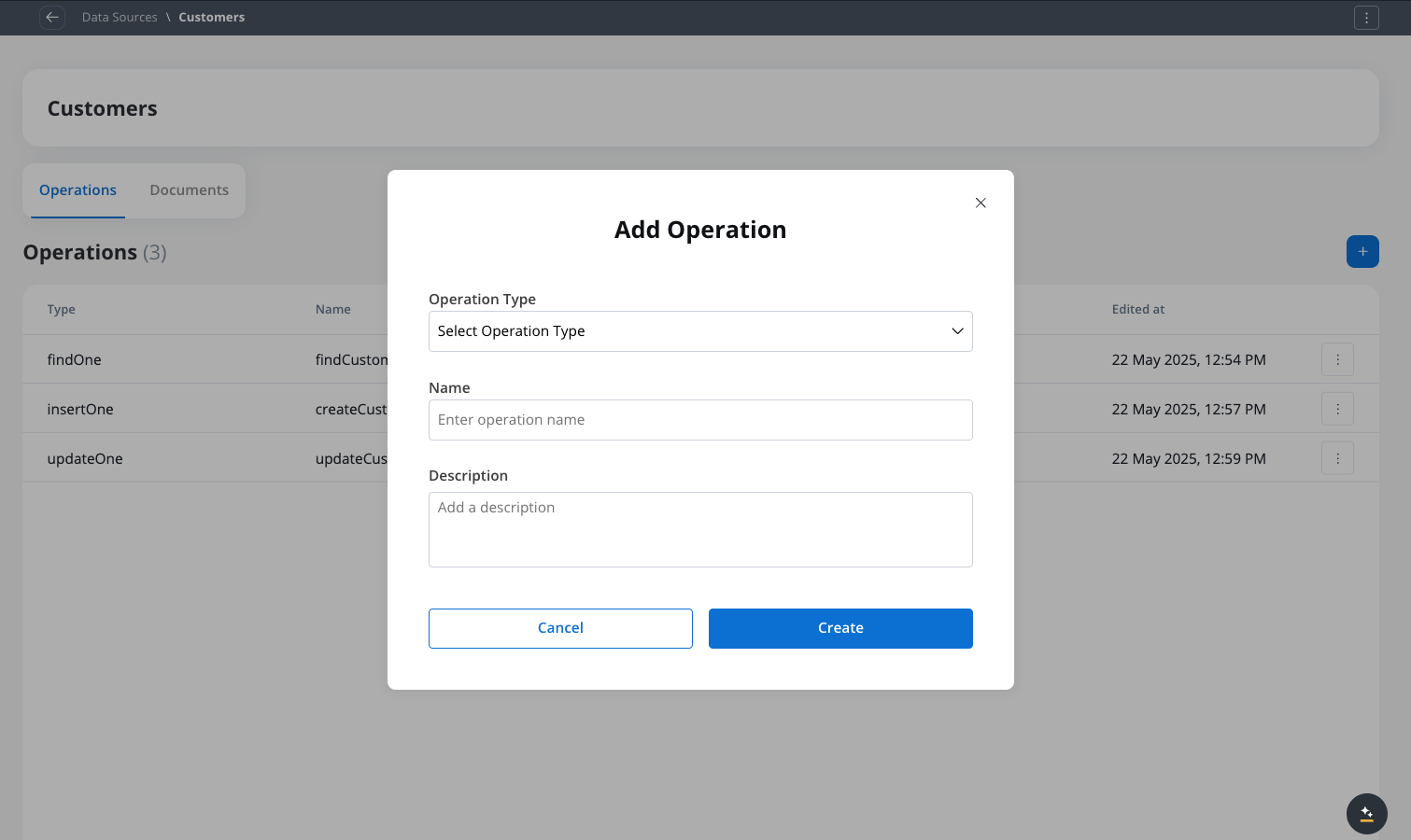
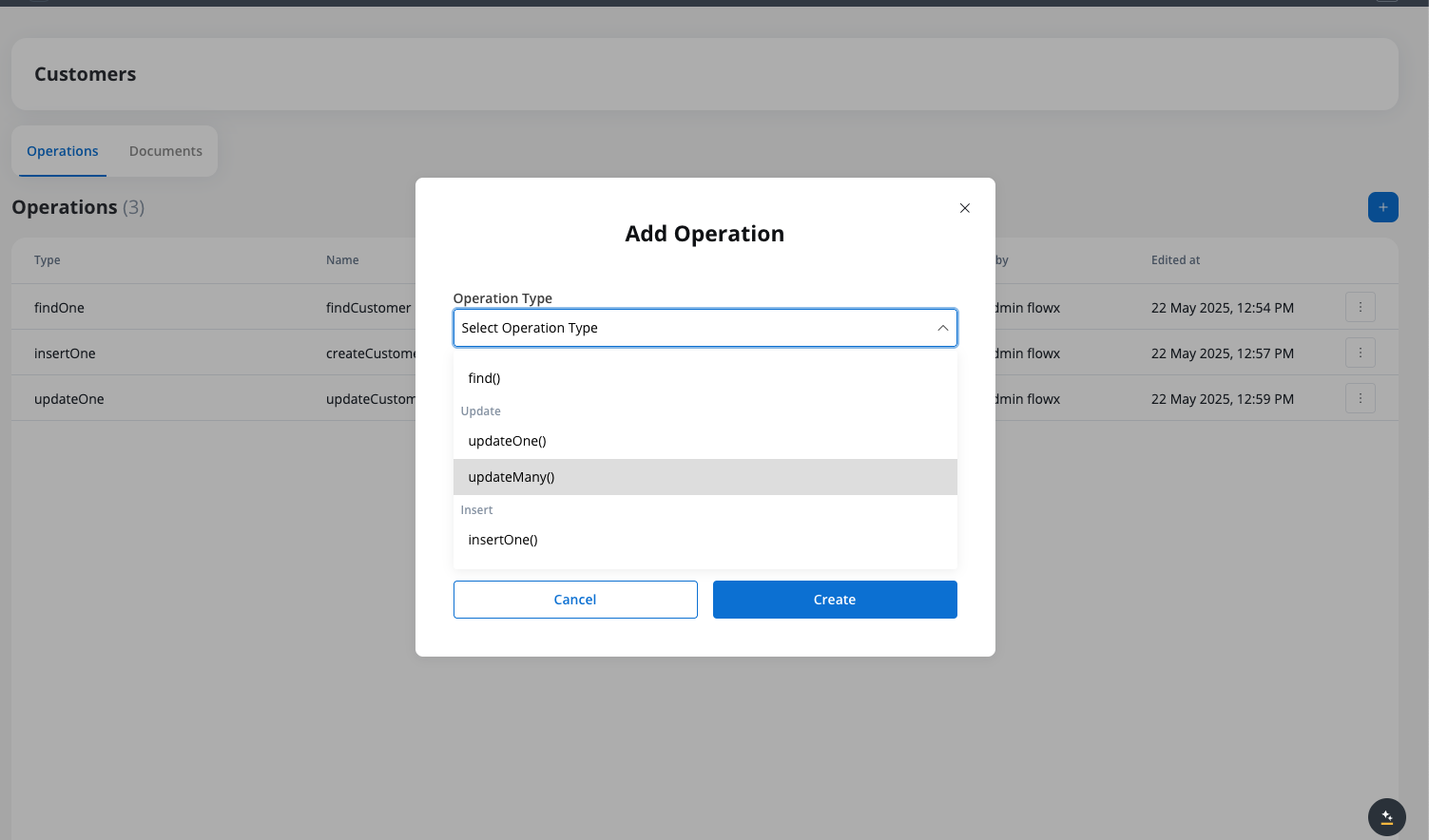
Choose the operation type from the dropdown (find, findOne, insertOne, insertMany, etc.).
Give your operation a meaningful name and description that indicates its purpose.
Configure the parameters for your operation based on its type. For example, for a find operation:
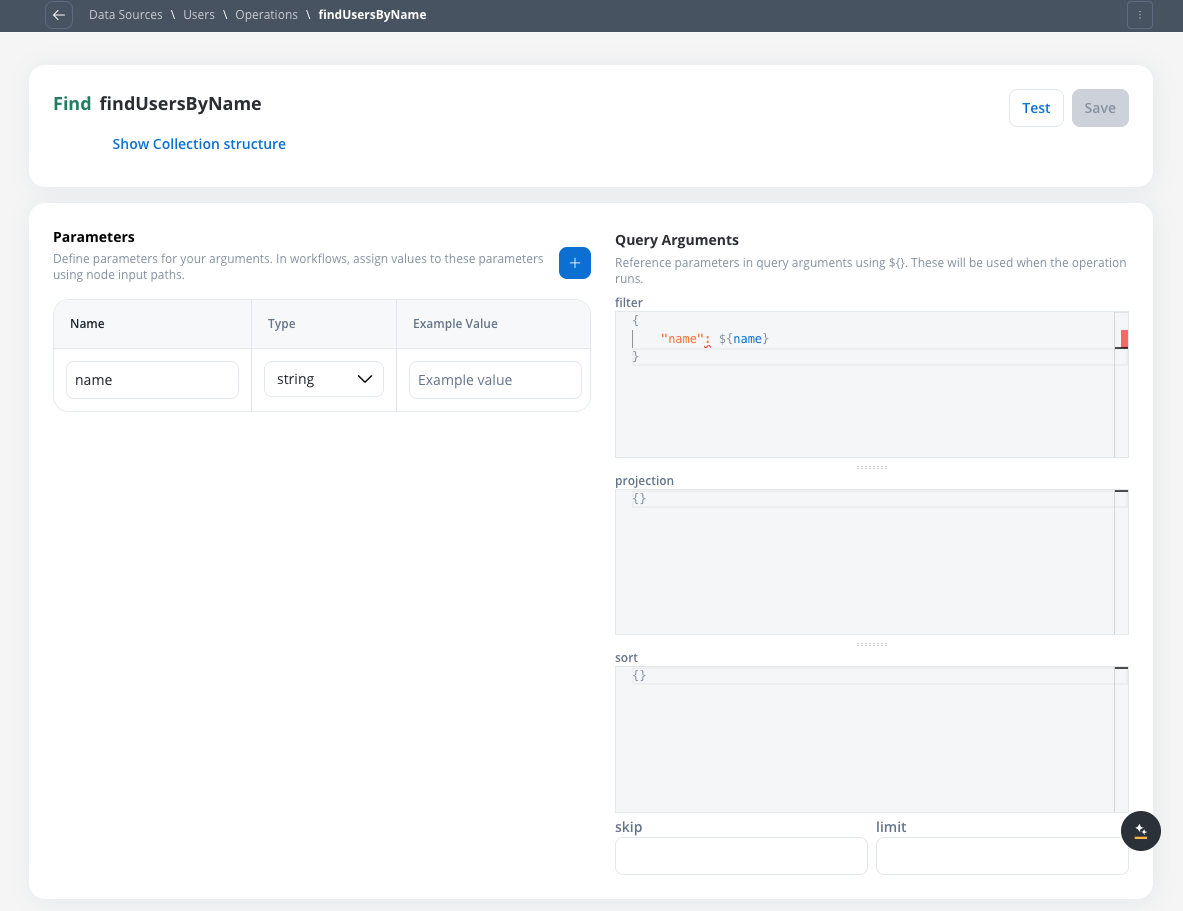
* **Filter**: Define the criteria to match documents
* **Projection**: Select which fields to include in the results
* **Sort**: Specify the sorting order
* **Skip**: For find operations, specify the number of documents to skip
* **Limit**: Set the maximum number of documents to return
**Parameter Syntax**: When defining operation parameters, remember:
* **Parameters defined in the operation** are referenced using `${parameterName}` syntax
* **Database field names** must be in quotes (e.g., `"firstName"`, `"customerId"`)
* Parameters don't need to match your data model exactly - they're placeholders that get replaced with actual values
* Field names in quotes must match exactly what's stored in the database (same as your data model)
Use the test functionality to verify your operation works correctly.
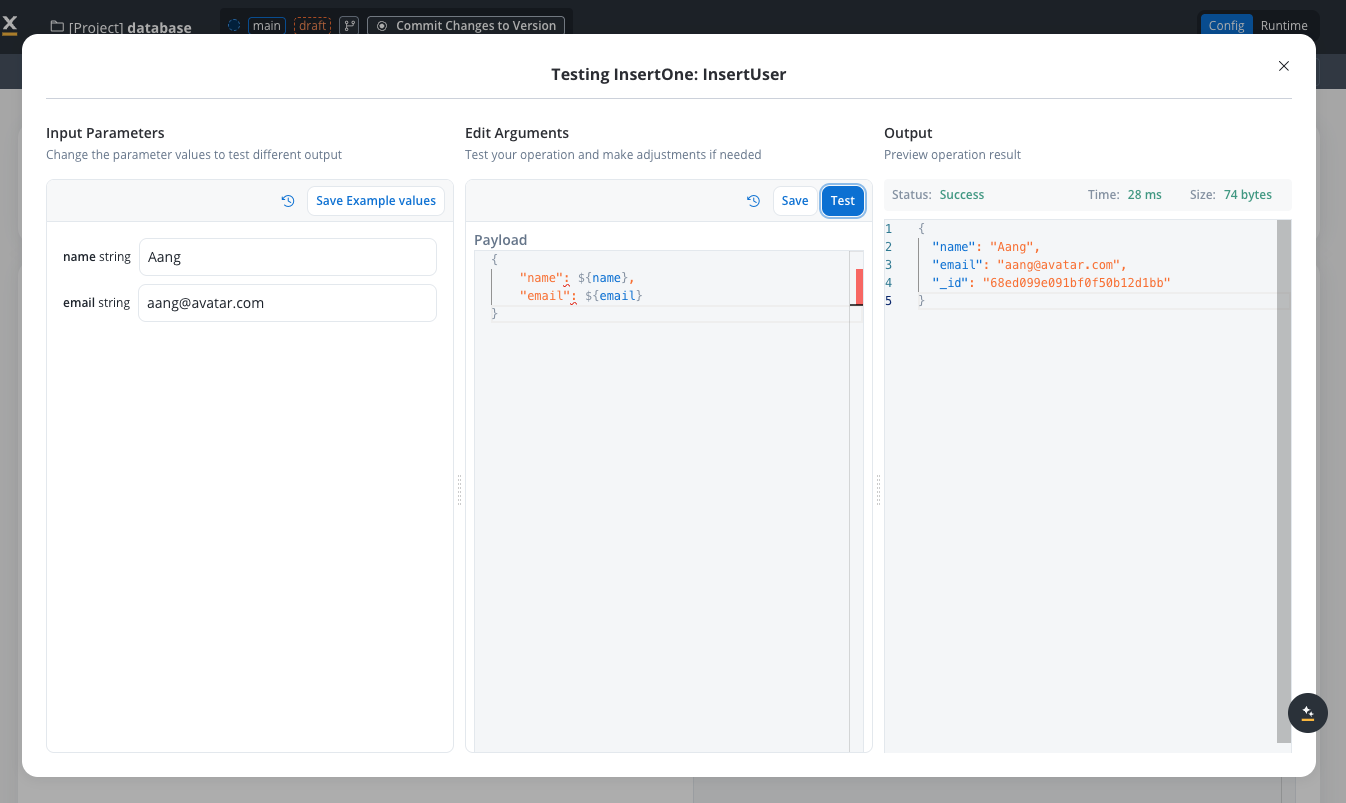
**Testing Delete Operations**: Be extremely careful when testing delete operations (`deleteOne` and `deleteMany`) as they will actually remove documents from your collection. Always use test data or ensure you have backups before testing deletion operations in collections with important data.
Click "Save" to add the operation to your collection. It will now be available for use in workflows.
From the list of operations, select the one you want to update.
Update the operation name, description, or parameters as needed.
Test the updated operation to ensure it works as expected.
Save your changes to apply them to the operation.
From the list of operations, select the one you want to delete.
Click the delete button and confirm the deletion when prompted.
Verify that the operation has been removed from the collection.
### Visual query builder
Instead of writing raw MongoDB query syntax, you can use the visual query builder to define filters, updates, projections, and sorting through a guided interface that understands your collection's schema.
Each operation type has a tailored builder experience. You can switch between **Visual** and **Script** mode at any time using the mode toggle. The two modes work independently — saving in one mode sets that as the active query for the operation.
Switching modes does not sync changes between them. A warning message informs you that saving in the current mode will set it as the final query for the operation.
#### Condition rows
The core building block of the query builder is the **condition row**, used in filter sections across all operation types:
| Element | Description |
| --------------------- | --------------------------------------------------------------------------------------------------------------------------------------------------------------------------- |
| **Field dropdown** | Pick a field from the collection schema. Supports nested paths (e.g., `address.city`). Shows a data type badge for each field. |
| **Operator dropdown** | Type-aware operators that change based on the selected field's data type (see table below). |
| **Value input** | Enter a static value or switch to dynamic mode using `${paramName}` syntax. Input type adapts to the field type (text, number, date picker, boolean toggle, enum dropdown). |
| **Remove button** | Delete the condition row. |
Multiple condition rows can be combined with **AND** or **OR** logic using a dropdown selector. AND is the default.
#### Type-aware operators
The available operators change based on the selected field's data type:
| Field type | Available operators |
| ------------- | ---------------------------------------------------------------------------------------------------------- |
| **String** | equals, not equals, contains, starts with, ends with, regex, in, not in, exists, is null |
| **Number** | equals, not equals, greater than, greater or equal, less than, less or equal, between, in, exists, is null |
| **Boolean** | is true, is false, exists |
| **Date/Time** | equals, before, after, exists, is null |
| **Enum** | equals, not equals, in, not in, exists |
| **Object** | exists, not exists |
| **Array** | contains, size equals, size greater than, exists |
Fields not in the schema can also be used — select a custom key and a data type selector appears so you can set the appropriate operators.
#### Builder sections by operation type
* **Filter**: Condition rows to define which documents to match
* **Sort**: Add sort fields with ASC/DESC direction
* **Projection**: Select fields to include or exclude from results
* **Pagination** (find only): Set **Limit** (max documents) and **Skip** (offset) values
* **Document fields**: Auto-populated from the collection schema with appropriate input types per field
* `_id` is auto-included with an "auto-generated" indicator
* Array fields have an **+ Add item** button
* Each field supports static values or `${paramName}` dynamic references
* **Filter section**: Same condition row builder as Find — defines which documents to update
* **Update section**: Define what to change in matching documents:
| Update operator | Description |
| --------------- | ------------------------- |
| `$set` | Replace field value |
| `$unset` | Remove field |
| `$inc` | Increment number |
| `$push` | Add to array |
| `$pull` | Remove from array |
| `$addToSet` | Add unique value to array |
* **Filter section**: Same condition row builder as Find — defines which documents to delete
A warning banner is always displayed: "This operation will permanently delete matching documents."
#### Testing operations
The existing 3-panel test modal is enhanced with the visual builder:
* **Left panel**: Input parameters — fill in test values for `${paramName}` references
* **Middle panel**: Shows the visual builder view of the query
* **Right panel**: Results displayed in tabular format with schema-derived column headers
For insert operations, a **Quick Find** button appears after a successful test, letting you immediately verify the inserted document.
***
## Working with FlowX Database in workflows
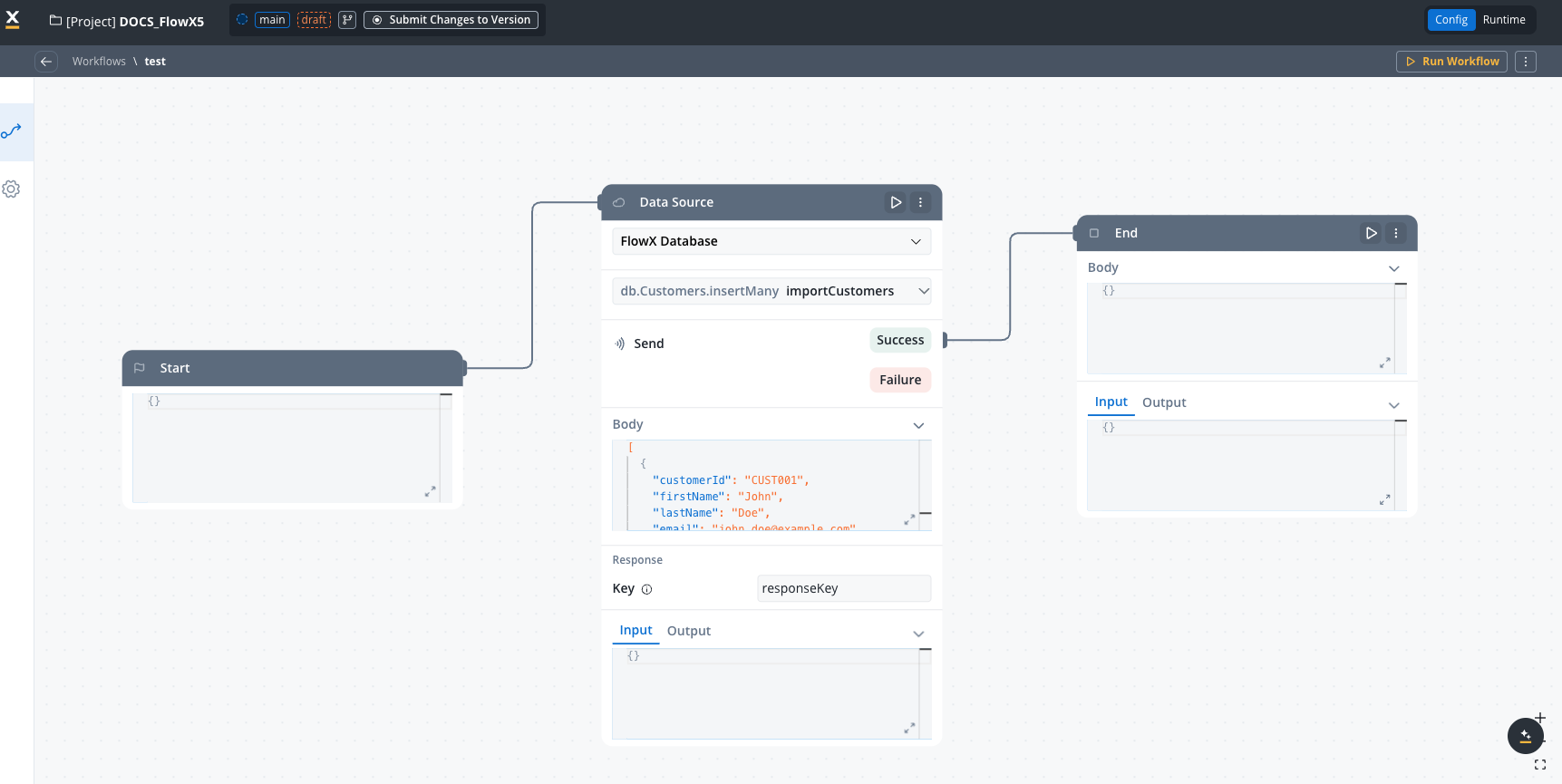
FlowX Database integrates directly with the workflow designer through the "Data Source" node type:
In your workflow, add a new node and select the 'DATA\_SOURCE' type.
In the node properties panel:
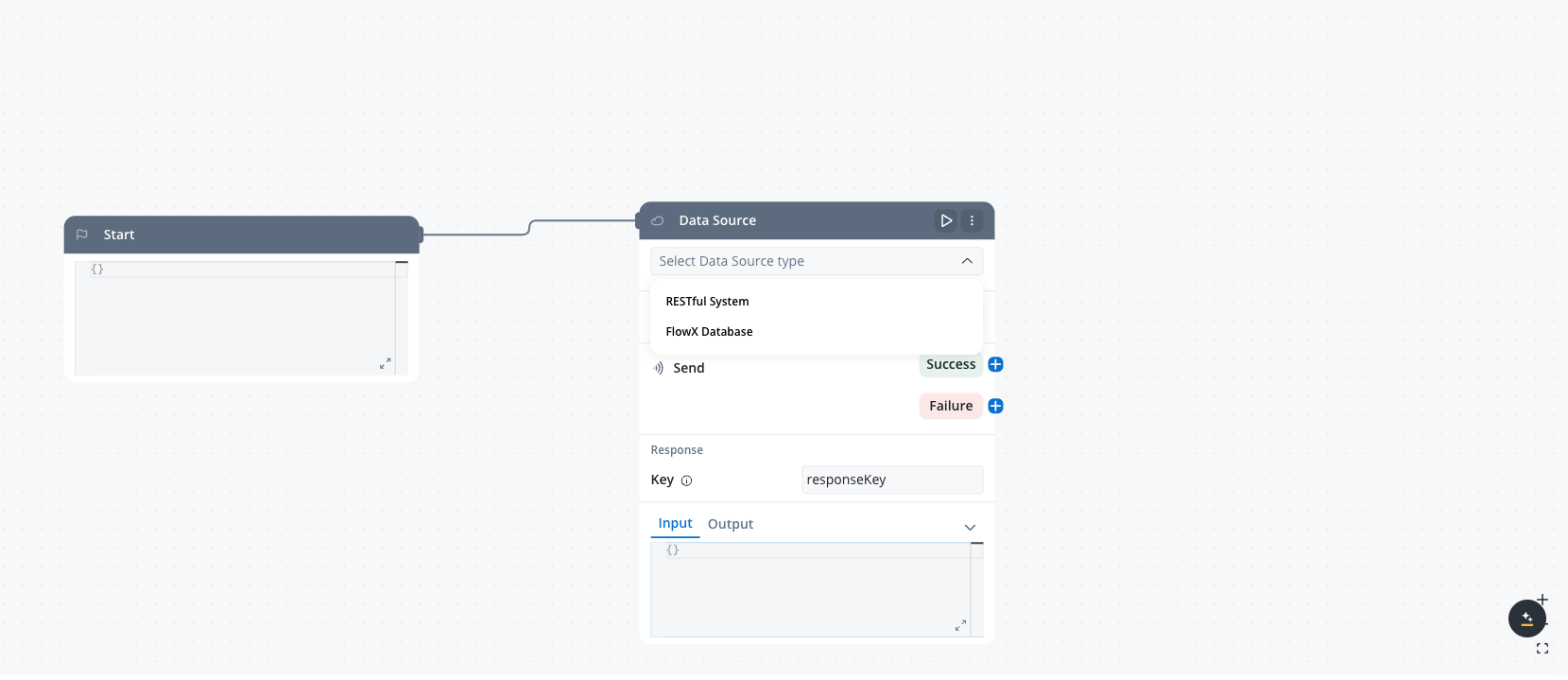
1. Choose "FlowX Database" as the system type from the dropdown
2. Select your collection from the available options
3. Choose the operation you want to perform (find, findOne, insertOne, insertMany, updateOne, updateMany, deleteOne, deleteMany)
Set the parameters for your selected operation. The available parameters will depend on the operation type:
* **filter** - For find operations, define the criteria to match documents
* **sort** - For find operations, specify the sorting order for results
* **document** - For insert operations, define the document to insert
* **update** - For update operations, define the document to update
* **delete** - For delete operations, define the criteria to match documents
* **skip** - For find operations, specify the number of documents to skip
* **limit** - For find operations, specify the maximum number of documents to return
* **projection** - For find operations, specify the fields to include or exclude in the results
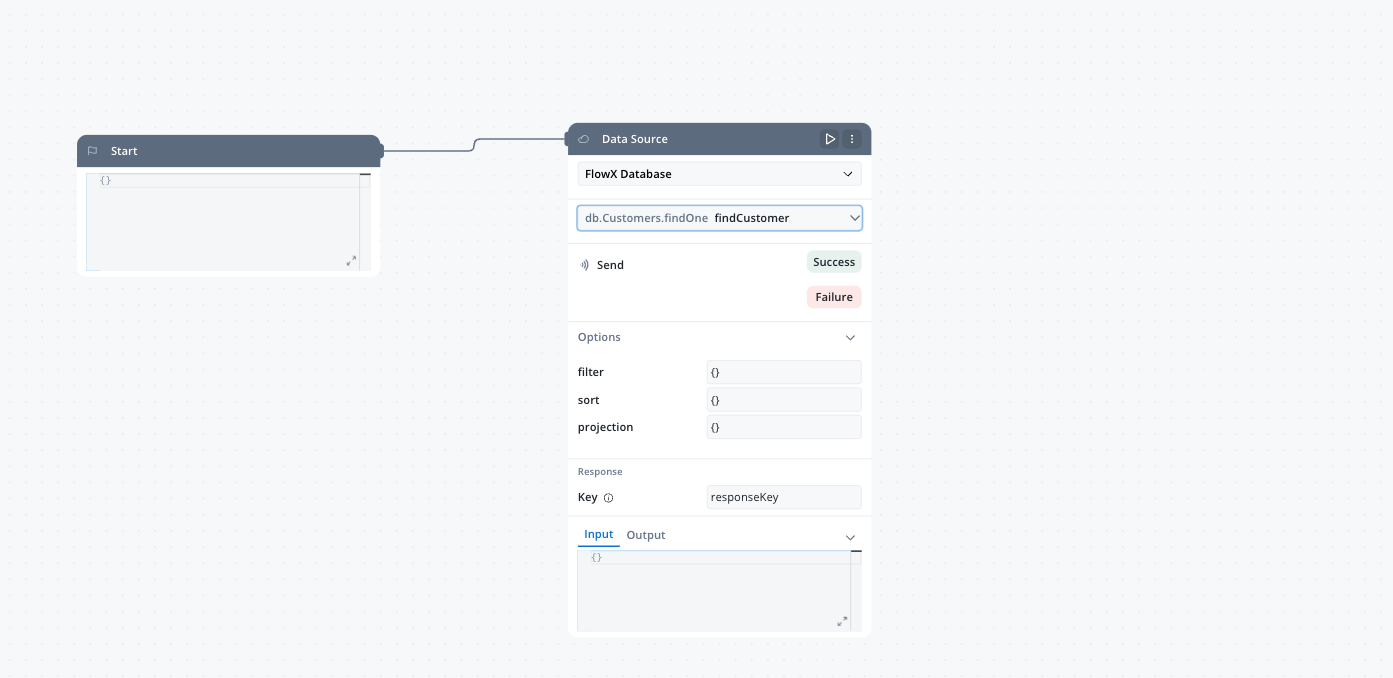
You can use static JSON or reference process variables using the expression syntax.
Specify where the operation result should be stored in the process instance. This makes the data available to subsequent nodes in your workflow.
```json theme={"system"}
{
"age": { "$gt": 30 },
"status": "active"
}
```
This filter will return all documents where the age is greater than 30 and the status is "active".
For more information about MongoDB comparison operators like \$gt, see [Comparison Query Operators](https://www.mongodb.com/docs/manual/reference/operator/query/comparison/).
```json theme={"system"}
{
"customerId": "${processInstance.customerData.id}"
}
```
This filter uses a value from the process instance to find documents matching a specific customer ID.
Learn more about MongoDB query syntax in the [Query Documents Tutorial](https://www.mongodb.com/docs/manual/tutorial/query-documents/).
## MongoDB operations supported
FlowX Database uses MongoDB's query capabilities through the **nosql-db-runner** service, providing pure MongoDB functionality. For detailed information about MongoDB query operators, filters, and syntax, refer to the [MongoDB Query and Projection Operators documentation](https://www.mongodb.com/docs/manual/reference/operator/query/).
The following MongoDB operations are supported in FlowX Database. Each tab includes practical examples that you can use as a starting point for your own operations.
**Parameters:**
For complete documentation on find operations and query syntax, see [MongoDB db.collection.find()](https://www.mongodb.com/docs/manual/reference/method/db.collection.find/).
* **filter** (document, optional): Criteria to match documents. See [Query Filter Documents](https://www.mongodb.com/docs/manual/tutorial/query-documents/)
* **sort** (document, optional): Document specifying the sorting order. See [Sort Query Results](https://www.mongodb.com/docs/manual/reference/method/cursor.sort/)
* **skip** (integer, optional): Number of documents to skip. See [Limit Query Results](https://www.mongodb.com/docs/manual/reference/method/cursor.skip/)
* **limit** (integer, optional): Maximum number of documents to return. See [Limit Query Results](https://www.mongodb.com/docs/manual/reference/method/cursor.limit/)
* **projection** (document, optional): Fields to include or exclude. See [Project Fields](https://www.mongodb.com/docs/manual/tutorial/project-fields-from-query-results/)
This example finds all active customers, sorts them by registration date (newest first), limits to 10 results, and returns only specific fields.
Operation name: listActiveCustomers
```json theme={"system"}
{
"status": "active"
}
```
```json theme={"system"}
{
"customerSince": -1
}
```
```json theme={"system"}
{
"customerId": 1,
"firstName": 1,
"lastName": 1,
"email": 1,
"status": 1,
"_id": 0
}
```
```
0
```
```
10
```
This operation will return up to 10 active customers, with the most recently registered customers first.
This example finds products in a specific category within a price range.
Operation name: findAffordableElectronics
```json theme={"system"}
{
"category": "electronics",
"price": { "$gte": 10, "$lte": 100 }
}
```
```json theme={"system"}
{
"price": 1
}
```
```json theme={"system"}
{
"productName": 1,
"price": 1,
"rating": 1,
"inStock": 1,
"_id": 0
}
```
```
20
```
This operation will return up to 20 electronics products with prices between $10 and $100, sorted from lowest to highest price.
**Parameters:**
For complete documentation on findOne operations, see [MongoDB db.collection.findOne()](https://www.mongodb.com/docs/manual/reference/method/db.collection.findOne/).
* **filter** (document, optional): Criteria to match the document. See [Query Filter Documents](https://www.mongodb.com/docs/manual/tutorial/query-documents/)
* **projection** (document, optional): Fields to include or exclude. See [Project Fields](https://www.mongodb.com/docs/manual/tutorial/project-fields-from-query-results/)
* **sort** (document, optional): Document specifying the sorting order. See [Sort Query Results](https://www.mongodb.com/docs/manual/reference/method/cursor.sort/)
This example retrieves a single customer by their unique customer ID.
Operation name: findCustomerById
```json theme={"system"}
{
"customerId": "${processInstance.customerId}"
}
```
```json theme={"system"}
{
"firstName": 1,
"lastName": 1,
"email": 1,
"phone": 1,
"status": 1,
"customerSince": 1,
"address": 1,
"_id": 0
}
```
This operation uses a process variable for the customer ID and returns specific customer fields. Since findOne only returns one document, sort is usually unnecessary unless you need the first document matching certain criteria.
This example finds the most recent order for a customer.
Operation name: findLatestOrder
```json theme={"system"}
{
"customerId": "${processInstance.customerId}"
}
```
```json theme={"system"}
{
"orderDate": -1
}
```
```json theme={"system"}
{
"orderId": 1,
"orderDate": 1,
"totalAmount": 1,
"status": 1,
"items": 1,
"_id": 0
}
```
This operation will find the most recent order for a specific customer by sorting by orderDate in descending order and returning only the first match.
**Parameters:**
For complete documentation on insertOne operations, see [MongoDB db.collection.insertOne()](https://www.mongodb.com/docs/manual/reference/method/db.collection.insertOne/).
* **document** (document, required): The document to insert. See [Insert Documents](https://www.mongodb.com/docs/manual/tutorial/insert-documents/)
This example inserts a new customer record using data from a process instance.
Operation name: createCustomer
```json theme={"system"}
{
"customerId": "${processInstance.customerData.id}",
"firstName": "${processInstance.customerData.firstName}",
"lastName": "${processInstance.customerData.lastName}",
"email": "${processInstance.customerData.email}",
"phone": "${processInstance.customerData.phone}",
"status": "active",
"customerSince": "${processInstance.customerData.registrationDate}",
"address": {
"street": "${processInstance.customerData.address.street}",
"city": "${processInstance.customerData.address.city}",
"state": "${processInstance.customerData.address.state}",
"zipCode": "${processInstance.customerData.address.zipCode}"
}
}
```
This operation creates a new customer document with nested address data, using values from the process instance.
This example logs a system event with static and dynamic data.
Operation name: logSystemEvent
```json theme={"system"}
{
"eventType": "user_action",
"action": "${processInstance.actionType}",
"timestamp": "${processInstance.currentDateTime}",
"userId": "${processInstance.userId}",
"details": "${processInstance.actionDetails}",
"source": "workflow",
"processId": "${processInstance.id}"
}
```
This operation creates an event log entry with information about user actions in the system.
**Parameters:**
For complete documentation on insertMany operations, see [MongoDB db.collection.insertMany()](https://www.mongodb.com/docs/manual/reference/method/db.collection.insertMany/).
* **documents** (array, required): Array of documents to insert. See [Insert Documents](https://www.mongodb.com/docs/manual/tutorial/insert-documents/)
This example inserts multiple customer records at once, typically from an imported data source.
Operation name: importCustomers
```json theme={"system"}
[
{
"customerId": "CUST001",
"firstName": "John",
"lastName": "Doe",
"email": "john.doe@example.com",
"status": "active",
"customerSince": "2025-01-15"
},
{
"customerId": "CUST002",
"firstName": "Jane",
"lastName": "Smith",
"email": "jane.smith@example.com",
"status": "active",
"customerSince": "2025-01-20"
},
{
"customerId": "CUST003",
"firstName": "Robert",
"lastName": "Johnson",
"email": "robert.j@example.com",
"status": "inactive",
"customerSince": "2024-11-05"
}
]
```
This operation inserts multiple customer records at once. In a real scenario, you would typically reference a process variable containing the array: `{processInstance.importedCustomers}`
This example creates multiple order items for a single order.
Operation name: createOrderItems
```json theme={"system"}
[
{
"orderId": "${processInstance.orderId}",
"productId": "${processInstance.items[0].productId}",
"quantity": "${processInstance.items[0].quantity}",
"unitPrice": "${processInstance.items[0].price}",
"subtotal": "${processInstance.items[0].subtotal}"
},
{
"orderId": "${processInstance.orderId}",
"productId": "${processInstance.items[1].productId}",
"quantity": "${processInstance.items[1].quantity}",
"unitPrice": "${processInstance.items[1].price}",
"subtotal": "${processInstance.items[1].subtotal}"
}
]
```
This operation creates multiple order item records for a single order. In practice, you would use `{processInstance.items}` directly if your process data model matches the database structure.
**Parameters:**
For complete documentation on updateOne operations, see [MongoDB db.collection.updateOne()](https://www.mongodb.com/docs/manual/reference/method/db.collection.updateOne/).
* **filter** (document, required): Criteria to match the document to update. See [Query Filter Documents](https://www.mongodb.com/docs/manual/tutorial/query-documents/)
* **update** (document, required): Update operations to apply. See [Update Operators](https://www.mongodb.com/docs/manual/reference/mql/update/)
**Important Update Behavior**: When using update operations without the `$set` operator, the entire document will be replaced with the new data. This means any fields not included in your update payload will be removed from the document. Always use the `$set` operator to update specific fields while preserving others.
This example updates a customer's status and records when the change occurred.
Operation name: updateCustomerStatus
```json theme={"system"}
{
"customerId": "${processInstance.customerId}"
}
```
```json theme={"system"}
{
"$set": {
"status": "${processInstance.newStatus}",
"lastUpdated": "${processInstance.currentDate}",
"statusReason": "${processInstance.statusChangeReason}"
}
}
```
This operation updates a customer's status along with the reason and timestamp.
This example updates an order with shipping details and increments a counter.
Operation name: updateOrderShipping
```json theme={"system"}
{
"orderId": "${processInstance.orderId}"
}
```
```json theme={"system"}
{
"$set": {
"status": "shipped",
"shippingDetails": {
"carrier": "${processInstance.shippingData.carrier}",
"trackingNumber": "${processInstance.shippingData.trackingNumber}",
"estimatedDelivery": "${processInstance.shippingData.estimatedDelivery}"
},
"lastUpdated": "${processInstance.currentDateTime}"
},
"$inc": {
"statusUpdates": 1
}
}
```
This operation updates an order with shipping information, sets the status to "shipped", and increments a counter tracking the number of status updates.
**Parameters:**
For complete documentation on updateMany operations, see [MongoDB db.collection.updateMany()](https://www.mongodb.com/docs/manual/reference/method/db.collection.updateMany/).
* **filter** (document, required): Criteria to match documents to update. See [Query Filter Documents](https://www.mongodb.com/docs/manual/tutorial/query-documents/)
* **update** (document, required): Update operations to apply. See [Update Operators](https://www.mongodb.com/docs/manual/reference/mql/update/)
**Important Update Behavior**: When using update operations without the `$set` operator, the entire document will be replaced with the new data. This means any fields not included in your update payload will be removed from the document.
For example, if a document has `id`, `name`, and `email`, and you update only the `name` field without using `$set`, the `email` field will be deleted. Always use the `$set` operator to update specific fields while preserving others.
This example updates the status of multiple customers based on their last activity date.
Operation name: deactivateInactiveCustomers
```json theme={"system"}
{
"lastActivityDate": { "$lt": "${processInstance.thresholdDate}" },
"status": "active"
}
```
```json theme={"system"}
{
"$set": {
"status": "inactive",
"deactivationDate": "${processInstance.currentDate}",
"deactivationReason": "inactivity"
}
}
```
This operation identifies all active customers whose last activity date is older than a threshold date and marks them as inactive.
**Key MongoDB Operators**: This example uses `$lt` (less than) for date comparison and `$set` to update specific fields without affecting other customer data. The `$set` operator is essential for partial document updates.
This example demonstrates updating multiple specific customers using the `$in` operator.
Operation name: updateCustomersByIdList
```json theme={"system"}
{
"customerId": { "$in": ["${processInstance.customerIds}"] }
}
```
```json theme={"system"}
{
"$set": {
"lastContactedDate": "${processInstance.currentDate}",
"contactMethod": "${processInstance.contactMethod}",
"notes": "${processInstance.contactNotes}"
}
}
```
This operation updates all customers whose IDs are in the provided list, setting contact information for multiple customers at once.
**Standard MongoDB Pattern**: The combination of `$in` for filtering and `$set` for updating is a standard pattern in MongoDB. Use `$in` when you need to match against a list of values, and always use `$set` to avoid replacing the entire document.
This example applies a discount to all products in a specific category.
Operation name: applySeasonalDiscount
```json theme={"system"}
{
"category": "${processInstance.discountCategory}",
"onSale": false
}
```
```json theme={"system"}
{
"$mul": {
"price": ${processInstance.discountFactor}
},
"$set": {
"onSale": true,
"discountPercent": "${processInstance.discountPercent}",
"saleEndDate": "${processInstance.saleEndDate}"
}
}
```
This operation applies a discount to all products in a specific category by multiplying the price by a discount factor (e.g., 0.8 for 20% off) and setting sale-related fields.
**MongoDB Operators in Action**: This example demonstrates essential MongoDB operators:
* `$mul` multiplies the price by the discount factor
* `$set` updates specific fields without affecting others
* In the filter, you could use `$in` to target multiple categories: `"category": {"$in": ["electronics", "clothing"]}`
**Parameters:**
For complete documentation on deleteOne operations, see [MongoDB db.collection.deleteOne()](https://www.mongodb.com/docs/manual/reference/method/db.collection.deleteOne/).
* **filter** (document, required): Criteria to match the document to delete. See [Query Filter Documents](https://www.mongodb.com/docs/manual/tutorial/query-documents/)
This example removes a single customer record by ID.
Operation name: deleteCustomer
```json theme={"system"}
{
"customerId": "${processInstance.customerIdToDelete}"
}
```
This operation deletes a customer record with the specified ID. Make sure to implement proper validation and confirmation before executing deletion operations.
This example removes an abandoned shopping cart after confirmation.
Operation name: removeAbandonedCart
```json theme={"system"}
{
"cartId": "${processInstance.cartId}",
"status": "abandoned",
"lastUpdated": { "$lt": "${processInstance.thresholdDate}" }
}
```
This operation deletes a shopping cart that's been marked as abandoned and hasn't been updated since a specific date.
**Parameters:**
For complete documentation on deleteMany operations, see [MongoDB db.collection.deleteMany()](https://www.mongodb.com/docs/manual/reference/method/db.collection.deleteMany/).
* **filter** (document, required): Criteria to match documents to delete. See [Query Filter Documents](https://www.mongodb.com/docs/manual/tutorial/query-documents/)
This example removes all temporary records older than a specified date.
Operation name: purgeTemporaryRecords
```json theme={"system"}
{
"status": "temporary",
"createdDate": { "$lt": "${processInstance.purgeThresholdDate}" }
}
```
This operation removes all documents marked as "temporary" that were created before a specific date. Use with caution as this will delete all matching records.
This example removes all completed tasks for a specific user.
Operation name: clearCompletedTasks
```json theme={"system"}
{
"assignedTo": "${processInstance.userId}",
"status": "completed",
"completedDate": { "$lt": "${processInstance.olderThanDate}" }
}
```
This operation removes all tasks that are marked as completed, were assigned to a specific user, and were completed before a certain date.
Always use caution with update and delete operations, especially those that affect multiple documents (updateMany, deleteMany). Always include specific filter criteria to avoid unintended changes to your data.
## Real-world example: Customer management system
This example demonstrates how a customer management system could use FlowX Database to persist and share customer data across different processes.
Create a new FlowX Database data source named "Customers".
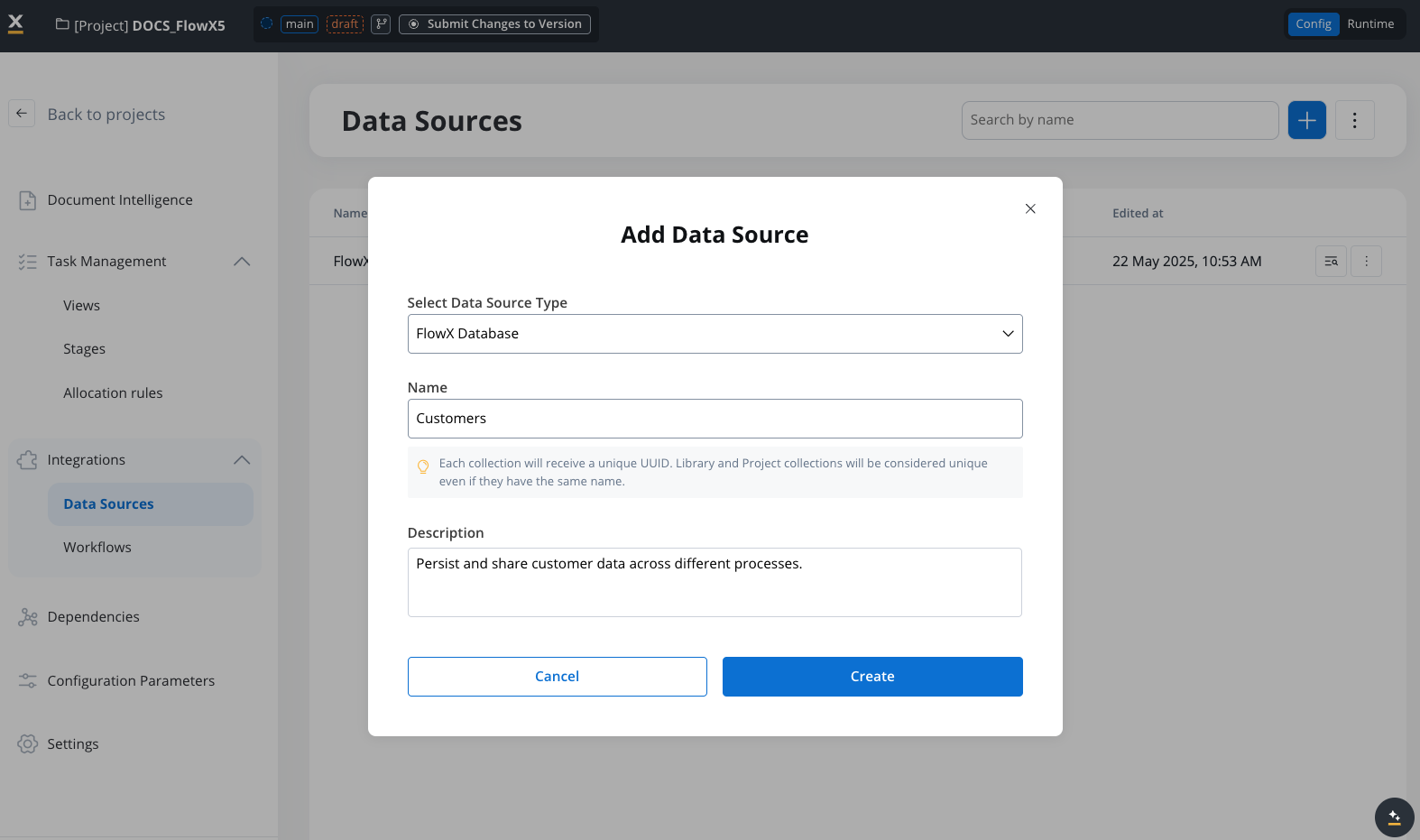
Create the following operations:
**Operation Type**: findOne
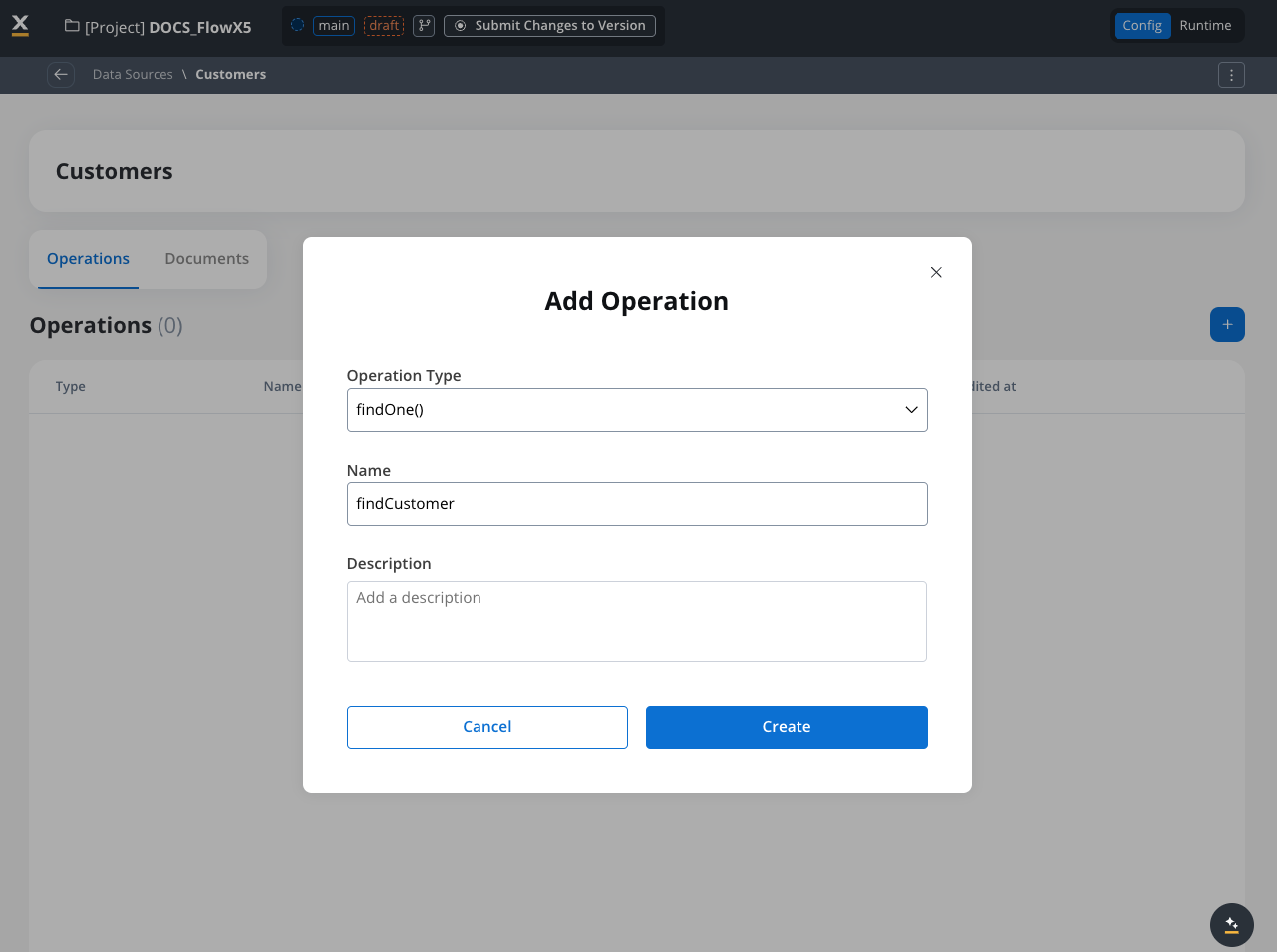
**Parameters**:
```json theme={"system"}
{
"filter": {
"customerId": "${processInstance.customerId}"
},
"projection": {
"firstName": 1,
"lastName": 1,
"email": 1,
"phone": 1,
"status": 1,
"customerSince": 1,
"_id": 0
}
}
```
This operation retrieves a single customer by their customerId, returning only selected fields.
**Operation Type**: insertOne
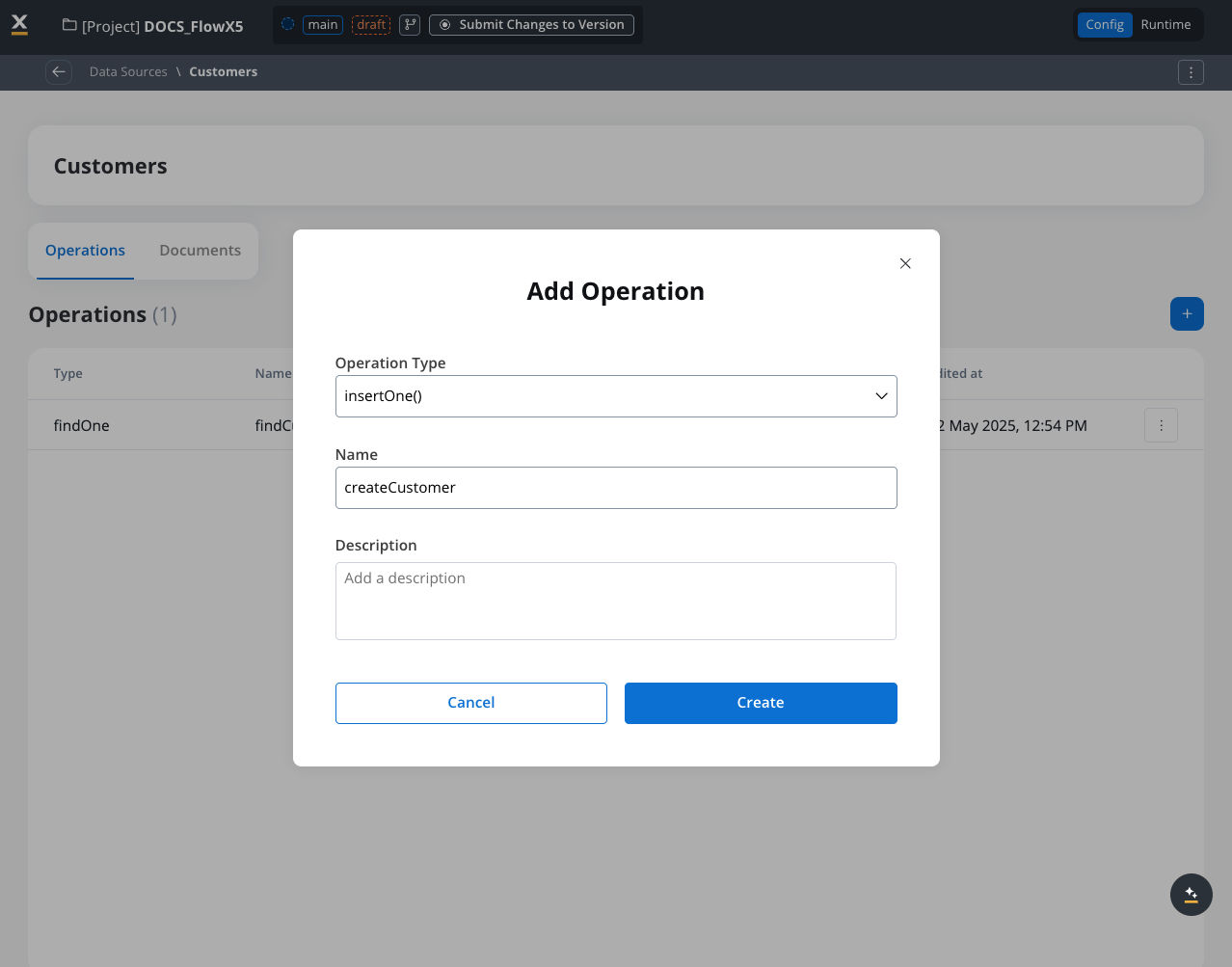
**Parameters**:
```json theme={"system"}
{
"document": {
"customerId": "${processInstance.customerData.id}",
"firstName": "${processInstance.customerData.firstName}",
"lastName": "${processInstance.customerData.lastName}",
"email": "${processInstance.customerData.email}",
"phone": "${processInstance.customerData.phone}",
"status": "active",
"customerSince": "${processInstance.customerData.registrationDate}",
"address": {
"street": "${processInstance.customerData.address.street}",
"city": "${processInstance.customerData.address.city}",
"state": "${processInstance.customerData.address.state}",
"zipCode": "${processInstance.customerData.address.zipCode}"
}
}
}
```
This operation inserts a new customer document using data from the process instance.
**Operation Type**: updateOne
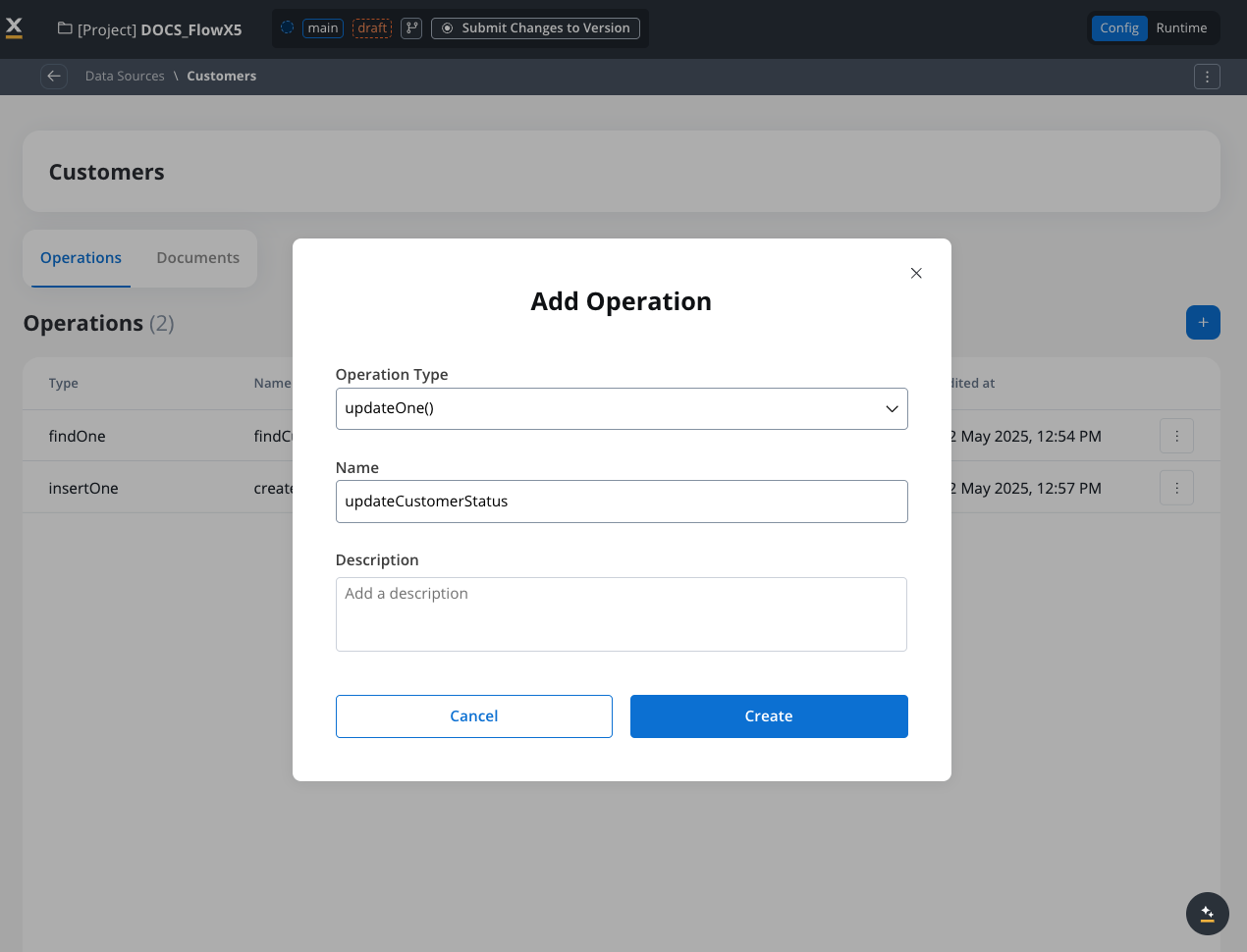
**Parameters**:
```json theme={"system"}
{
"filter": {
"customerId": "${processInstance.customerId}"
},
"update": {
"$set": {
"status": "${processInstance.newStatus}",
"lastUpdated": "${processInstance.currentDate}"
}
}
}
```
This operation updates a customer's status and sets the lastUpdated timestamp.
**Operation Type**: find()
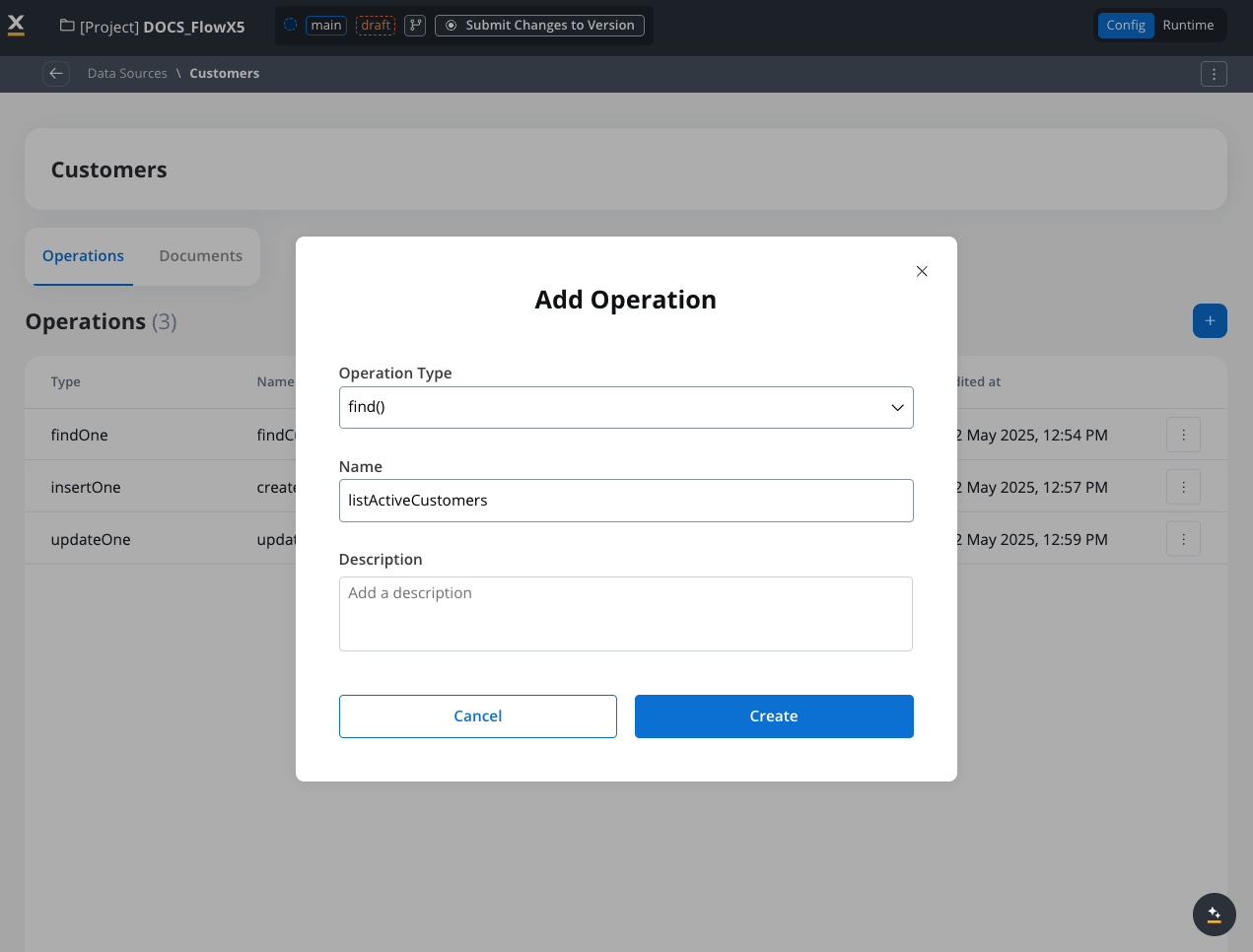
**Parameters**:
```json theme={"system"}
{
"filter": {
"status": "active"
},
"sort": {
"customerSince": -1
},
"limit": 50,
"projection": {
"customerId": 1,
"firstName": 1,
"lastName": 1,
"email": 1,
"status": 1,
"_id": 0
}
}
```
This operation retrieves a list of active customers, sorted by registration date (newest first), limited to 50 results.
In this process:
1. Support agent enters the customer ID
2. A Data Source node retrieves the customer details from the Customers collection
3. Customer information is displayed to the agent
4. After resolving the issue, the support agent updates the customer status
5. Another Data Source node updates the customer record in the database
This example shows how FlowX Database:
* Enables data persistence across multiple processes
* Provides a single source of truth for customer data
* Simplifies data retrieval and updates
* Eliminates the need for external systems to store basic customer information
## Limitations and considerations
Multiple versions of documents are stored in the collection. Upon retrieval, all data that fits the filter conditions will be retrieved regardless of version.
No automatic migration capabilities are available. Any migration will need to be done manually by the DevOps team.
In the initial release, FlowX Database does not support transactions across multiple collections.
Data validation based on a schema is not yet supported.
## Best practices
**Design before implementation**: Plan your collections and operations carefully before implementation.
**Keep document structure simple**: Avoid deeply nested structures for better performance and easier querying.
**Use meaningful names**: Choose clear names for collections and operations.
**Limit document size**: Keep individual documents under 16MB for optimal performance.
**Test operations thoroughly**: Use the testing functionality to ensure operations work as expected.
**Consider indexing**: For large collections, consider indexing frequently queried fields.
**Provide default values**: Ensure all data types have default values (e.g., empty string for null, 0 for integers).
## Troubleshooting
Find operation fails with an error related to the filter syntax.
Check your filter syntax to ensure it follows MongoDB query syntax. Common issues:
* Missing quotes around string values
* Incorrect operator syntax (e.g., using > instead of \$gt)
* Mismatched brackets or braces
Your query doesn't return expected documents.
* Verify your filter conditions are correct
* Check if documents actually exist in the collection
* Try a more general query to see if documents are returned
* Check if field names in your filter match exactly with the document structure
Queries returning large amounts of data are slow.
* Add pagination using skip and limit parameters
* Add more specific filter conditions
* Use projection to return only needed fields
* Consider indexing frequently queried fields
Insert operation fails with an error.
* Check that your document JSON is valid
* Ensure document size is under 16MB
* Verify all required fields are present
* Check for any unique constraint violations
## Related features
Learn about the Data Search service for indexing and searching process data.
Understand how to manage integrations with external systems.
See how workflows can interact with data sources.
Learn about data models used within processes.
## Summary
FlowX Database provides a persistence layer that enables you to store and share data across different processes and projects. By using MongoDB's capabilities through the **nosql-db-runner** service, FlowX Database offers:
1. **Flexible data storage** for any structured data
2. **Data sharing** between process instances
3. **Integration** with workflows
4. **Independence** from external systems for basic data persistence
## MongoDB learning resources
To get the most out of FlowX Database, familiarize yourself with MongoDB concepts and operations:
Complete MongoDB documentation covering all operations and concepts
Learn how to construct effective MongoDB queries
Master document update operations and operators
Best practices for structuring your data in MongoDB
## FAQs
FlowX Database does not replace Data Search. Each serves different purposes in the platform.
* Acts as a persistent data store
* Optimized for CRUD operations
* Stores structured business data
* Designed for sharing data across processes
* Uses MongoDB as the underlying technology (via nosql-db-runner service)
* Provides indexing and search capabilities
* Optimized for quick lookups and aggregations
* Used for debugging and analytics
* Enables searching across process instances
* Uses Elasticsearch as the underlying technology
FlowX Database is designed for **operational data with temporary character**, including:
* **Dashboard data**: Aggregated information for reporting and visualization. For example, create operations that gather information from multiple processes and pull all the data to calculate sums, averages, or other metrics for executive dashboards
* **Cached data**: Frequently accessed information that changes periodically, such as:
* Daily exchange rates for financial calculations
* Product catalogs that update weekly
* Configuration data that multiple processes need to access
* **Internal operational comments**: Information that needs to be shared between users but shouldn't reach business systems, such as:
* Internal comments in a client's profile for bank tellers
* Notes and annotations that support decision-making across different process instances
* Communication logs between team members working on the same case
* **Shared process data**: Information that needs to be accessed across multiple process instances - this solves the key pain point of data sharing between different process instances
* **Temporary operational data**: Working data that supports business processes but isn't part of your permanent records
**Important**: FlowX Database should **not become your primary book of records** or system of record. Use it for operational data that supports your processes, not for critical business data that requires long-term retention and governance.
Yes, you can share collections between projects using the library approach:
1. **Create collections in one project**: Set up your FlowX Database collections in a primary project
2. **Include as libraries**: Add these collections as libraries in other projects that need access
3. **Maintain consistency**: This approach ensures all projects use the same data structures and operations
4. **Future-proof management**: Having centralized collection definitions makes updates and maintenance easier across all projects
This pattern is particularly useful for shared reference data, common configurations, or cross-project operational data.
**Collection Ownership**: Each FlowX Database collection has an owner - either the project where it was created or the library that contains it. By default, only processes and workflows within the same project can access a collection. If you need to access the same collection from multiple projects, create it in a library and then include that library in all projects that need access.
FlowX Database intentionally does not provide automatic migration capabilities for several important reasons:
* **Data integrity**: Many documents need to remain in their original format to maintain historical accuracy and compliance requirements
* **Process dependencies**: Existing processes may depend on specific data structures, and automatic changes could break functionality
* **Business context**: Data migration often requires business logic and context that automated systems cannot provide
* **Risk management**: Manual migration allows for proper testing and validation before changes are applied
When you need to modify data structures, plan for manual migration processes with proper testing and validation procedures handled by your DevOps team.
**No, this is strongly discouraged.** Each collection should contain documents with the same structure and purpose.
**DON'T DO IT** - Mixing different document types in one collection can lead to:
* **Query complexity**: Filtering becomes more complex when documents have different schemas
* **Performance issues**: Indexes become less effective with mixed document types
* **Maintenance problems**: Updates and changes become harder to manage
* **Data consistency**: Harder to ensure data quality and validation
Instead, create separate collections for each document type, even if they seem related. This follows MongoDB best practices and keeps your data organized and manageable.
FlowX Database solves the key pain point of **accessing the same data from multiple process instances**:
* **Cross-instance access**: Multiple process instances can read from and write to the same collections simultaneously
* **Data persistence**: Data remains available even after individual processes complete
* **Concurrent access**: The underlying MongoDB technology (via nosql-db-runner) handles concurrent read/write operations safely
* **Shared state**: Enables complex workflows where processes need to coordinate through shared data
This capability enables use cases like multi-step approval processes, shared customer data across different business processes, and coordinated workflows that span multiple process instances - addressing a major limitation of traditional process-scoped data storage.
FlowX Database is powered by the **nosql-db-runner** microservice, which provides:
* **Pure MongoDB functionality**: Direct access to MongoDB operations within the FlowX ecosystem
* **Native integration**: Connection between FlowX workflows and MongoDB operations
* **Scalable architecture**: A dedicated service that can be scaled independently based on database operation needs
The nosql-db-runner acts as the bridge between FlowX's workflow engine and MongoDB, enabling you to use MongoDB's full capabilities while maintaining FlowX's process orchestration capabilities.
***
## Academy courses
Hands-on course covering systems, data sources, workflows, and database integration patterns
Learn data mapping and transformation between process and integration workflows
**Academy playground** — explore the [**database**](https://designer-workshop-51x.playground.flowxai.dev/workspace/00000000-0000-0000-0000-000000000001/projects/f69d3816-8746-43bc-ac89-121a28710ee5/config/4082e8f4-2f17-4071-84ea-a0692b34fc83/processes) project for working examples of find, findOne, insert, and update operations.