> ## Documentation Index
> Fetch the complete documentation index at: https://docs.flowx.ai/llms.txt
> Use this file to discover all available pages before exploring further.
# Finding identifiers and parameters
> A comprehensive reference guide for locating identifiers, UUIDs, and parameters required for API calls, Kafka integrations, and external system connections.
When integrating with FlowX APIs, configuring Kafka producers, or connecting external systems, you'll need various identifiers and parameters. This guide shows you exactly where to find each one in the FlowX Designer interface.
**Quick tip**: Most UUIDs and identifiers in FlowX Designer can be copied by clicking the copy icon next to them or by right-clicking and selecting "Copy UUID" from the context menu.
## Common identifiers overview
Required for multi-tenant environments and data isolation
Identifies your project in API calls
References a specific deployed version of your application
Various identifiers for processes and their instances
## Organization identifiers
### Organization ID (Fx-Organization-Id)
The organization ID identifies the FlowX deployment tenant. It's mandatory on **every Kafka message** — messages missing this header are rejected with a non-retryable `MissingKafkaHeaderException`. On REST endpoints the header is read when present (to set security context) but not enforced.
The organization ID is the value set in the `ORGANIZATION_ID` environment variable on all FlowX services. It is the UUID provided by FlowX when your organization is registered. See the [Organization Manager setup guide](../../../setup-guides/organization-manager-setup) for details.
After logging into the FlowX Designer, the organization ID appears in the URL path:
```
https://designer.your-domain.flowx.ai/{organization-id}/...
```
Check the `ORGANIZATION_ID` environment variable on any FlowX service (process-engine, application-manager, etc.). All services share the same value in single-org deployments.
**Format**: UUID, for example `26ef7b5f-b463-4375-88c8-xxxxxxxxxxxx`
**Where it's used**:
* Kafka header: `Fx-Organization-Id` (mandatory on every message)
* REST header: `Fx-Organization-Id` (optional; read into security context if present)
* Service config: `ORGANIZATION_ID` environment variable
* CloudEvent extension: `flowxorganizationid`
## Workspace identifiers
### Workspace ID (Fx-Workspace-Id)
The workspace ID is used to identify the workspace context in multi-tenant environments. It's required in certain Kafka headers and API calls.
Navigate to **Organization Settings** from the main menu (available for organization admins and workspace admins).
Click on **Workspaces** in the left sidebar.
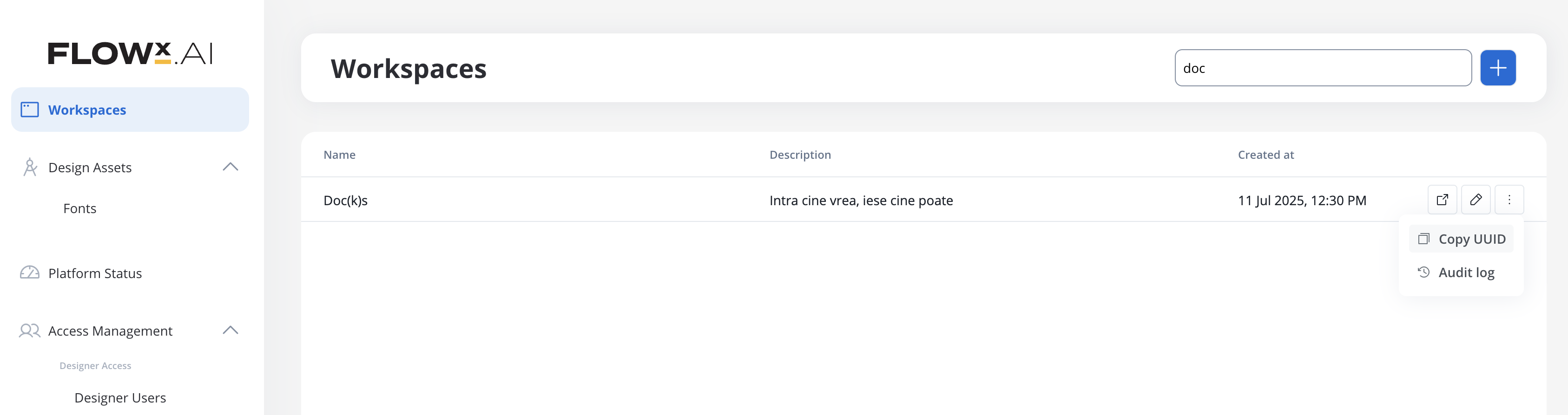
You'll see all workspaces listed. Each workspace card displays:
* Workspace name
* Workspace UUID (this is your **Workspace ID**)
Click the contextual menu (three dots) and then select "Copy UUID" to copy the workspace UUID or copy it directly from the workspace URL when you're inside a workspace:
```
https://your-domain.flowx.ai/workspace/{workspace-id}/projects
```
The workspace ID is also visible in your browser's address bar when navigating within a workspace.
**Default Workspace**: If you migrated from a pre-5.x version, your default workspace has the UUID: `00000000-0000-0000-0000-000000000001`
**Where it's used**:
* Kafka header: `Fx-Workspace-Id`
* API calls requiring workspace context
* Cross-workspace queries and data isolation
## Project identifiers
### Global Application ID (globalId)
The global application ID is a unique identifier that enables cross-workspace application identification. This identifier remains constant for an application even when it's shared or referenced across different workspaces.
**Key characteristics**:
* **Globally unique**: Unlike `appId` which is workspace-scoped, `globalId` uniquely identifies an application across all workspaces
* **Cross-workspace operations**: Used internally for cross-workspace library sharing and application references
* **Automatic assignment**: Generated automatically when an application is created
**Where it's used**:
* Internal cross-workspace application identification
* Library sharing across workspaces
* Cross-workspace data synchronization
### Project ID (Fx-AppId, appId)
The project ID (also referred to as app ID) identifies your project within FlowX. It's one of the most commonly required identifiers.
Go to your workspace and click on **Projects** in the main navigation.
Click on the project you're working with to open it.
The project ID can be found in multiple places:
**Option 1: From the URL**
```
https://your-domain.flowx.ai/workspace/{workspace-id}/projects/{project-id}/...
```
**Option 2: From Project Settings**
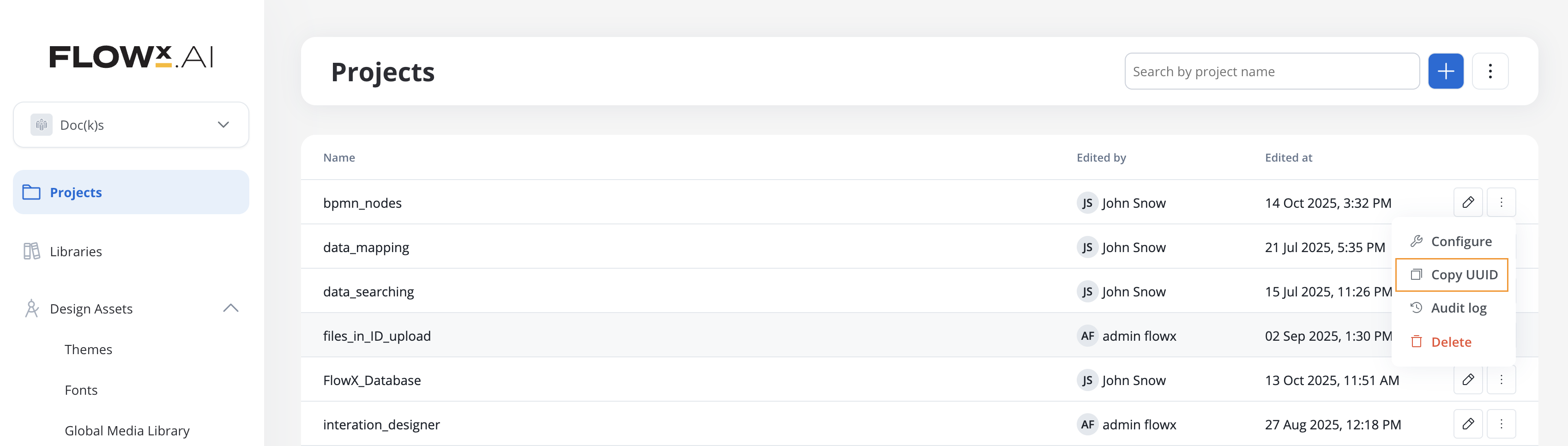
* Click the three dots to access the contextual menu
* Select "Copy UUID" to copy the project UUID
**Where it's used**:
* Kafka header: `Fx-AppId`
* API path parameter: `/app/{appId}/...`
* Process start requests
* Runtime API calls
### Root Application ID (Fx-RootAppId)
The root application ID tracks the originating application throughout process chains, especially when processes spawn subprocesses across different components.
In most cases, `Fx-RootAppId` will be the same as `Fx-AppId` unless you're dealing with complex multi-application workflows.
**Where it's used**:
* Kafka header: `Fx-RootAppId`
* Tracking process chains across multiple applications
* Subprocess communication
## Build identifiers
### Build ID (buildId)
The build ID is a unique identifier for a specific committed version of your application that's been deployed to runtime.
From your project, go to **Runtime → Builds**.
You'll see all your builds listed with:
* Build version number
* Commit status
* Creation date
**UI Limitation**: Currently, the build UUID is not displayed in the builds list, and there's no copy UUID button available. You can obtain the build ID through the [API](#obtaining-build-id-via-api) or from browser developer tools when viewing build details.
**Active Policy**: The build marked as "Active Policy" is the one currently running in production. This is typically the build you'll want to use for API calls.
**Where it's used**:
* API path parameter: `/build/{buildId}/...`
* Runtime endpoints used by renderers
* Version-specific API calls
#### Obtaining Build ID via API
You can retrieve the build ID by calling the builds API endpoint:
```bash theme={"system"}
GET /appmanager/api/app/{appId}/builds
```
The response includes all builds with their `buildId` values.
### Application Version ID (appVersionId, Fx-Build-App-Version-Id)
The application version ID (also called `appVersionId` or `applicationVersionId`) identifies a specific app version. Unlike `buildId`, this identifier is **not unique by itself** - it's only unique when combined with `workspaceId`.
**Key distinction**:
* **buildId**: Unique identifier for a committed build (globally unique)
* **appVersionId**: Identifier for an app version (unique only within a workspace when combined with `workspaceId`)
* **Kafka header `Fx-Build-App-Version-Id`** contains the `appVersionId`, NOT the `buildId`
**Where it's used**:
* API path parameter: `/app-version/{appVersionId}/...`
* Kafka header: `Fx-Build-App-Version-Id` (replaces deprecated `Fx-BuildId`)
* Internal Kafka communication between FlowX components
* Always used in combination with `workspaceId` for unique identification
**Technical note**: In API responses (e.g., `/api/app/{appId}/app-version/{appVersionId}`), you may see the app version ID duplicated in both the main response and within a `settings.applicationVersionId` field. This happens because the settings object represents a separate database table, and the view combines multiple tables without explicitly excluding the duplicate data.
**Deprecated Header**: `Fx-BuildId` is deprecated. Use `Fx-Build-App-Version-Id` instead. Note that this header contains the `appVersionId`, despite the "Build" in the header name.
## Process identifiers
### Process Definition Name (processDefinitionName)
The process definition name is the human-readable name you assigned when creating the process.
From your project, go to **Definitions → Processes**.
The process name is displayed prominently for each process in the list.
You can copy the exact process name by:
* Selecting and copying the text directly
* Opening the process and copying from the process settings
Process names are case-sensitive and must match exactly when used in API calls or Kafka messages.
**Where it's used**:
* API path parameter: `/process-name/{processDefinitionName}/start`
* Kafka header: `Fx-ProcessName` (when starting a process via Kafka)
* Process configuration and queries
### Process Definition UUID
Process definitions have two types of UUIDs, each serving different purposes:
1. **Resource Definition ID** (`resourceDefinitionId`, `processDefinitionFlowxUuid`) - Permanent identifier
2. **Resource ID** (`resourceId`) - Version-specific identifier
**Critical distinction**:
* **`resourceDefinitionId`** (also known as `processDefinitionFlowxUuid`): Stays **constant across ALL app versions**. This is the logical identifier for the process.
* **`resourceId`**: Changes **with each app version** when the process is modified. This identifies a specific version of the process.
#### Finding Process Definition UUID (resourceDefinitionId)
The `resourceDefinitionId` is the permanent identifier that stays the same across all versions. This is what you typically need for process references and integrations.
Navigate to **Definitions → Processes** and click on your process to open it.
Click the **Settings** icon (gear icon) in the process editor toolbar.
The process UUID displayed in process settings is the `resourceDefinitionId`.
**UI Limitation**: Currently, there's no copy UUID button in the process list view. You need to open the process settings to access the UUID.
Alternatively, you can find it in the browser URL when editing a process:
```
https://your-domain.flowx.ai/.../processes/{process-uuid}/edit
```
**Where it's used**:
* Also referred to as `processDefinitionFlowxUuid` in some contexts
* Process references and linking
* Cross-version queries
* Most integration scenarios (unless you specifically need a version-specific identifier)
#### Finding Resource ID (version-specific)
The `resourceId` identifies a specific version of a process and changes with each app version.
**When you might need resourceId**: Typically, you won't need the version-specific `resourceId` unless you're working with internal APIs that specifically require it. Most integrations use `resourceDefinitionId` instead.
**Where it's used**:
* Version-specific API operations
* Internal queries that need to target a specific app version
* API responses (returned alongside `resourceDefinitionId`)
### Resource Definition ID (resourceDefinitionId)
The resource definition ID is a **persistent identifier** for a resource that **stays the same across all app versions**. It's used to track the evolution of a resource through different versions and to link resources together.
**Key difference from resourceId**:
* **resourceDefinitionId**: Permanent identifier that stays constant across versions. Use this to link resources together (e.g., a process using another process, a process using a workflow) and to track changes between different versions of the same resource.
* **resourceId**: Version-specific identifier that changes with each app version. Use this when you need to modify or reference a specific version of a resource.
**How to find it**: This ID is not directly visible in the FlowX Designer UI. It's returned in the response body when you make a GET request to fetch a specific resource by its resource ID.
The `resourceDefinitionId` is present in every resource request (GET, update, delete). The URL pattern follows:
```
/appmanager/api/resource/app/{appId}/app-version/{appVersionId}/rt/{resourceType}/ri/{resourceId}/...
```
**Examples by resource type**:
**Workflows**:
```bash theme={"system"}
GET /appmanager/api/resource/app/{appId}/app-version/{appVersionId}/rt/workflow/ri/{resourceId}/integration/api/workflows/getById
```
**Processes**:
```bash theme={"system"}
GET /appmanager/api/resource/app/{appId}/app-version/{appVersionId}/rt/process/ri/{resourceId}/...
```
The response includes the `resourceDefinitionId`:
```json theme={"system"}
{
"resourceId": "36ab1a35-fc4e-49ee-872d-b3551e3e33ce",
"resourceDefinitionId": "e96fb0fb-a710-44db-b3bd-1a57bc2cb3e8",
"applicationId": "fd44d9d9-b072-40fe-b12e-b7714105ba48",
"name": "My Resource",
...
}
```
You can also find the `resourceDefinitionId` in the response when fetching lists of resources:
**Get all workflows**:
```bash theme={"system"}
GET /appmanager/api/resource/app/{appId}/app-version/{appVersionId}/rt/workflow/integration/api/workflows/all
```
Each item in the response array will include its `resourceDefinitionId`.
1. Open FlowX Designer and navigate to your resource (process, workflow, etc.)
2. Open browser developer tools (F12)
3. Go to the **Network** tab
4. Load or refresh the resource
5. Find the GET request matching the pattern `/rt/{resourceType}/ri/{resourceId}/...`
6. Check the response body for the `resourceDefinitionId` field
The GET request is usually the first call made when entering the details of a resource.
**Where it's used**:
* **Linking resources**: When one resource references another (process calls another process, process uses a workflow, etc.)
* **Version tracking**: To track how a resource evolves across different app versions
* **Cross-version queries**: Finding all versions of the same logical resource
* **API responses**: Present in both individual resource requests and list endpoints
**When to use resourceDefinitionId vs resourceId**:
* Use `resourceDefinitionId` when you need to reference a resource logically, regardless of version
* Use `resourceId` when you need to work with a specific version of a resource (editing, viewing, deploying)
#### Understanding the relationship: A practical example
Let's say you have:
* **Process A** (Customer Onboarding)
* **Workflow B** (Document Verification)
**Scenario**: Process A needs to use Workflow B.
**Version 1.0 (Initial):**
```json theme={"system"}
{
"workflowB": {
"resourceId": "abc-123-v1",
"resourceDefinitionId": "workflow-doc-verify"
}
}
```
Process A references Workflow B using `resourceDefinitionId: "workflow-doc-verify"`
**Version 2.0 (After modifying Workflow B):**
```json theme={"system"}
{
"workflowB": {
"resourceId": "abc-456-v2", // ⬅️ Changed
"resourceDefinitionId": "workflow-doc-verify" // ⬅️ Stays the same
}
}
```
✅ **The link still works** because Process A uses `resourceDefinitionId`, which remains constant.
**Why this matters**:
* When you modify Workflow B and create a new app version, its `resourceId` changes from `abc-123-v1` to `abc-456-v2`
* But `resourceDefinitionId` stays `workflow-doc-verify`
* Process A doesn't need to be updated because it references the logical resource, not a specific version
* FlowX automatically resolves to the latest version of Workflow B in the active build
**When modifying resources**:
* Use `resourceId` in your API calls to edit/update/delete a specific version
* Use `resourceDefinitionId` to understand which logical resource is being modified
* Use `resourceDefinitionId` to track history: "Show me all versions of this workflow"
### Process Instance UUID (processInstanceUuid)
When you start a process, FlowX creates a process instance with its own unique identifier.
Navigate to **Runtime → Active Process → Process instances**.
You'll see a list of all running and completed process instances.
Click on a process instance to view its details, then click the **Process Status** icon.
At the top of the process status view, you'll see:
* **Active process instance**: The UUID of this specific process execution
* Click the copy icon to copy the UUID
**Where to find it programmatically**: Process instance UUIDs are returned in the response when you start a process via API. Store this value if you need to reference the instance later.
**Where it's used**:
* Kafka header: `processInstanceUuid`
* API calls to query or manipulate specific process instances
* Correlation in Kafka messages
* Audit log queries
### Process Instance ID (processInstanceId)
In addition to the UUID, each process instance has a numeric ID.
Open the process status (as described above for Process Instance UUID).
Scroll to the **Instance Metadata** section, which displays:
* `processInstanceId`: The numeric ID
* `processInstanceUuid`: The UUID
Both `processInstanceId` (numeric) and `processInstanceUuid` (UUID) identify the same process instance. **Prefer the UUID for integrations**: it's unique across all resource types, workspaces, and environments, and stays stable across data migrations or sequence resets. The numeric ID is only unique within a single database's sequence, so it can collide or shift when data moves between environments — use it for internal queries and legacy integrations.
**Where it's used**:
* Kafka header: `processInstanceId`
* Internal database queries
* Some legacy integrations
## Token identifiers
### Token ID
Tokens represent the current position in a process flow. Each token has an identifier.
Navigate to **Runtime → Active Process → Process instances** and open a process instance.
In the process status view, expand the **Tokens** section.
Each token displays:
* Token ID (numeric)
* Token state (ACTIVE, FINISHED, etc.)
* Current node position
**Where it's used**:
* Advanced process debugging
* Custom integrations that need to track token movement
* Internal FlowX Engine operations
## Context and correlation identifiers
### fxContext
The `fxContext` header is crucial for routing messages in architectures with embedded processes and subprocesses.
**fxContext structure**:
* Root process: `"main"`
* Embedded subprocess (nodeId=4): `"main:4"`
* Sub-subprocess (nodeId=12 inside subprocess 4): `"main:4:12"`
This value is automatically set by FlowX Engine when sending Kafka messages. You must preserve and return it unchanged in your responses.
**Where it's used**:
* Kafka header: `fxContext`
* Routing messages to specific subprocesses
* Message correlation in complex process hierarchies
## Authentication identifiers
### JWT Token
Most API calls and Kafka messages require authentication via JWT token.
**For Development and Testing Only**:
1. Log into FlowX Designer
2. Open browser developer tools (F12)
3. Go to the **Network** tab
4. Make any request in FlowX Designer
5. Click on the request and view headers
6. Find the `Authorization` header and copy the JWT token (the part after "Bearer ")
Tokens obtained this way are temporary and tied to your user session. They will expire quickly and should only be used for development and testing purposes.
**For Production Integrations**:
In production environments, external systems should authenticate using your configured Identity Provider (Keycloak or other OAuth2 provider) with appropriate user credentials or OAuth2 flows based on your security requirements.
Work with your Customer Success team or security administrator to set up proper authentication flows for your production integrations. The authentication method will depend on your specific use case and security policies.
**Security considerations**:
* **Never hardcode JWT tokens** in your code. Tokens expire and should be refreshed regularly.
* **Service accounts** (client credentials flow) have elevated privileges in FlowX and should be handled with extreme care.
* **For self-hosted deployments**: Service account setup should be coordinated with your Customer Success team.
* **For cloud deployments**: Contact FlowX support to discuss proper authentication strategies for your integration needs.
**Where it's used**:
* HTTP header: `Authorization: Bearer {token}`
* Kafka header: `jwt` (for process starts via Kafka)
* All authenticated API calls
## Quick reference table
Here's a quick lookup table for common identifiers:
| Identifier | Also Known As | Format | Where to Find | Used In |
| ------------------------------ | ----------------------------------------------------------------- | ------ | --------------------------------------------------- | --------------------------- |
| Organization ID | `Fx-Organization-Id`, `ORGANIZATION_ID` | UUID | Service env var OR Designer URL path | Kafka headers (mandatory) |
| Workspace ID | `Fx-Workspace-Id` | UUID | Organization Settings → Workspaces OR URL | Kafka headers, API calls |
| Global Application ID | `globalId` | UUID | API responses (internal) | Cross-workspace operations |
| Project ID | `appId`, `Fx-AppId` | UUID | Project URL, Project Settings | API paths, Kafka headers |
| Root Application ID | `Fx-RootAppId` | UUID | Same as Project ID (in most cases) | Kafka headers |
| Build ID | `buildId` | UUID | API: `/api/app/{appId}/builds` | Runtime API paths |
| Application Version ID | `appVersionId`, `applicationVersionId`, `Fx-Build-App-Version-Id` | UUID | Runtime → Builds (not directly visible in UI) | API paths, Kafka headers |
| Process Definition Name | `processDefinitionName` | String | Definitions → Processes (process name) | API paths, Kafka headers |
| Process Definition UUID | `processDefinitionFlowxUuid`, `resourceDefinitionId` | UUID | Process Settings OR URL when editing | Process references, queries |
| Resource ID (version-specific) | `resourceId`, `rid` | UUID | API responses only | Version-specific API ops |
| Process Instance UUID | `processInstanceUuid` | UUID | Runtime → Process Instances → Process Status | Kafka headers, API calls |
| Process Instance ID | `processInstanceId` | Number | Runtime → Process Instances → Instance Metadata | Kafka headers |
| Token ID | N/A | Number | Process Status → Tokens section | Advanced debugging |
| fxContext | N/A | String | Automatically set by Engine (preserve in responses) | Kafka headers |
**Important distinctions**:
* **buildId** vs **appVersionId**:
* `buildId` is globally unique and identifies a specific committed build
* `appVersionId` is only unique when combined with `workspaceId`
* The Kafka header `Fx-Build-App-Version-Id` contains `appVersionId`, NOT `buildId`
* **resourceDefinitionId** vs **resourceId**:
* `resourceDefinitionId` (also known as `processDefinitionFlowxUuid`): Stays constant across ALL app versions
* `resourceId`: Changes with each app version when the process is modified
## Common integration scenarios
### Starting a process via HTTP API
Required identifiers:
* **appId**: Project ID
* **buildId**: Build ID (obtained via API: `GET /appmanager/api/app/{appId}/builds`)
* **processDefinitionName**: Process name (from Definitions → Processes)
* **JWT token**: From authentication
```bash theme={"system"}
curl -X POST "https://your-domain.flowx.ai/rtm/api/runtime/app/{appId}/build/{buildId}/process-name/{processDefinitionName}/start" \
-H "Authorization: Bearer {jwt-token}" \
-H "Content-Type: application/json" \
-H "flowx-platform: web" \
-d '{"key": "value"}'
```
**Note**: The `buildId` is not directly visible in the FlowX Designer UI. Use the API endpoint mentioned above to retrieve it, or work with your Customer Success team to identify the correct build ID for your environment.
### Starting a process via Kafka
Required Kafka headers:
* **Fx-Organization-Id**: Organization UUID (mandatory on every message)
* **Fx-Workspace-Id**: Workspace UUID
* **Fx-AppId**: Project ID
* **Fx-ProcessName**: Process definition name
* **jwt**: JWT token
```json theme={"system"}
{
"headers": {
"Fx-Organization-Id": "26ef7b5f-b463-4375-88c8-aaaaaaaaaaaa",
"Fx-Workspace-Id": "00000000-0000-0000-0000-000000000001",
"Fx-AppId": "dbe0ab87-539b-4015-962d-6e73226b9e58",
"Fx-ProcessName": "customer_onboarding",
"jwt": "your-jwt-token"
},
"variables": {
"customerName": "John Doe"
}
}
```
### Responding to Kafka messages from FlowX
Required Kafka headers to preserve:
* **Fx-Organization-Id**: Organization UUID (mandatory on every response)
* **Fx-Workspace-Id**: Workspace ID
* **fxContext**: Process context (received from FlowX)
* **Fx-AppId**: Project ID
* **Fx-RootAppId**: Root application ID
* **Fx-Build-App-Version-Id**: Application version ID (contains `appVersionId`, used with `Fx-Workspace-Id` for unique identification)
* **processInstanceId**: Process instance numeric ID
* **processInstanceUuid**: Process instance UUID
```java theme={"system"}
public void sendMessage(String topic, Headers headers, Object payload) {
ProducerRecord producerRecord = new ProducerRecord<>(topic, payload);
// IMPORTANT: Preserve all received headers
headers.forEach(header -> producerRecord.headers().add(header));
kafkaTemplate.send(producerRecord);
}
```
**Critical**: Always include ALL received Kafka headers when responding to FlowX Engine. Missing headers can cause message routing failures or data isolation issues.
**Backward compatibility**: You may still see the deprecated `Fx-BuildId` header in some messages. FlowX reads both `Fx-Build-App-Version-Id` (preferred) and `Fx-BuildId` (legacy) for backward compatibility. Always preserve both headers if present.
## Troubleshooting
**Solution**: Make sure you have either **Organization Admin** or **Workspace Admin** permissions. Workspace IDs are visible in Organization Settings → Workspaces.
If you can't access Organization Settings, ask your organization admin to provide the workspace ID or grant you appropriate permissions.
**Solution**: Ensure you're using the correct identifier for your API endpoint:
1. **For `/build/{buildId}/...` endpoints**: You need the actual `buildId` which can be obtained via the API:
```bash theme={"system"}
GET /appmanager/api/app/{appId}/builds
```
2. **For `/app-version/{appVersionId}/...` endpoints**: Use the `appVersionId` (also referred to in the header as `Fx-Build-App-Version-Id`)
3. Go to **Runtime → Builds** and verify the build status is "COMMITTED"
4. Check if there's an **Active Policy** - this is usually the build you want to reference
5. Note that the build UUID is not currently displayed in the UI - use the API endpoint above to retrieve it
**Common issues**:
1. **Missing `Fx-Organization-Id` header**: Messages without this header are rejected immediately with a non-retryable `MissingKafkaHeaderException`. Verify the header is present and matches the `ORGANIZATION_ID` set on your FlowX services.
2. **Missing or incorrect headers**: Verify `Fx-Workspace-Id`, `Fx-AppId`, `Fx-ProcessName`, and `jwt` headers
3. **No active policy**: Check that the build is set as Active Policy in Runtime → Active Policy
4. **Authentication failure**: Ensure the JWT token is valid and not expired
5. **Process name mismatch**: Process names are case-sensitive - copy exact name from process list
6. **Payload too large**: Ensure your Kafka message payload is under 1MB
**Solution**: Check the `fxContext` header:
* For subprocesses, `fxContext` must follow the hierarchical format
* Example: `"main:4:12"` for a subprocess with nodeId=12 inside subprocess nodeId=4
* Always preserve the exact `fxContext` received from FlowX Engine
* Missing or incorrect `fxContext` causes messages to be delivered to the wrong process level
**Solution**:
1. Navigate to **Runtime → Active Process → Process instances**
2. Find your process instance by:
* Process definition name
* Start date/time
* Current status
3. Click to open process instance
4. Click **Process Status** icon
5. The UUID is shown at the top as "Active process instance"
If you can't find it, check:
* You're in the correct workspace
* You have the correct project selected
* The process might be in "Finished" status (use filters)
## Related documentation
Learn how to create Kafka producers and understand required headers
Understand workspace concepts and multi-tenant architecture
Learn different methods for initiating process instances