> ## Documentation Index
> Fetch the complete documentation index at: https://docs.flowx.ai/llms.txt
> Use this file to discover all available pages before exploring further.
# Building a connector
> Build custom connectors to integrate external systems with FlowX.AI as independently deployable microservices.
## Connector essentials
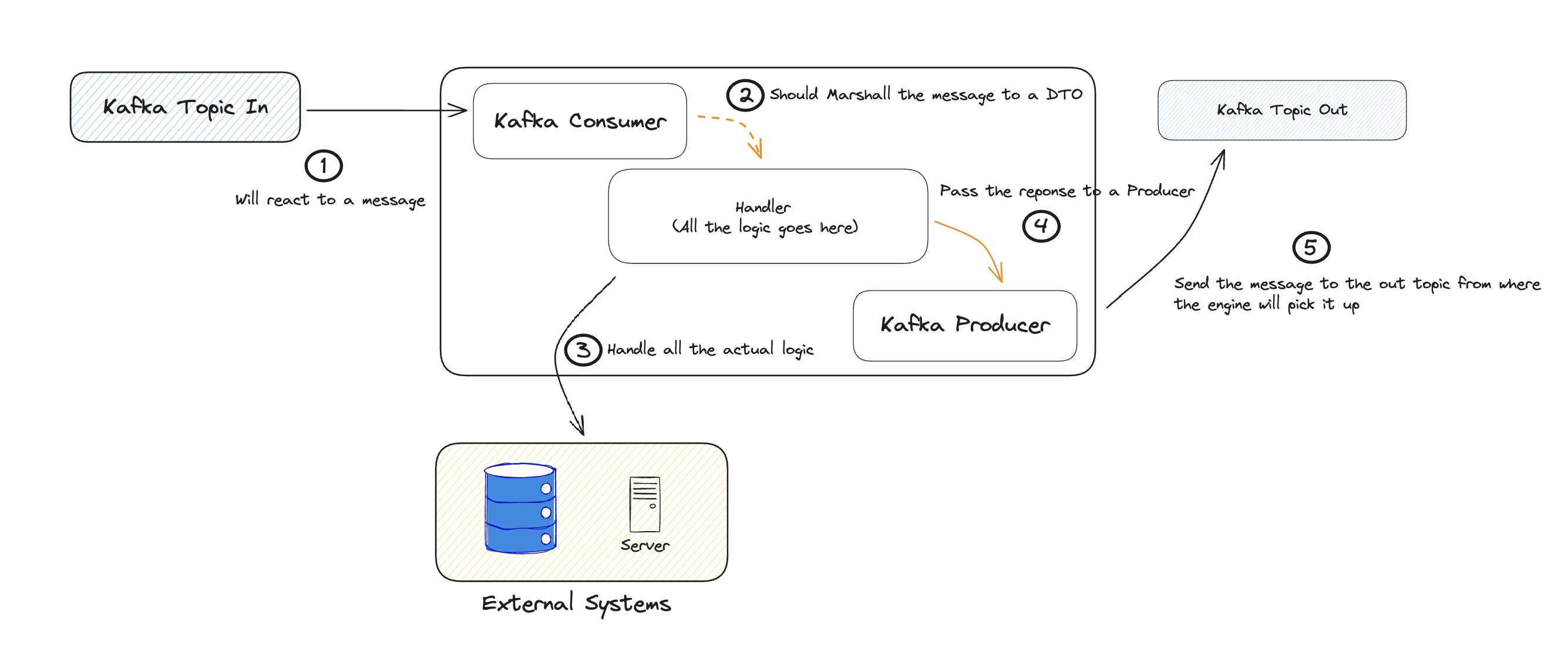
At its core, a connector acts as an anti-corruption layer. It manages interactions with external systems and crucial data transformations for integrations.
## Key functions
Connectors act as lightweight business logic layers, performing essential tasks:
1. **Data Transformation**: Ensure compatibility between different data formats, like date formats, value lists, and units.
2. **Information Enrichment:** Add non-critical integration information like flags and tracing GUIDs.
## Creating a connector
1. **Create a Kafka Consumer:** Follow [**this guide**](./creating-a-kafka-consumer) to configure a Kafka consumer for your Connector.
2. **Create a Kafka Producer:** Refer to [**this guide**](./creating-a-kafka-producer) for instructions on setting up a Kafka producer.
Adaptable Kafka settings can yield advantageous event-driven communication patterns. Fine-tuning partition counts and consumers based on load testing is crucial for optimal performance.
### Design considerations
Efficient Connector design within an event-driven architecture demands:
* Load balancing solutions for varying communication types between the Connector and legacy systems.
* Custom implementations for request load balancing, Connector scaling, and more.
Incorporate all received Kafka headers in responses to ensure proper communication with the FlowX Engine.
### Connector configuration sample
Here's a basic setup example for a connector:
* Configurations and examples for Kafka listeners and message senders.
* **OPTIONAL**: Activation examples for custom health checks.
[Sample available here](https://github.com/flowx-ai/quickstart-connector/tree/feature/easy-start)
Follow these steps and check the provided code snippets to effectively implement your custom FLOWX connector:
1. **Name Your Connector**: Choose a meaningful name for your connector service in the configuration file (`quickstart-connector/src/main/resources/config/application.yml`):
```yaml theme={"system"}
spring:
application:
name: easy-connector-name # TODO 1. Choose a meaningful name for your connector service.
jackson:
serialization:
write_dates_as_timestamps: false
fail-on-empty-beans: false
```
2. **Select Listening Topic:** Decide the primary topic for your connector to listen on ( you can do this at the following path → `quickstart-connector/src/main/resources/config/application-kafka.yml`):
If the connector needs to listen to multiple topics, ensure you add settings and configure a separate thread pool executor for each needed topic (refer to `KafkaConfiguration`, you can find it at `quickstart-connector/src/main/java/ai/flowx/quickstart/connector/config/KafkaConfiguration.java`).
3. **Define Reply Topic**: Determine the reply topic, aligning with the Engine's topic pattern.
4. **Adjust Consumer Threads**: Modify consumer thread counts to match partition numbers.
```yaml theme={"system"}
kafka:
consumer.threads: 3 # TODO 4. Adjust number of consumer threads. Make sure number of instances * number of threads = number of partitions per topic.
auth-exception-retry-interval: 10
topic:
in: ai.flowx.easy-connector.in # TODO 2. Decide what topic should the connector listen on.
out: ai.flowx.easy-connector.out # TODO 3. Decide what topic should the connector reply on (this topic name must match the topic pattern the Engine listens on).
```
5. **Define Incoming Data Format (DTO)**: Specify the structure for incoming and outgoing data using DTOs. This can be found at the path: `quickstart-connector/src/main/java/ai/flowx/quickstart/connector/dto/KafkaRequestMessageDTO.java`.
```java theme={"system"}
//Example for incoming DTO Format
package ai.flowx.quickstart.connector.dto;
import lombok.Getter;
import lombok.Setter;
import lombok.ToString;
@Getter
@Setter
@ToString
public class KafkaRequestMessageDTO { // TODO 5. Define incoming DTO format.
private String Id;
}
```
6. **Define Outgoing Data Format (DTO)**: Specify the structure for outgoing data at the following path → `quickstart-connector/src/main/java/ai/flowx/quickstart/connector/dto/KafkaResponseMessageDTO.java`.
```java theme={"system"}
// Example for Outgoing DTO Format
package ai.flowx.quickstart.connector.dto;
import lombok.Builder;
import lombok.Getter;
import lombok.Setter;
import lombok.ToString;
@Getter
@Setter
@ToString
@Builder
public class KafkaResponseMessageDTO implements BaseApiResponseDTO { // TODO 6. Define outgoing DTO format.
private String name;
private String errorMessage;
}
```
7. **Implement Business Logic**: Develop logic for handling messages from the Engine and generating replies. Ensure to include the process instance UUID as a Kafka message key.
Optional Configuration Steps:
* **Health Checks:** Enable health checks for all utilized services in your setup.
```yaml theme={"system"}
management: # TODO optional: enable health check for all the services you use in case you add any
health:
kafka.enabled: false
```
Upon completion, your configuration files (`application.yaml` and `application-kafka.yaml`) should resemble the provided samples, adjusting settings according to your requirements:
```yaml theme={"system"}
logging:
level:
ROOT: INFO
ai.flowx.quickstart.connector: INFO
io.netty: INFO
reactor.netty: INFO
jdk.event.security: INFO
server:
port: 8080
spring:
application:
name: easy-connector-name
jackson:
serialization:
write_dates_as_timestamps: false
fail-on-empty-beans: false
management:
health:
kafka.enabled: false
spring.config.import: application-kafka.yml
logging.level.ROOT: DEBUG
logging.level.ai.flowx.quickstart.connector: DEBUG
```
And your Kafka configuration file (`application-kafka.yaml`) should look like this:
```yaml theme={"system"}
spring:
kafka:
bootstrap-servers: localhost:9092
security.protocol: "PLAINTEXT"
producer:
key-serializer: org.apache.kafka.common.serialization.StringSerializer
value-serializer: org.springframework.kafka.support.serializer.JsonSerializer
properties:
interceptor:
classes: io.opentracing.contrib.kafka.TracingProducerInterceptor
message:
max:
bytes: ${KAFKA_MESSAGE_MAX_BYTES:52428800} #50MB
max:
request:
size: ${KAFKA_MESSAGE_MAX_BYTES:52428800} #50MB
consumer:
group-id: kafka-connector-group
key-deserializer: org.apache.kafka.common.serialization.StringDeserializer
value-deserializer: org.apache.kafka.common.serialization.StringDeserializer
properties:
interceptor:
classes: io.opentracing.contrib.kafka.TracingConsumerInterceptor
kafka:
consumer.threads: 3
auth-exception-retry-interval: 10
topic:
in: ai.flowx.easy-connector.in
out: ai.flowx.easy-connector.out
spring:
kafka:
security.protocol: "SASL_PLAINTEXT"
properties:
sasl:
mechanism: "OAUTHBEARER"
jaas.config: "org.apache.kafka.common.security.oauthbearer.OAuthBearerLoginModule required oauth.client.id=\"${KAFKA_OAUTH_CLIENT_ID:kafka}\" oauth.client.secret=\"${KAFKA_OAUTH_CLIENT_SECRET:kafka-secret}\" oauth.token.endpoint.uri=\"${KAFKA_OAUTH_TOKEN_ENDPOINT_URI:kafka.auth.localhost}\" ;"
login.callback.handler.class: io.strimzi.kafka.oauth.client.JaasClientOauthLoginCallbackHandler
```
## Setting up the connector locally
For detailed setup instructions, refer to the Setting Up FlowX.AI Quickstart Connector Readme:
Prerequisites:
* a terminal to clone the GitHub repository
* a code editor and IDE
* JDK version 17
* the Docker Desktop app
* an internet browser
## Integrating a connector in FlowX.AI Designer
To integrate and utilize the connector within FlowX.AI Designer, follow these steps:
1. **Process Designer Configuration**: Utilize the designated communication nodes within the [Process Designer](../../building-blocks/process/process):
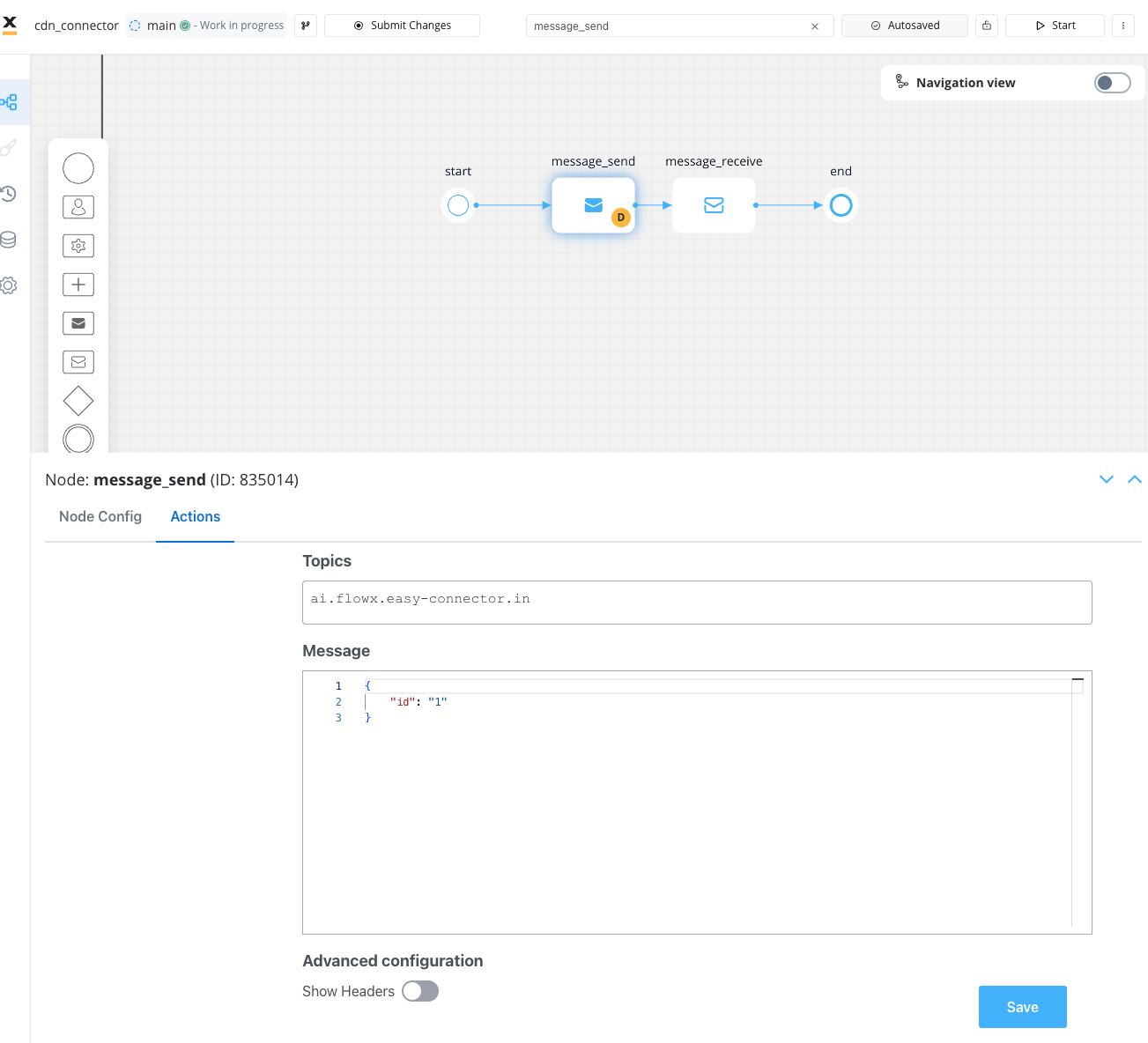
* [**Send Message Task**](../../building-blocks/node/message-send-received-task-node#message-send-task): Transmit a message to a topic monitored by the connector. Make sure you choose **Kafka Send Action** type.
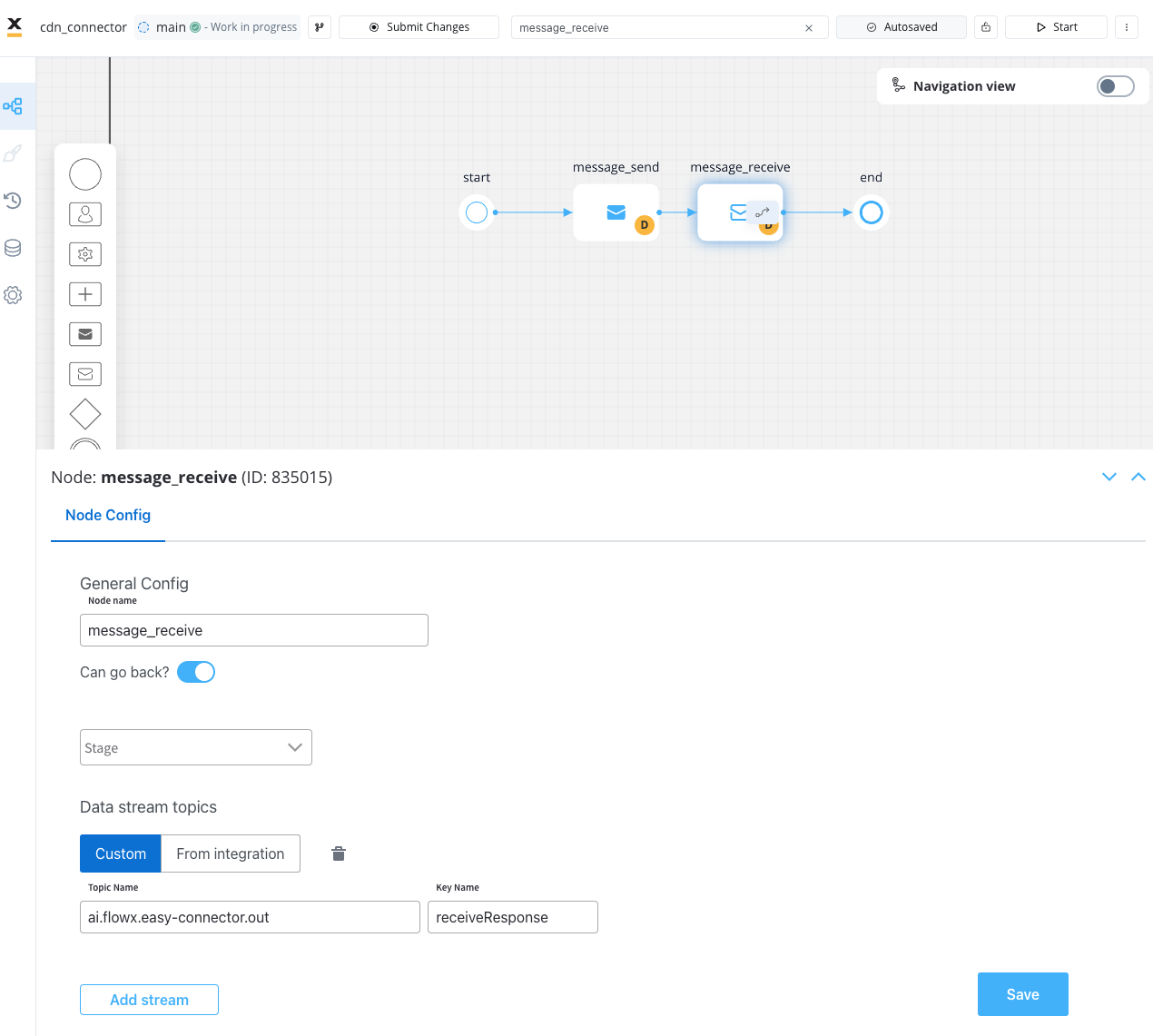
* [**Receive Message Task**](../../building-blocks/node/message-send-received-task-node#message-receive-task): Await a message from the connector on a topic monitored by the engine.
2. **Connector Operations**: The connector identifies and processes the incoming message.
3. **Handling Response**: Upon receiving a response, the connector serializes and deposits the message onto the specified OUT topic.
4. **Engine Processing**: The engine detects the new message, captures the entire content, and stores it within its variables based on the configured variable settings.
You can check another example of a more complex connector by checking the following repository: