> ## Documentation Index
> Fetch the complete documentation index at: https://docs.flowx.ai/llms.txt
> Use this file to discover all available pages before exploring further.
# Task management
> Task Management tracks work items generated by running processes, giving teams visibility into who is doing what and where each case stands. One task is created per process instance.
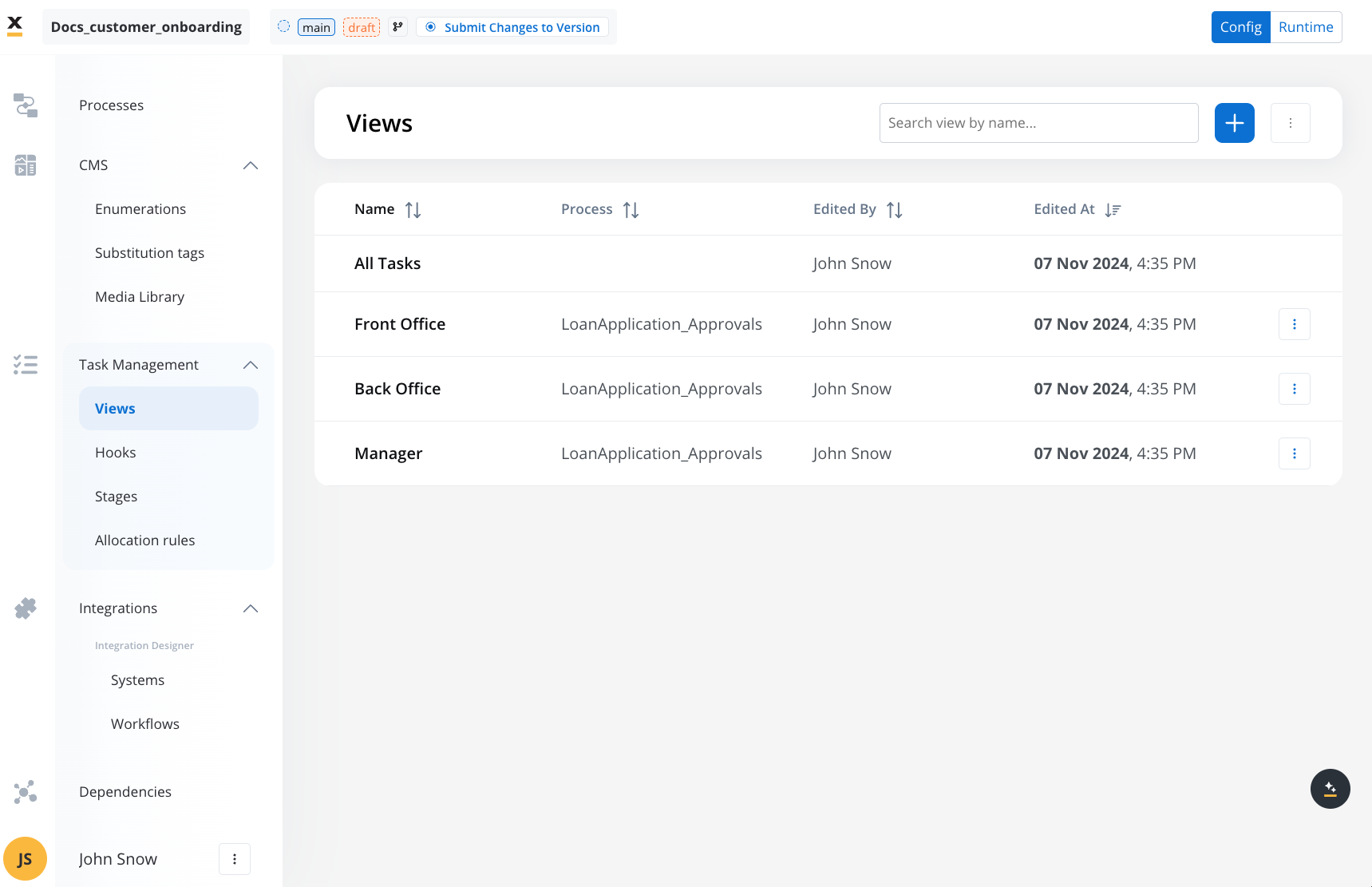
Task Management tracks work items generated by running processes. It gives teams visibility into who is responsible for each case, where it stands, and what needs attention. It supports both low-code (built-in views) and full-code (SDK-based) approaches.
***
## How it works
### Tasks and process instances
When a process instance starts, FlowX creates **one task** for that instance. The task acts as a container that tracks everything happening inside the process: which swimlane the work is in, who is assigned, what stage it has reached, and what its status is.
The relationship is **one task per process instance**, not per user or per node.
### Tokens and swimlanes
Inside a task, FlowX tracks individual **tokens** as they move through swimlanes and stages. Each time a token enters or exits a swimlane or stage, Task Management records that transition. This means a single task can reflect activity across multiple swimlanes if the process is designed that way.
### Parallel gateways
When a process reaches a parallel gateway and splits into multiple paths:
* The **parent token** is paused (`ON_HOLD`) while child tokens execute in parallel.
* Each **child token** is tracked independently inside the same task.
* If multiple tokens land in the **same swimlane**, Task Management automatically deduplicates them so the task list shows a single entry per swimlane.
* When all parallel paths complete and the gateway joins, the parent token resumes.
### Enabling task management for a process
Before Task Management can track a process, you must enable it:
1. In **FlowX Designer**, open the process definition and go to **Process Settings** → **Task Management** tab.
2. Toggle **Use process in task management** to **ON**.
This toggle is required. If it is off, no task will be created for instances of this process, and no updates will be sent to Task Management.
Once enabled, you can also configure which nodes send updates to Task Management by enabling the **Update task management** switch on individual nodes. This controls whether task metadata (title, priority, stage, business filters) is refreshed when the token passes through that node.
***
## Key features
* **Views**: Configurable interfaces to display task-related data, scoped to a process definition.
* **Stages**: Monitor the progression of tasks within a process by identifying where a case may have stalled. Useful for tracking business stages like onboarding, verification, and validation.
* **Allocation rules**: Automatically distribute tasks among users based on current workload. The user with the fewest assigned tasks in the target swimlane is selected.
* **Localization** (Available in 5.1.1+): Multi-language support with 34+ languages. Configure substitution tags in CMS while table grid localization happens automatically. See [**Task Management Localization**](./task-management-localization) for details.
## Task Management Views
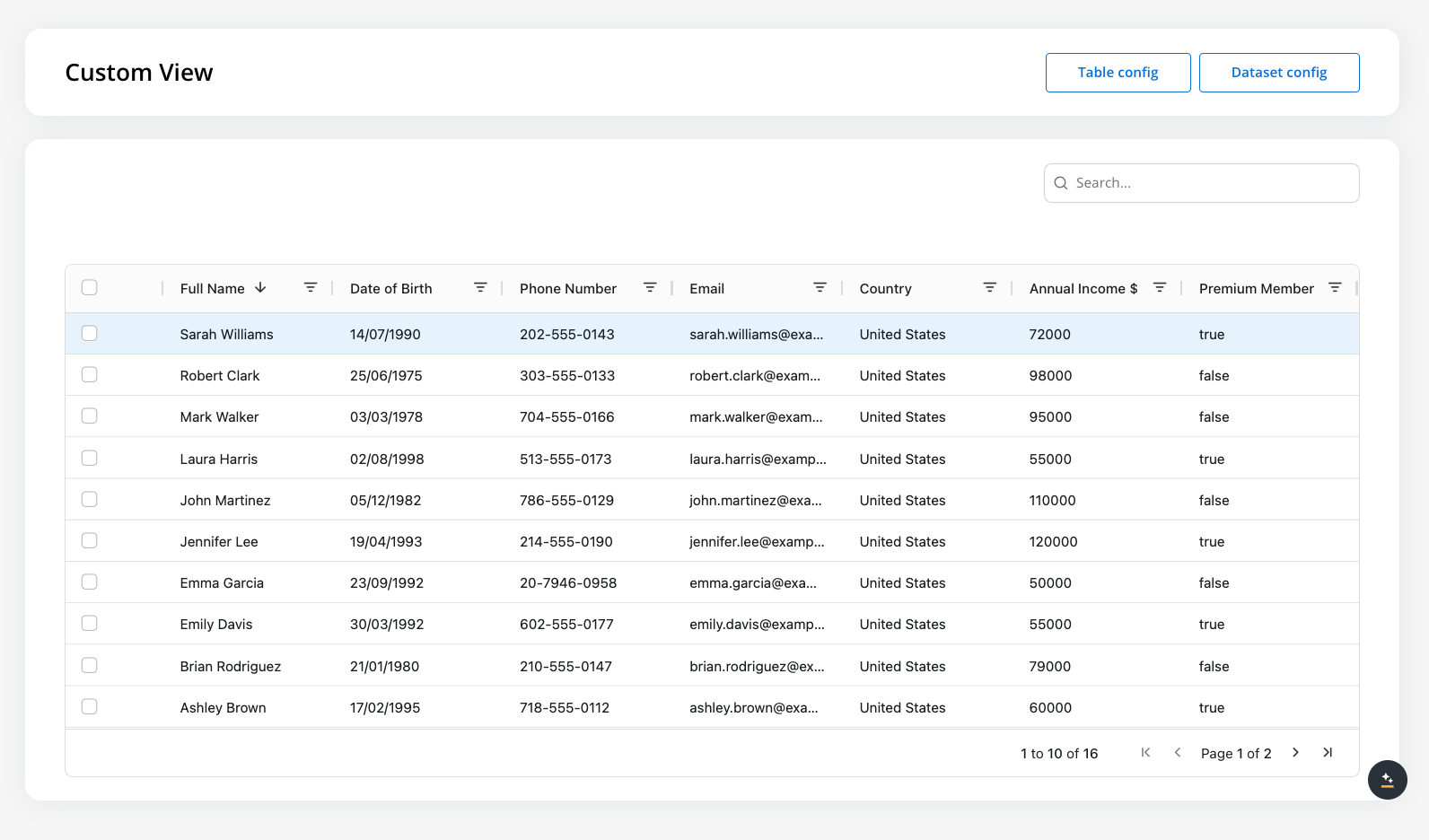
Views offer a flexible way to tailor task data display according to business needs. By configuring views, users can create structured, customized interfaces that help specific roles, departments, or use cases access relevant data effectively.
Example of custom view:
### All tasks
In the All Tasks section, you can view all tasks generated from any process definition marked as "to be used in task manager" within a project. This provides a centralized view of all relevant tasks, as long as you have the appropriate permissions.
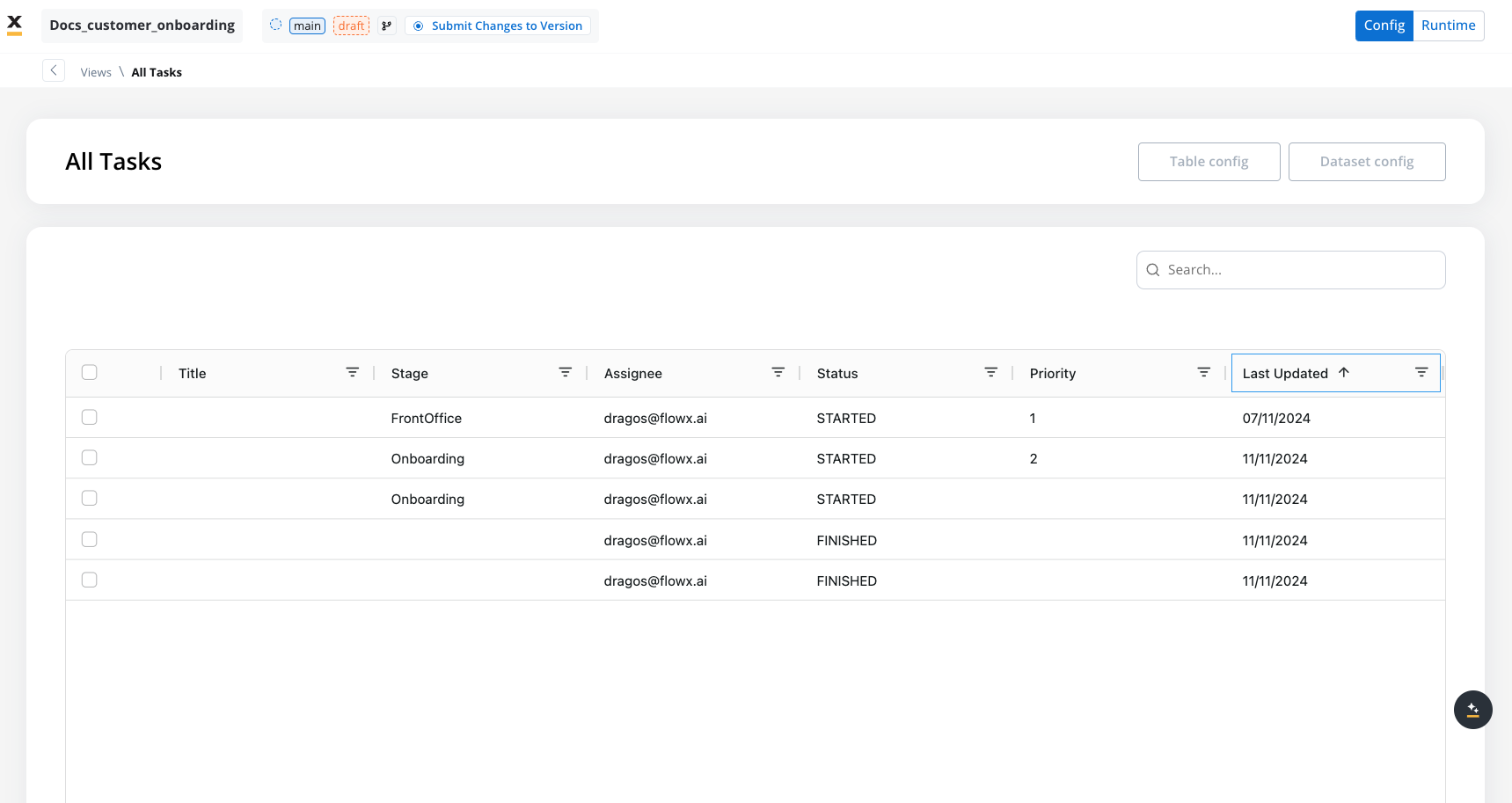
It provides an interactive visualization, with built-in filtering functionalities for refined data display.
Dataset Config and Table Config options are not accessible in the All Tasks view.
### Creating a view
In the Views section, you can create a new view by selecting a name and choosing a process definition. The process definition is crucial because it determines which keys you can access when configuring the view.
To set up a view, navigate to the Views section in the Task Management interface:
1. Click **Add View**.
2. Enter a **Name** for the view.
3. **Choose a Process Definition**: This will link the view's configuration to a specific process and its associated keys.
Once a view is created for a process (e.g., Process X), it cannot be reassigned to another process. This ensures consistent data structuring based on the selected process definition.
Upon creating a view, you are automatically redirected to configure its parameters.
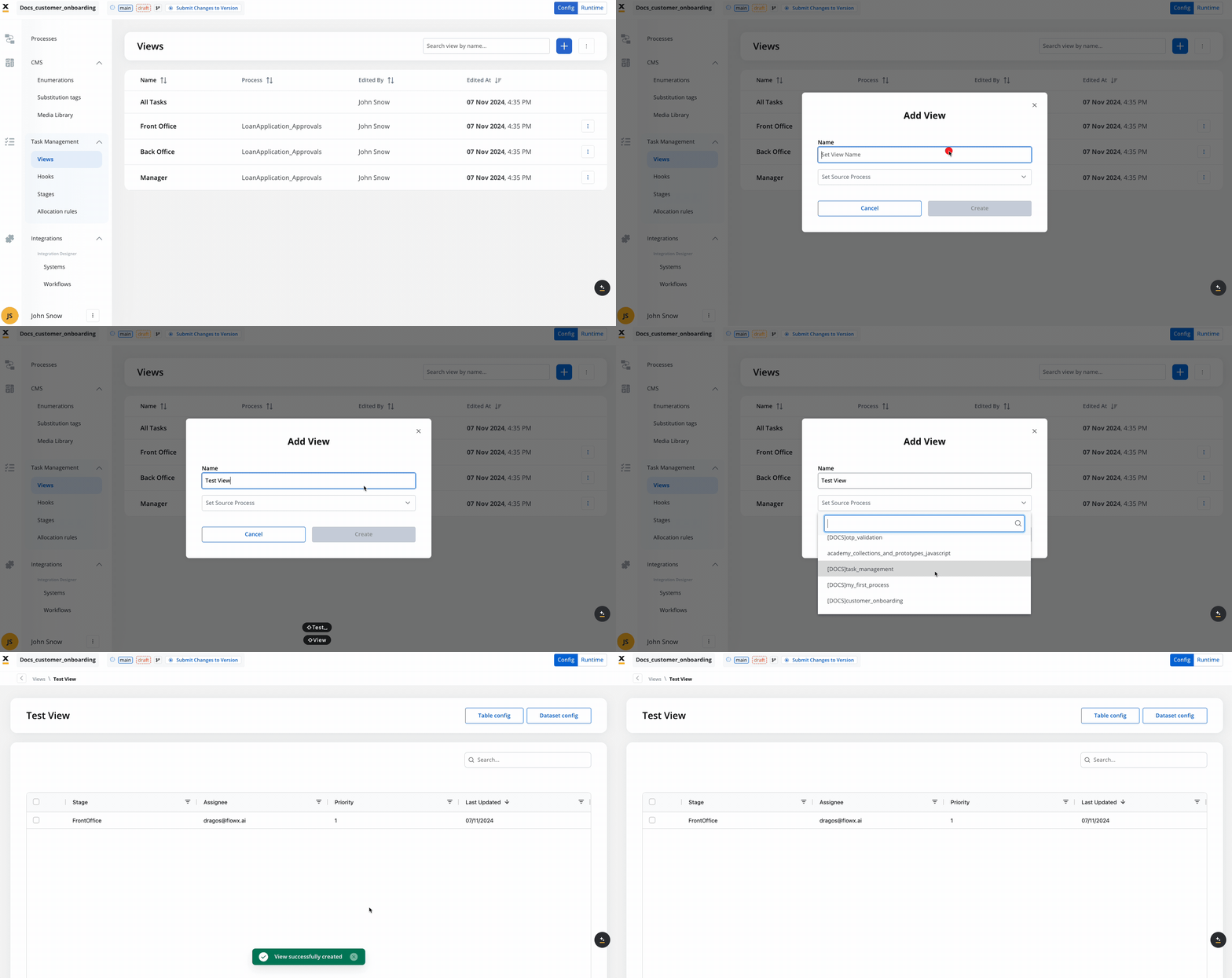
The Task Management default view contains four primary columns, with two additional default columns that can be added.
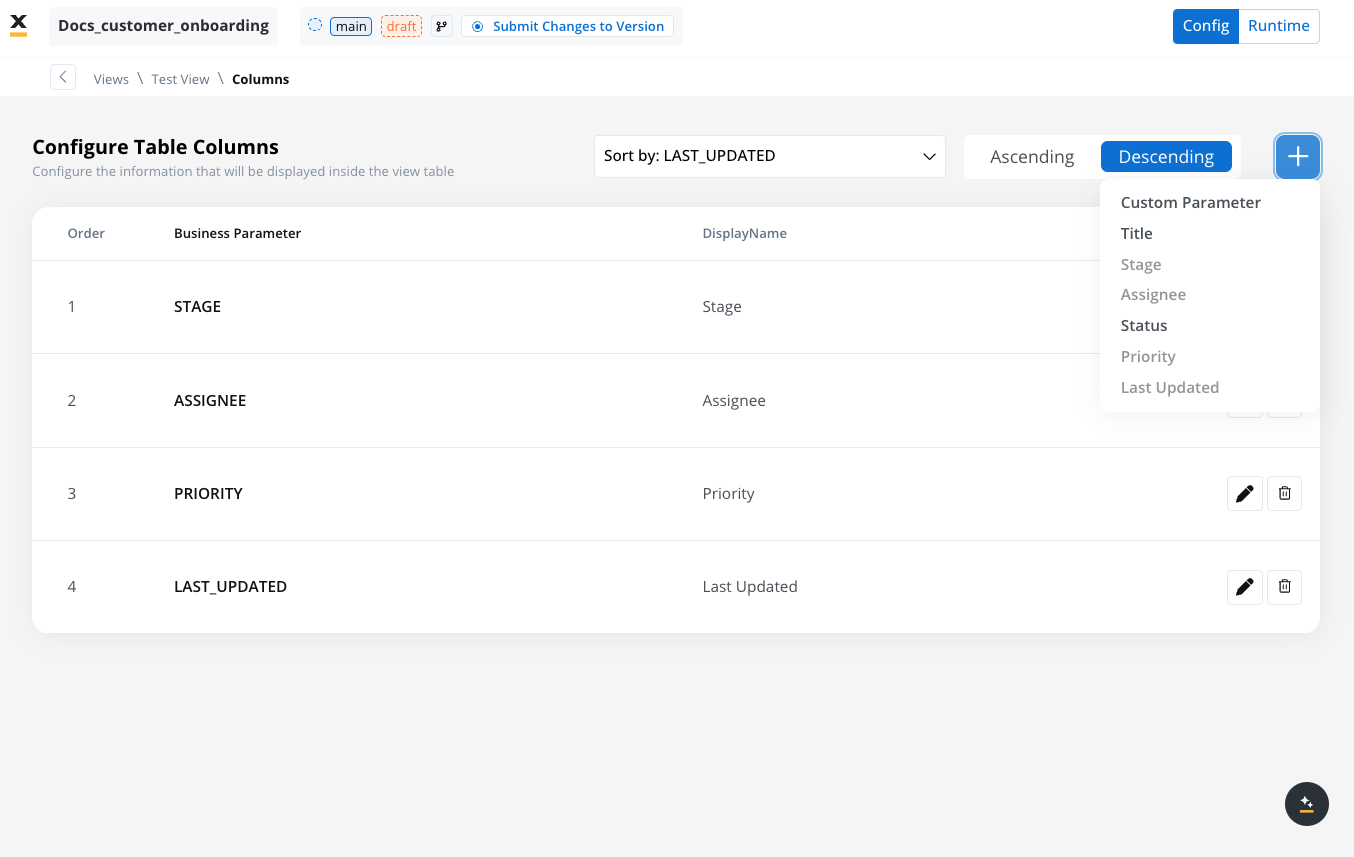
You also have the option to add custom parameters to the table, with no limit on the number of columns.
**Columns explained**:
* **Stage**: Indicates where the process halted, providing a clear view of its current state.
* **Assignee**: Displays the individual to whom the task is assigned.
* **Priority**: A numeric value set via business rules, used for sorting and filtering tasks in views.
* **Last Updated**: Shows the timestamp of the most recent action taken on the task.
* **Title**: Displays the designated name of the task, which can be customized by using Business Rules.
* **Status**: The current process instance status, such as `STARTED` or `FINISHED`. See [Process status updates](#process-status-updates) for all values.
* **Custom parameters**: User-defined keys within the process settings, which become available only after their configuration is complete.
### Custom parameters and display names
### Display names
You can rename default and custom parameters to make them contextually relevant for various business needs. For example:
* Rename an address field to clarify if it refers to "Residence" or "Issuing Location."
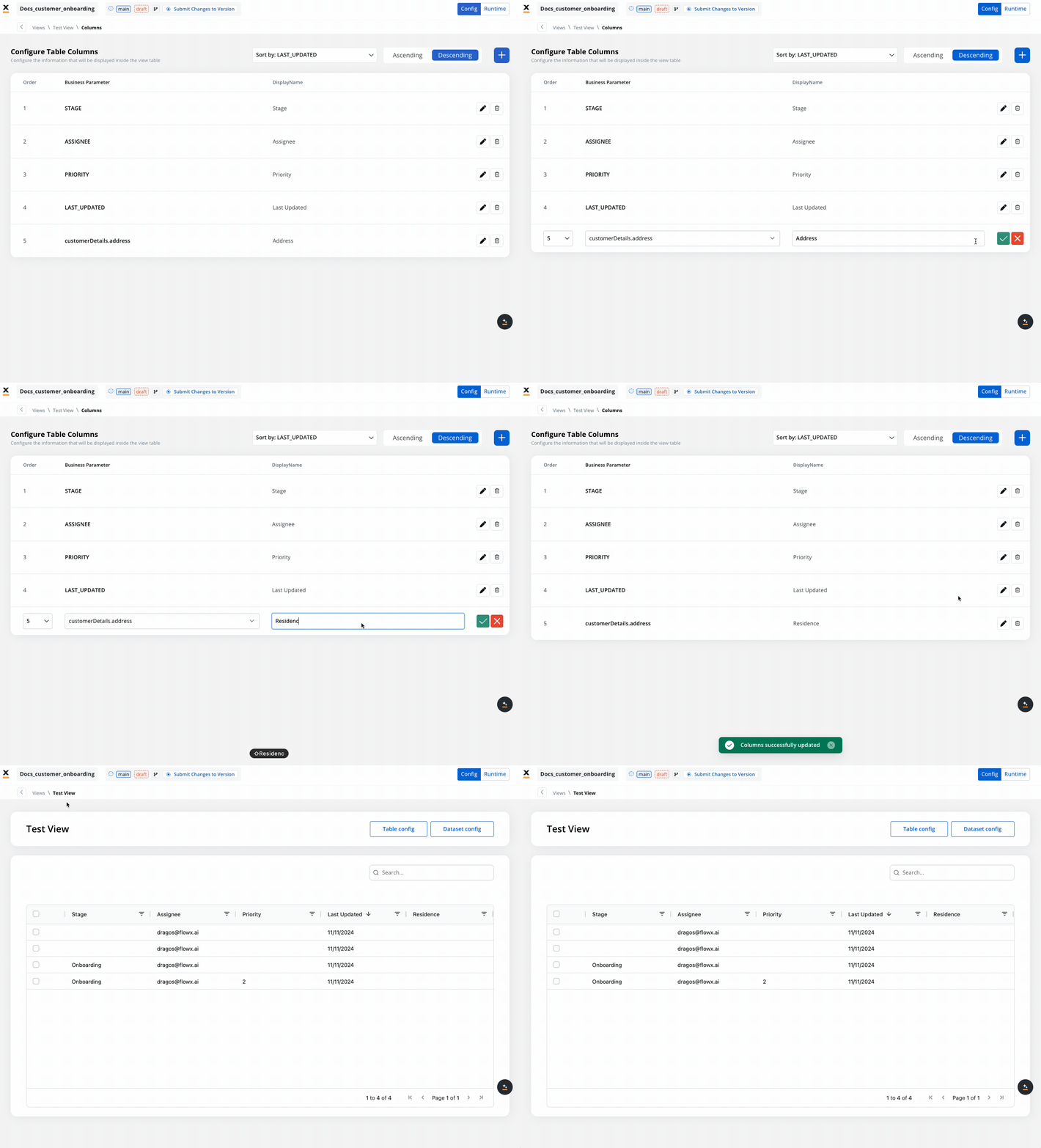
* Use Substitution Tags for dynamic display names.
Renaming a parameter's Display Name will only change how it's shown in the interface, without altering the actual data model. The rename option is also available for default parameters (not just custom parameters). Changing the Display Name also allows the use of Substitution Tags.
For multi-language support, configure substitution tags in CMS for each language. See [**Task Management Localization**](./task-management-localization) for complete localization setup.
### Custom Parameters in Task Management
Custom parameters in Task Management provide a way to tailor task displays and ensure that task data aligns with specific business needs and contexts.
**Key setup and configuration**
1. **Adding Custom Parameters**:
* In **Process Settings** → **Task Management**, you can define the custom keys that will be indexed and made available for tasks.
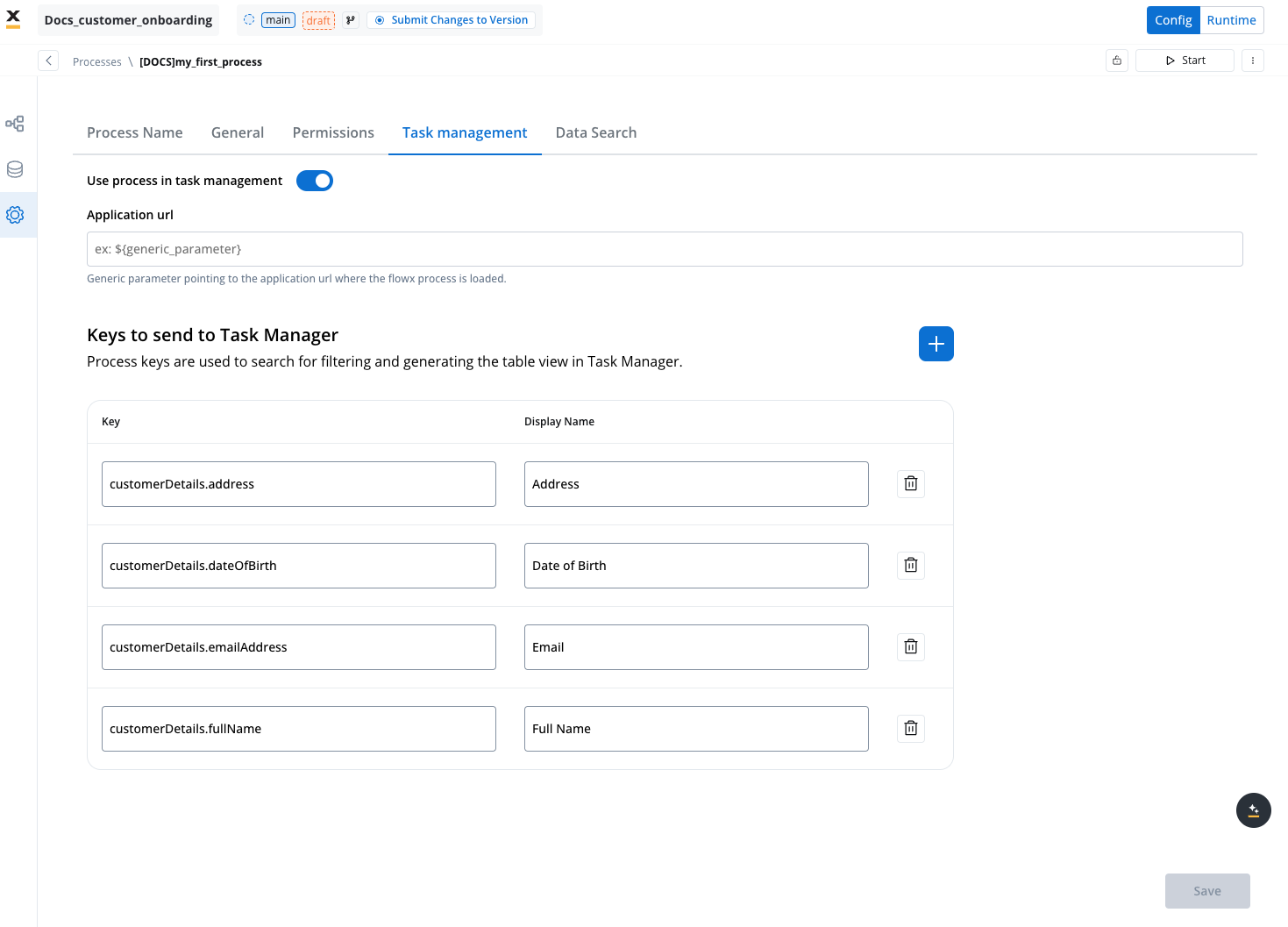
* Each custom parameter can be renamed to suit different business contexts, ensuring clarity in cases where parameters may have multiple meanings.
Ensure that the custom key exists in the **Data Model** before it can be mapped in Task Management.
If the **attribute type** of a custom key is modified after it has been indexed, the key must be re-indexed in the **Task Management** section. This re-indexing step is crucial to ensure that Task Management reflects the updated attribute type correctly.
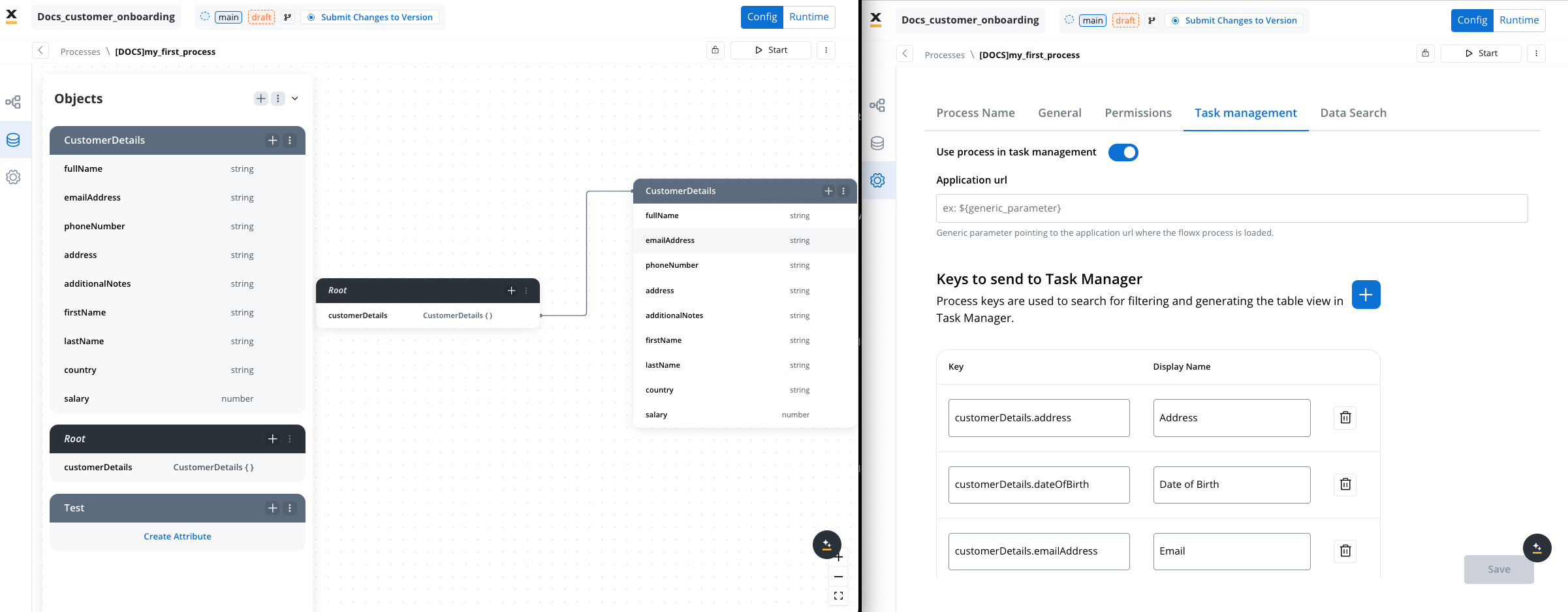
For data from custom parameters to flow correctly, ensure that **Forms to Validate** is set on the button's **event handler** in your UI for the corresponding process. This configuration is necessary for custom parameters to be validated and included in Task Management.
2. **Labeling Custom Parameters**:
* When adding a custom parameter, use the rename option to assign it a label relevant to the process context (as demonstrated in the example [above](#display-names)).
* This allows parameters to remain flexible for different roles or departments, adapting to each use case.
Remember to enable the **Use process in task management** toggle in **Process Settings** → **Task Management** and the **Update task management** switch on relevant nodes. See [Enabling task management for a process](#enabling-task-management-for-a-process) for details.
### Table config and Dataset config in Task Management
You can use **Table Config** and **Dataset Config** to configure and filter task data effectively. These configurations help create a customized and user-friendly interface for different roles, departments, or organizational needs.
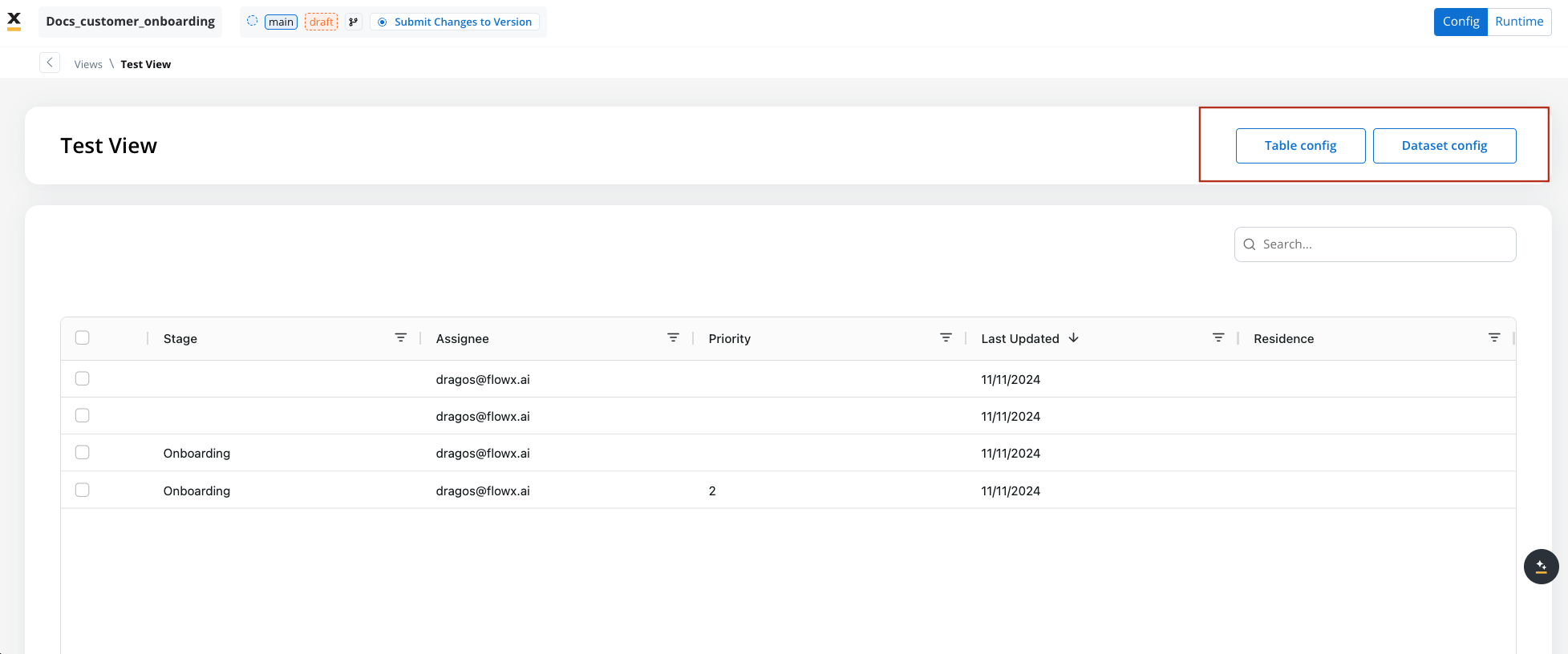
#### Table config
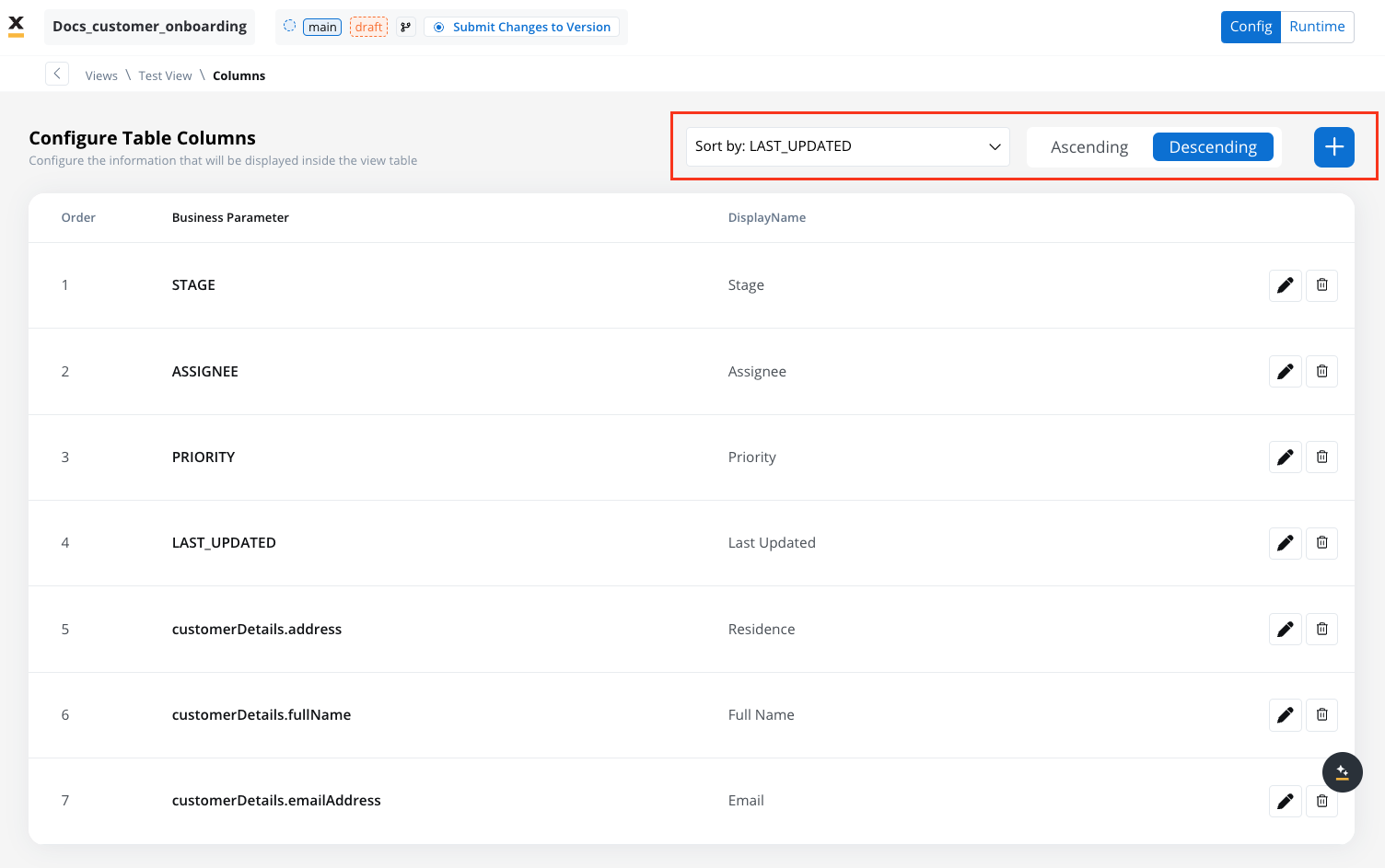
**Table Config** is used to define the structure and content of the Task Management table view. Here, you can configure the columns displayed in the table and set up default sorting options.
1. **Configuring the Table Columns**:
* **Default Columns**: By default, the table includes the following columns: **Stage**, **Assignee**, **Priority**, and **Last Updated**.
* You can add additional columns, such as **Title**, **Status**, and **Custom Parameters**. Custom parameters can be chosen from the keys configured in **Process Settings** → **Task Management**.
2. **Setting Default Sorting**:
* You can select one column for **default sorting** in ascending or descending order. This configuration helps prioritize how data is initially displayed, often based on “Last Updated” or other relevant fields.
* If no specific sorting rule is configured, the table will automatically apply sorting based on the **Last Updated** column.
#### Dataset config
**Dataset Config** is used to filter and refine the data displayed in Task Management views. This helps create targeted views based on specific needs, such as differentiating data for front office vs. back office or specific roles like managers and operators.
1. **Adding Filters**:
* You can apply filters on the keys brought into the **Dataset Config** to customize the data shown. Filters can be applied based on various data types, such as enums, strings, numbers, dates, and booleans.
2. **Filtering Options by Data Type**:
* **Enums**: Can be filtered using the `In` operator. Only parent enums are available for mapping in Task Management (ensure enums are mapped in the data model beforehand).
Before you can map enums in Task Management, they must be configured in the Data Model. Only parent enums can be mapped.
If any changes are made to the Data Model after the keys have been configured and indexed in Task Management, these changes will not be automatically reflected. You must re-add and re-index the keys in the process settings to ensure that the updated information is indexed correctly.
### View filter operators reference
The following table provides a comprehensive reference of all available view filter operators and their compatible data types:
| Filter Operator | Compatible Data Types | Description |
| ------------------------- | ------------------------------------------------------------------------ | --------------------------------------------------------------------- |
| **Equals** | STRING, BOOLEAN, DATE\_TIME, ZONED\_DATE\_TIME, INTEGER, FLOAT, CURRENCY | Matches values that are exactly equal to the specified value |
| **Not Equals** | STRING, DATE\_TIME, ZONED\_DATE\_TIME | Matches values that are not equal to the specified value |
| **In** | STRING, ENUM | Matches values that are contained within a specified list |
| **Greater Than** | DATE\_TIME, ZONED\_DATE\_TIME, INTEGER, FLOAT, CURRENCY | Matches values that are greater than the specified value |
| **Less Than** | DATE\_TIME, ZONED\_DATE\_TIME, INTEGER, FLOAT, CURRENCY | Matches values that are less than the specified value |
| **Greater Than or Equal** | DATE\_TIME, ZONED\_DATE\_TIME, INTEGER, FLOAT, CURRENCY | Matches values that are greater than or equal to the specified value |
| **Less Than or Equal** | DATE\_TIME, ZONED\_DATE\_TIME, INTEGER, FLOAT, CURRENCY | Matches values that are less than or equal to the specified value |
| **Range** | DATE\_TIME, ZONED\_DATE\_TIME, INTEGER, FLOAT, CURRENCY | Matches values within a specified range (between two values) |
| **Starts With** | STRING | Matches string values that begin with the specified text |
| **Ends With** | STRING | Matches string values that end with the specified text |
| **Contains** | STRING | Matches string values that contain the specified text anywhere within |
| **Not Contains** | STRING | Matches string values that do not contain the specified text |
#### Data type filter compatibility
**String filters:**
* `Equals`, `Not Equals`, `In`, `Starts With`, `Ends With`, `Contains`, `Not Contains`
**Numeric filters (INTEGER, FLOAT, CURRENCY):**
* `Equals`, `Greater Than`, `Less Than`, `Greater Than or Equal`, `Less Than or Equal`, `Range`
**Date filters (DATE\_TIME, ZONED\_DATE\_TIME):**
* `Equals`, `Not Equals`, `Greater Than`, `Less Than`, `Greater Than or Equal`, `Less Than or Equal`, `Range`
**Boolean filters:**
* `Equals`
**Enum filters:**
* `In`
When using range filters, you'll need to specify both a minimum and maximum value. For date ranges, ensure the date format matches your system's configured format.
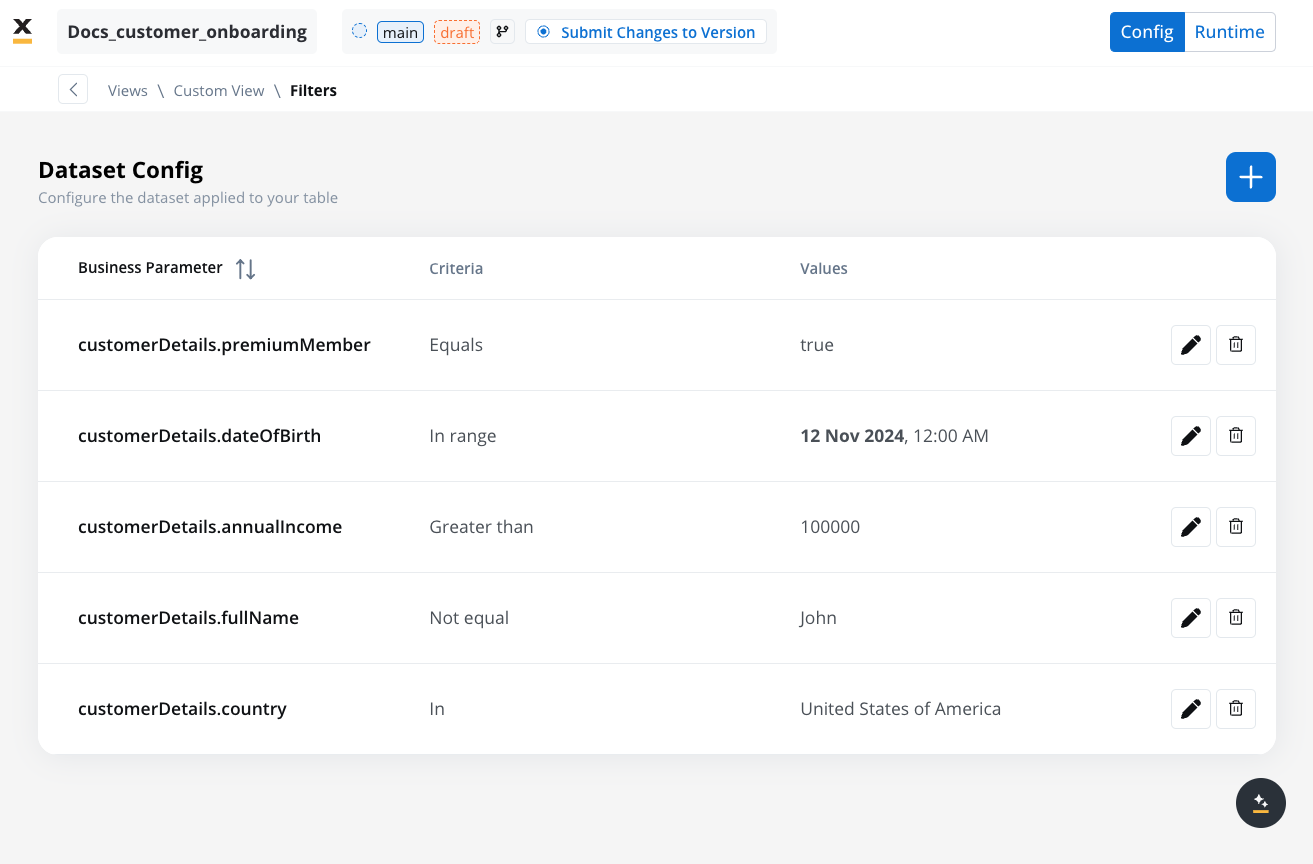
3. **Role-Specific Configurations**:
* **Dataset Config** allows creating views tailored to specific audiences, such as different departments or roles within an organization. However, note that filters in Dataset Config do not override user permissions on task visibility.
Example with filter applied a number attribute:
### Managing data model changes
Views are scoped to a process definition and do not need to be recreated when the data model changes. However, custom parameters used as columns must exist as keys in the process's data model before they can be added to Task Management. If you modify a custom key's attribute type after indexing, you must re-index it in **Process Settings** → **Task Management** for the change to take effect.
### Task details
The **Task Details** tab within **Task Manager** provides key process information, including:
* **Priority**: A numeric value (set via business rules) used for sorting and filtering tasks. Does not affect automatic allocation.
* **Status**: The current process instance status (for example, `STARTED`, `FINISHED`, or `ON_HOLD`).
* **Stage**: The current stage during process execution.
* **Comments**: User comments.
* **History**: Information such as task creation, creator, and status changes.
* **Last Updated**: Displays the most recent timestamp of any changes made to a task.
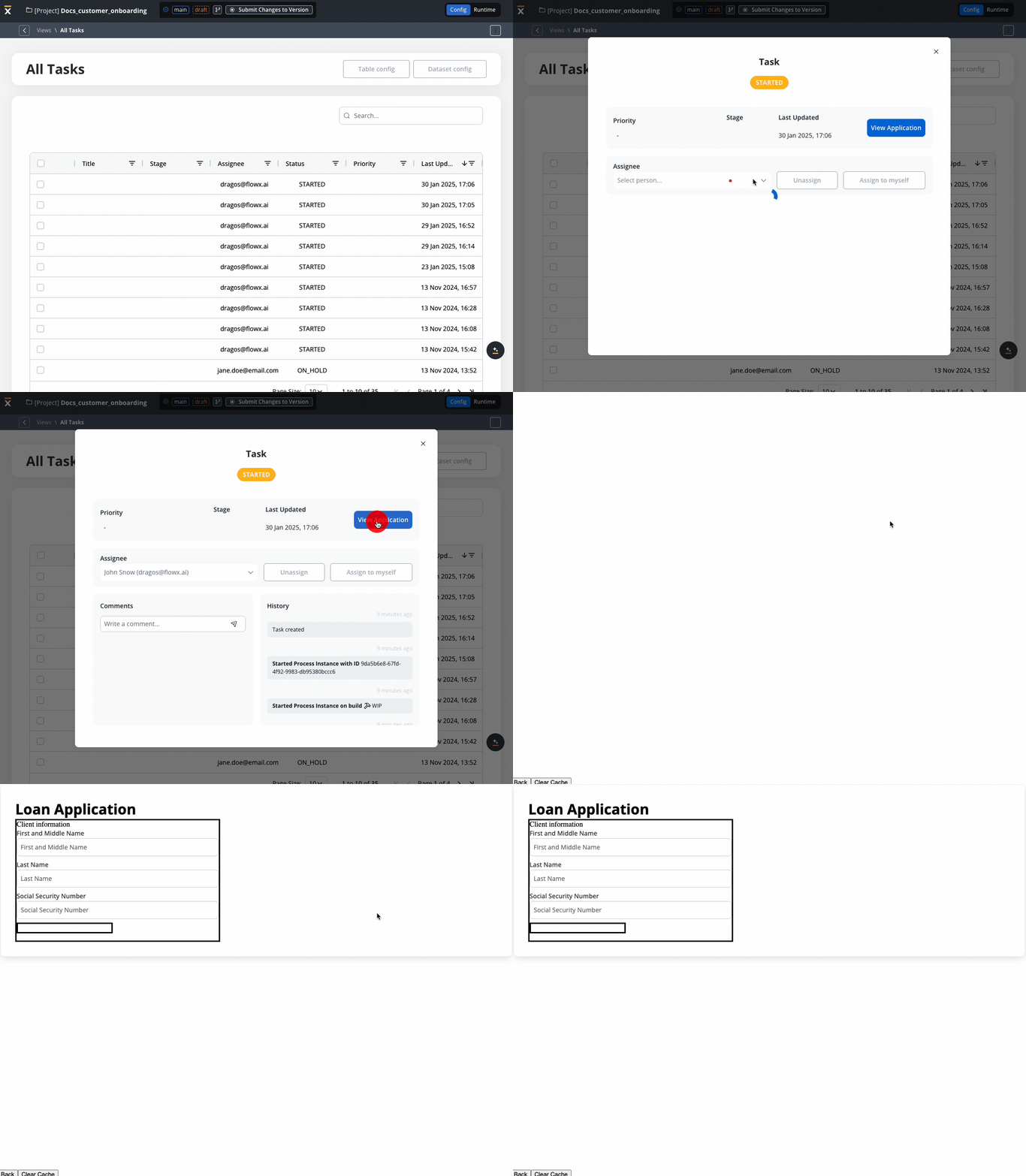
* **View Application**: Provides direct access to the container application URL where the FlowX.AI process related to a specific task is running.
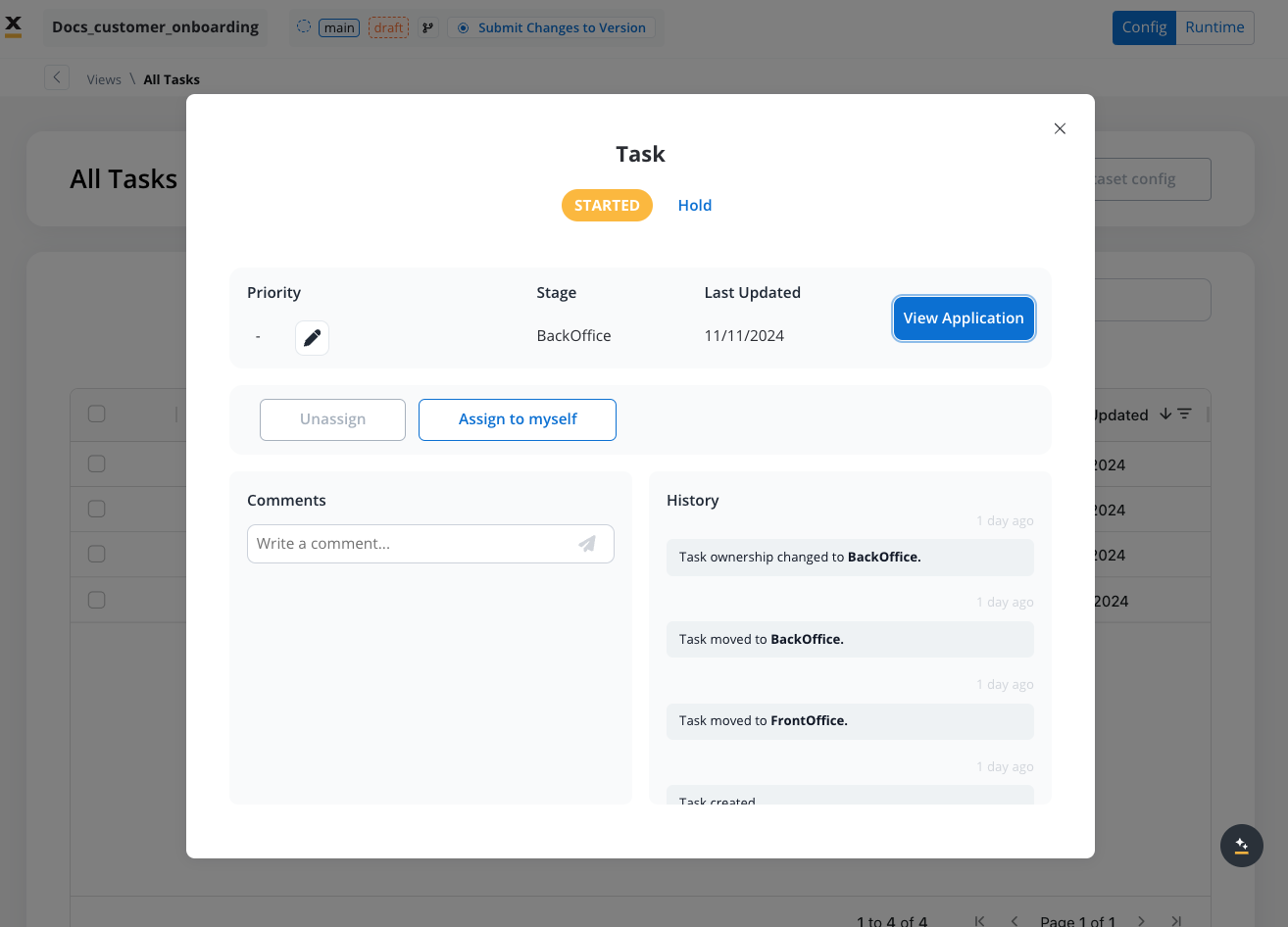
**Accessing Task details in Task Management**
To access the **Task Details** of a specific task in a Task Management view, follow these steps:
1. **Navigate to the Task Management Interface**:
* Open the Task Management section within the project and select the desired **View** that contains the list of tasks.
2. **Locate the Task**:
* In the selected view (e.g., All Tasks, Custom View), find the task you want to inspect. Use filters and sorting options if necessary to locate the task more efficiently.
3. **Open Task Details**:
* Click on the task or select the **Details** option (often represented by an icon or “Details” link) associated with the task entry.
* This action will open the **Task Details** panel, which provides an in-depth view of information specific to that task.
Please note that specific roles must be defined in a process to utilize all the task management features. For configuration details, see [**Configuring Access Roles for Task Manager**](../../../../setup-guides/access-management/workspaces-access-rights).
### Export and import views
You can export and import Task Management views to transfer them between projects or environments.
To import views:
1. Navigate to the **Views** list in Task Manager
2. Open the context menu and select **Import from Zip**
3. Select the ZIP file exported from another project or environment
4. If views with the same identifiers already exist, a **Review Resource Identifiers Conflicts** modal appears
5. Choose a strategy for each conflicting view (or use **Apply to all**):
* **Keep both** - imports the view as a new copy alongside the existing one
* **Replace** - overwrites the existing view with the imported version
* **Skip this one** - keeps the existing view unchanged
6. Click **Continue** to complete the import
Importing is only available for work-in-progress (WIP) project versions. You cannot import into a committed version.
## Process status updates
Task Manager displays the process instance status for each task. These statuses match the [process instance statuses](../../../projects/runtime/active-process/process-instance):
| Status | Definition |
| ------------------------- | ----------------------------------------------------------------------------------------------------------------------------------------------------------------------------------------- |
| **CREATED** | Visible only if there is an error during process creation. If the process starts without errors, it transitions directly to `STARTED`. |
| **STARTED** | The process instance is running. |
| **FINISHED** | The process reached an end node and completed execution. |
| **FINISHED\_WITH\_ERROR** | The process completed but encountered errors during execution. |
| **FAILED** | A [CronJob](https://kubernetes.io/docs/concepts/workloads/controllers/cron-jobs/) expired before the process completed. For example, if a process must finish by a deadline and does not. |
| **EXPIRED** | The `expiryTime` defined in the process definition elapsed. Configure this in **Process Settings** → **General** → **Expiry time**. |
| **ABORTED** | A subprocess was aborted because the [token was moved backward](../../../flowx-designer/managing-a-project-flow/moving-a-token-backwards-in-a-process) in the parent process. |
| **DISMISSED** | A user stopped a running subprocess. |
| **ON\_HOLD** | The process is frozen, blocking further actions. A superuser can place a process on hold for clarification and later unfreeze it. |
| **TERMINATED** | A termination request ended all active tokens in the process and its subprocesses. |
## Swimlanes and Stages updates
Task Manager also tracks swimlane and stage changes:
### Swimlanes updates
| Status | Definition |
| ------------------ | ------------------------------------ |
| **Swimlane Enter** | Marks token entering a new swimlane. |
| **Swimlane Exit** | Indicates token exiting a swimlane. |
### Stages updates
| Status | Definition |
| --------------- | --------------------------------- |
| **Stage Enter** | Marks token entering a new stage. |
| **Stage Exit** | Indicates token exiting a stage. |
## Using the plugin
The Task Manager plugin offers a range of features tailored to different roles, including:
* [Swimlane permissions for Task Management](#swmlane-permissions-for-task-management)
* [Assigning and unassigning Tasks](#task-assignment-and-reassignment)
* [Hold/unhold tasks](#hold/unhold-tasks)
* [Adding comments](#adding-comments)
* [Viewing the application](#viewing-the-application)
* [Bulk updates (via Kafka)](#bulk-updates)
### Swimlane permissions for Task Management
To perform specific actions within Task Management at process level, you must configure swimlane permissions at the process settings level. Each swimlane (e.g., BackOffice, FrontOffice, Manager) should be assigned appropriate roles and permissions based on the responsibilities and access needs of each user group.
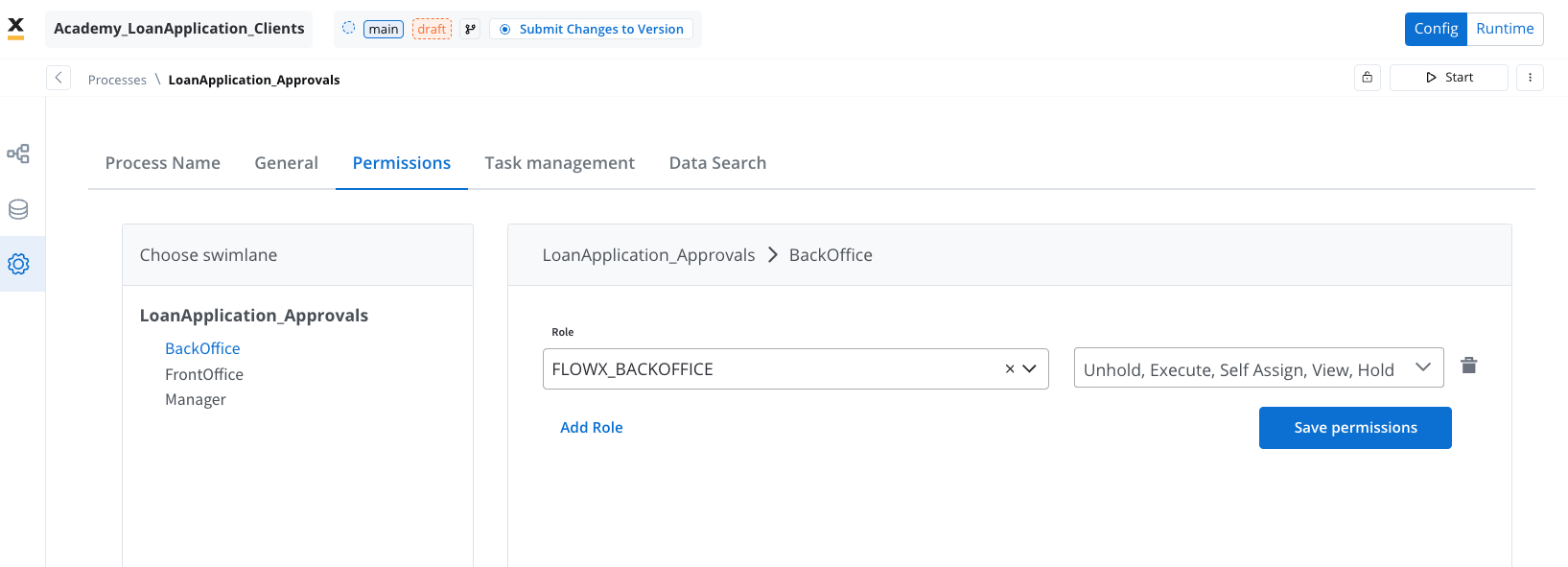
**Example permissions configuration**
Below are example configurations for swimlane permissions based on roles commonly used in a loan application approval process:
1. **BackOffice Swimlane**:
* Role: `FLOWX_BACKOFFICE`
* Permissions:
* **Unhold**: Allows the user to resume tasks that have been put on hold.
* **Execute**: Enables the user to perform task actions.
* **Self Assign**: Permits users to assign tasks to themselves.
* **View**: Grants viewing rights for tasks.
* **Hold**: Allows tasks to be temporarily paused.
2. **Manager (Supervisor) Swimlane**:
* Role: `FLOWX_MANAGER`
* Permissions:
* **Unhold**: Allows the user to resume tasks that have been put on hold.
* **Execute**: Enables the user to perform task actions.
* **Self Assign**: Permits users to assign tasks to themselves.
* **View**: Grants viewing rights for tasks.
* **Hold**: Allows tasks to be temporarily paused.
These permissions can be customized depending on each use case and organizational needs. Ensure that permissions are aligned with the roles' responsibilities within the workflow.
### Task assignment and reassignment
Consider this scenario: you're the HR manager overseeing the onboarding process for new employees. To simplify this operation, you've opted to use the task manager plugin. This process consists of two key phases: the Initiation Stage and the Account Setup Stage, each requiring a designated team member.
The Initiation Stage has successfully concluded, marking the transition to the Account Setup Stage. At this juncture, it's essential to reassign the task, originally assigned to John Doe, to Jane Doe, a valuable member of the backoffice team.
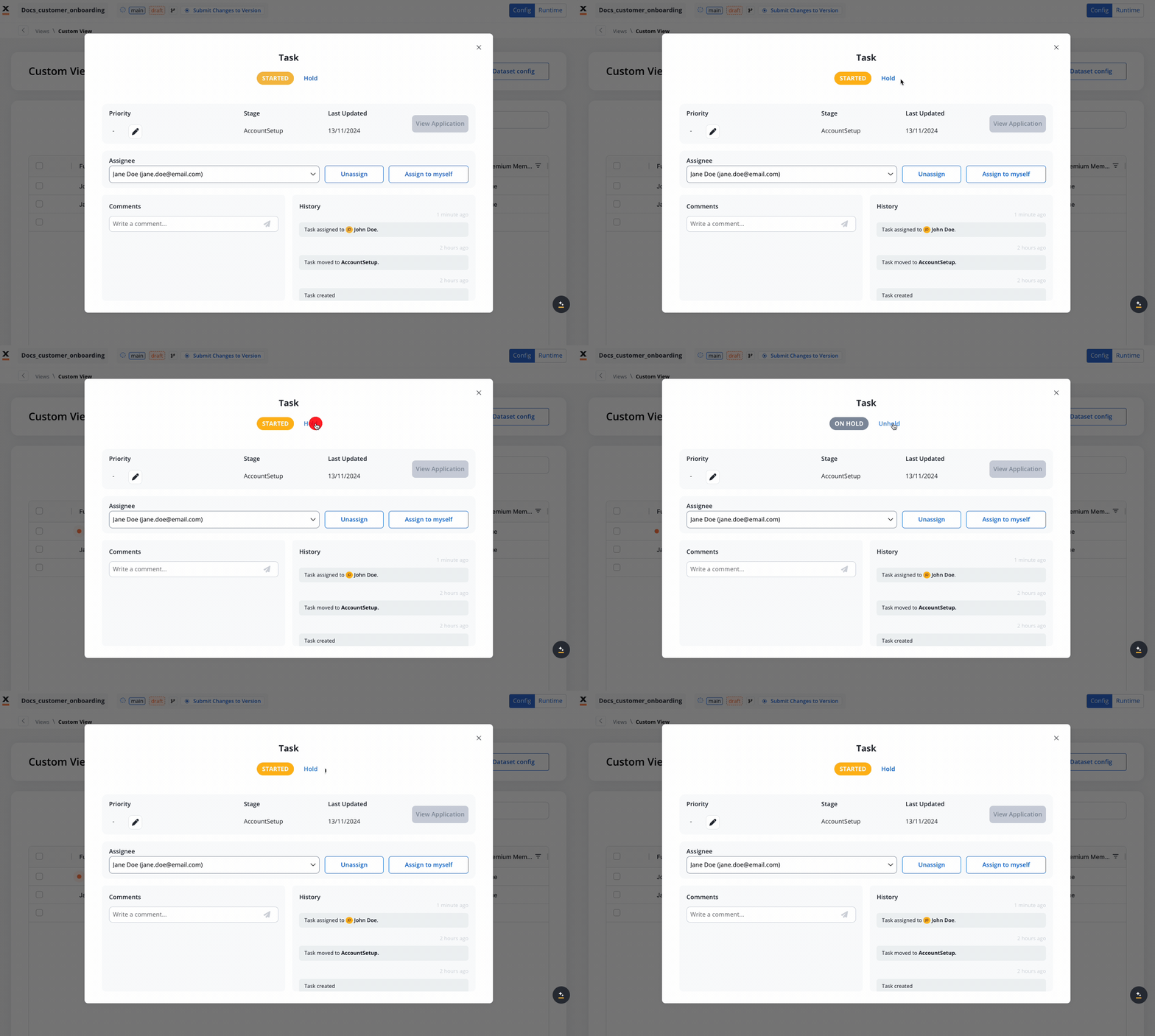
### Hold/unhold tasks
As a project manager overseeing various ongoing projects, you may need to temporarily pause one due to unforeseen circumstances. To manage this, you use the "On Hold" status.
### Adding comments
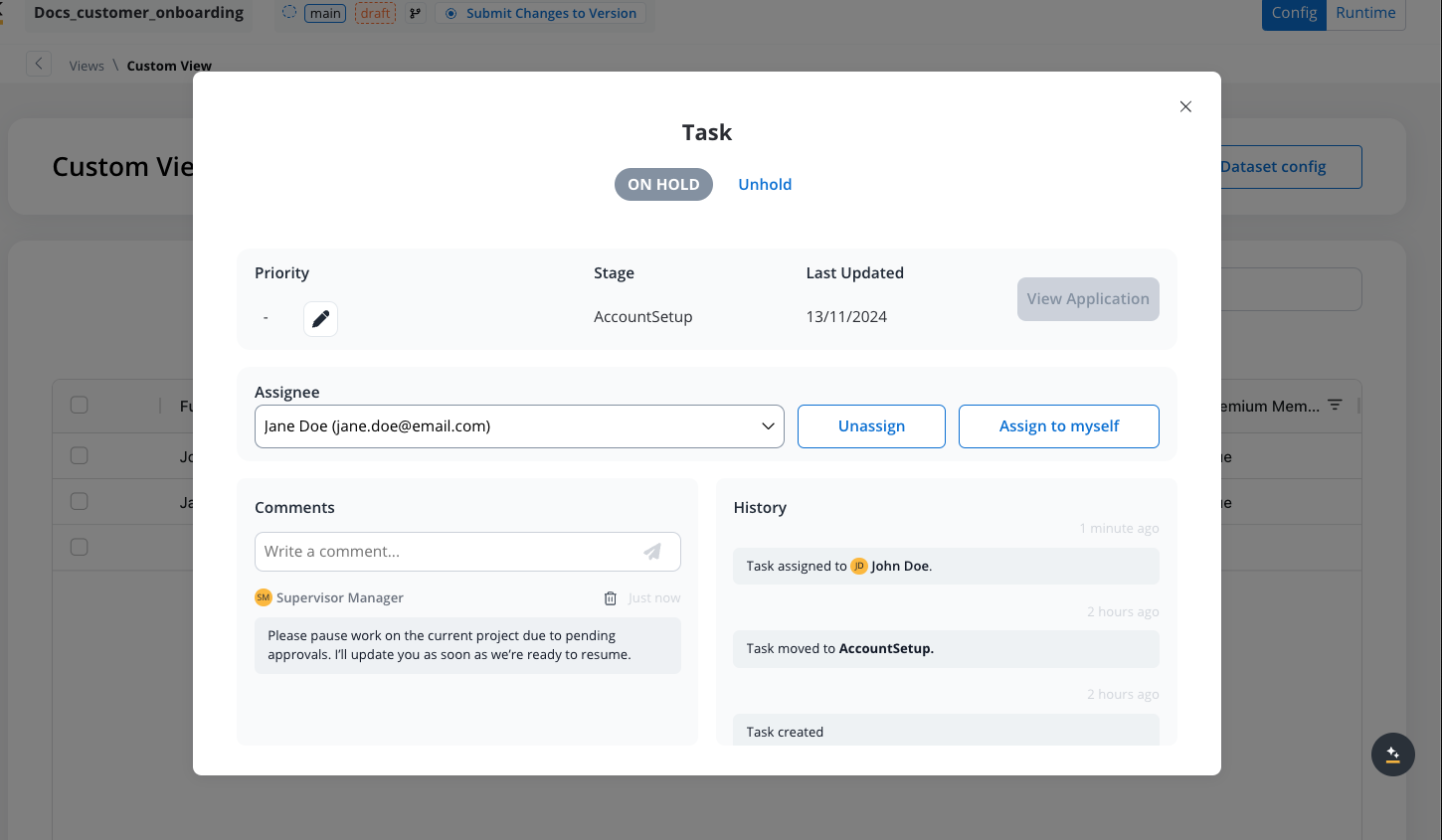
When handling on-hold projects, document the reasons, inform the team, and plan for resumption. This pause helps address issues and ensures a smoother project flow upon resuming. Never forget to add comments:
### Viewing the application
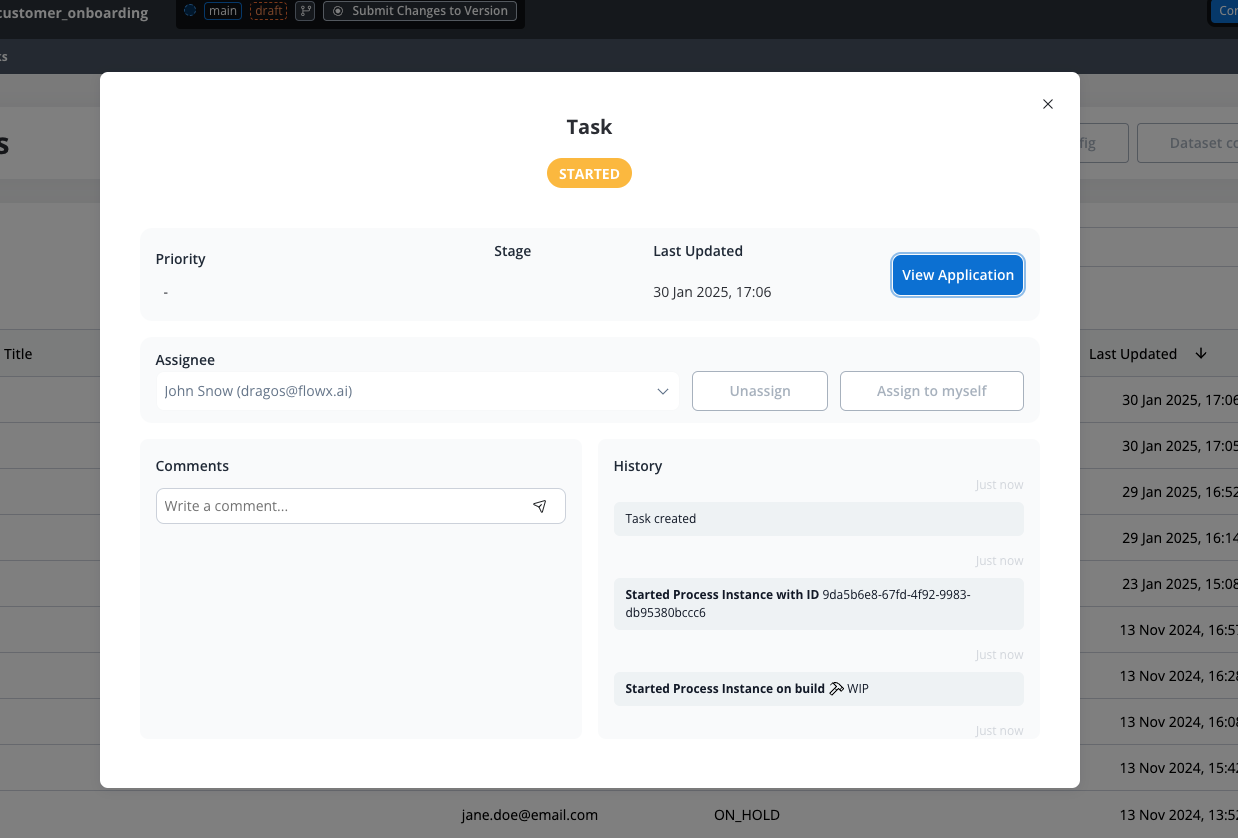
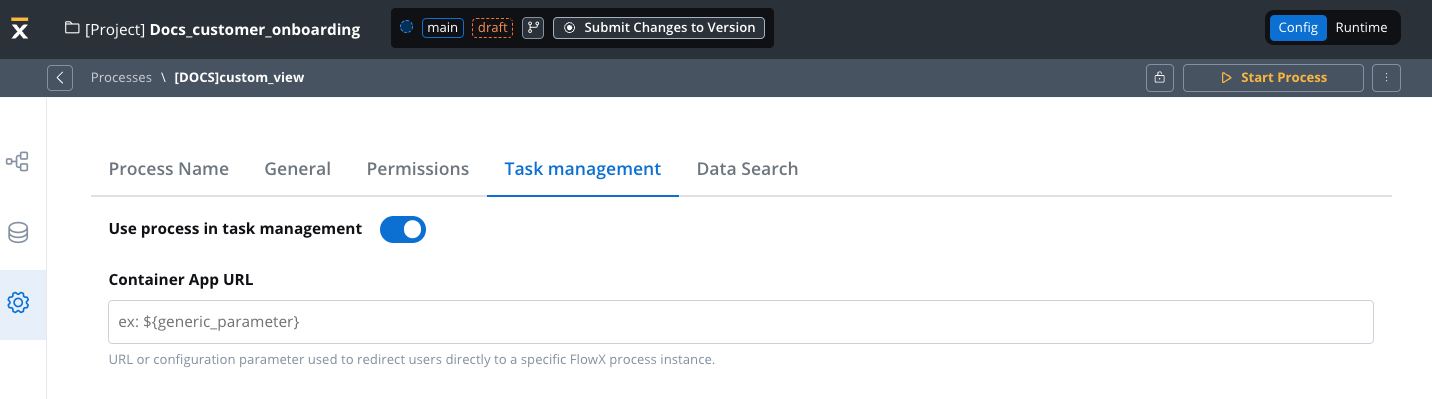
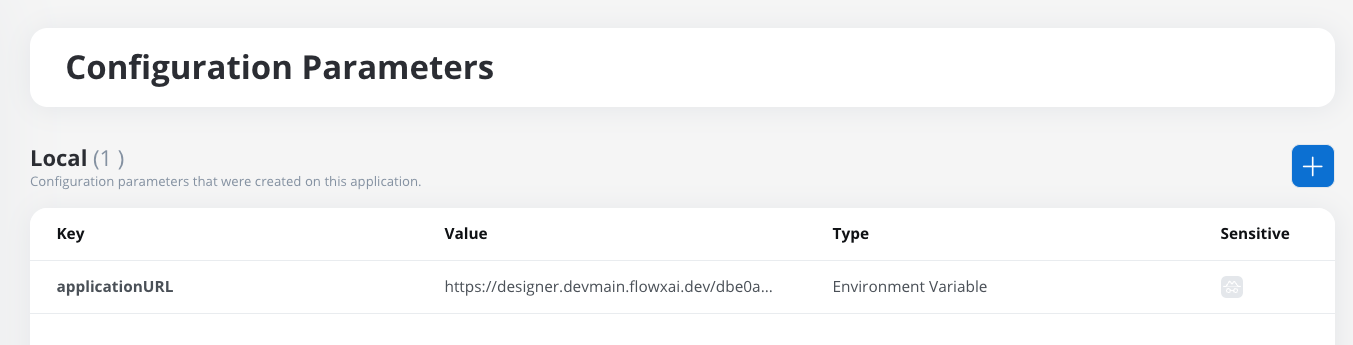
Container App URL represents an URL or a configuration parameter used to redirect users directly to a specific FlowX process instance.
#### Process settings level
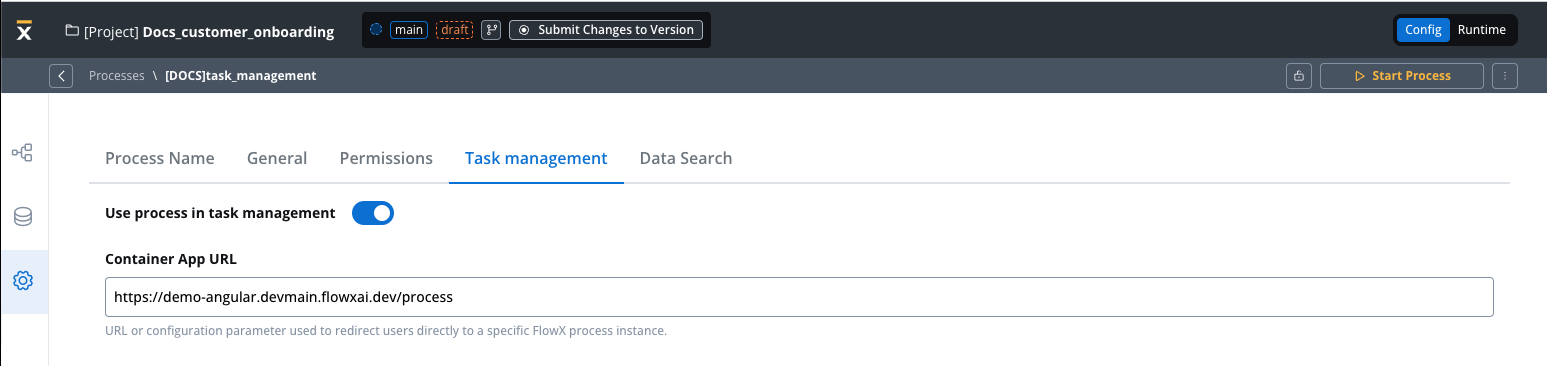
In the Process Definition settings, navigate to the **Task Management** tab and locate the **Container App URL** field. Here, paste the container application URL where the process is loaded, following this format:
```
{container app url}/process
```
**Example**:
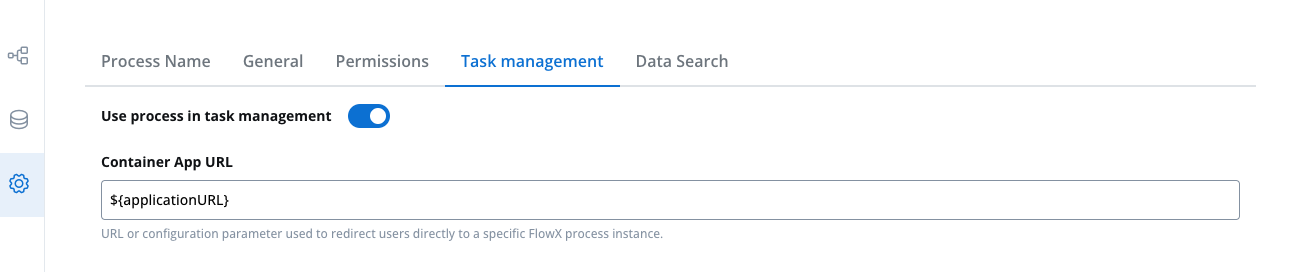
You can also use a predefined generic parameter as the URL: `${genericParameter}`.
#### Process data level
If task.baseUrl is specified in the process parameters, it will be sent to the Task Manager to update the tasks accordingly.
```java theme={"system"}
output.put("task", {"baseUrl": "https://your_base_url"});
```
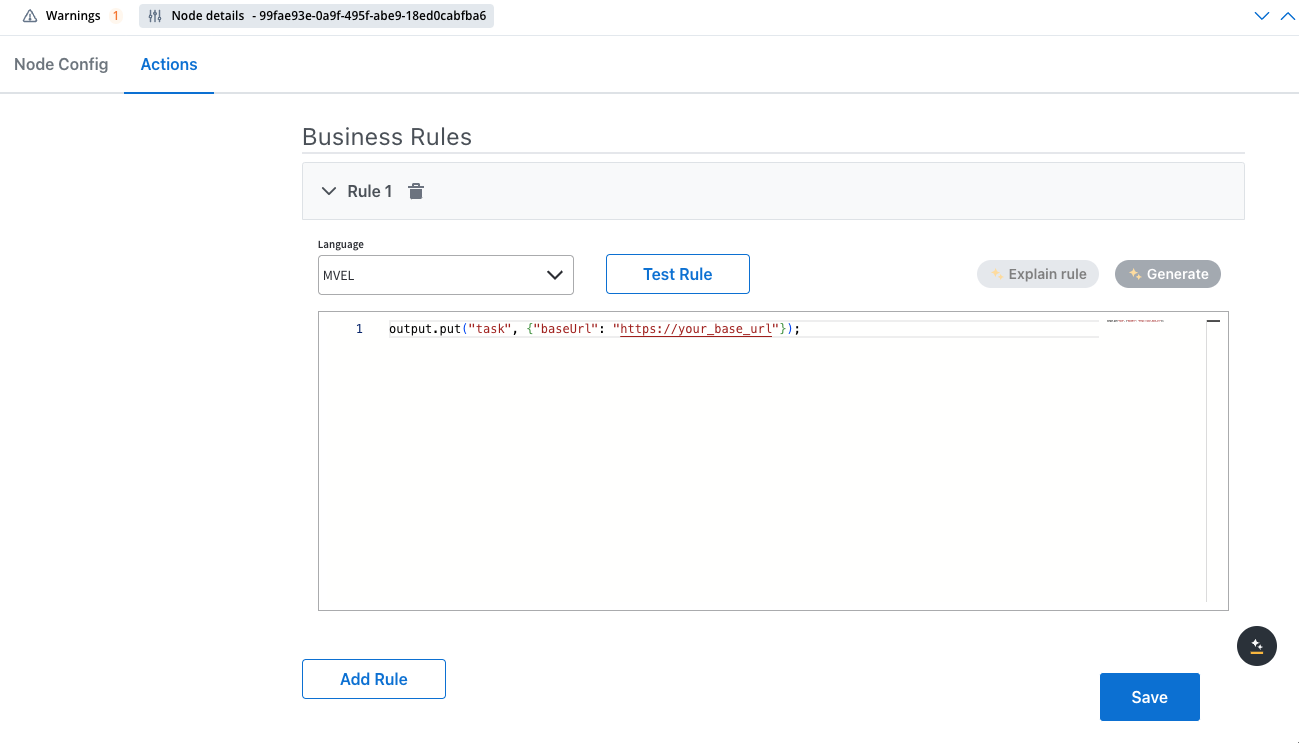
The `baseURL` set in the process data (business rules) will override the `baseURL` set in the process definition settings.
## Task operations via Kafka
You can perform task operations programmatically by sending Kafka messages to the `ai.flowx.core.trigger.operation.v1` topic. This enables integration with external systems and automation of task management workflows.
### Required Kafka headers
| Header | Required | Purpose |
| -------------------- | -------- | ------------------------------------------------------------------------------------------------------------------------------------------------------------------------------------------------------------------------ |
| `Fx-Organization-Id` | ✅ Yes | Organization UUID. Messages without it are rejected with `MissingKafkaHeaderException` |
| `Fx-Workspace-Id` | ✅ Yes | UUID of the workspace where the process instance lives |
| `jwt` | ❌ No | JWT token of the user (or service account) performing the operation. Sets the security and audit context when present; messages without it are still processed. Operation attribution comes from the `author` body field |
| `callbackTopic` | ❌ No | Topic to receive the operation result; omit for fire-and-forget |
For details on how to obtain these values, see [Finding Identifiers and Parameters](../../integrations/finding-identifiers-and-parameters).
### Available operation types
| Operation Type | Description |
| -------------- | ----------------------------------------------------- |
| **ASSIGN** | Assigns the task to a specified user |
| **UNASSIGN** | Unassigns the task from the user |
| **HOLD** | Places the task on hold, blocking further actions |
| **UNHOLD** | Removes the hold status, allowing the task to proceed |
| **TERMINATE** | Terminates the instance of the process |
#### Field descriptions
| Field | Type | Required | Description |
| ----------------------- | ------------- | ------------------ | ---------------------------------------------------------------------- |
| **operationType** | String | ✅ Yes | The type of operation to perform (see available operation types table) |
| **processInstanceUuid** | String (UUID) | ✅ Yes | The UUID of the process instance |
| **swimlaneName** | String | ✅ Yes | Name of the swimlane where the task resides |
| **owner** | Object | ✅ Yes (for ASSIGN) | User details for assignment operations |
| **taskId** | String | ❌ No | Unique identifier of the task (optional) |
| **swimlaneId** | String (UUID) | ❌ No | Unique identifier of the swimlane (optional) |
| **author** | String | ❌ No | The user performing the operation (typically email or username) |
#### Owner object structure
| Field | Type | Required | Description |
| ------------- | ------- | -------- | ------------------------------------- |
| **username** | String | ✅ Yes | Username or email of the user |
| **firstName** | String | ❌ No | First name of the user being assigned |
| **lastName** | String | ❌ No | Last name of the user being assigned |
| **enabled** | Boolean | ❌ No | Whether the user account is enabled |
### Required parameters by operation
**Minimal parameters required:**
| Parameter | Required |
| ------------------- | ------------------------------- |
| operationType | ✅ Yes |
| processInstanceUuid | ✅ Yes |
| swimlaneName | ✅ Yes |
| owner.username | ✅ Yes (only username is needed) |
| taskId | ❌ No |
| swimlaneId | ❌ No |
| author | ❌ No |
**Example:**
```json theme={"system"}
{
"operationType": "ASSIGN",
"processInstanceUuid": "d3aabfd8-d041-4c62-892f-22d17923b223",
"swimlaneName": "Default",
"owner": {
"username": "user@flowx.ai"
}
}
```
**Minimal parameters required:**
| Parameter | Required |
| ------------------- | -------- |
| operationType | ✅ Yes |
| processInstanceUuid | ✅ Yes |
| swimlaneName | ✅ Yes |
| taskId | ❌ No |
| swimlaneId | ❌ No |
| author | ❌ No |
**Example:**
```json theme={"system"}
{
"operationType": "UNASSIGN",
"processInstanceUuid": "d3aabfd8-d041-4c62-892f-22d17923b223",
"swimlaneName": "Default"
}
```
**Minimal parameters required** - swimlane and owner fields are not needed.
| Parameter | Required |
| ------------------- | -------- |
| operationType | ✅ Yes |
| taskId | ✅ Yes |
| processInstanceUuid | ✅ Yes |
| swimlaneName | ❌ No |
| swimlaneId | ❌ No |
| owner | ❌ No |
| author | ✅ Yes |
**Example (HOLD):**
```json theme={"system"}
{
"operationType": "HOLD",
"taskId": "a1b2c3d4-e5f6-7890-abcd-ef1234567890",
"processInstanceUuid": "d3aabfd8-d041-4c62-892f-22d17923b223",
"author": "admin@company.com"
}
```
**Example (UNHOLD):**
```json theme={"system"}
{
"operationType": "UNHOLD",
"taskId": "a1b2c3d4-e5f6-7890-abcd-ef1234567890",
"processInstanceUuid": "d3aabfd8-d041-4c62-892f-22d17923b223",
"author": "admin@company.com"
}
```
**Minimal parameters required:**
| Parameter | Required |
| ------------------- | -------- |
| operationType | ✅ Yes |
| processInstanceUuid | ✅ Yes |
**Example:**
```json theme={"system"}
{
"operationType": "TERMINATE",
"processInstanceUuid": "d3aabfd8-d041-4c62-892f-22d17923b223"
}
```
Ensure that users performing operations have the appropriate swimlane permissions configured in the process settings. Operations will fail if the user lacks the necessary permissions for the specified swimlane.
## Bulk updates
Send bulk update requests via Kafka (using Process Engine) to perform multiple operations at once. Use the Kafka topic:
* Send the operations as an array to the topic configured in the Process Engine's `KAFKA_TOPIC_PROCESS_OPERATIONS_BULKIN` variable (default: `ai.flowx.core.trigger.operations.bulk.v1`). The engine consumes the message and runs each operation in the array. For more information, see the [Task Management plugin topics](../../../../setup-guides/flowx-engine-setup-guide/engine-setup#topics-related-to-the-task-management-plugin).
Bulk requests use the same Kafka headers as single operations (see [Required Kafka headers](#required-kafka-headers)). Set `callbackTopic` to receive a per-operation result list with `SUCCESS`, `PARTIAL_ERROR`, or `ERROR` status.
Example of a bulk request:
```json theme={"system"}
{
"operations": [
{
"operationType": "HOLD",
"taskId": "some task id",
"processInstanceUuid": "d3aabfd8-d041-4c62-892f-22d17923b223",
"swimlaneName": "Default",
"owner": null,
"author": "john.doe@flowx.ai",
"requestID": "1234567891"
},
{
"operationType": "HOLD",
"taskId": "some task id",
"processInstanceUuid": "d3aabfd8-d041-4c62-892f-22d17923b223",
"swimlaneName": "Default",
"owner": null,
"author": "john.doe@flowx.ai",
"requestID": "1234567890"
}
]
}
```
For more information on bulk updates configuration, see FlowX Engine setup:
## Updating Task Manager metadata through business rules
You can dynamically update task metadata during process execution using business rules. The engine intercepts values stored under the reserved `task` key in the process data and forwards them to Task Management.
### Reserved `task.*` keys
The following keys are reserved. When set via `output.put("task", {...})` in a business rule, the engine extracts them and sends them to Task Management:
| Key | Type | Description |
| ---------------------- | ------ | -------------------------------------------------------------------------------------------- |
| `task.title` | String | Display title shown in task lists and details |
| `task.priority` | Number | Numeric priority for sorting and filtering (does not affect automatic allocation) |
| `task.baseUrl` | String | Container app URL for the "View Application" link. Overrides the URL set in process settings |
| `task.tags` | List | Tags attached to the task |
| `task.metadata` | Object | Arbitrary metadata attached to the task |
| `task.businessFilters` | Object | Business filter values used for allocation and view filtering |
| `task.candidateUsers` | List | Candidate users for task assignment, overriding swimlane-level allocation settings |
The `task` key is **reserved**. Any data stored under `task.*` in process parameters is intercepted by the engine and sent to Task Management. Do not use the `task` key for other business data.
### Updating task title and priority
Here is how to update both the title and priority:
```javascript theme={"system"}
// Define your task title
taskTitle = "SME Branch Lending";
taskPriority = 1;
// Update the task title
output.put("task", {
"title": taskTitle,
"priority": taskPriority
});
```
### Setting dynamic value based on business logic
You can set priority dynamically based on business conditions:
```javascript theme={"system"}
// Get client data and loan amount
const clientDataSection = input.clientDataSection;
const loanAmount = input.loanAmount;
// Create a descriptive task title
const taskTitle = `Loan Application # ${clientDataSection.firstName} - ${clientDataSection.lastName}`;
// Set priority based on loan amount
let taskPriority;
if (loanAmount > 50000) {
taskPriority = 1; // HIGH priority for large loans
} else if (loanAmount > 10000) {
taskPriority = 2; // MEDIUM priority for medium loans
} else {
taskPriority = 3; // LOW priority for small loans
}
// Update both title and priority
output.put("task", {
"title": taskTitle,
"priority": taskPriority
});
```
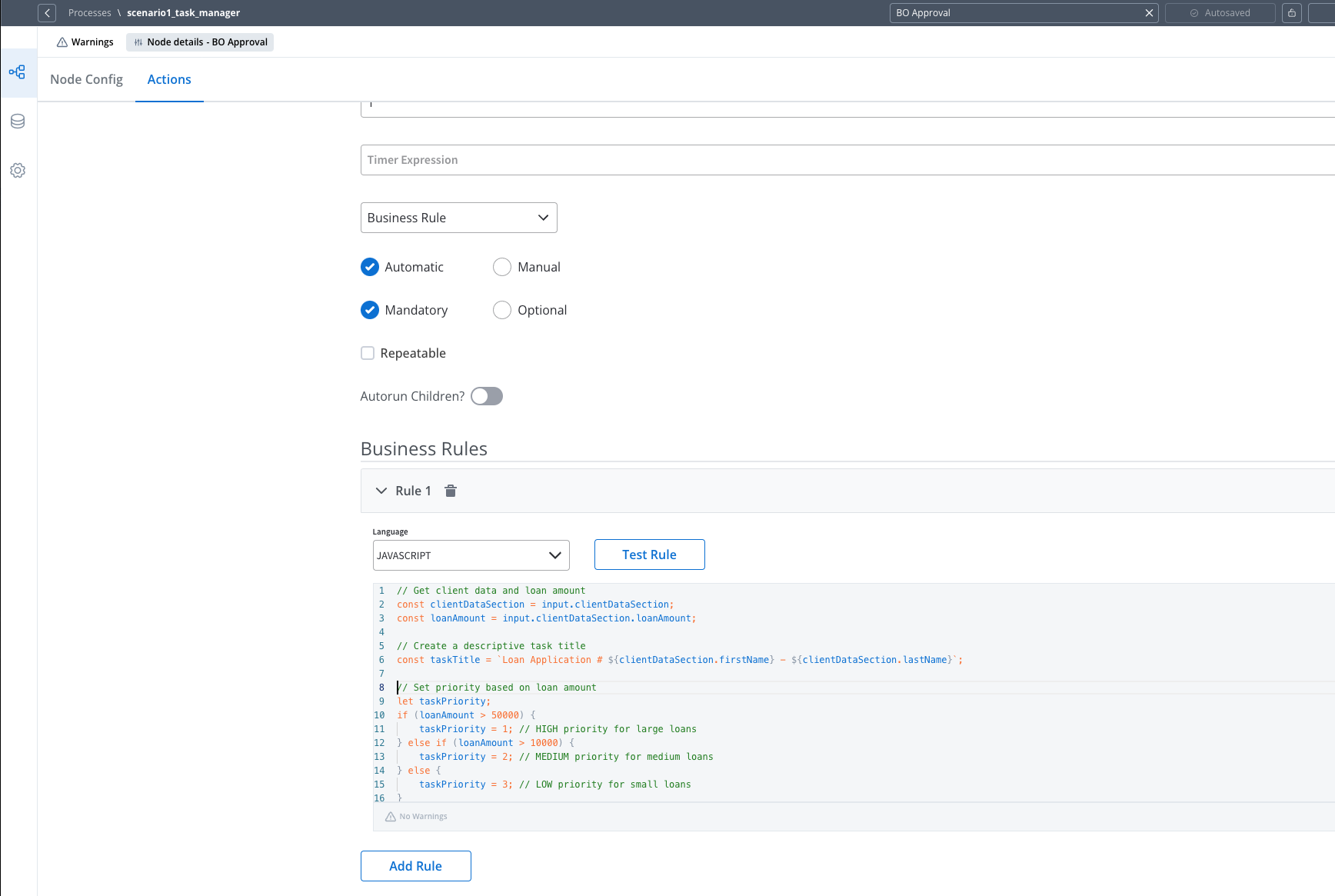
You can make task titles more dynamic and informative by incorporating process data:
```javascript theme={"system"}
// Get relevant data from the process
const clientName = input.get("customer.fullName");
const applicationId = input.get("application.id");
const loanAmount = input.get("loan.amount");
// Create a descriptive task title
const taskTitle = `Loan Application #${applicationId} - ${clientName} - ${loanAmount}`;
// Update the task title
output.put("task", {
"title": taskTitle
});
```
## Full-Code implementation
For more customized UX, the **full-code** implementation using the **Task Management SDKs (React and Angular)** allows developers to build custom tables, cards, or any other UI elements based on the views and columns configured in Task Management.
## FAQs
A: The format changes will only affect how the data is displayed, not how it's indexed.
A: Yes, you can always switch to full-code and create custom views or tables using the Task Management SDK.
A: To use data from a subprocess, you must send it to the parent process first. Subprocess keys are currently displayed in the task manager once indexed through the parent process.