> ## Documentation Index
> Fetch the complete documentation index at: https://docs.flowx.ai/llms.txt
> Use this file to discover all available pages before exploring further.
# FlowX.AI Data Search
> Search for specific data across process instances using Elasticsearch-powered indexing for fast, precise results.
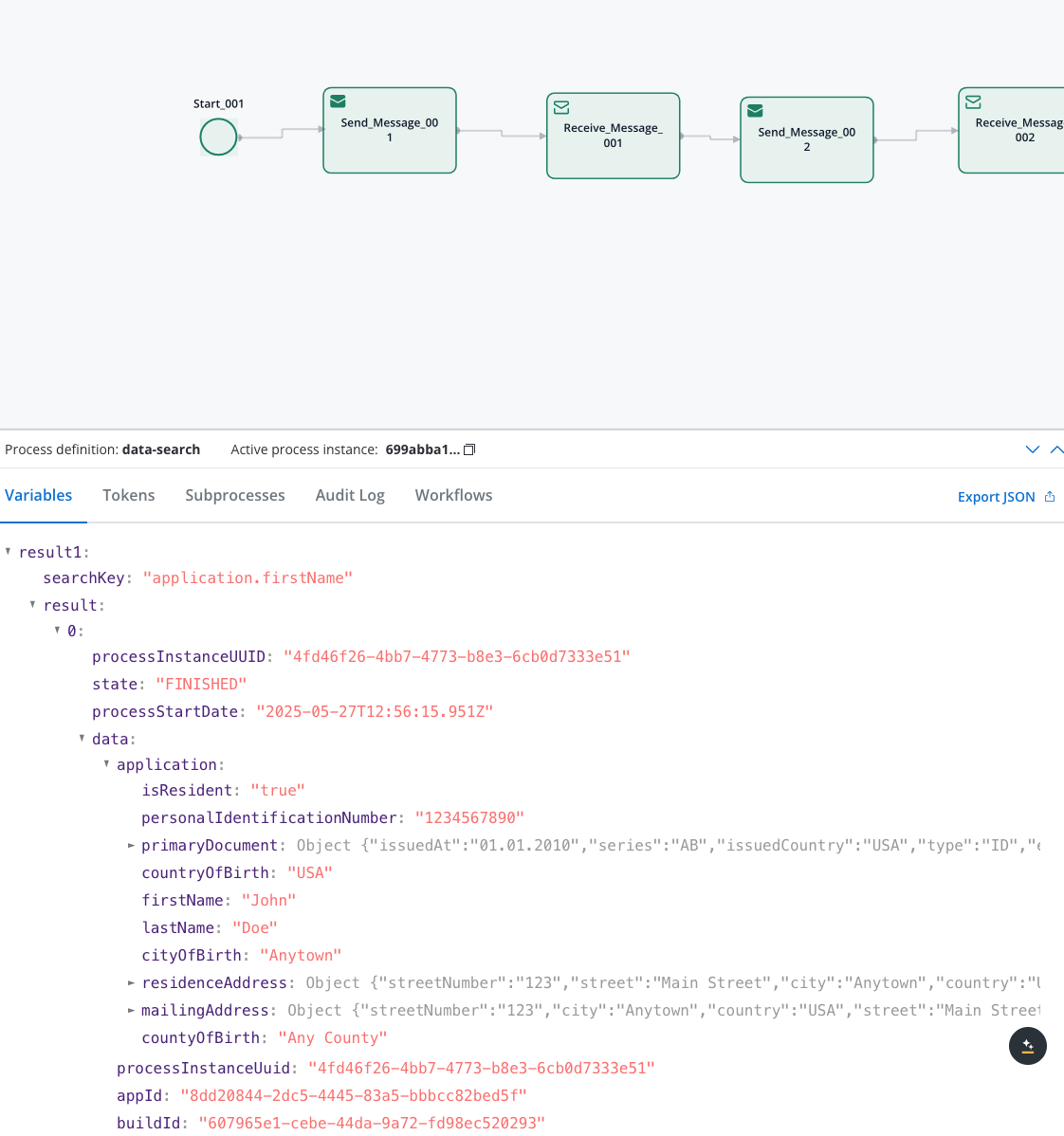
The Data Search service enables you to find specific data across process instances within your FlowX.AI platform. It uses Elasticsearch to perform fast, indexed searches across process data.
Search by a single field and value
Search using multiple criteria simultaneously
Search within array elements and nested structures
Search across multiple applications
Filter results by process creation dates
## Prerequisites
Before using the Data Search service, ensure you have:
* Elasticsearch cluster running and accessible
* Indexing enabled in FlowX Engine configuration
* Proper network connectivity between services
* `KAFKA_TOPIC_DATA_SEARCH_IN` configured for requests
* `KAFKA_TOPIC_DATA_SEARCH_OUT` configured for responses
* Proper topic permissions and access
* Process instances with indexed data
* Searchable fields defined in Process Settings → Data Search
* **"Update data search" flag enabled** on at least one node to trigger indexing
* Completed process instances for reliable results
***
## Quick start
Create a process that stores searchable data and configure field indexing.
Build a process with Kafka Send/Receive actions for search functionality.
Define your search criteria using simple, advanced, or array search syntax.
Process the returned data and display results to users.
### 1. Set up your data process
First, create a process that contains searchable data. Add a Service Task with a business rule:
```json Example Client Data theme={"system"}
output.put("application", {
"client": {
"personalInfo": {
"firstName": "Sarah",
"lastName": "Johnson",
"email": "sarah.johnson@techcorp.com",
"phone": "+1-555-0101"
},
"address": {
"country": "USA",
"city": "San Francisco",
"state": "California",
"zipCode": "94102"
},
"business": {
"company": "TechCorp Inc",
"industry": "Technology",
"position": "CTO"
},
"account": {
"type": "Premium",
"status": "Active",
"riskLevel": "Low"
}
}
});
```
```json Example Client List Data theme={"system"}
output.put("application", {
"listClient": [
{
"firstName": "Maria",
"lastName": "Rodriguez",
"email": "maria.rodriguez@company.com",
"department": "Engineering"
},
{
"firstName": "John",
"lastName": "Smith",
"email": "john.smith@company.com",
"department": "Sales"
},
{
"firstName": "Maria",
"lastName": "Garcia",
"email": "maria.garcia@company.com",
"department": "Marketing"
}
]
});
```
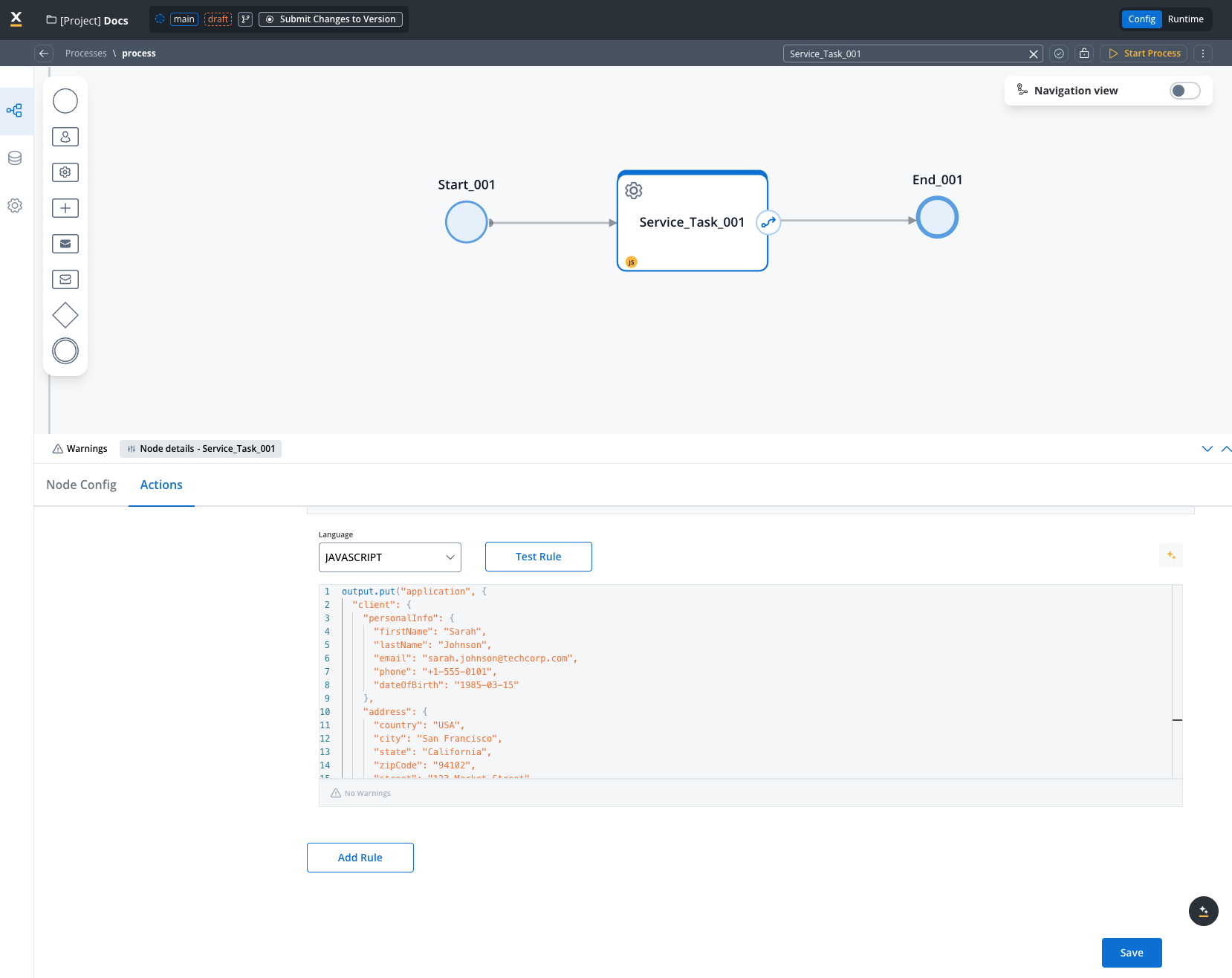
**Critical Step**: After creating your data structure, you must configure field indexing in **Process Settings → Data Search** for the search to work.
#### Configure field Indexing
Navigate to **Process Settings → Data Search** and add the field paths you want to search:
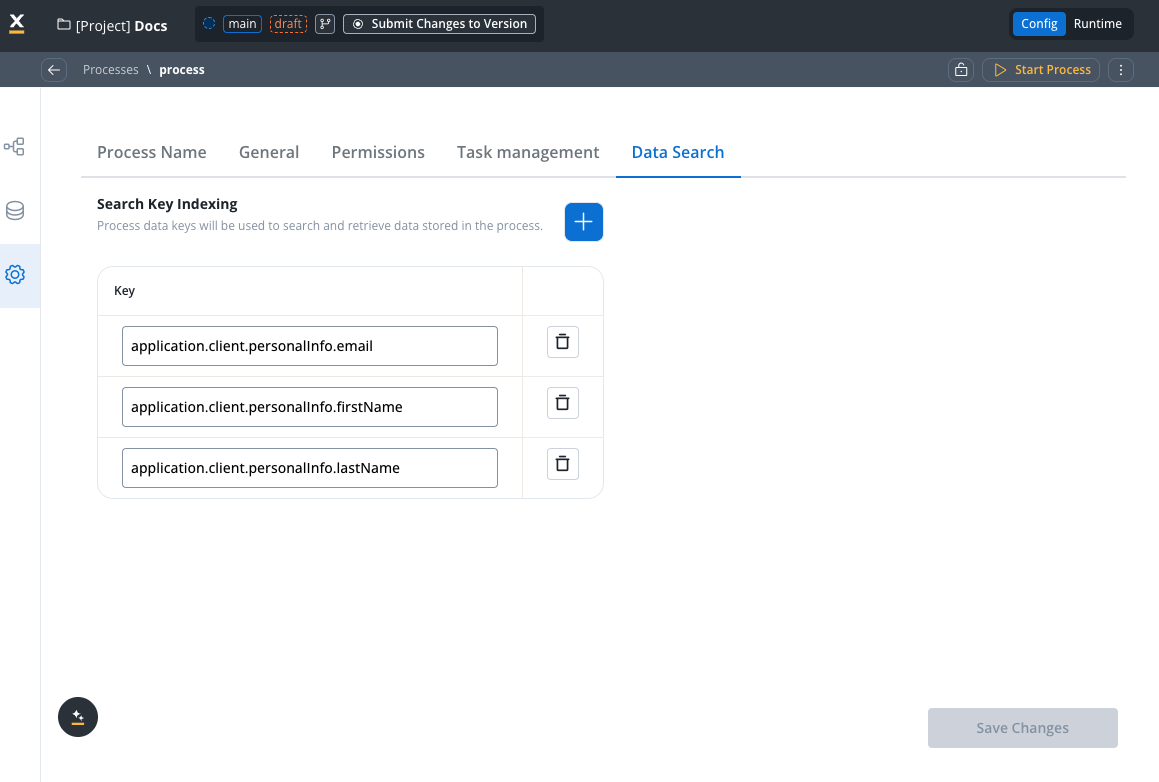
**Example indexed fields:**
* `application.client.personalInfo.firstName`
* `application.client.personalInfo.lastName`
* `application.client.personalInfo.email`
* `application.listClient.[].firstName` (for array search)
* `application.listClient.[].lastName` (for array search)
* `application.listClient.[].department` (for array search)
#### When data gets indexed to Elasticsearch
**Critical**: Configuring field indexing in Process Settings is only the first step. Your data will **not** be automatically indexed to Elasticsearch just because the process finishes.
Data indexing to Elasticsearch occurs **only** in these specific scenarios:
| Trigger | What Gets Indexed |
| ----------------------------------------------------- | ------------------------------------------------ |
| **Stage changes** | All configured indexed fields |
| **Swimlane changes** | All configured indexed fields |
| **"Update data search" flag enabled on a node** | All configured indexed fields |
| **Process status changes** (STARTED → FINISHED, etc.) | Only the process status, **not** the data fields |
When a process instance changes status (e.g., from STARTED to FINISHED), only the status itself is updated in Elasticsearch. The actual data fields you configured for indexing are **not** automatically re-indexed at this point.
#### Enable the "Update data search" flag
To ensure your data is indexed and searchable, you must enable the **Update data search** flag on at least one node in your process:
1. Open a node in your process definition
2. Go to **Node Config**
3. Enable the **Update data search** toggle
**Best practices for flag placement:**
* **For final data only**: Place the flag on the last node before process completion
* **For milestone tracking**: Place the flag at key checkpoints where you need searchable snapshots
* **You don't need to enable it on every node**; only enable it where you need the data to be indexed
If you only need to search the final process data, enable "Update data search" on just the last node before the End Event. This minimizes unnecessary Elasticsearch updates while ensuring your completed data is searchable.
### 2. Create your search process
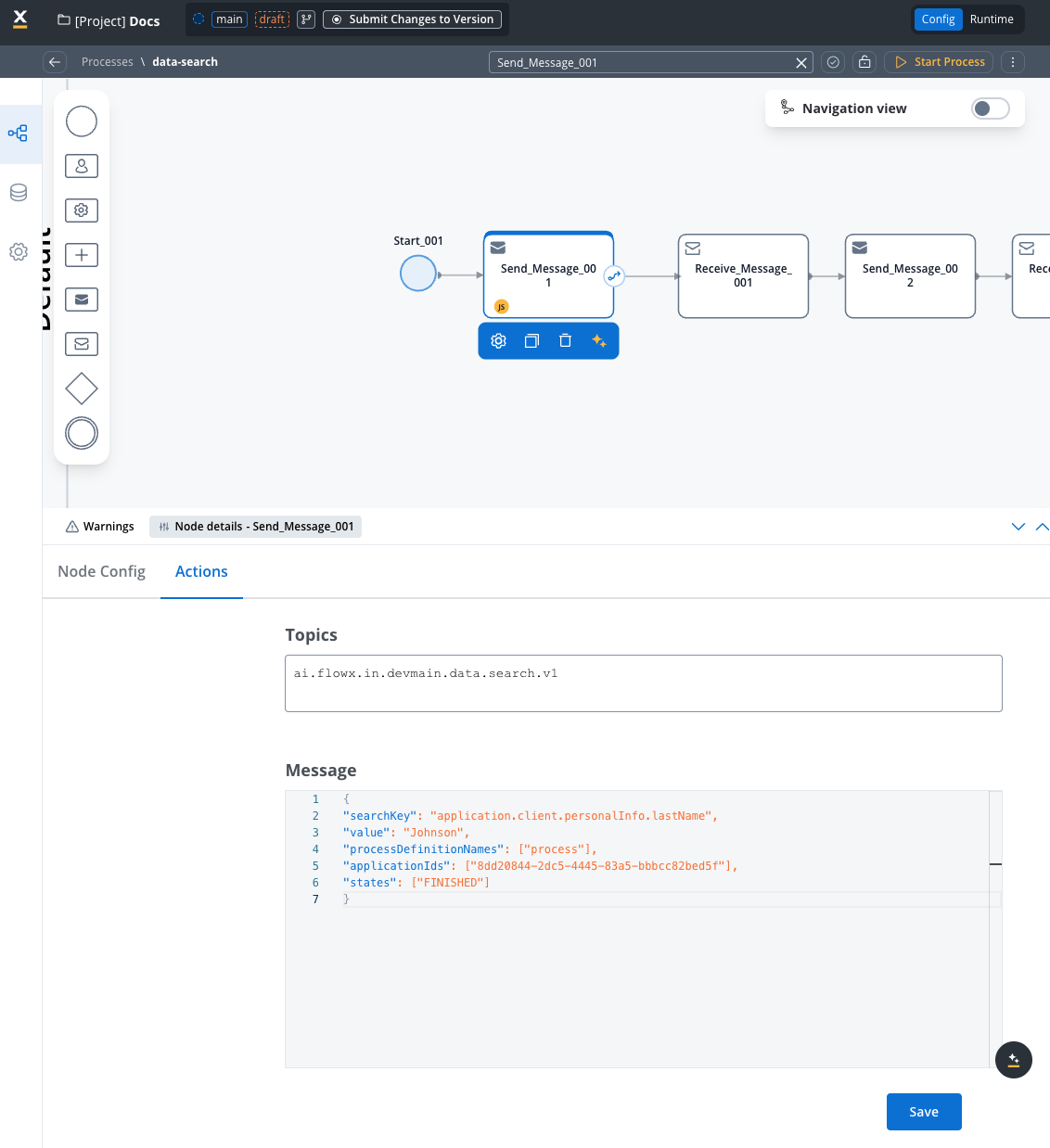
Create a new process with a **Send Message Task**:
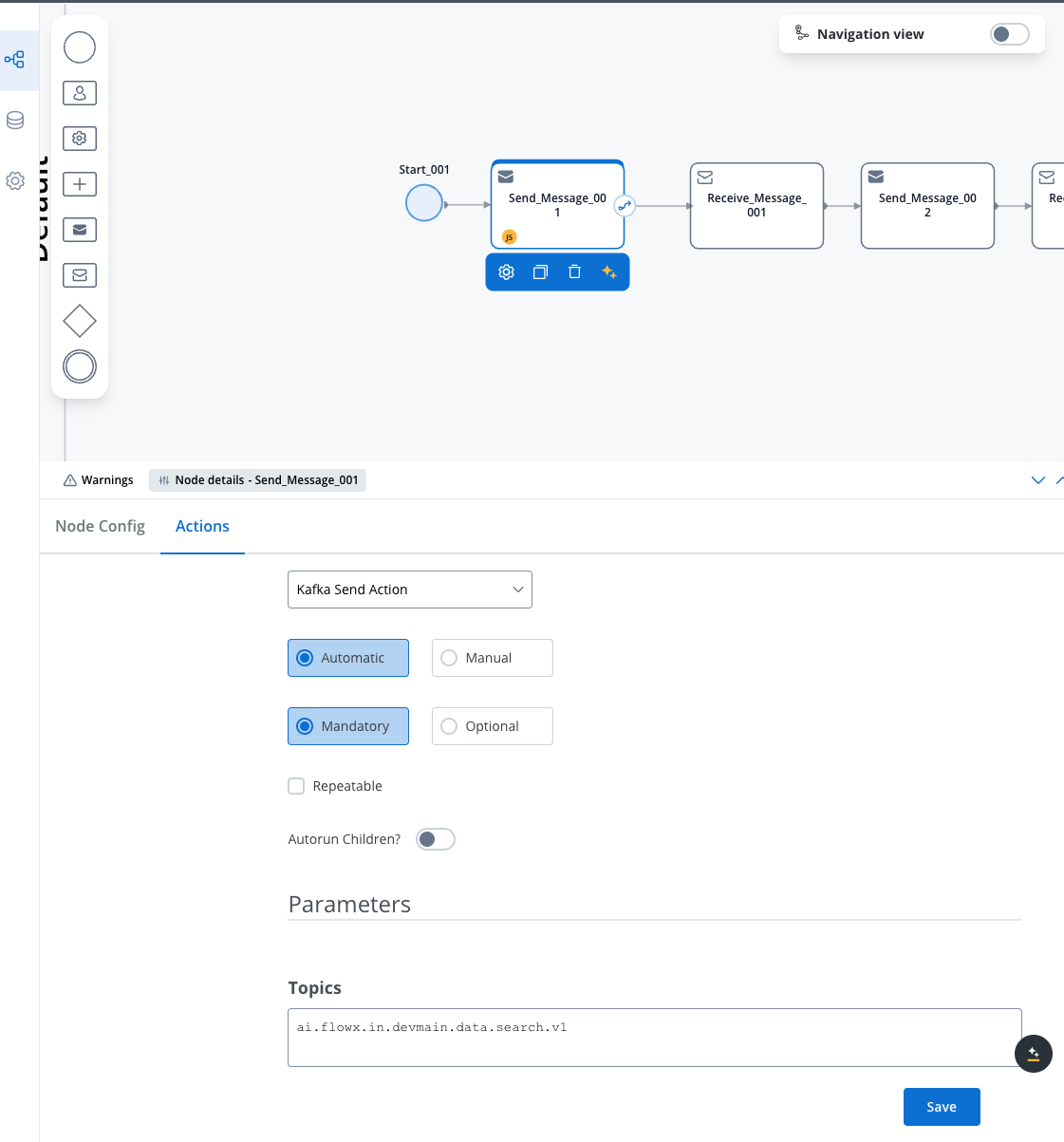
**Configuration:**
* **Action Type**: Kafka Send Action
* **Topic**: `KAFKA_TOPIC_DATA_SEARCH_IN`
### 3. Configure search parameters
Choose your search approach based on your needs:
Use when searching by a single field:
```json theme={"system"}
{
"searchKey": "application.client.personalInfo.lastName",
"value": "Johnson",
"processDefinitionNames": ["client_process"],
"states": ["FINISHED"]
}
```
Use when searching by multiple criteria (AND logic):
```json theme={"system"}
{
"searchKeys": [
{"key": "application.client.personalInfo.firstName", "value": "Sarah"},
{"key": "application.client.personalInfo.lastName", "value": "Johnson"}
],
"processDefinitionNames": ["client_process"],
"states": ["FINISHED"]
}
```
All conditions in `searchKeys` must match for a result to be returned.
Use when searching within arrays or lists. You can use either `searchKeys` or `searchByPaths`:
**Using searchKeys with array notation:**
```json theme={"system"}
{
"searchKeys": [
{"key": "application.listClient.[].firstName", "value": "Maria"}
],
"processDefinitionNames": ["client_process"],
"states": ["FINISHED"]
}
```
**Using searchByPaths (recommended for arrays):**
```json theme={"system"}
{
"searchByPaths": [
{"key": "application.listClient.[].firstName", "value": "Maria"}
],
"processDefinitionNames": ["client_process"],
"states": ["FINISHED"]
}
```
**Combined array search (multiple conditions in array):**
```json theme={"system"}
{
"searchByPaths": [
{"key": "application.listClient.[].firstName", "value": "Maria"},
{"key": "application.listClient.[].department", "value": "Engineering"}
],
"processDefinitionNames": ["client_process"]
}
```
* Use `[]` notation to search within array elements
* This searches through all items in the array
* Returns processes where any array element matches the criteria
Search across multiple applications:
```json theme={"system"}
{
"searchKey": "application.client.account.type",
"value": "Premium",
"applicationIds": [
"app-1-uuid",
"app-2-uuid"
]
}
```
Filter by process creation dates:
```json theme={"system"}
{
"searchKey": "application.client.business.industry",
"value": "Technology",
"processStartDateAfter": "2024-01-01T00:00:00Z",
"processStartDateBefore": "2024-12-31T23:59:59Z",
"states": ["FINISHED"]
}
```
### 4. Handle search results
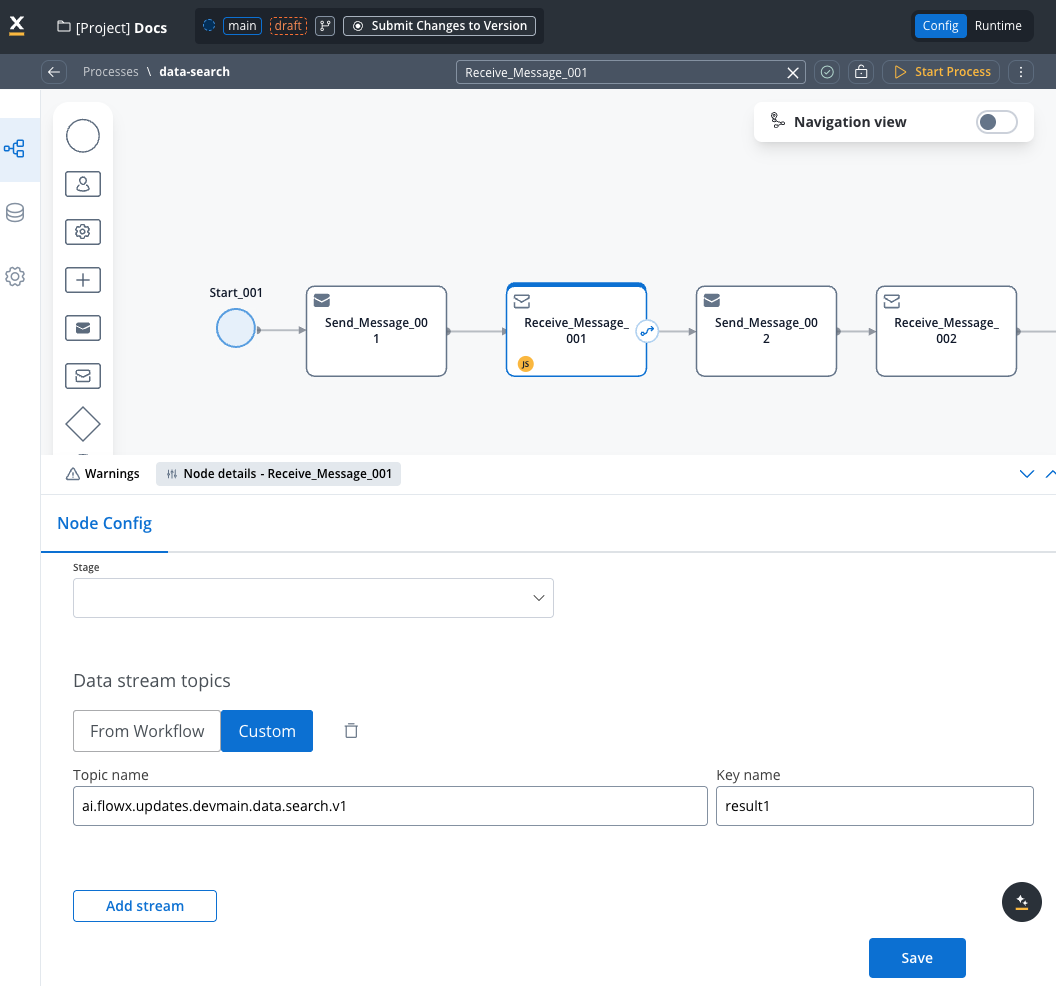
Add a **Receive Message Task** with:
* **Data Stream**: `KAFKA_TOPIC_DATA_SEARCH_OUT`
**Success response example:**
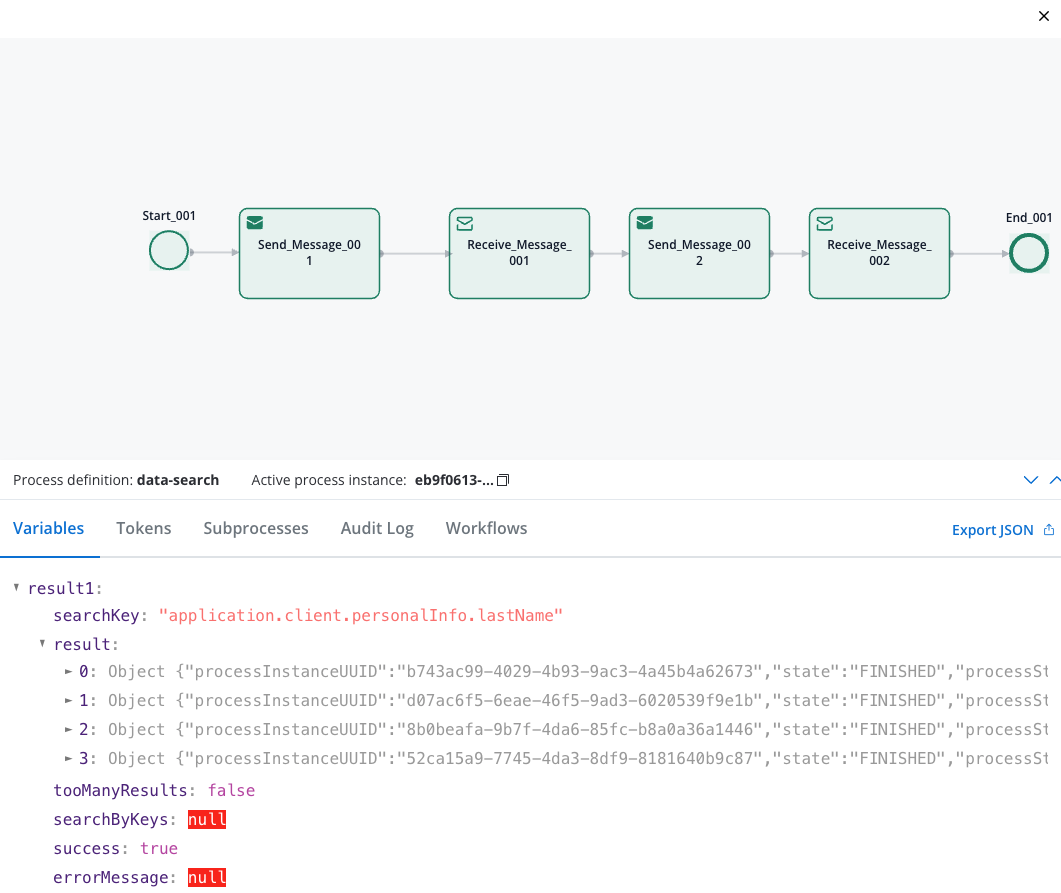
```json Success Response theme={"system"}
{
"result": [
{
"processInstanceUUID": "b743ac99-4029-4b93-9ac3-4a45b4a62673",
"state": "FINISHED",
"processStartDate": "2025-05-28T12:18:50.532Z",
"data": {
"application": {
"client": {
"personalInfo": {
"firstName": "Sarah",
"lastName": "Johnson"
}
}
}
}
}
],
"tooManyResults": false,
"success": true
}
```
```json Array Search Response theme={"system"}
{
"result": [
{
"processInstanceUUID": "c854bd10-5140-5c04-0bd4-5b56c5b73784",
"state": "FINISHED",
"processStartDate": "2025-05-28T14:22:15.847Z",
"data": {
"application": {
"listClient": [
{
"firstName": "Maria",
"lastName": "Rodriguez",
"email": "maria.rodriguez@company.com",
"department": "Engineering"
},
{
"firstName": "Maria",
"lastName": "Garcia",
"email": "maria.garcia@company.com",
"department": "Marketing"
}
]
}
}
}
],
"tooManyResults": false,
"success": true
}
```
```json No Results Response theme={"system"}
{
"result": [],
"searchKey": "application.client.personalInfo.lastName",
"searchValue": "Smith",
"tooManyResults": false,
"success": true
}
```
## Search parameters reference
### Quick reference table
| Parameter | Type | Mandatory | Description | Example |
| ------------------------ | ------ | ------------------------ | -------------------------------------- | -------------------------------------------- |
| `searchKey` | String | Yes | Single field path to search | `"application.client.personalInfo.lastName"` |
| `value` | String | Yes | Value to search for (with searchKey) | `"Johnson"` |
| `searchKeys` | Array | Yes (if multiple fields) | Multiple field-value pairs (AND logic) | `[{"key": "field1", "value": "val1"}]` |
| `searchByPaths` | Array | Yes (for array search) | Array search field-value pairs | `[{"key": "list.[].field", "value": "val"}]` |
| `processDefinitionNames` | Array | Yes | Limit to specific processes | `["client_onboarding"]` |
| `applicationIds` | Array | No | Search across applications | `["uuid-1", "uuid-2"]` |
| `states` | Array | No | Filter by process states | `["FINISHED", "STARTED"]` |
| `processStartDateAfter` | String | No | Include processes after date | `"2024-01-01T00:00:00Z"` |
| `processStartDateBefore` | String | No | Include processes before date | `"2024-12-31T23:59:59Z"` |
### Basic search parameters
**Purpose**: The field path to search in for single-field searches.
**Usage**: Use dot notation to specify the exact path to the field you want to search or a specific key in the payload.
**Examples**:
* `"application.client.personalInfo.firstName"`
* `"application.client.address.city"`
* `"application.client.business.industry"`
**Important**: This field must be indexed in Process Settings → Data Search to work.
Cannot be used together with `searchKeys` or `searchByPaths`. Choose one approach.
**Purpose**: The exact value to search for when using `searchKey`.
**Usage**: Must match the stored value exactly (case-sensitive).
**Examples**:
* `"Johnson"` - searches for exact lastName match
* `"Technology"` - searches for exact industry match
* `"Active"` - searches for exact status match
**Note**: Only used with `searchKey`, not with `searchKeys` or `searchByPaths`.
**Purpose**: Array of key-value pairs for multi-field searches with AND logic.
**Usage**: All conditions must match for a result to be returned. Can also be used for array searches with `[]` notation.
**Format**:
```json theme={"system"}
[
{"key": "field.path.1", "value": "value1"},
{"key": "field.path.2", "value": "value2"}
]
```
**Examples**:
```json theme={"system"}
[
{"key": "application.client.personalInfo.firstName", "value": "Sarah"},
{"key": "application.client.business.industry", "value": "Technology"}
]
```
**Array Search Example**:
```json theme={"system"}
[
{"key": "application.listClient.[].firstName", "value": "Maria"}
]
```
Cannot be used together with `searchKey` or `searchByPaths`. Choose one approach.
**Purpose**: Array of key-value pairs specifically designed for searching within array elements and nested structures.
**Usage**: Use `[]` notation to search within array elements. This searches through all items in the array and is the recommended approach for array searches.
**Format**:
```json theme={"system"}
[
{"key": "arrayfield.[].property", "value": "searchvalue"}
]
```
**Examples**:
```json theme={"system"}
[
{"key": "application.listClient.[].firstName", "value": "Maria"}
]
```
**Multiple Array Conditions**:
```json theme={"system"}
[
{"key": "application.listClient.[].firstName", "value": "Maria"},
{"key": "application.listClient.[].department", "value": "Engineering"}
]
```
**Nested Array Example**:
```json theme={"system"}
[
{"key": "application.clients.[].addresses.[].city", "value": "New York"}
]
```
* **Recommended** for array searches over `searchKeys`
* Returns processes where any array element matches the criteria
* Supports deeply nested array structures
Cannot be used together with `searchKey` or `searchKeys`. Choose one approach.
### Filtering parameters
**Purpose**: Limit search to specific process definitions.
**Default**: Searches all processes if omitted.
**Usage**: Improves performance by narrowing search scope.
**Examples**:
* `["client_onboarding"]` - search only in client processes
* `["employee_registration", "contractor_onboarding"]` - search in multiple process types
**Best Practice**: Always specify to improve search performance.
**Purpose**: Search across specific applications.
**Default**: Searches current application if omitted.
**Usage**: Enable cross-application searches.
**Examples**:
* `["8dd20844-2dc5-4445-83a5-bbbcc82bed5f"]` - search in specific app
* `["app-1-uuid", "app-2-uuid", "app-3-uuid"]` - search across multiple apps
**Use Case**: Useful for consolidated reporting across different business units.
**Purpose**: Filter results by process instance status.
**Default**: Returns all states if omitted.
**Available States**:
* `"CREATED"` - Process instance created but not started
* `"STARTED"` - Process is currently running
* `"FINISHED"` - Process completed successfully
* `"FAILED"` - Process encountered an error and stopped
* `"TERMINATED"` - Process was manually stopped/cancelled
* `"ONHOLD"` - Process is paused or waiting for external input
**Examples**:
* `["FINISHED"]` - only completed processes
* `["STARTED", "ONHOLD"]` - active or paused processes
* `["FAILED", "TERMINATED"]` - processes that didn't complete normally
**Best Practice**: Use `["FINISHED"]` for most business searches to get complete data.
### Date range parameters
**Purpose**: Include only processes started after the specified date.
**Format**: ISO 8601 timestamp (`YYYY-MM-DDTHH:MM:SSZ`)
**Examples**:
* `"2024-01-01T00:00:00Z"` - processes started after Jan 1, 2024
* `"2024-06-15T09:30:00Z"` - processes started after June 15, 2024 at 9:30 AM
**Use Cases**:
* Monthly reports: `"2024-03-01T00:00:00Z"`
* Recent activity: `"2024-05-20T00:00:00Z"`
**Purpose**: Include only processes started before the specified date.
**Format**: ISO 8601 timestamp (`YYYY-MM-DDTHH:MM:SSZ`)
**Examples**:
* `"2024-12-31T23:59:59Z"` - processes started before end of 2024
* `"2024-06-30T23:59:59Z"` - processes started before end of June 2024
**Use Cases**:
* Historical analysis: `"2024-01-01T00:00:00Z"`
* Quarterly reports: `"2024-03-31T23:59:59Z"`
### Process states explained
Understanding process states is crucial for effective searching:
| State | Description | When to Use |
| -------------- | ---------------------------------------------------- | ---------------------------------------- |
| **CREATED** | Process instance exists but hasn't started execution | Rarely used for business searches |
| **STARTED** | Process is actively running | Find ongoing processes, current workload |
| **FINISHED** | Process completed successfully | Most common for business data searches |
| **FAILED** | Process encountered an error | Error analysis, troubleshooting |
| **TERMINATED** | Process was manually cancelled | Audit trails, cancelled applications |
| **ONHOLD** | Process is paused/waiting | Active cases needing attention |
**Recommendation**: Use `["FINISHED"]` for most business searches to ensure you're getting complete, reliable data.
### Response structure
The search returns a JSON object with these fields:
* **`result`** (Array): List of matching process instances
* `processInstanceUUID`: Unique process identifier
* `state`: Current process state
* `processStartDate`: When the process started
* `data`: The actual process data with your searchable fields
* **`tooManyResults`** (Boolean): True if more than 50 results found (limit applied)
* **`success`** (Boolean): Whether the search completed successfully
* **`errorMessage`** (String): Error details if search failed
## Use cases & examples
Search for employees by department, position, or location across HR systems.
Locate specific transactions or approvals for regulatory compliance.
Analyze process data patterns and generate reports.
Find processes containing specific individuals within contact lists or arrays.
### Real-world example: Employee directory search
HR department needs to find all employees named "Maria" across different departments.
```json theme={"system"}
{
"searchByPaths": [
{"key": "application.employees.[].firstName", "value": "Maria"}
],
"processDefinitionNames": ["employee_onboarding"],
"states": ["FINISHED"]
}
```
Receive all employee records containing anyone named "Maria" in their employee lists.
Add additional criteria like department or role to narrow results further.
### Real-world example: Customer support search
Support agent needs to find customer's account quickly.
```json theme={"system"}
{
"searchKeys": [
{"key": "customer.email", "value": "customer@email.com"},
{"key": "customer.status", "value": "Active"}
],
"processDefinitionNames": ["customer_onboarding"],
"states": ["FINISHED"]
}
```
Receive full customer profile with account details, order history, and support tickets.
Use the retrieved data to address the customer's concern effectively.
***
## Best practices
* **Always enable "Update data search"** on at least one node to trigger data indexing
* **If you don't have stages or swimlanes configured**, the "Update data search" flag is your **only way** to index data - without it, your data fields won't be searchable
* **Place the flag strategically**: on the last node for final data, or at milestones for intermediate snapshots
* **Don't enable on every node**: this creates unnecessary Elasticsearch updates
* **Remember**: Process status changes (like finishing) only update the status in Elasticsearch, not your data fields
* **For long processes**, consider enabling at key checkpoints to make data searchable earlier
* **Use searchByPaths** for array searches instead of searchKeys when possible
* **Index array fields properly** using `[]` notation in Process Settings
* **Consider array size** - large arrays may impact search performance
* **Combine array searches** with filters to reduce result sets
* **Test nested array searches** thoroughly before deploying to production
* **Limit search scope** using `processDefinitionNames` and `states`
* **Use date ranges** for time-sensitive searches
* **Index only frequently searched fields** to reduce storage overhead
* **Monitor search response times** and optimize queries
* **Avoid wildcard searches** on large datasets
* **Use consistent field naming** across processes
* **Normalize data formats** (dates, phone numbers, etc.)
* **Consider search patterns** when designing data structures
* **Document indexed fields** for team reference
* **Plan for data growth** and scaling needs
* **Design arrays with search in mind** - consider what fields will be searched
* **Don't index sensitive data** (SSN, passwords, etc.)
* **Implement proper access controls** for search endpoints
* **Log search activities** for audit trails
* **Sanitize search inputs** to prevent injection attacks
* **Follow data retention policies** for search results
* **Handle empty results** gracefully in your UI
* **Implement retry logic** for failed searches
* **Provide meaningful error messages** to users
* **Set reasonable timeouts** for search operations
* **Monitor and alert** on search failures
***
## Troubleshooting
**Possible Causes:**
* **"Update data search" flag not enabled** on any node (most common cause)
* Fields not indexed in Process Settings → Data Search
* Incorrect field path (case-sensitive)
* Process instances not in expected state
* Elasticsearch indexing delay
* Array notation missing for array searches
**Solutions:**
* **Enable "Update data search"** on at least one node (typically the last node before completion)
* Verify field indexing configuration in Process Settings → Data Search
* Check exact field paths in process data
* Ensure processes are in FINISHED state
* Wait 30-60 seconds after process completion
* Use `[]` notation for array field searches
**Possible Causes:**
* "Update data search" flag not enabled on any node
* Misunderstanding of when indexing occurs (status changes only update the status, not data)
* Data added after the last node with the flag enabled
**Solutions:**
* Enable "Update data search" on the last node before the End Event
* Remember: process status changes (STARTED → FINISHED) only index the status, not your data fields
* Place the "Update data search" flag after all data has been collected
* For milestone-based indexing, enable the flag at each checkpoint where you need searchable data
**Possible Causes:**
* Missing `[]` notation in field path
* Array fields not properly indexed
* Using wrong parameter (`searchKeys` vs `searchByPaths`)
* Array is empty or doesn't contain expected data
**Solutions:**
* Ensure field path includes `[]` for arrays (e.g., `list.[].field`)
* Verify array fields are indexed with `[]` notation
* Use `searchByPaths` for array searches when possible
* Check that arrays contain the expected data structure
* Test with simple array structures first
**Possible Causes:**
* Query too broad (searching all data)
* Elasticsearch cluster performance issues
* Large dataset without proper filtering
* Complex nested array searches
**Solutions:**
* Add more specific filters (`processDefinitionNames`, `states`)
* Use date ranges to limit scope
* Check Elasticsearch cluster health
* Optimize indexing strategy
* Simplify complex array search patterns
**Possible Causes:**
* Typos in field paths
* Field doesn't exist in process data
* Incorrect JSON format in request
* Missing array notation for array fields
**Solutions:**
* Verify field paths exist in process instances
* Check for case sensitivity
* Validate JSON syntax
* Test with simple field paths first
* Add `[]` notation for array field searches
**Possible Causes:**
* Kafka topics not properly configured
* Network connectivity problems
* Service authentication issues
**Solutions:**
* Verify Kafka topic configuration
* Check network connectivity
* Validate service credentials
* Review FlowX Engine logs
***
## Configuration templates
```json Simple search template theme={"system"}
{
"searchKey": "your.field.path",
"value": "search_value",
"processDefinitionNames": ["your_process"],
"states": ["FINISHED"]
}
```
```json Advanced search template theme={"system"}
{
"searchKeys": [
{"key": "field1", "value": "value1"},
{"key": "field2", "value": "value2"}
],
"processDefinitionNames": ["your_process"],
"states": ["FINISHED"]
}
```
```json Array search template (searchKeys) theme={"system"}
{
"searchKeys": [
{"key": "application.listField.[].property", "value": "search_value"}
],
"processDefinitionNames": ["your_process"],
"states": ["FINISHED"]
}
```
```json Array search template (searchByPaths) theme={"system"}
{
"searchByPaths": [
{"key": "application.listField.[].property", "value": "search_value"}
],
"processDefinitionNames": ["your_process"],
"states": ["FINISHED"]
}
```
```json Multiple array conditions template theme={"system"}
{
"searchByPaths": [
{"key": "application.employees.[].firstName", "value": "Maria"},
{"key": "application.employees.[].department", "value": "Engineering"}
],
"processDefinitionNames": ["employee_process"]
}
```
```json Cross-application template theme={"system"}
{
"searchKey": "your.field.path",
"value": "search_value",
"applicationIds": ["app-uuid-1", "app-uuid-2"],
"states": ["FINISHED"]
}
```
```json Date range template theme={"system"}
{
"searchKey": "your.field.path",
"value": "search_value",
"processStartDateAfter": "2024-01-01T00:00:00Z",
"processStartDateBefore": "2024-12-31T23:59:59Z",
"processDefinitionNames": ["your_process"]
}
```
***
## Related resources
Configure Elasticsearch indexing for FlowX Engine
Complete deployment and configuration guide
Learn how to design processes with searchable data