> ## Documentation Index
> Fetch the complete documentation index at: https://docs.flowx.ai/llms.txt
> Use this file to discover all available pages before exploring further.
# Sending a notification
> Learn how to configure and implement notification functionality in your business processes using the FlowX.AI Notifications Plugin.
The FlowX.AI Notifications Plugin enables you to send various types of notifications such as emails and SMS messages. This document explains how to integrate notification functionality into your business processes.
## Configuring the notification process
To configure a business process that sends notifications, follow these steps:
1. Create or edit a [notification template](./managing-notification-templates) in **FlowX Designer**
2. Design your BPMN process in **Process Designer** with:
* A [send message task](../../../../building-blocks/node/message-send-received-task-node#send-message-task)
* A [receive message task](../../../../building-blocks/node/message-send-received-task-node#receive-message-task)
3. Configure required [node actions](../../../../building-blocks/actions/actions)
4. Set up the request body parameters
The notification process uses Send message task/receive message task nodes to manage communication between components.
The diagram below shows how the notification system integrates with your business processes:
 **DEVELOPER NOTE**: Ensure that Kafka topics are properly configured in your environment by setting these variables:
* `KAFKA_TOPIC_NOTIFICATION_INTERNAL_IN` (default: `ai.flowx.plugin.notification.trigger.send.notification.v1`) - Topic for notification requests
* `KAFKA_TOPIC_NOTIFICATION_INTERNAL_OUT` (default: `ai.flowx.engine.receive.plugin.notification.confirm.send.notification.v1`) - Topic for notification responses
## Send notification request body parameters
Your notification request must include these parameters:
| Key | Definition | |
| :-----------: | :---------------------------------------------------------------: | :-------: |
| templateName | The name of the notification template to use | Mandatory |
| channel | Notification channel: SMS/MAIL | Mandatory |
| receivers | Notification recipients: email addresses or phone numbers | Mandatory |
| ccReceivers | Notification CC recipients: email addresses | Optional |
| bccReceivers | Notification BCC recipients: email addresses | Optional |
| language | The language code of the template to use (e.g., "en", "fr") | Mandatory |
| contentParams | Parameters for filling the template with dynamic content | Optional |
| senderEmail | Email address of the notification sender | Optional |
| senderName | Name of the notification sender | Optional |
| attachments | Files to attach to the notification (only for MAIL notifications) | Optional |
### Using dynamic keys
Notifications support dynamic keys (placeholders) that allow for personalized content:
* Dynamic keys use the syntax `${...}` to insert data from the process context
* The system fetches corresponding values from the specified data path
* This approach eliminates hardcoding and supports personalized content
* Example: `${application.client.firstName}` retrieves and displays the client's first name
```json Request Example with Dynamic Content theme={"system"}
{
"templateName": "ClientRelationshipEmailConfirmation",
"channel": "MAIL",
"receivers": [
"${application.client.email}"
],
"language": "en",
"data": {
"firstInputClient": "${application.client.firstName}"
},
"attachments": [
{
"path": "${generatedDocuments.generatedFiles.1234.ClientRelationshipDetails.minioPath}",
"filename": "${generatedDocuments.generatedFiles.1234.ClientRelationshipDetails.documentType}.pdf"
}
]
}
```
## Implementation example
Let's implement a welcome email notification for new customer onboarding.
First, create and configure your welcome email template. See [Managing notification templates](./managing-notification-templates) for detailed instructions.
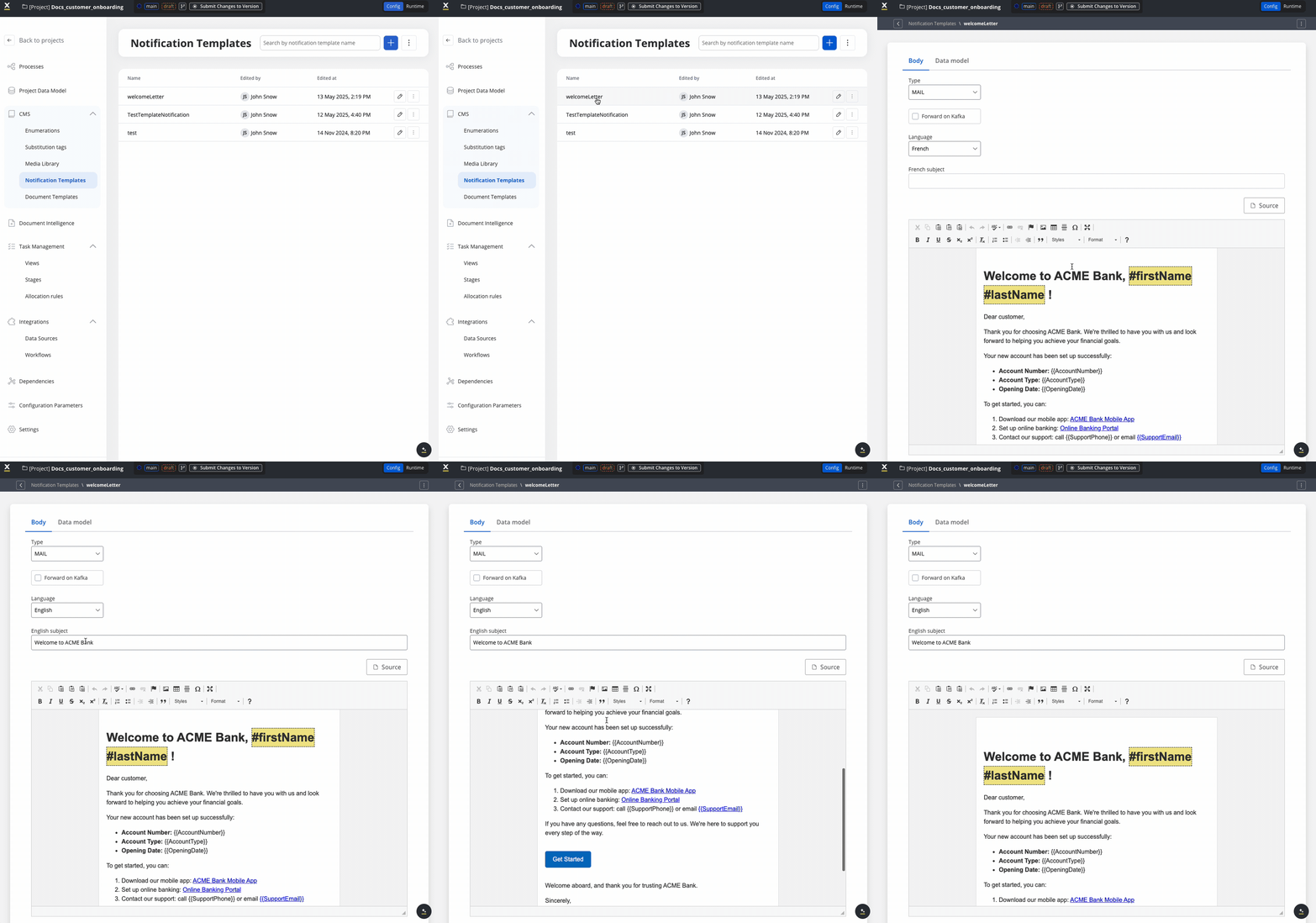
With notification templates, you can:
* Set up subjects and body content with a WYSIWYG editor
* Add dynamic fields using the data model to include recipient-specific information
* Define multiple language versions of the same template
* Configure notification types and delivery channels
Inside your project, create a process definition with:
* A [User Task](../../../../building-blocks/node/user-task-node) to capture the recipient's email address and other user inputs if needed
* A [**Send Message Task**](../../../../building-blocks/node/message-send-received-task-node#send-message-task)
* A [**Receive Message Task**](../../../../building-blocks/node/message-send-received-task-node#receive-message-task)
This pattern enables asynchronous notification handling through Kafka messaging.
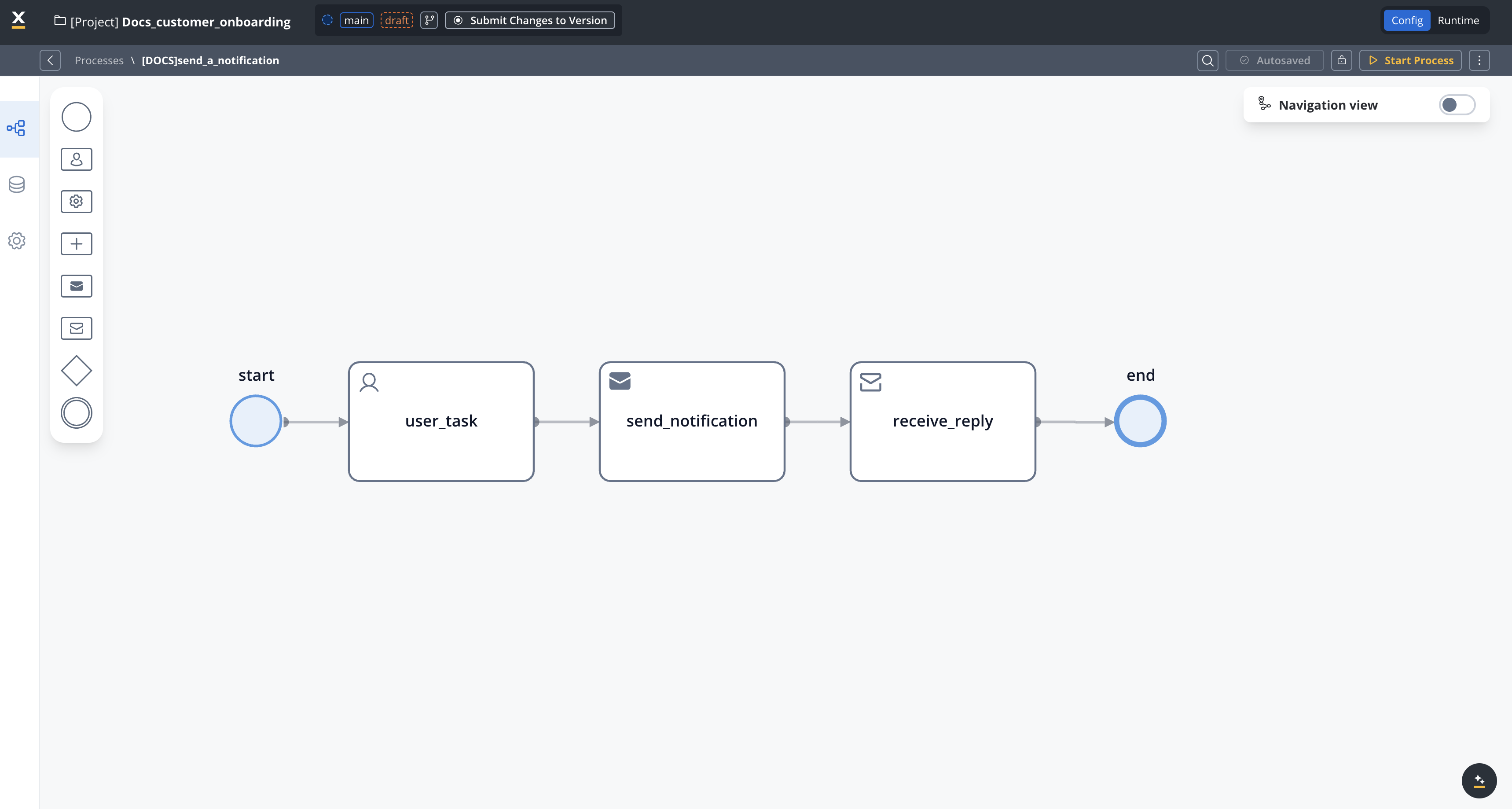
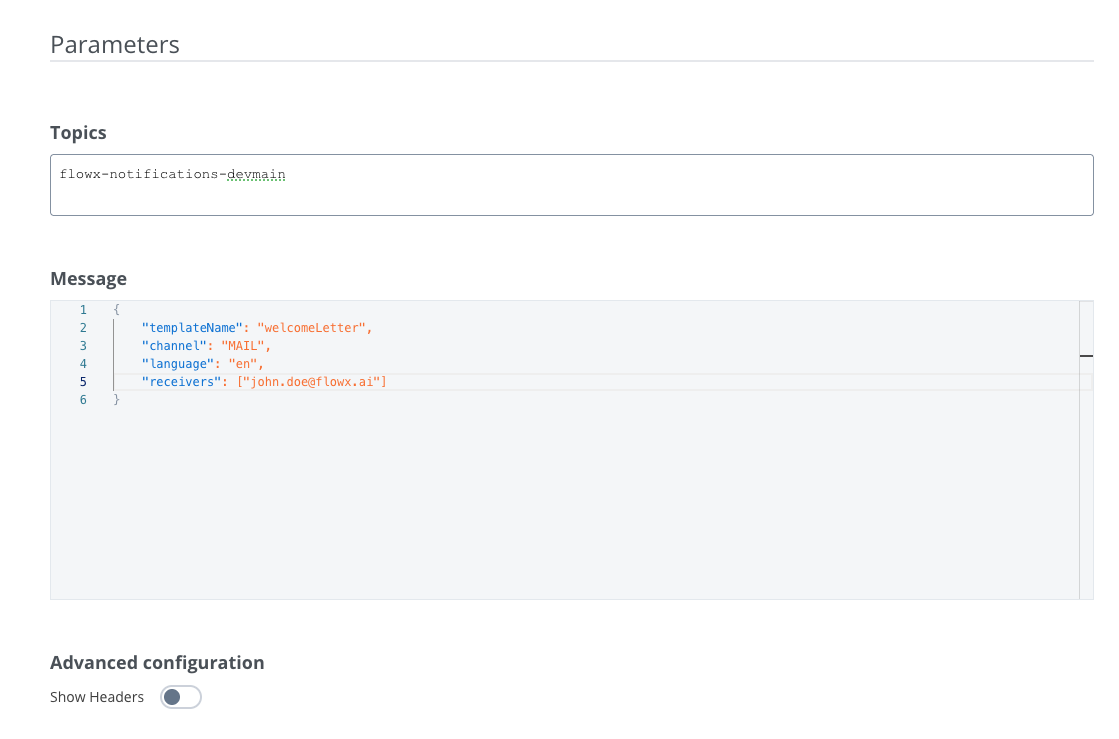
On the send message task, add a Kafka send action with the following settings:
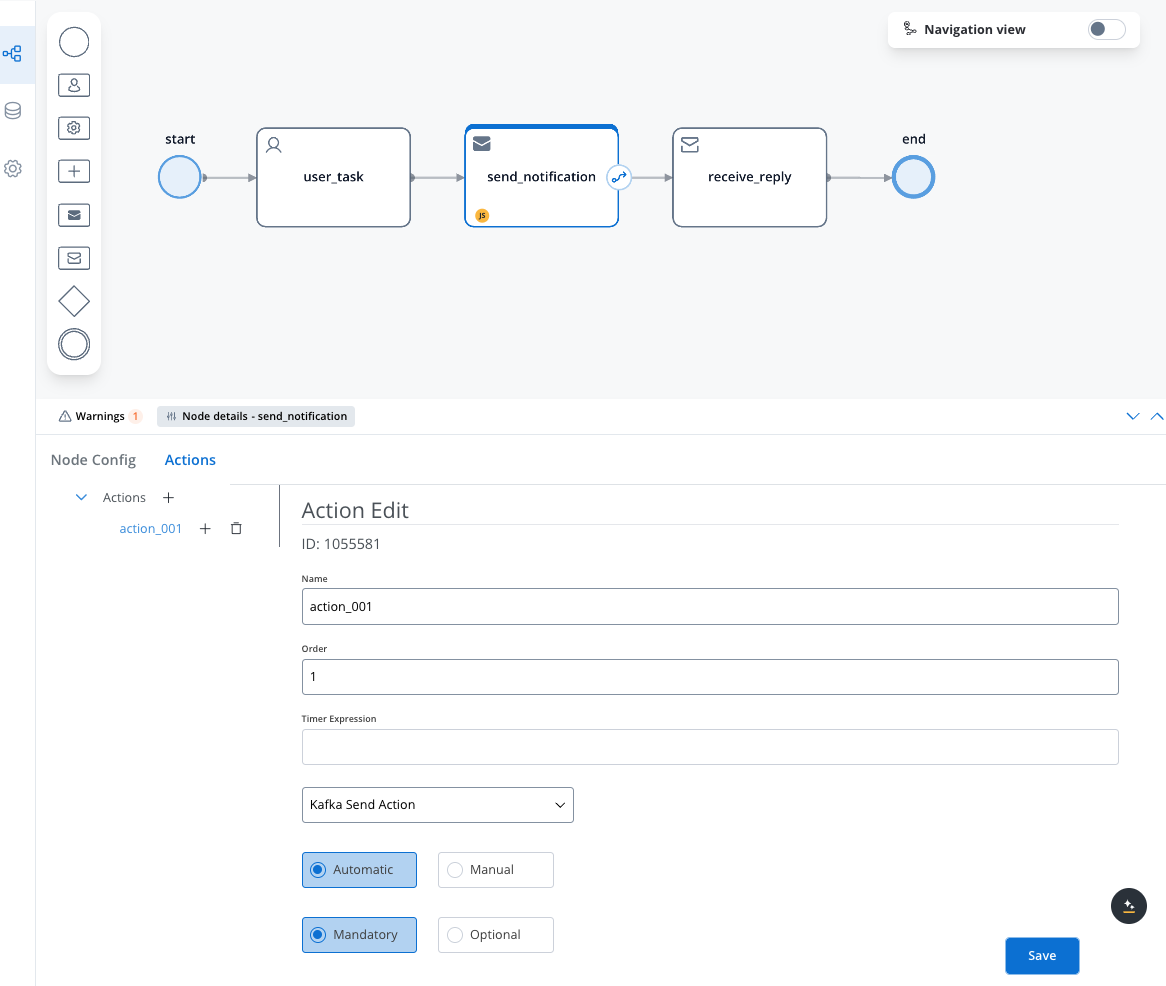
* **Topics**:
* Use the value from `KAFKA_TOPIC_NOTIFICATION_INTERNAL_IN` environment variable
* Example (in our case): `flowx-notifications-devmain`
To find defined topics in your environment:
1. Navigate to **FlowX Designer > Platform Status**
2. Select **notification-plugin-mngt**
3. Open **kafkaTopicsHealthCheckIndicator > details > configuration > topic > notifications**
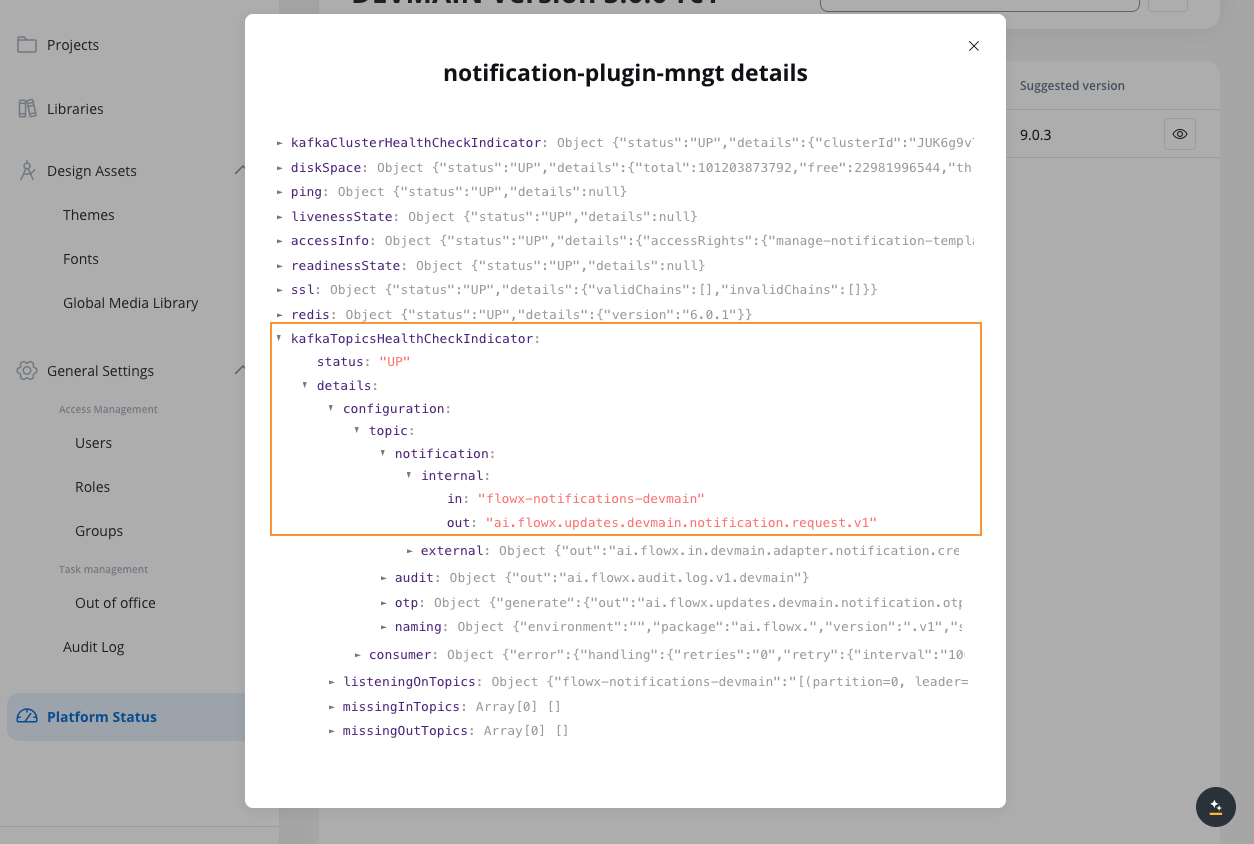
* **Message** (expected parameters):
* templateName (string)
* channel (string)
* language (string)
* receivers (array) - usually extracted from process context but also can be a static value
* **Can include**: `contentParams` (object) for dynamic content, `attachments` (array) for emails
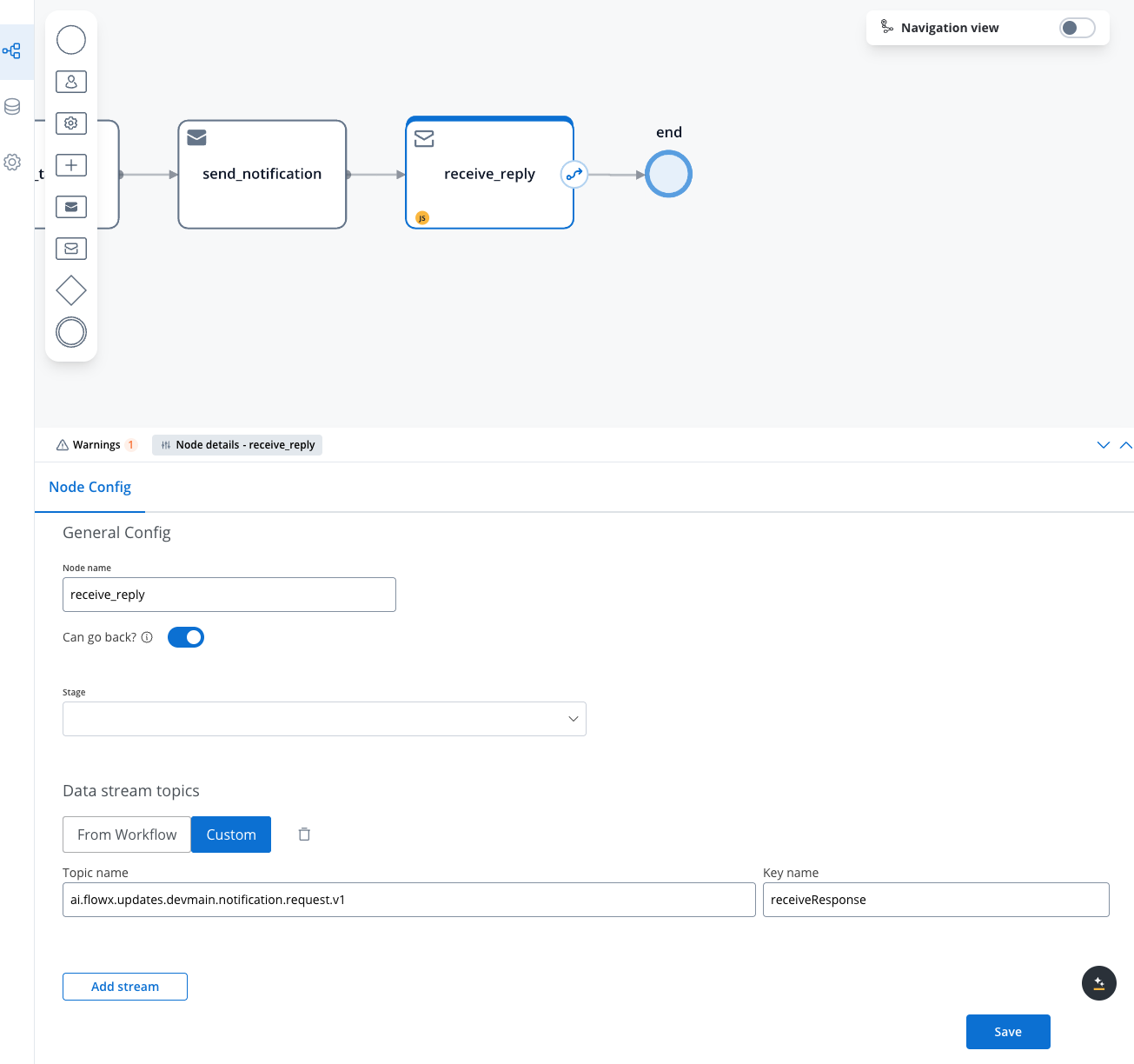
* On the receive message task, add a data stream topic where you will receive the confirmation that the notification was sent:
* **Data stream topics**:
* Use the value from `KAFKA_TOPIC_NOTIFICATION_INTERNAL_OUT` environment variable
* Example (in our case): `ai.flowx.updates.devmain.notification.request.v1`
To add a data stream topic, follow the steps below:
1. On your **Receive Message Task** node, click on the **Node Config** tab.
2. Then under **Data stream topics** click **Add stream**.
3. Select **Custom** and enter the topic name from the `KAFKA_TOPIC_NOTIFICATION_INTERNAL_OUT` environment variable.
4. Add a key where you will see the response added to the process instance.
5. Click **Save**.
To find the corresponding data stream topic in your environment follow the same steps as in the [previous step](#configure-the-send-message-task)
Execute the process and verify the results by:
* Checking the audit log
* Checking the process instance status
* Monitoring responses on the `KAFKA_TOPIC_NOTIFICATION_INTERNAL_OUT` topic
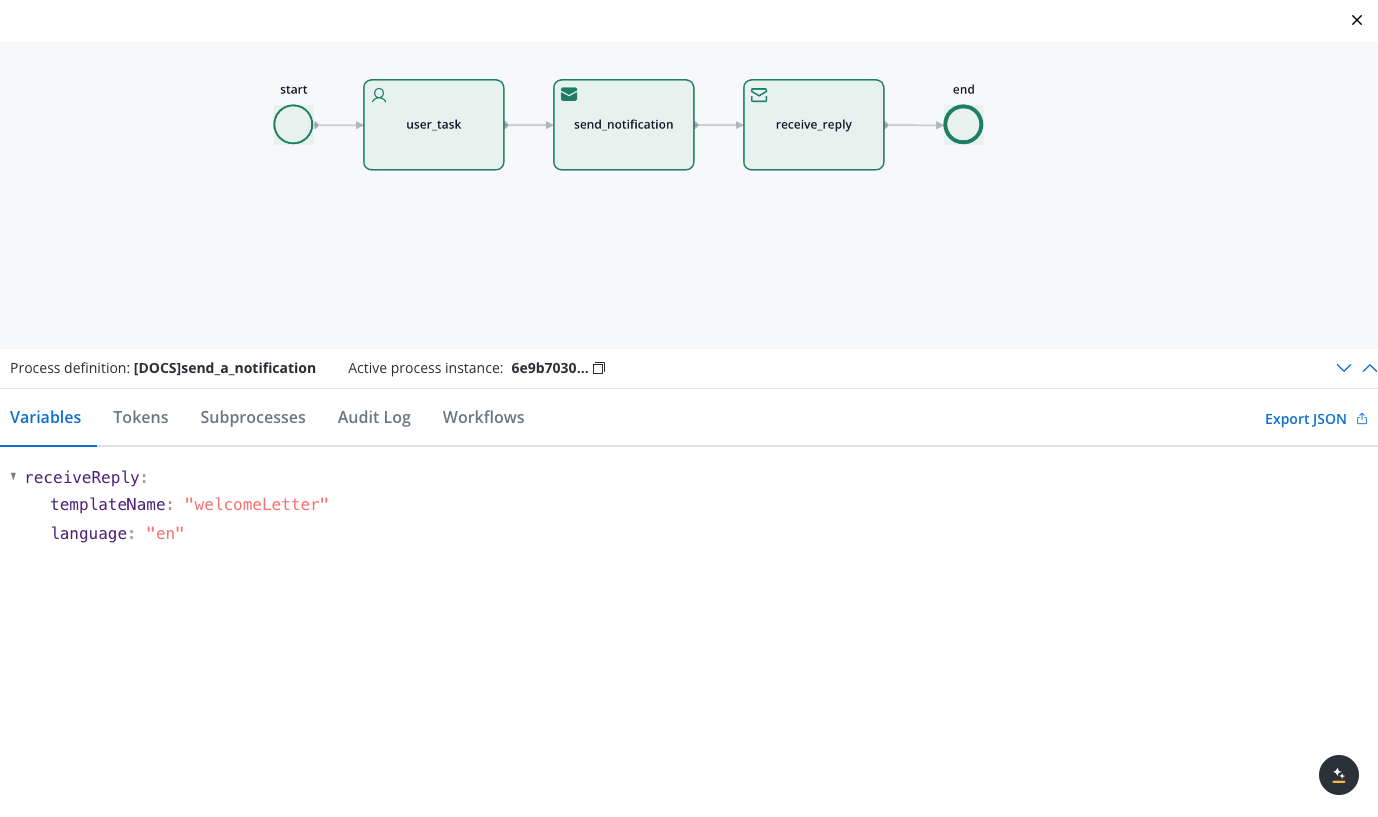
When successful, you'll receive a response on the `KAFKA_TOPIC_NOTIFICATION_INTERNAL_OUT` topic similar to this:
```json Response Example theme={"system"}
{
"identifier": null,
"templateName": "welcomeLetter",
"language": "en",
"error": null
}
```
## Integration with document generation
You can enhance your notifications by attaching dynamically generated documents. To accomplish this:
Set up document templates using the Document Plugin
Generate documents in your process before sending the notification
Reference the generated documents in the notification request using dynamic keys:
```json theme={"system"}
"attachments": [
{
"path": "${generatedDocuments.generatedFiles.1234.ClientRelationshipDetails.minioPath}",
"filename": "${generatedDocuments.generatedFiles.1234.ClientRelationshipDetails.documentType}.pdf"
}
]
```
This integration creates a complete communication flow where personalized documents are automatically generated and sent to recipients.
## Troubleshooting
Ensure that all required Kafka topics are properly configured in your environment variables. Check the Platform Status screen for confirmation that topics are available and accessible.
Verify that the receiver information is correct and that your template is properly configured. Check the audit log for any error messages in the notification response.
If your notification is sent but doesn't display properly, check that all template variables are correctly defined and that the contentParams in your request match the expected template variables.
If a dynamic key isn't displaying the expected value, verify the path is correct and that the data exists in the process context. Dynamic keys are case-sensitive and must match the exact path to the data.
For issues with attachments, ensure the document was successfully generated and stored before attempting to attach it. Check that the path and filename are correctly specified in the attachment configuration.
**DEVELOPER NOTE**: Ensure that Kafka topics are properly configured in your environment by setting these variables:
* `KAFKA_TOPIC_NOTIFICATION_INTERNAL_IN` (default: `ai.flowx.plugin.notification.trigger.send.notification.v1`) - Topic for notification requests
* `KAFKA_TOPIC_NOTIFICATION_INTERNAL_OUT` (default: `ai.flowx.engine.receive.plugin.notification.confirm.send.notification.v1`) - Topic for notification responses
## Send notification request body parameters
Your notification request must include these parameters:
| Key | Definition | |
| :-----------: | :---------------------------------------------------------------: | :-------: |
| templateName | The name of the notification template to use | Mandatory |
| channel | Notification channel: SMS/MAIL | Mandatory |
| receivers | Notification recipients: email addresses or phone numbers | Mandatory |
| ccReceivers | Notification CC recipients: email addresses | Optional |
| bccReceivers | Notification BCC recipients: email addresses | Optional |
| language | The language code of the template to use (e.g., "en", "fr") | Mandatory |
| contentParams | Parameters for filling the template with dynamic content | Optional |
| senderEmail | Email address of the notification sender | Optional |
| senderName | Name of the notification sender | Optional |
| attachments | Files to attach to the notification (only for MAIL notifications) | Optional |
### Using dynamic keys
Notifications support dynamic keys (placeholders) that allow for personalized content:
* Dynamic keys use the syntax `${...}` to insert data from the process context
* The system fetches corresponding values from the specified data path
* This approach eliminates hardcoding and supports personalized content
* Example: `${application.client.firstName}` retrieves and displays the client's first name
```json Request Example with Dynamic Content theme={"system"}
{
"templateName": "ClientRelationshipEmailConfirmation",
"channel": "MAIL",
"receivers": [
"${application.client.email}"
],
"language": "en",
"data": {
"firstInputClient": "${application.client.firstName}"
},
"attachments": [
{
"path": "${generatedDocuments.generatedFiles.1234.ClientRelationshipDetails.minioPath}",
"filename": "${generatedDocuments.generatedFiles.1234.ClientRelationshipDetails.documentType}.pdf"
}
]
}
```
## Implementation example
Let's implement a welcome email notification for new customer onboarding.
First, create and configure your welcome email template. See [Managing notification templates](./managing-notification-templates) for detailed instructions.

With notification templates, you can:
* Set up subjects and body content with a WYSIWYG editor
* Add dynamic fields using the data model to include recipient-specific information
* Define multiple language versions of the same template
* Configure notification types and delivery channels
Inside your project, create a process definition with:
* A [User Task](../../../../building-blocks/node/user-task-node) to capture the recipient's email address and other user inputs if needed
* A [**Send Message Task**](../../../../building-blocks/node/message-send-received-task-node#send-message-task)
* A [**Receive Message Task**](../../../../building-blocks/node/message-send-received-task-node#receive-message-task)
This pattern enables asynchronous notification handling through Kafka messaging.

On the send message task, add a Kafka send action with the following settings:

* **Topics**:
* Use the value from `KAFKA_TOPIC_NOTIFICATION_INTERNAL_IN` environment variable
* Example (in our case): `flowx-notifications-devmain`
To find defined topics in your environment:
1. Navigate to **FlowX Designer > Platform Status**
2. Select **notification-plugin-mngt**
3. Open **kafkaTopicsHealthCheckIndicator > details > configuration > topic > notifications**

* **Message** (expected parameters):
* templateName (string)
* channel (string)
* language (string)
* receivers (array) - usually extracted from process context but also can be a static value
* **Can include**: `contentParams` (object) for dynamic content, `attachments` (array) for emails

* On the receive message task, add a data stream topic where you will receive the confirmation that the notification was sent:
* **Data stream topics**:
* Use the value from `KAFKA_TOPIC_NOTIFICATION_INTERNAL_OUT` environment variable
* Example (in our case): `ai.flowx.updates.devmain.notification.request.v1`
To add a data stream topic, follow the steps below:
1. On your **Receive Message Task** node, click on the **Node Config** tab.
2. Then under **Data stream topics** click **Add stream**.
3. Select **Custom** and enter the topic name from the `KAFKA_TOPIC_NOTIFICATION_INTERNAL_OUT` environment variable.
4. Add a key where you will see the response added to the process instance.
5. Click **Save**.
To find the corresponding data stream topic in your environment follow the same steps as in the [previous step](#configure-the-send-message-task)

Execute the process and verify the results by:
* Checking the audit log
* Checking the process instance status
* Monitoring responses on the `KAFKA_TOPIC_NOTIFICATION_INTERNAL_OUT` topic

When successful, you'll receive a response on the `KAFKA_TOPIC_NOTIFICATION_INTERNAL_OUT` topic similar to this:
```json Response Example theme={"system"}
{
"identifier": null,
"templateName": "welcomeLetter",
"language": "en",
"error": null
}
```
## Integration with document generation
You can enhance your notifications by attaching dynamically generated documents. To accomplish this:
Set up document templates using the Document Plugin
Generate documents in your process before sending the notification
Reference the generated documents in the notification request using dynamic keys:
```json theme={"system"}
"attachments": [
{
"path": "${generatedDocuments.generatedFiles.1234.ClientRelationshipDetails.minioPath}",
"filename": "${generatedDocuments.generatedFiles.1234.ClientRelationshipDetails.documentType}.pdf"
}
]
```
This integration creates a complete communication flow where personalized documents are automatically generated and sent to recipients.
## Troubleshooting
Ensure that all required Kafka topics are properly configured in your environment variables. Check the Platform Status screen for confirmation that topics are available and accessible.
Verify that the receiver information is correct and that your template is properly configured. Check the audit log for any error messages in the notification response.
If your notification is sent but doesn't display properly, check that all template variables are correctly defined and that the contentParams in your request match the expected template variables.
If a dynamic key isn't displaying the expected value, verify the path is correct and that the data exists in the process context. Dynamic keys are case-sensitive and must match the exact path to the data.
For issues with attachments, ensure the document was successfully generated and stored before attempting to attach it. Check that the path and filename are correctly specified in the attachment configuration.