> ## Documentation Index
> Fetch the complete documentation index at: https://docs.flowx.ai/llms.txt
> Use this file to discover all available pages before exploring further.
# Forwarding notifications
> If the Notification service is not directly connected to an SMTP / SMS server and you want to use an external system for sending the notifications, you can use the notification plugin just to forward the notifications to your custom implementation.
### Check needed Kafka topics
Yu will need the name of the kafka topics defined at the following environment variables:
* `KAFKA_TOPIC_NOTIFICATION_INTERNAL_IN` - topic used to trigger the request to send a notification
* `KAFKA_TOPIC_NOTIFICATION_EXTERNAL_OUT` - the notification will be forwarded on this topic to be handled by an external system
* `KAFKA_TOPIC_NOTIFICATION_INTERNAL_OUT` - topic used for sending replies after sending the notification
You can check the defined topics by going to **FlowX Designer > Platform Status > notification-plugin-mngt > kafkaTopicsHealthCheckIndicator > details > configuration > topic > notification**.
### Example: send a notification from a business flow
Let's pick a simple use case. Imagine we need to send a new welcome letter when we onboard a new customer. You must follow the next steps:
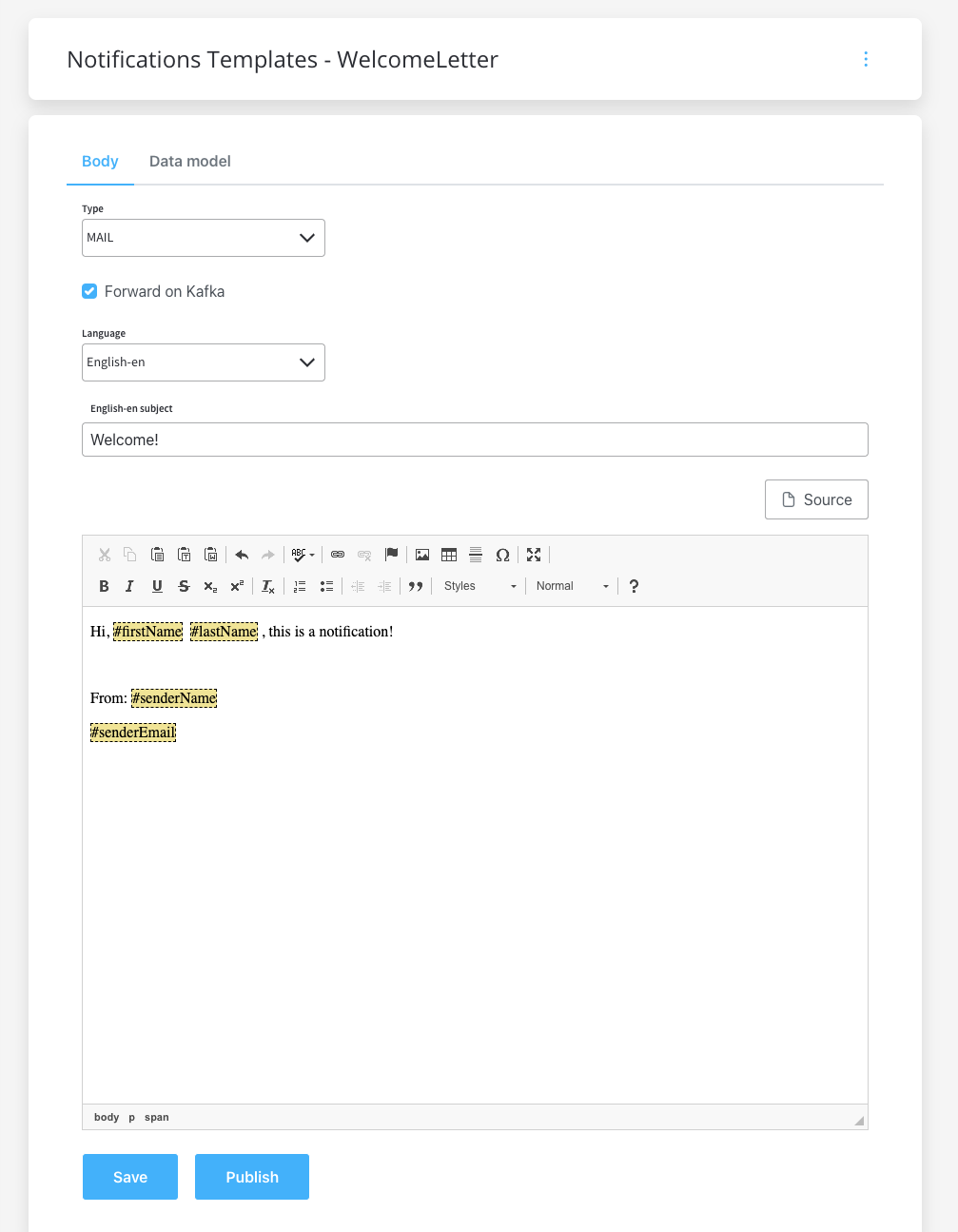
1. Configure the [template](./managing-notification-templates) that you want to use for the welcome email, use the [WYSIWYG Editor](../../wysiwyg)
Make sure that the **Forward on Kafka** checkbox is ticked, so the notification will be forwarded to an external adapter.
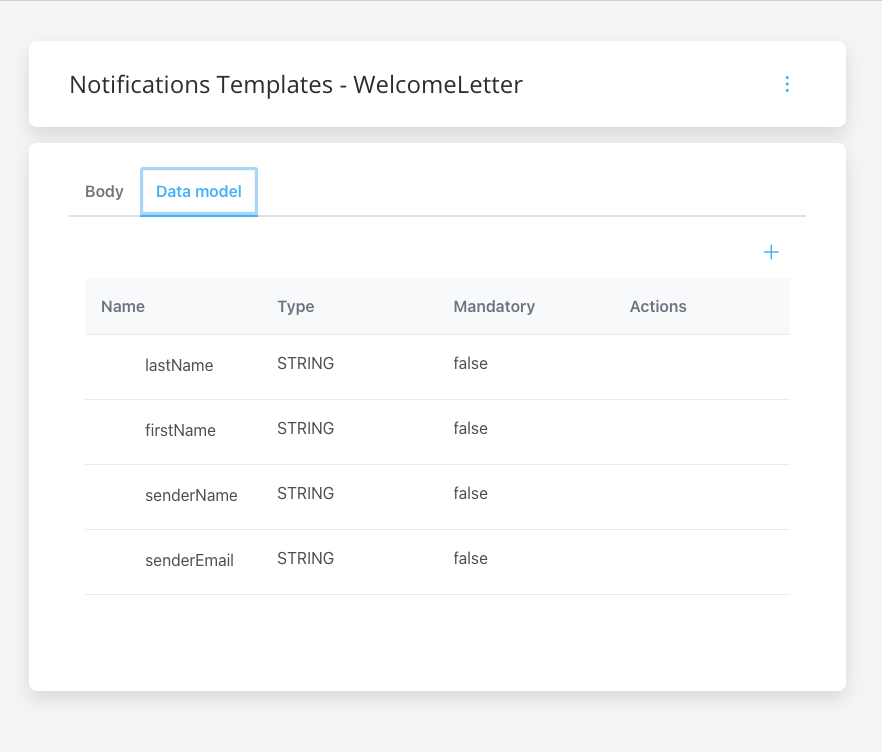
2. Configure the data model for the template.
3. To configure a document template, first, you need to define some information stored in the [Body](../../wysiwyg#notification-templates):
* **Type** - MAIL (for email notifications)
* ❗️**Forward on Kafka** - if this box is checked, the notification is not being sent directly by the plugin to the destination, but forwarded to another adapter
* **Language** - choose the language for your notification template
* **Subject** - enter a subject
4. Use the FlowX Designer to create a process definition.
5. Add a [**Send Message Task**](../../../../building-blocks/node/message-send-received-task-node#configuring-a-message-send-task-node) and a [**Receive Message Task**](../../../../building-blocks/node/message-send-received-task-node#configuring-a-message-receive-task-node) (one to send the request, one to receive the reply).
6. Check if the needed topic (defined at the following environment variable) is configured correctly: `KAFKA_TOPIC_NOTIFICATION_INTERNAL_IN`.
7. Add the proper configuration to the action, the Kafka topic, and the body message.
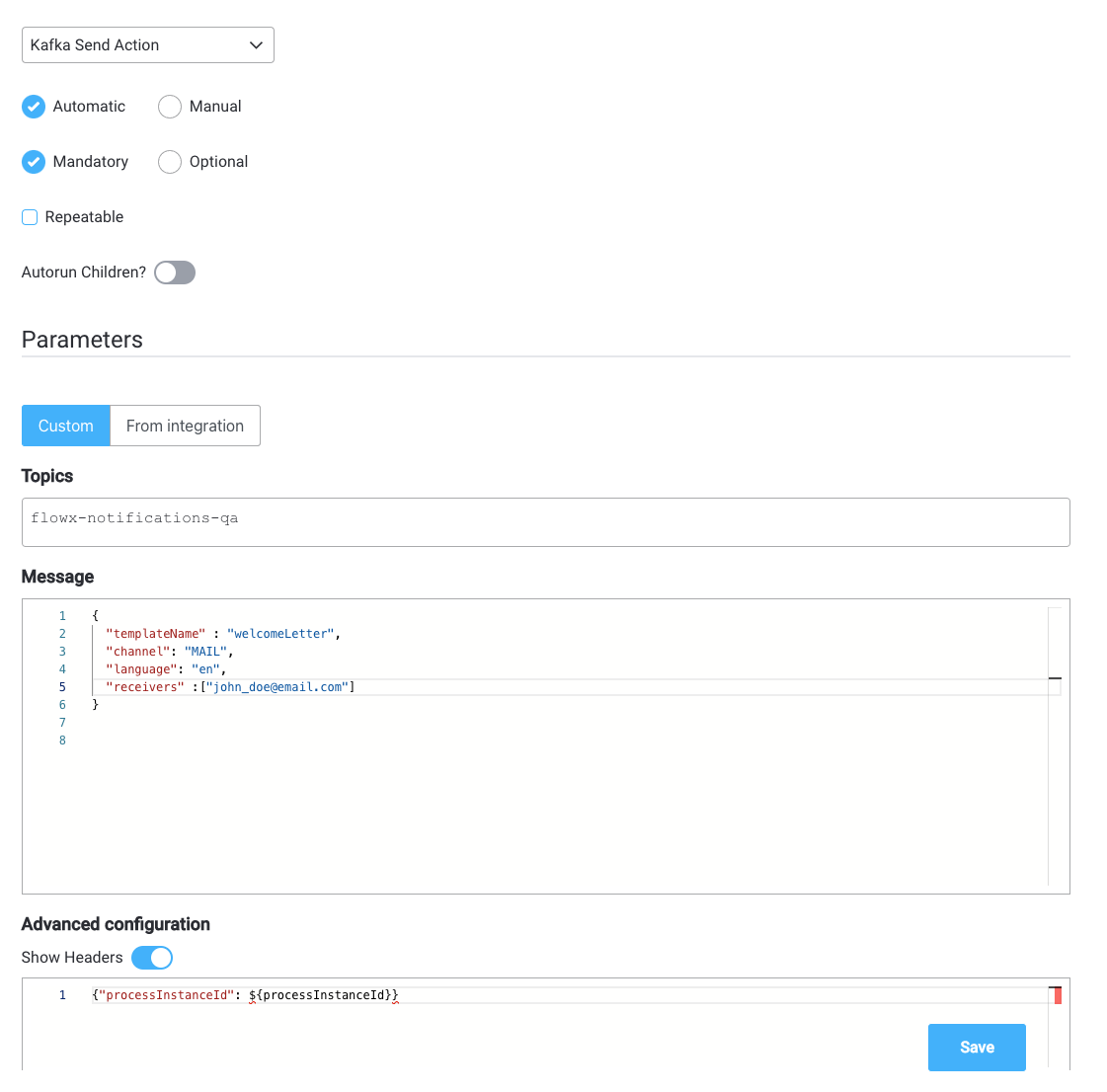
**Forward on Kafka** option will forward the notification to an external adapter, make sure the needed Kafka topic for forwarding is defined/overwritten using the following environment variable: `KAFKA_TOPIC_EXTERNAL_OUT`.
7. Run the process and look for the response (you can view it via the **Audit log**) or by checking the responses on the Kafka topic
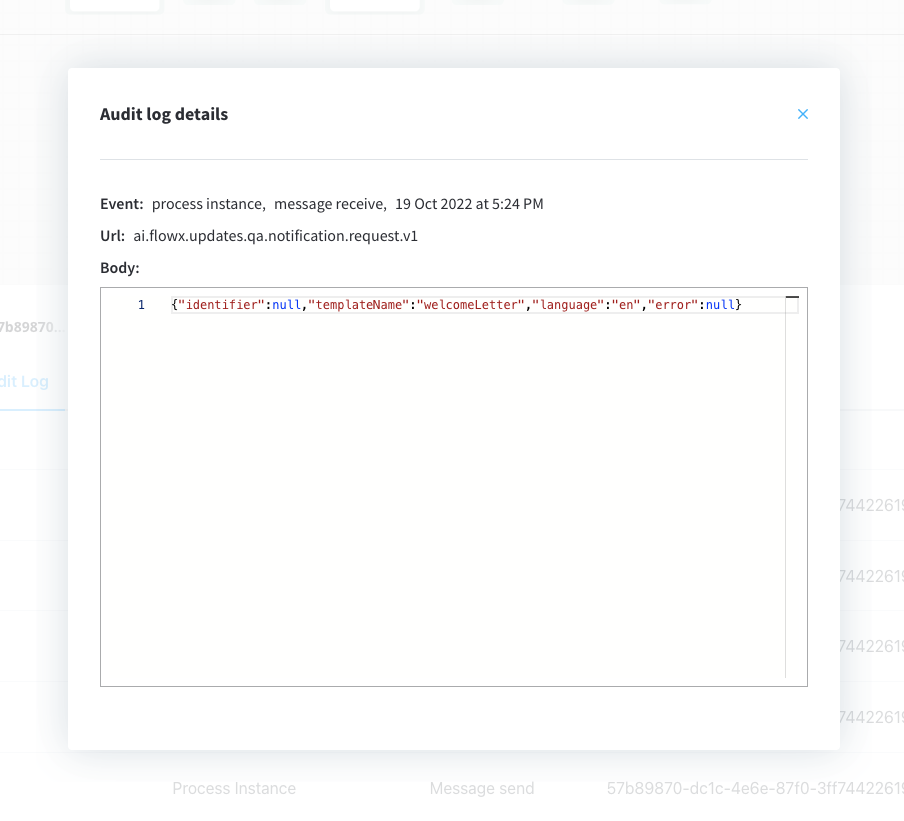
Response example at `KAFKA_TOPIC_NOTIFICATION_INTERNAL_OUT`:
```json theme={"system"}
{
"templateName": "welcomeLetter",
"receivers": [
"john.doe@mail.com"
],
"channel": "MAIL",
"language": "en"
}
```