> ## Documentation Index
> Fetch the complete documentation index at: https://docs.flowx.ai/llms.txt
> Use this file to discover all available pages before exploring further.
# Media library
> Centralized hub for managing PDFs, images, GIFs, and other media files uploaded to processes.
You can also upload an image directly to the Media Library on the spot when configuring a process using the [**UI Designer**](../../../building-blocks/ui-designer/ui-designer). For more information, see the [**Image component documentation**](../../../building-blocks/ui-designer/ui-component-types/image).
Media assets are versioned as part of your project version, not individually. Changes are tracked in the project's [**Resources Changed**](/5.9/docs/projects/managing-applications/versioning#resources-changed) view. To view the change history for a specific asset, right-click it and select **View History**.
## Uploading a new asset
To upload an asset to the Media Library, follow the next steps:
1. Open **FlowX Designer**.
2. Go to **Content Management** tab and select **Media Library**.
3. Click **Add new item** ("+" button in the top-right corner), the following details will be displayed:
* **Upload item** - opens a local file browser
* **Key** - the key must be unique, you cannot change it afterwards
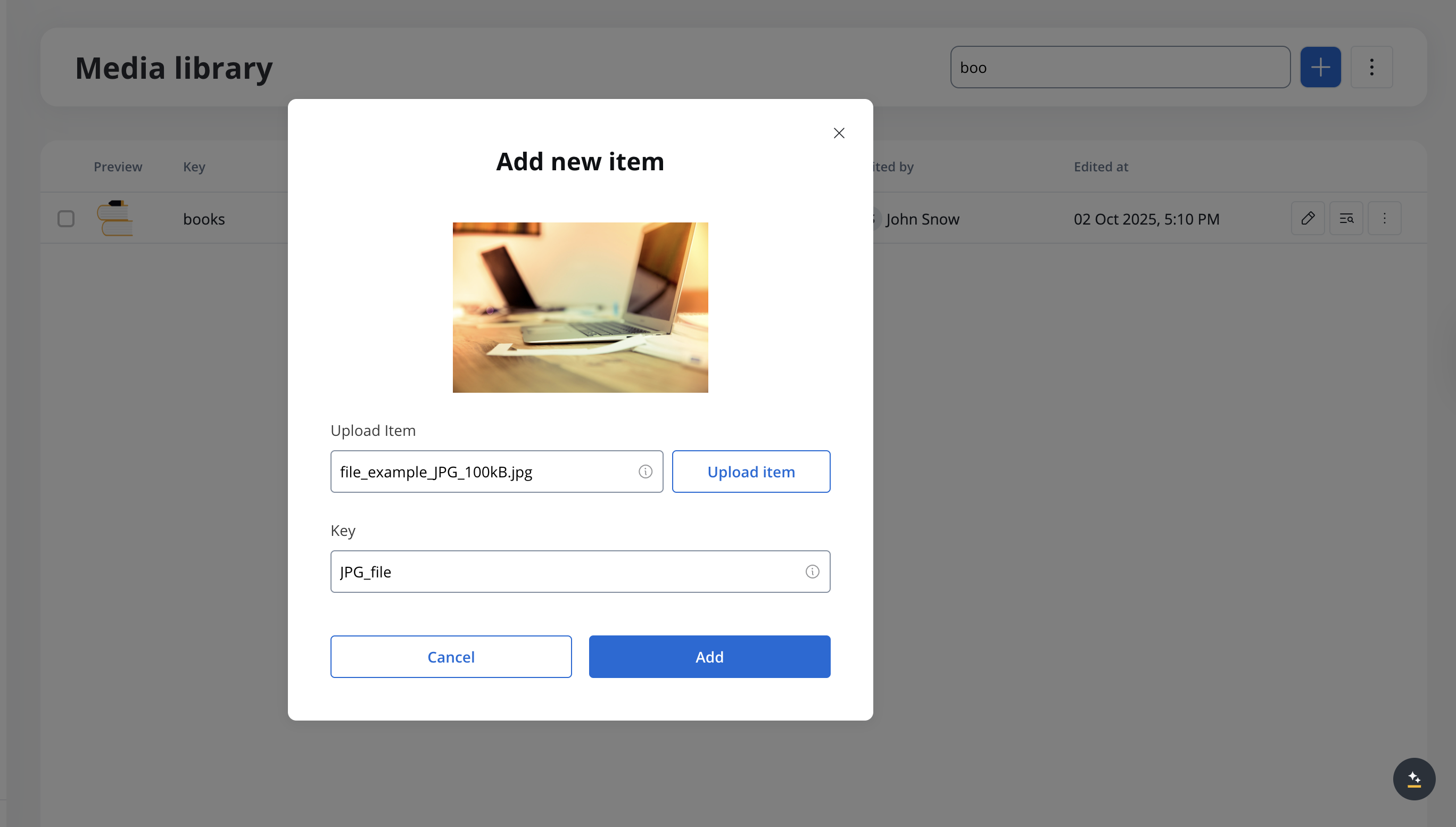
4. Click **Upload item** button and select a file from your local browser.
5. Click **Add** to upload the asset.
You can upload files in **PNG, JPEG, JPG, GIF, SVG, WebP, or PDF** format. The maximum supported file size is **25 MB** for any file type.
## Displaying assets
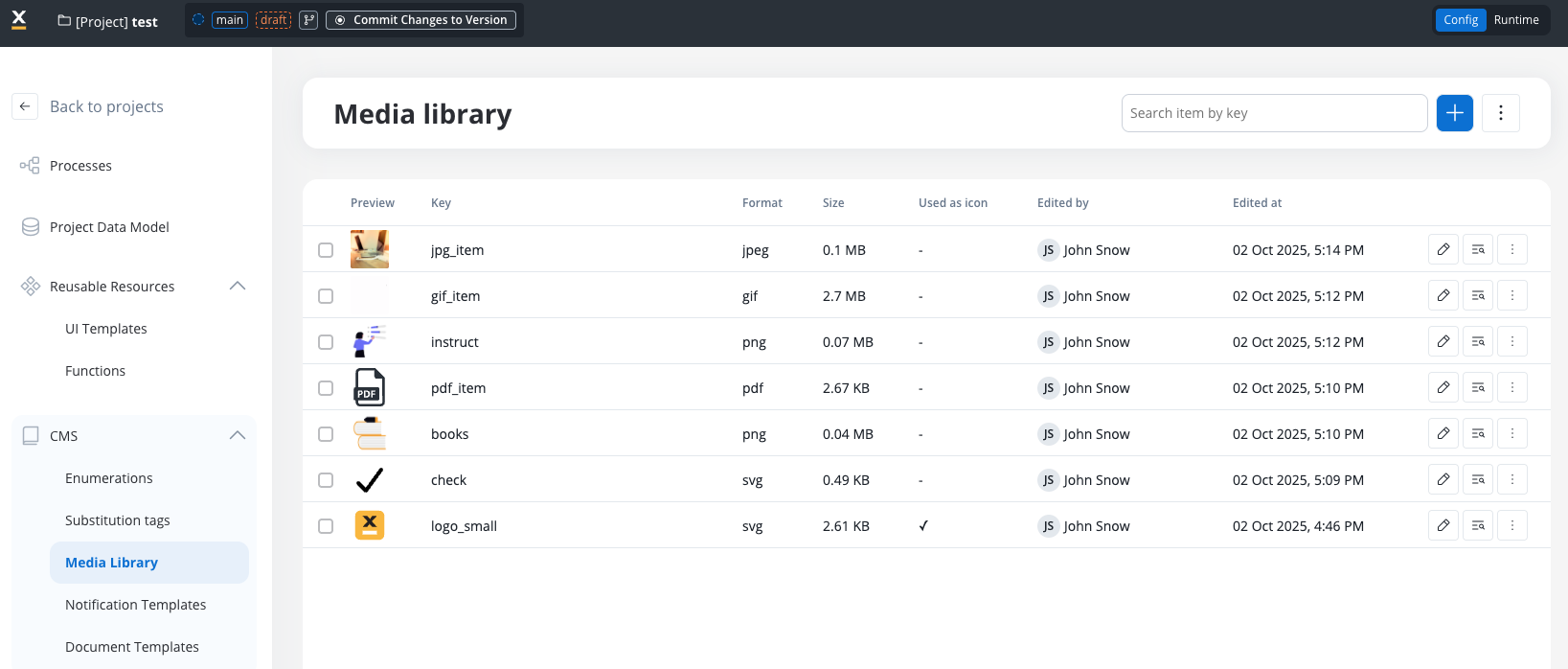
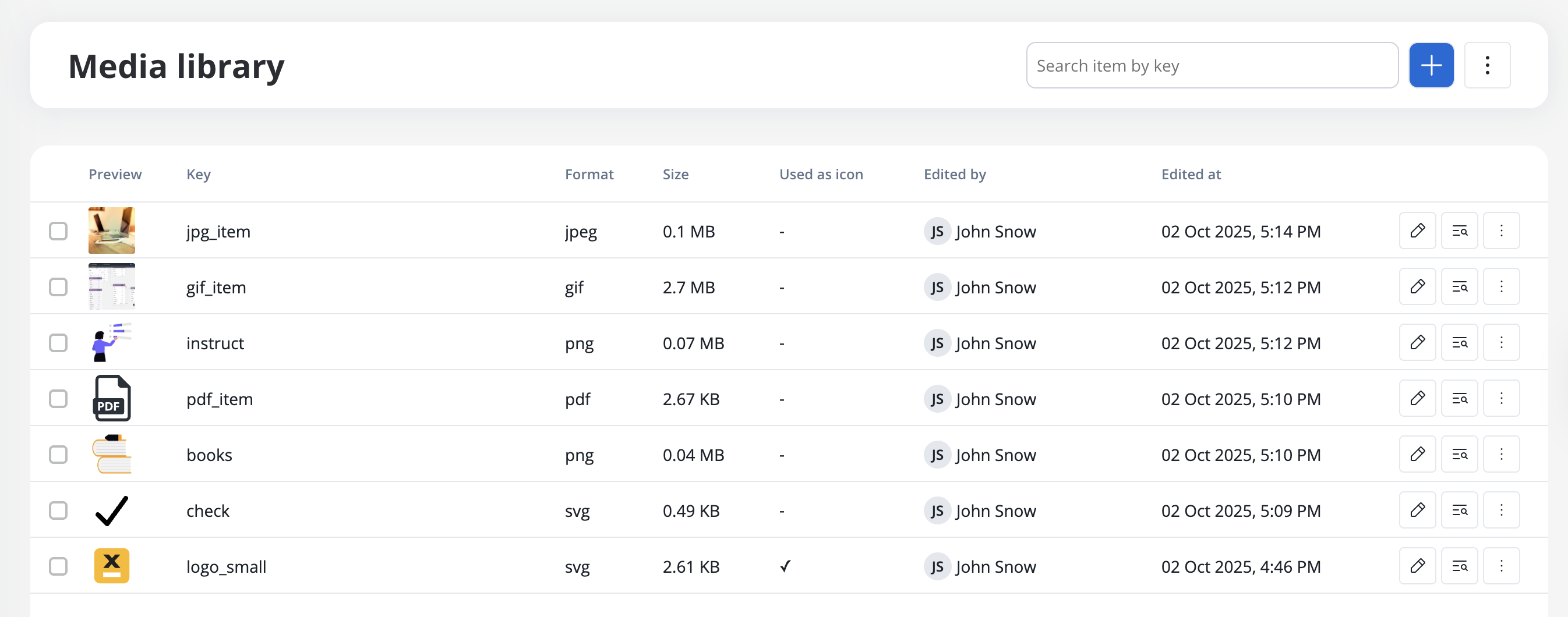
You can preview all the uploaded assets by accessing the **Media Library**.
You have the following information about assets:
* Preview (thumbnail 48x48)
* Key
* Format ("-" for unknown format)
* Size
* Used as icon
* Edited at
* Edited by
## Searching assets
You can search an asset by using its key (full or substring).
## Updating assets
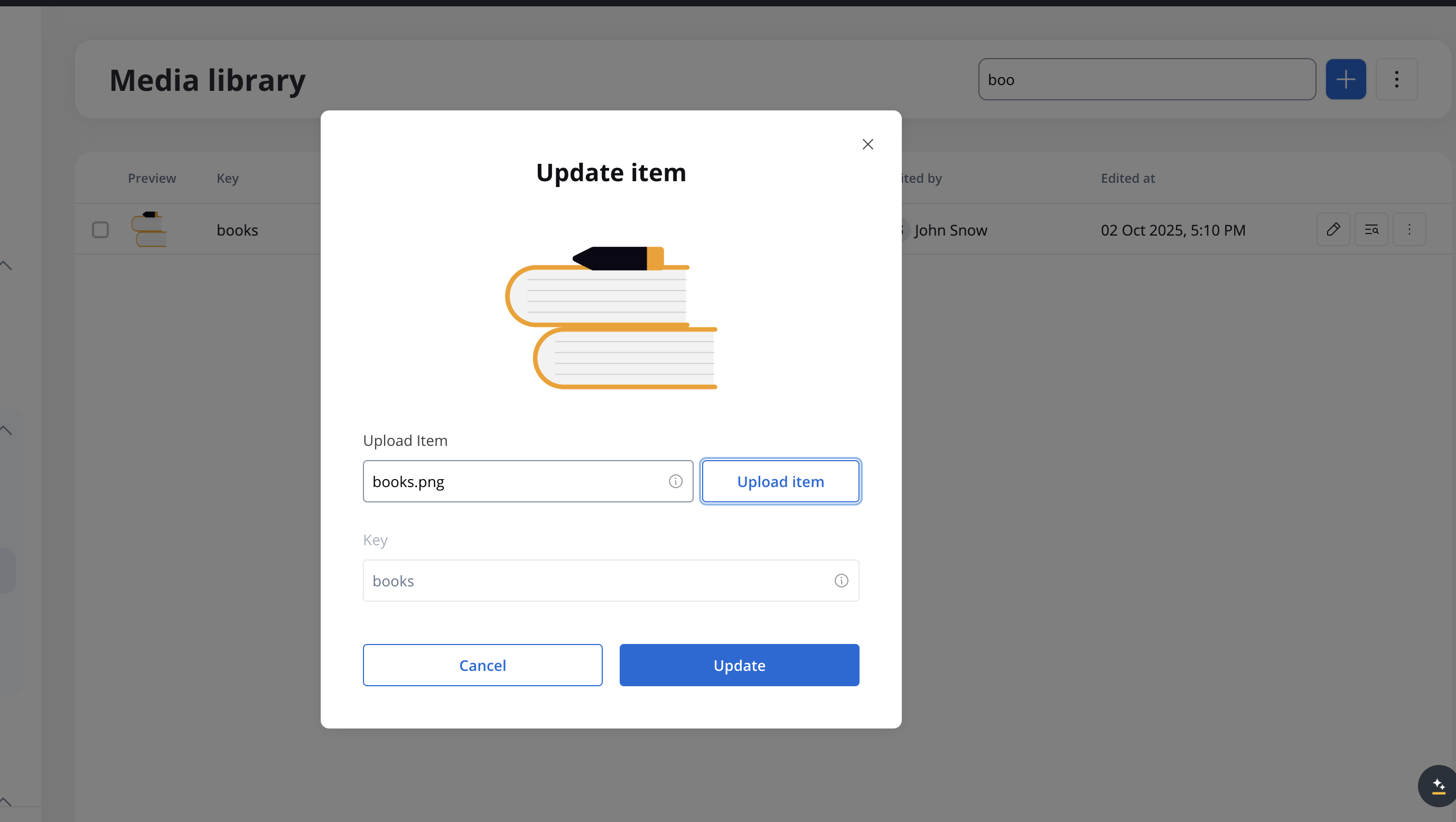
You can replace an item on a specific key (this will not break references to process definitions). To do that, click on the asset and select \**Upload item* then click **Update**.
## Icons
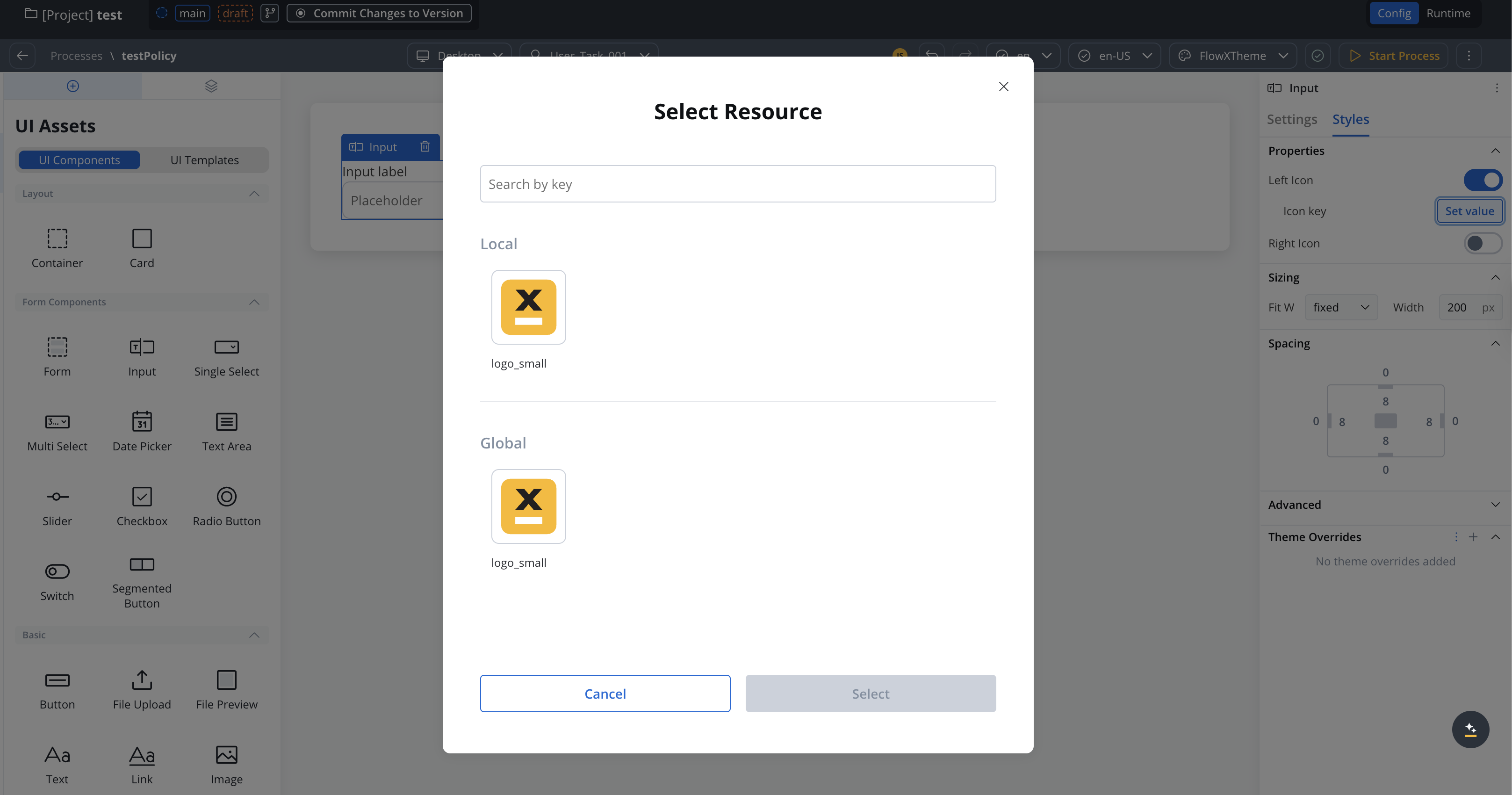
The Icons feature allows you to personalize the icons used in UI elements. By uploading SVG files through the Media Library and marking them, you can choose icons from the available list in the UI Designer.
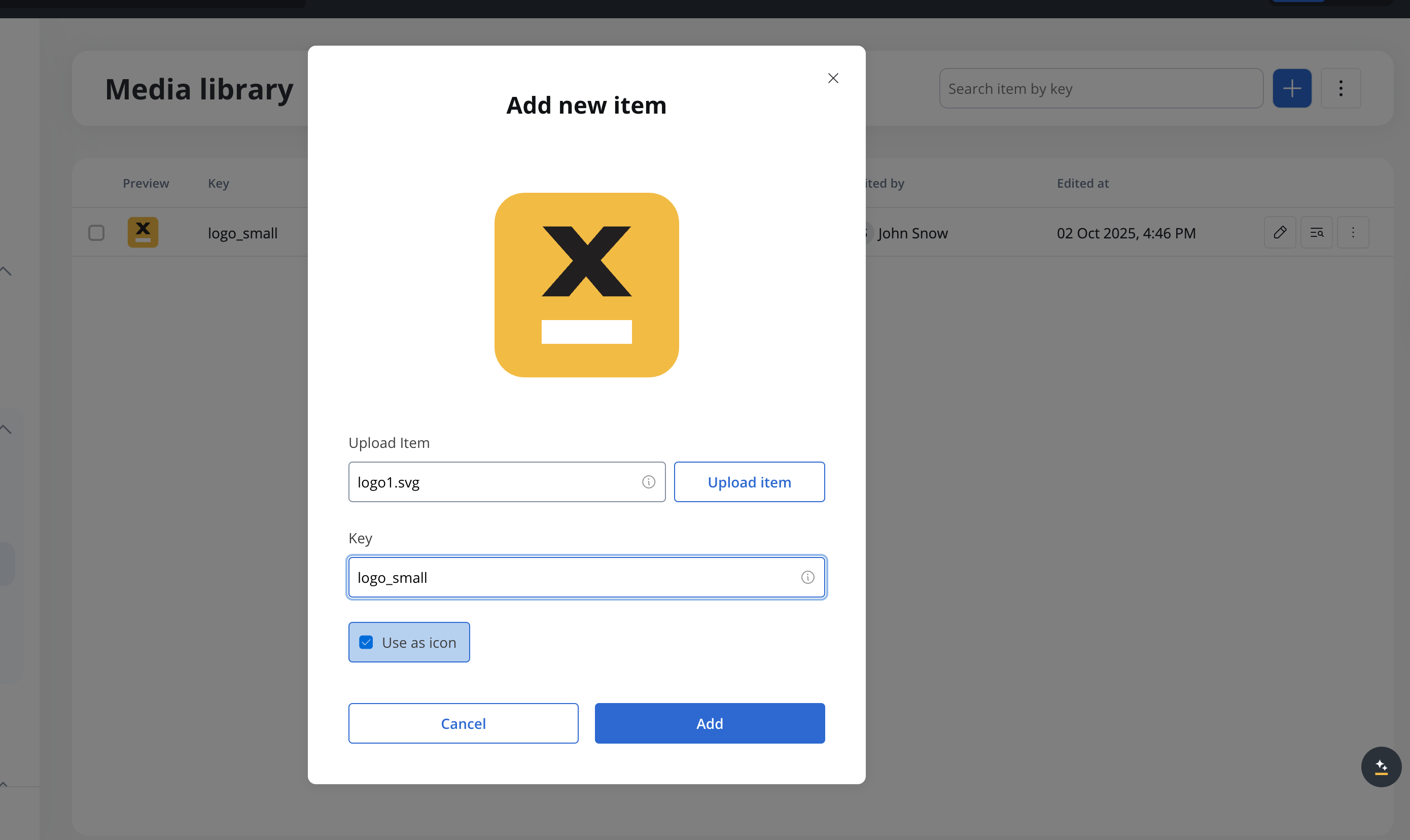
* **Use as icon** - this will mark the SVG file as an icon and it will be displayed in the UI Designer
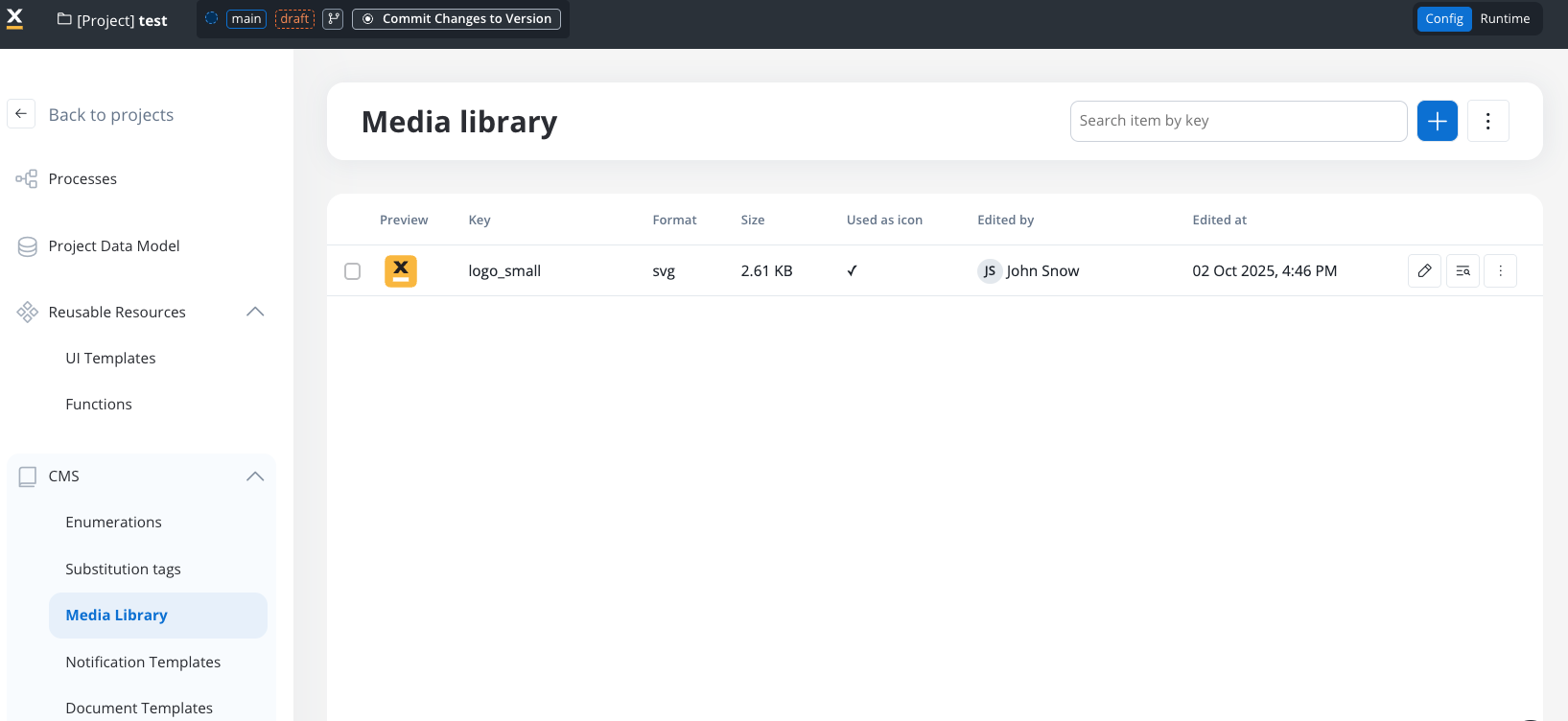
When selecting icons in the UI Designer, only SVG files marked as icons in the Media Library will be displayed.
To ensure optimal visual rendering and alignment within your UI elements, it is recommended to use icons with small sizes such as: 16px, 24px, 32px.
Using icons specifically designed for these sizes helps maintain consistency and ensures a visually pleasing user interface. It is advisable to select icons from icon sets that provide these size options or to resize icons proportionally to fit within these dimensions.
Icons are displayed or rendered at their original, inherent size.
## Referencing assets in UI Designer
You have the following options when configuring image components using [UI Designer](../../../building-blocks/ui-designer/ui-designer):
* **Source Location** - here you must select **Media Library** as source location (or directly select "Upload to Media Library" button for on the spot upload)
* **Image Key** - automatically populated with the key of the asset when selecting an asset from the Media Library
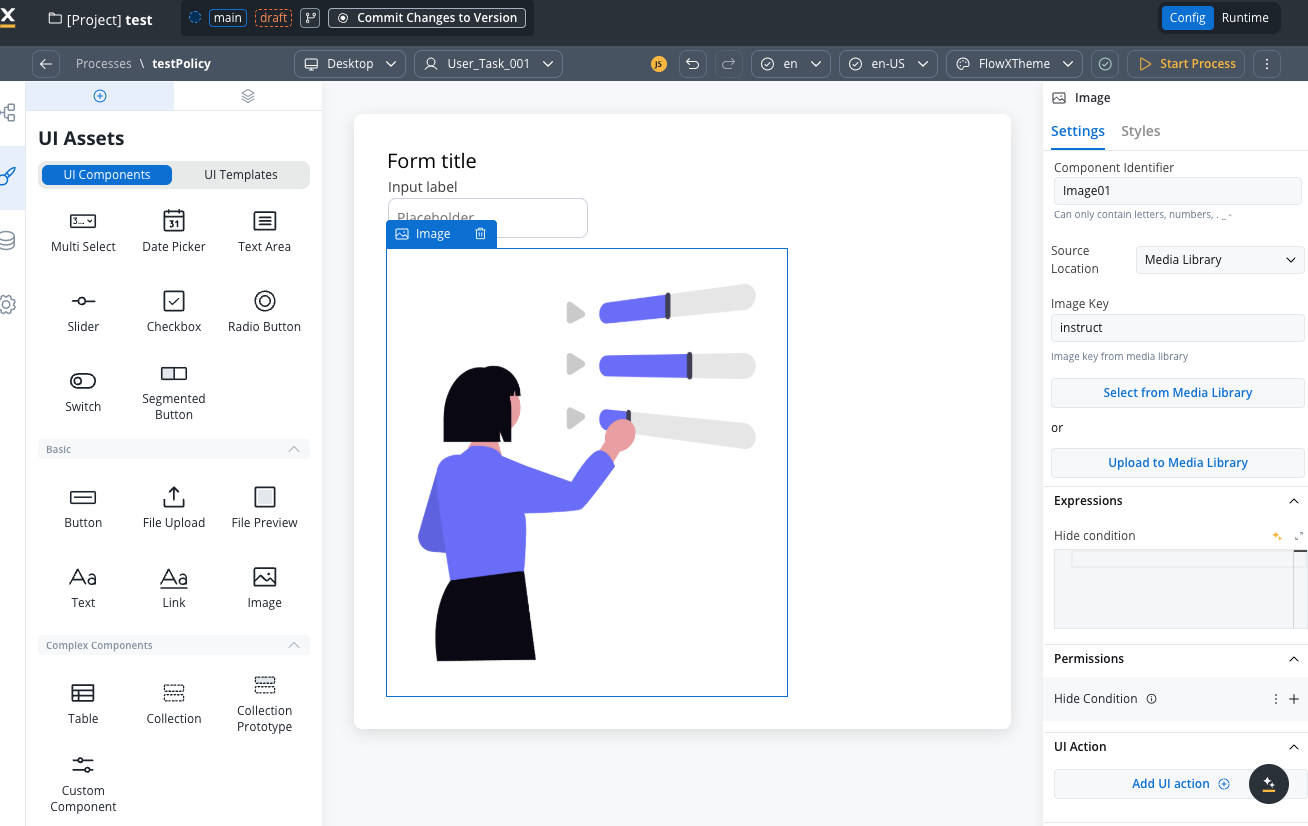
For more details on how to configure an image component, see the [**Image component documentation**](../../../building-blocks/ui-designer/ui-component-types/image).
## Customization
Content-specific icons pertain to the content of UI elements, such as icons for [input fields](../../../building-blocks/ui-designer/ui-component-types/form-elements/input-form-field) or [send message buttons](../../../building-blocks/ui-designer/ui-component-types/buttons). These icons are readily accessible in the [UI Designer](../../../building-blocks/ui-designer/).
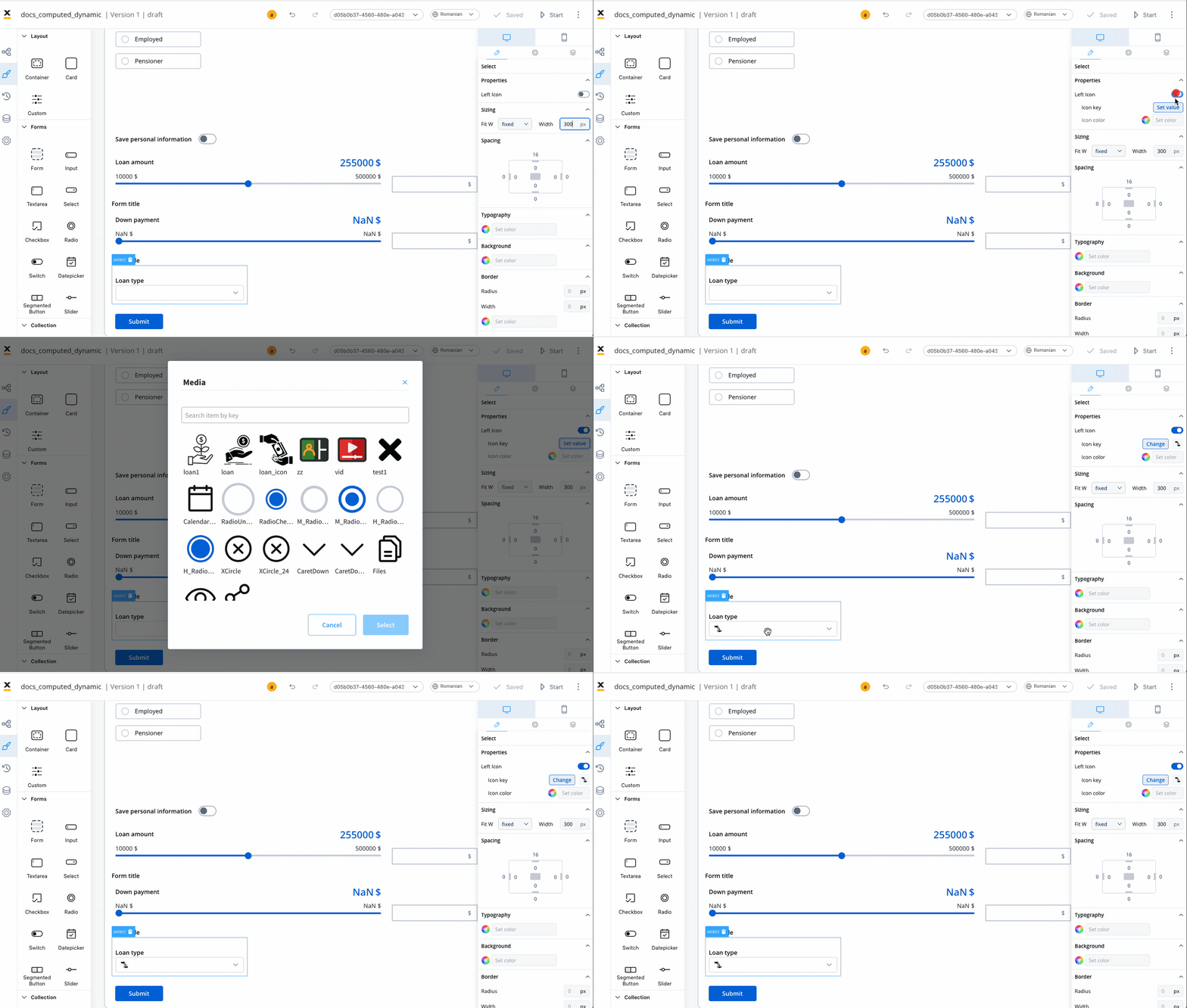
More details on how to add icons on each element, check the sections below:
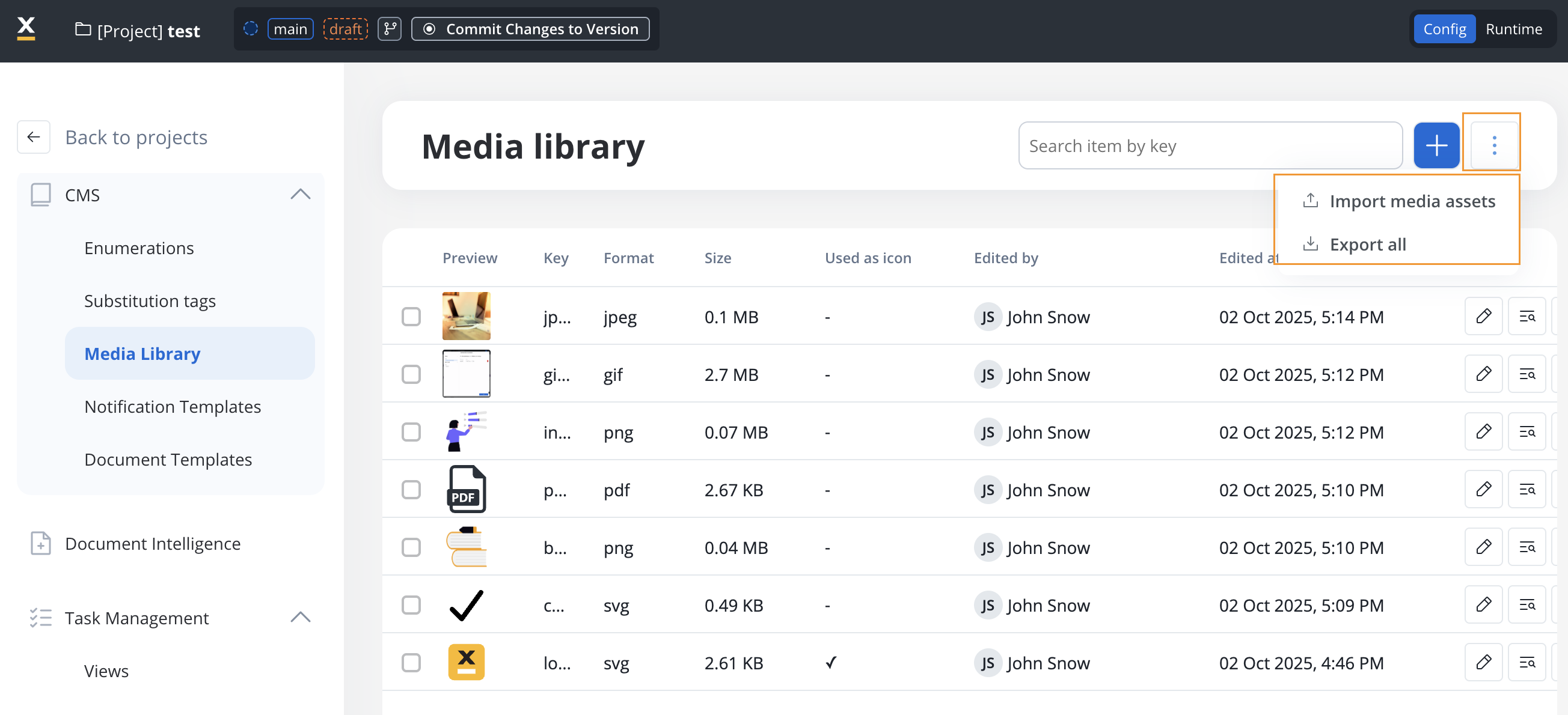
## Export and import media assets
You can export and import media assets to transfer them between projects or environments.
### Exporting
To export media assets:
1. Open the context menu on the Media Library list page
2. Select **Export**
3. All media assets in your project are downloaded as a ZIP file
### Importing
To import media assets:
1. Open the context menu on the Media Library list page
2. Select **Import**
3. Select the ZIP file exported from another project or environment
4. If assets with the same identifiers already exist, a **Review Resource Identifiers Conflicts** modal appears
5. Choose a strategy for each conflicting asset (or use **Apply to all**):
* **Keep both** - imports the asset as a new copy alongside the existing one
* **Replace** - overwrites the existing asset with the imported version
* **Skip this one** - keeps the existing asset unchanged
6. Click **Continue** to complete the import
Importing is only available for work-in-progress (WIP) project versions. You cannot import into a committed version.