> ## Documentation Index
> Fetch the complete documentation index at: https://docs.flowx.ai/llms.txt
> Use this file to discover all available pages before exploring further.
# Creating and uploading a new document
> A comprehensive guide to integrating document creation from templates, managing uploads, and configuring workflows for document processing.
User task nodes provide a flexible framework to defining and configuring UI templates and actions for specific template config nodes, such as an upload file button.
## Prerequisites
Before you begin, ensure the following prerequisites are met:
* **Access Permissions**: Ensure that you have the necessary permissions to use the Documents Plugin. The user account used for these operations should have the required access rights.
* **Kafka Configuration**: Verify that the Kafka messaging system is properly configured and accessible. The Documents Plugin relies on Kafka for communication between nodes.
* **Kafka Topics**: Familiarize yourself with the Kafka topics used for these operations (later in this section).
**Important: Document replacement behavior**
When uploading a file with the **same `customId` AND `documentType` combination** as an existing document, the previous document will be automatically **marked as deleted** and replaced by the new file.
This means:
* The previous file's URLs will stop working
* Only the most recent file with that `customId` + `documentType` combination will be accessible
**Best practices:**
* Always use **unique, dynamic values** for `customId` (e.g., `${processInstanceId}`, client ID, or a generated UUID)
* Do not copy examples with hardcoded values like `customId: "1234"` without changing them to unique values
* If you need to store multiple documents of the same type for the same entity, ensure each has a unique identifier
```json Example: Using dynamic values theme={"system"}
{
"customId": "${processInstanceId}", // or use a client-specific ID
"documentType": "CONTRACT",
"tempFileId": "..."
}
```
To upload a document using this process, follow the steps outlined below.
## Step-by-step guide: uploading an previewing a document
In the [previous section](./generating-from-html-templates), you learned how to generate documents from HTML templates. This section focuses on creating a process where users can generate a document, review and sign it, and subsequently upload it.
### Process overview
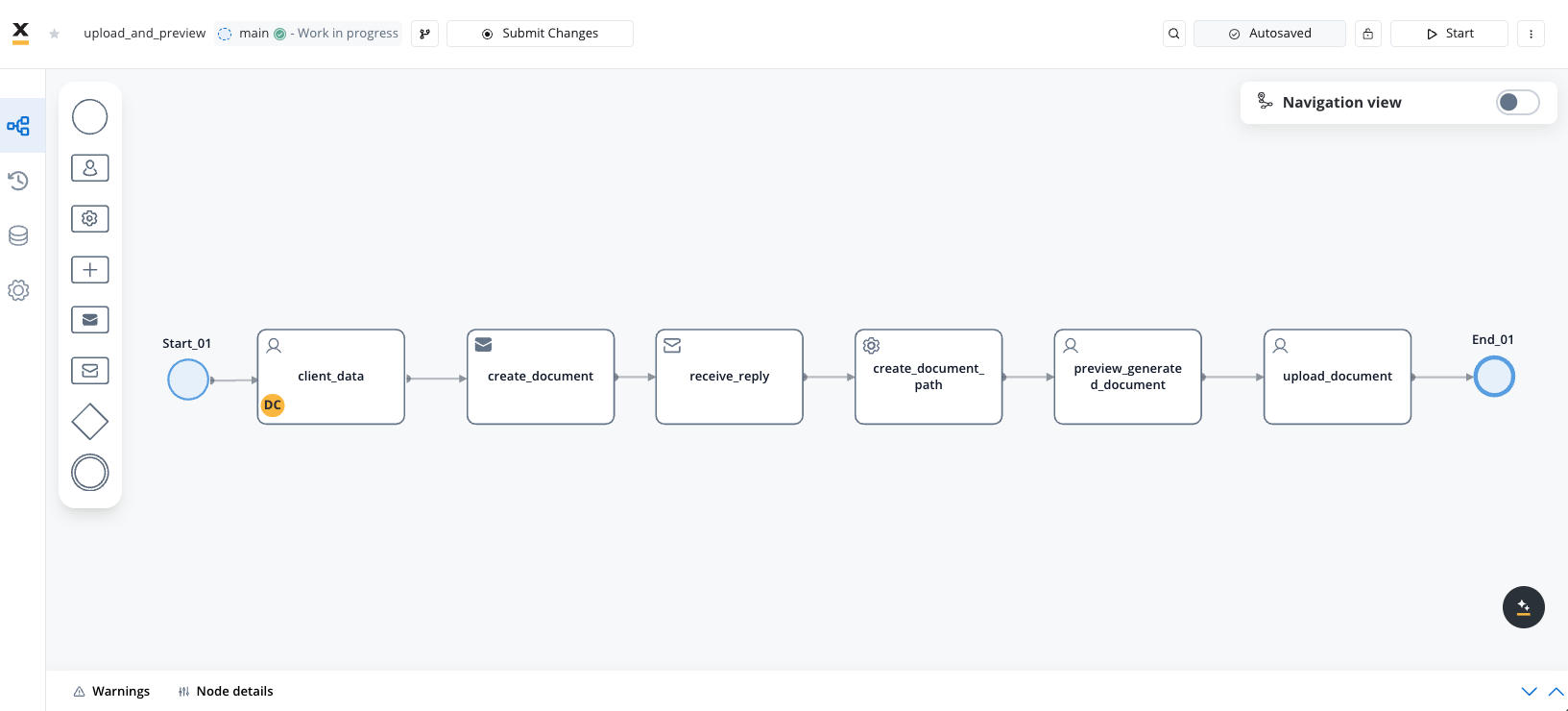
This process involves several key nodes, each performing specific tasks to ensure smooth document creation, preview, and upload:
* **Start and End Nodes**: These nodes mark the beginning and end of the process, respectively.
* **User Task Node**: Collects user input necessary for document generation.
* **Send and Receive Message Tasks (Kafka)**: Handle communication with Kafka for generating the document and retrieving it after processing.
* **Service Task Node**: Appends the path of the generated document to the process, enabling further actions.
* **User Task Nodes**: Facilitate the preview of the generated document and manage the upload of the signed document.
## Configuring the process
Follow the steps outlined in [**Generating from HTML templates**](./generating-from-html-templates) configure the document generation part of the process.
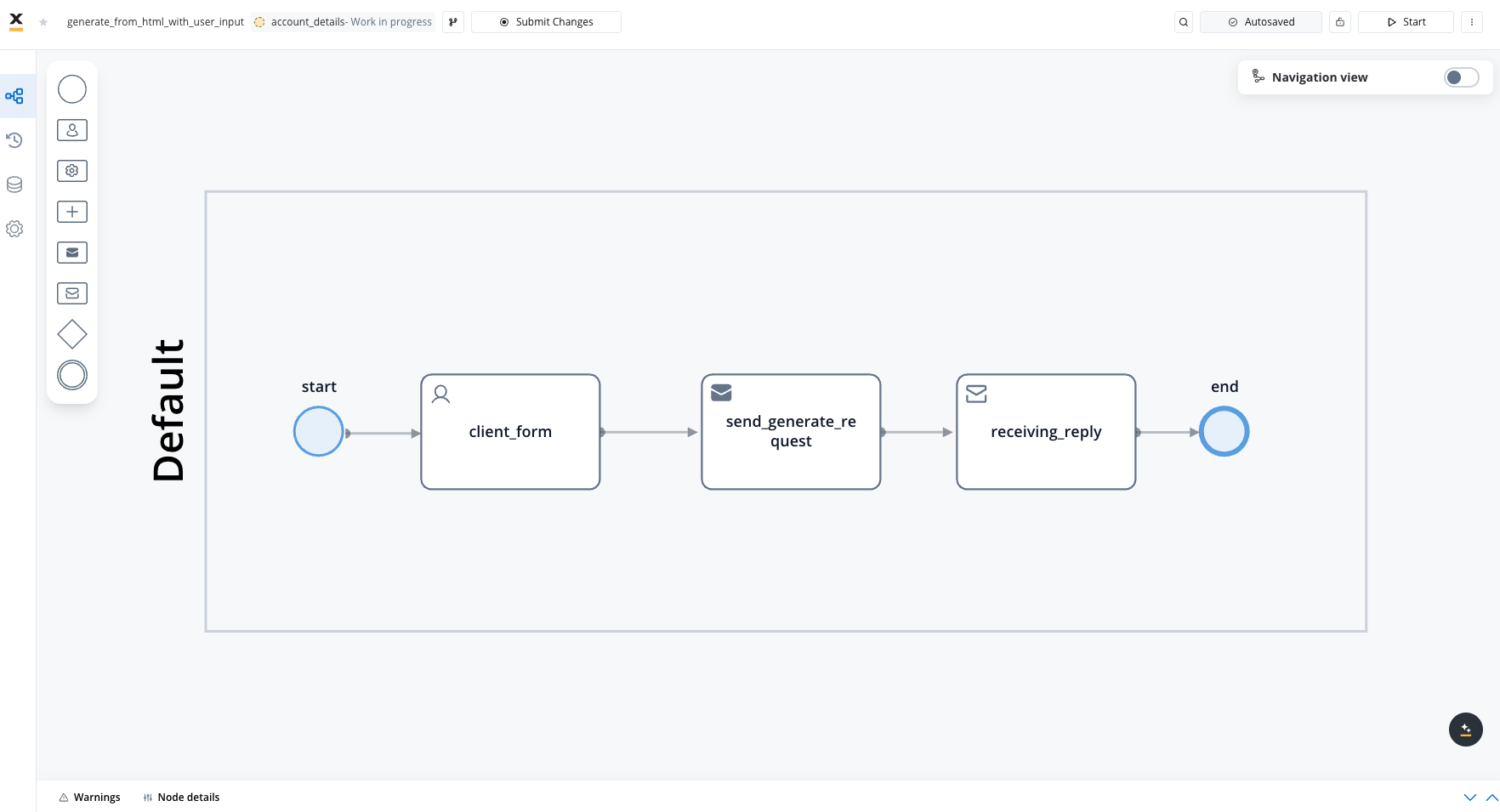
If you only need to upload a new file without generating it from templates, skip the template generation steps.
After configuration, your request and response messages should resemble the examples below.
#### Request message example
This JSON structure represents a Kafka message sent through the `..in` topic to initiate a request in the Process Engine. It includes information for generating an "AccountCreation" document with a custom ID "119237" in English. Data specifies client details extracted dynamically from user input (first name, last name, age, country) and company information (name, registration date).
This an example of a message that follows the custom integration data model.
```json theme={"system"}
{
"documentList": [
{
"customId": "119246", //this will match the name of the folder in the storage solution
"templateName": "AccountCreation",
"language": "en",
"data": {
"application": {
"client": {
"firstName": "John",
"lastName": "Doe",
"age": "33",
"country": "AU"
},
"company": {
"name": "ACME",
"registrationDate": "24.01.2024"
}
}
},
"includeBarcode": false
}
]
}
```
#### Response message example
This JSON structure represents the response received on the `..out` Kafka topic, where the Process Engine expects a reply. It contains details about the generated PDF file corresponding to the custom ID "119237" and the "AccountCreation" template. The response provides file-related information such as file ID, document type, document label, storage path, download path, number of pages, and any potential errors (null if none). The paths provided in the response facilitate access and download of the generated PDF file.
```json theme={"system"}
{
"generatedFiles": {
"119246": {
"AccountCreation": {
"customId": "119246",
"fileId": "f705ae5b-f301-4700-b594-a63b50df6854",
"documentType": "AccountCreation",
"documentLabel": "GENERATED_PDF",
"minioPath": "flowx-dev-process-id-119246/119246/457_AccountCreation.pdf", // path to the document in the storage solution
"downloadPath": "internal/files/f705ae5b-f301-4700-b594-a63b50df6854/download", //link for download
"noOfPages": 1,
"error": null
}
}
},
"error": null
}
```
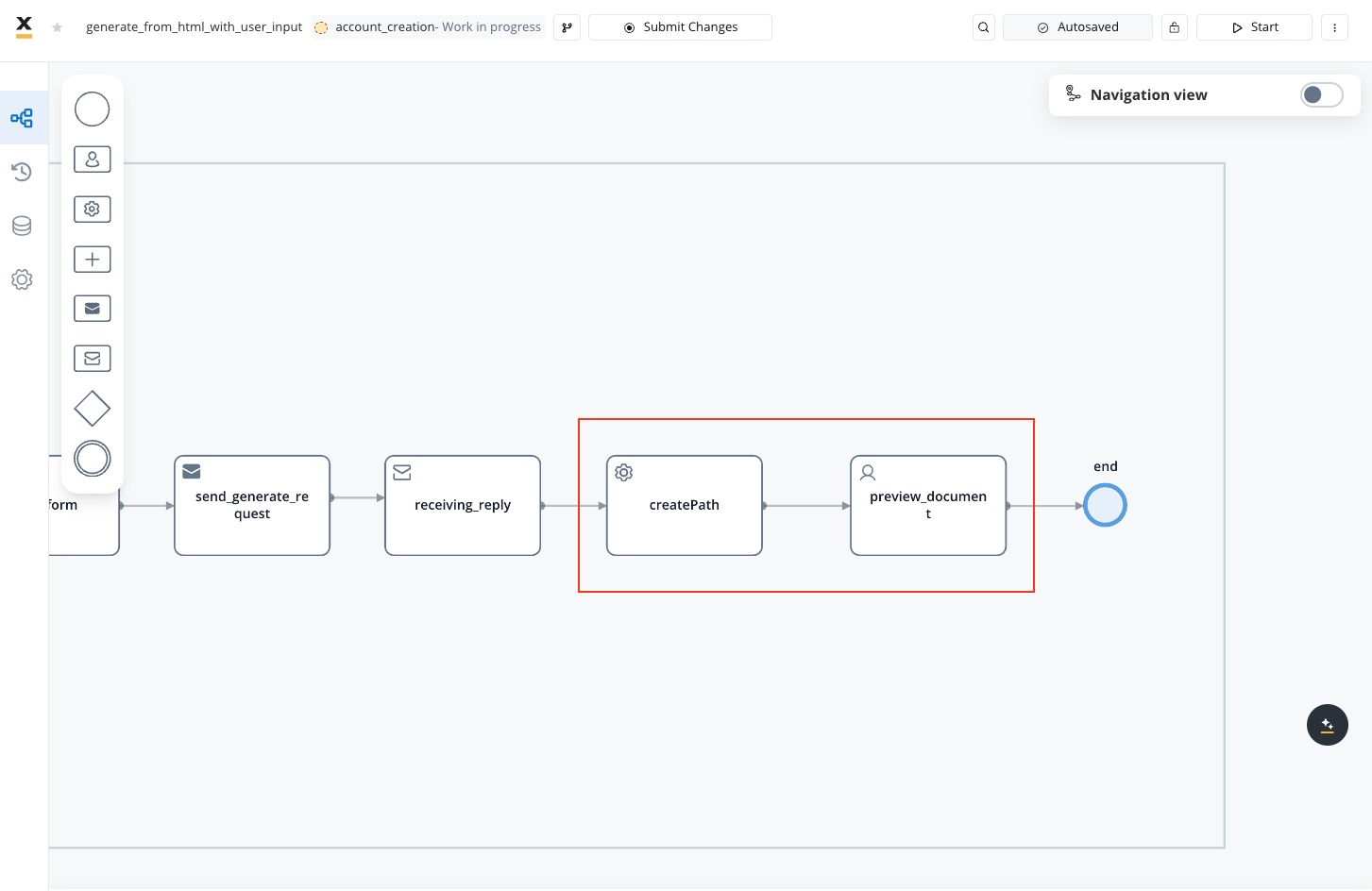
Configure the **preview** part of the process.
#### Service task node
We will configure the service task node to construct the file path for the generated document.
Configure a business rule to construct a file path for the generated document. Ensure the base admin path is specified.
Ensuring the base admin path is specified is crucial, as it grants the required administrative rights to access the endpoint responsible for document generation.
#### Actions
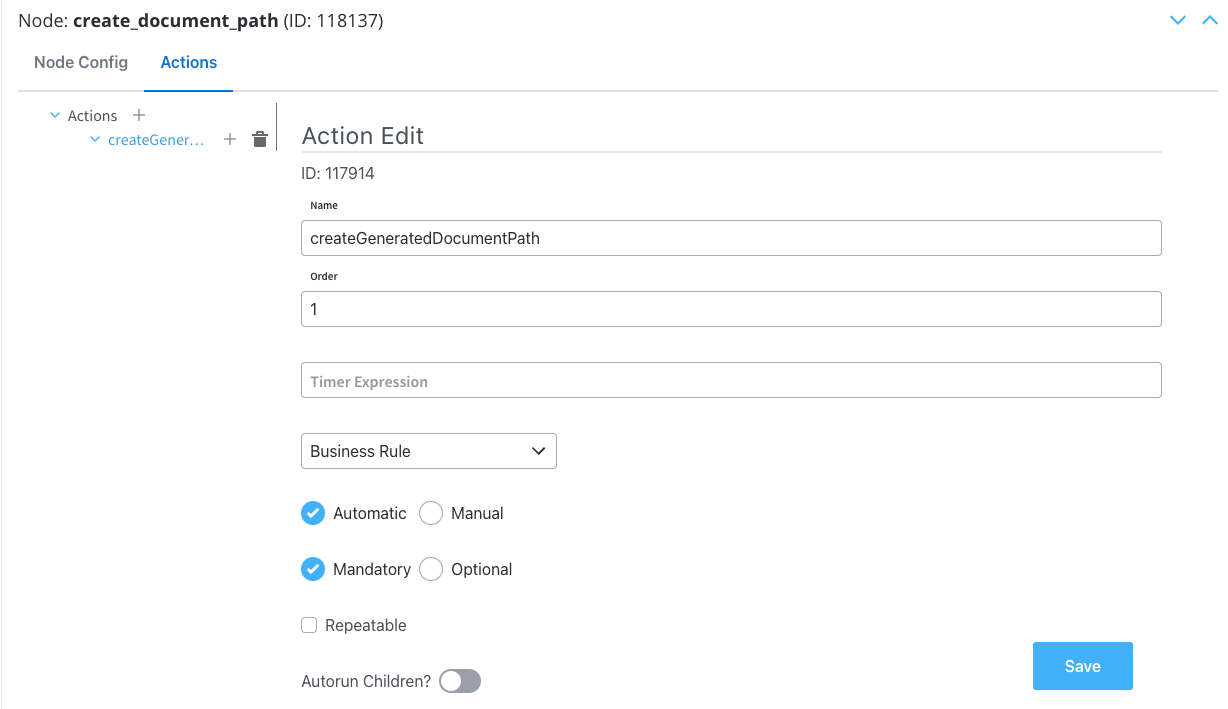
**Action Edit**
* **Action Type**: Set to **Business Rule**
* **Trigger Type**: Choose **Automatic** because is not a user-triggered action
* **Required Type**: Set as **Mandatory**
**Parameters**
* **Language**: We will use **MVEL** for this example
* **Body Message**: Fill in the body message request
```js theme={"system"}
adminPath = "https://admin-main.playground.flowxai.dev/document/";
processInstanceId = input.?generatedDocuments.?generatedFiles.keySet().toArray()[0];
downloadPath = input.?generatedDocuments.?generatedFiles.?get(processInstanceId).Company_Client_Document.downloadPath;
if(downloadPath != null){
output.put("generatedDocuments", {
"filePath" : adminPath + downloadPath
});
}
```
* **adminPath**: Base URL for the admin path.
```java theme={"system"}
adminPath = "https://admin-main.playground.flowxai.dev/document/";
```
* **processInstanceId**: Extracts the process instance ID from the input. Assumes an input structure with a generatedDocuments property containing a generatedFiles property. Retrieves the keys, converts them to an array, and selects the first element.
```java theme={"system"}
processInstanceId = input.?generatedDocuments.?generatedFiles.keySet().toArray()[0];
```
* **downloadPath**: Retrieves the downloadPath property using the obtained processInstanceId.
```java theme={"system"}
downloadPath = input.?generatedDocuments.?generatedFiles.?get(processInstanceId).Company_Client_Document.downloadPath;`
```
* **if condition**: Checks if downloadPath is not null and constructs a new object in the output map.
```java theme={"system"}
if(downloadPath != null){
output.put("generatedDocuments", {
"filePath" : adminPath + downloadPath
});
}
```
### User Task
Now we will configure the user task to preview the generated document.
#### Actions
Configure the **Actions edit** section:
* **Action Type**: Set to **Save Data**.
* **Trigger Type**: Choose **Manual** to allow user-triggered action.
* **Required Type**: Set as **Mandatory**.
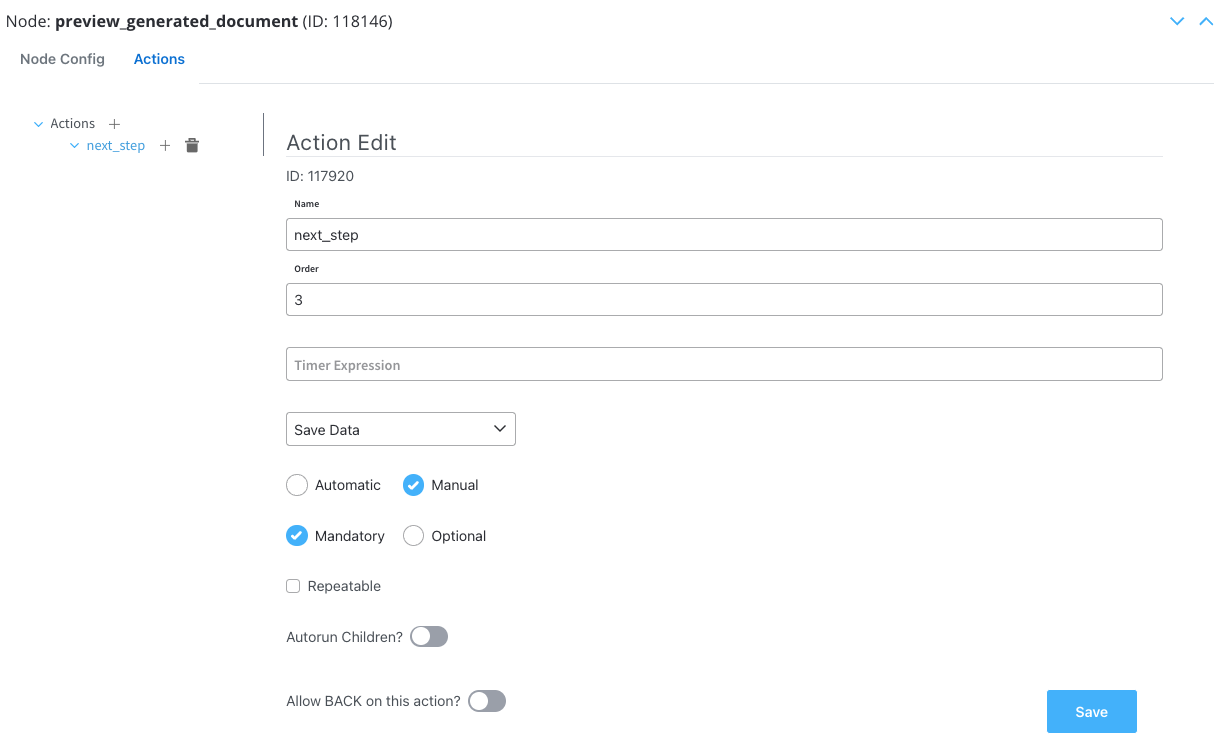
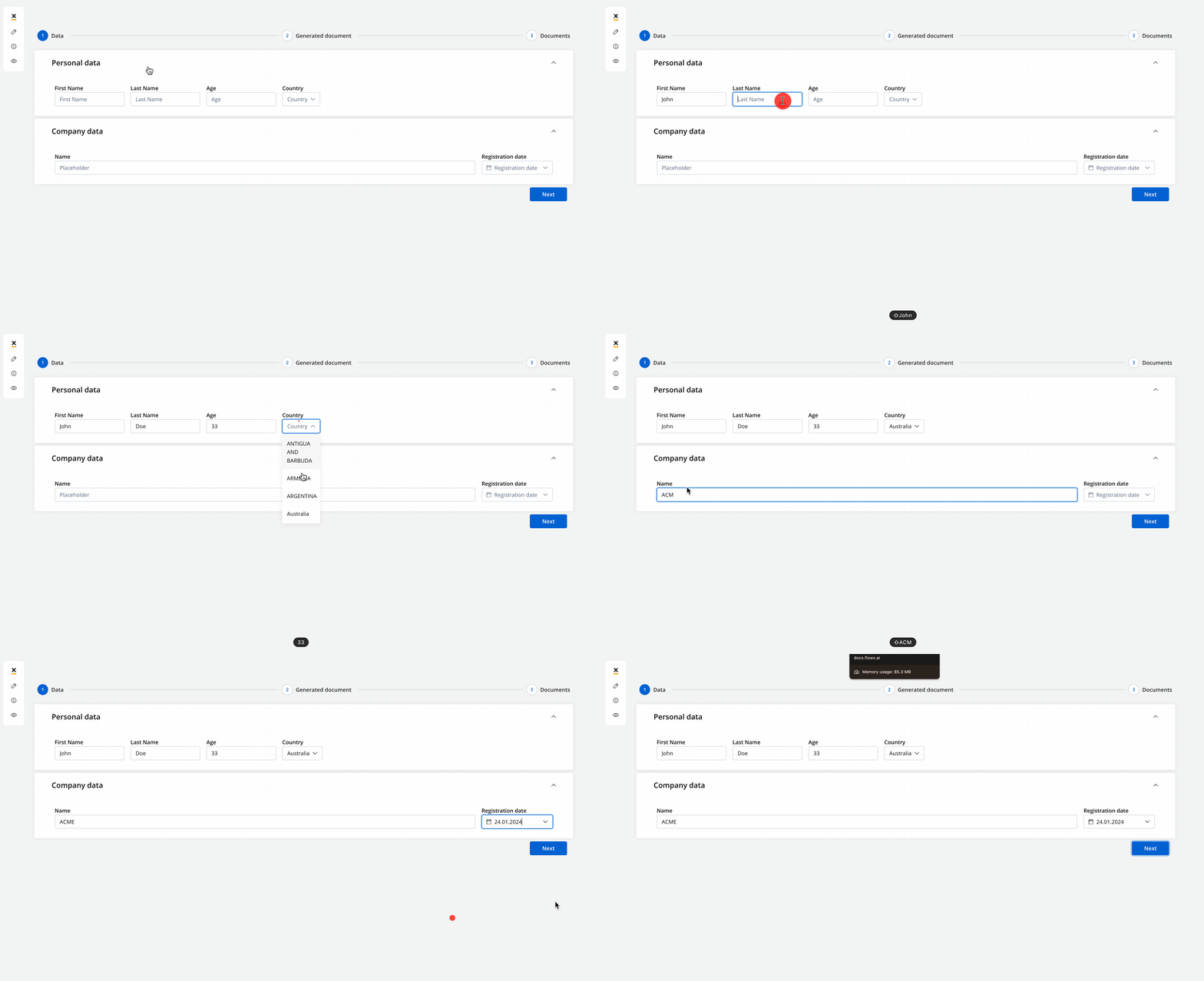
Let's see what we have until now.
The screen where you can fill in the client details:
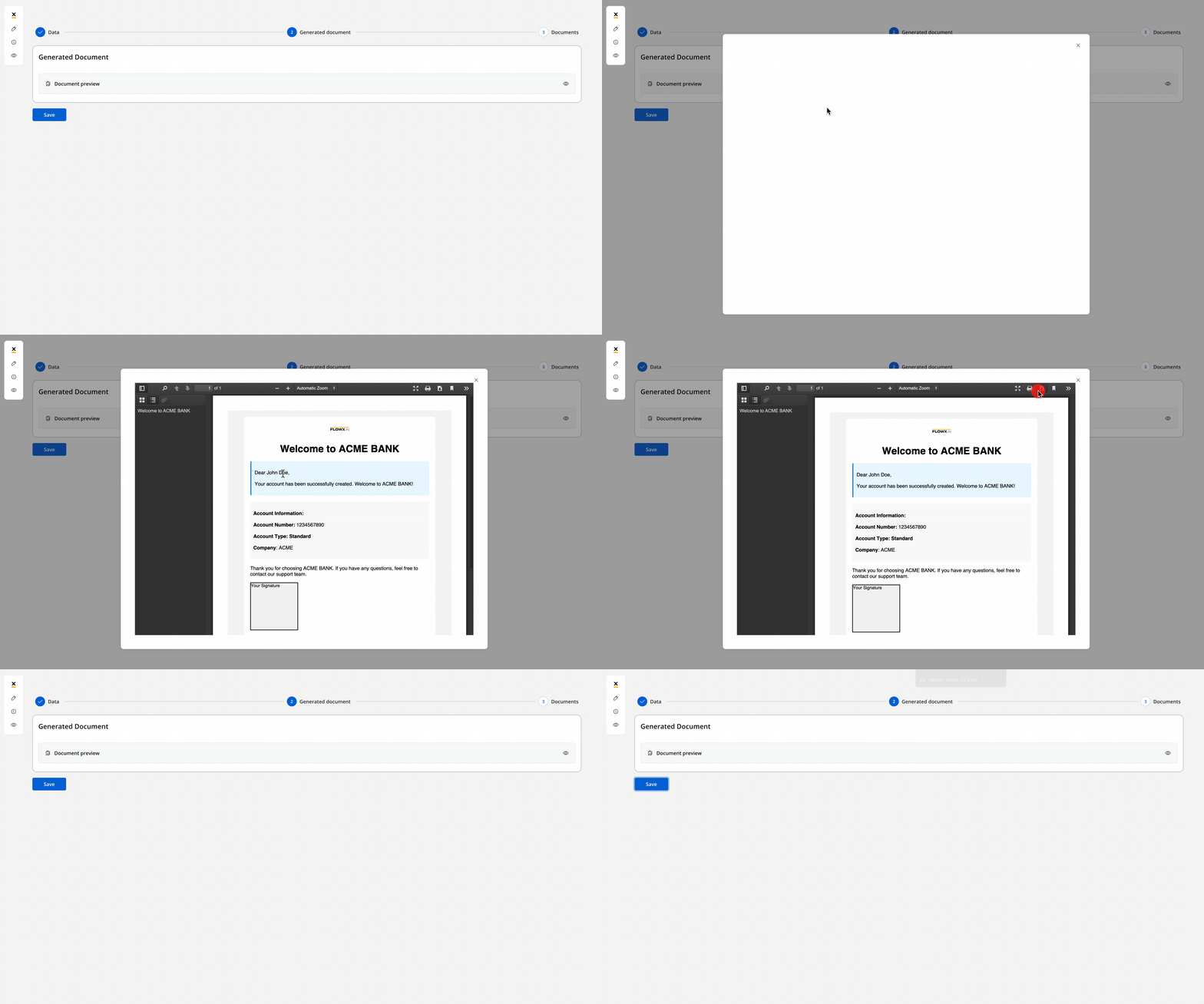
The screen where you can preview and download the generated document:
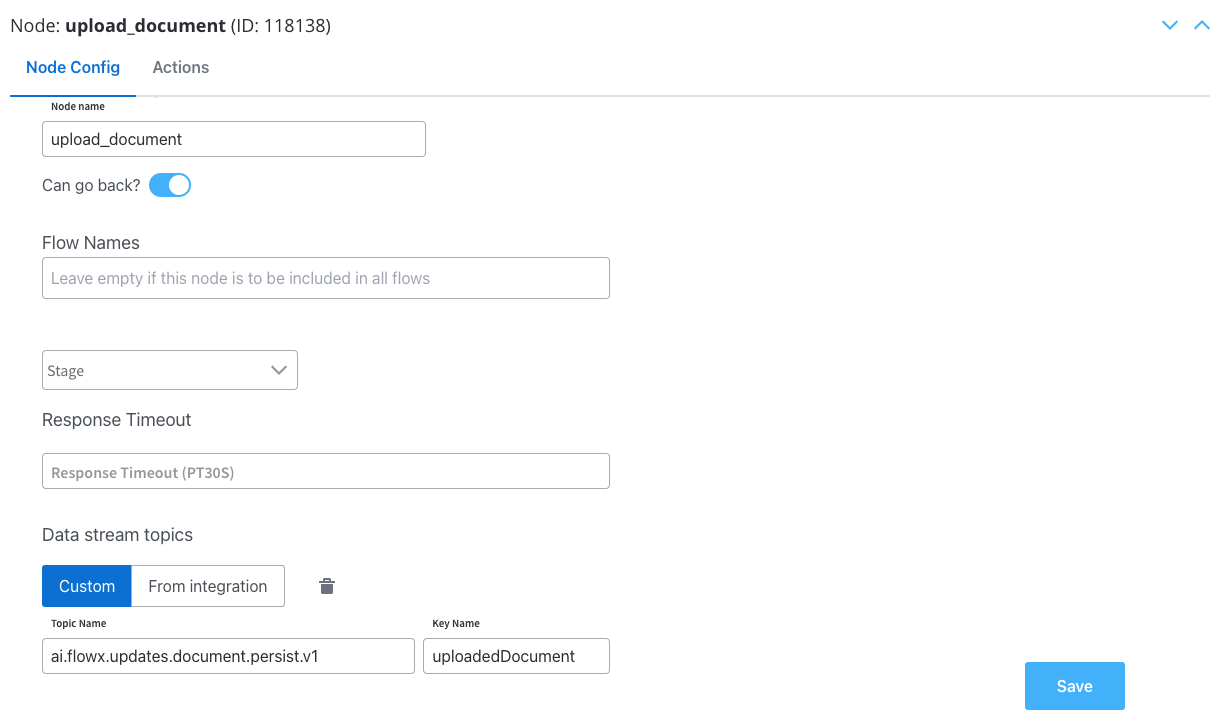
Configure the user task where we will upload the signed document genereated from the previous document template.
#### Node Config
* **Swimlane**: Choose a swimlane (if multiple) to restrict access to specific user roles.
* **Stage**: Assign a stage to the node.
* **Data stream topics**: Add the topic where the response will be sent; in this example `ai.flowx.updates.document.html.persist.v1` and its key: `uploadedDocument`.
#### Actions
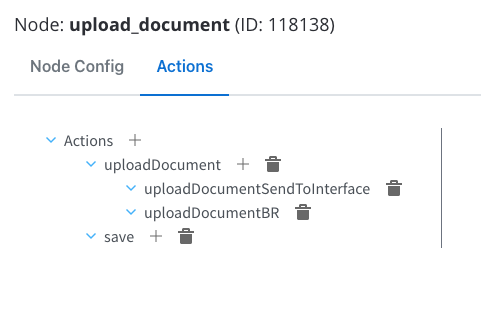
Configure the following node actions:
* Upload File action with two child actions:
* Business Rule
* Send Data to User Interface
* Save Data action
#### Upload file action
This is a standard predefined FlowX Node Action for uploading files. This is done through Kafka and by using `persist` topics.
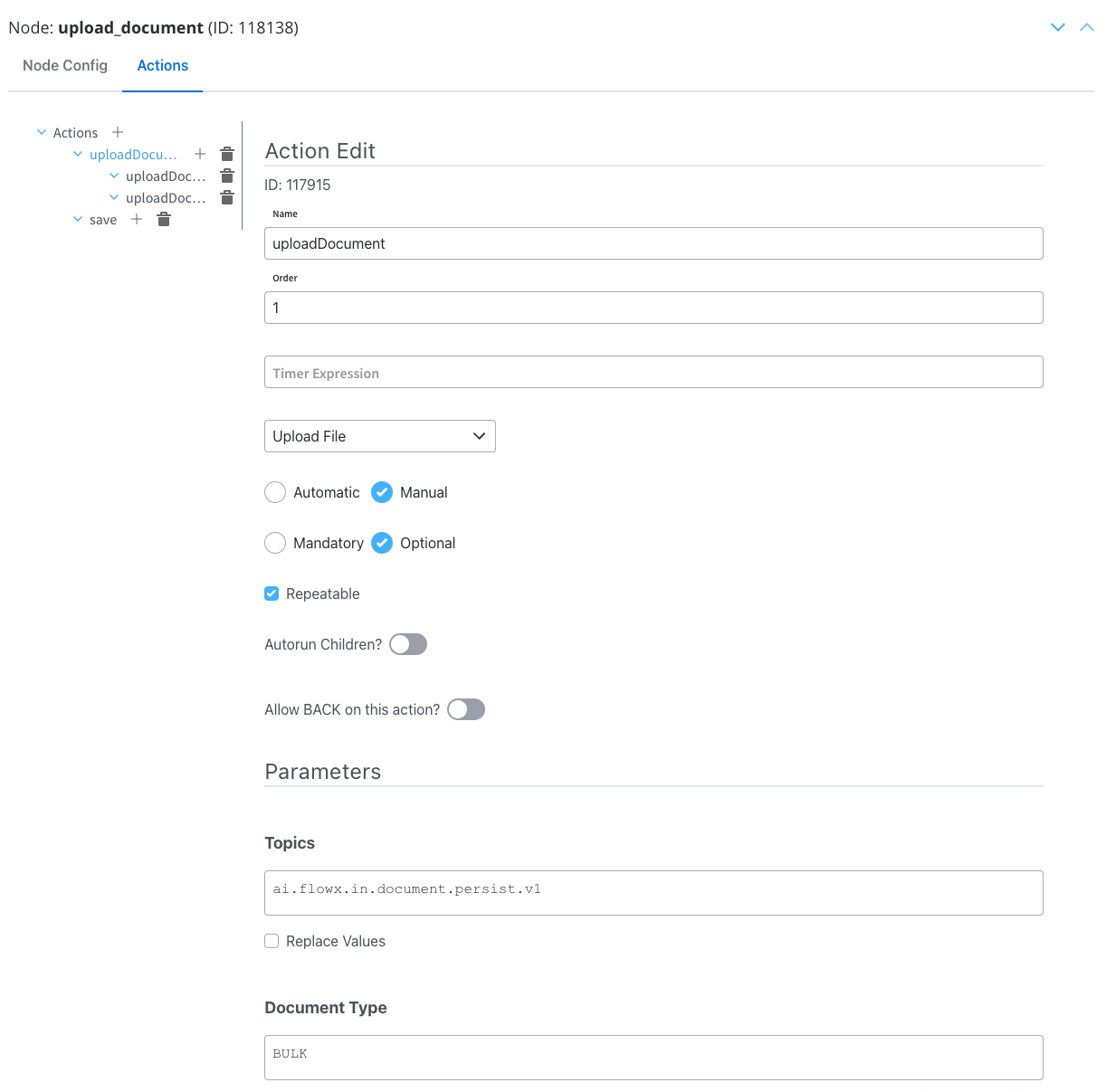
#### Action edit
* **Action Type**: Set to **Upload File**.
* **Trigger Type**: Choose **Manual** to allow user-triggered action.
* **Required Type**: Set it as **Optional**.
* **Repeatable**: Check this option if the action can be triggered multiple times.
#### Parameters
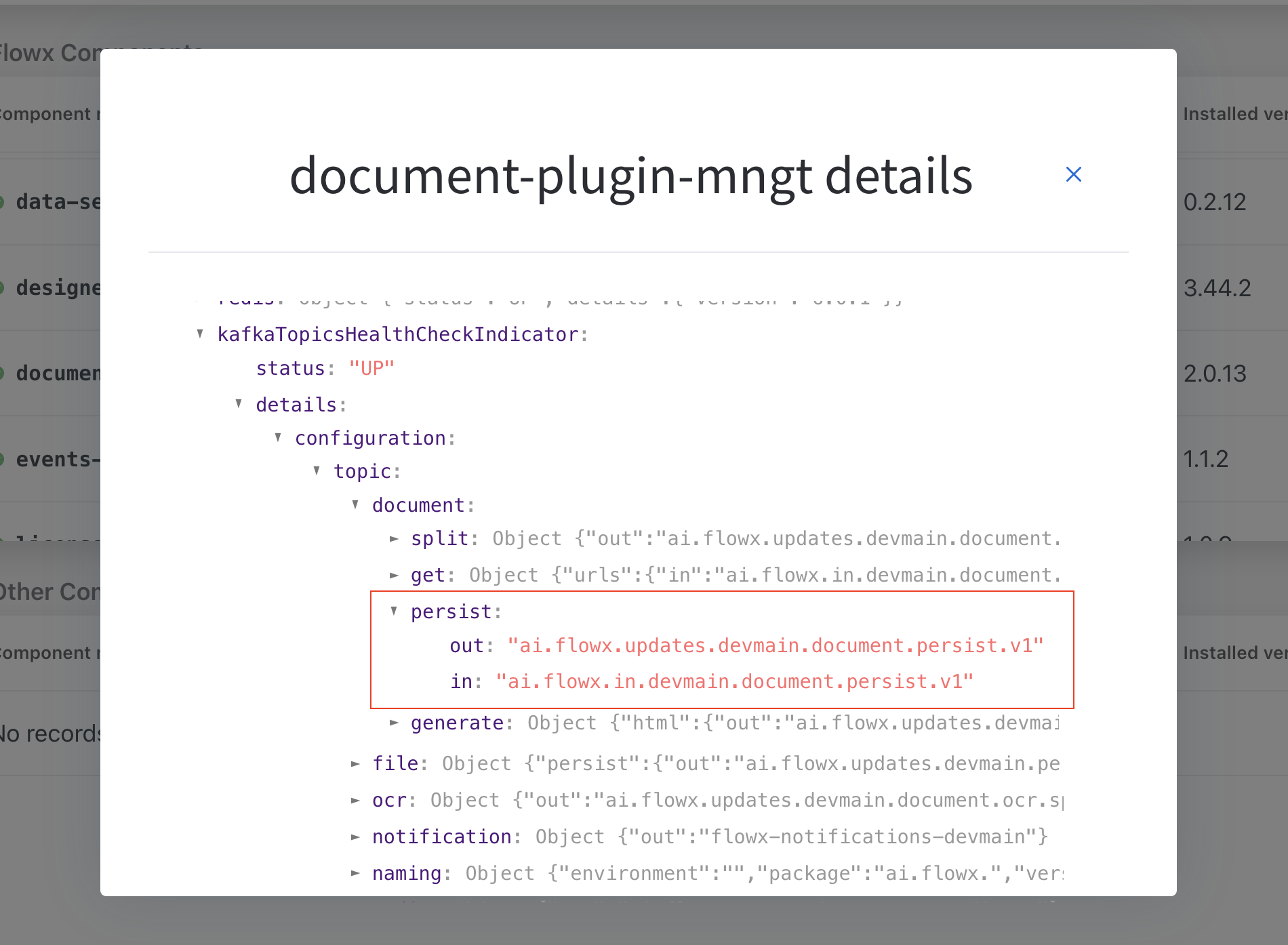
* **Topics**: Kafka topic where the file will be posted, in this example `ai.flowx.in.document.persist.v1`.
To identify your defined topics in your current environment, follow the next steps:
* From the FLOWX.AI main screen, navigate to the **Platform Status** menu at the bottom of the left sidebar.
* In the FLOWX Components list, scroll to the **document-plugin-mngt** line and press the eye icon on the right side.
* In the details screen, expand the `KafkaTopicsHealthCheckIndicator` line and then **details → configuration → topic → document → persist**. Here will find the in and out topics for persisting (uploading documents).
* **Document Type**: Metadata for the document plugin, in this example `BULK`.
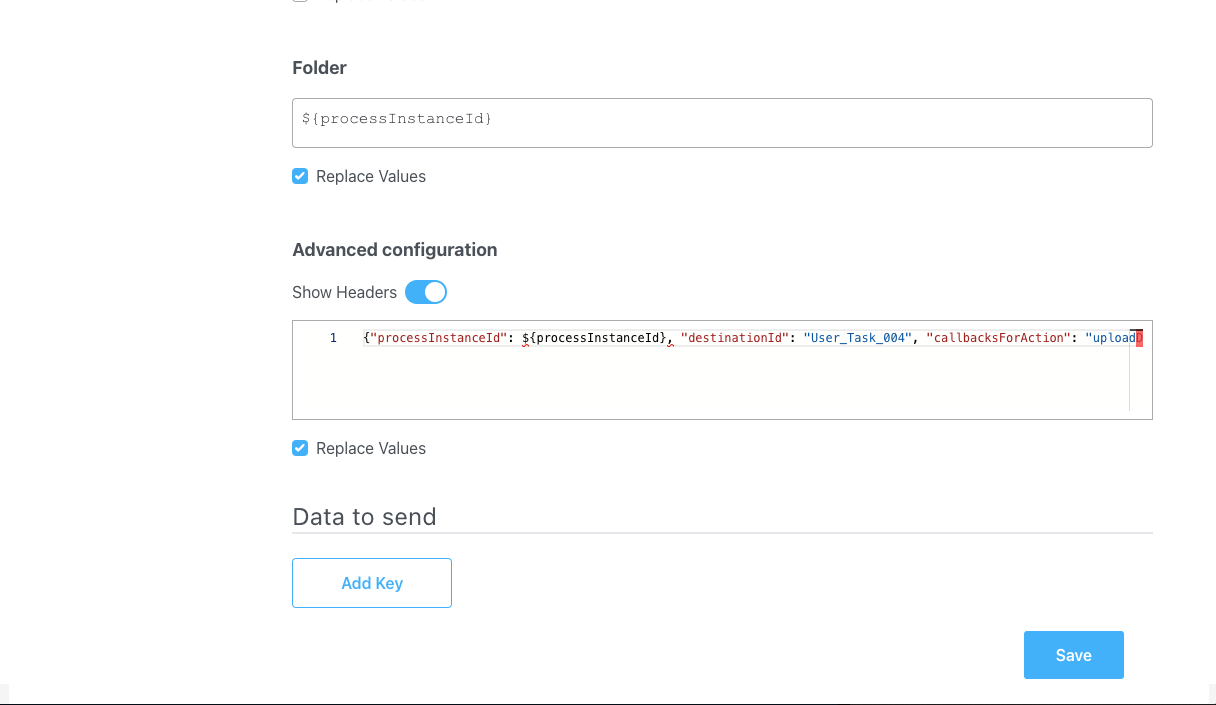
* **Folder**: Configure a value by which the file will be identified, in this example it will be the`${processInstanceId}` (it will be replaced at runtime with a generated process instance id).
* **Advanced configuration (Show headers)**: This represents a JSON value that will be sent on the headers of the Kafka message, in this example:
```json theme={"system"}
{"processInstanceId": ${processInstanceId}, "destinationId": "upload_document", "callbacksForAction": "uploadDocument"}`
```
`callbacksForAction` - the value of this key is a string that specifies a callback action associated with the "upload\_document" destination ID (node). This is part of an event-driven system (Kafka send action) where this callback will be called once the "upload\_document" action is completed.
#### Data to send
* **Keys**: Used when data is sent from the frontend via an action for data validation.
When configuring the event handler that corresponds to the Upload File node action, you must set the **Action Type** to **Upload**. This ensures proper integration between the frontend interface and the backend upload functionality.
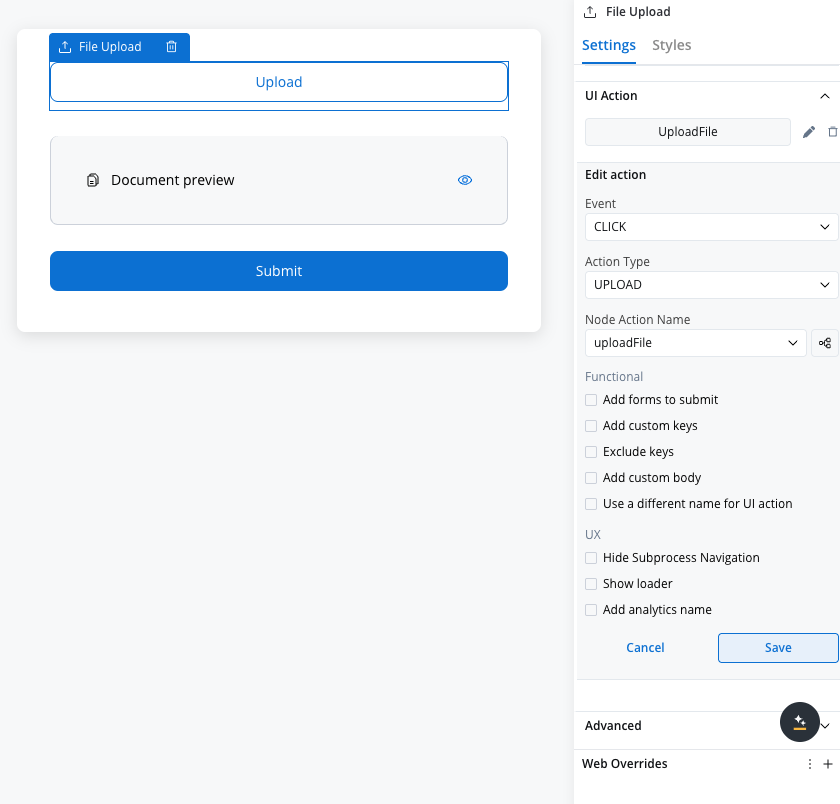
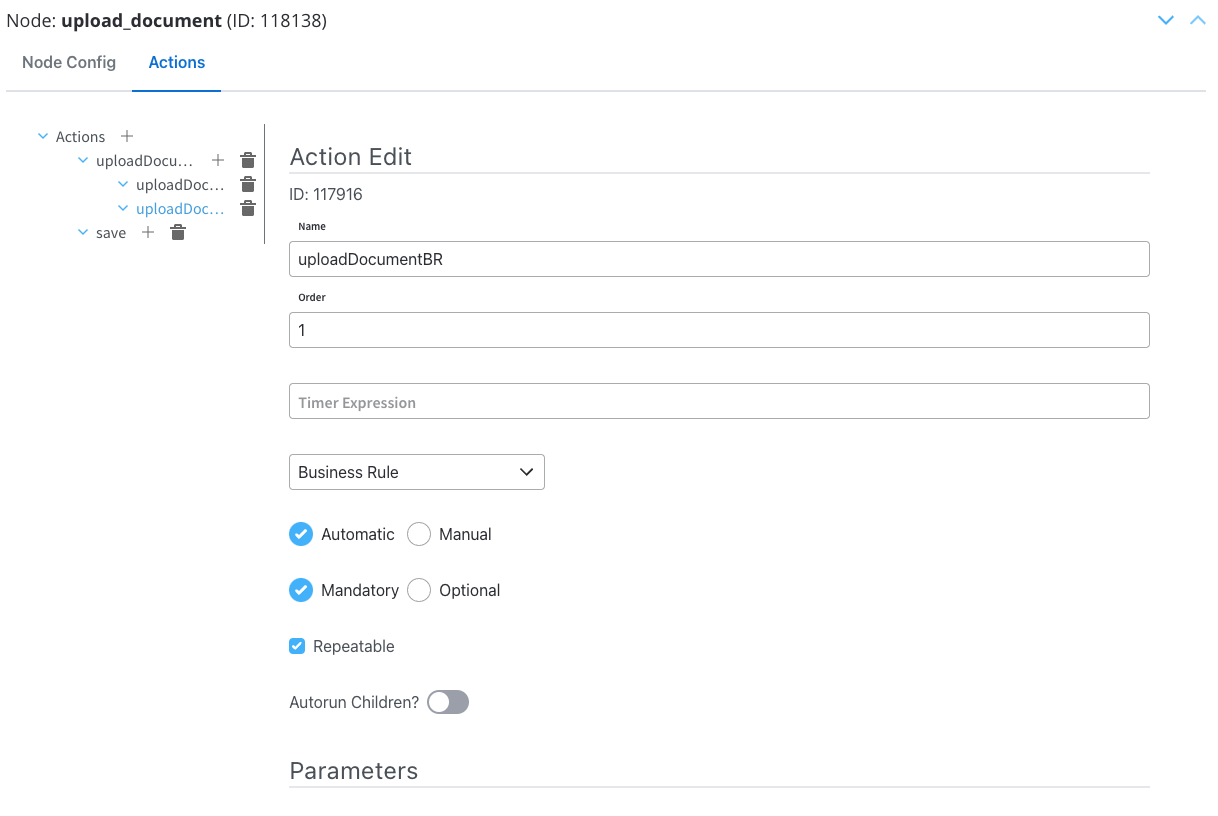
Now, configure the child actions of Upload File Action.
#### Business rule
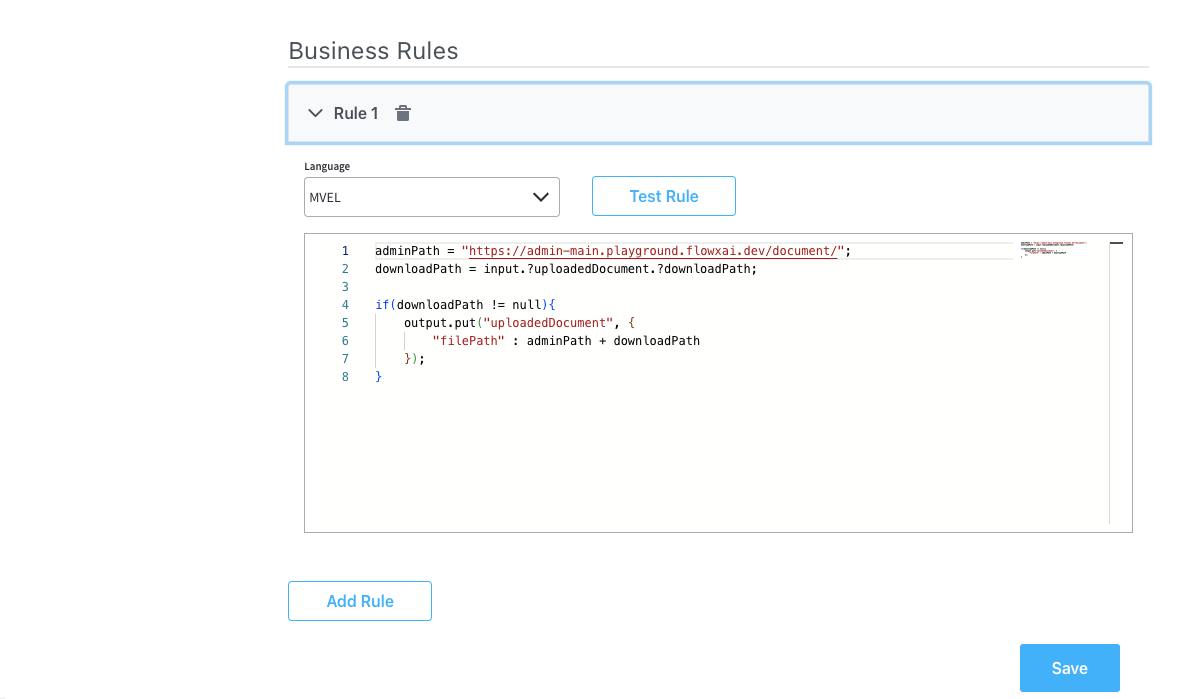
This is necessary to create the path to display the uploaded document.
**Action Edit**
* **Order**: Set to **1** so it will be processed before the second child action.
* **Action Type**: Set to **Upload File**.
* **Trigger Type**: Choose **Automatic**, it does not need user intervention.
* **Required Type**: Set as **Mandatory**.
* **Repeatable**: Check this option if the action can be triggered multiple times.
**Parameters**
* **Language**: In this example we will use **MVEL**.
* **Body Message**: Fill in the body of the message request by applying a logic similar to the one utilized in configuring the "preview\_document" node. Establish a path that will be later employed to showcase the uploaded document within a preview UI component.
```js theme={"system"}
adminPath = "https://admin-main.playground.flowxai.dev/document/";
downloadPath = input.?uploadedDocument.?downloadPath;
if(downloadPath != null){
output.put("uploadedDocument", {
"filePath" : adminPath + downloadPath
});
}
```
#### Send Data to User Interface
This is necessary to send the previously created information to the frontend.
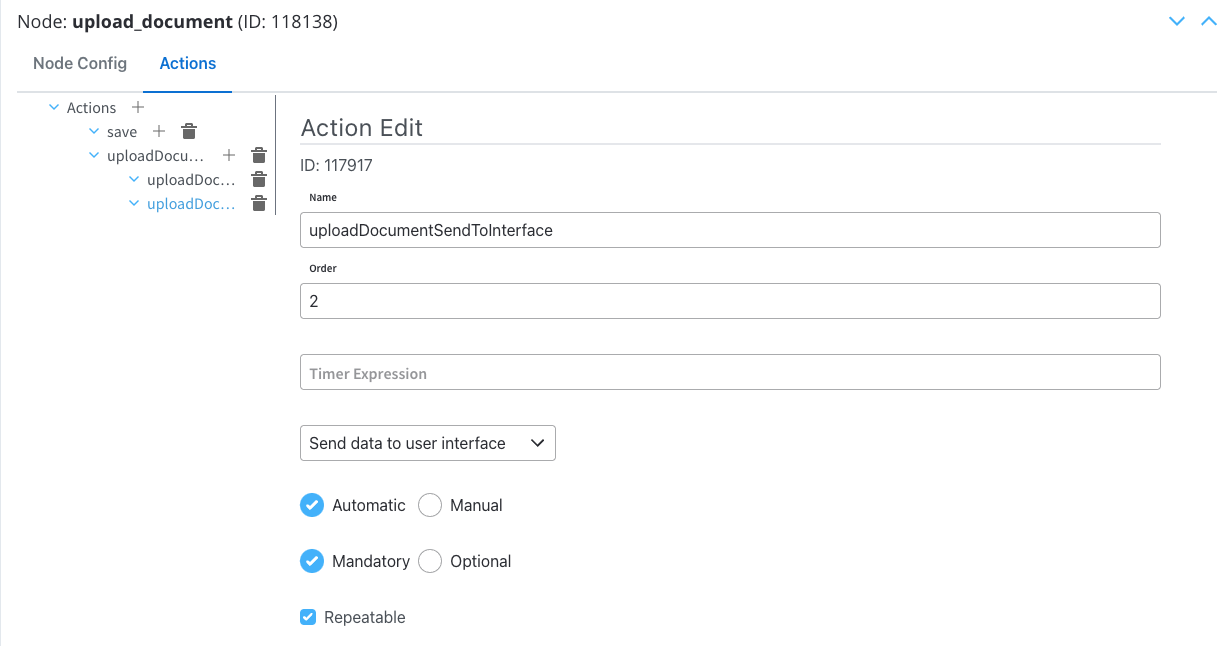
**Action Edit**
* **Order**: Set to **2** so it will be processed after the previously created Business Rule.
* **Action Type**: Set to **Send data to user interface**.
* **Trigger Type**: Choose **Automatic**, it does not need user intervention.
* **Required Type**: Set as **Mandatory**.
* **Repeatable**: Check this option if the action can be triggered multiple times.
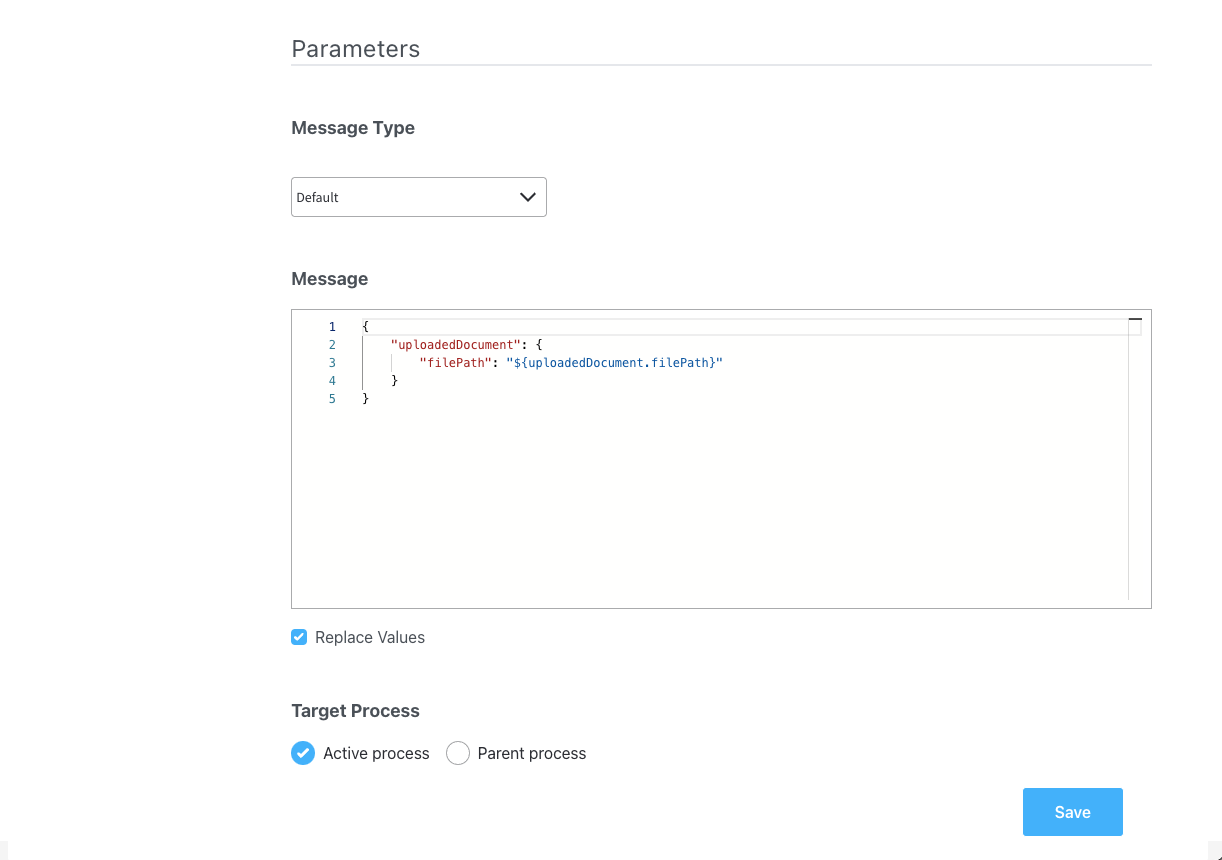
**Parameters**
* **Message Type**: Set to **Default**.
* **Body Message**: Populate the body of the message request; this object will be utilized to bind it to the document preview UI element.
```json theme={"system"}
{
"uploadedDocument": {
"filePath": "${uploadedDocument.filePath}"
}
}
```
* **Target Process**: Used to specify to what running process instance should this message be sent - set to **Active Process**.
#### Save Data
Configure the last node action to save all the data.
**Action edit**
* **Order**: Set to **3**.
* **Action Type**: Set to **Save Data**.
* **Trigger Type**: Choose **Manual** to allow user-triggered action.
* **Required Type**: Set as **Mandatory**.
#### Request message example
To initiate the document processing, a Kafka request with the following JSON payload will be sent through `..in` topic:
This an example of a message that follows the custom integration data model.
```json theme={"system"}
{
"tempFileId": "05081172-1f95-4ece-b2dd-1718936710f7", //a unique identifier for the temporary file
"customId": "119246", //a custom identifier associated with the document
"documentType": "BULK" //the type of the document
}
```
#### Response message example
Upon successful processing, you will receive a JSON response on the `..out` topic with details about the processed document:
```json theme={"system"}
{
"customId": "119246",
"fileId": "96975e03-7fba-4a03-99b0-3b30c449dfe7",
"documentType": "BULK",
"documentLabel": null,
"minioPath": "flowx-dev-process-id-119246/119246/458_BULK.pdf",
"downloadPath": "internal/files/96975e03-7fba-4a03-99b0-3b30c449dfe7/download",
"noOfPages": null,
"error": null
}
```
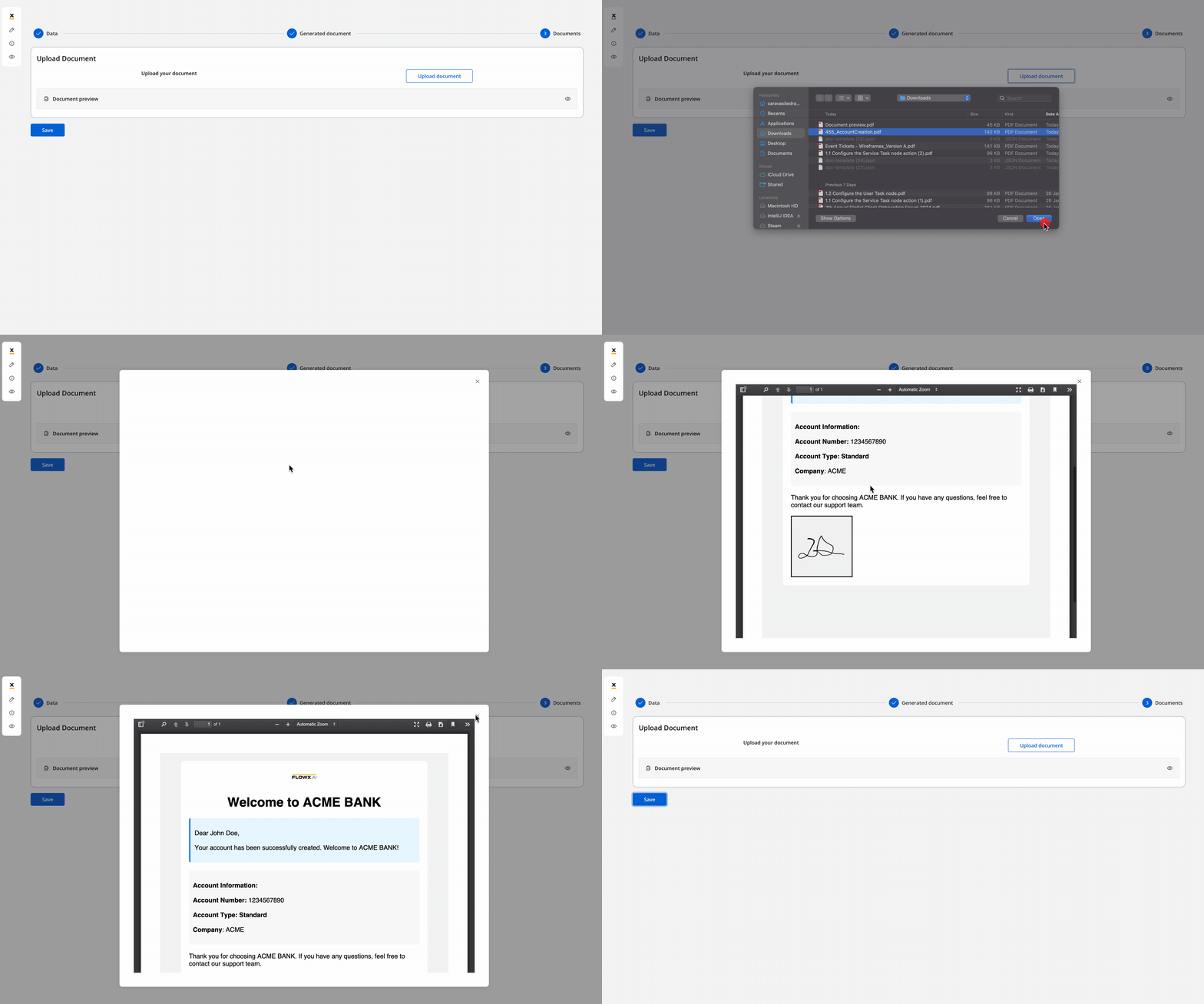
Now the screen is configured for uploading the signed document:
***
## Uploading multiple files
For the backend action configuration, see the [Upload File action](../../../../building-blocks/actions/upload-file-action) documentation.
***
## Receiving the reply
The response, containing information about the generated and uploaded documents as mentioned earlier, is sent to the output Kafka topic defined in the Kafka Receive Event Node. The response includes details such as file IDs, document types, and storage paths.
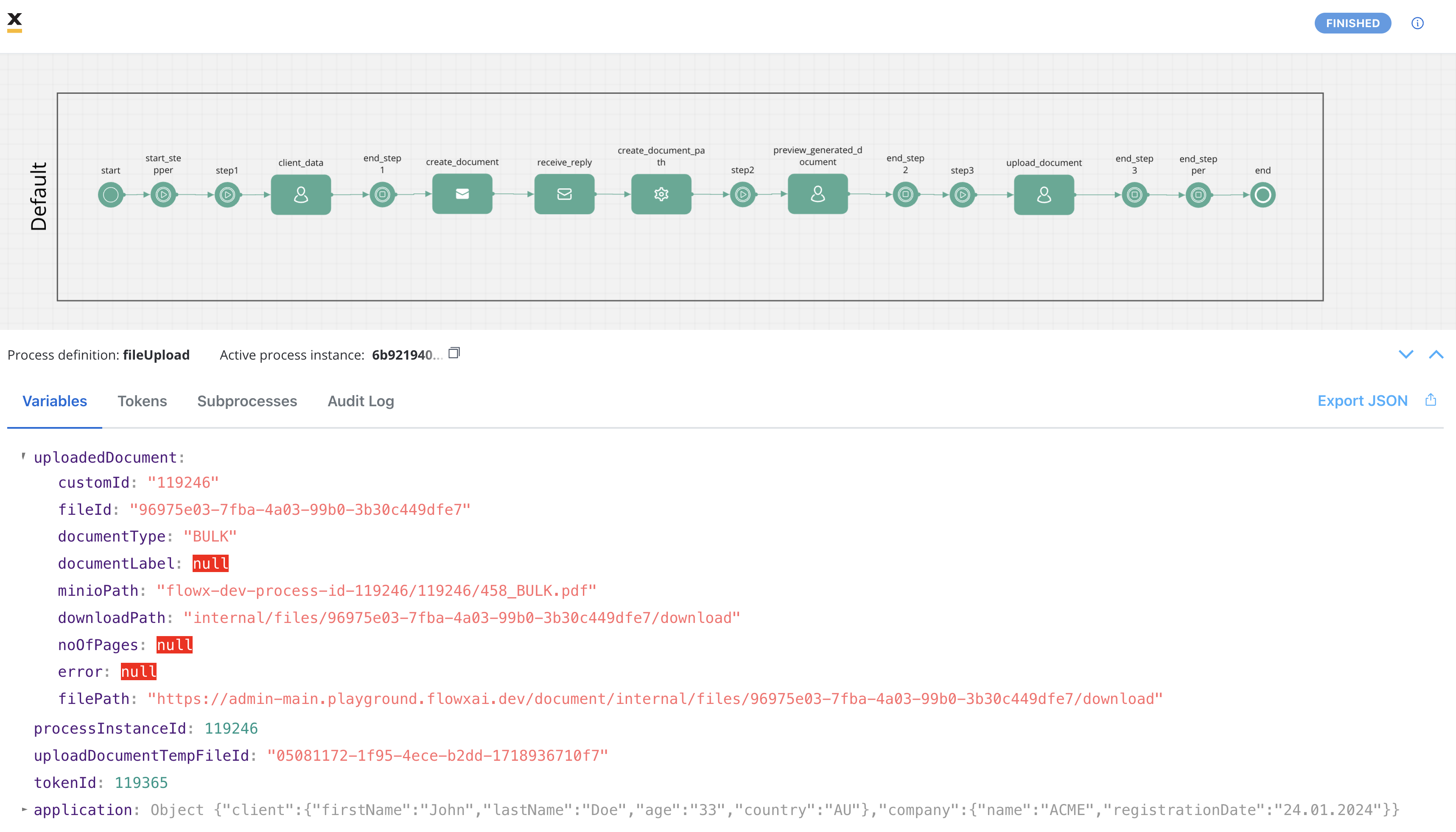
The reply body is expected to contain the following values:
* **customId**: A custom identifier associated with the document.
* **fileId**: The ID of the file.
* **documentType**: The document type.
* **minioPath**: The path where the uploaded file is saved. It represents the location of the file in the storage system, whether it's a MinIO path or an S3 path, depending on the specific storage solution.
* **downloadPath**: The download path for the uploaded file. It specifies the location from where the file can be downloaded.
* **noOfPages**: The number of pages in the document (if applicable).
* **filePath**: The path to the file that we built in our example so we can display the document.