> ## Documentation Index
> Fetch the complete documentation index at: https://docs.flowx.ai/llms.txt
> Use this file to discover all available pages before exploring further.
# Getting URLs
> In certain scenarios, obtaining URLs pointing to uploaded documents for use in integrations is essential. This process involves adding a custom action to your workflow that requests URLs from the Documents plugin.
## Prerequisites
Before retrieving document URLs, ensure:
1. **Access Permissions**: Ensure that the user account has the necessary access rights.
2. **Kafka Configuration**:
* **Verify Kafka Setup**: Ensure proper configuration and accessibility of the Kafka messaging system.
* **Kafka Topics**: Understand the Kafka topics used for these operations.
3. **Document Types**: Prepare information for updating or deleting files:
* `types`: A list of document types.
## Configuring the getting URLs process
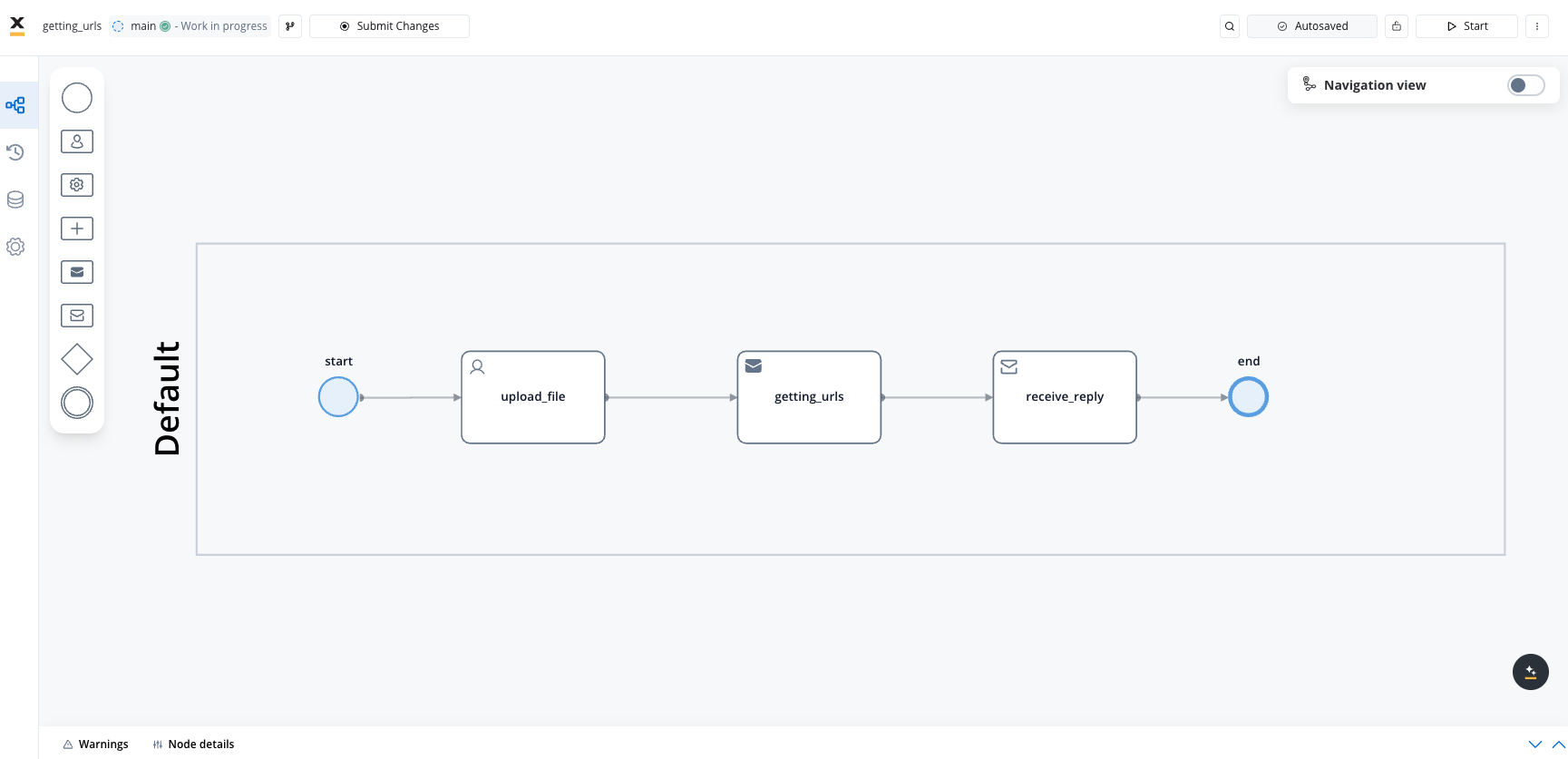
To obtain document URLs, follow these steps:
Create a process that will contain the following types of nodes:
* [**Send Message Task (Kafka)**](../../../../building-blocks/node/message-send-received-task-node) - used to send the get URLs request
* [**Receive Message Task (Kafka)**](../../../../building-blocks/node/message-send-received-task-node) - used to receive the get URLs reply
* [**User Task**](../../../../building-blocks/node/user-task-node) - where you will perform the upload action
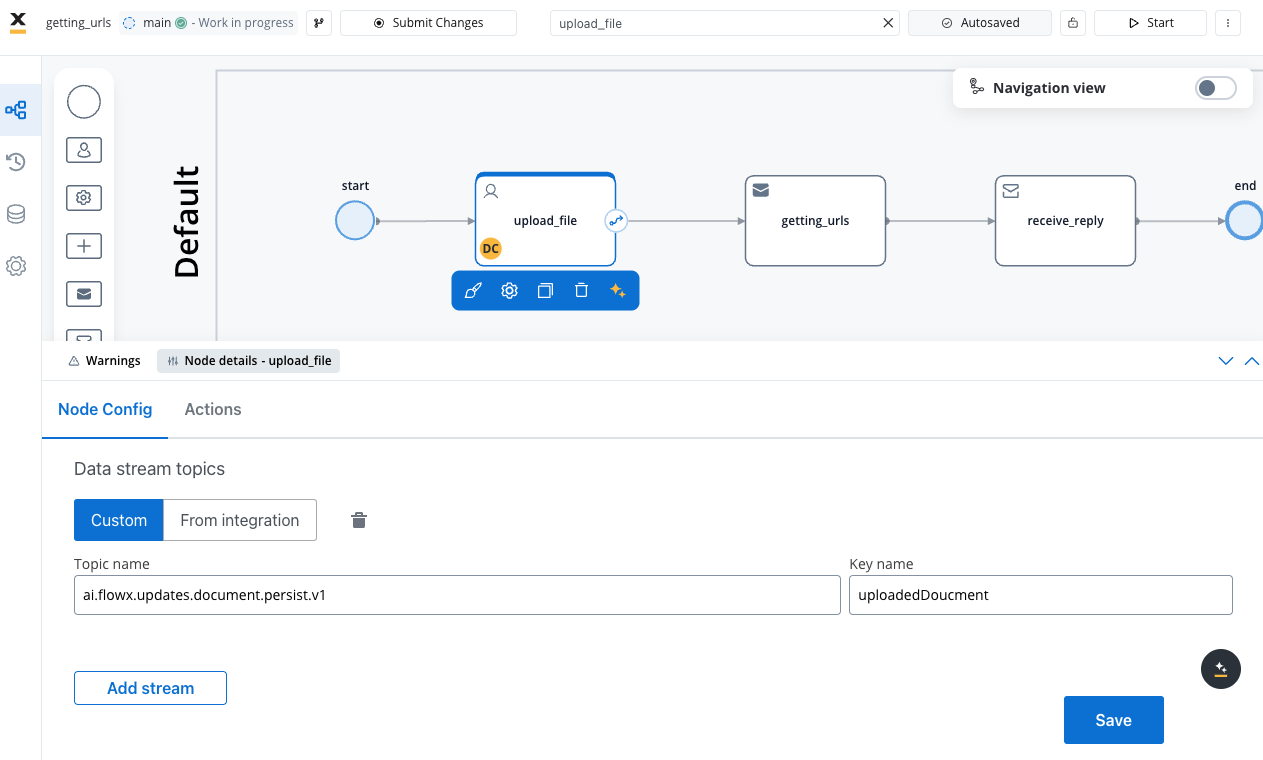
Start configuring the **User Task** node:
#### Node Config
* **Data stream topics**: Add the topic where the response will be sent; in this example `ai.flowx.updates.document.html.persist.v1` and its key: `uploadedDocument`.
#### Actions
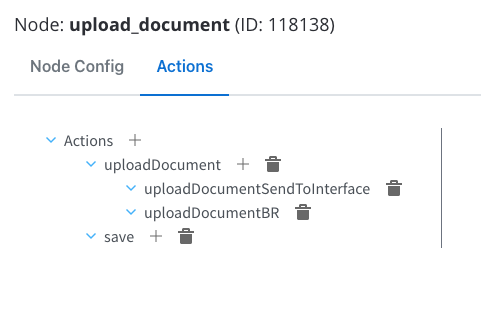
We will configure the following node actions:
* Upload File action ("uploadDocument") will have two child actions:
* Send Data to User Interface ("uploadDocumentSendToInterface")
* Business Rule ("uploadDocumentBR")
* Save Data action ("save")
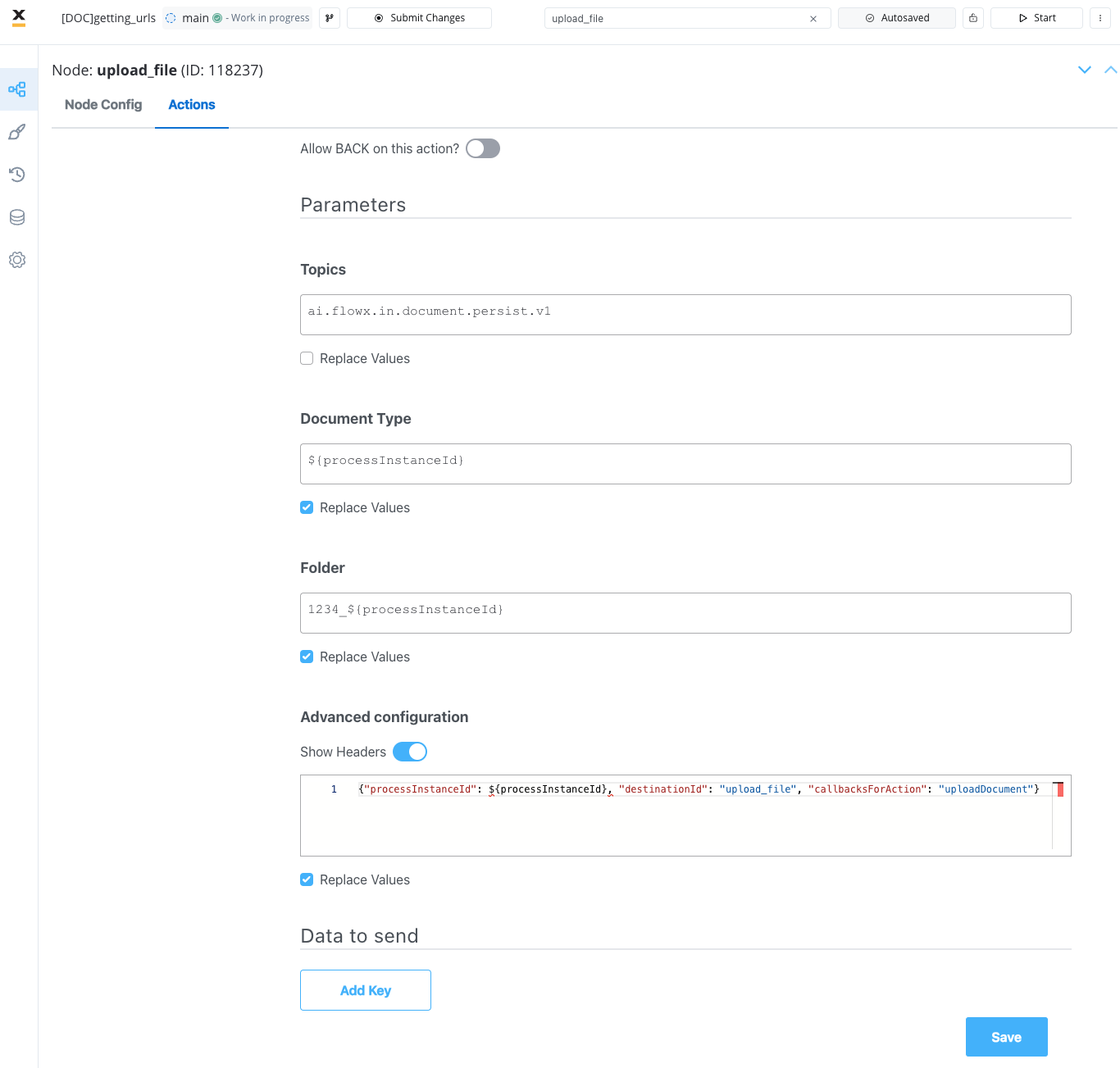
Configure the parameters for the **Upload Action**:
For more details on uploading a document and configuring the file upload child actions, refer to the following sections:
* [**Upload document**](./uploading-a-new-document)
* [**Upload action**](../../../../building-blocks/actions/upload-file-action)
Next, configure the **Send Message Tas (Kafka)** node by adding a **Kafka Send Action** and specifying the `..in` [**Kafka topic**](../../../../../setup-guides/documents-plugin-setup#kafka-configuration) to send the request.
Identify defined topics in your environment:
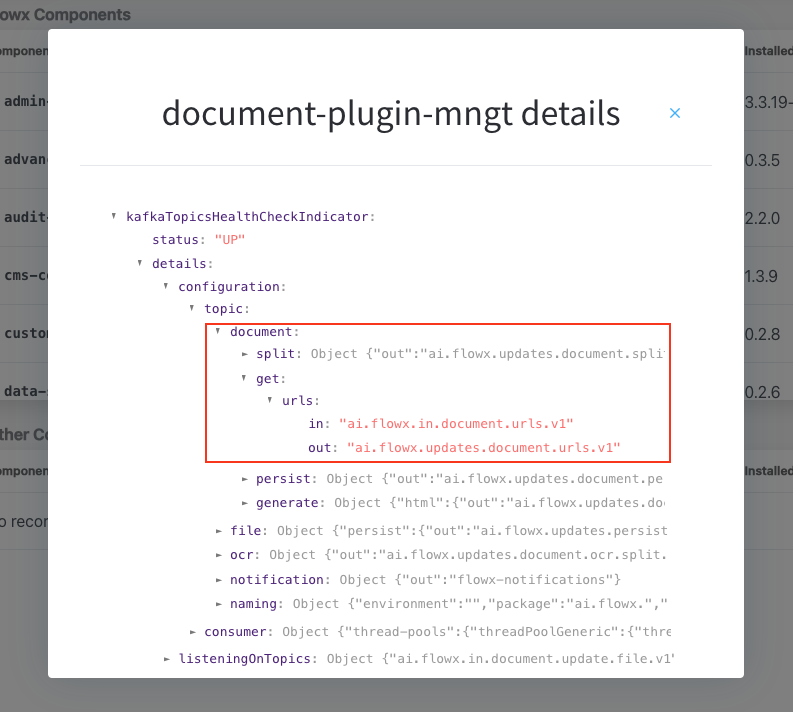
* Navigate to **Platform Status > FlowX Components > document-plugin-mngt** and press the eye icon on the right side.
* In the details screen, expand the `KafkaTopicsHealthCheckIndicator` line and then **details → configuration → topic → document → get**. Here will find the in and out topics for getting URLs for documents.
Fill in the body of the request message for the Kafka Send action to send the get URLs request:
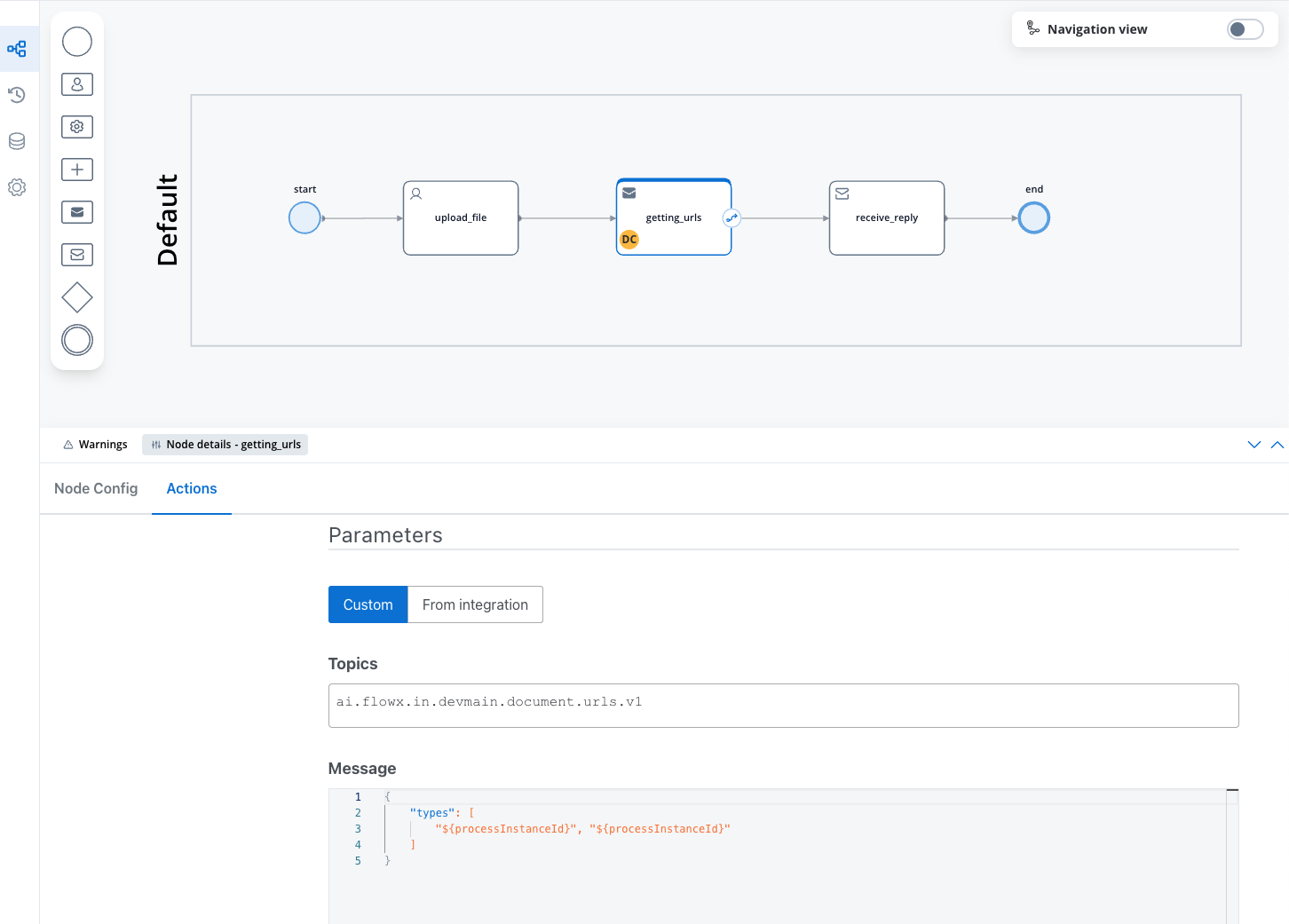
* `types`: A list of document types.
#### Message request example
Example of a message following the custom integration data model:
```json theme={"system"}
{
"types": [
"119435",
"119435"
]
}
```
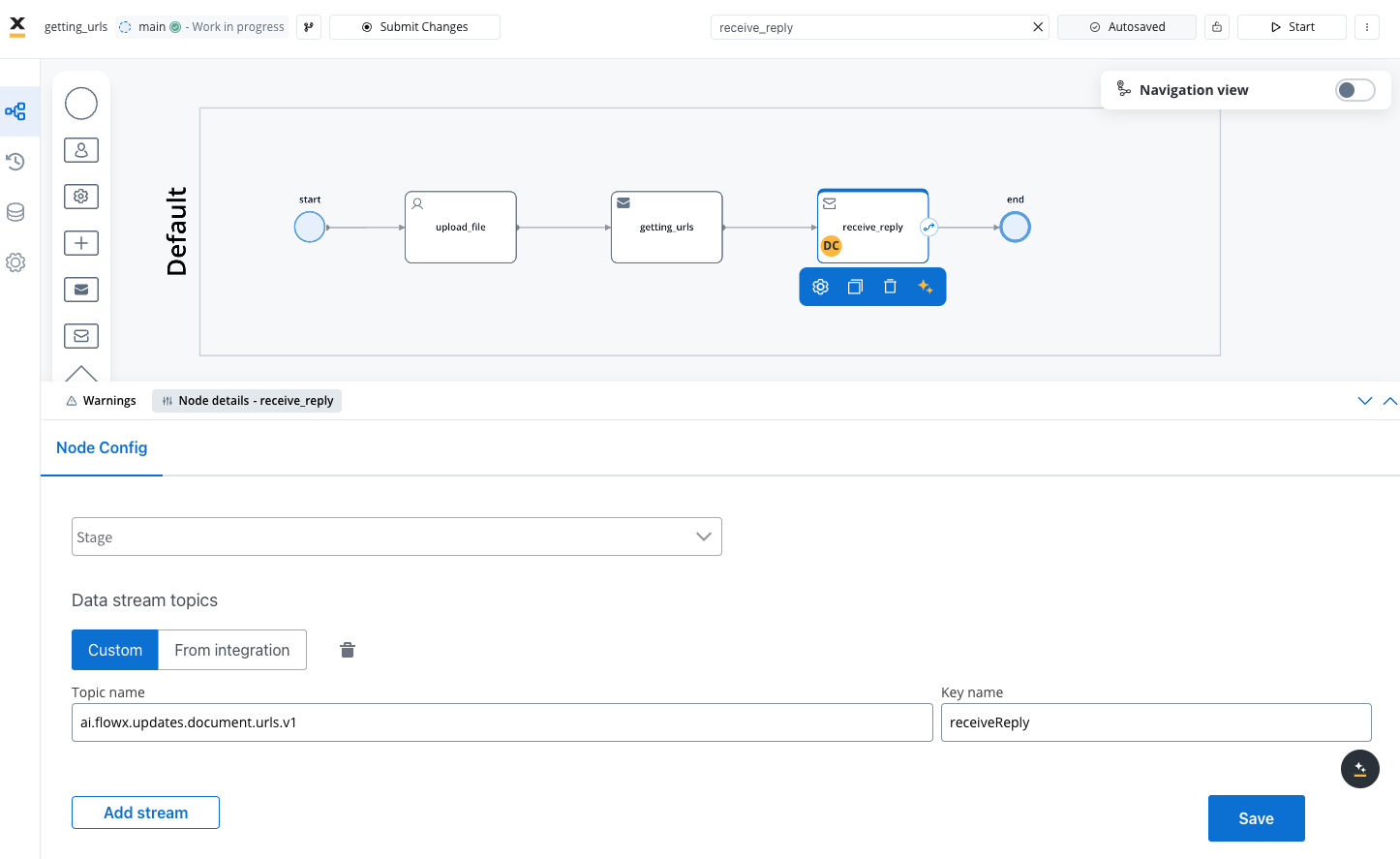
Configure the [**Receive Message Task (Kafka)**](../../../../building-blocks/node/message-send-received-task-node#configuring-a-message-receive-task-node) by adding the `..out` Kafka topic on which the response will be sent.
## Receiving the reply
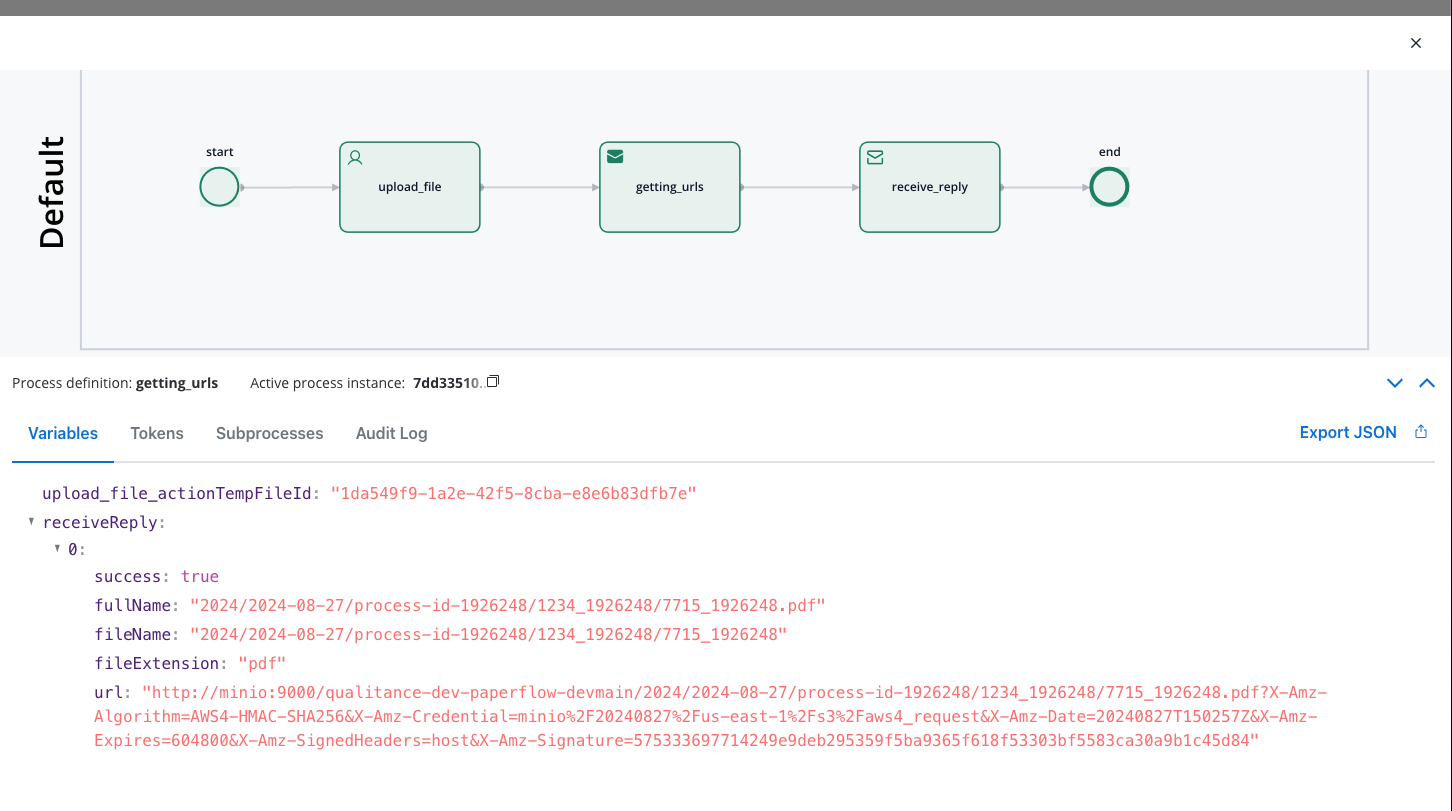
The response body should include the following values:
* **success**: A boolean indicating whether the document exists and the URL was generated successfully.
* **fullName**: The full name of the document file, including the directory path.
* **fileName**: The name of the document file without the extension.
* **fileExtension**: The extension of the document file.
* **url**: The full download URL for the document.
#### Message response example
```json theme={"system"}
[
{
"success": true,
"fullName": "2024/2024-08-27/process-id-1926248/1234_1926248/7715_1926248.pdf",
"fileName": "2024/2024-08-27/process-id-1926248/1234_1926248/7715_1926248",
"fileExtension": "pdf",
"url": "http://minio:9000/qualitance-dev-paperflow-devmain/2024/2024-08-27/process-id-1926248/1234_1926248/7715_1926248.pdf?X-Amz-Algorithm=AWS4-HMAC-SHA256&X-Amz-Credential=minio%2F20240827%2Fus-east-1%2Fs3%2Faws4_request&X-Amz-Date=20240827T150257Z&X-Amz-Expires=604800&X-Amz-SignedHeaders=host&X-Amz-Signature=575333697714249e9deb295359f5ba9365f618f53303bf5583ca30a9b1c45d84"
}
]
```