> ## Documentation Index
> Fetch the complete documentation index at: https://docs.flowx.ai/llms.txt
> Use this file to discover all available pages before exploring further.
# Document Templates
> You can add Document Templates to your custom FlowX.AI deployment to enhance the core platform capabilities with functionality specific to document handling.
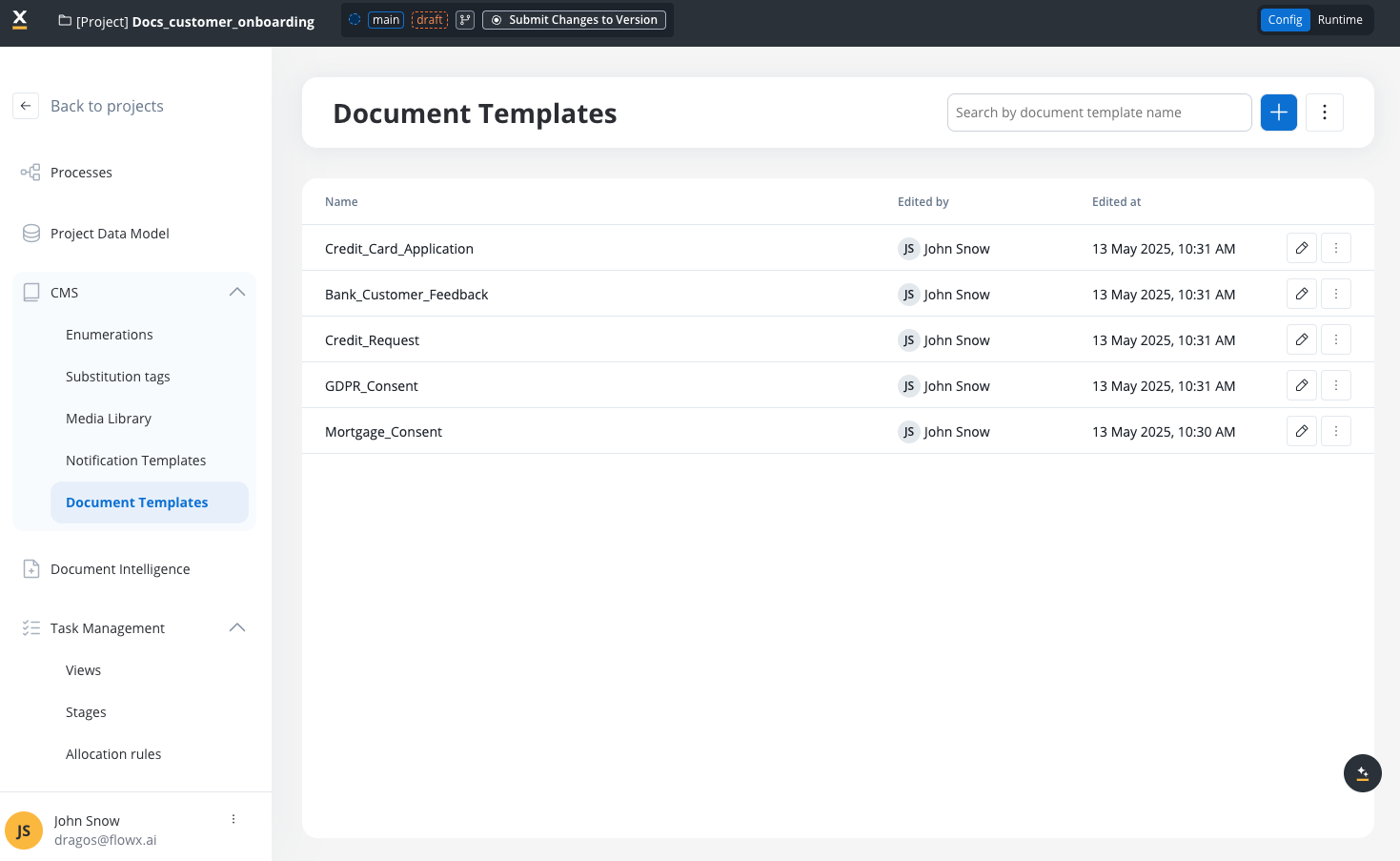
The Document Templates feature offers the following features:
* **Document storage and editing**: Easily store and make changes to documents.
* **Document generation**: Generate documents using predefined templates and custom process-related data.
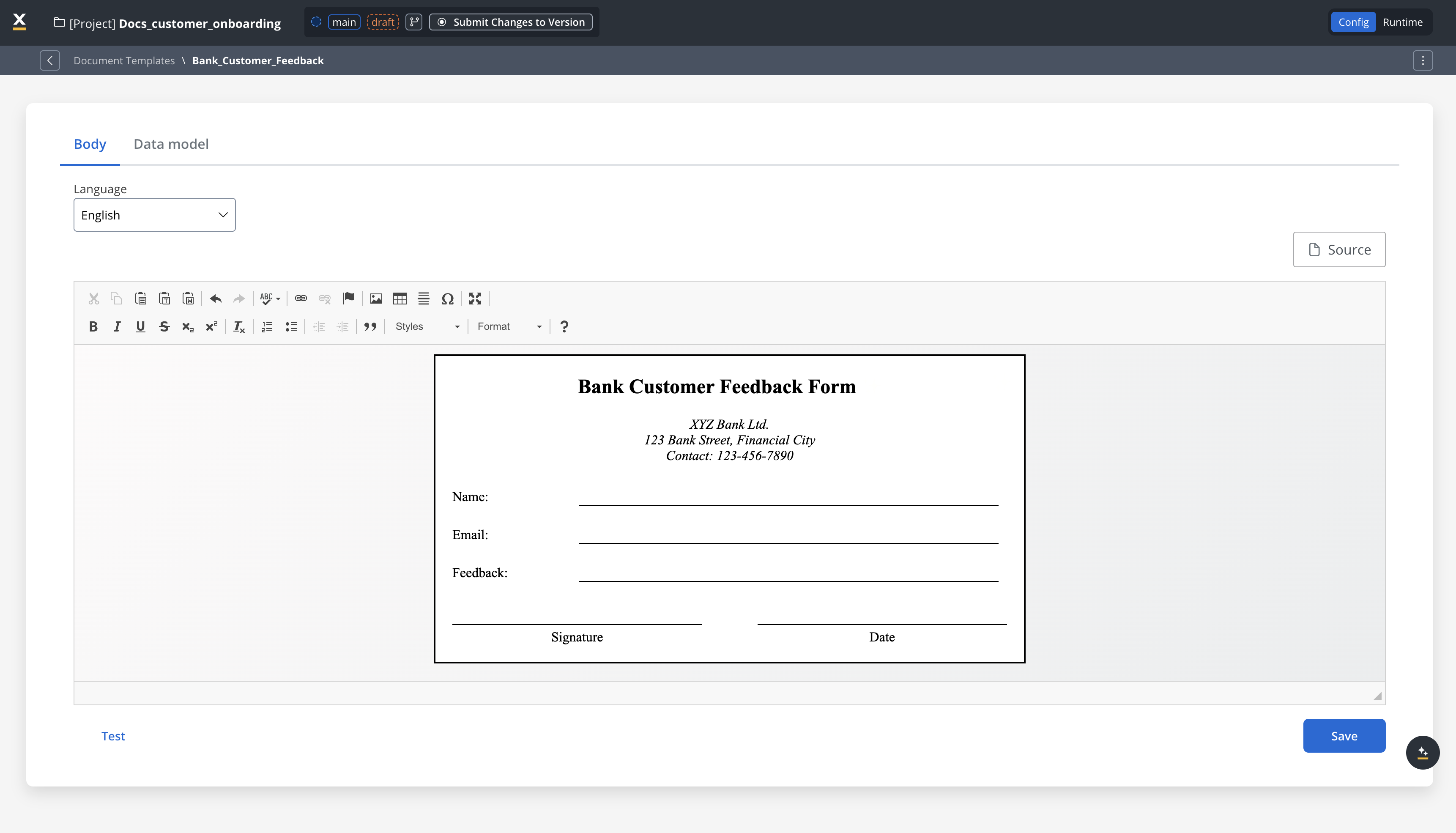
* **WYSIWYG editor**: Create various templates using a user-friendly ["What You See Is What You Get" (WYSIWYG) editor](../../wysiwyg).
* **Template export and import**: Transfer templates between projects or environments using ZIP files.
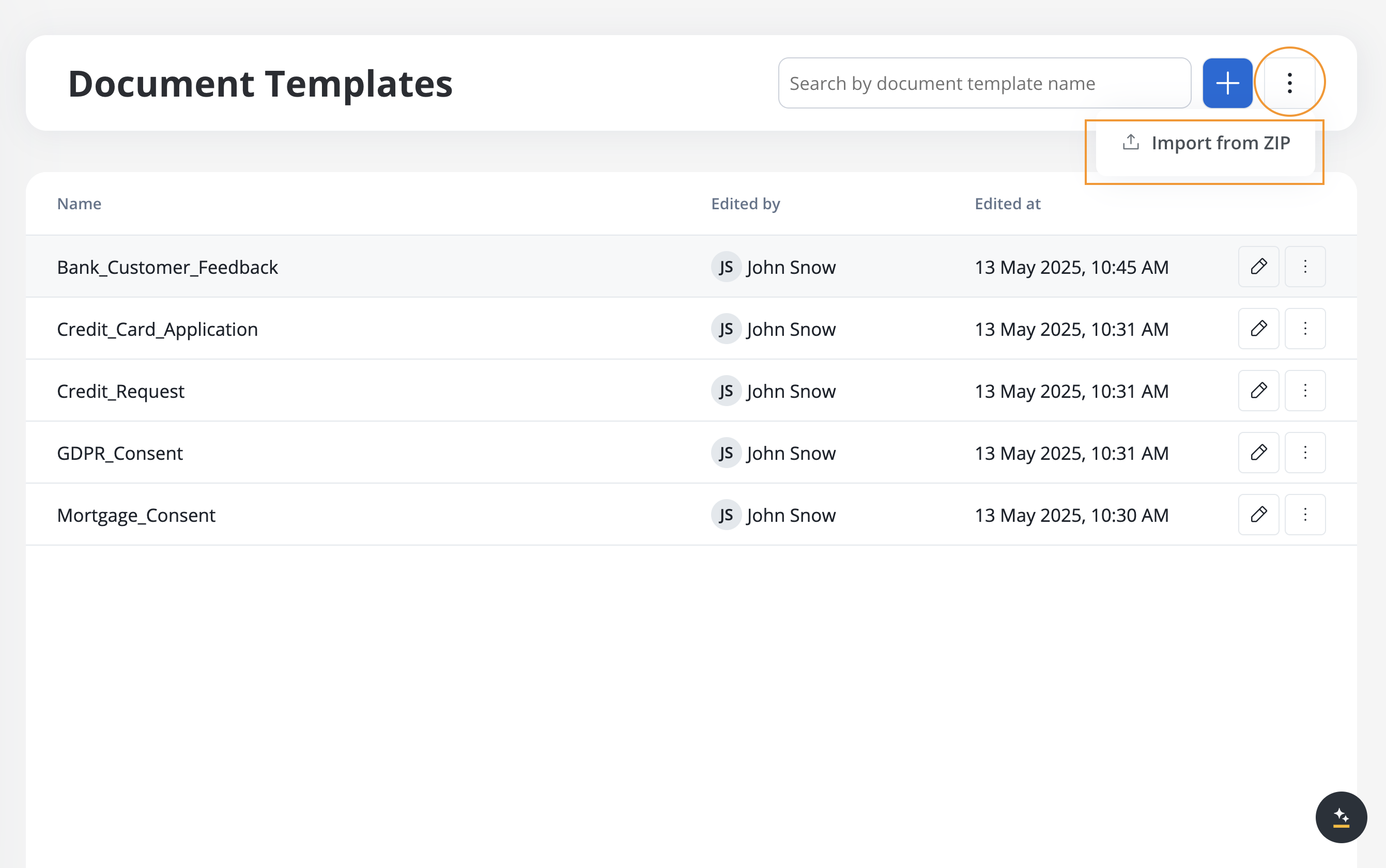
To import document templates:
1. Open the context menu on the Document Templates list page and select **Import from ZIP**
2. Select the ZIP file exported from another environment
3. If templates with the same identifiers already exist, a **Review Resource Identifiers Conflicts** modal appears
4. Choose a strategy for each conflicting template (or use **Apply to all**):
* **Keep both** - imports the template as a new copy alongside the existing one
* **Replace** - overwrites the existing template with the imported version
* **Skip this one** - keeps the existing template unchanged
5. Click **Continue** to complete the import
Importing is only available for work-in-progress (WIP) project versions. You cannot import into a committed version.
* **Document conversion**: Convert documents from PDF to JPEG format.
* **Document splitting**: Split bulk documents into smaller separate documents.
* **Document editing**: Add generated barcodes, signatures, and assets to documents.
* **OCR integration**: When a document requires OCR (Optical Character Recognition) processing, the Documents Plugin initiates the interaction by passing the document data or reference to the [**OCR plugin**](../ocr-plugin).
You can deploy the Documents Plugin on your chosen infrastructure, preloaded with industry-specific document templates using an intuitive WYSIWYG editor, and connected to the FLOWX Engine through Kafka events.
* [**Send Message Task (Kafka)**](../../../../building-blocks/node/message-send-received-task-node#message-send-task)
* [**Receive Message Task(Kafka)**](../../../../building-blocks/node/message-send-received-task-node#message-receive-task)
Performance considerations:
To ensure optimal performance while using Document Templates, consider the following recommendations:
* For large or complex documents, it is recommended to allocate sufficient system resources, such as CPU and memory, to handle the conversion/editing process efficiently.
* Avoid processing extremely large files or a large number of files simultaneously, as it may impact performance and responsiveness.
* Monitor system resources during the generating/editing/converting etc. process and scale resources as needed to maintain smooth operations.
* Following these performance considerations will help optimize the document processing and improve overall system performance.
## Using Document Templates
Once you have deployed the Document Templates microservice in your infrastructure, you can start creating various document templates. After selecting a document template, proceed to create a process definition by including [**Send Message/Receive Message**](../../../../building-blocks/node/message-send-received-task-node) (Kafka nodes) and custom document-related actions in your process flow.
Before adding these actions to your **process definition**, follow these steps:
1. Ensure that all custom information is properly configured in the plugin, such as the document templates to be used.
2. For each Kafka send/receive node you will need a corresponding Kafka topic.
The `..in` topic names configured for the plugin should match [**the `..out` topic names used when configuring the engine**](../../../../../setup-guides/flowx-engine-setup-guide/engine-setup#configuring-kafka). Make sure to use an outgoing topic name that matches the pattern configured in the Engine. The value can be found and overwritten in the `KAFKA_TOPIC_PATTERN` variable.
For more information, see the [Process Engine Kafka topic configuration](../../../../../setup-guides/flowx-engine-setup-guide/engine-setup#configuring-kafka).
To make a request to the Document Templates microservice, the process definition needs to include an action of type **Kafka send** defined on a [**Send Message Task**](../../../../building-blocks/node/message-send-received-task-node#message-send-task) node. The action parameter should have the key `topicName` and the corresponding topic name as its value.
To receive a reply from the Document Templates microservice, the process definition needs to include a [**Receive Message Task**](../../../../building-blocks/node/message-send-received-task-node#message-receive-task) node with a node value having the key `topicName` and the topic name as its value.
Once the setup is complete, you can begin adding custom actions to your processes.
Let's explore a few examples that cover both the configuration and integration with the engine for all the use cases supported by the plugin: