> ## Documentation Index
> Fetch the complete documentation index at: https://docs.flowx.ai/llms.txt
> Use this file to discover all available pages before exploring further.
# Tutorial: Build a credit card application
> Learn FlowX.AI by building a complete credit card request flow with forms, integrations, and notifications.
In this tutorial, you'll build a credit card application process from scratch. By the end, you'll understand how to:
* Design a BPMN process with multiple node types
* Create user-facing forms
* Integrate with external systems
* Handle branching logic based on business rules
* Send notifications
**Time required:** 30-45 minutes
**Prerequisites:**
* Access to FlowX Designer
* A workspace and project set up ([create one here](/5.9/docs/projects/workspaces))
***
## What you'll build
A customer requests a new credit card through a bank app. The process:
1. Collects personal information
2. Checks credit score automatically
3. Assigns a card type based on the score
4. Sends confirmation email
5. Lets the user pick a branch for card pickup
Here's the complete BPMN diagram:
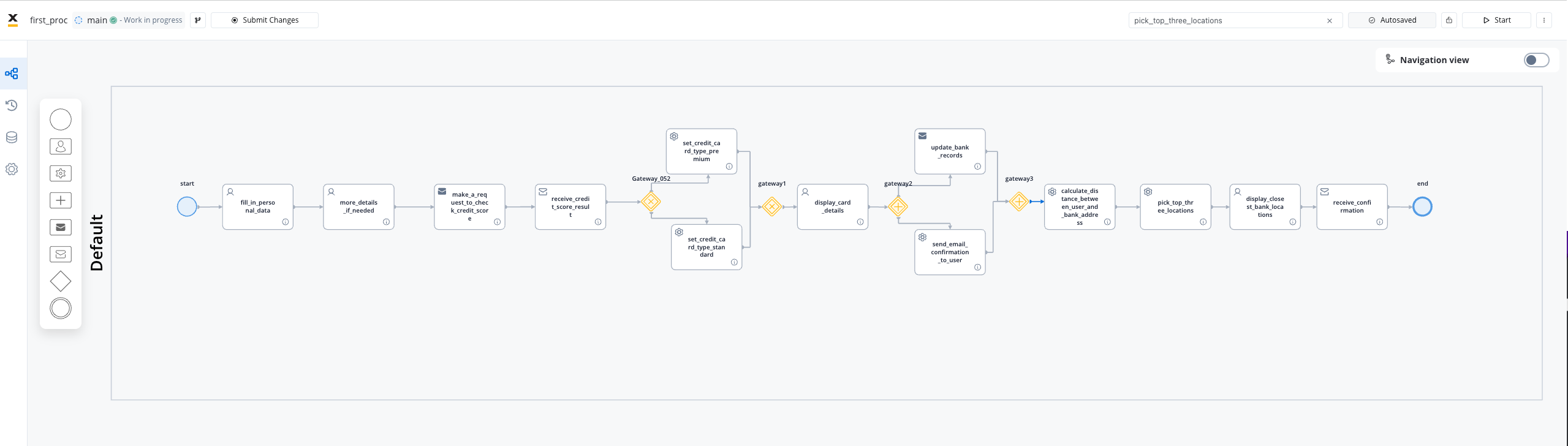
Import this BPMN file to follow along or explore the finished result.
***
## Step 1: Create the process
Navigate to **FlowX Designer** → your workspace → your project.
Click **New** → **Process**. Name it `credit-card-request`.
Drag a **Start Event** node onto the canvas. This is where the process begins when a customer opens the credit card application.
***
## Step 2: Collect user data (User Task)
The first step is collecting the customer's personal information.
Drag a **User Task** node after the Start Event. Name it `Fill Personal Data`.
In the node settings, open the **UI Designer**. Add form fields:
* Full name (text input)
* Email (text input with email validation)
* Date of birth (date picker)
* Annual income (number input)
Map each field to a key in your data model:
* `application.fullName`
* `application.email`
* `application.dateOfBirth`
* `application.annualIncome`
***
## Step 3: Check credit score (Service Task)
Now we'll call an external credit scoring service automatically.
This sends the customer data to your credit score adapter.
Configure the Kafka topic to send to your credit scoring integration.
This waits for the credit score response.
Map the response to `application.creditScore`.
Don't have a credit score service? For testing, use a **Business Rule** node to simulate a score based on annual income.
***
## Step 4: Branch based on credit score (Exclusive Gateway)
Different credit scores qualify for different card types.
This creates a decision point based on the credit score.
* **Branch 1:** `application.creditScore >= 700` → Premium card
* **Branch 2:** `application.creditScore >= 500` → Standard card
* **Branch 3:** Default → Basic card
Each branch sets the card type:
```javascript theme={"system"}
output.put("application.cardType", "PREMIUM");
```
Merge the branches back together after the card type is set.
***
## Step 5: Show results and confirm (User Task)
Let the customer review their card type and confirm.
Name it `Review and Confirm`.
Display the assigned card type and benefits. Add a **Confirm** button.
***
## Step 6: Send notification and register (Parallel Gateway)
After confirmation, two things happen simultaneously:
This splits the flow into parallel branches.
Add a **Send Message Task** that triggers the notification plugin.
Configure email template with customer name and card type.
Add a **Send Message Task** to your bank system adapter.
This creates the card request in your core banking system.
Wait for both branches to complete before continuing.
***
## Step 7: Select pickup location (User Task)
Let the customer choose where to pick up their card.
Call an API (like Google Maps) to get nearby branches based on customer address.
Display the top 3 branches as selectable options.
***
## Step 8: End the process
This waits for confirmation that the customer picked up the card (from branch system).
The process completes.
***
## Test your process
Click **Save**. Fix any validation errors shown.
Click **Run** to start a new instance. Fill in the forms and watch the process flow.
Use the **Process Instance** view to see where the token is and inspect data at each step.
***
## What you learned
You've built a complete process that demonstrates:
| Concept | How you used it |
| --------------------- | ---------------------------------------------- |
| **User Tasks** | Collecting data, showing confirmations |
| **Service Tasks** | Calling external APIs, setting data |
| **Exclusive Gateway** | Branching based on credit score |
| **Parallel Gateway** | Running email + registration simultaneously |
| **Integrations** | Credit score check, bank system, notifications |
***
## Next steps
Learn all available form and display components
Add complex logic with DMN or scripts
Handle failures gracefully
Take structured courses with certifications