> ## Documentation Index
> Fetch the complete documentation index at: https://docs.flowx.ai/llms.txt
> Use this file to discover all available pages before exploring further.
# Initiating/starting processes
> Learn the different methods for starting process instances in FlowX.AI, including user interaction, automated triggers, and system integration options.
Once you've designed your process definitions, you'll need to know how to start process instances. FlowX.AI provides multiple ways to initiate processes, from manual user-triggered starts to fully automated system-initiated flows.
The most common way to start processes through user interaction
Start processes through Kafka events from other systems
Schedule processes to start automatically at specific times
Trigger processes through message events from other processes
## Starting a process via user interface
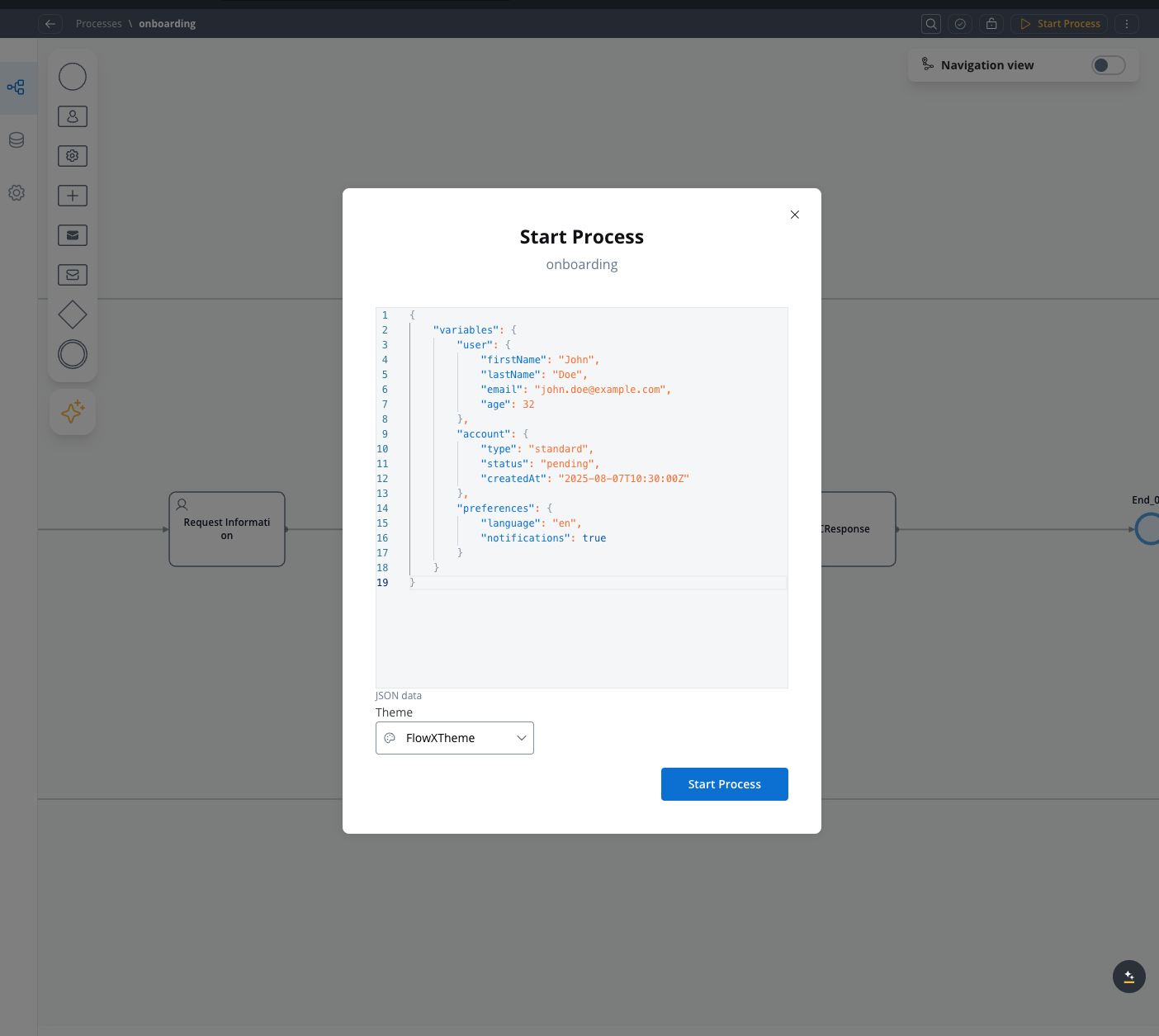
Manual Start using start parameters (JSON data) are limited to 1MB
When starting a process manually via the **FlowX Designer UI**, you’ll be prompted to enter a JSON payload (in the "JSON Object" editor). This is subject to the same infrastructure limits as any other process start.
* Payloads must be **under 1MB** total
* If exceeded, the request will fail with:
```http theme={"system"}
413 Content Too Large
```
### Affected layers
| Layer | Limit | Notes |
| ---------------------- | --------------------------------------- | ----------------------------------- |
| NGINX/Ingress | 1MB (default if not configured) | `client_max_body_size` |
| Kafka → Runtime bridge | \~1MB total (default if not configured) | Applies when starting via Kafka too |
### Tips
For larger inputs, consider (as last resort, not recommended) increasing the limits for the affected layers.
## Starting a process via Kafka
One of the most effective ways to initiate processes is through Kafka messaging, which allows systems to communicate and trigger processes without direct user interaction.
1. Open **FlowX.AI Designer** and navigate to your project
2. Select an existing process definition or create a new one that will send the Kafka message
1. Add a **Send Message Task** node to your process flow
2. Attach a **Kafka Send Action** to this node
This task will send the message that initiates another process. You can place it at any appropriate point in your process flow.
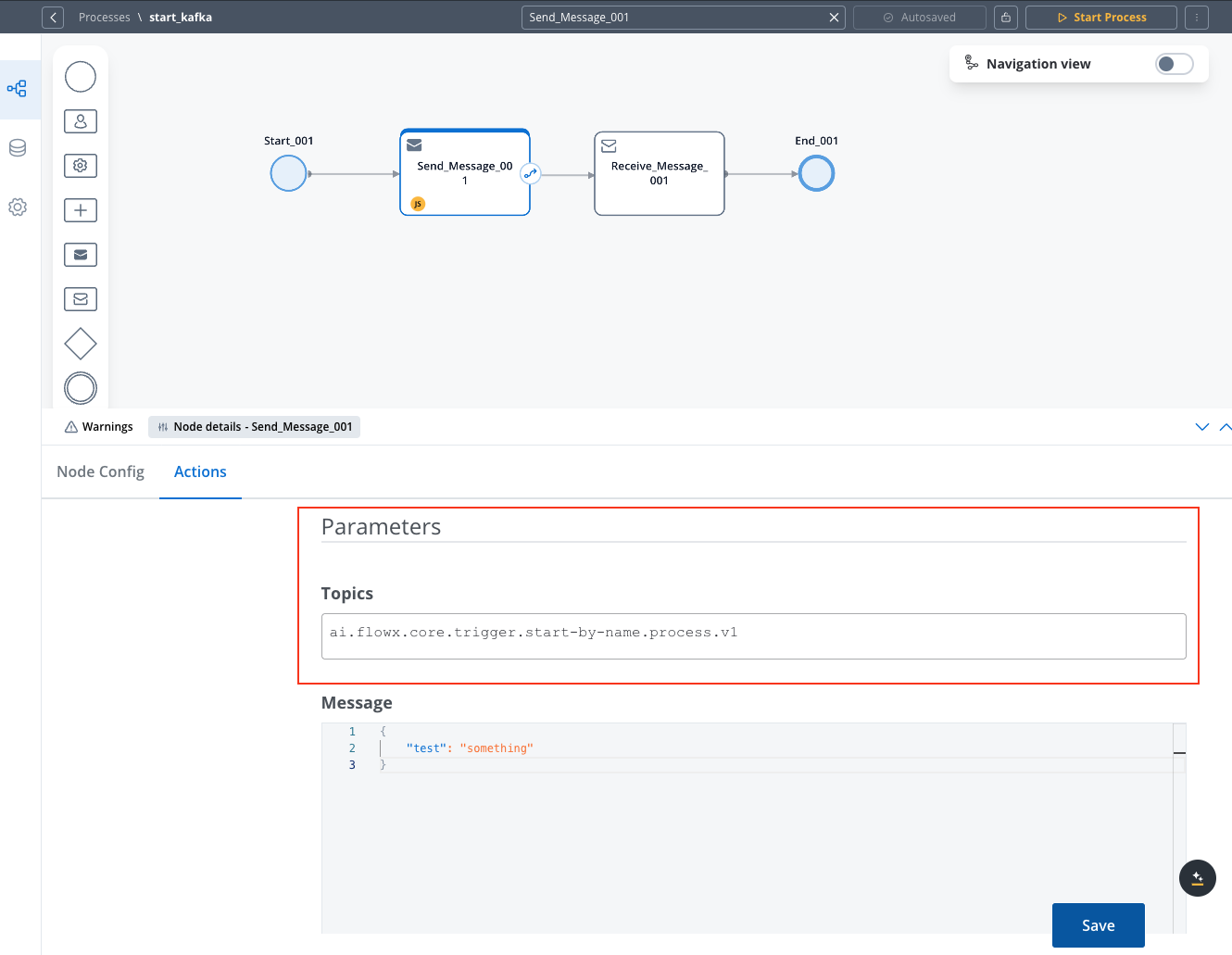
1. In the Kafka Send Action configuration, specify the topic linked to the `KAFKA_TOPIC_PROCESS_START_BY_NAME` environment variable
2. This variable is shared between the **application-manager** and **runtime-manager** deployments
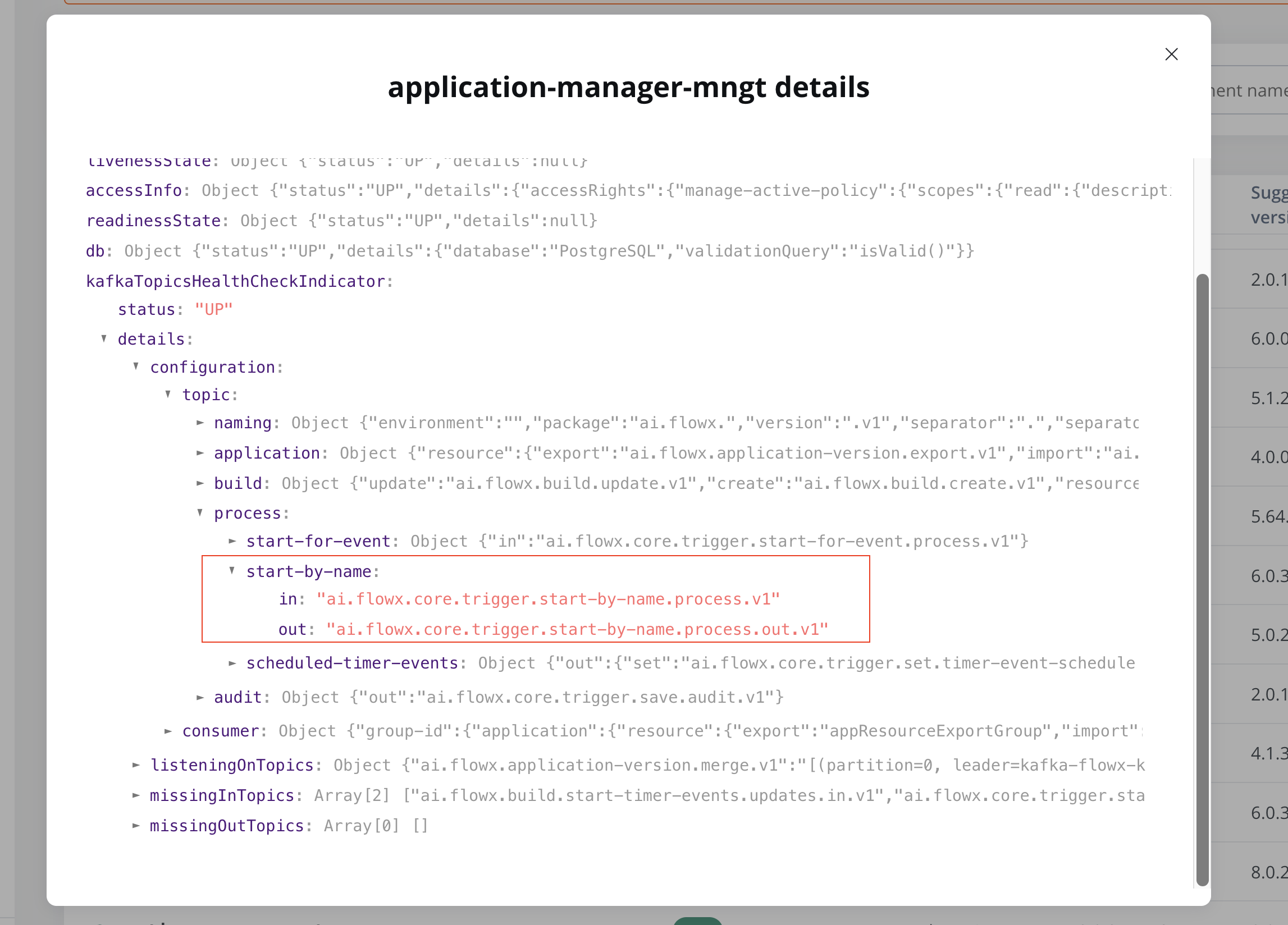
To verify the topic in FlowX Designer, navigate to: **Platform status → FlowX Components → application-manager-mngt -> kafkaTopicHealthCheckIndicator → details → configuration → topic → process → start-by-name**
Add any required data in the message body that should be passed to the new process:
```json theme={"system"}
{"test": "something"}
```
This data will be available to the process being started, providing it with initial context or parameters.
All Kafka-triggered process starts go through the runtime HTTP API, which enforces strict 1MB payload limits.
#### What does this mean?
* The `variables` field in the Kafka message **must not exceed 1MB**
* This includes base64 or pretty-printed formats
#### Why?
These limits are enforced across:
| Layer | Limit | Description |
| -------------------------- | ----------- | -------------------------------------- |
| NGINX/Ingress | 1MB | `client_max_body_size` |
| Runtime Manager (Undertow) | 1MB | `max-http-post-size` |
| Kafka Process Start | \~1MB total | Translates into a REST call internally |
#### Recommendations:
* If absolutely required, increase `max-http-post-size` via:
```yaml theme={"system"}
server:
undertow:
max-http-post-size: 2MB
```
1. Expand the **Advanced Configuration** section
2. In the headers section, add these required headers:
* `Fx-Organization-Id`: Organization UUID for the target deployment
* `Fx-Workspace-Id`: The UUID of the workspace where the process should run
* `Fx-AppId`: The ID of the project (application) where the process resides
* `Fx-ProcessName`: The name of the process you want to start
* `jwt`: Your JWT token for authentication
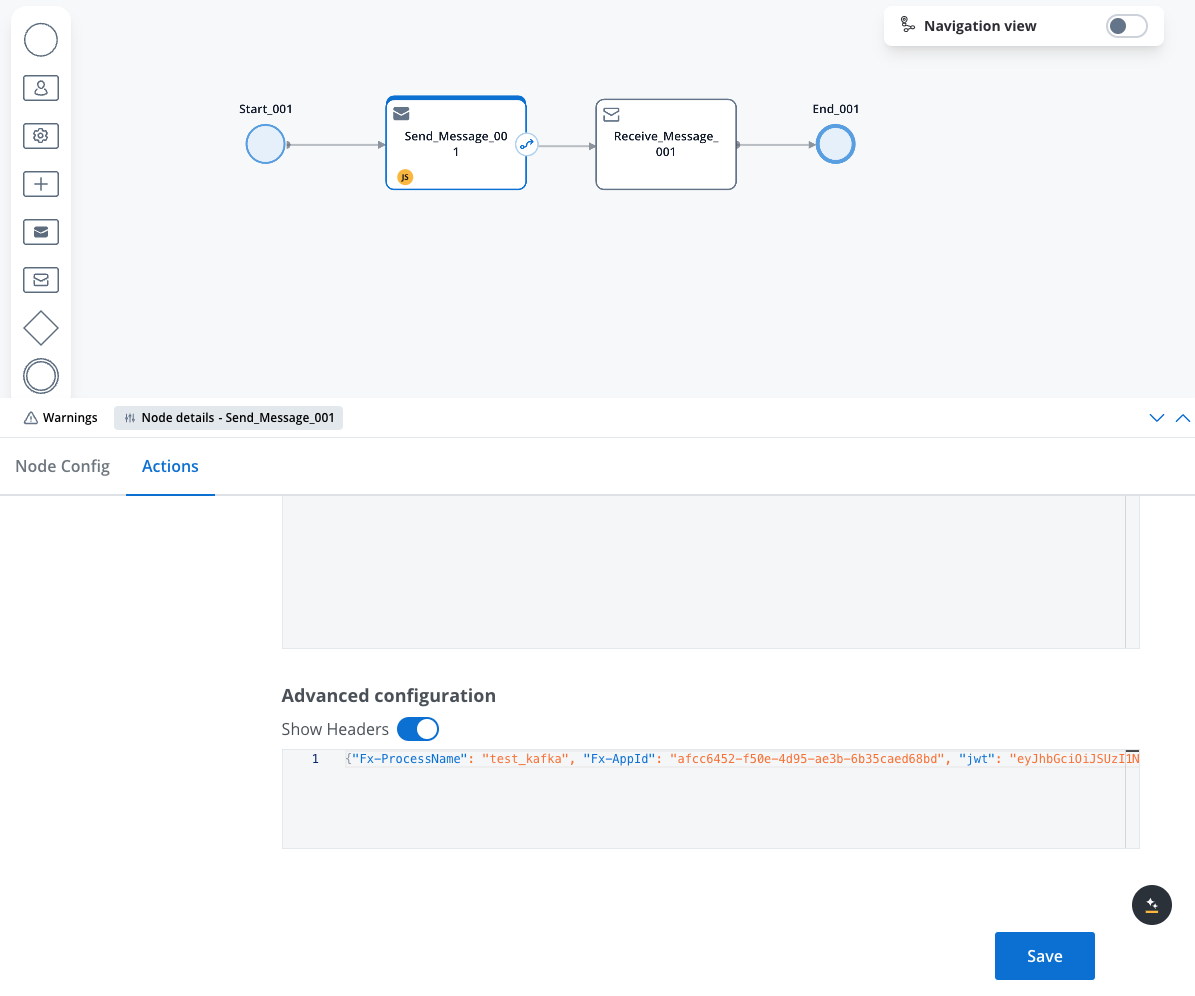
The headers should look something like this:
```json theme={"system"}
{
"Fx-Organization-Id": "26ef7b5f-b463-4375-88c8-aaaaaaaaaaaa",
"Fx-Workspace-Id": "00000000-0000-0000-0000-000000000001",
"Fx-AppId": "afcc6452-f50e-4d95-ae3b-6b35caed68bd",
"Fx-ProcessName": "test_kafka",
"jwt": "your_jwt"
}
```
**Don't know where to find these values?** Check the [Finding Identifiers and Parameters](../../platform-deep-dive/integrations/finding-identifiers-and-parameters) guide for step-by-step instructions on locating Application IDs, Process Names, JWT tokens, and more.
Messages missing `Fx-Organization-Id` are rejected immediately with a non-retryable `MissingKafkaHeaderException`. Without an active policy and proper authentication, the process may not start even if the Kafka message is otherwise correctly configured.
1. Run your process to send the Kafka message
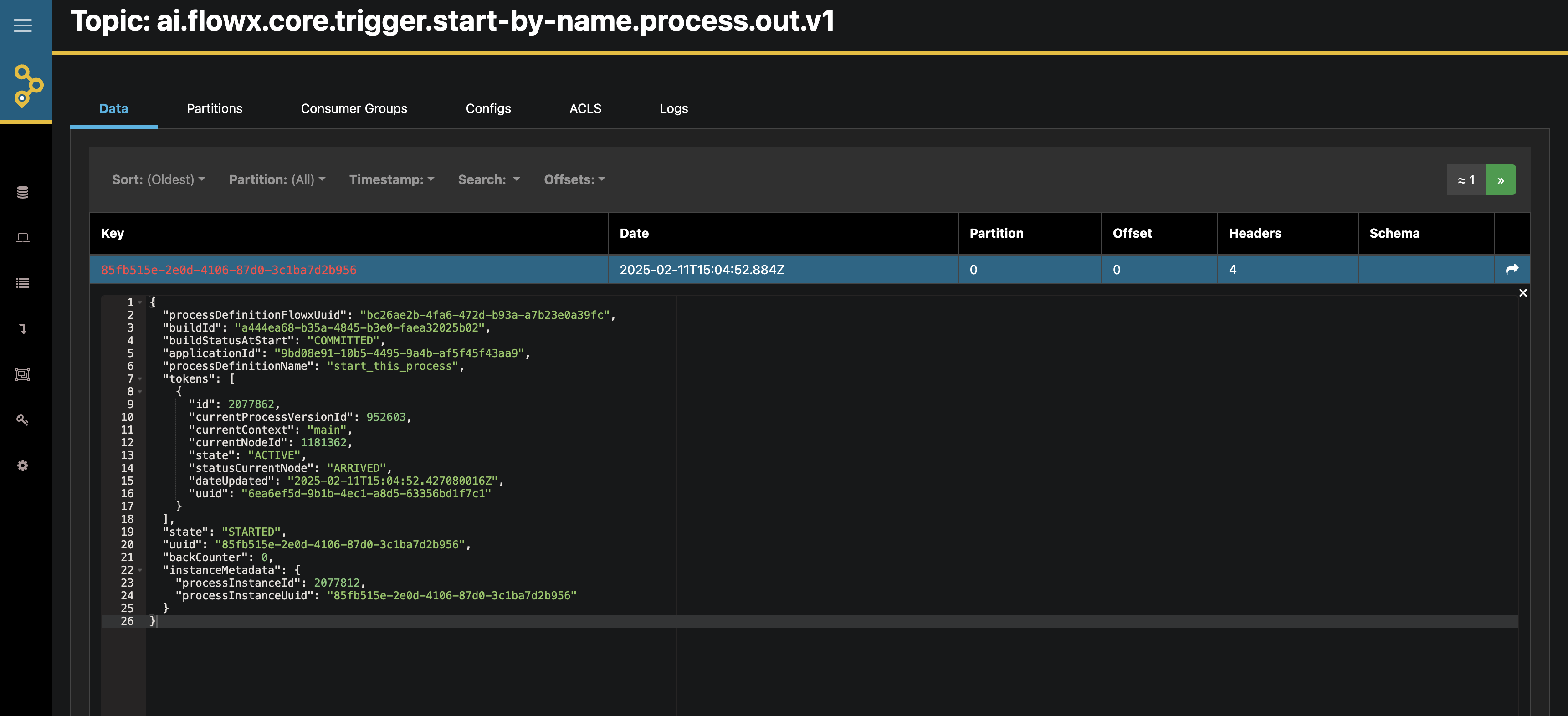
2. To monitor the results, you can use tools like AKHQ to check the response on the `KAFKA_TOPIC_PROCESS_START_BY_NAME_OUT` topic
## Timer start event
Timer Start Events allow you to schedule processes to start automatically at defined times or intervals, enabling automated workflows without manual intervention.
1. Open **FlowX.AI Designer** and navigate to your project
2. Select an existing process definition or create a new one
3. Add a **Start Timer Event** to your process instead of a regular Start node
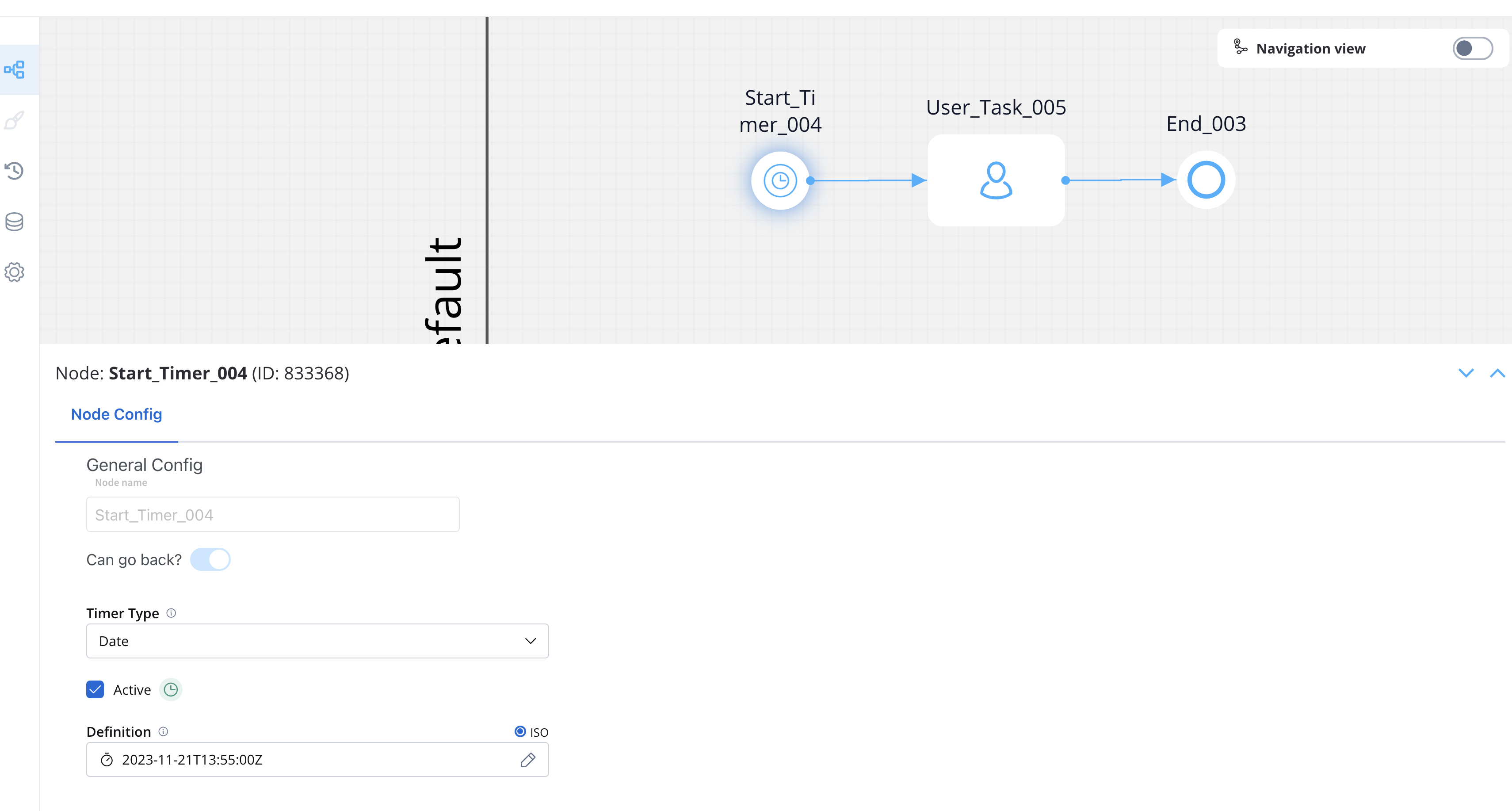
Configure the timer according to your requirements:
1. **Date Specific**: Set a specific date and time for the process to start
2. **Cycle**: Configure a recurring schedule using cron expressions
Starting processes through registered timers requires sending a process start message to Kafka, which needs a service account and authentication. See [Service Accounts](../../../setup-guides/access-management/configuring-an-iam-solution#scheduler-service-account) for details.
For more detailed information about Timer Start Events, refer to the [Start Timer Event](../../building-blocks/node/timer-events/timer-start-event) documentation.
## Message catch start event
Message Catch Start Events allow one process to initiate another through message-based communication, creating dependencies and workflows between processes.
1. Open **FlowX.AI Designer** and create or edit the process that will send the message
2. Add a **Message Throw Intermediate Event** node at the point where you want to trigger the other process
3. Configure data that will be used for correlation (e.g., a key value like 'key1')
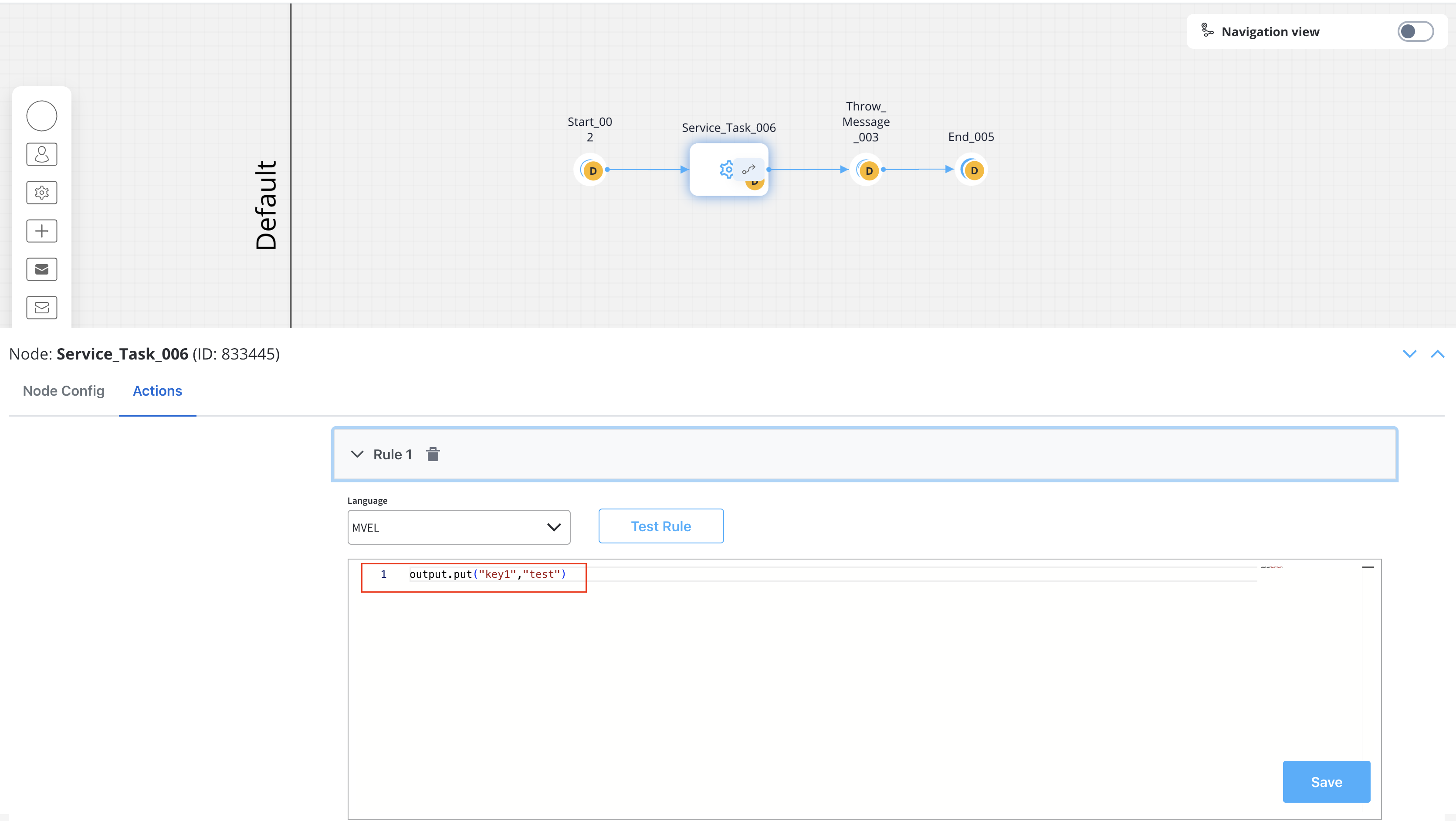
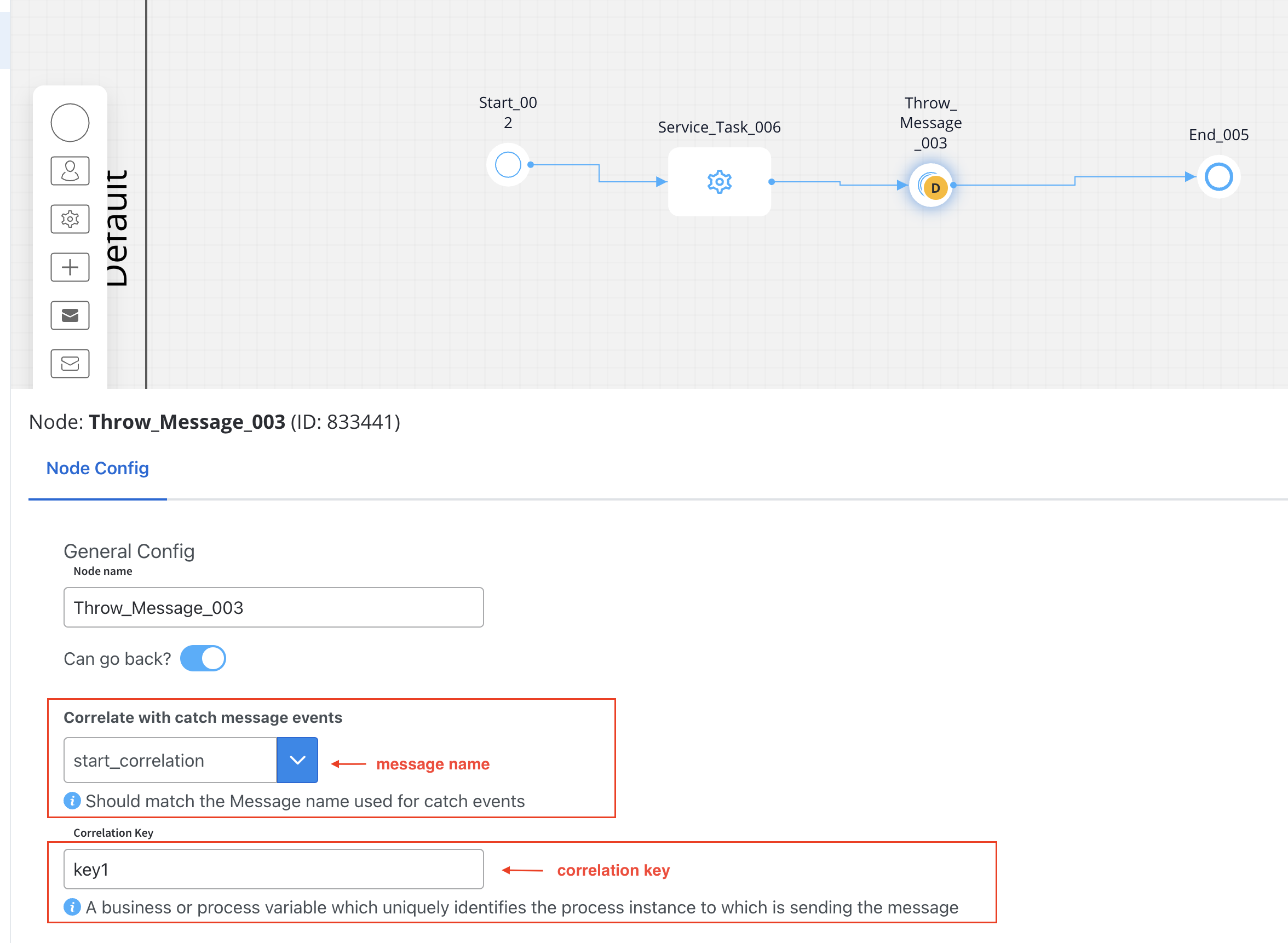
4. Configure the message correlation in the node properties:
1. Create or edit the process that should be started by the message
2. Add a **Start Message Catch Event** node as the starting point
3. Configure the node with:
* The same message name used in the throw event (e.g., 'start\_correlation')
* The correlation key in the Receive data tab (e.g., 'key1')
Run the sender process and watch as it automatically triggers the receiver process when the Message Throw Event is reached.
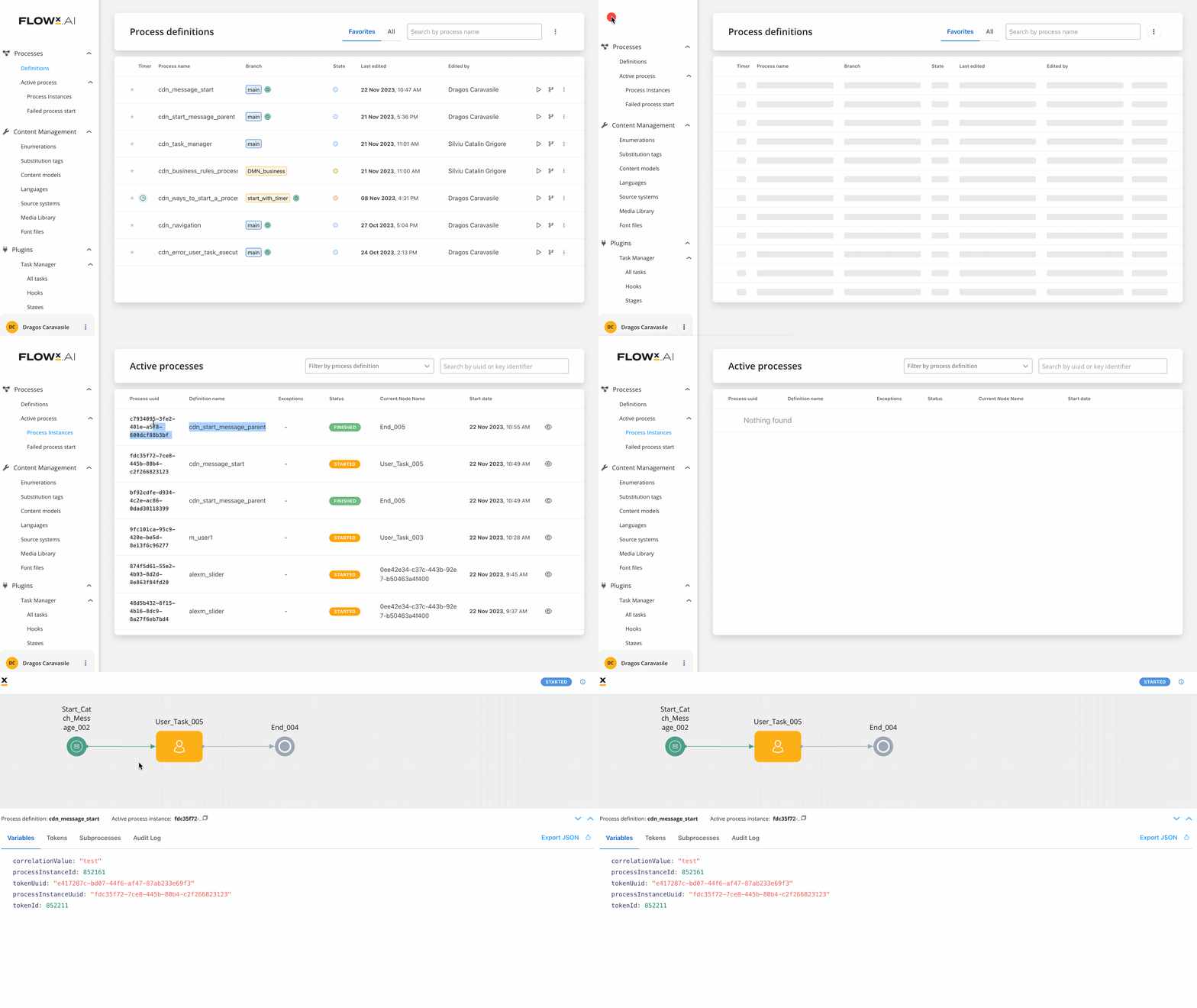
Message correlation is essential for message-based communication between processes. It's achieved through the message name (which must be identical in both throw and catch events) and the correlation key (or value).
## Best practices
**When implementing process initiation:**
* **Choose the appropriate method** based on your use case (user-triggered, scheduled, event-based, etc.)
* **Consider authentication requirements** for system-initiated processes
* **Use correlation keys thoughtfully** to ensure reliable message delivery
* **Test your initiation methods** thoroughly in a development environment
* **Monitor process starts** to identify any failures or performance issues
* **Document your initiation methods** for easier maintenance and troubleshooting
## Next steps
After setting up your process initiation methods, you can:
Define the data structure for your process instances
Create user interfaces for human-interactive processes
Add decision logic to your processes
Connect your processes to external systems