> ## Documentation Index
> Fetch the complete documentation index at: https://docs.flowx.ai/llms.txt
> Use this file to discover all available pages before exploring further.
# Exporting and importing projects
> Learn how to transfer projects between environments using the export and import functionality in FlowX.AI Designer.
Moving projects between environments is a common requirement in enterprise software development. FlowX.AI provides export and import functionality to help you promote your projects from development to testing and production environments.
In recent versions of FlowX.AI, the export/import functionality has moved from the process definition level to the project level, allowing for more comprehensive and consistent transfers between environments.
Export and import are driven from the **Designer UI**. There is no public REST API to import a process definition or project programmatically — drive the workflow through the Designer.
## Project vs. process export/import
Modern versions of FlowX.AI use **project-level** export and import operations rather than process-level ones. This approach ensures that all related resources, dependencies, and configurations are transferred together, maintaining the integrity of your application.
This documentation covers the updated project export/import approach. If you're using an older version of FlowX.AI that still handles exports at the process definition level, some details may differ.
## Exporting a project
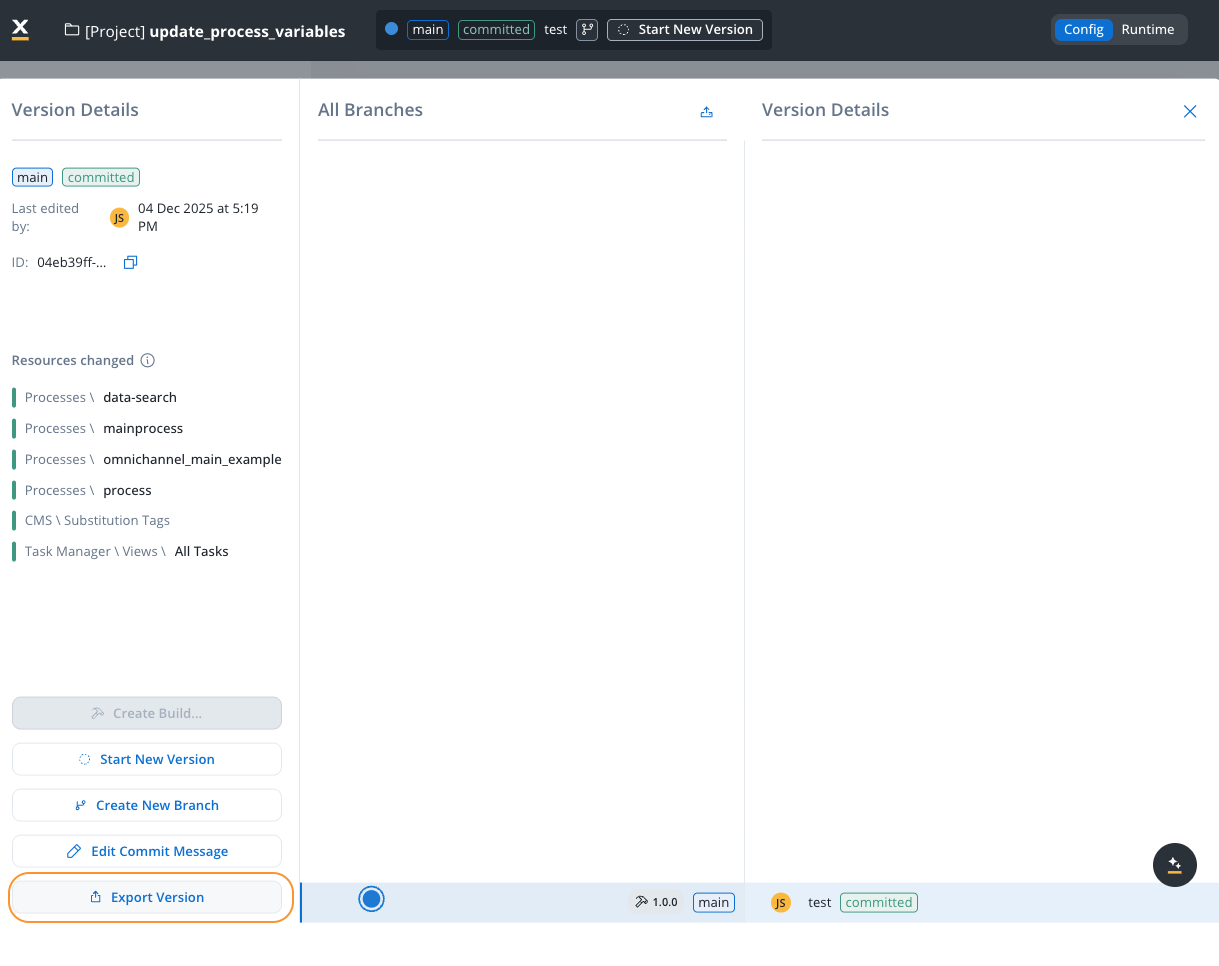
You can export projects from the version details panel. This allows you to export specific committed versions with granular control over what's included in the export.
1. Open **FlowX.AI Designer** and go to the **Projects** section
2. Select the project you want to export
3. Navigate to the version details panel for the specific committed version you want to export
1. In the version details panel, locate the **Export Version** button
2. Click **Export Version** to start the export process
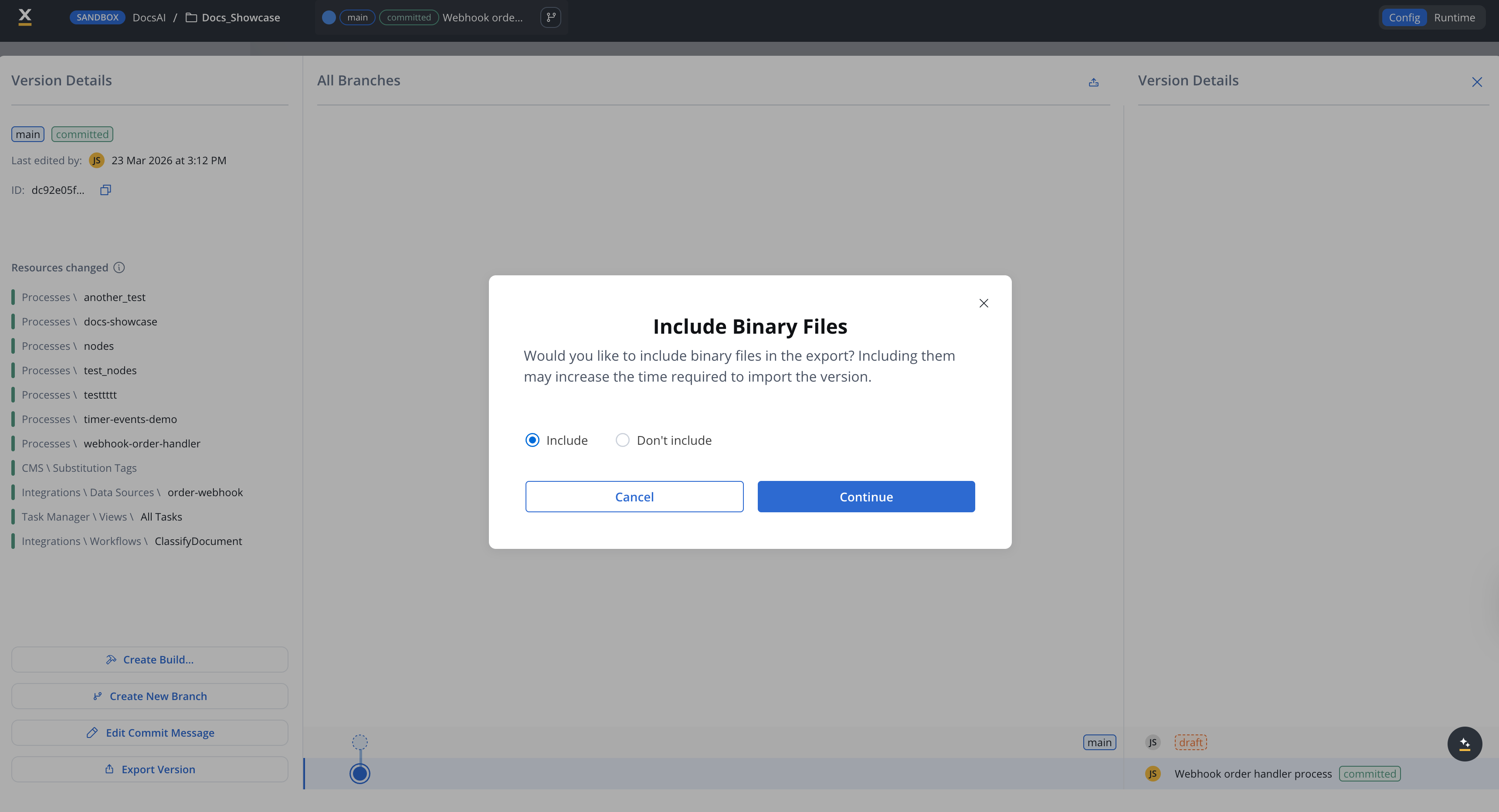
When exporting, a modal appears asking whether to include binary files:
* **Include**: Includes binary files (for example, images, documents, media assets) in the export. This may increase the export file size and the time required to import the version in another environment.
* **Don't include**: Exports only the project structure and configurations without binary files. This results in a smaller export file and faster import times.
Including binary files may significantly increase the export file size and the time required to import the version in another environment. Only include binary files if they are necessary for the target environment.
1. Select your preferred binary files option
2. Click **Continue** to proceed with the export
3. The system will generate a downloadable file containing your project version
4. Save this file to your local system
Use a clear naming convention for your export files to help identify their contents later, such as `[project-name]_[version]_[environment]_[date].zip`.
For more information about versioning and managing project versions, see the [Versioning documentation](../../projects/managing-applications/versioning#exporting-versions).
### Exporting builds
You can also export builds directly from the **Builds** section. This is useful when you want to transfer a specific build (rather than a version) between environments.
1. Open **FlowX.AI Designer** and go to the **Projects** section
2. Select your project and navigate to **Runtime** and then to the **Builds** section
1. Locate the build you want to export in the builds list
2. Click the **Export** icon (box with upward arrow) for the desired build
The build export follows the same process as version export, including the binary files option. The exported build can be imported into other environments or workspaces.
Builds are immutable snapshots of committed project versions. When exporting a build, you're exporting a deployable package that can be directly used in runtime environments. For more information about builds, see the [Builds documentation](../../projects/runtime/builds).
## Importing a project
Open **FlowX.AI Designer** in the target environment and go to the **Projects** section.
Click the three-dots (kebab) menu at the top right of the Projects list and choose one of:
* **Import Version** — restores a project version (and its full version history) into the target environment. Use this when promoting work between environments.
* **Import Build** — imports a build (an immutable snapshot of a committed version) into the **Builds** section. Use this when promoting a deployable package.
The menu only shows the items you have permission for.
You can also start an **Import Version** from inside an open project: open the **All Branches** view in the Version Details panel and click the upload icon in the panel header. This is functionally equivalent to **Import Version** from the Projects list.
The Designer opens your operating system's file chooser. Select the `.zip` you exported earlier and confirm.
The import runs asynchronously. A toast notification confirms success or reports an error. There is no in-app preview, no confirmation dialog, and no manual conflict-resolution step between picking the file and the import completing — see [Import scenarios](#import-scenarios) below for what happens when the target environment already has the project.
If the target environment has versions on the same lineage as the import file, those versions are silently stashed during the import. There is no preview or confirmation step before this happens. See [Existing project with additional versions](#existing-project-with-additional-versions) for the consequences and the recommended workflow.
## Import scenarios
When importing a project, you may encounter different scenarios depending on whether the project already exists in the target environment and what versions are present.
### New project import
If the project does not exist in the target environment, it will be created with all its resources, and you'll see all versions from the export file.
### Existing project with no additional versions
If the project exists but doesn't have versions beyond those in the import file, the system will update the existing project with any changes from the import file.
### Existing project with additional versions
Importing restores the version history and parent–child relationships exactly as they exist in the import file. **There is no merge functionality on import.**
If the target environment has versions on the same lineage that are not in the import file, those versions become **stashed**: they remain in the database but are no longer accessible in the Designer. There is no UI to retrieve stashed versions — recovery requires direct database intervention by FlowX support and is not always feasible.
**Importing on top of diverged work is destructive.** If two environments committed different versions on the same branch, importing one over the other stashes the target version. The previous content cannot be restored from the Designer. Always export the target project before importing on top of it, and contact FlowX support if recovery is needed.
**Recommended workflow:** Use a separate branch per environment. On import, new branches are added alongside existing ones instead of overwriting versions on a shared lineage.
### Cross-workspace import
You can import the same project into multiple workspaces on the same environment. This removes the previous limitation that restricted a project (identified by its UUID) to exist in only one workspace per environment.
Import a project build (and optionally a version) into a different workspace on the same environment. The imported project maintains its own independent lifecycle with separate active policies and access controls.
**Key behaviors for cross-workspace import:**
| Aspect | Behavior |
| ------------------------- | -------------------------------------------------------------------------------------------------------------------------------- |
| **Lifecycle** | The imported project has its own independent lifecycle in the new workspace |
| **Active Policy** | The imported build is automatically set as the active policy, regardless of what was active in the original workspace |
| **Access Controls** | Separate access controls and policies are defined for each workspace |
| **No Impact on Original** | The import does not affect the original project's settings, policies, or process instances |
| **User Access** | Workspace users must be granted appropriate project rights (for example, project viewer) to interact with the imported project |
| **Process Instances** | Process instances are workspace-specific; the imported project starts with no instances until processes run in the new workspace |
| **Database** | Projects across workspaces on the same environment share the same database |
**Use case**: Use this feature to represent different operational environments (UAT, Staging, Pre-production) as separate workspaces on a single FlowX deployment, reducing infrastructure and DevOps costs.
Learn more about cross-workspace project management
***
## Best practices for export/import
**When transferring projects between environments:**
* **Plan your promotion path** - Establish a clear workflow for moving from development to testing to production
* **Use consistent naming** - Name your projects, versions, and export files consistently across environments
* **Document dependencies** - Keep track of dependencies between projects and libraries
* **Test after import** - Always validate your project in the new environment after import
* **Version control** - Consider using external version control systems in addition to FlowX.AI's built-in versioning
* **Incremental imports** - For large projects, consider importing incrementally rather than all at once
* **Export the target project before importing** - Importing on top of diverged work stashes the target version, and stashed versions cannot be recovered from the Designer. Exporting the target first gives you a recovery point.
## Common issues and solutions
**Issue**: Import fails due to version incompatibility between environments.
**Solution**: Ensure all environments are running compatible versions of FlowX.AI. If necessary, upgrade the older environment before attempting import.
**Issue**: Imported project references libraries or resources not present in the target environment.
**Solution**: Export and import dependencies first, or update the project to use dependencies available in the target environment.
**Issue**: Conflicts between imported versions and existing versions.
**Solution**: Carefully review the differences and decide whether to overwrite or preserve existing versions. Consider merging changes manually for complex conflicts.
**Issue**: Hard-coded environment-specific values in processes or configurations.
**Solution**: Use environment variables and configuration parameters instead of hard-coded values to ease transitions between environments.
## Next steps
After importing your project, you should:
Ensure all process definitions, UI components, and other resources imported correctly
Adjust any environment-specific settings for the new environment
Validate that all process flows work as expected in the new environment
Create a build from your imported project for deployment