> ## Documentation Index
> Fetch the complete documentation index at: https://docs.flowx.ai/llms.txt
> Use this file to discover all available pages before exploring further.
# Creating a User interface
> Learn how to design and configure engaging user interfaces for your process flows using FlowX.AI Designer.
FlowX.AI allows you to create rich, interactive user interfaces for your process flows without extensive coding. Using the UI Designer, you can configure screens with various components and navigation patterns to create intuitive user experiences.
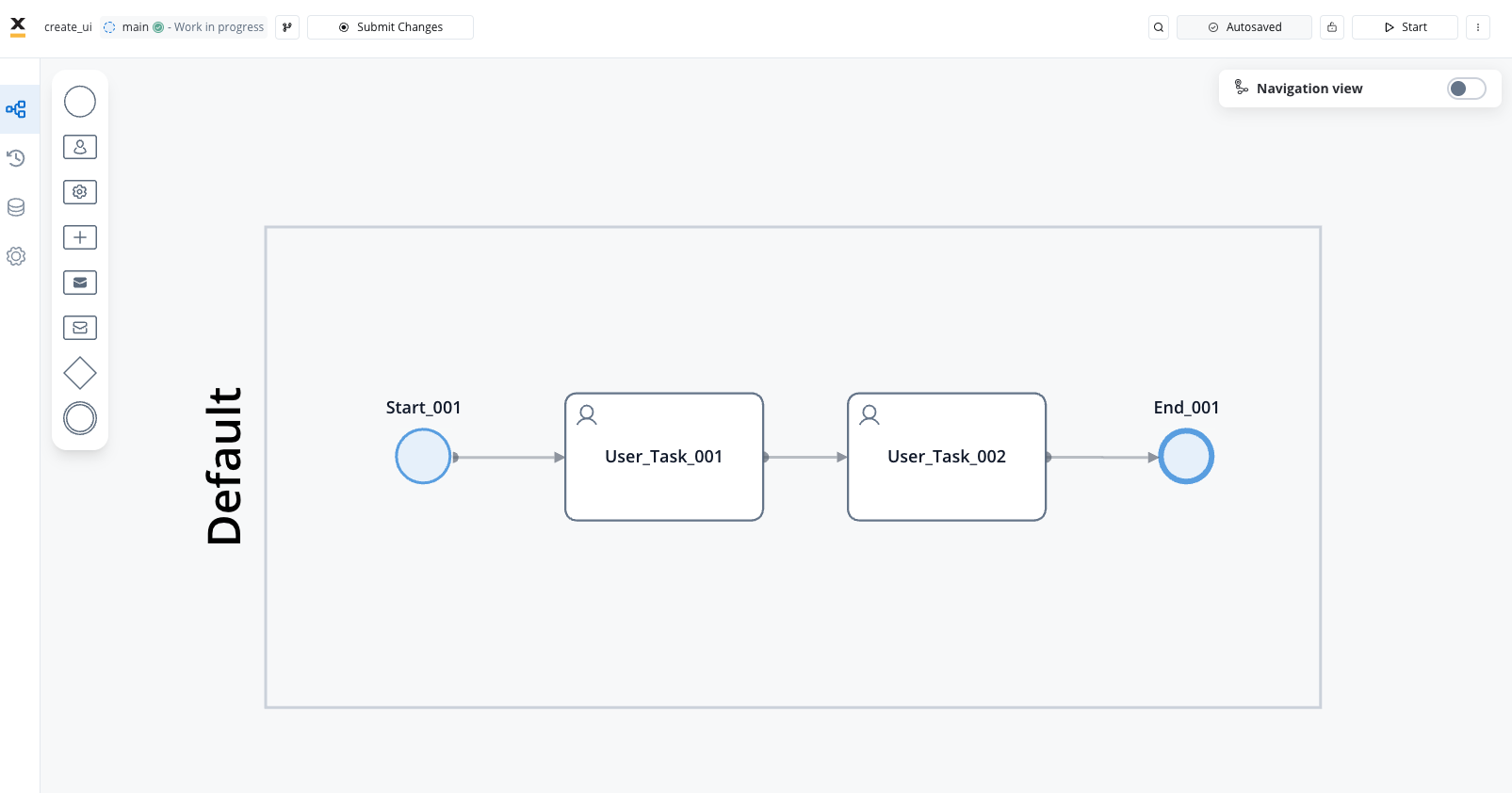
## Understanding UI design in FlowX.AI
In FlowX.AI, user interfaces are primarily associated with **User Task** nodes in your process flow. Each User Task can represent a screen or part of a screen in your app. The UI Designer provides a visual editor where you can add, arrange, and configure UI components to create your desired interface.
Comprehensive guide to the UI Designer and available components
Learn more about different navigation patterns and structures
## Creating a process with user interfaces
1. Open **FlowX.AI Designer** and navigate to your project
2. Go to the **Processes** section and click **+ New Process**
3. Give your process a descriptive name and click **Create**
Plan your user interface flow before starting. Consider how many screens you need and how users will navigate between them.
1. Add a **Start Node** to your process canvas
2. Add **User Task** nodes for each screen in your application
3. Connect the nodes in the sequence users will navigate through them
4. Add an **End Node** to complete your process

Each User Task node represents a screen or a significant UI interaction in your application. Design your process flow to match your intended user journey.
1. With your process open in edit mode, click the **Navigation** tab
2. Click the **+ Add** button to create a new navigation area
3. Select **Page** as the navigation type (or another type based on your needs)
4. Name your navigation area (e.g., "Main Application Page")
5. Assign the relevant User Task nodes to this navigation area
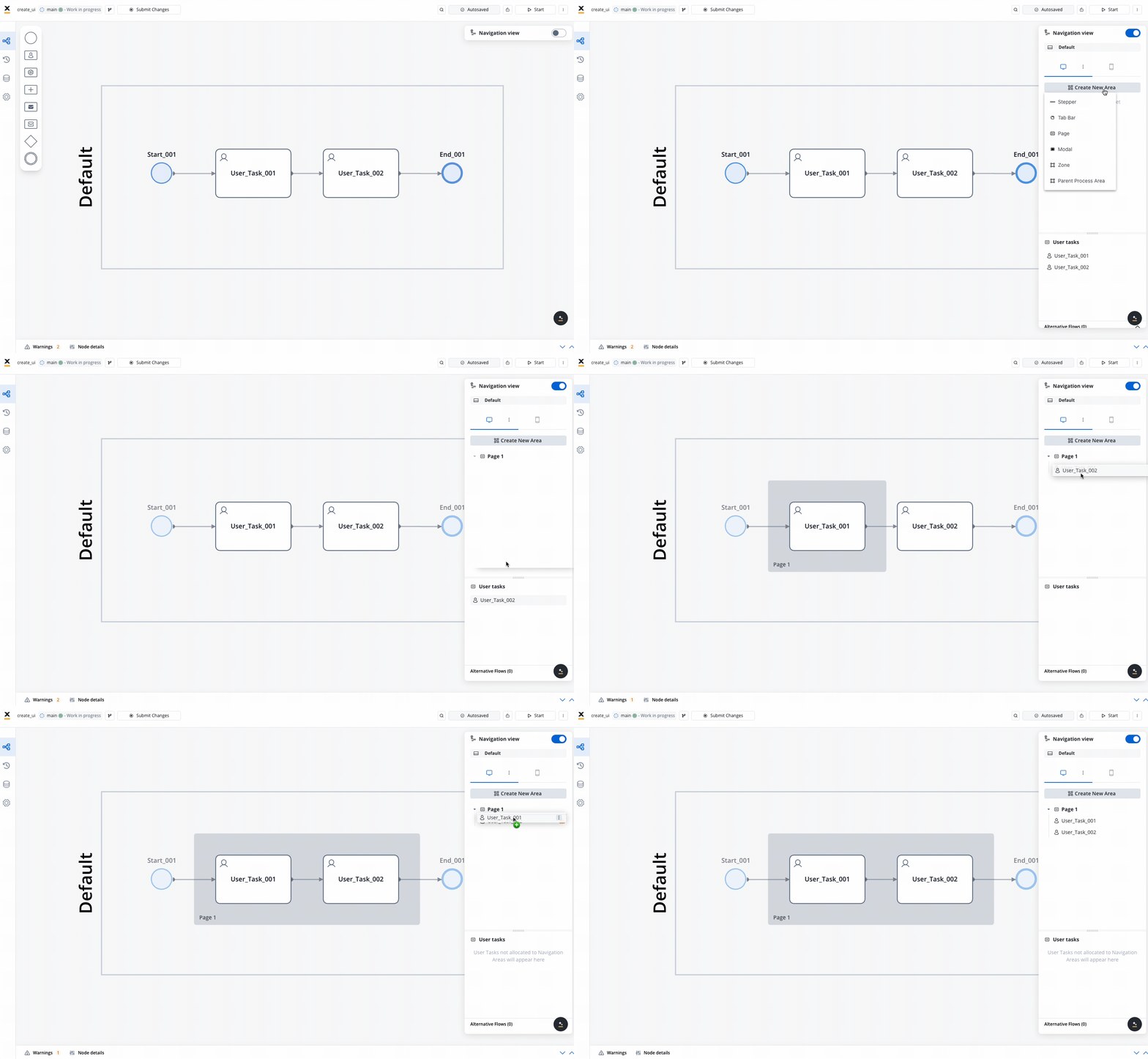
**Available Navigation Area Types:**
* **Stepper**: Breaks progress into logical, numbered steps for intuitive navigation
* **Tab Bar**: Allows users to switch between different sections or views
* **Page**: Displays full-page content for an immersive experience
* **Modal**: Overlays that require user interaction before returning to the main interface
* **Zone**: Groups specific navigation areas or tasks, like headers and footers
* **Parent Process Area**: Supports subprocess design under a parent hierarchy
## Configuring the UI
All visual properties of UI elements and navigation areas are configured using the FlowX.AI UI Designer, which provides a visual editor for building your interfaces.
### Selecting navigation type
To begin, you need to define the type of navigation for your app:
1. In the UI Designer, go to the navigation configuration section
2. Select one of the following navigation types:
* **Single page form**: For simple, one-page applications
* **Wizard**: For multi-step processes with clear progression
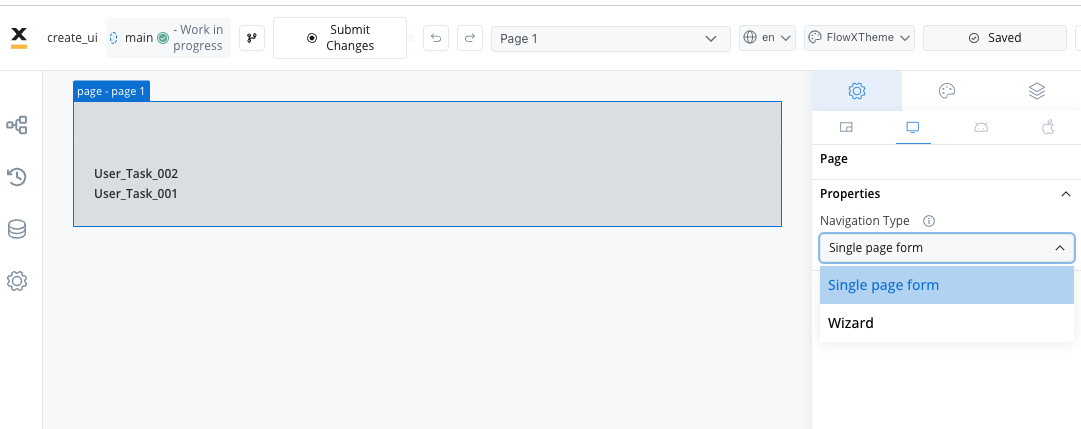
For this example, we'll use the **Wizard** type, which is ideal for multi-step processes like applications or onboarding flows.
## Designing the first screen
Let's configure the first User Task node to create an engaging and functional screen:
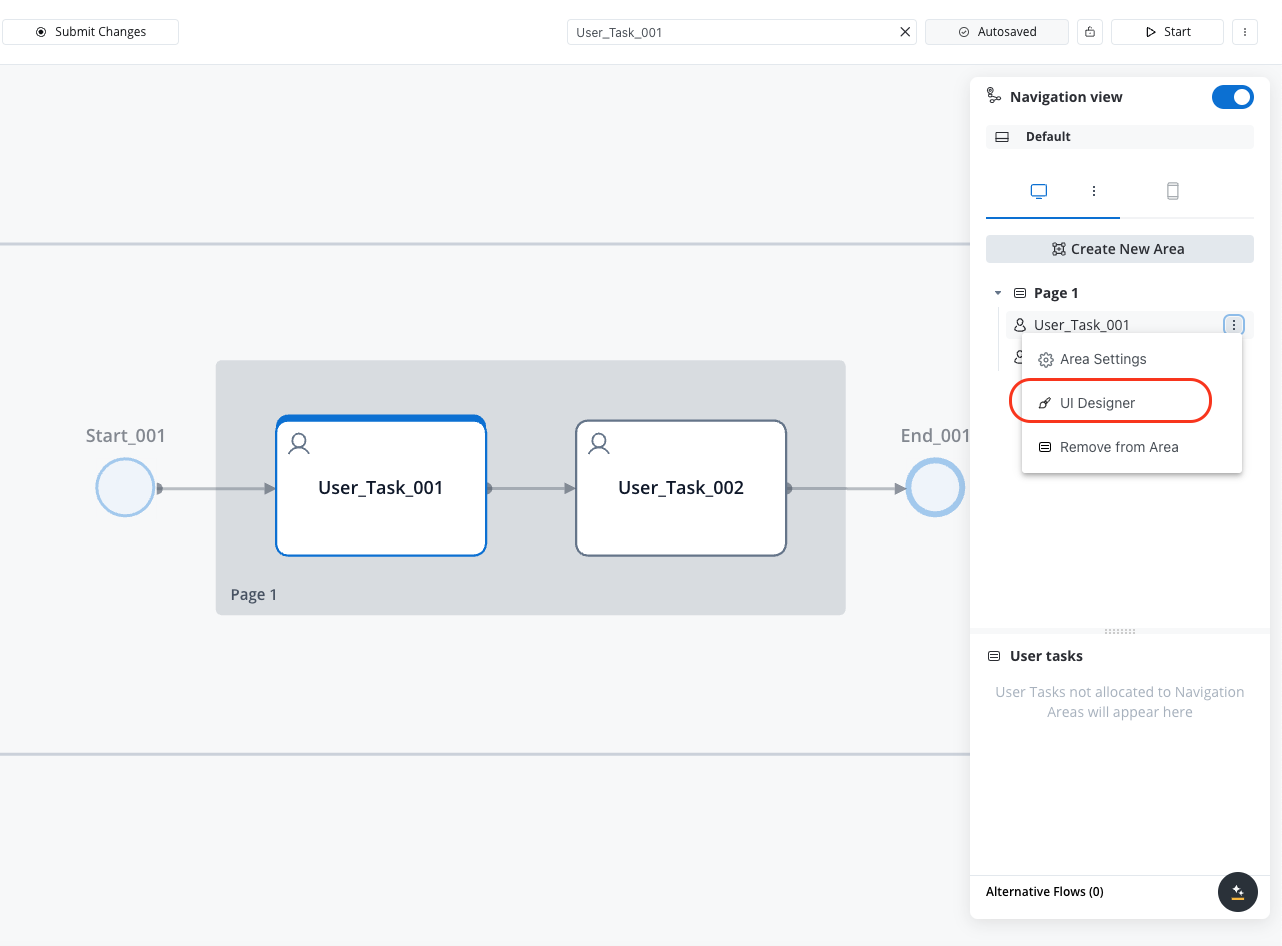
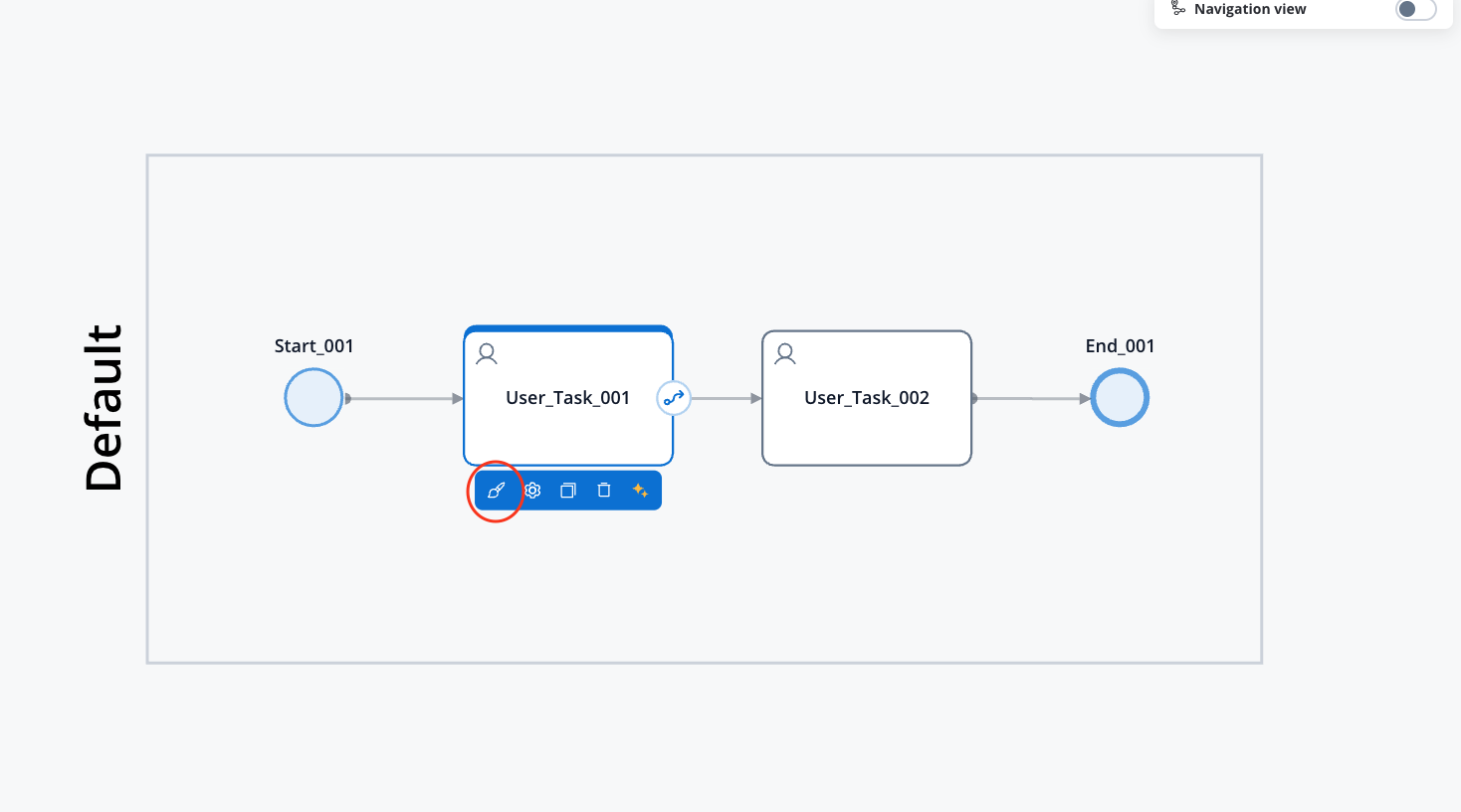
1. In your process diagram, select the first **User Task** node
2. Click the **UI Designer** button in the properties panel
3. This will open the visual UI Designer for this specific node
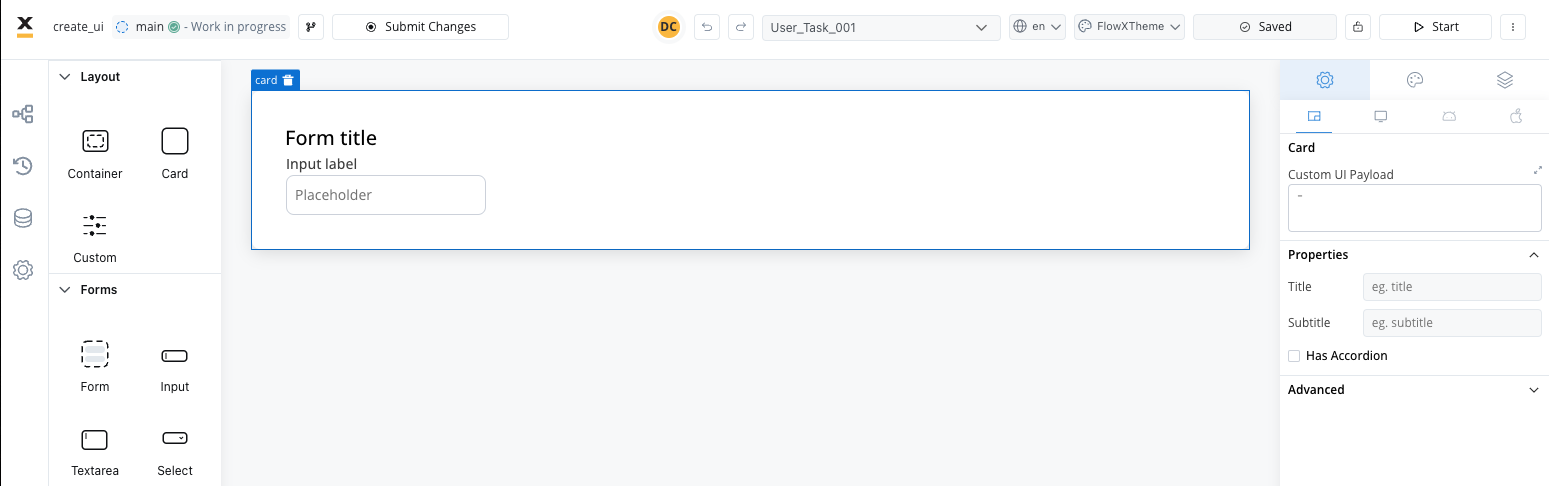
1. From the component palette, drag a **Card** component onto the canvas
2. The Card component will serve as a container for your form elements
3. Configure the card's appearance using the properties panel (size, padding, etc.)
1. Drag a **Form** component into the Card
2. Forms help organize inputs and handle data binding
3. Configure the form's properties as needed
1. Drag an **Input** component into the Form
2. Configure the input's properties:
* Set a label (e.g., "Full Name")
* Choose the input type (text, number, email, etc.)
* Configure validation rules if needed
* Set the data binding to store user input
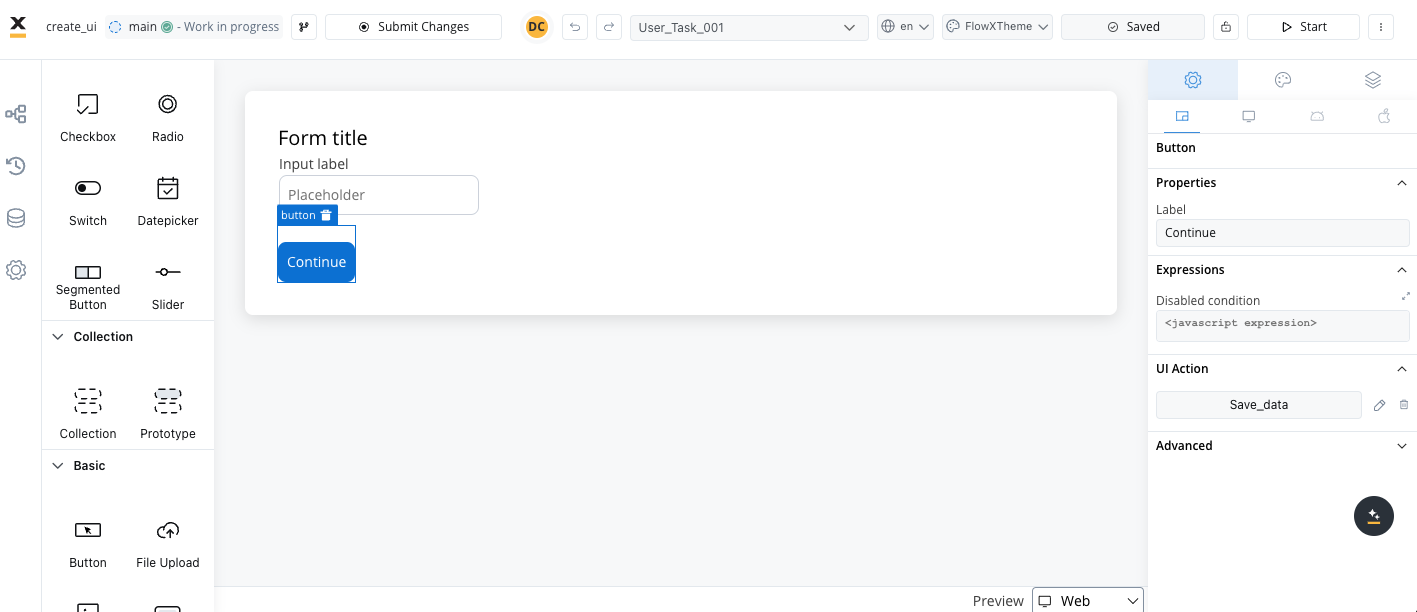
1. Drag a **Button** component into the Form
2. Configure the button text (e.g., "Continue" or "Next")
3. Set up the button's action to trigger process advancement
Before the button will work, you need to configure an action on the User Task node itself. This action will be triggered when the button is clicked.
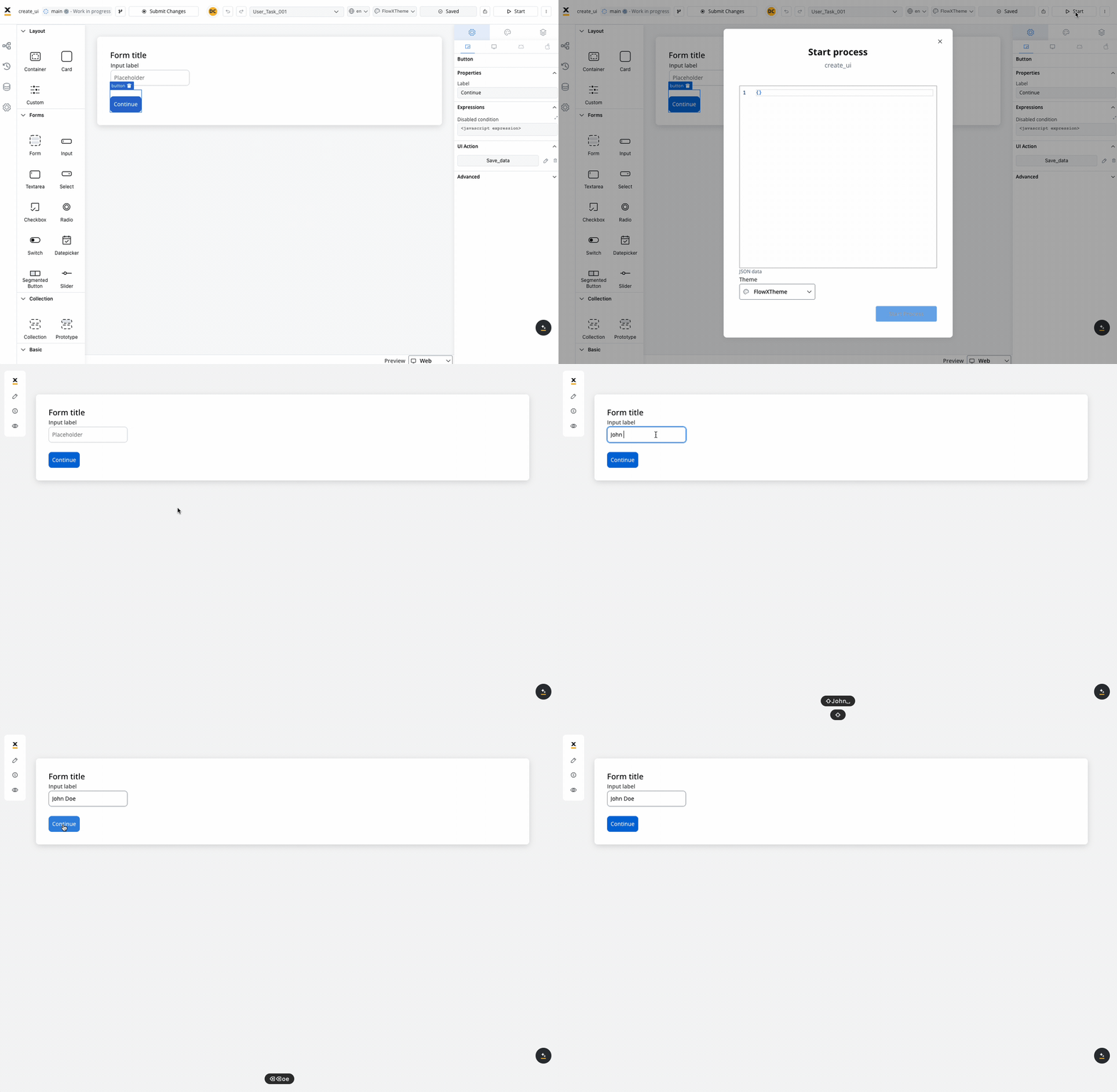
### Testing the first screen
1. Save your UI design
2. Start the process to test the UI
3. The Card with the Form and Input field should be displayed as configured
## Designing the second screen
Follow a similar process to design your second screen:
1. Select the second **User Task** node in your process
2. Open the **UI Designer**
3. Add a **Card** component
4. Add other UI components as needed (text, inputs, buttons, etc.)
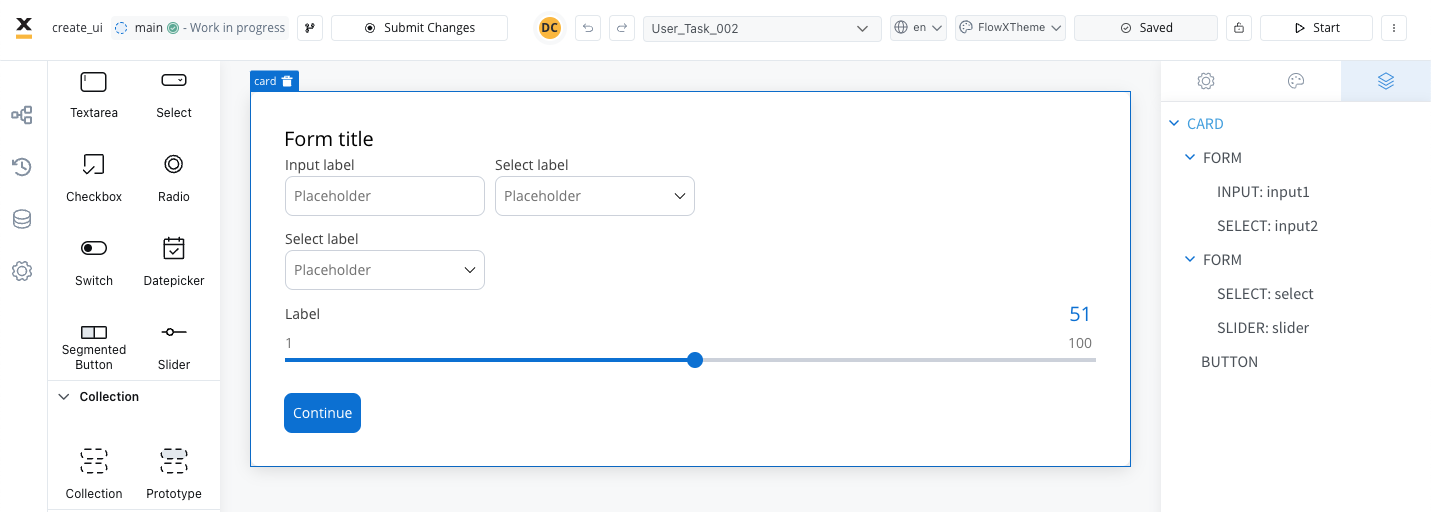
1. Add a button to submit the form or continue to the next step
2. Configure actions on the User Task node as needed
3. Consider adding a "Back" button if appropriate for your flow
## Testing the complete flow
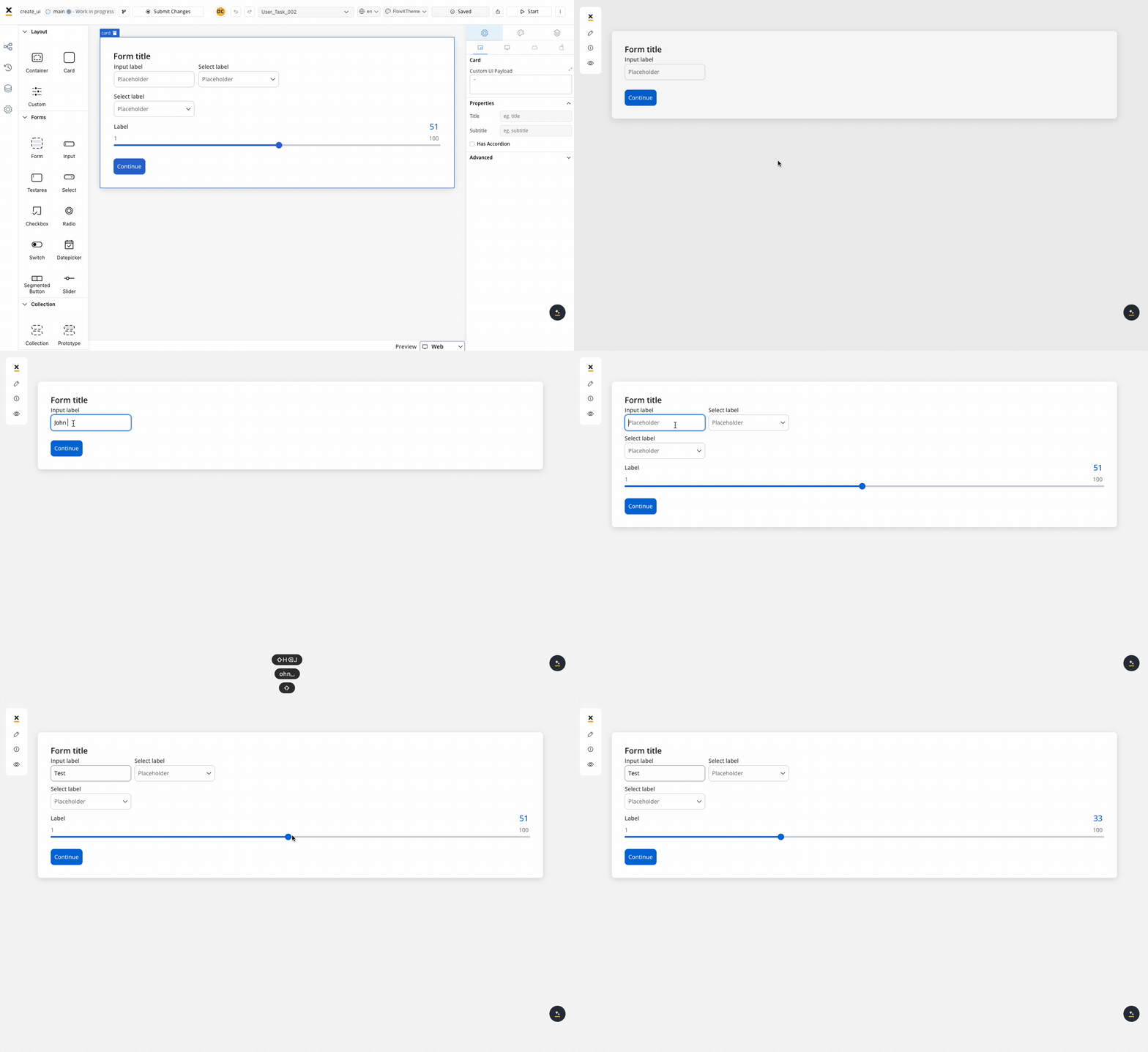
Once you've configured all your screens, test the complete process flow:
## Available UI components
FlowX.AI provides a rich set of UI components to create engaging interfaces:
Cards, containers and grids for organizing content
Inputs, checkboxes, radio buttons, selects, switches, sliders, segmented buttons and date pickers
Buttons, links, tabs, and accordions for user interaction
Text, images, icons, and media elements for displaying information
Tables for showing structured data
Steppers, and pagination controls
Other components for building complex interfaces
## Best practices
**When designing user interfaces:**
* **Use consistent styling** across all screens for a cohesive user experience
* **Group related inputs** within logical sections or cards
* **Implement proper validation** to prevent errors and guide users
* **Provide clear feedback** on actions with success and error messages
* **Design with [accessibility](../../platform-deep-dive/accessibility)** in mind using proper labels and ARIA attributes
* **Test your UI** on different screen sizes to ensure responsive design
* **Keep navigation intuitive** with clear paths forward and back
* **Use data binding** to maintain state across screens
## Next steps
After creating your user interface, you can:
Learn how to move a token backwards in the flow