> ## Documentation Index
> Fetch the complete documentation index at: https://docs.flowx.ai/llms.txt
> Use this file to discover all available pages before exploring further.
# Creating a new project
> Learn how to create and configure a new project in FlowX.AI Designer
The first step in building applications with FlowX.AI is creating a project. Projects serve as organized containers containing all the resources needed for your business solutions, including process definitions, UI components, and integrations.
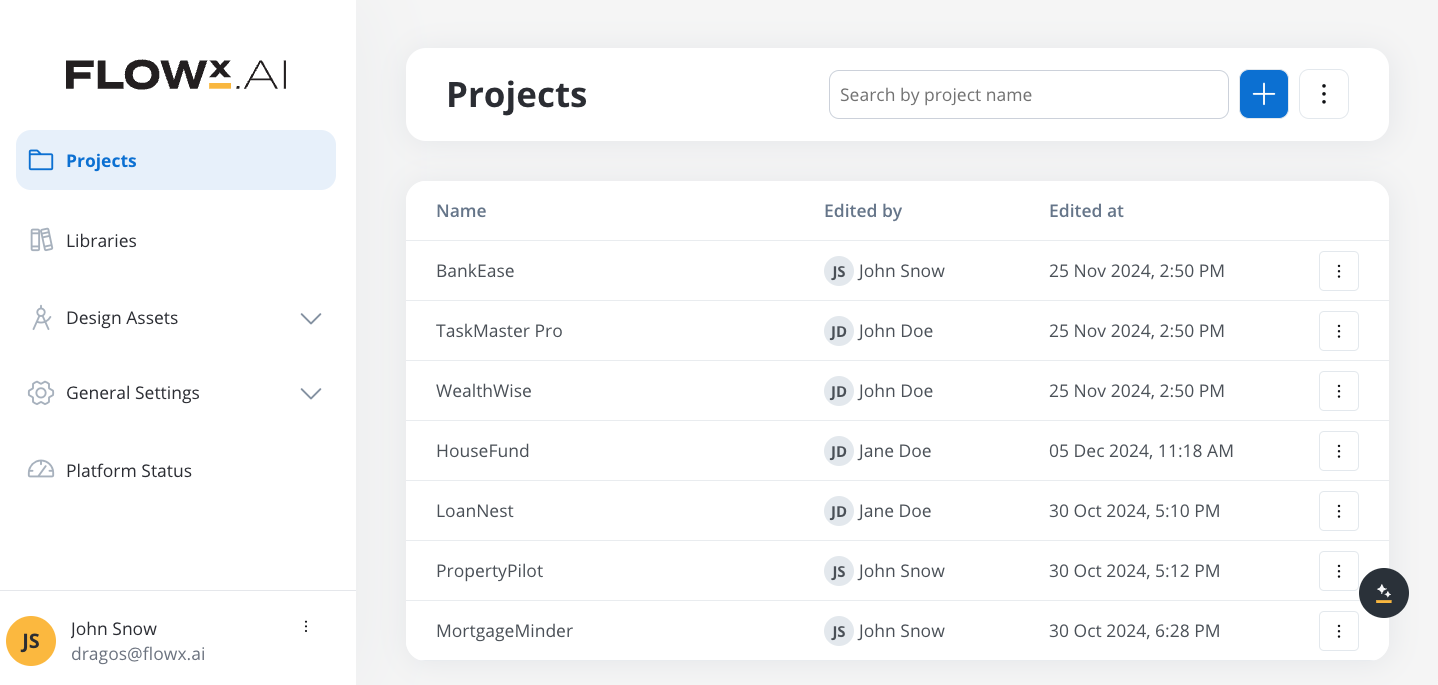
## What is a project?
A project in FlowX.AI is a structured container that groups all the resources required to implement a business solution. It's not just a collection of processes - it's a comprehensive unit that manages the entire lifecycle of your app.
Manage all resources, processes, and dependencies in one place, reducing context-switching
Track changes with versioning for processes, resources, and configurations
Deploy consistent builds across development, QA, and production environments
Ensure clarity with structured resources and reduce configuration errors
## Project lifecycle
In FlowX.AI, a project follows a well-defined lifecycle from creation to deployment:
Define basic project properties and settings
Add and configure all necessary components
Capture project state at significant milestones
Create immutable deployment package from a version
Release to development, QA, or production environments
This documentation covers the first two steps of creating and configuring a new project.
## Creating a project
Log in to FlowX.AI Designer and navigate to the **Projects** section from the main navigation.
You'll need appropriate permissions to create new projects. If you don't see the Projects section, contact your FlowX administrator.
Click the **+ New Project** button to open the project creation dialog.
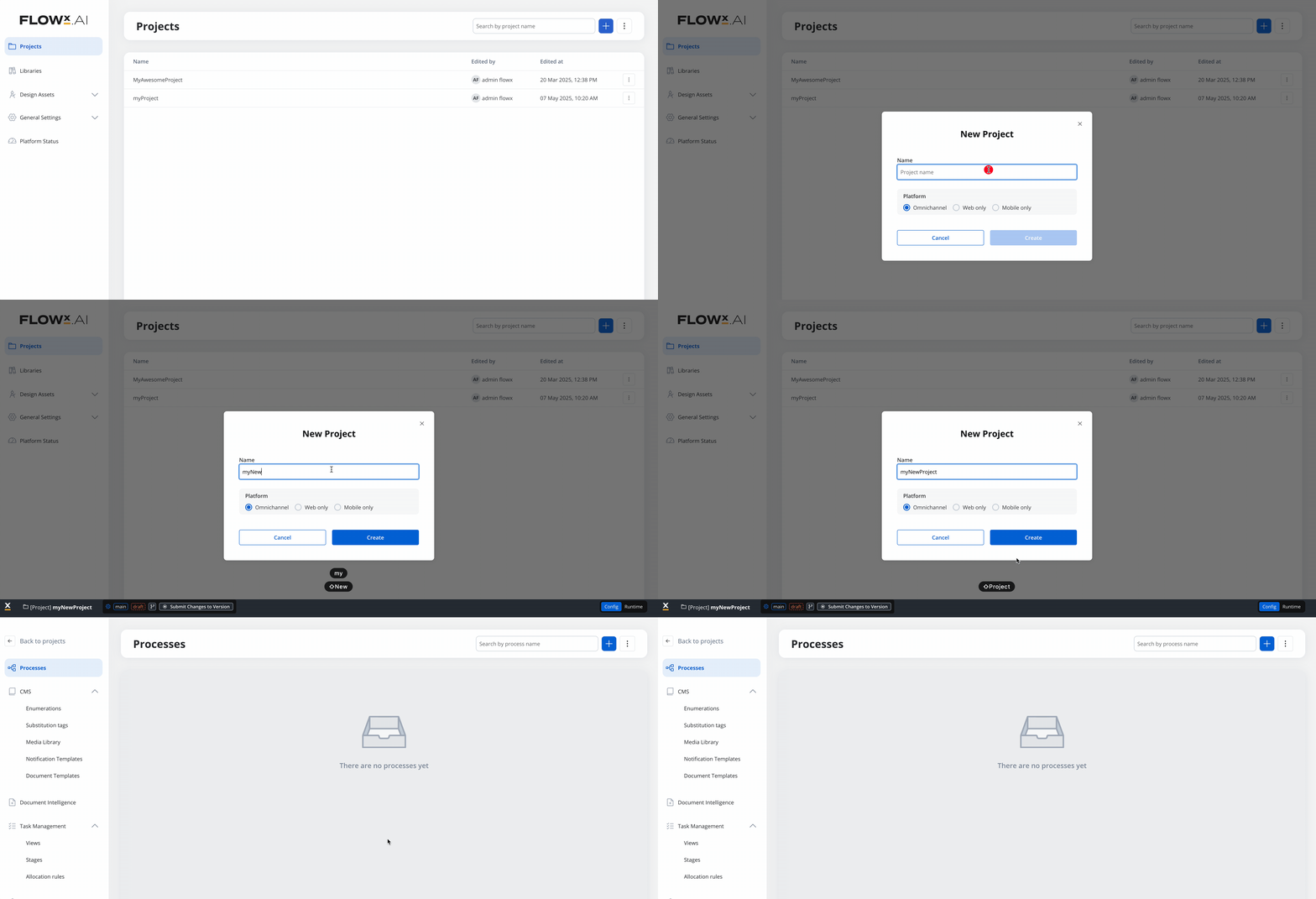
Configure the basic properties for your project:
* **Project Name**: Enter a descriptive name that clearly identifies your business solution
* **Platform Type**: Select the platform you want to use for your project:
* Omnichannel
* Web only
* Mobile only
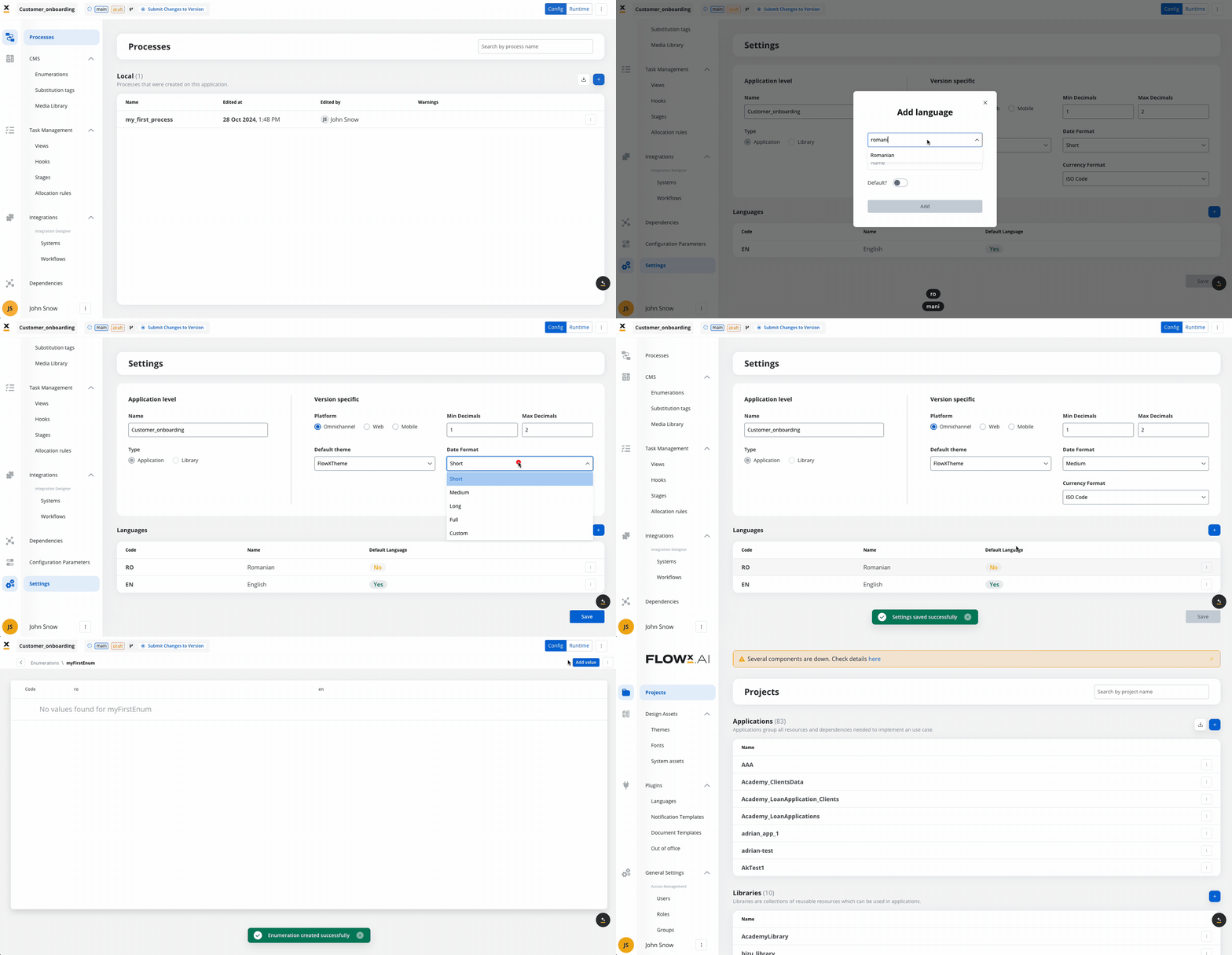
Set up additional parameters that define how your project will function:
* **Default Theme**: Choose a theme to apply a consistent look and feel
* **Number Formatting**:
* **Min/Max Decimals**: Configure how numbers are displayed
* **Date Format**: Choose short or long date formats
* **Currency Format**: Set display as ISO code (USD) or symbol (\$)
* **Languages**:
* Set a default language (e.g., English)
* Add additional languages for localization support
Project language settings serve two important purposes:
* They fill the default state for preview in the UI Designer
* They enable you to create translatable values in enumerations and substitution tags
## Configuring project resources
After creating your project, you'll need to configure various resources before you can build and deploy your app. These resources form the foundation of your solution.
Your project includes these key resource sections:
Define business processes and subprocesses that orchestrate your application workflows
Create application interfaces, components, and screen layouts for your processes
Configure enumerations, substitution tags, and media for consistent content delivery
Set up views, stages, and allocation rules for workflow orchestration
Connect to external systems with API endpoints and workflow configurations
Add libraries containing reusable resources shared across projects
Manage media files, fonts, themes, and other assets used across your app
Define environment-specific parameters for deployment flexibility
**Resource Inventory**: Your project can include the following components:
**Process Resources**:
* Process definitions with BPMN diagrams
* Action configurations and task settings
* Subprocess definitions and connections
**UI Resources**:
* Screen layouts and component configurations
* Form definitions and validation rules
* Navigation flows and interaction patterns
**Content Resources**:
* Enumerations for dropdown menus and selections
* Substitution tags for dynamic content
* Media assets (images, videos, documents)
**Integration Resources**:
* API endpoint configurations
* Data mappings and transformations
* Workflow definitions for system interactions
**Supporting Resources**:
* Themes and styling assets
* Configuration parameters for environments
* Library dependencies for shared functionality
**Configuration Best Practices**:
* Begin with process definitions before configuring supporting resources
* Use clear, consistent naming conventions across all resources
* Configure reusable components in libraries when they'll be used in multiple projects
* Test individual components before integrating them into the complete workflow
* Set up environment variables for settings that differ between environments
* Create versions after completing significant resource configurations
Process definitions are the core of your application, defining the user journey and business logic:
* Navigate to the **Processes** section
* Click **+ New Process** to create a new process
* Use the BPMN editor to design your process flow
* Configure actions, forms, and integration points
Create the screens and components users will interact with:
* Navigate to the **UI Designer** section
* Create screens for each user-facing step in your processes
* Configure forms, buttons, and other interactive elements
* Design responsive layouts for different device types
Set up connections to external systems and services:
* Define API endpoints for backend integrations
* Configure authentication and security settings
* Create workflows for complex integration scenarios
* Test connections to ensure proper data exchange
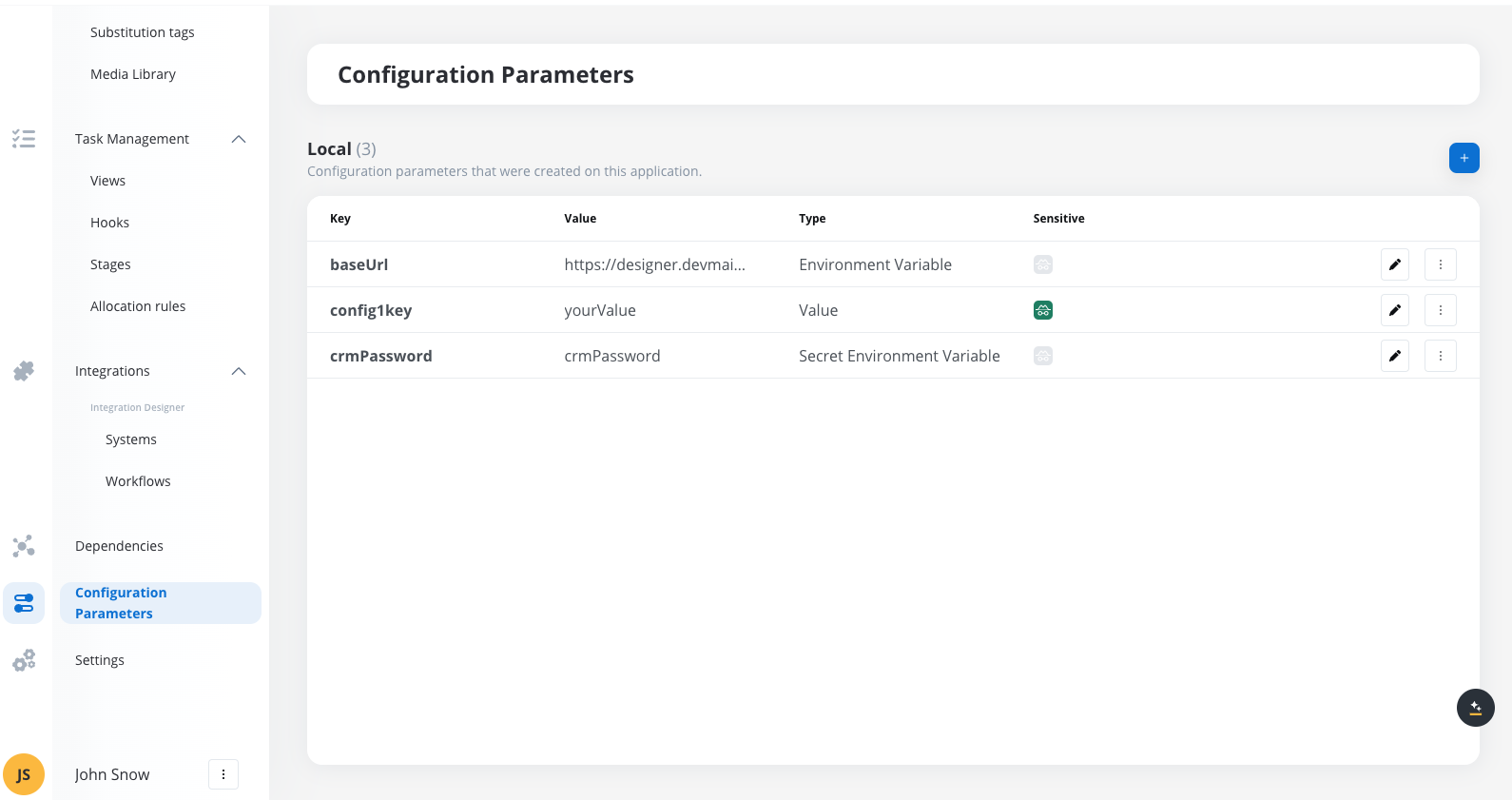
Define environment-specific variables:
* Add parameters that will differ between environments
* Set default values for development
* Mask sensitive information like passwords and API keys
* Organize parameters by functional area
## Project lifecycle management
After configuring your project resources, you'll need to prepare it for deployment through versioning and building:
When your project configuration reaches a milestone:
* Create a version to capture the current state
* You can create multiple versions and commit them before creating a build
* Versions can be modified until they are committed
* Committed versions are locked and cannot be changed
To deploy your project to an environment:
* Create a build from any committed version
* Builds are immutable and serve as deployable packages
* Each build contains exactly one version of a project
* Once a build is created, its contents (processes, enumerations, substitution tags, integrations) cannot be edited - you'll need to create a new project version for changes
Deploy your build to the target environment:
* Development for testing
* QA for validation
* Production for end-users
Configuration parameters set for specific environments will be applied during deployment.
## Best practices
Projects contain all your process definitions and resources. Use clear naming conventions and proper documentation to maintain organization as your project grows.
* **Project Naming**: Use clear, descriptive names that reflect business purpose
* **Project Scope**: Keep projects focused on specific business domains
* **Documentation**: Add comprehensive descriptions to your project and components
* **Version Control**: Make effective use of the built-in versioning capabilities
* **Configuration Management**: Use environment variables for deployment-specific settings
* **Dependency Management**: Carefully manage library dependencies to avoid conflicts
* **Testing**: Validate changes in development before promoting to production
## Next steps
After creating your project, you can proceed to:
Define your first business process within the project
## Frequently asked questions
To create a new version, navigate to the project dashboard, select "Create New Version," and make any changes. Once finalized, commit the version to lock it.
Creating a build captures a snapshot of the project version, consolidating resources into a single deployable package. Builds are immutable and cannot be edited once created.
Yes, projects support multiple locales. You can define regional settings, such as date formats and currencies, to cater to different environments.
A Project Version is a snapshot of resources and configurations that can be modified, tracked, and rolled back. A Build is a deployable package created from a committed version, and it is immutable once deployed.
Go to your project settings, navigate to dependencies, and select the desired library. Choose the build you want to use, and its resources will be accessible within your project.
No, a build is immutable. To make changes, modify the project version, create a new version, and deploy a new build.
Use a controlled environment like Dev or UAT to test new builds of the library before updating the dependency in your main project. This allows you to validate changes and ensure they don't negatively impact your project.
When a dependency is updated to a newer build, any resources that were modified in the library will reflect the latest version. Projects have control over when to update, so older versions remain stable until the dependency is manually updated.