> ## Documentation Index
> Fetch the complete documentation index at: https://docs.flowx.ai/llms.txt
> Use this file to discover all available pages before exploring further.
# Adding an action to a node
> Learn how to enhance your process flows by adding actions to nodes for business rules, data management, and integration with external systems.
Actions are elements that bring your process nodes to life by adding business logic, data management capabilities, and integration with external systems. They define the specific activities that nodes perform within your process flow.
## What is a node action?
A node action defines the specific activity that a node performs within a process flow. Actions allow you to incorporate business rules, manage data, communicate with external systems, and control what gets displayed in the user interface. They are the building blocks that drive your process logic and user interactions.
Comprehensive documentation on all action types and their configurations
Learn how to implement business logic with rule actions
## Action types
FlowX.AI supports several types of actions that can be added to nodes, broadly categorized into business rules and user interactions:
### Business rules and data management
Add custom logic and decision-making using scripts
Persist process data to storage
Send messages to Kafka topics for event-driven scenarios
Handle file uploads within the process flow
### Process control and integration
Initiate a subprocess from within the current process
Pass data back to a parent process from a subprocess
Trigger an integration workflow with external systems
Launch a new project instance from within a process
### User interface
Send data to be displayed in front-end applications
Actions can only be added to certain node types:
* Task nodes (Service Tasks)
* User Task nodes
* Send Message/Receive Message Task nodes
## Adding an action to a node
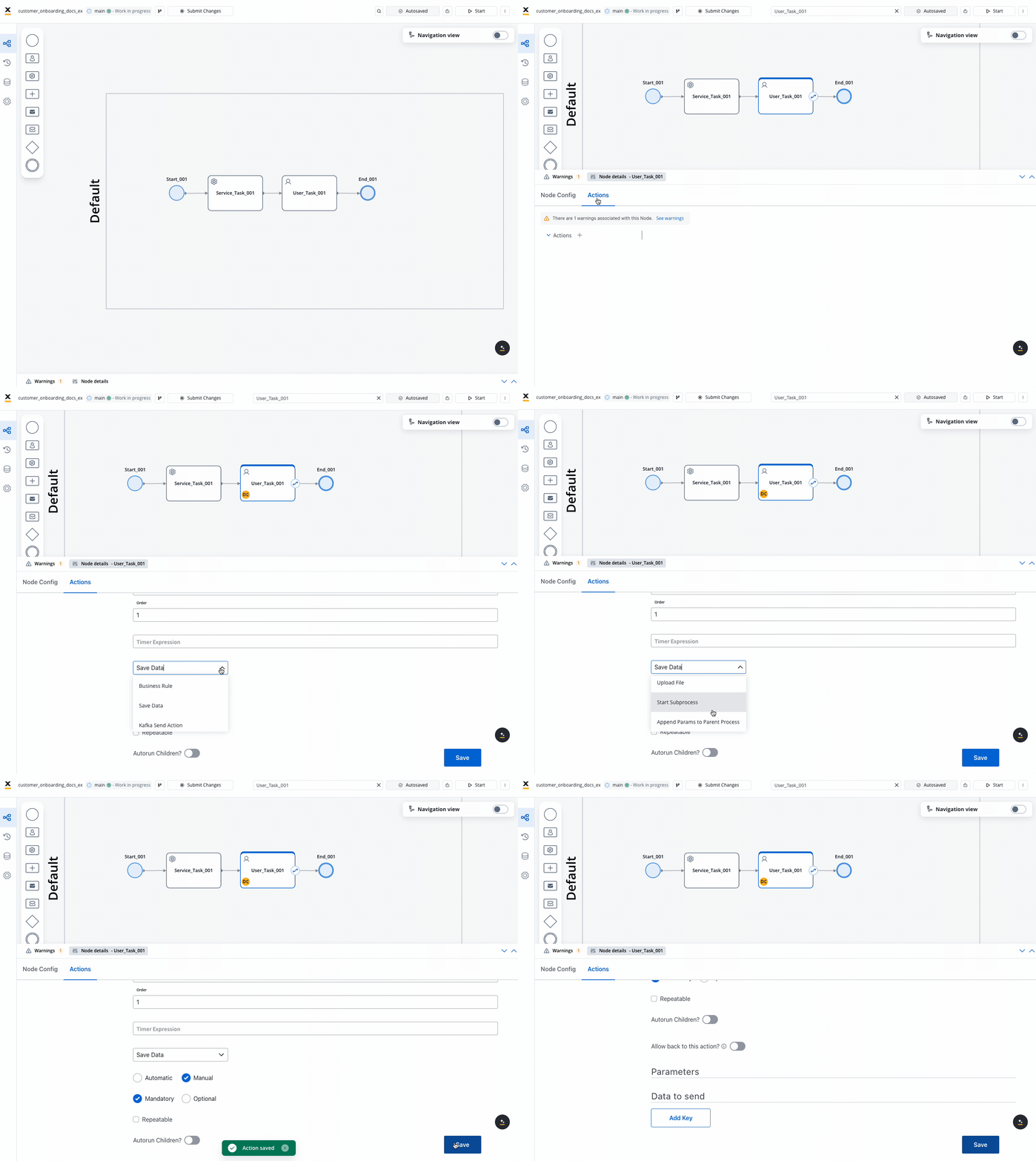
1. Open **FlowX.AI Designer** and navigate to your project
2. Go to the **Processes** section within your project
3. Select your process definition from the list
4. Click the **Edit Process** button to open the Process Designer
1. Either select an existing node that supports actions, or add a new one
2. Remember that only Task nodes, User Task nodes, and Message Task nodes support actions
If you need to add a new node first, refer to the [Adding a New Node](./adding-a-new-node) documentation.
1. With the node selected, locate the **Actions** section in the properties panel
2. Click the **+ Add Action** button
3. From the dropdown menu, select the action type you want to add

Each action type requires specific configuration parameters:
1. Fill in the required fields for your selected action type
2. Configure optional parameters as needed
3. Save your changes
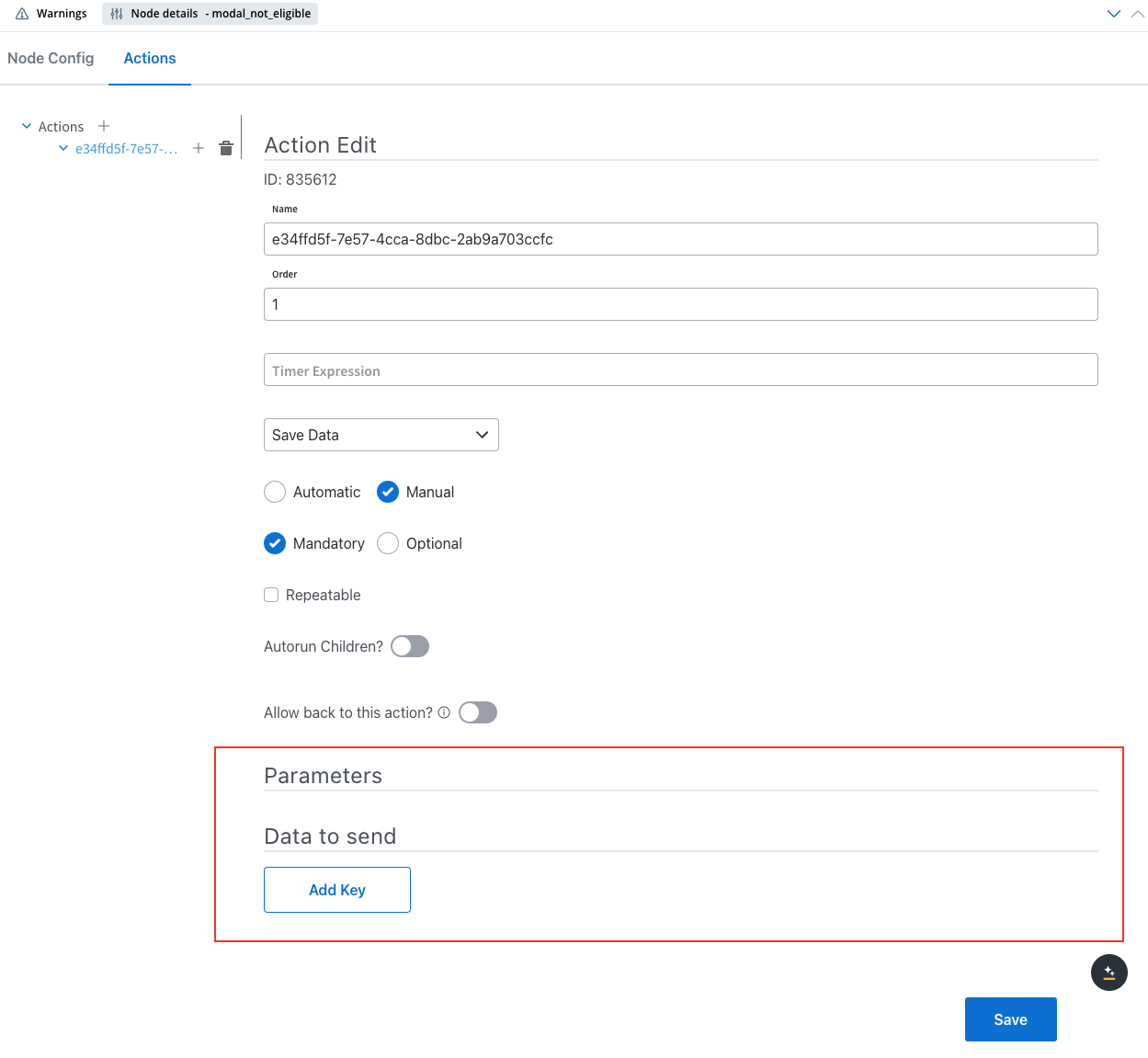
Pay careful attention to parameter syntax and formatting. Incorrect configurations may cause the action to fail during process execution.
If you have multiple actions on a single node:
1. Use the drag handles to arrange the actions in the desired execution order
2. Actions will execute from top to bottom in the list
3. Consider dependencies between actions when setting the order
For complex nodes with multiple actions, consider adding comments in scripts or descriptions to document the purpose and dependencies of each action.
Click the **Save** button to save your process definition with the new action.
## Common action configurations
Different action types require different configurations, but many share these common elements:
* **Name**: Descriptive identifier for the rule
* **Script Type**: JavaScript or other supported languages
* **Script Content**: The business logic to execute
* **Input Parameters**: Data inputs to the script
* **Output Parameters**: Data returned from the script
* **Process Variables**: The data to be saved
* **Target Storage**: Where the data should be persisted
* **Data Mapping**: How process data maps to storage fields
* **Topic**: The Kafka topic to send messages to
* **Key**: Identifier for the message
* **Value**: The data payload to send
* **Headers**: Additional message metadata
* **UI Component**: The target component to update
* **Data**: The information to display
* **Formatting**: Display options for the data
## Best practices
**When adding actions to nodes:**
* **Use meaningful action names** to clearly indicate their purpose
* **Keep business rules focused** on a single responsibility
* **Document complex logic** with comments in your scripts
* **Consider error handling** in your action configurations
* **Test actions individually** before relying on them in production flows
* **Monitor performance** of actions that might be resource-intensive
* **Use consistent data structure** across related actions for better maintainability
## Next steps
After adding actions to your nodes, you can:
Learn how to implement conditional branching in your processes using exclusive gateways
Design the user interface elements that will interact with your actions