> ## Documentation Index
> Fetch the complete documentation index at: https://docs.flowx.ai/llms.txt
> Use this file to discover all available pages before exploring further.
# Global Media Library
> System assets serve as a centralized hub for managing and organizing various types of media files outside an application, used on themes, including images, GIFs, and more.
# 🌐 Global Media Library
This section is accessible from the left-side navigation under:
> **FlowX.AI Designer → Design Assets → Global Media Library**
***
## 📁 Media Library overview
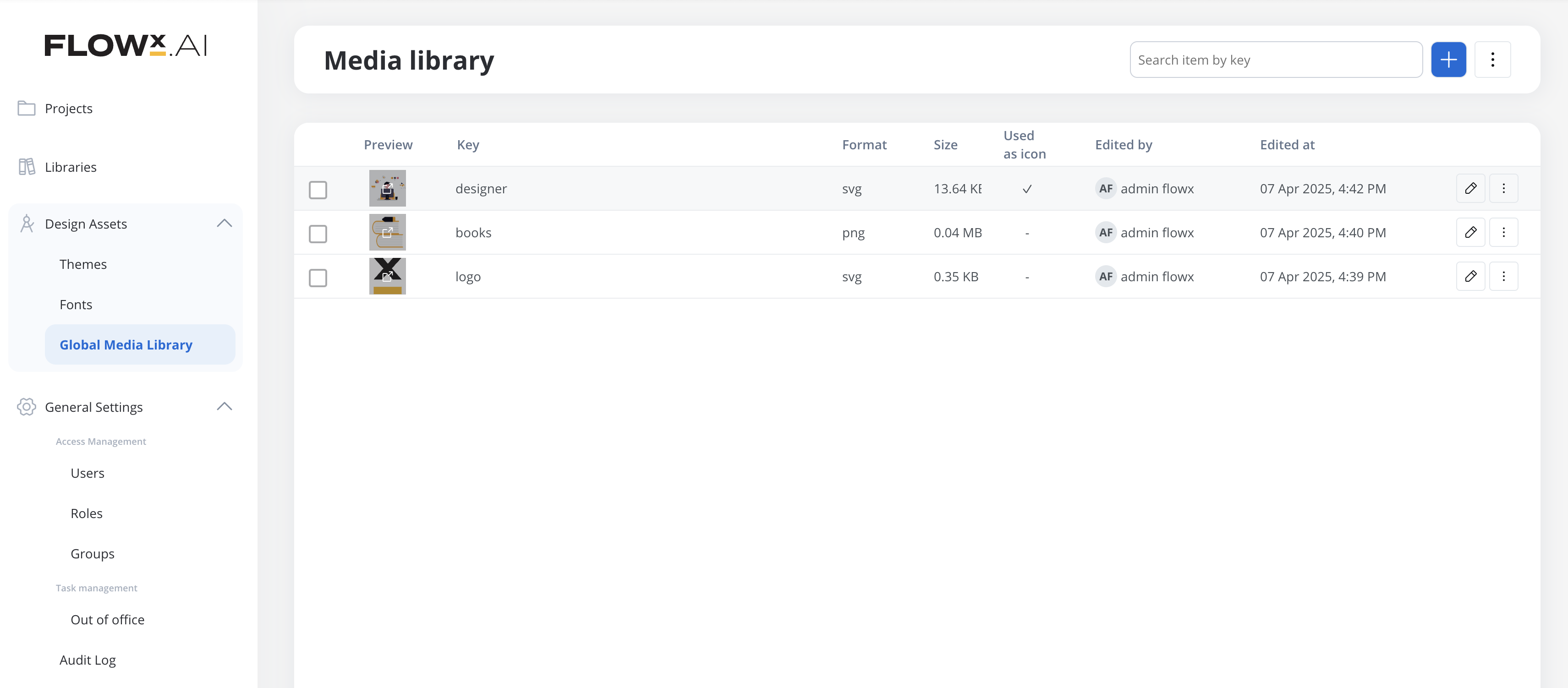
The main **Media Library** interface displays all uploaded media assets in a table format with the following columns:
* **Preview**: Thumbnail preview of the asset.
* **Key**: A unique identifier for the asset.
* **Format**: File type (e.g., SVG, PNG).
* **Size**: File size.
* **Used as icon**: Indicates if the asset is used as a global icon (✓ if true).
* **Edited by**: User who last modified the asset.
* **Edited at**: Timestamp of the last modification.
Each asset row also includes:
* ✏️ **Edit icon**: To update the asset.
* ⋮ **More actions menu**: For additional options.
***
## ➕ Adding a New Asset
To add a new media asset:
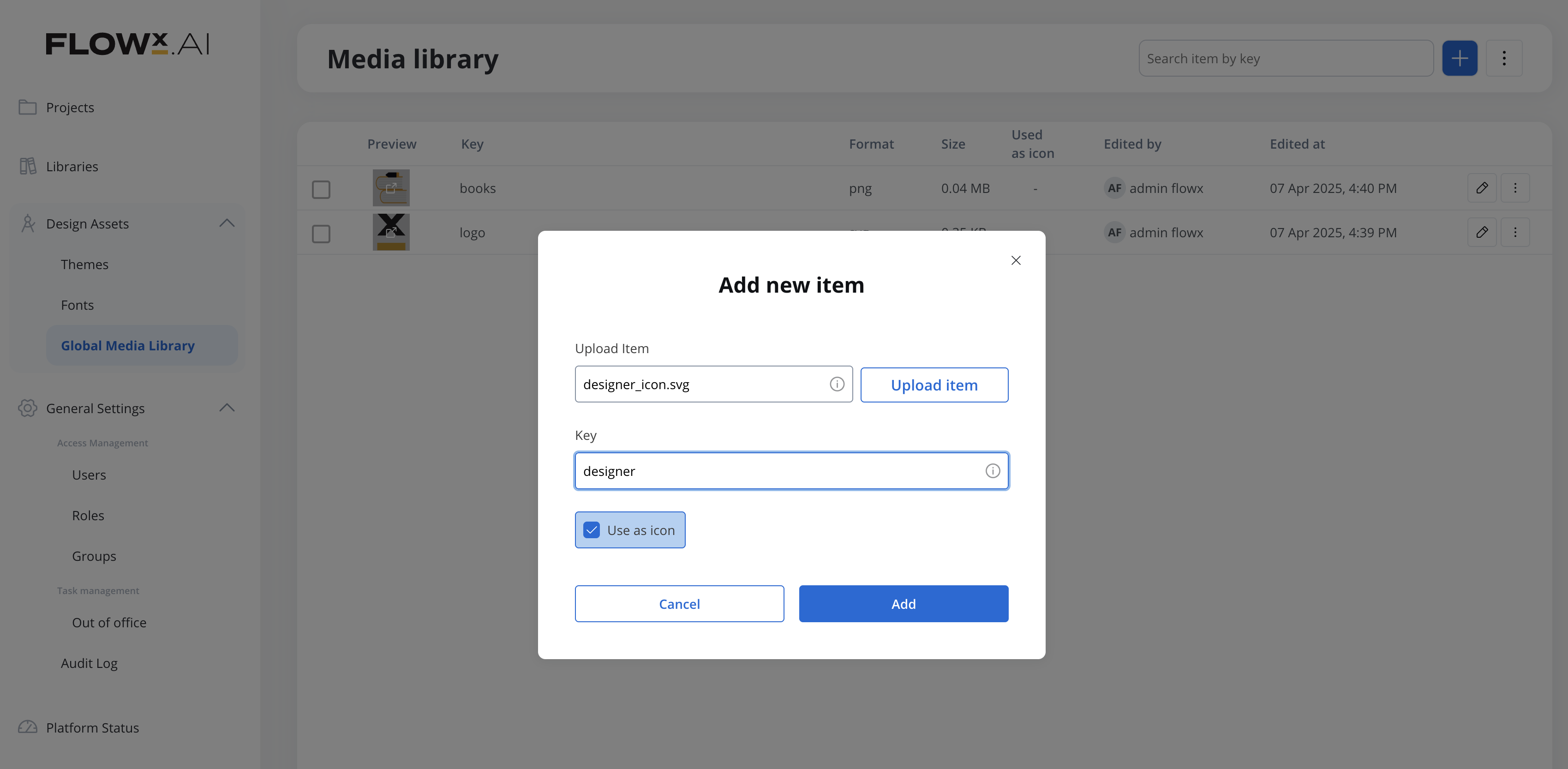
1. Click the **blue plus (+)** button in the top-right corner.
2. In the **Add new item** dialog:
* Click **Upload item** to select a file from your device.
* Enter a **Key** for the asset.
3. Click **Add** to upload the item to the library.
**Important:** The key must be unique and **cannot** be changed later. Choose it carefully.
***
## 📥 Import and Export
Click the **⋮ menu** next to the + button to access:
* **Import media assets**: Bulk upload multiple media files.
* **Export all**: Download all media assets as a ZIP archive.
***
## 🔍 Search Functionality
Use the **Search item by key** bar at the top to find media assets quickly. Results are filtered as you type.
***
## 📌 Icon Usage
If an asset is marked with a ✓ under the **Used as icon** column, it is actively used as a global icon across the FlowX.AI platform.