> ## Documentation Index
> Fetch the complete documentation index at: https://docs.flowx.ai/llms.txt
> Use this file to discover all available pages before exploring further.
# Fonts
> Fonts management allows you to upload and manage multiple font files, which can be later utilized when configuring UI templates using the UI Designer.
## Default fonts
FlowX ships with the **Open Sans** font family preinstalled, available in the UI Designer without any upload step. The following weight + style combinations are included:
| Weight | Normal | Italic |
| --------------- | ---------------------- | ---------------------------- |
| 300 (Light) | OpenSans-Light.ttf | OpenSans-LightItalic.ttf |
| 400 (Regular) | OpenSans-Regular.ttf | OpenSans-Italic.ttf |
| 600 (SemiBold) | OpenSans-SemiBold.ttf | OpenSans-SemiBoldItalic.ttf |
| 700 (Bold) | OpenSans-Bold.ttf | OpenSans-BoldItalic.ttf |
| 800 (ExtraBold) | OpenSans-ExtraBold.ttf | OpenSans-ExtraBoldItalic.ttf |
Any other typography needs to be uploaded as a custom font (see below).
***
## Managing fonts
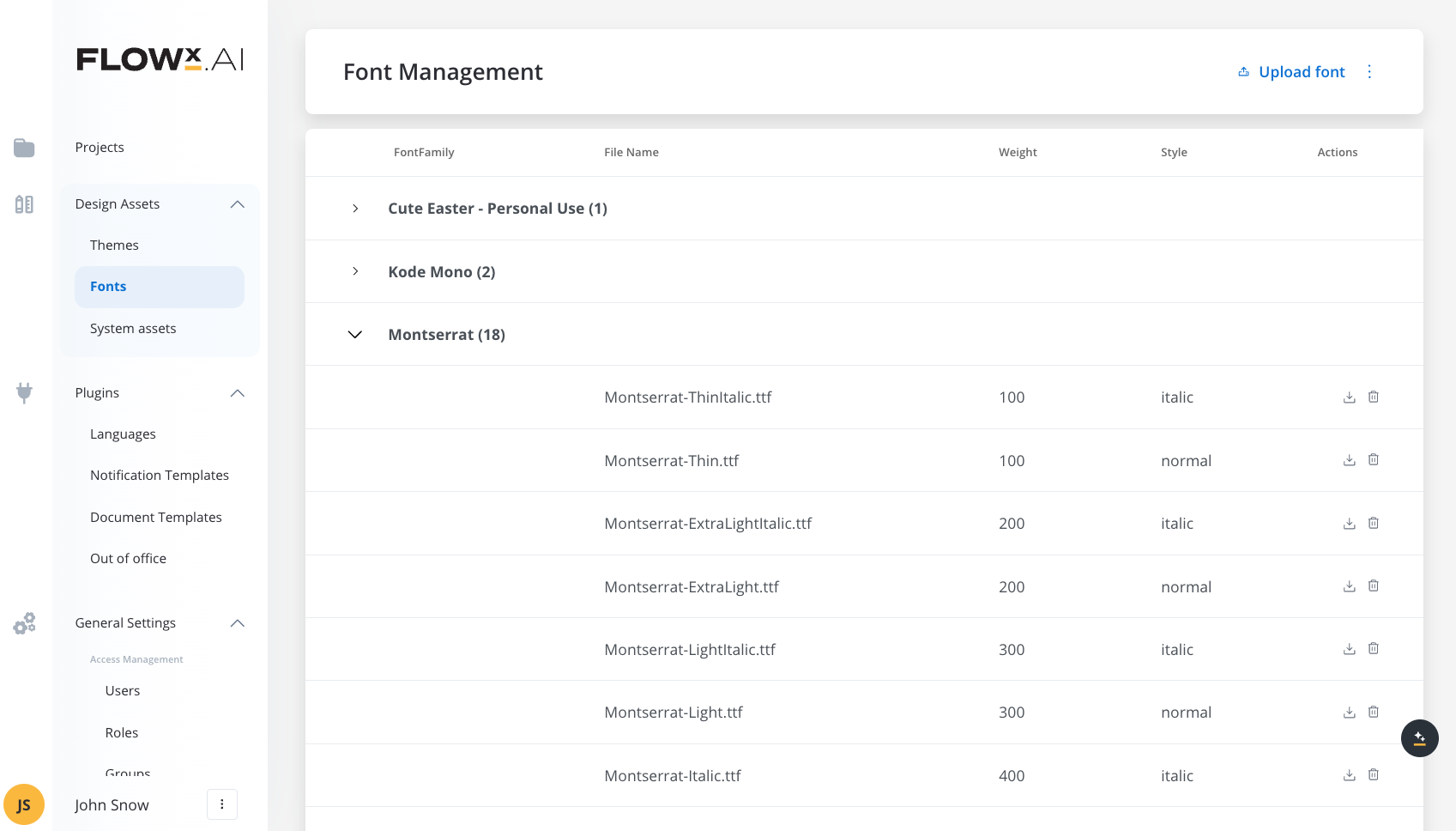
The "Font Management" screen displays a table with uploaded fonts. The following details are available:
* **FontFamily**: The names of the uploaded font families.
* **File Name**: The name of the font file.
* **Weight**: The weight of the font, represented by a numeric value.
* **Style**: The style of the font, such as "italic" or "normal".
* **Actions**: This tab contains options for managing the uploaded fonts, such as deleting or downloading them.
## Uploading fonts
### Uploading theme font files
To upload new theme font files, follow these steps:
1. Open **FlowX.AI Designer**.
2. Navigate to the **Content Management** tab and select **Font files**.
3. Click **Upload font** (the **+** button) and choose a valid font file.
The accepted font format is TTF (TrueType Font file). **Only static TTF fonts are supported**. Variable fonts (dynamic fonts with adjustable width/weight in a single file) are not supported.
Each font weight and style combination requires a separate TTF file. For example, if you need "Open Sans" in regular (400), bold (700), and italic styles, you must upload separate TTF files for each variant.
4. Optionally, follow this naming convention for better compatibility: `[font family]-[font weight][font style]` (for example, `OpenSans-700Italic.ttf`).
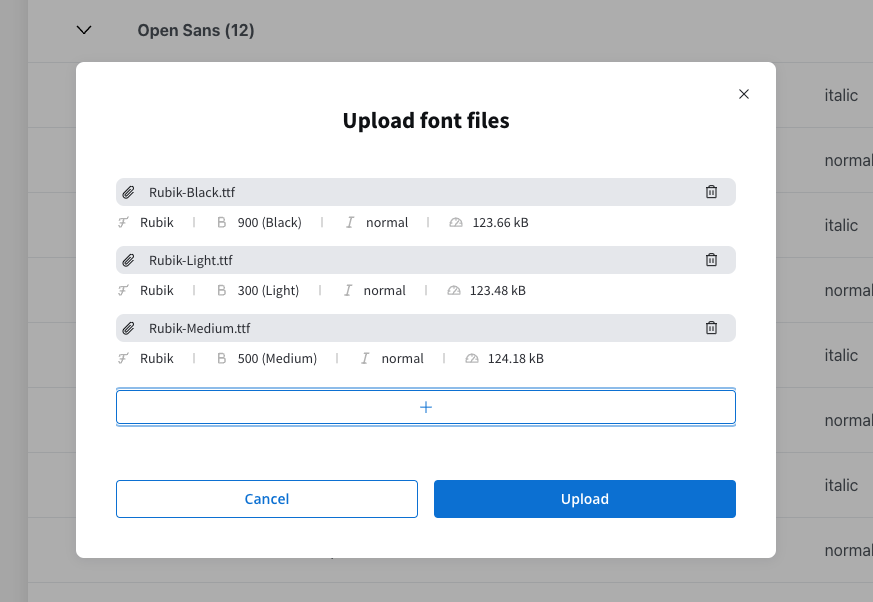
5. Click **Upload**. You can upload multiple TTF font files.
6. For each uploaded font file, the system will automatically extract information such as font family, weight, and style from the file metadata.
## Exporting fonts
You can use the export feature to export a JSON file containing all the font files.
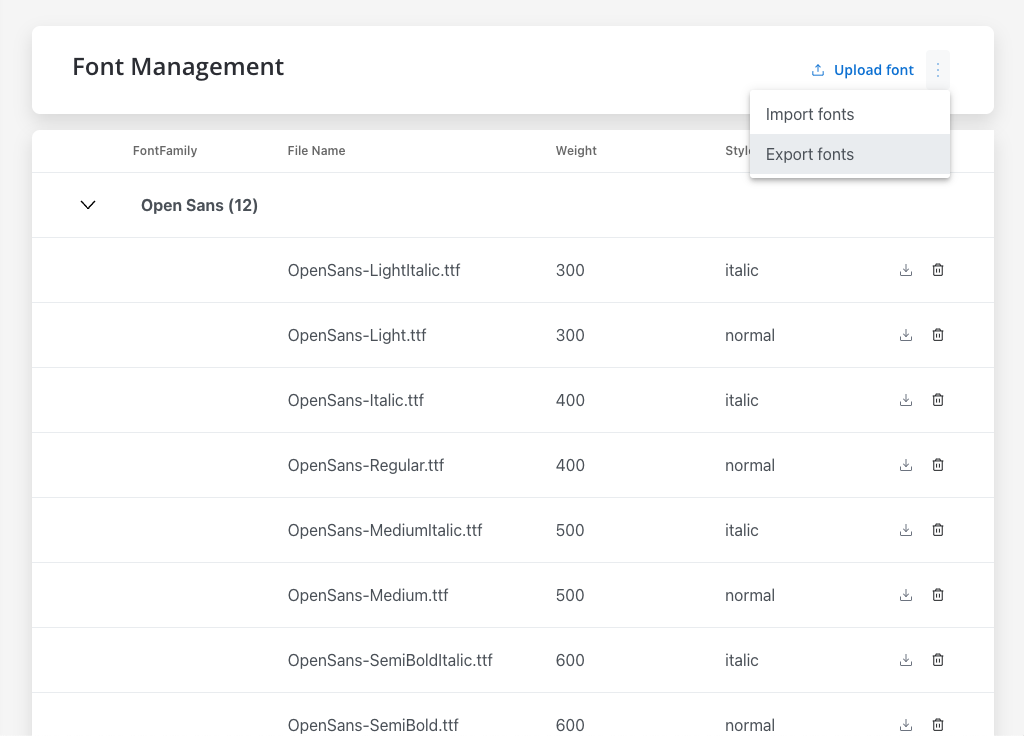
The exported JSON will look like this:
```json theme={"system"}
{
"fonts": [
{
"fontFamily": "Open Sans",
"filename": "OpenSans-ExtraBoldItalic.ttf",
"weight": 800,
"style": "italic",
"size": 135688,
"storagePath": "https://d22tnnndi9lo60.cloudfront.net/devmain/flowx/fonts-folder/1690383294848_OpenSans-ExtraBoldItalic.ttf",
"contentType": "font/ttf",
"application": "flowx",
"flowxUuid": "ce0f75e2-72e4-40e3-afe5-3705d42cf0b2"
},
{
"fontFamily": "Open Sans",
"filename": "OpenSans-BoldItalic.ttf",
"weight": 700,
"style": "italic",
"size": 135108,
"storagePath": "https://d22tnnndi9lo60.cloudfront.net/devmain/flowx/fonts-folder/1690383295987_OpenSans-BoldItalic.ttf",
"contentType": "font/ttf",
"application": "flowx",
"flowxUuid": "d3e5e2a0-958a-4183-8625-967432c63005"
}
//...
],
"exportVersion": 1
}
```
## Importing fonts
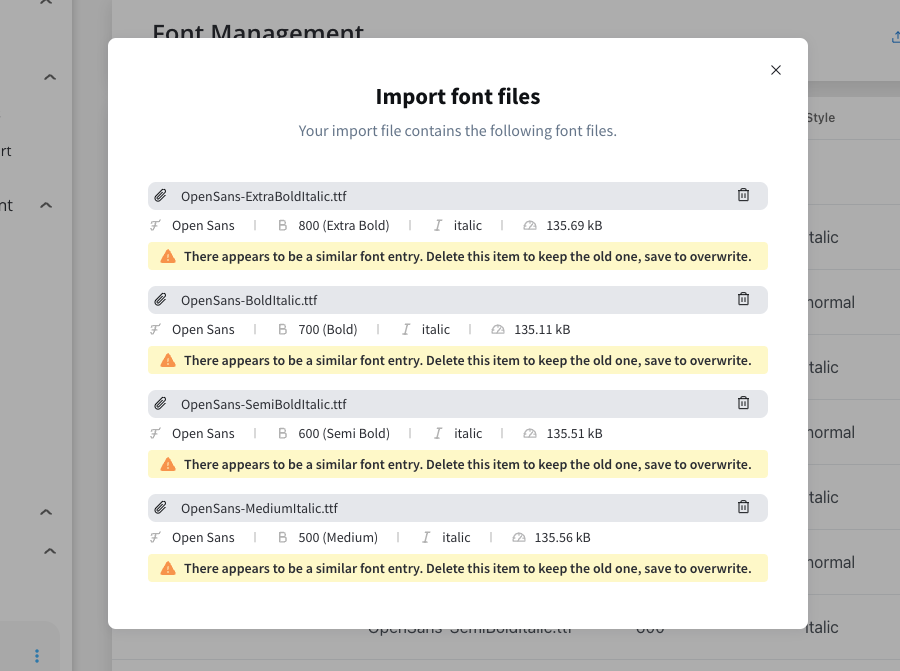
You can use the import feature to import a **JSON file** containing font files from another environment. This is useful for transferring your font library between different environments (for example, from development to production).
**Important distinction**:
* **Import** = Upload a JSON file exported from another environment (bulk transfer of fonts)
* **Upload font** (+) = Add individual TTF font files one by one
If a font file already exists in the target environment, you will be notified.
## Using fonts in UI Designer
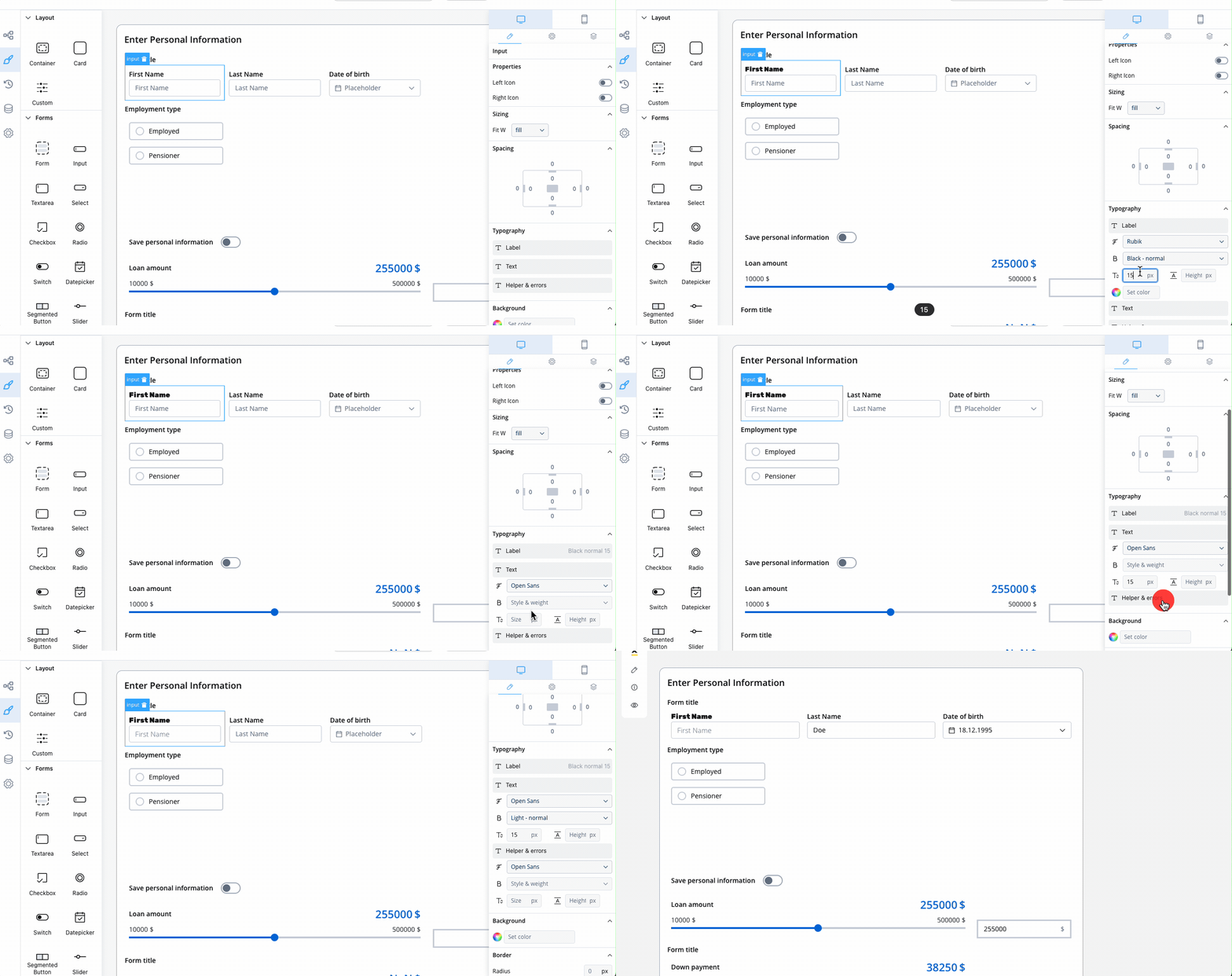
For example, for an input UI element you can customize the typography by changing the following properties:
* Label:
* Font family
* Style and weight
* Font line size (px)
* Font line height (px)
* Text:
* Font family
* Style and weight
* Font line size (px)
* Font line height (px)
* Helper & errors:
* Font family
* Style and weight
* Font line size (px)
* Font line height (px)