> ## Documentation Index
> Fetch the complete documentation index at: https://docs.flowx.ai/llms.txt
> Use this file to discover all available pages before exploring further.
# Validators
> Apply pre-defined validation rules to form inputs such as text, number, email, and date fields across web, mobile, and desktop apps.
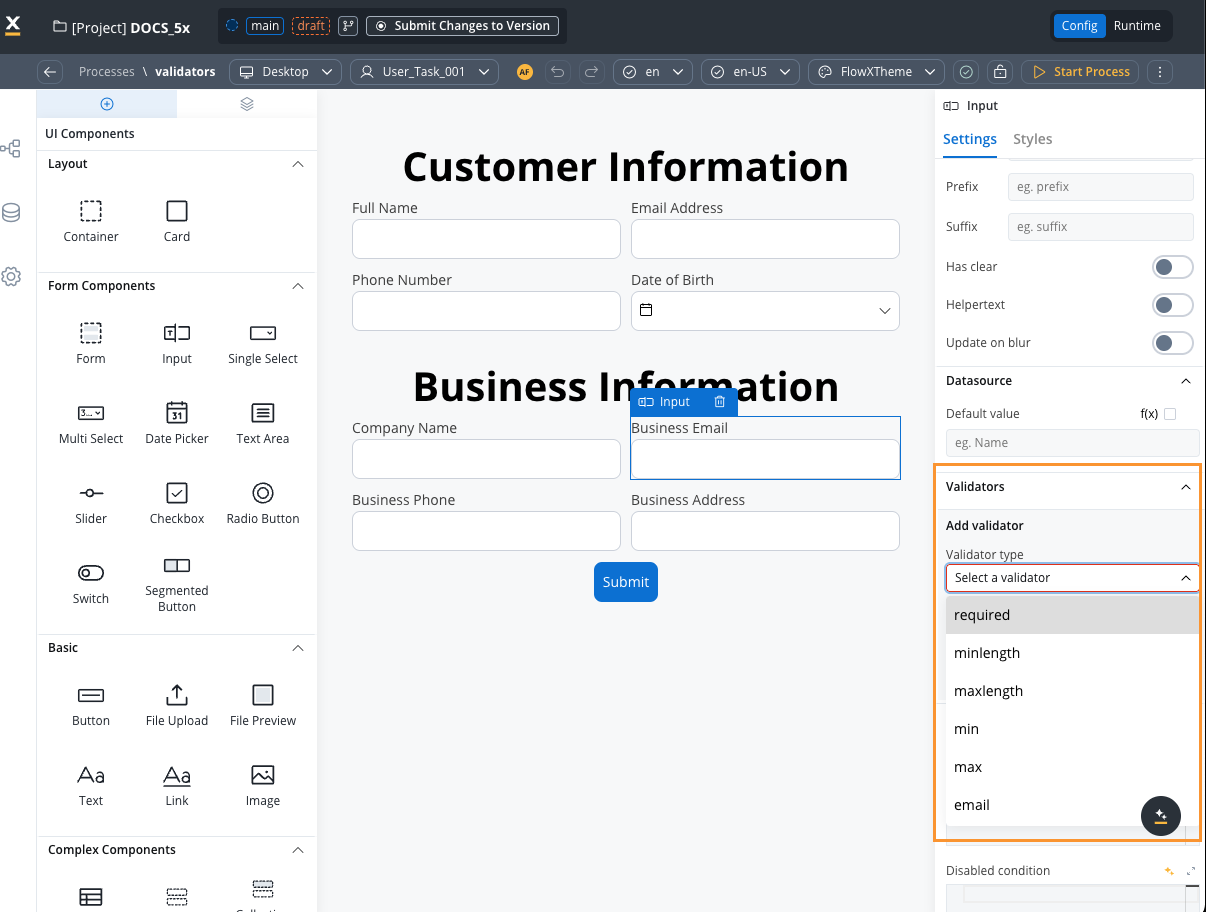
FlowX.AI provides default validators such as:
## Predefined validators
This validator checks whether a numeric value is smaller than the specified value. If there are no characters at all, this validator will not trigger. It is advisable to use this validator with a required validator.
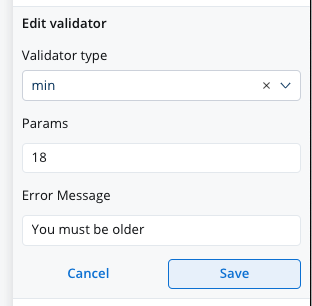
Refer to MDN documentation for more details about the min attribute.
This validator checks whether a numeric value is larger than the specified value. If there are no characters at all, this validator will not trigger. It is advisable to use this validator with a [required](#required-validator) validator.
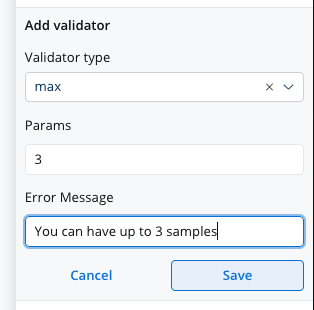
Refer to MDN documentation for more details about the max attribute.
This validator checks whether the input value has a minimum number of characters. If there are no characters at all, this validator will not trigger. It is advisable to use this validator with a required validator.
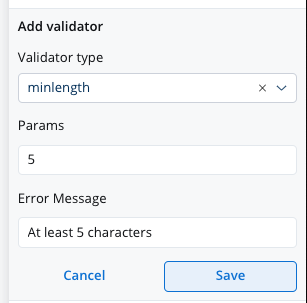
Refer to MDN documentation for more details about the minlength attribute.
This validator checks whether the input value has a maximum number of characters. If there are no characters at all, this validator will not trigger. It is advisable to use this validator with a [required](#required-validator) validator.
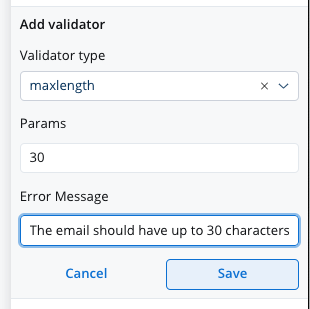
Refer to MDN documentation for more details about the maxlength attribute.
This validator checks whether a value exists in the input field.
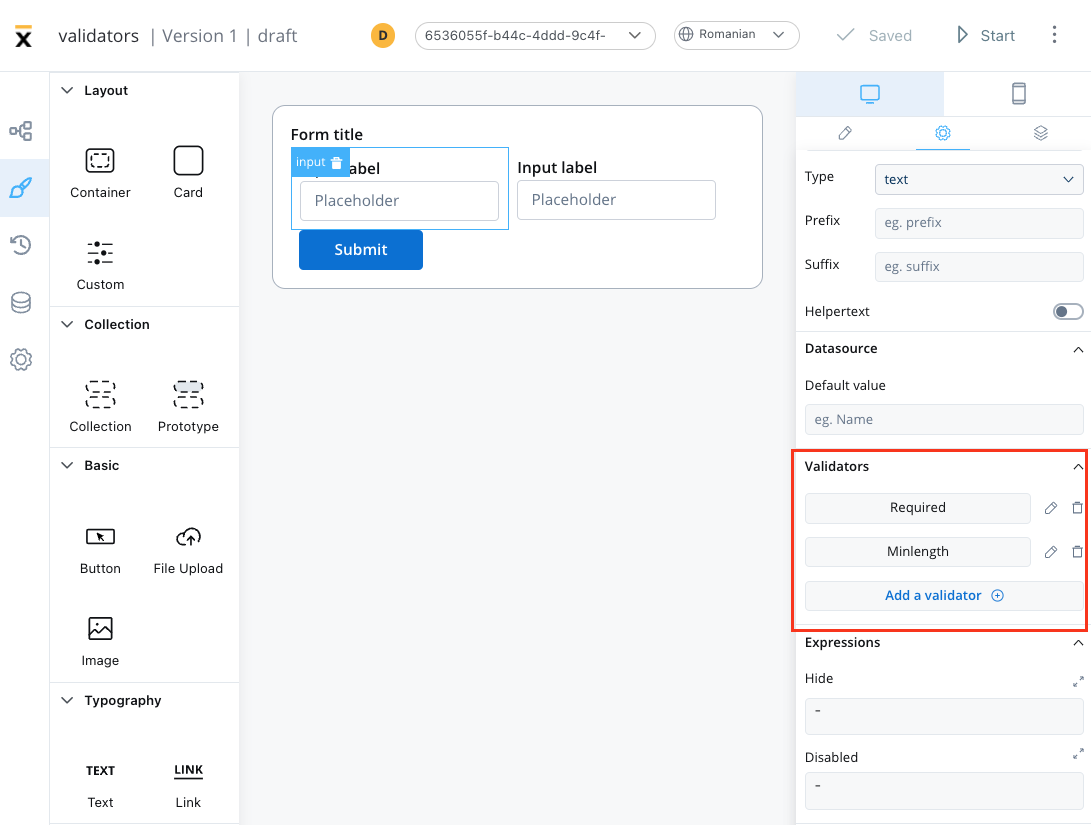
It is recommended to use this validator with other validators like [minlength](#minlength-validator) to check if there is no value at all.
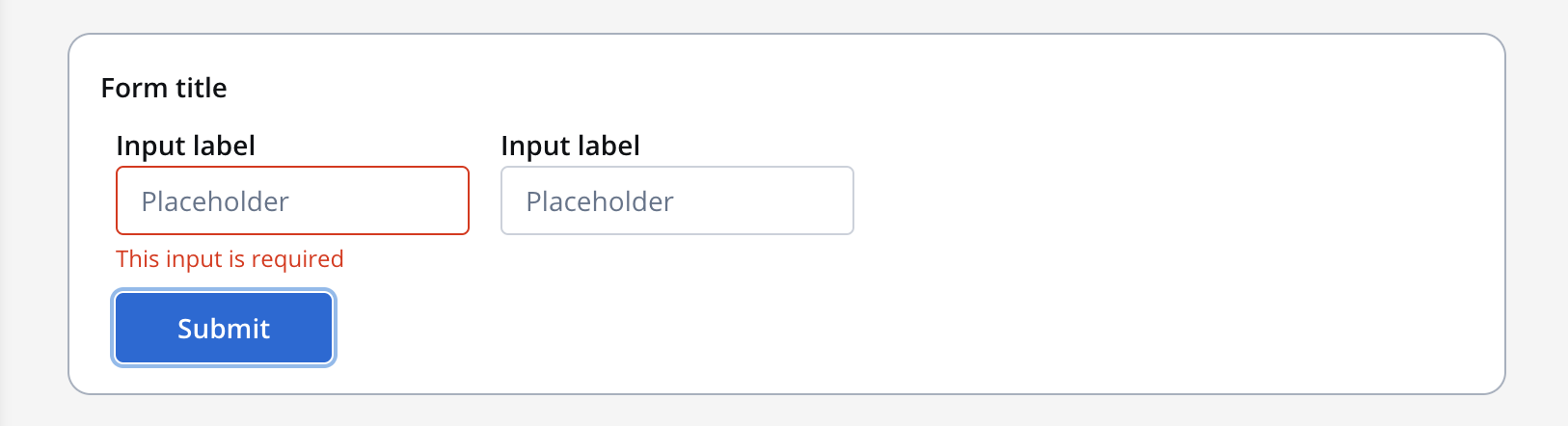
Refer to MDN documentation for more details about the required attribute.
This validator checks whether the input value is a valid email. If there are no characters at all, this validator will not trigger. It is advisable to use this validator with a [required](#required-validator) validator.
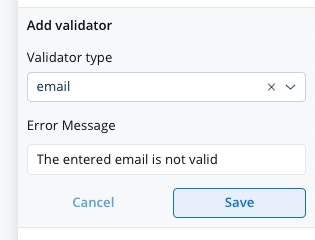
Refer to MDN documentation for more details about email input validation.
This validator checks whether the input value matches the specified pattern (for example, a [regex expression](https://www.regexbuddy.com/regex.html)).
**Important:** Pattern validators can only be applied to input fields of type **"text"** or **"string"**. They cannot be used with input fields of type **"number"**. If you need to validate numeric input with specific patterns (such as preventing leading zeros), you must either:
* Use a text input field instead of a number input field, or
* Create a custom validator that handles the numeric validation logic
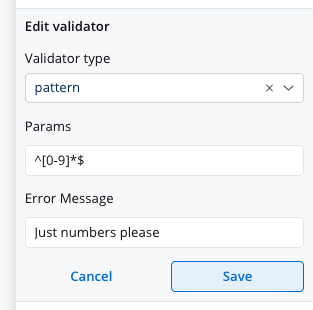
Refer to MDN documentation for more details about the pattern attribute.
This validator allows you to validate a form element based on computed expressions that can reference other values from the process data store, not just the current form element being validated.
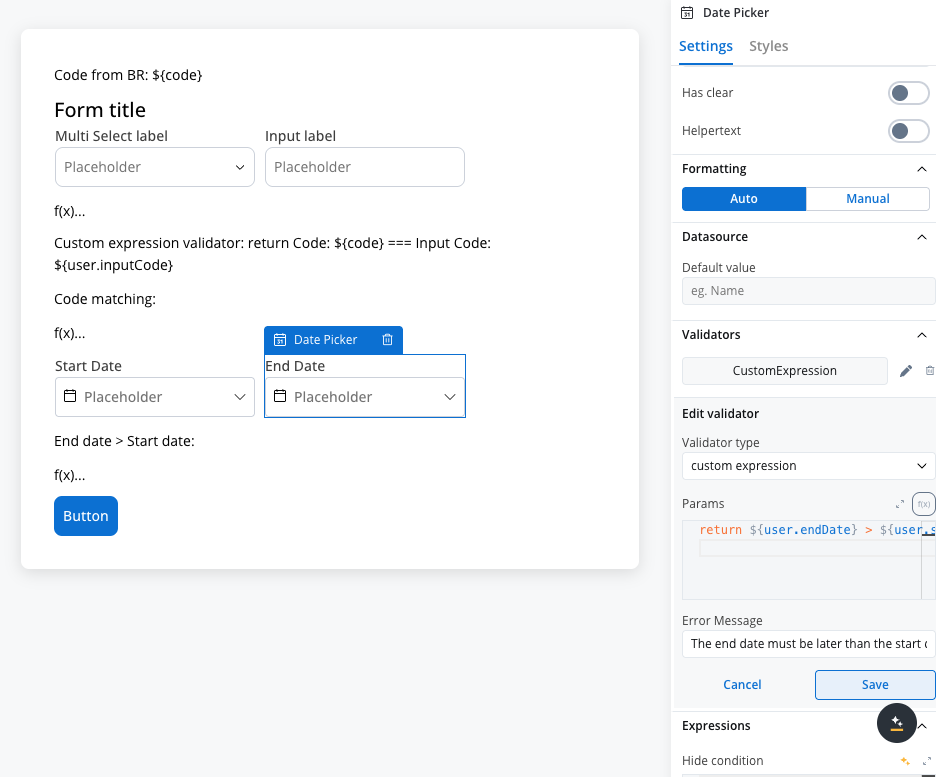
Example used:
```javascript Simple comparison theme={"system"}
return ${user.endDate} > ${user.startDate}
```
The validator uses a code editor where you can write computed expressions that must eventually return `true` (valid) or `false` (invalid). The expression can contain process data store values and will be evaluated dynamically.
The `customExpression` validator runs only when the field value is not empty or missing, similar to other predefined validators.
**Key features:**
* **Dynamic validation**: Based on other process values, not just the current field
* **Computed expressions**: Write JavaScript expressions that return boolean values
* **Real-time updates**: Re-evaluates when referenced process data changes
* **Universal compatibility**: Available for all form elements
**Expression examples:**
```javascript Simple comparison theme={"system"}
return ${app.endDate} > ${app.startDate}
```
```javascript Complex validation theme={"system"}
return ${app.userAge} >= 18 && ${app.hasParentConsent} === true
```
```javascript Numeric validation theme={"system"}
return ${app.totalAmount} <= ${app.availableBalance}
```
**Important considerations:**
* The expression **must** return a boolean value (`true` for valid, `false` for invalid)
* Use proper syntax when referencing process data store values with `${}`
* Ensure referenced process data keys exist to avoid runtime errors
* The validator is asynchronous and will be re-evaluated when dependent data changes
Other predefined validators are also available:
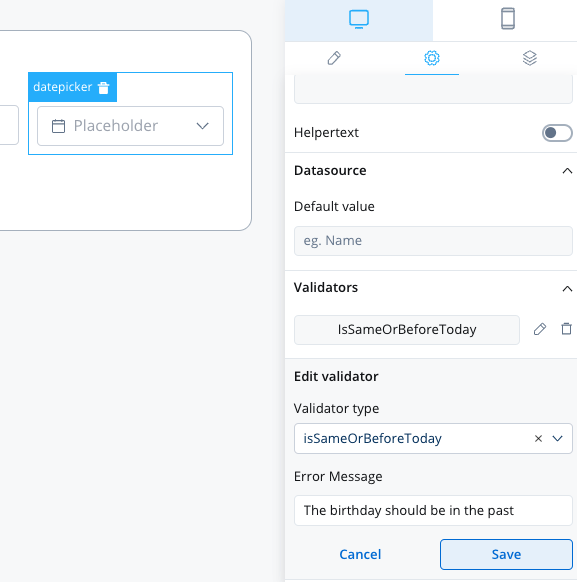
This validator can be used to validate [datepicker](./ui-component-types/form-elements/datepicker-form-field) inputs. It checks whether the selected date is today or in the past. If there are no characters at all, this validator will not trigger. It is advisable to use this validator with a [required](#required-validator) validator.
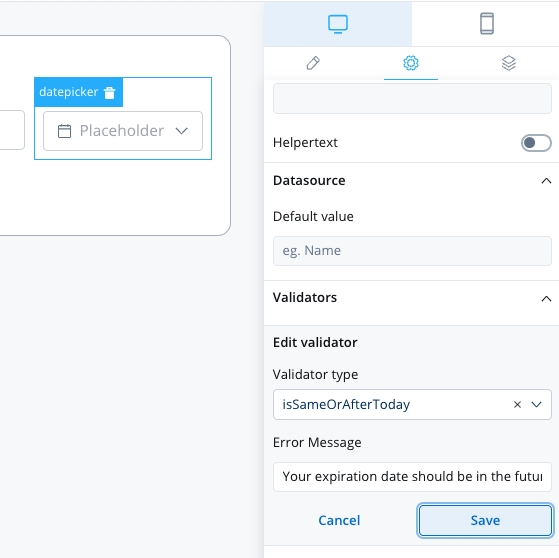
This validator can be used to validate datepicker inputs. It checks whether the selected date is today or in the future. If there are no characters at all, this validator will not trigger. It is advisable to use this validator with a [required](#required-validator) validator.
## Validator compatibility with input field types
Different validators work with different input field types. Here's a compatibility matrix:
| Validator | Text Fields | Number Fields | Email Fields | Date Fields |
| ------------------- | ----------- | ------------- | ------------ | ----------- |
| required | ✅ | ✅ | ✅ | ✅ |
| min | ❌ | ✅ | ❌ | ❌ |
| max | ❌ | ✅ | ❌ | ❌ |
| minLength | ✅ | ❌ | ✅ | ❌ |
| maxLength | ✅ | ❌ | ✅ | ❌ |
| email | ❌ | ❌ | ✅ | ❌ |
| pattern | ✅ | ❌ | ✅ | ❌ |
| customExpression | ✅ | ✅ | ✅ | ✅ |
| isSameOrBeforeToday | ❌ | ❌ | ❌ | ✅ |
| isSameOrAfterToday | ❌ | ❌ | ❌ | ✅ |
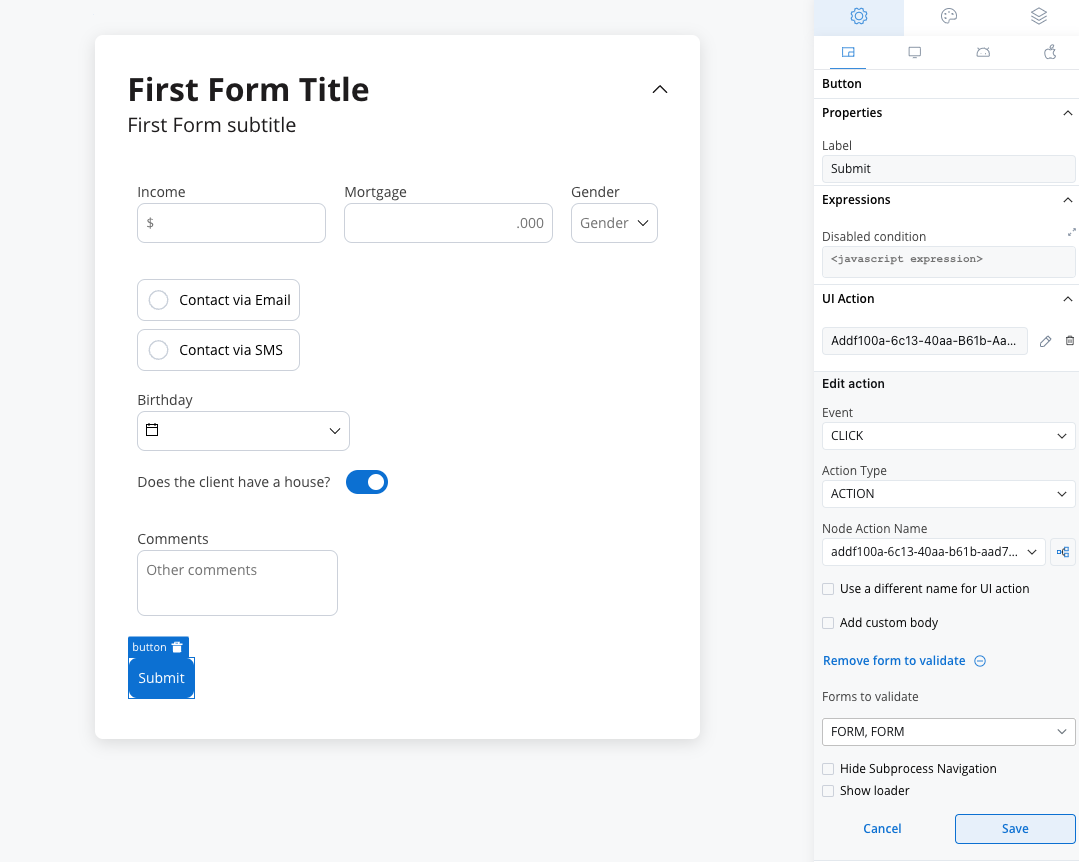
To ensure the validation of all form elements within a card upon executing a Save Data action such as "Submit" or "Continue," follow these steps:
* When adding an event handler to a button inside a card, locate the dropdown menu labeled **Add form to validate**.
* From the dropdown menu, select the specific form or individual form elements that you wish to validate.
* By choosing the appropriate form or elements from this dropdown, you can ensure comprehensive validation of your form.
***
## Common expression patterns
The `customExpression` validator supports JavaScript expressions that return `true` (valid) or `false` (invalid). Below are patterns for common validation scenarios.
### Date comparison
Validate that one date comes after another:
```javascript theme={"system"}
return new Date(${application.endDate}) > new Date(${application.startDate})
```
### Required-if (conditional required)
Make a field required only when another field has a specific value:
```javascript theme={"system"}
if (${application.hasSpouse} === true) {
return ${application.spouseName} !== null && ${application.spouseName} !== ""
}
return true
```
### Regex patterns
Validate a string against a pattern using `match()`:
```javascript UK National Insurance Number (NINO) theme={"system"}
return /^[A-CEGHJ-PR-TW-Z]{1}[A-CEGHJ-NPR-TW-Z]{1}[0-9]{6}[A-D]{1}$/.test(${application.nino})
```
```javascript Phone number (10 digits) theme={"system"}
return /^\d{10}$/.test(${application.phoneNumber})
```
```javascript Postal code (UK format) theme={"system"}
return /^[A-Z]{1,2}\d[A-Z\d]?\s?\d[A-Z]{2}$/.test(${application.postalCode})
```
For simple pattern matching on text fields, the [pattern validator](#pattern-validator) may be more appropriate. Use `customExpression` when you need to combine patterns with other logic.
### Null and empty checks
Handle optional fields that should be validated only when populated:
```javascript theme={"system"}
if (${application.alternateEmail} === null || ${application.alternateEmail} === "") {
return true
}
return /^[^\s@]+@[^\s@]+\.[^\s@]+$/.test(${application.alternateEmail})
```
### Cross-field validation
Compare multiple field values:
```javascript theme={"system"}
return ${application.confirmPassword} === ${application.password}
```
**Hidden fields skip validation.** When a form element is hidden via a hide condition, all its validators (including `customExpression`) are disabled. Hidden fields do not block form submission. If you need to validate data regardless of field visibility, use a [business rule action](../../actions/business-rule-action/business-rule-action) on the backend.
For full details on how visibility affects validation, see [Event Handlers — Form validation](./event-handlers#form-validation).
***
## Custom validators
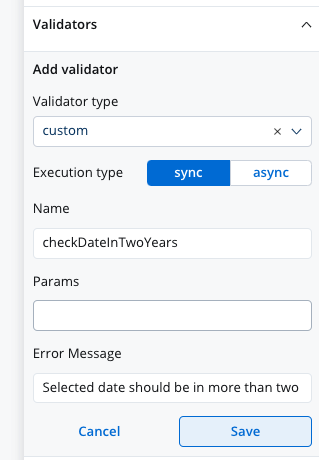
Additionally, custom validators can be created within the web application and referenced by name. These custom validators can have various configurations such as execution type, name, parameters, and error message.
1. **Execution type** - synchronous/asynchronous validator
2. **Name** - name provided by the developer to uniquely identify the validator
3. **Params** - if the validator needs inputs to decide if the field is valid or not, you can pass them using this list
4. **Error Message** - the message that will be displayed if the field is not valid
The error that the validator returns **MUST** match the validator name.
### Custom validator example
Below you can find an example of a custom validator (`currentOrLastYear`) that restricts date selection to the current or the previous year:
#### currentOrLastYear
```typescript theme={"system"}
currentOrLastYear: function currentOrLastYear(AC: AbstractControl): { [key: string]: any } {
if (!AC) {
return null;
}
const yearDate = moment(AC.value, YEAR_FORMAT, true);
const currentDateYear = moment(new Date()).startOf('year');
const lastYear = moment(new Date()).subtract(1, 'year').startOf('year');
if (!yearDate.isSame(currentDateYear) && !yearDate.isSame(lastYear)) {
return { currentOrLastYear: true };
}
return null;
```
#### smallerOrEqualsToNumber
Below is another custom validator example that validates form input asynchronously. The validator is called `smallerOrEqualsToNumber` and takes an array of `params` as an input.
For this custom validator the execution type should be marked as `async` using the UI Designer.
```typescript theme={"system"}
export function smallerOrEqualsToNumber (params$: Observable[]): AsyncValidatorFn {
return (AC): Promise | Observable => {
return new Observable((observer) => {
combineLatest(params$).subscribe(([maximumLoanAmount]) => {
const validationError =
maximumLoanAmount === undefined || !AC.value || Number(AC.value) <= maximumLoanAmount ? null : {smallerOrEqualsToNumber: true};
observer.next(validationError);
observer.complete();
});
});
};
}
```
If the input value is undefined or the input value is smaller or equal to the maximum loan amount value, the function returns `null`, indicating that the input is valid. If the input value is greater than the maximum loan amount value, the function returns a validation error object with a key `smallerOrEqualsToNumber` and a value of true, indicating that the input is invalid.
For more details about custom validators please check the [SDK documentation](../../../sdks/).
Using validators in your application can help ensure that the data entered by users is valid, accurate, and consistent, improving the overall quality of your application.
It can also help prevent errors and bugs that may arise due to invalid data, saving time and effort in debugging and fixing issues.
***
## Academy courses
Academy course on building dynamic UI logic with hide and disable conditions, including validation behavior
**Academy playground** — explore the [**Academy\_HideAndDisable**](https://designer-workshop-51x.playground.flowxai.dev/workspace/00000000-0000-0000-0000-000000000001/projects/698d604b-904f-4cb9-8d70-68a492b8216d/config/40430d0b-3f16-4146-9231-26cc68e35ccb/processes) project for working validation and hide/disable examples.