> ## Documentation Index
> Fetch the complete documentation index at: https://docs.flowx.ai/llms.txt
> Use this file to discover all available pages before exploring further.
# UI Designer
> The FlowX.AI UI Designer is a comprehensive, multi-platform interface creation tool that enables visual design of user experiences across web, iOS, and Android platforms without extensive coding.
## Purpose
The **FlowX.AI UI Designer** is an intuitive interface creation tool for building user interfaces within FlowX.AI processes. It provides a visual editor where you can add, arrange, and configure UI components to create rich web interfaces for your business processes.
### Key capabilities
Create interfaces with platform-specific configuration and styling across Web, iOS, and Android
Use a drag-and-drop environment to design diverse UI templates with various elements and components
Preview your designs across different platforms and themes with live feedback
Access ready-to-use UI components including form elements, containers, and specialized components
The UI Designer integrates with BPMN process flows, making it available for [**User Task**](../node/user-task-node) nodes and **Navigation Areas** to create contextual user interfaces.
## UI Designer interface
The UI Designer provides a comprehensive interface for creating and configuring user interfaces within your FlowX.AI processes.
### Platform selection
The UI Designer supports multi-platform design with dedicated configuration tabs:
**Full Feature Support**: Complete UI Designer functionality with all component types and navigation features
* All UI component types supported
* Full navigation area capabilities
* Zones with headers and footers
* Single page and wizard navigation types
**Mobile-Optimized Interface**: Platform-specific properties and limitations
* Basic navigation areas (no zones with headers/footers)
* Screen title configuration for navigation bar
* Scrollable property for card components
* Platform-specific property overrides
**Mobile-Optimized Interface**: Android-specific adaptations
* Basic navigation areas (no zones with headers/footers)
* Screen title configuration for navigation bar
* Platform-specific property overrides
* Material design considerations
### Configuration panels
The UI Designer interface consists of configuration sections for comprehensive component setup:
**Generic Configuration**: Properties available cross-platform (Web, Android and iOS)
**Platform-Specific Settings**: Override generic properties for specific platforms
* Property overrides (Title, Subtitle, Helper text)
* Expression overrides (Hide conditions)
* Import/export functionality between platforms
**Theme Integration**: Components inherit styling from the active theme by default
**Theme Overrides**: Customize component appearance beyond theme settings
* Platform-specific styling
* Conditional styling (for Text, Link, Container elements)
* Import/export styles between platforms
**Multi-Platform Preview**: Switch between platforms to preview designs
* Real-time platform switching
* Theme selection for preview
* Visual estimation for mobile platforms
iOS and Android previews are estimates to help visualize mobile views.
### UI components available
The FlowX.AI platform offers a variety of ready-to-use UI components for creating rich web interfaces:
**Layout Foundation Elements**:
* **[Container](./ui-component-types/root-components/container)**: Flexible grouping and layout control
* **[Card](./ui-component-types/root-components/card)**: Content cards with built-in styling
* **[Custom](./ui-component-types/root-components/custom)**: Advanced custom component integration
These components serve as the foundation for structuring user interfaces and provide the framework for arranging other UI elements.
**Data Collection Components**: Essential for collecting user information
* **[Input](./ui-component-types/form-elements/input-form-field)**: Text input fields
* **[Textarea](./ui-component-types/form-elements/text-area)**: Multi-line text input
* **[Select](./ui-component-types/form-elements/select-form-field)**: Dropdown menus
* **[Checkbox](./ui-component-types/form-elements/checkbox-form-field)**: Multiple selection options
* **[Radio](./ui-component-types/form-elements/radio-form-field)**: Single selection from options
* **[Switch](./ui-component-types/form-elements/switch-form-field)**: Toggle controls
* **[Datepicker](./ui-component-types/form-elements/datepicker-form-field)**: Date and time selection
* **[Slider](./ui-component-types/form-elements/slider)**: Range and numeric input
* **[Segmented Button](./ui-component-types/form-elements/segmented-button)**: Multi-option selection
Each form element serves a unique purpose and offers different options for capturing user input.
**Interactive and Display Components**:
* **[Buttons](./ui-component-types/buttons)**: Action triggers and navigation
* **[File Upload](./ui-component-types/file-preview)**: Document and media upload
* **[Image](./ui-component-types/image)**: Media display
* **[Typography](./ui-component-types/typography)**: Text and links
* **[Table](./ui-component-types/table)**: Structured data presentation
* **[Indicators](./ui-component-types/indicators)**: Status and message display
**Dynamic Content Components**:
* **[Collection](./ui-component-types/collection/collection)**: Dynamic lists of data
* **[Collection Prototype](./ui-component-types/collection/collection-prototype)**: Templates for collection items
These components handle repeated content and dynamic data presentation.
### Component configuration
After adding a UI component, the right-side menu displays configuration options:
* **Settings Tab**: Configure component properties and behavior
* **Styles Tab**: Customize appearance and apply theme overrides
* **Platform Overrides**: Adapt components for specific platforms
### Navigation areas integration
Navigation areas can be configured through the UI Designer, providing:
* Hierarchical navigation structure
* Platform-specific navigation capabilities
* Copy/paste functionality for consistency across platforms
## Using the UI designer
To access the UI Designer and start building interfaces:
Navigate to **FlowX.AI Designer** and select **Definitions** from the **Processes** tab.
Choose a **process** from the process definitions list.
Click the **Edit process** button to enter editing mode.
Select a **User Task node** or a **Navigation Area** then click the **brush icon** to open the **UI Designer**.
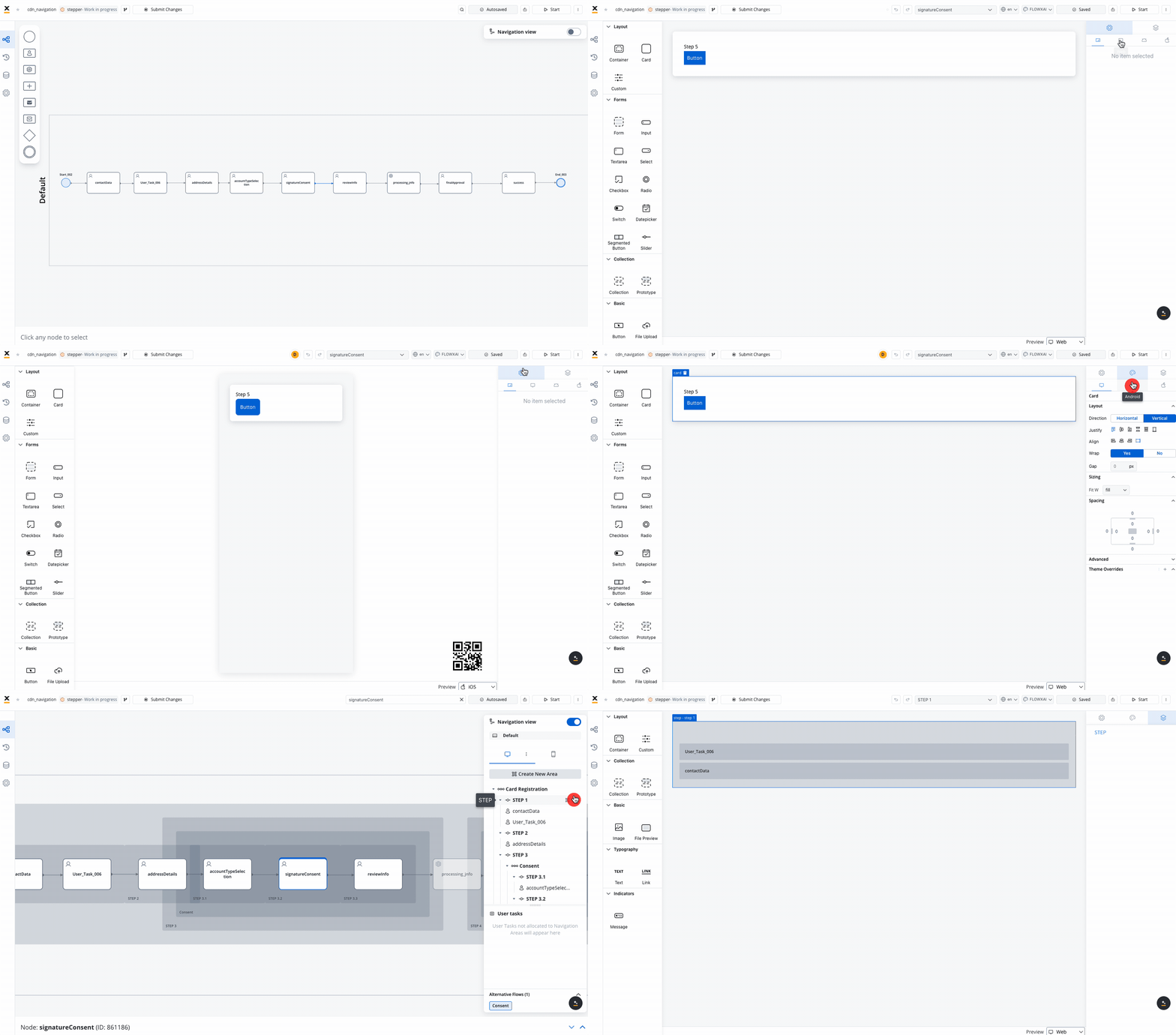
The UI Designer is available for [**User Task**](../node/user-task-node) nodes and **Navigation Areas** elements, providing contextual interface design capabilities.
**Productivity Features**:
* **Undo/Redo**: Available within the UI Designer for actions such as dragging, dropping, or deleting elements
* **Keyboard Shortcuts**: Use keyboard commands for quick access to undo/redo functionality
* **Drag and Drop**: Support for dragging and dropping elements in the preview section
* **Settings Panel**: Right-side menu displays configuration options after adding components
## Comprehensive design guides
Master the UI Designer with our detailed guides covering every aspect of interface creation:
**How to Approach Screen Configuration**
Learn the systematic methodology for creating effective user interfaces:
* User journey definition and analysis
* Navigation pattern selection
* Information architecture planning
* Layout strategy implementation
* Platform-specific adaptations
* Validation and testing approaches
**UI Designer Best Practices**
Essential guidelines for creating accessible, performant interfaces:
* User-centered design principles
* Information architecture standards
* Component usage excellence
* [Accessibility compliance (WCAG 2.1)](../../platform-deep-dive/accessibility)
* Testing and quality assurance
* Maintenance strategies
**Platform-Specific Guidelines**
Comprehensive platform optimization and limitation reference:
* Web, iOS, and Android design patterns
* Performance optimization strategies
* Platform-specific constraints and workarounds
* Security and privacy considerations
* Cross-platform testing protocols
**Advanced UI Designer Capabilities**
Discover the features in FlowX.AI UI Designer:
* Conditional styling for dynamic interfaces
* Platform-specific configuration and overrides
* Advanced form components with validation
* Navigation areas integration
* Flexible layout configuration and reusable templates
## Latest features
FlowX.AI UI Designer includes several advanced features for creating rich, interactive user interfaces:
**Dynamic Styling Based on Data**
* Apply styles conditionally based on process data
* Available for Text, Link, and Container elements
* Real-time evaluation with priority handling
* Platform-specific styling overrides
**Configuration**:
* Navigate to Styles tab → Conditional Styling section
* Add expressions and effects using JS Editor
* Define conditions and style overrides
Use conditional styling to highlight data patterns, outliers, or trends directly within the interface, reducing the need for multiple prototypes.
**Multi-Platform Design Support**
* Universal configuration and styling across Web, iOS, and Android
* Platform-specific property overrides
* Generic settings with targeted customizations
* Import/export overrides between platforms
**Key Features**:
* Settings tab with platform selection
* Override system for properties and expressions
* Preview across different platforms
* Consistent yet platform-optimized experiences
**Rich Form Element Support**
* Input fields with validation (required, custom)
* Select components with CHANGE event handling
* Checkboxes and radio buttons with dynamic behavior
* File upload components with platform considerations
* Date pickers and sliders for enhanced input
**Validation Features**:
* Required field validation
* Custom validation rules
* Conditional validation based on other fields
* Real-time validation feedback
**Enhanced Navigation Design**
* Navigation areas accessible within UI Designer
* Platform-specific navigation capabilities
* Web: Full zones with headers/footers, wizard navigation
* Mobile: Basic navigation areas with screen titles
* Copy/paste navigation areas for consistency
**Flexible Layout System**
* Linear layout with direction, justify, align controls
* Grid layout support for complex designs
* Gap settings for proper spacing
* Wrap functionality for responsive behavior
* Available for containers and grouping components
**Component Reusability**
* Create modular UI components for reuse across processes
* Template hierarchy with data model support
* Input/output parameter mapping
* Visual components and layout focus
* Cannot include complex business logic
## UI components
FlowX offers a wide range of [UI components](./ui-designer#ui-components) that can be customized using the UI Designer. For example, when configuring a [card](./ui-component-types/root-components/card) element (which is a root component), the following properties can be customized:

### Settings tab
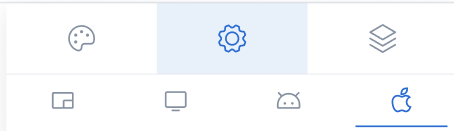
#### Generic tab
This is where you configure the logic and assign process keys, event handlers, and other component settings that are common across all platforms (Web, iOS, Android).
#### Platform-specific settings
For example, on Android, you might want to change the Card title to a shorter one.
To override a general property like a title, follow these steps:
Access the UI Designer and select a UI Element, such as a **Card**.
From the UI Designer navigation panel, select the **Settings** tab, then select the **desired platform**
Click the "+" button (next to "Overrides") and select **Properties -> Title**, then input your desired value.
Settings overrides can always be imported/pushed from one platform to another:
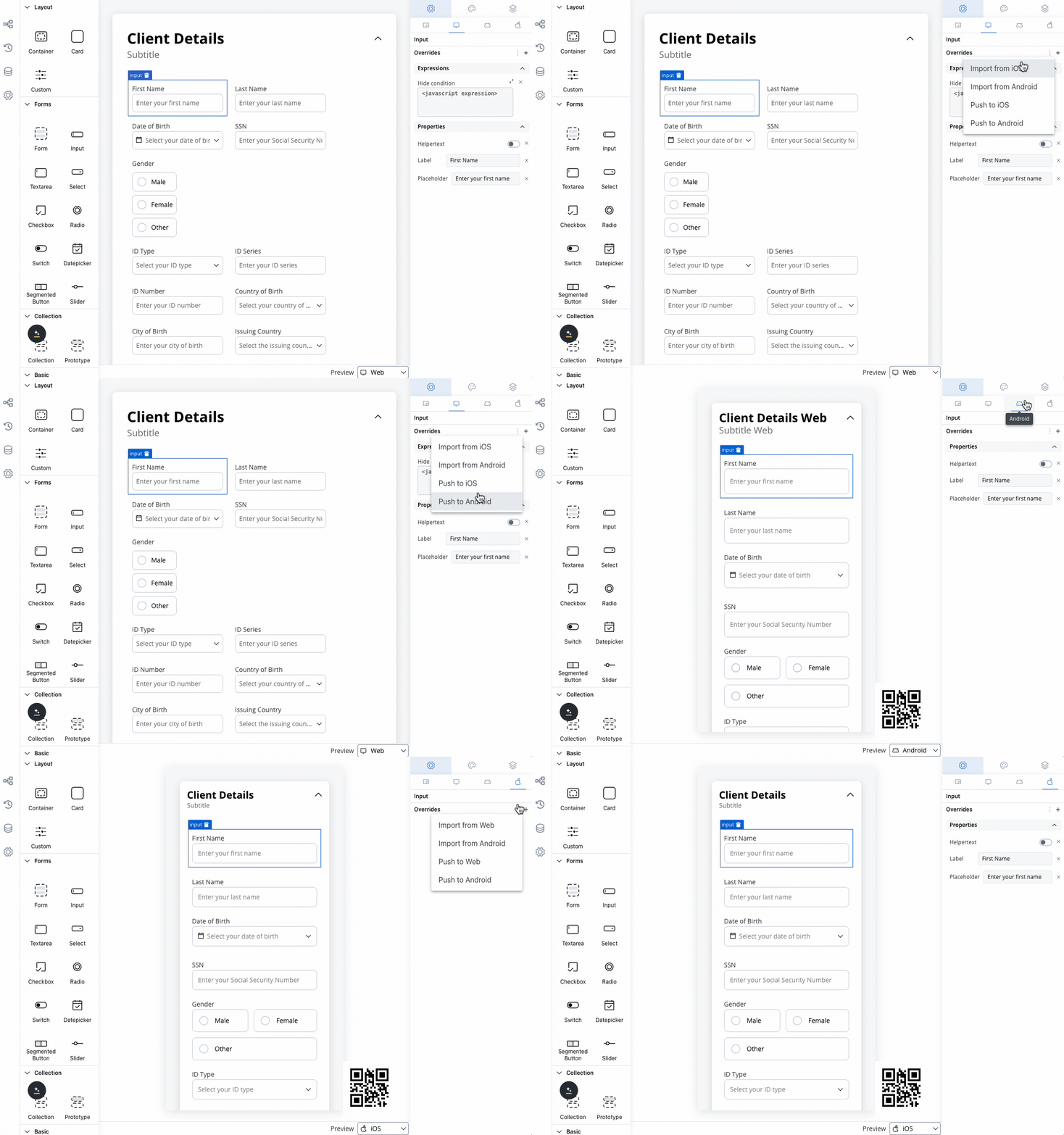
Preview your changes in the UI Designer by navigating from one platform to another or by comparing them.
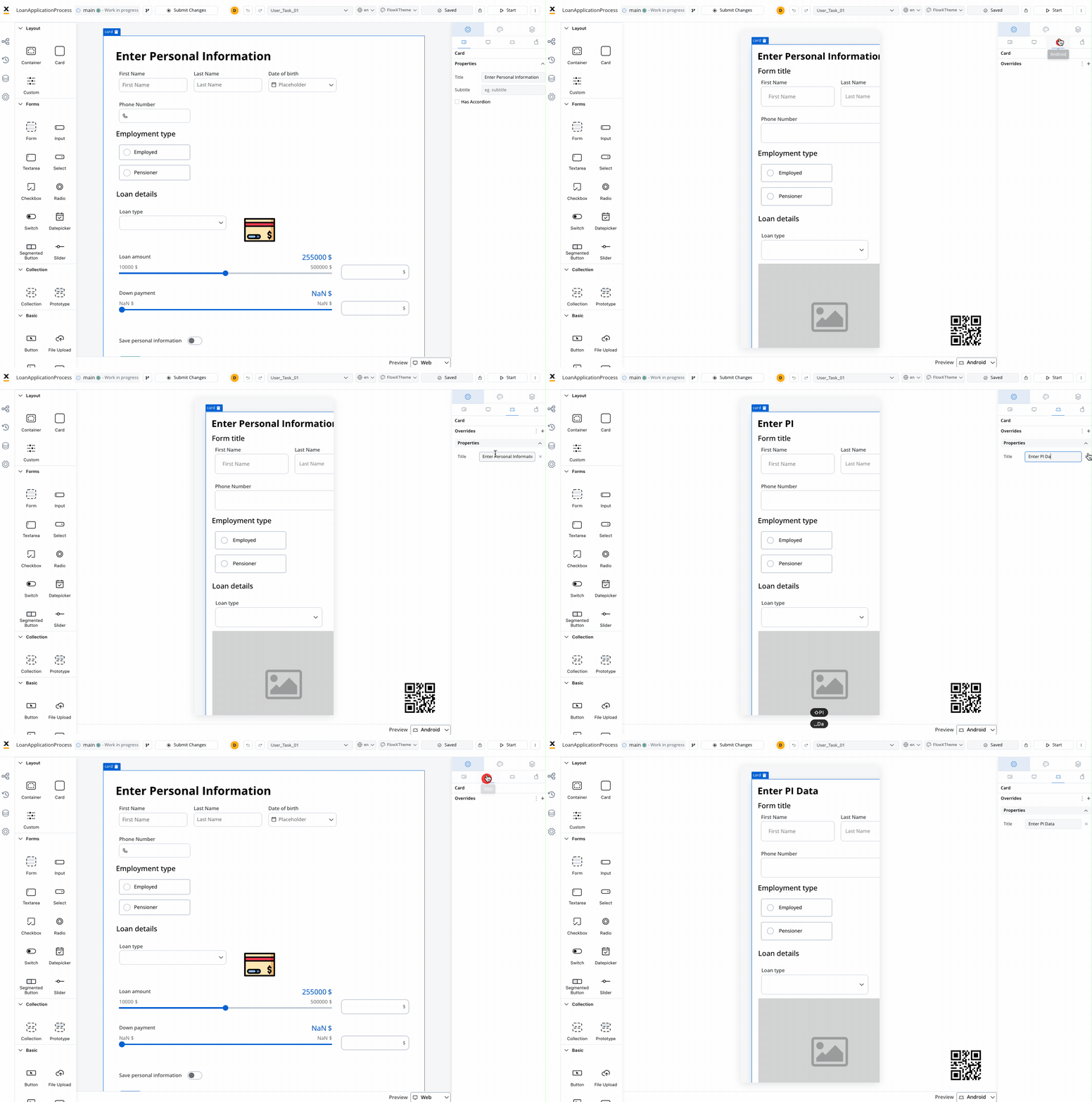
Keep in mind that the preview generated in the UI Designer for iOS and Android platforms is an estimate meant to help you visualize how it might look on a mobile view.
#### Hide expressions
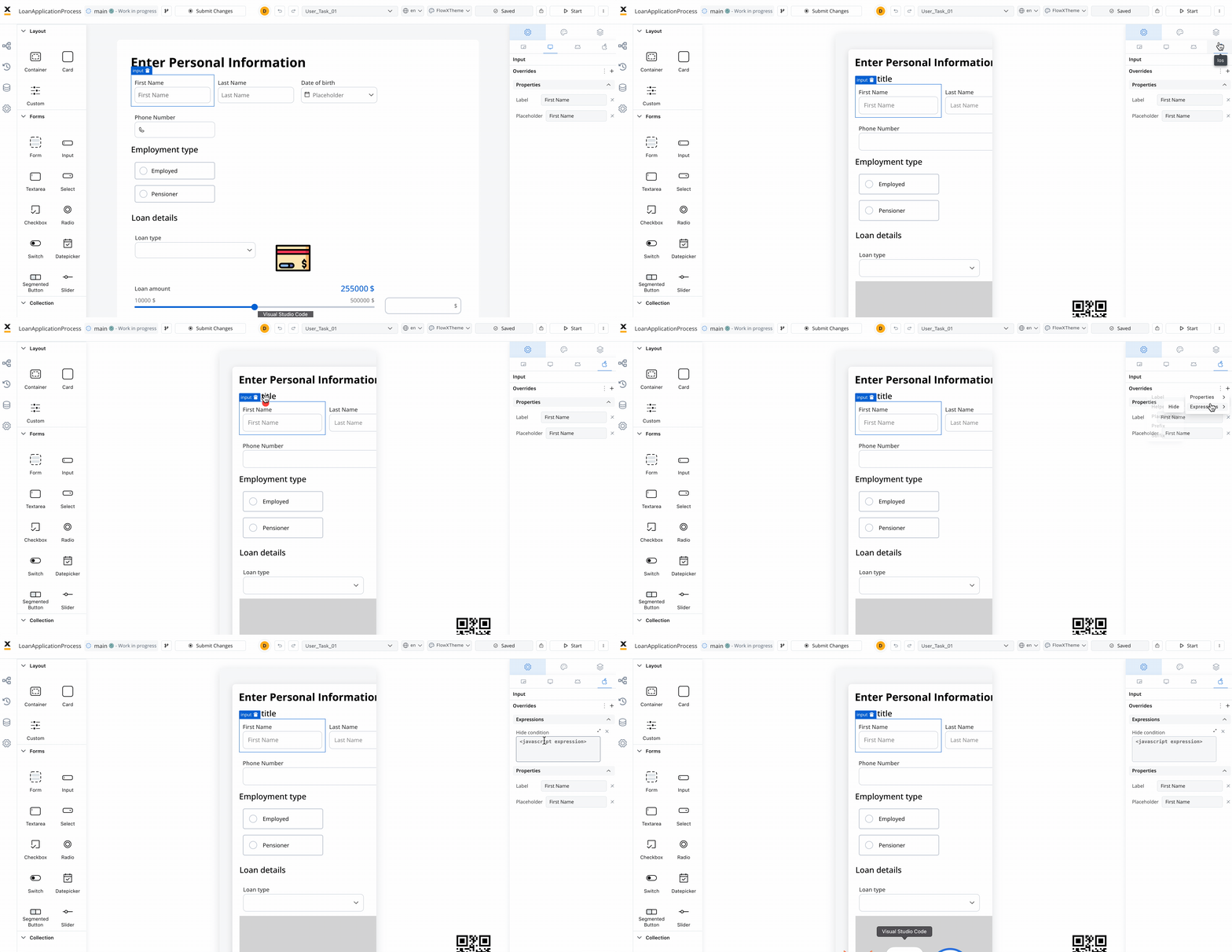
By utilizing **Overrides** in the **Settings** tab, you can selectively hide elements on a specific platform.
To achieve this:
Select a UI component in the **UI Designer**, then navigate to **Settings** -> **your desired platform** -> **Overrides (+)** -> **Expressions** -> **Hide**.
Add your JavaScript Hide condition.
## Permission-based expressions
Control UI element visibility and interaction based on user roles and process data.
Complete guide to configuring role-based UI permissions, cross-swimlane references, and collaborative workflows
### Quick configuration
In process settings, enable **Allow multiple executors** for your swimlane.
In **UI Designer**, select the component to configure.
Expand **Permissions** section and click **+** to add hide or disable conditions.
Set **Type** (USERNAME/ROLE), **Operator** (IN/NOT\_IN), **Value Type**, and **Value**.
Use `CONFIGURATION_SWIMLANE_ROLE` for swimlane roles and `PROCESS_DATA` for dynamic values. `SWIMLANE_OWNER` requires no value.
### Styles tab
The Styles tab functions independently for three platforms: Web, iOS, and Android. Here, you can customize styles for each UI component on each platform.
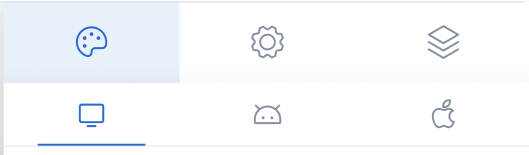
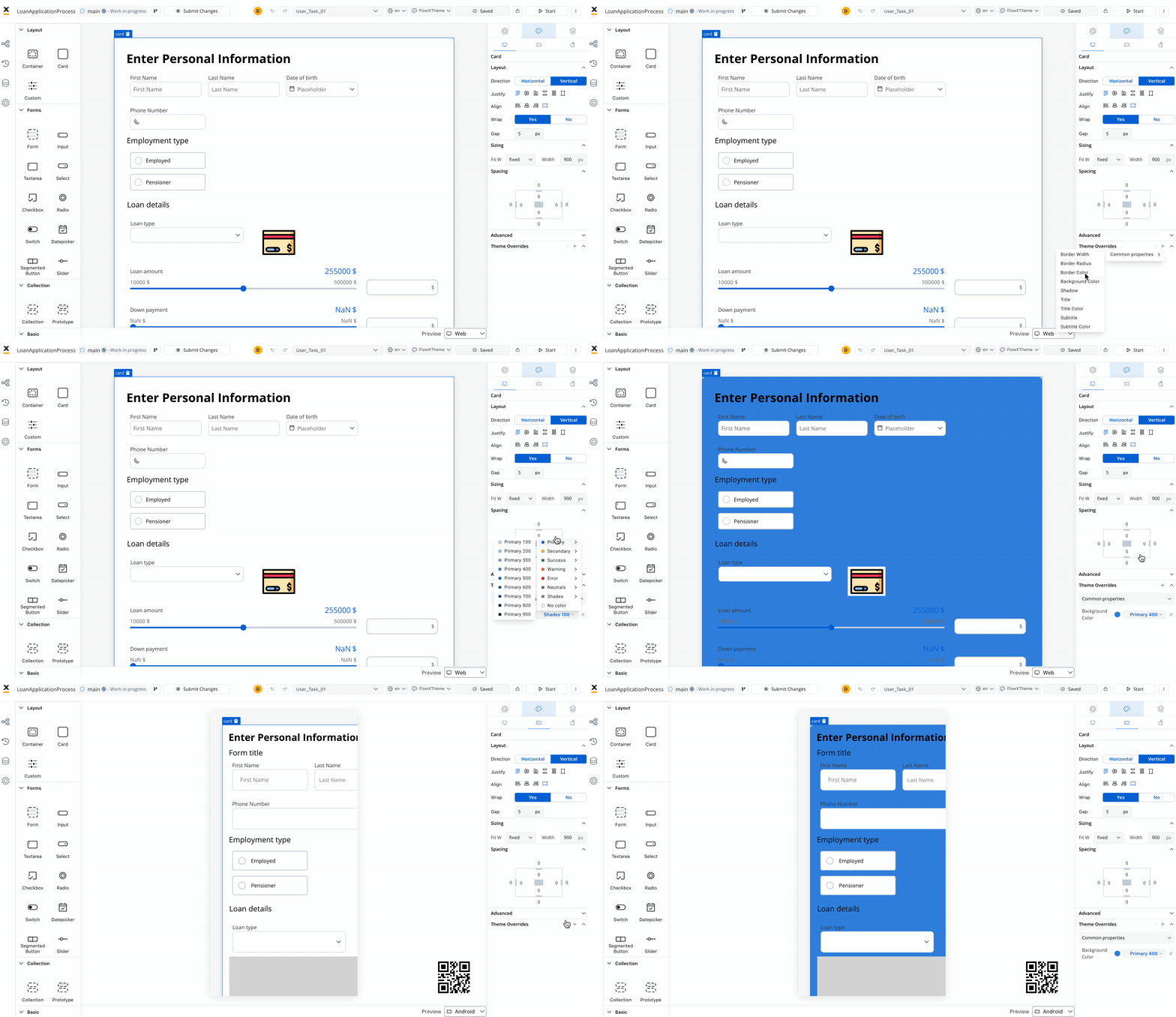
If you want to customize the appearance of a component to differ from the theme settings, you must apply a **Theme Override**.
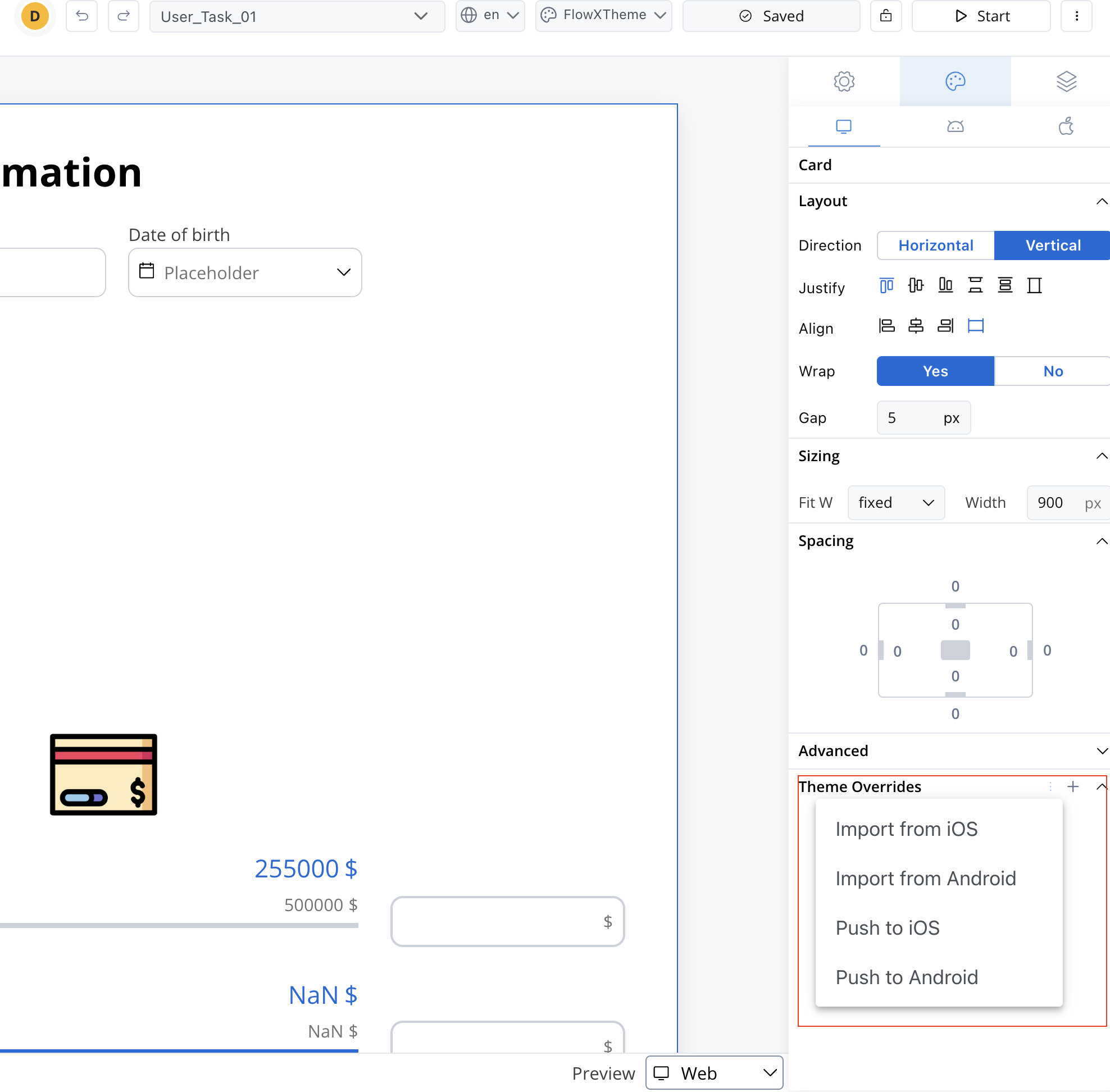
Theme overrides can be imported from one platform to another.
#### Copy/paste styles
Contextual menu functionality enables efficient style management:
* **Copy Style**: Copy styling properties between compatible components
* **Paste Style**: Apply copied styles to selected components
* **Copy to/from Platform**: Share styles across Web, iOS, and Android platforms
* **Multiple selection**: Apply styles to multiple components simultaneously
Compatible component groups for style copying:
* **Input-like**: Input, Select, Datepicker, Textarea, Multiselect
* **Selection**: Radio, Checkbox
* **Container**: Container, Form, Card, Collection, Collection Prototype
* **Action**: Button, File Upload
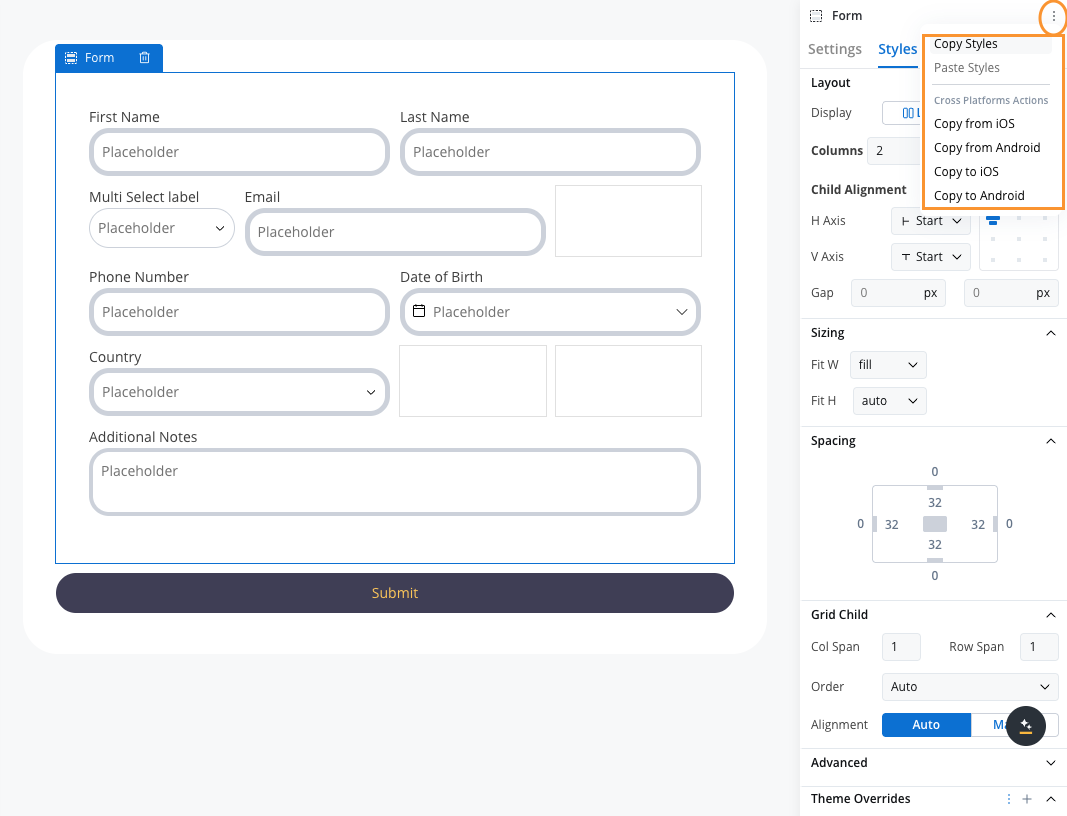
#### Copy/paste platform actions
### Preview
When you are editing a process in **UI Designer** you have the possibility of having the preview of multiple themes:
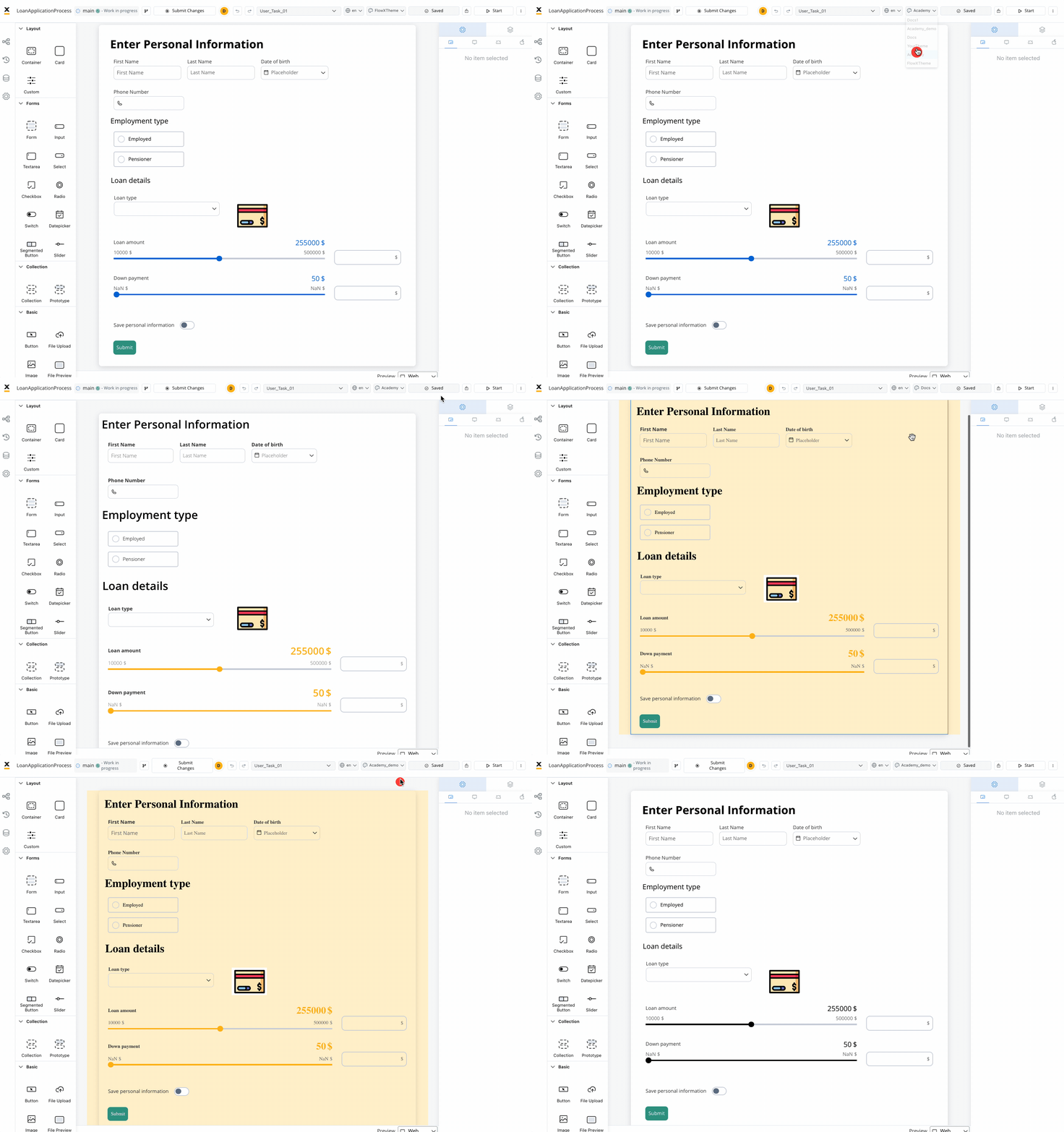
Overrides are completely independent of the theme, regardless of which theme you choose in the preview mode.
### Layout
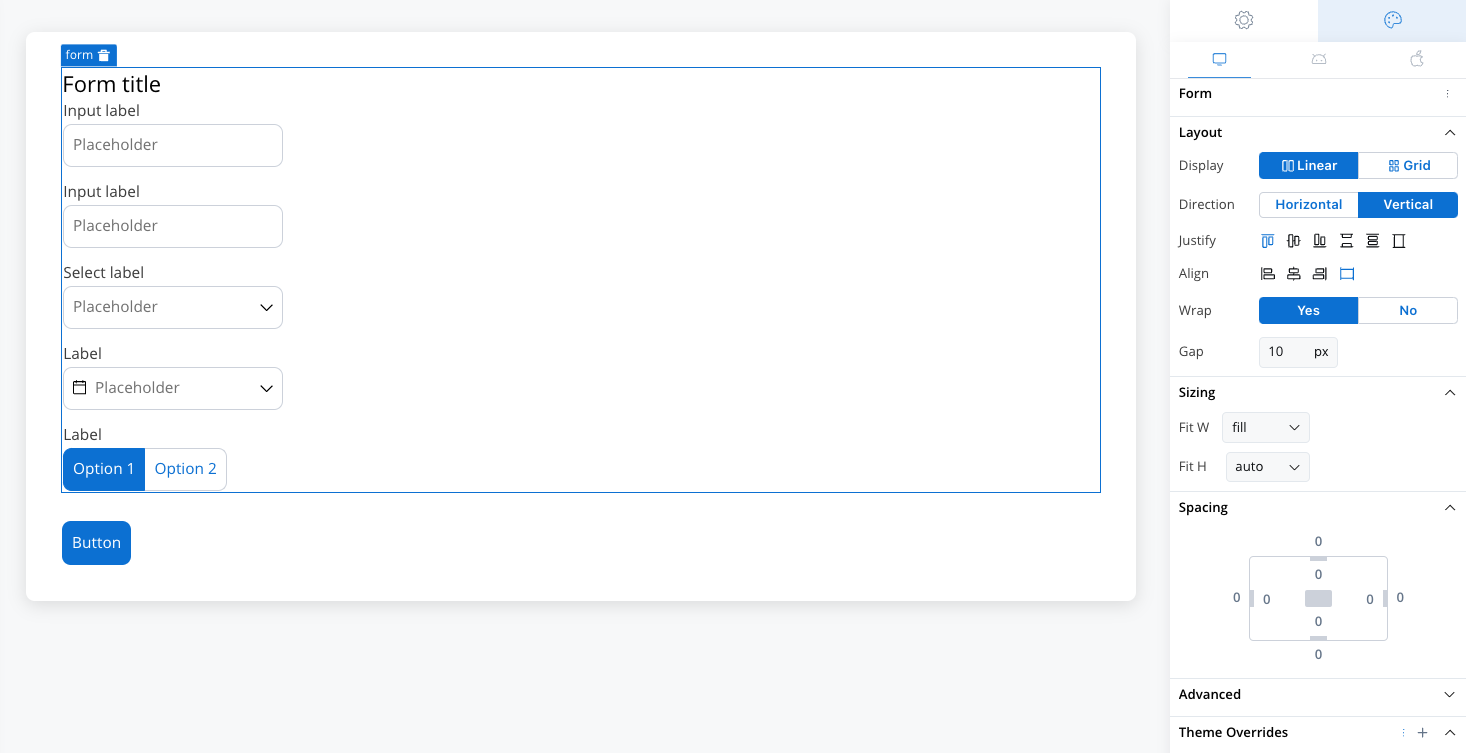
There are two main types of layouts for organizing child elements: **Linear** and **Grid**.
* **Linear Layout**: Arranges child elements in a single line, either horizontally or vertically. Ideal for simple, sequential content flow.
* **Grid Layout**: Organizes elements into a structured grid with multiple columns and rows, useful for more complex, multi-dimensional designs.
* **Platform-Specific Layouts**: You can customize layout settings per platform (e.g., Grid on web, Linear on mobile) to ensure optimal responsiveness.
Both layouts offer options to customize direction, alignment, spacing, and wrap behavior for flexibility in design.
### Sizing
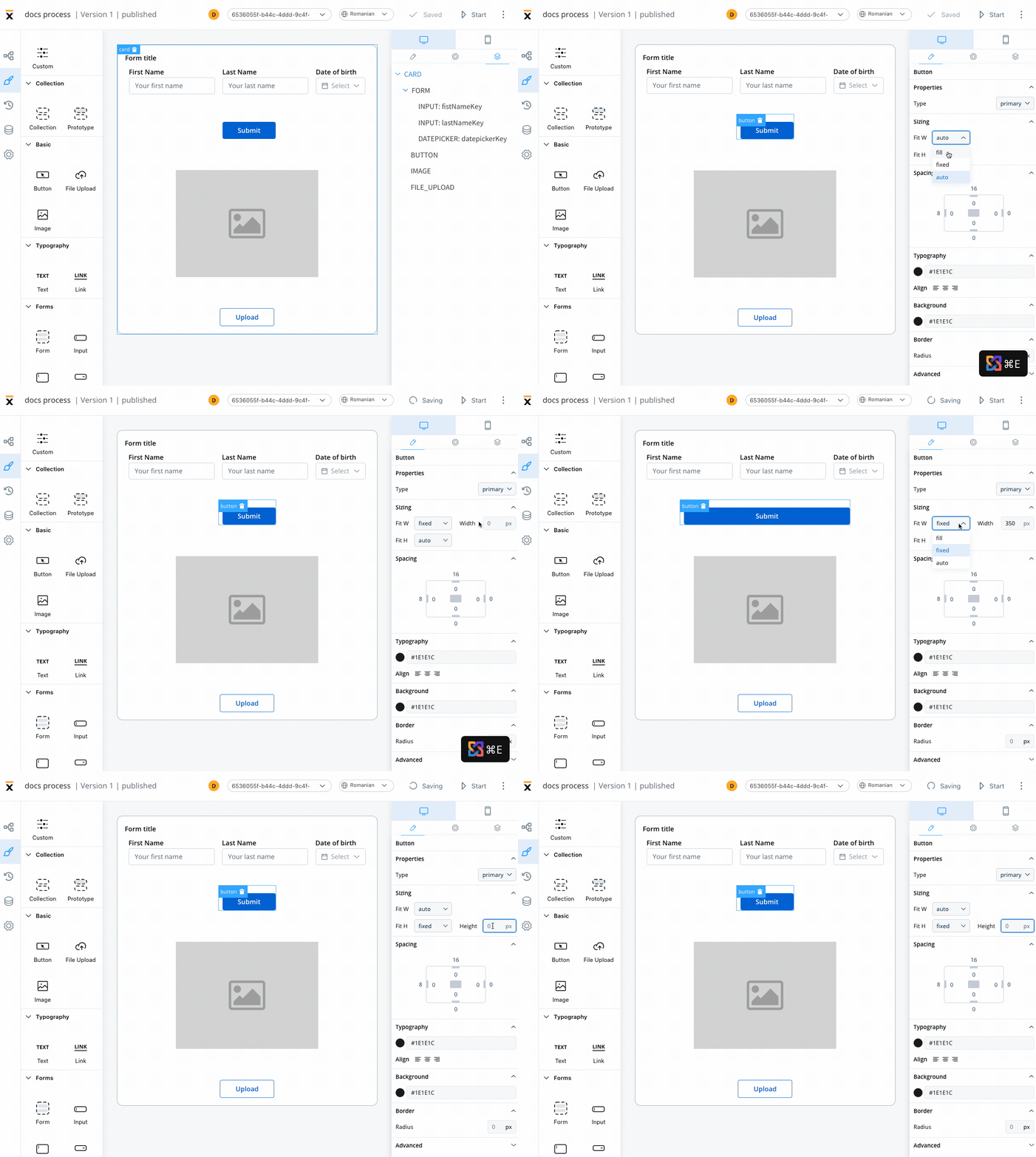
By setting desired values for these props, you can ensure that all UI elements on the interface are the desired size and perfectly fit with each other.
When adjusting the Fit W and Fit H settings, you can control the size and shape of the elements as they appear on your screen:
* Fit W: fill, fixed or auto
* Fit H: fill, fixed or auto
### Spacing
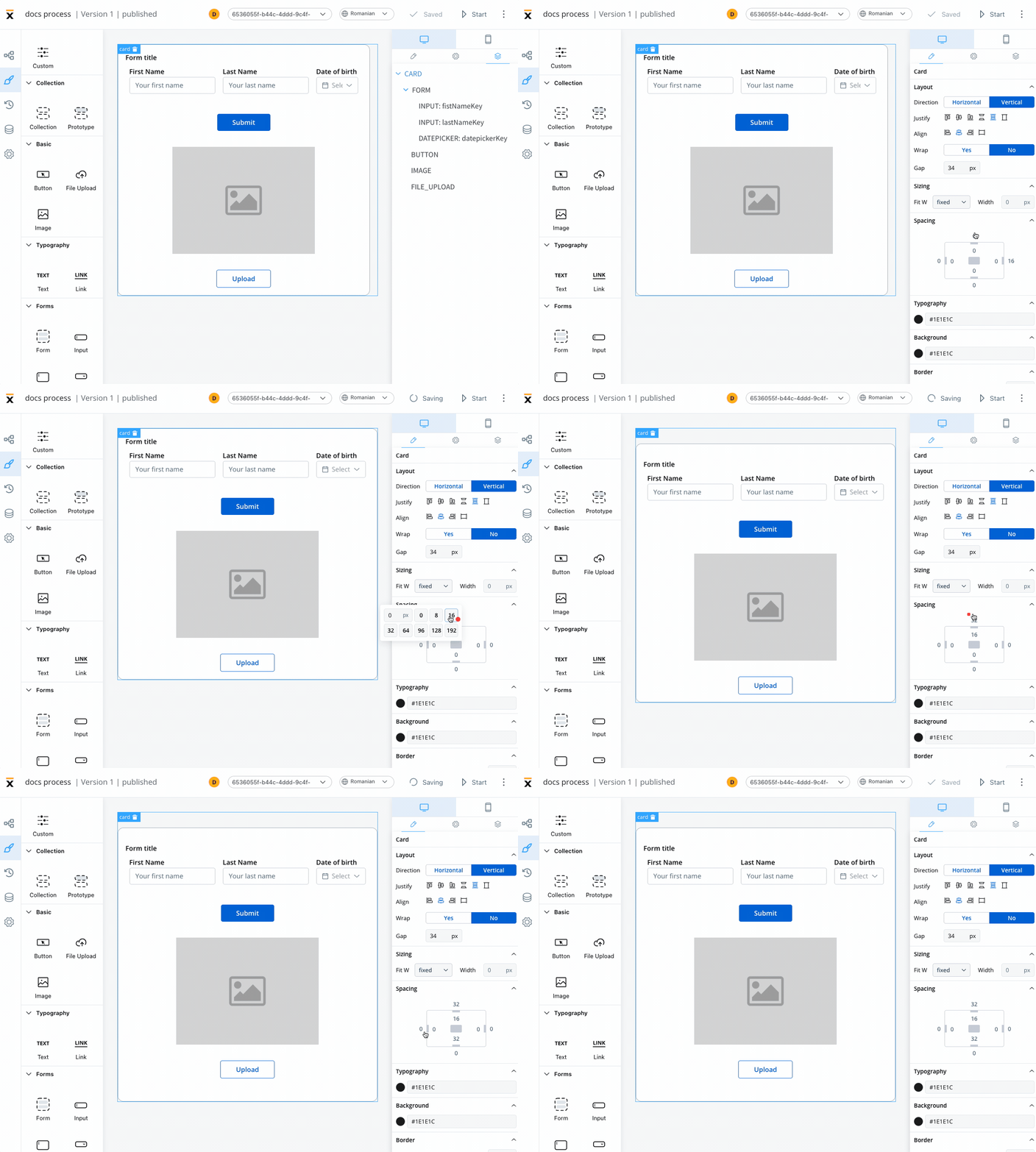
Margin and padding are CSS properties used to create space between elements in a web page:
* **margin** - the space outside an element
* **padding** - the space inside an element
### Advanced
* **Advanced** - for advanced customization, you can add CSS classes to pre-defined components, this option is available under the **Advanced** section
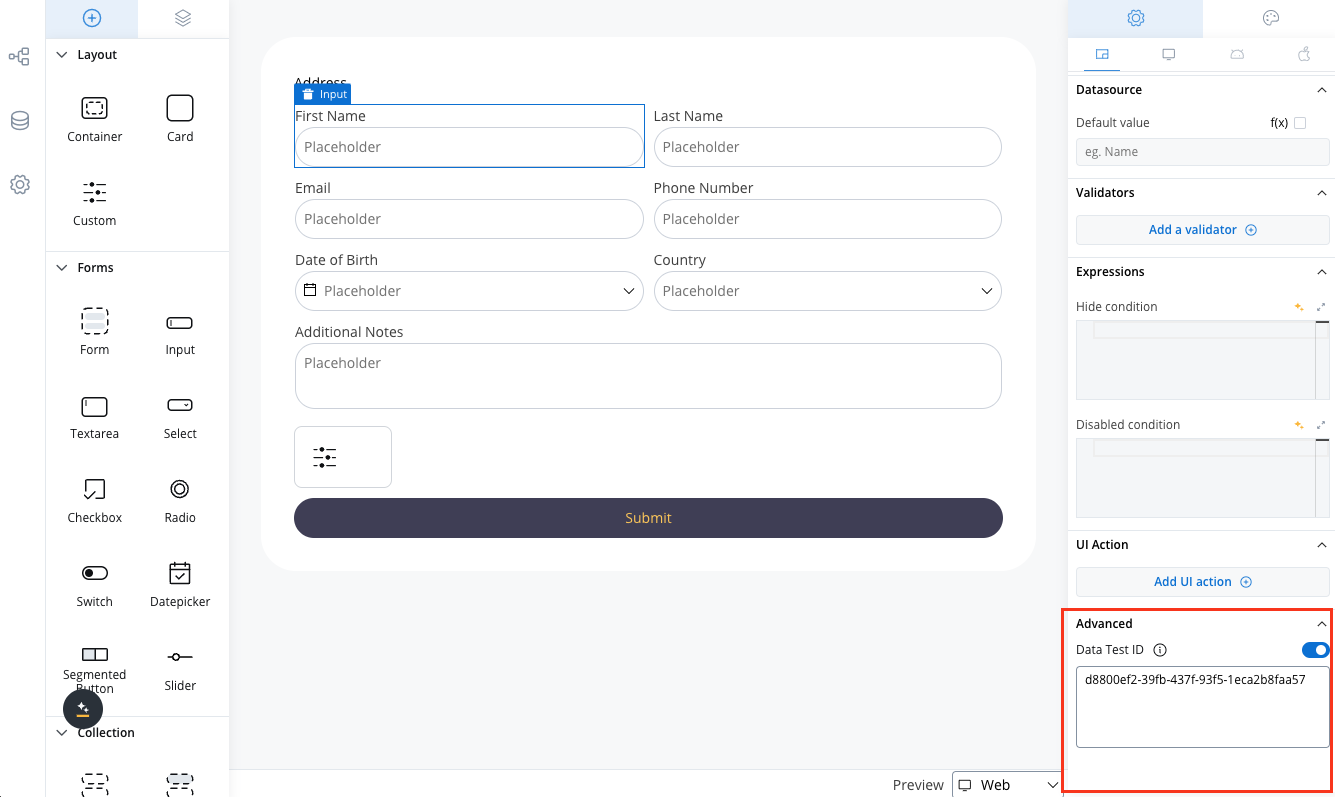
* **Data Test ID** - add custom test identifiers for automated testing and element interaction
By utilizing these styling options in FlowX.AI, you can create unique and visually appealing interfaces that meet your design requirements.
#### Data Test ID
The Advanced section includes a **Data Test ID** field, allowing you to assign custom identifiers to UI components. This feature enhances automated testing by providing meaningful, easily identifiable selectors for UI elements.
Key benefits:
* Replace auto-generated test IDs with custom, readable identifiers
* Simplify element targeting in test scripts
## Tree view
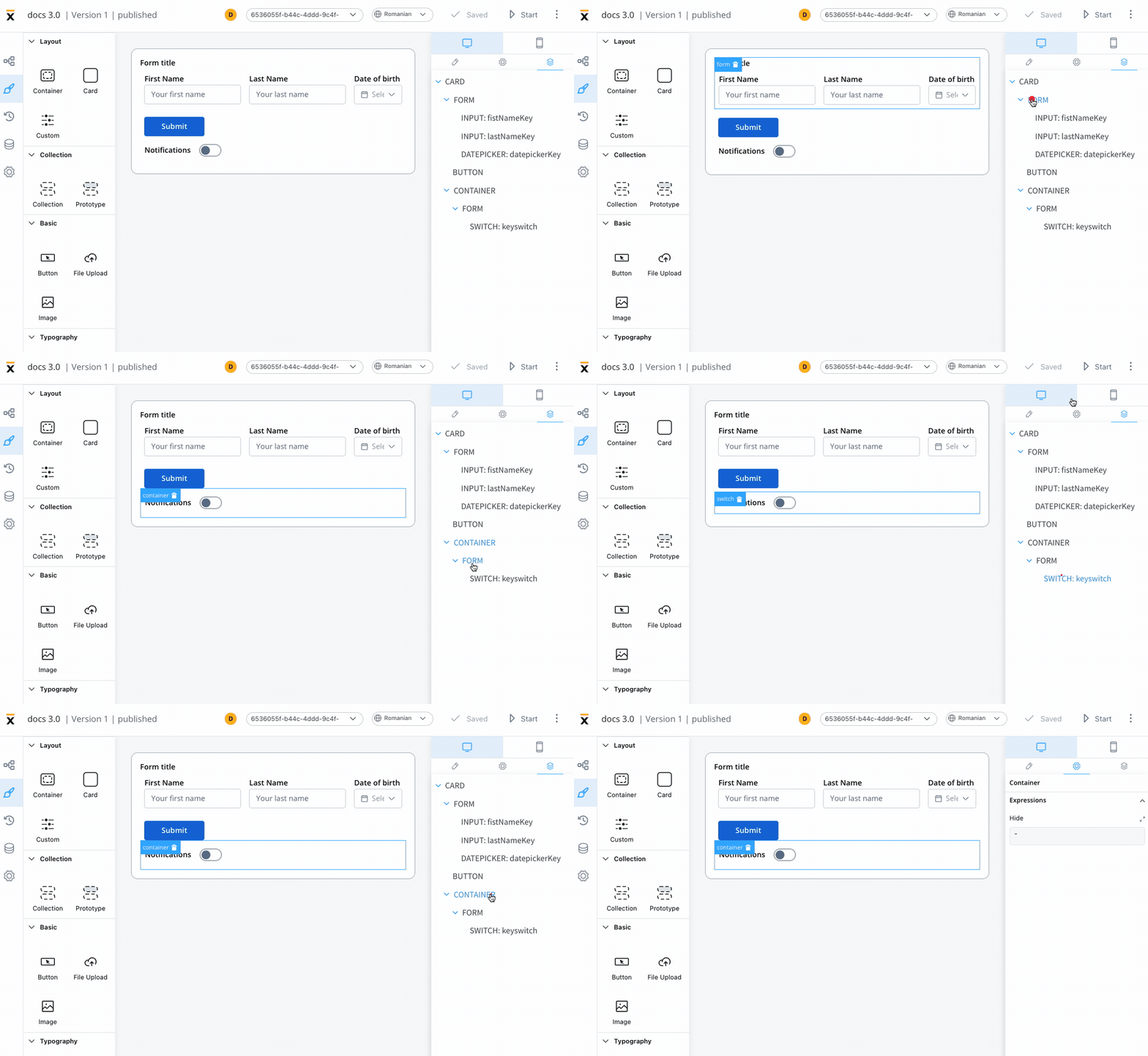
The Tree View panel displays the component hierarchy, allowing you to navigate through the different levels of the interface.
Clicking on a specific component in the tree will highlight the selection in the editor, helping you locate and modify it.
## UI component types
Different UI component types can be configured using UI Designer. The UI components are available and can be configured only using **user task nodes** or **navigation areas**.
Depending on the component type different properties are available for configuration.
Understanding these component types will help you to better utilize the UI Designer tool and create rich web interfaces.
* [Container](./ui-component-types/root-components/container)
* [Card](./ui-component-types/root-components/card)
* [Custom](./ui-component-types/root-components/custom)
* [Collection](./ui-component-types/collection/collection)
* [Collection Prototype](./ui-component-types/collection/collection-prototype)
* [Button](./ui-component-types/buttons)
* [File Upload](./ui-component-types/buttons#file-upload)
* [Image](./ui-component-types/image)
* Text
* Link
Form elements are a crucial aspect of creating user interfaces as they serve as the means of collecting information from the users. These elements come in various types, including simple forms, [inputs](./ui-component-types/form-elements/input-form-field), [text areas](./ui-component-types/form-elements/text-area), drop-down menus ([select](./ui-component-types/form-elements/select-form-field)), [checkboxes](./ui-component-types/form-elements/checkbox-form-field), [radio buttons](./ui-component-types/form-elements/radio-form-field), toggle switches ([switch](./ui-component-types/form-elements/switch-form-field)), [segmented buttons](./ui-component-types/form-elements/segmented-button), [sliders](./ui-component-types/form-elements/slider) and [date pickers](./ui-component-types/form-elements/datepicker-form-field). Each of these form elements serves a unique purpose and offers different options for capturing user input.
* Form
* [Input](./ui-component-types/form-elements/input-form-field)
* [Textarea](./ui-component-types/form-elements/text-area)
* [Select](./ui-component-types/form-elements/select-form-field)
* [Checkbox](./ui-component-types/form-elements/checkbox-form-field)
* [Radio](./ui-component-types/form-elements/radio-form-field)
* [Switch](./ui-component-types/form-elements/switch-form-field)
* [Segmented button](./ui-component-types/form-elements/segmented-button)
* [Slider](./ui-component-types/form-elements/slider)
* [Datepicker](./ui-component-types/form-elements/datepicker-form-field)
* [Message](./ui-component-types/indicators)
Navigation areas
* Page
* Stepper
* Step
* Modal
* Container