> ## Documentation Index
> Fetch the complete documentation index at: https://docs.flowx.ai/llms.txt
> Use this file to discover all available pages before exploring further.
# Table
> The Table component is a versatile UI element allowing structured data display with customizable columns, pagination, filtering, and styling options.
## Overview
The **Table** component is available **only for Web**, built to deliver a consistent design through FlowX.AI’s theming framework. It closely mirrors the [**Collection**](./collection/collection) component functionality, offering dynamic data handling and flexible row/column configurations.
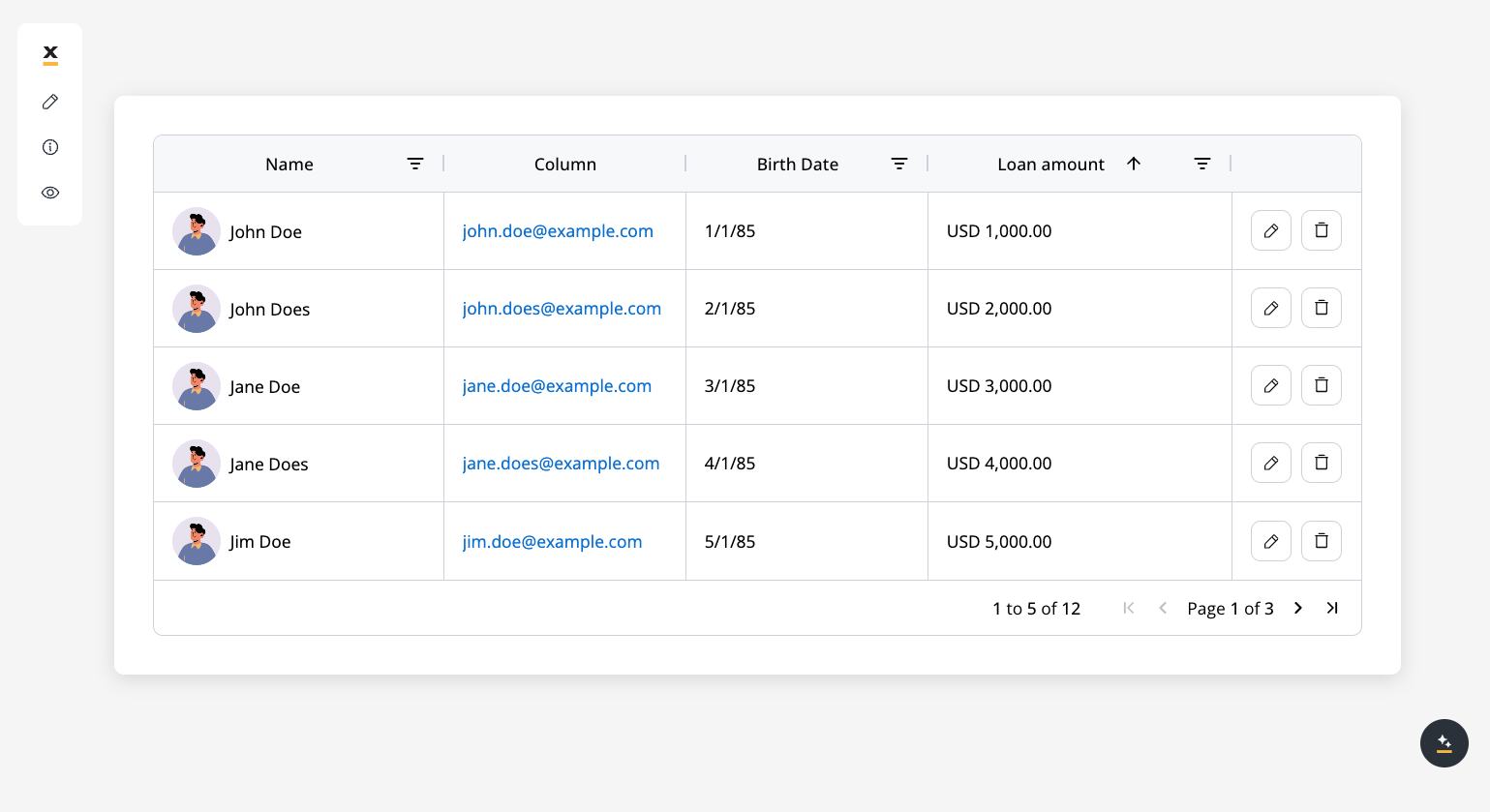
**Web-only UI Component:** The Table component is designed specifically for web applications and includes theming options for consistent design across the platform.
## Table elements
1. **Table Header (`th`)**\
Displays column labels, typically one `th` element per column.
2. **Rows (`tr`)**\
Each row represents a single data entry from the source array. Rows automatically repeat based on your data size.
3. **Cells**\
Cells hold data points within each row. You can place multiple UI elements (text, image, link, buttons) inside a cell.
4. **Actions Column**\
If you enable row deletion or editing, an actions column is automatically created to handle row-level features (delete icon, edit icon, etc.).
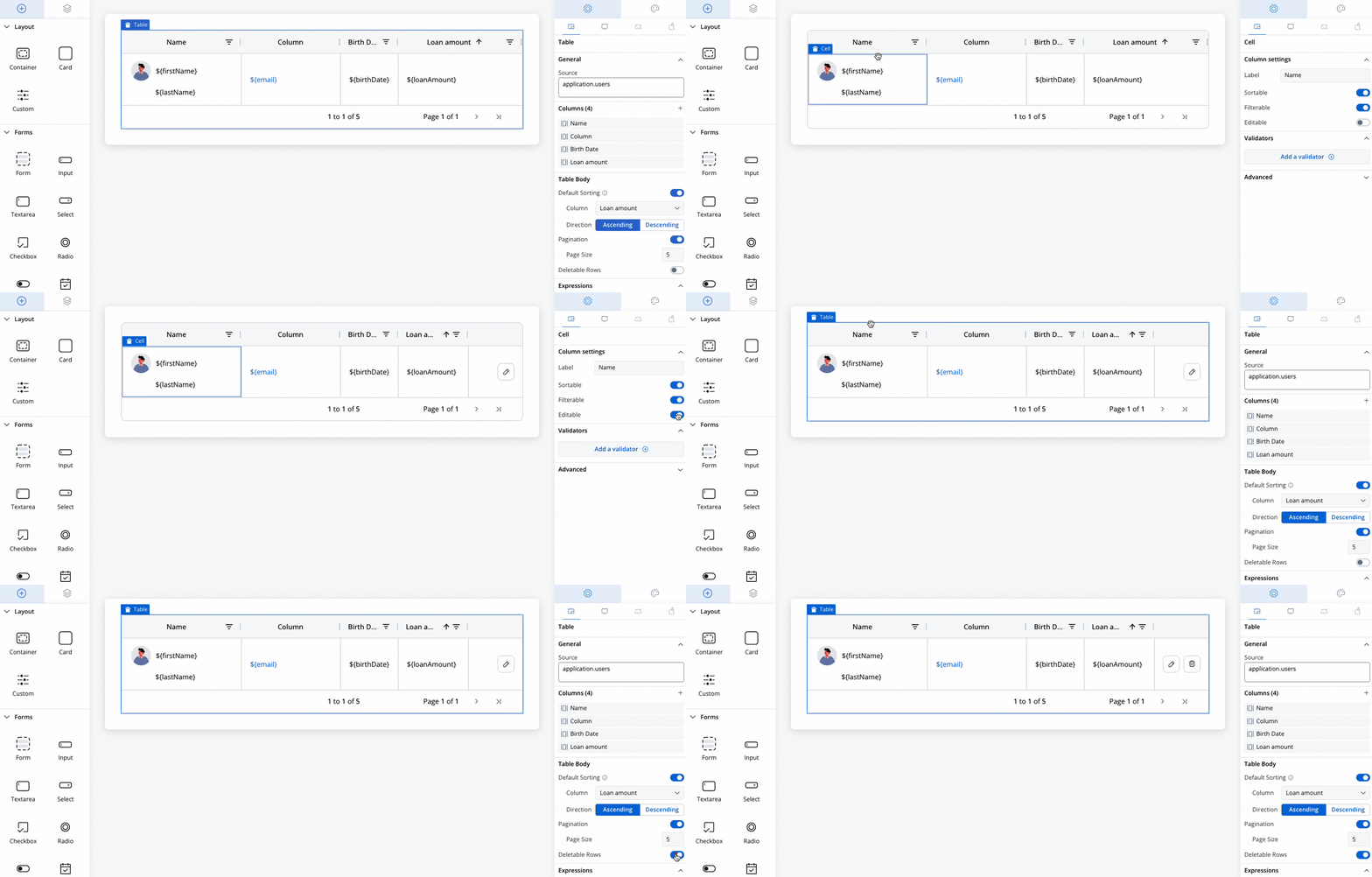
By default, when you create a new Table, three columns and a matching set of cell placeholders are generated automatically.
## Configuring the table
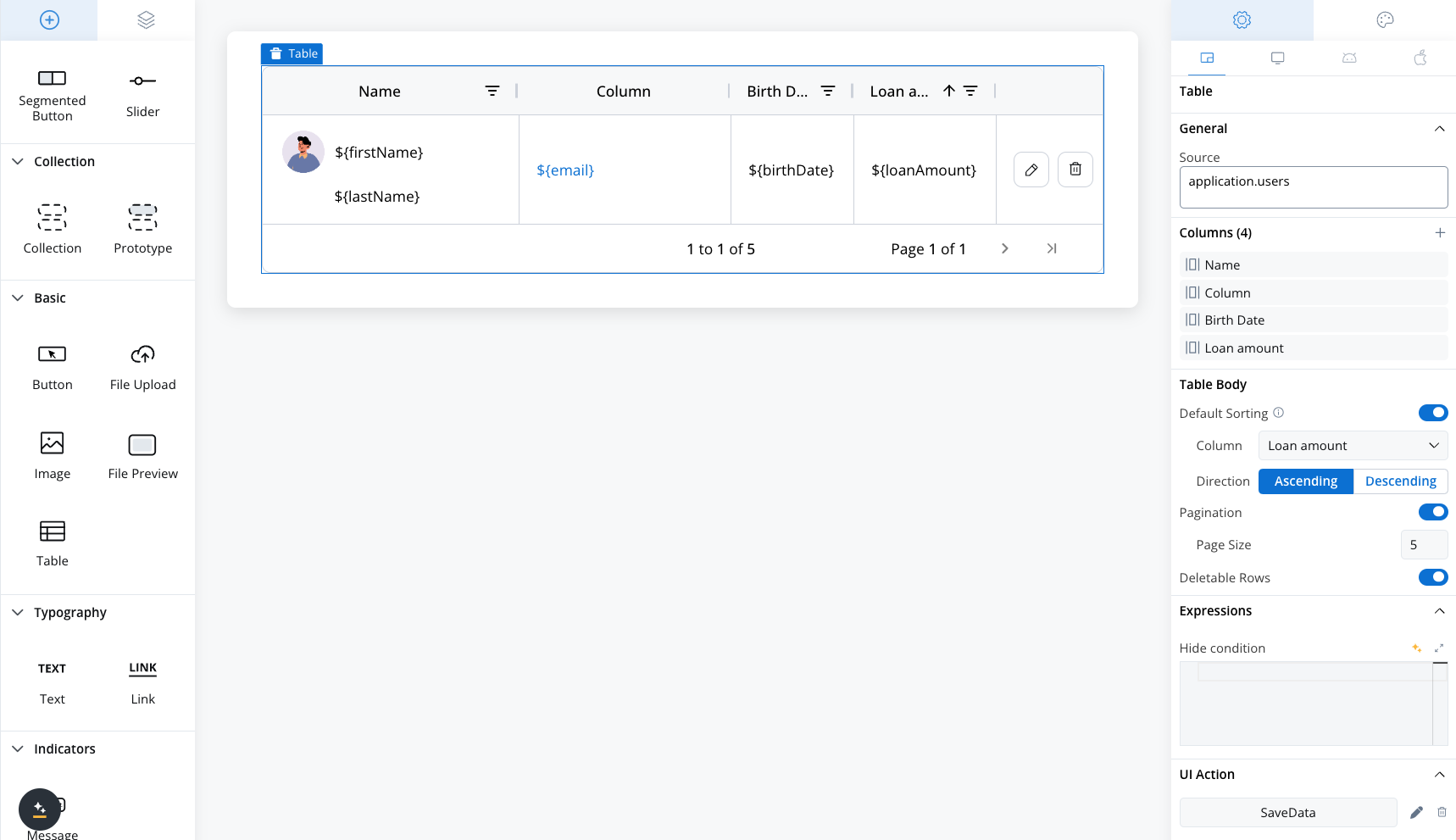
When building a Table, you’ll primarily interact with:
* **Generic Settings** (source key, columns, table body, expressions, styling)
* **Cell-Specific Settings** (sorting, filtering, editing, validators)
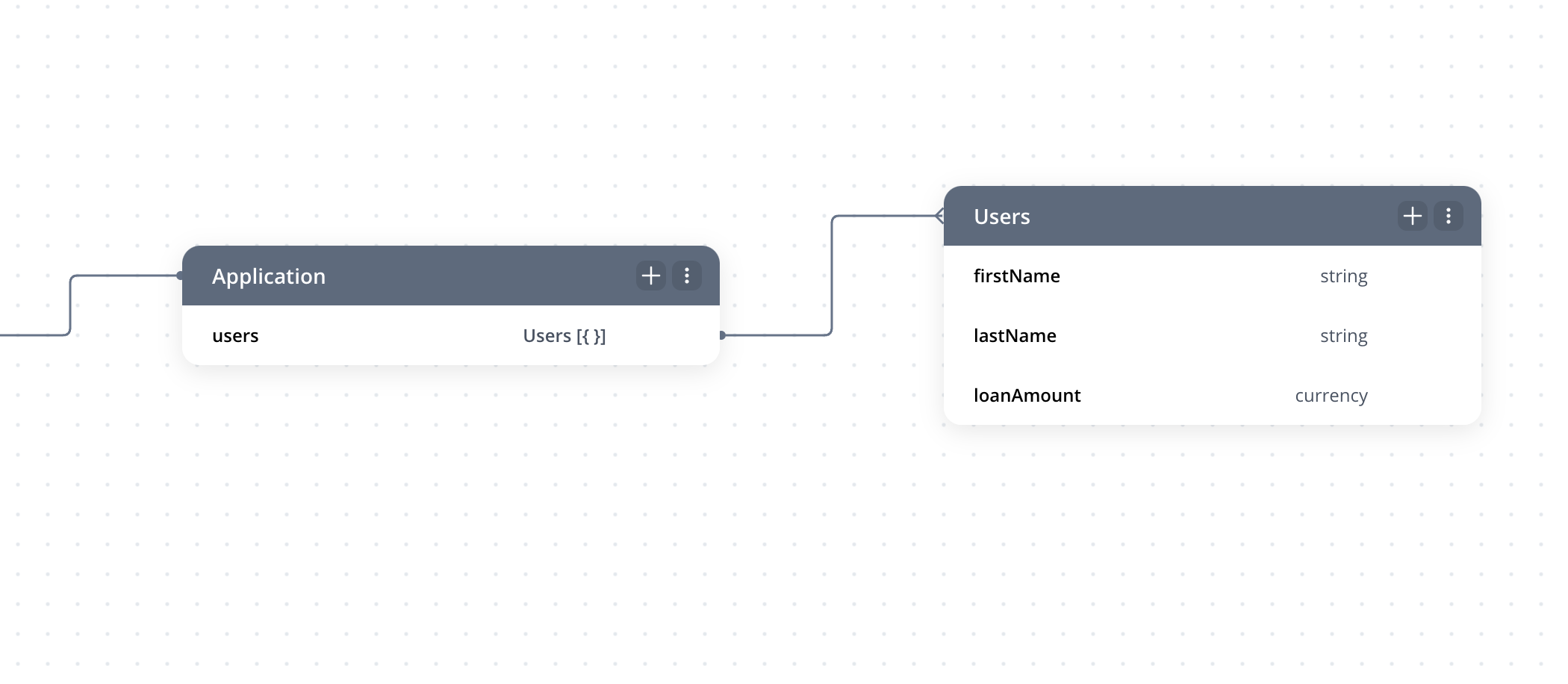
Below is an example of a JavaScript business rule that populates the Table with mock data. The `users` array is assigned to `application.users`, which serves as the Table’s source.
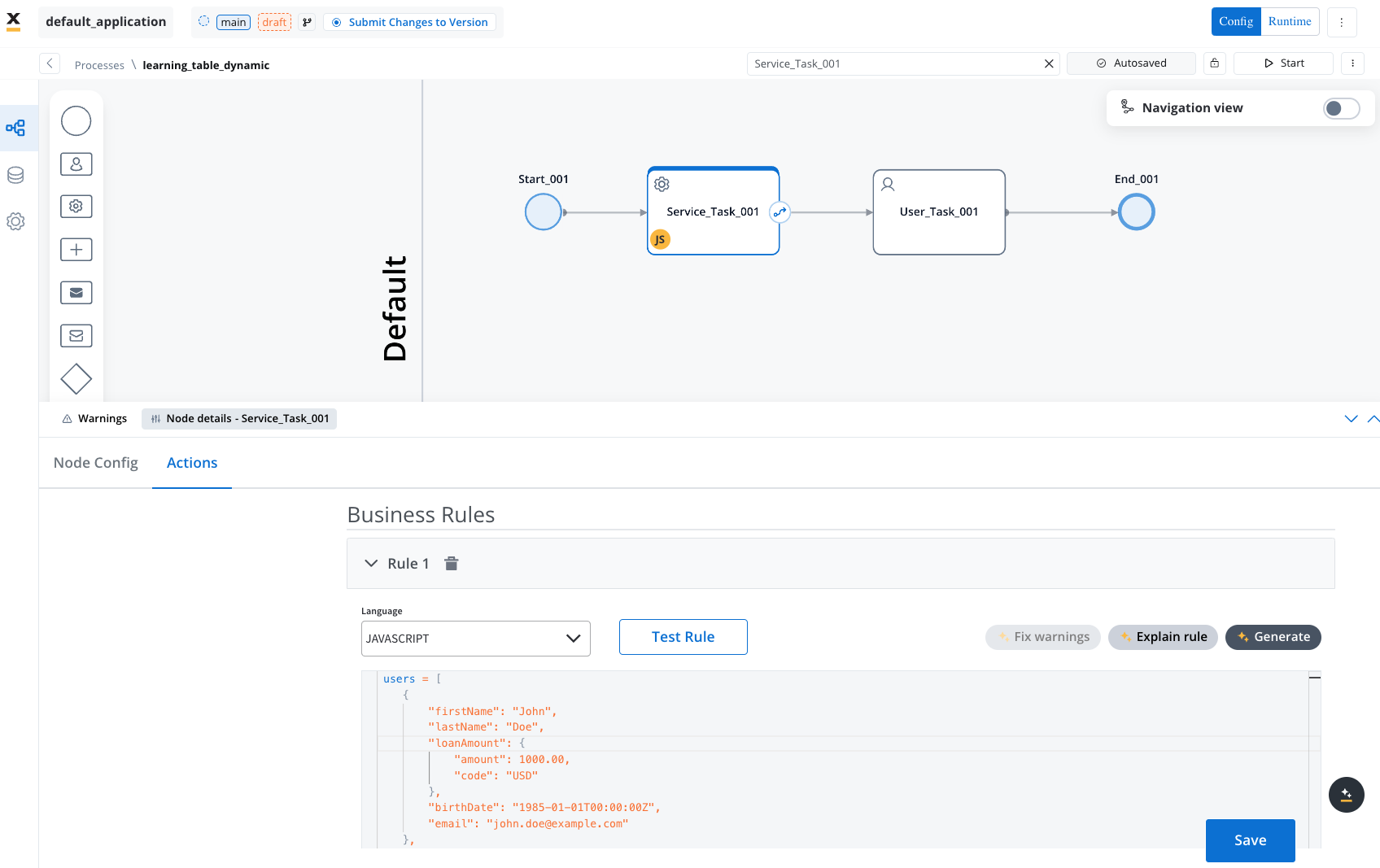
```js theme={"system"}
users = [
{
"firstName": "John",
"lastName": "Doe",
"loanAmount": {
"amount": 1000.00,
"code": "USD"
},
"birthDate": "1985-01-01T00:00:00Z",
"email": "john.doe@example.com"
},
{
"firstName": "John",
"lastName": "Does",
"loanAmount": {
"amount": 2000.00,
"code": "USD"
},
"birthDate": "1985-02-01T00:00:00Z",
"email": "john.does@example.com"
},
{
"firstName": "Jane",
"lastName": "Doe",
"loanAmount": {
"amount": 3000.00,
"code": "USD"
},
"birthDate": "1985-03-01T00:00:00Z",
"email": "jane.doe@example.com"
},
{
"firstName": "Jane",
"lastName": "Does",
"loanAmount": {
"amount": 4000.00,
"code": "USD"
},
"birthDate": "1985-04-01T00:00:00Z",
"email": "jane.does@example.com"
},
{
"firstName": "Jim",
"lastName": "Doe",
"loanAmount": {
"amount": 5000.00,
"code": "USD"
},
"birthDate": "1985-05-01T00:00:00Z",
"email": "jim.doe@example.com"
},
{
"firstName": "Jim",
"lastName": "Does",
"loanAmount": {
"amount": 6000.00,
"code": "USD"
},
"birthDate": "1985-06-01T00:00:00Z",
"email": "jim.does@example.com"
},
{
"firstName": "Jake",
"lastName": "Doe",
"loanAmount": {
"amount": 7000.00,
"code": "USD"
},
"birthDate": "1985-07-01T00:00:00Z",
"email": "jake.doe@example.com"
},
{
"firstName": "Jake",
"lastName": "Does",
"loanAmount": {
"amount": 8000.00,
"code": "USD"
},
"birthDate": "1985-08-01T00:00:00Z",
"email": "jake.does@example.com"
},
{
"firstName": "Jill",
"lastName": "Doe",
"loanAmount": {
"amount": 9000.00,
"code": "USD"
},
"birthDate": "1985-09-01T00:00:00Z",
"email": "jill.doe@example.com"
},
{
"firstName": "Jill",
"lastName": "Does",
"loanAmount": {
"amount": 10000.00,
"code": "USD"
},
"birthDate": "1985-10-01T00:00:00Z",
"email": "jill.does@example.com"
},
{
"firstName": "Joe",
"lastName": "Doe",
"loanAmount": {
"amount": 11000.00,
"code": "USD"
},
"birthDate": "1985-11-01T00:00:00Z",
"email": "joe.doe@example.com"
},
{
"firstName": "Joe",
"lastName": "Does",
"loanAmount": {
"amount": 12000.00,
"code": "USD"
},
"birthDate": "1985-12-01T00:00:00Z",
"email": "joe.does@example.com"
}
];
application = {
"users": users
};
output.put("application", application);
```
When creating a table, three columns with one corresponding cells are added by default.
### Table generic settings
The following generic settings are found in the Generic tab and apply to all platforms (Web, iOS, and Android):
* [**Source key**](#source-key)
* [**Columns**](#columns)
* [**Table body**](#table-body)
* [**Expressions**](#expressions)
* [**Table Styling**](#table-styling)
#### Source key
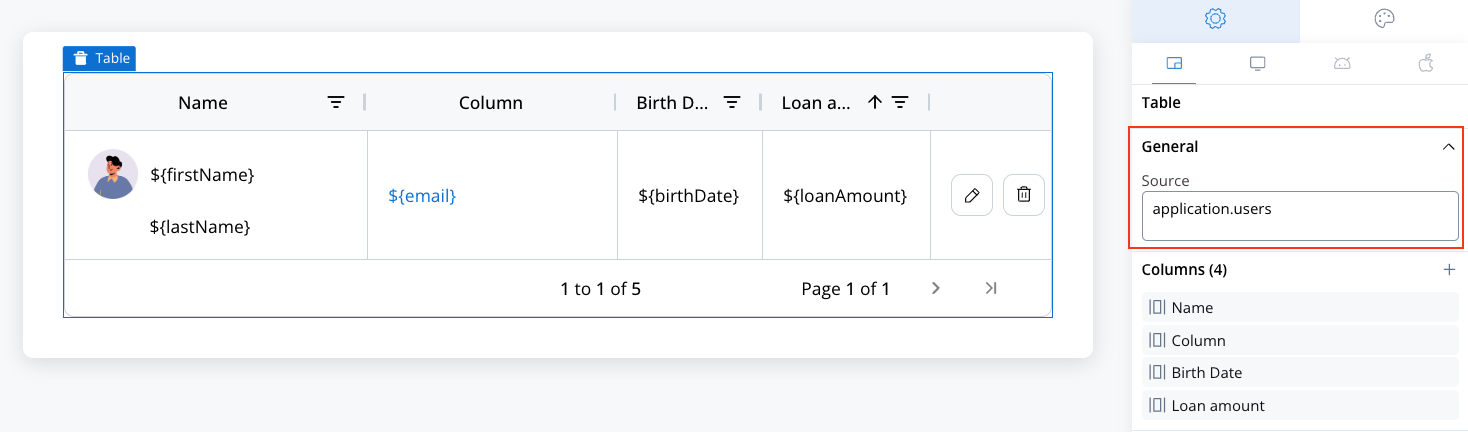
* Specify an array of objects (e.g., `application.users`), enabling dynamic row creation based on your data structure.
* Similar to the Collection component.
#### Columns
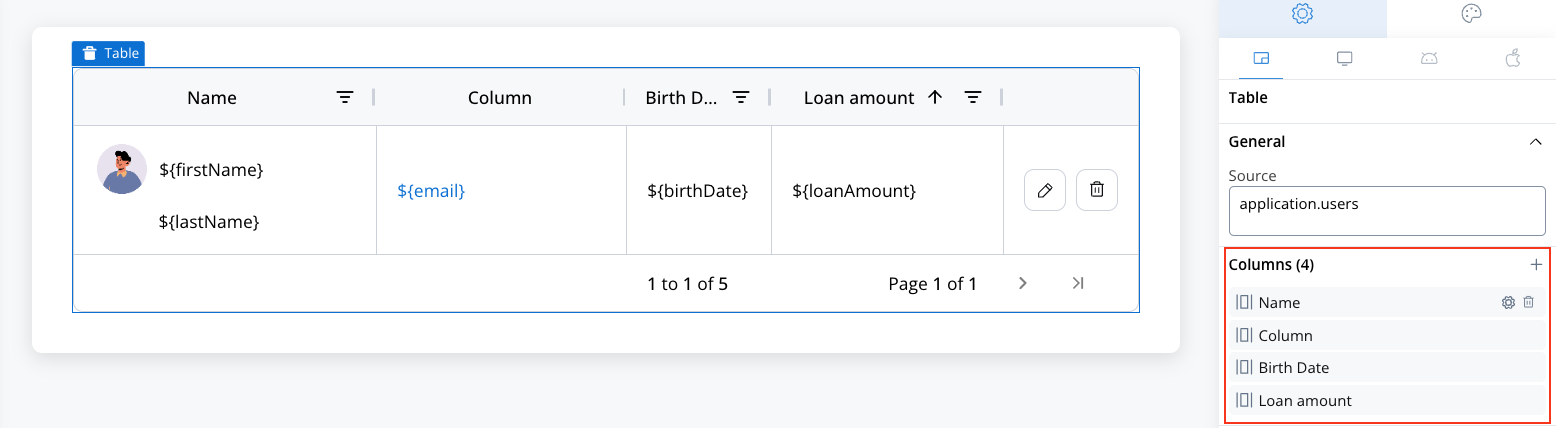
* Customize the Table’s columns: add, delete, rename, or reorder.
* Each column automatically includes a corresponding th (header cell) and td (body cell).
#### Table body
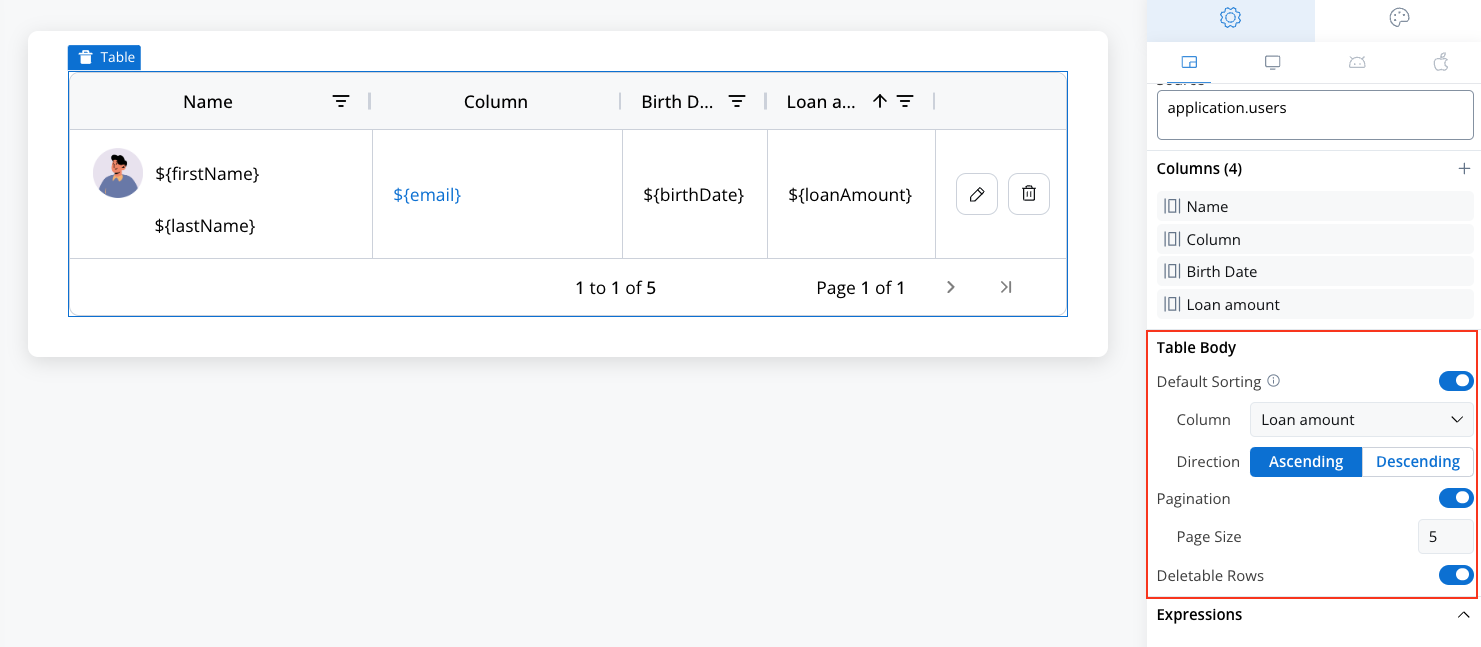
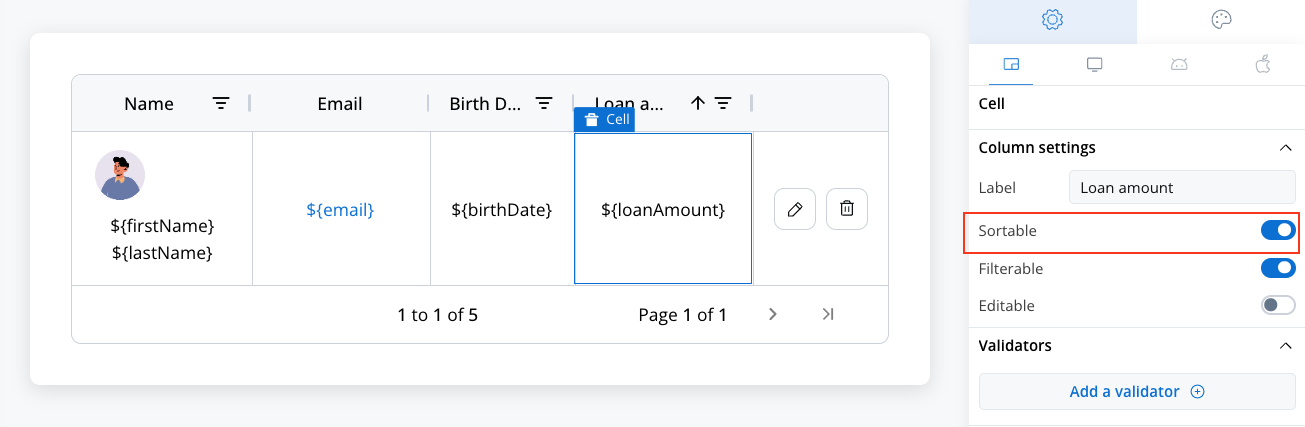
* **Default Sorting**: Sortable option must be enabled for the selected column for default sorting to work.
* **Column**: Select the desired column.
* **Direction**: Set the sort direction (**Ascending** or **Descending**).
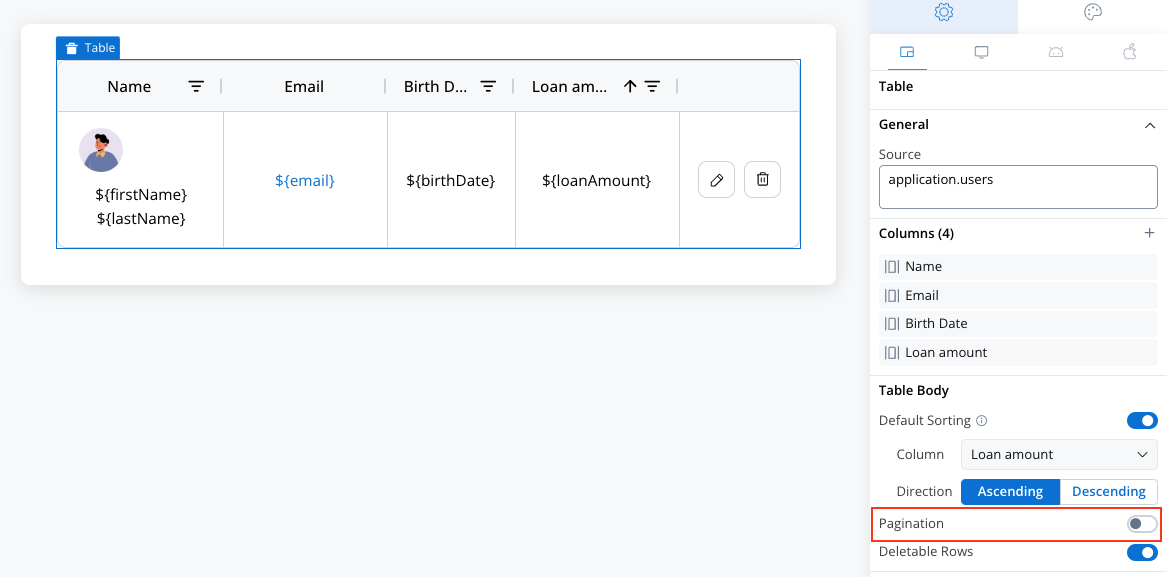
* **Pagination**: Control how data is displayed by configuring pagination or enabling scrolling.
* **Page Size**: Set the maximum number of entries displayed per page.
* **Scrollable**: Disable pagination to enable continuous scrolling through data.
* **Deletable Rows**: Enable row deletion.
#### Hide condition
* Optionally hide the entire Table based on a JavaScript expression including the data key from another component.
* Useful for conditional flows (e.g., only show the Table if certain conditions are met).
**Demonstration**:
***
## Feature highlights
### Default sorting
* **Enable default sorting** in table body settings.
* **Select the desired column** and **sort direction** (ascending by default).
Sortable option must be enabled for the selected column at **cell level** for default sorting to work.
### Pagination & scrolling
Define how many rows appear on each page using **Pagination** feature.
* **Scrolling**: Disable pagination to allow continuous scrolling.
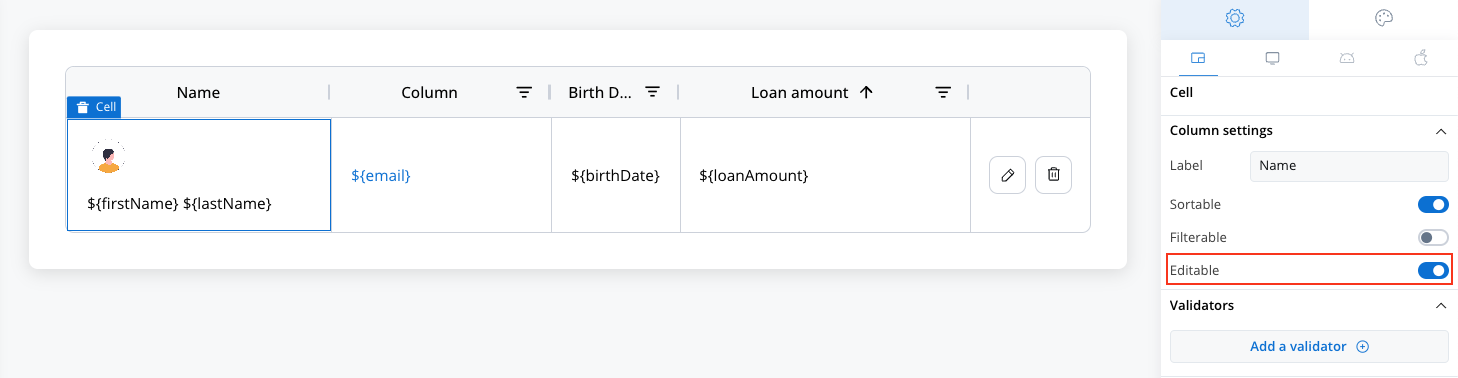
### Editable rows
Enable row editing in **cell-level → column settings**.
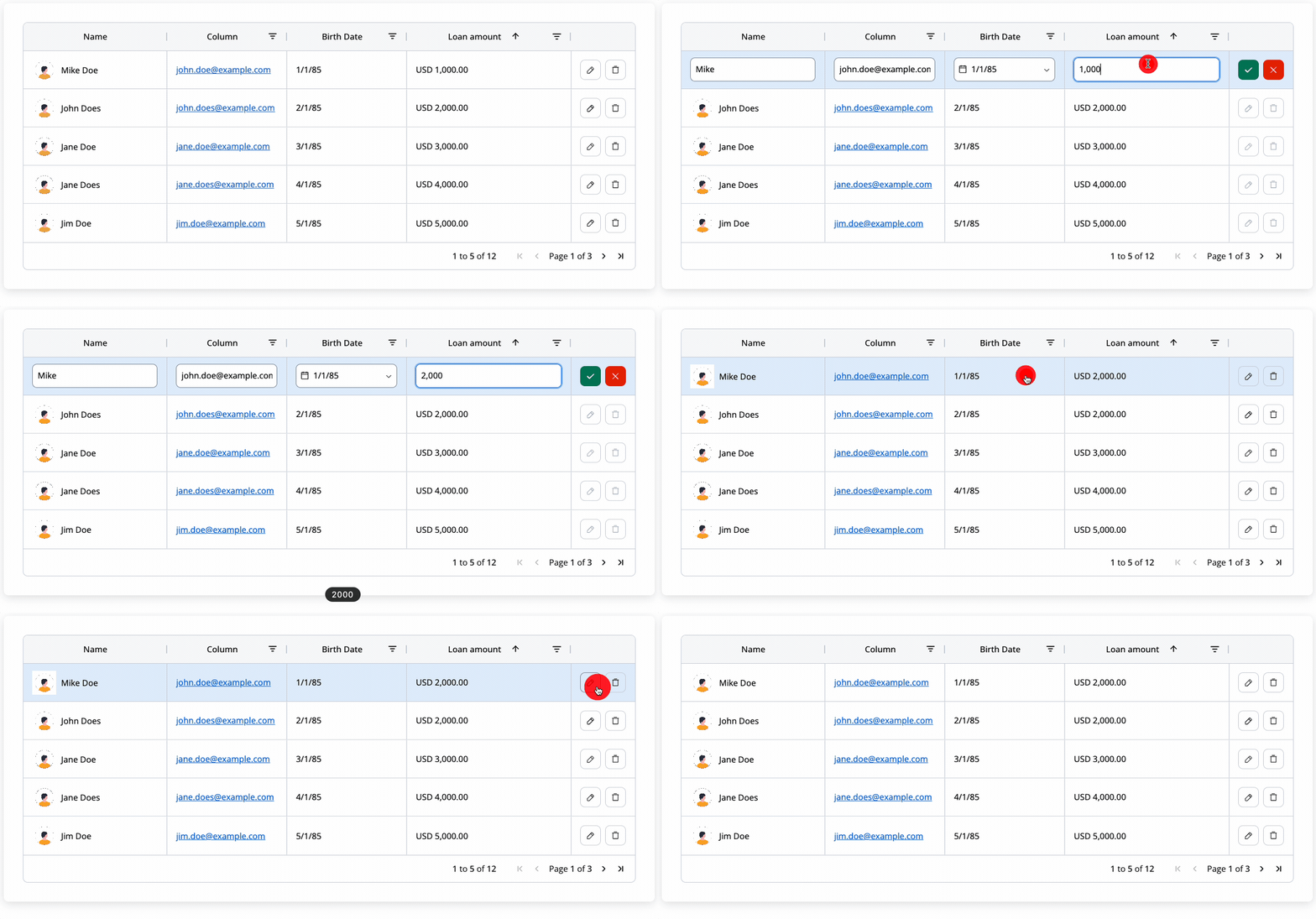
* Editing can be triggered by double-click or the dedicated Edit button icon.
Make sure each editable cell references a valid data model key to facilitate edit.
* Edits are validated and saved row-by-row.
The editor type for each cell is automatically determined by the data model type of the column's key:
| Data Model Type | Editor |
| ------------------------ | ---------------------- |
| String (default) | Text input |
| Integer, Float, Currency | Number input |
| Boolean | Toggle switch |
| Date/Time | Date picker |
| Enum | Single-select dropdown |
For enum columns, the dropdown options are automatically loaded from the enumeration referenced in the data model. No additional configuration is needed — set the column's **Editable** toggle to ON and ensure the key references an ENUM data model type.
### Deletable rows
Toggle **Deletable** in Table settings to enable row deletion.
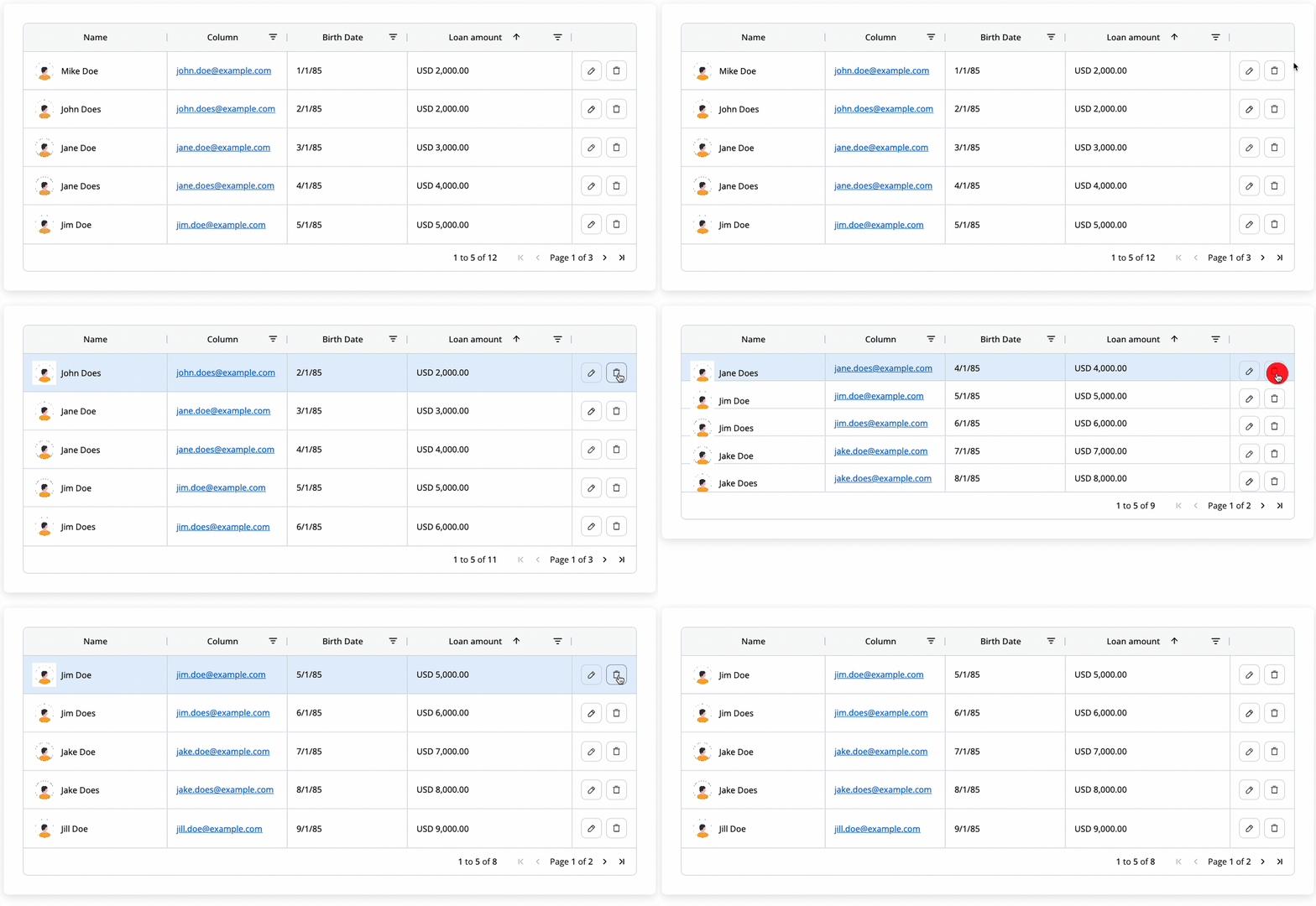
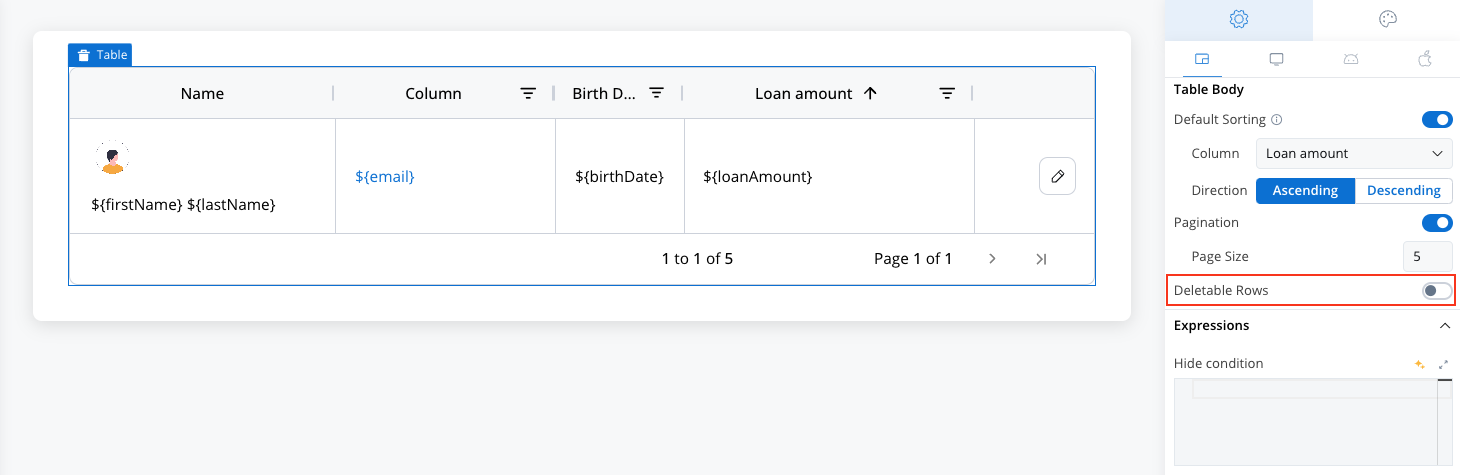
A delete icon will appear in the Actions column, removing the corresponding row from the data source.
### Filters
Mark columns as filterable to enable filtering icons.
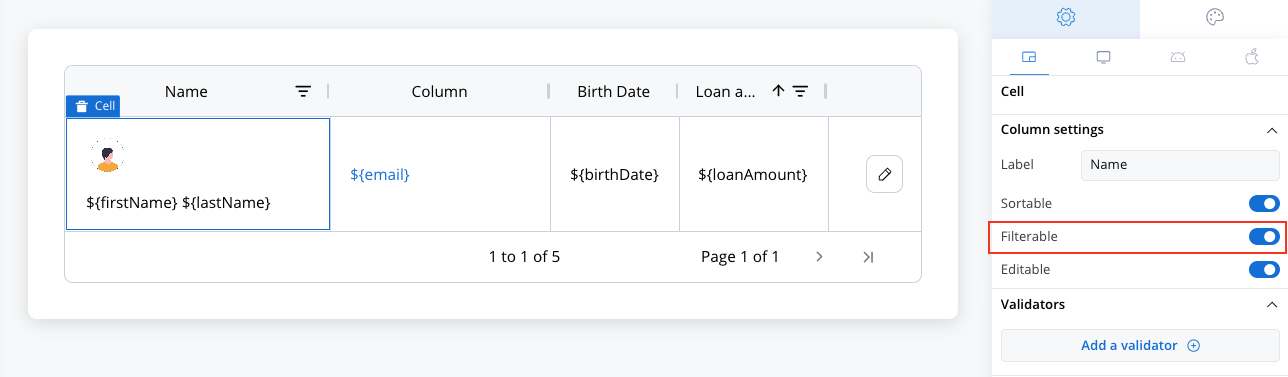
* Filter type automatically matches the column data type (string, number, date, boolean, or currency).
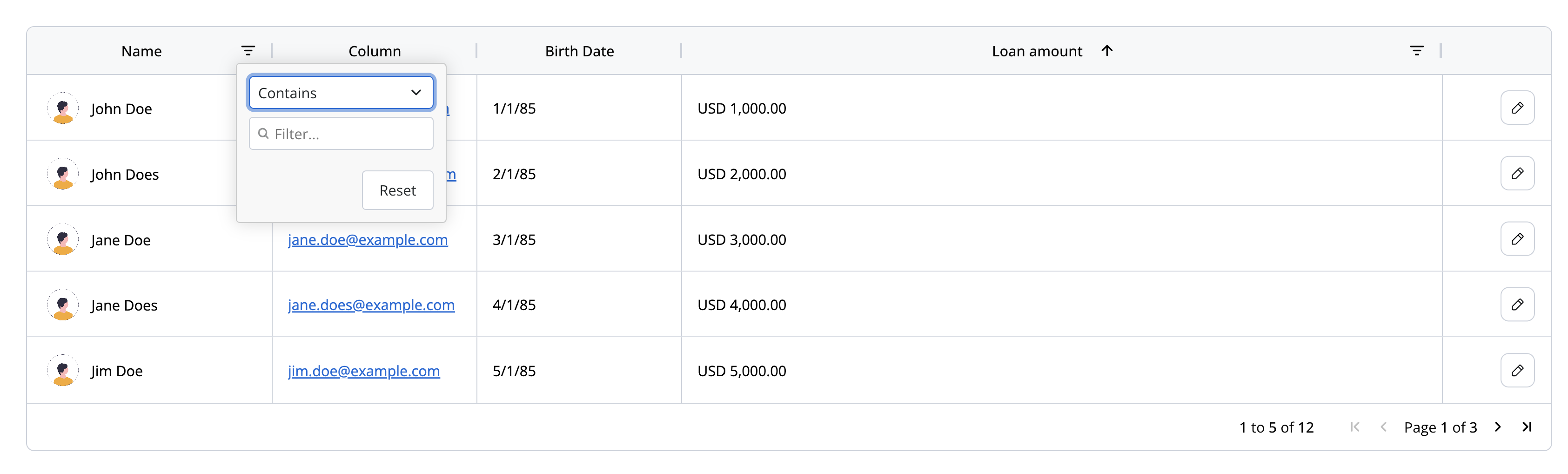
Filtering option is ideal for large data sets where quick column-based searches are necessary.
## Table styling
### Sizing
* **Fit Width**: By default, the Table stretches to occupy available width.
* **Fit Height**: Grows automatically based on content height.
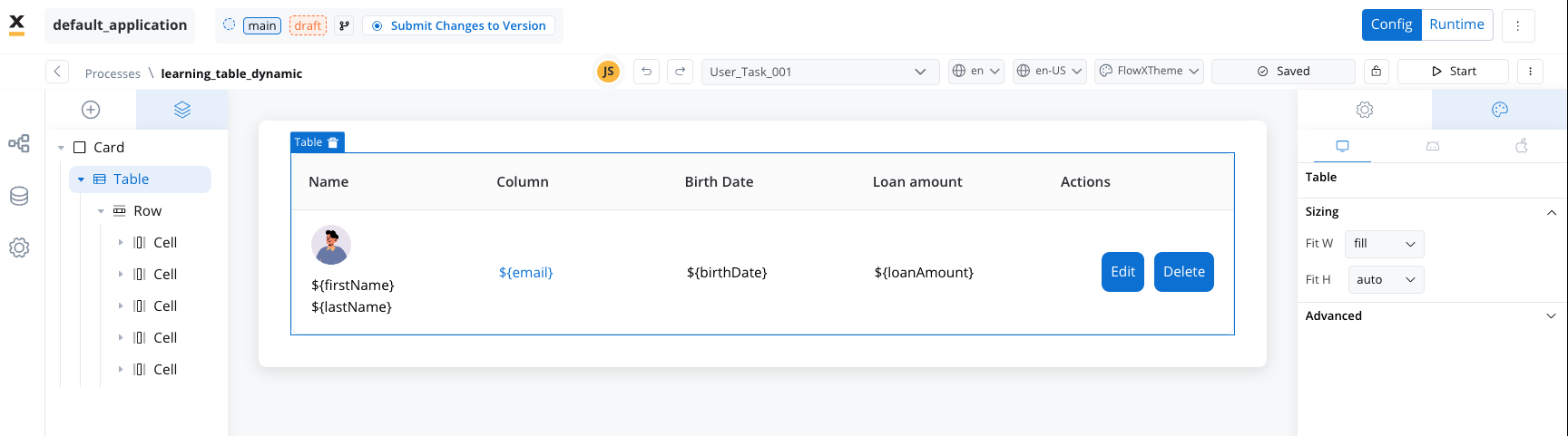
**Horizontal scrolling** kicks in automatically when the combined column widths exceed the table's container. Set columns to **Fixed** widths large enough that their sum overflows, and the table renders a horizontal scrollbar at the bottom. This is useful on mobile or narrow layouts where many columns can't fit at once.
### Cell styling
**Layout Options:**
* **Direction**: Horizontal (default).
* **Justify**: Space-around (evenly spaces elements within each cell).
* **Align**: Start (left-aligned).
* **Wrap**: Enables text wrapping.
* **Gap**: 8px spacing between cell elements.
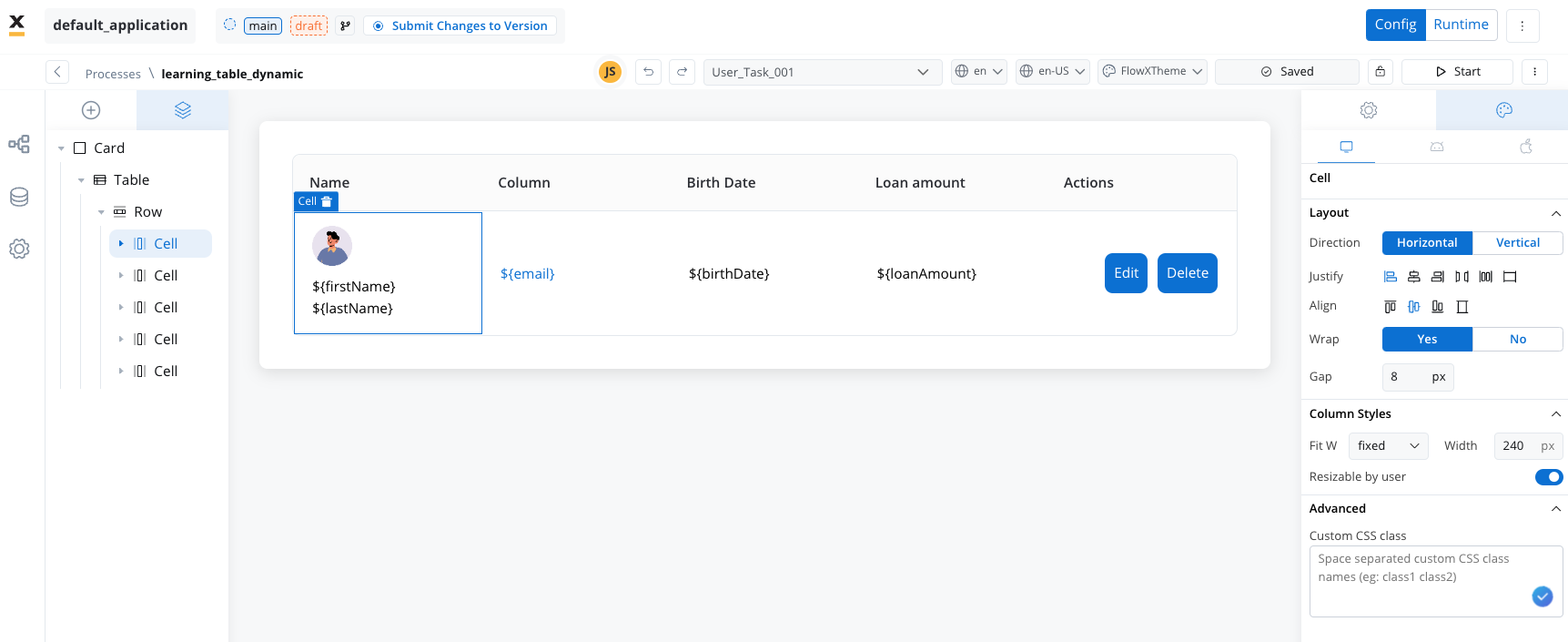
**Column Style Options:**
* **Width Fit Options**:
* **Fill**: Fills available container space.
* **Fixed**: Keeps a fixed column width.
* **Auto**: Adjusts column width to fit content.
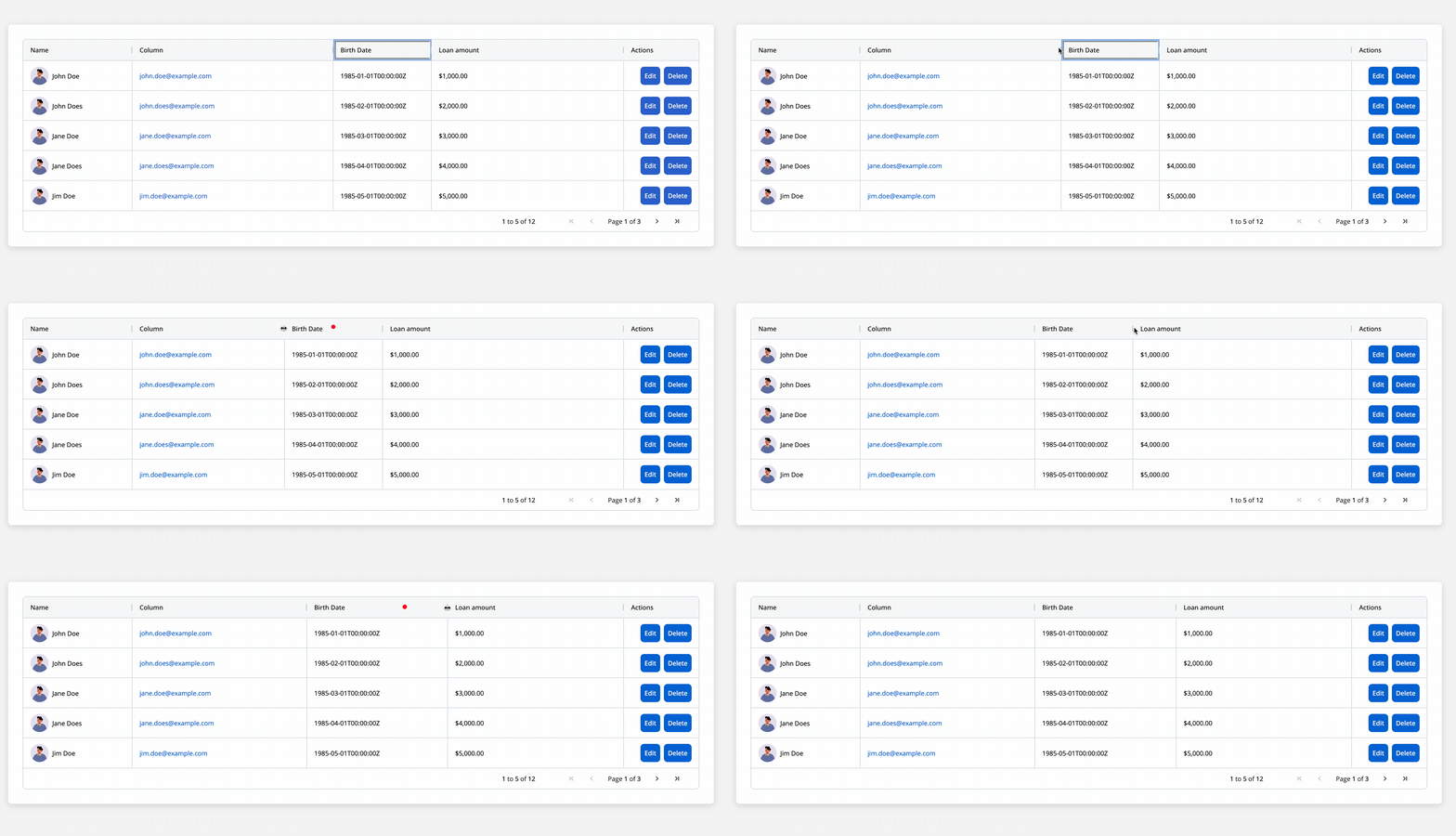
* **User Resizable Columns**: Adjust column width by dragging the column edges in the header, enhancing customization.
This Table component enhances flexibility and offers a cohesive design, integrated with FlowX.AI’s theming framework for a consistent, web-optimized user experience.
## Table event handler
Append a saveData action to the table and configure the action’s custom keys with the same key used as source for the table, in order for the backend to take into consideration the updated array.
See [**User Task configuration**](#user-task-configuration) section for more details.
## Actions in table cells
When configuring actions within a Table component, each action is bound to a unique table item key, ensuring that interactions within each cell are tracked and recorded precisely.
The key allows the action to target specific rows and store results or updates effectively.
* **Table Item Save Key**:
* This key is essential for identifying the exact cell or row where an action should be executed and saved.
* It ensures that data within each cell remains distinct and correctly mapped to each table entry.
* **Custom Key for Data Saving**:
* Important: To properly send the data from a selected cell/row to the backend, you must configure both a **Custom Key** (in your `SaveData` action) and a **Table Item Save Key** (in your column/cell configuration) using the same value.
* Having only a `Table Item Save Key` is not sufficient to propagate the updated information. The matching **Custom Key** in the **SaveData** action tells the system which row/cell data to capture and transmit.
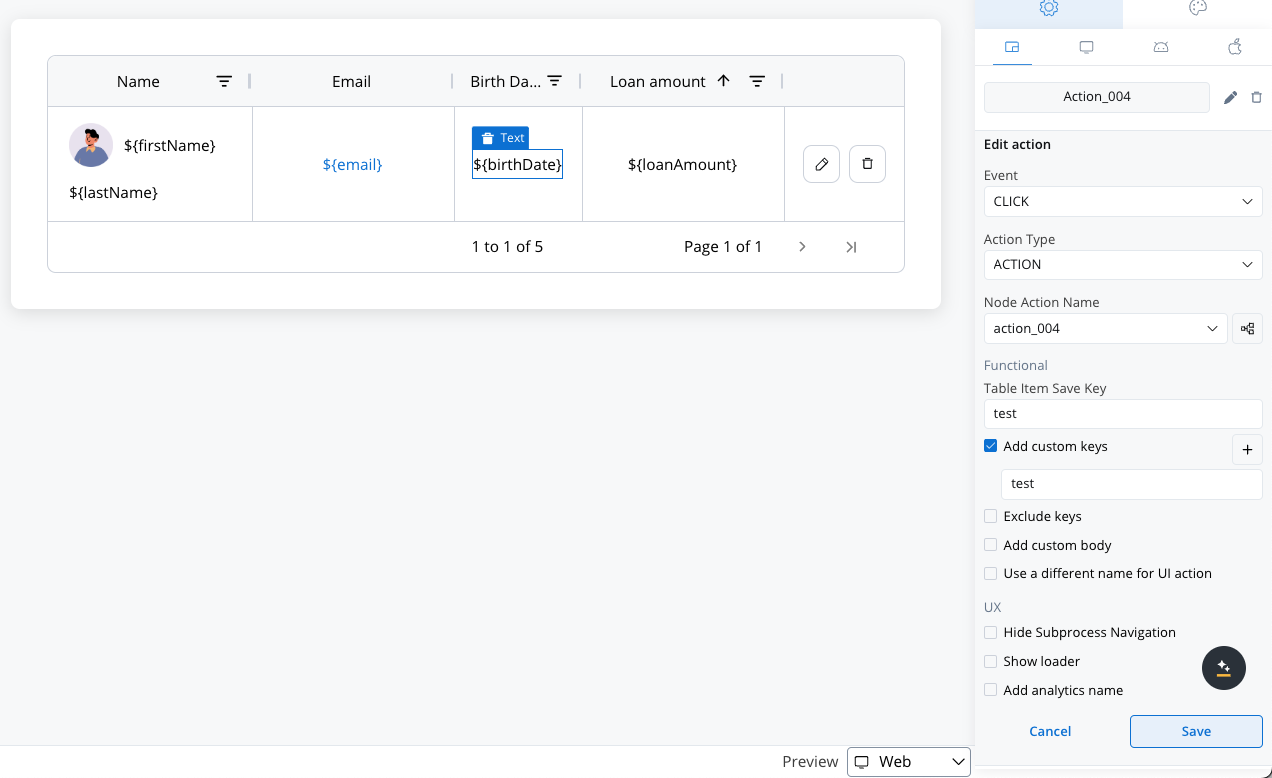
* **Supported Action Types** - Available actions include:
* **Action**: Initiates predefined actions within the cell.
* **Start Process Inherit**: Enables workflows inherited from process configurations to be triggered.
* **Upload**: Allows file or data uploads directly within a table cell.
* **External**: Used to create an action that will open a link in a new tab.
## User Task configuration
When configuring a screen in User Task containing table, you must configure the following node actions:
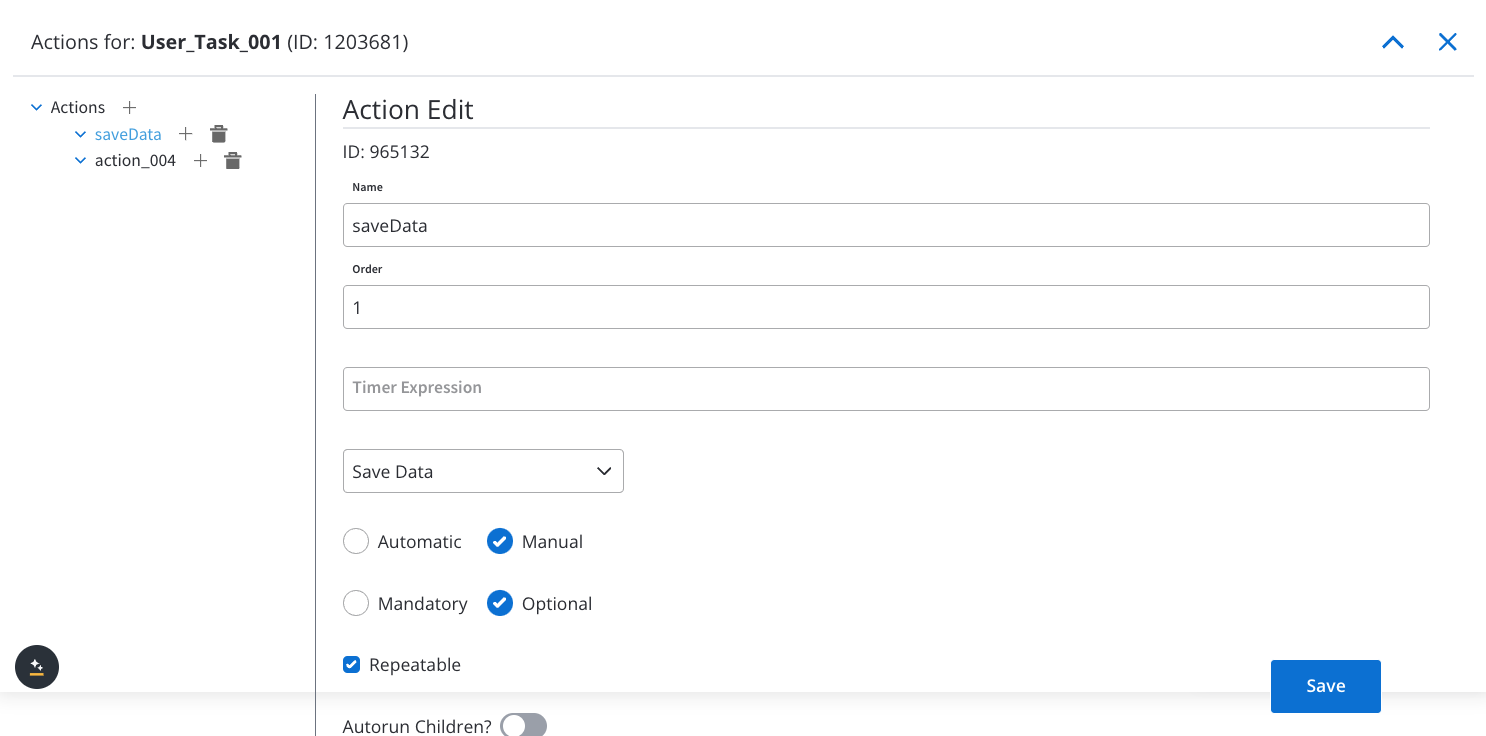
* The `SaveData` action must be:
* **Manual**: Requires user initiation.
* **Optional**: Not mandatory for task completion.
* **Repeatable**: Can be executed multiple times.
* **Execution Order Constraint**:
* The `SaveData` action can only be executed **before** mandatory actions.
* The UI is built by configurators to ensure the correct execution order of actions.
* Add an event handler to the table by assigning the previously created node action.
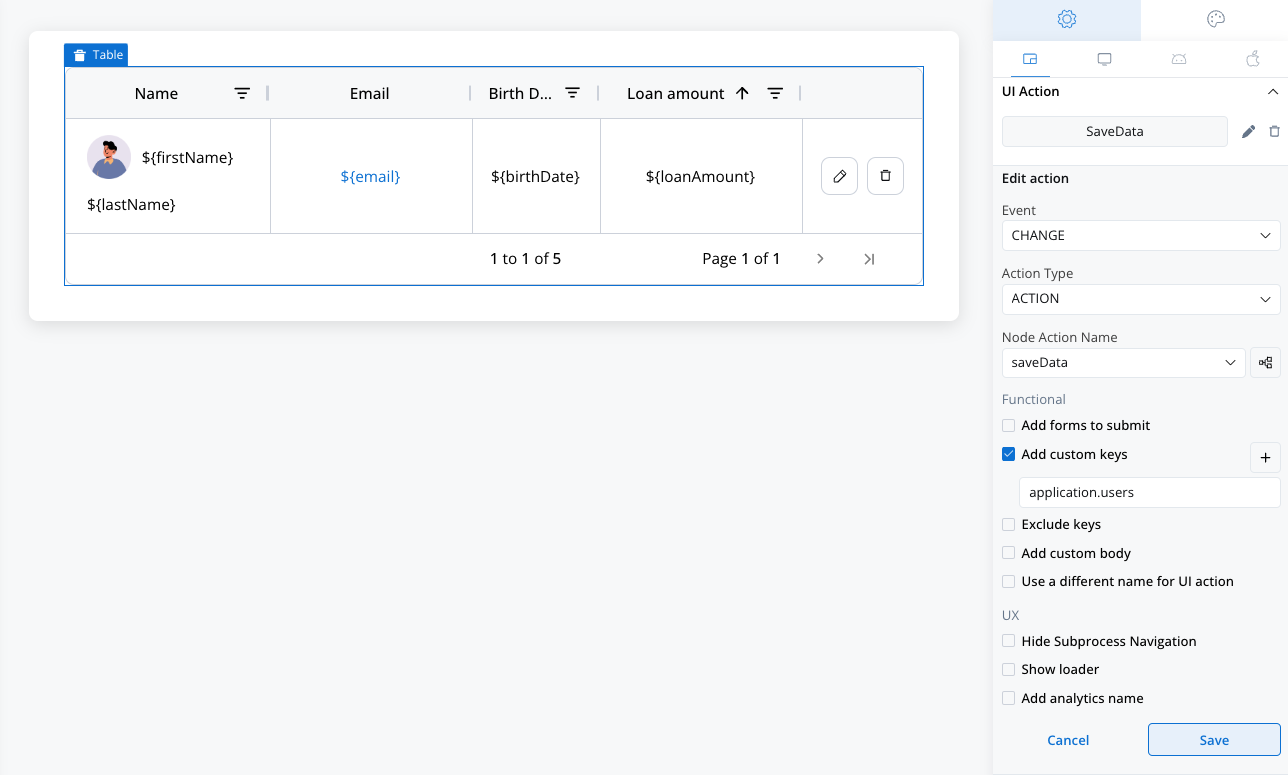
Add a custom key that is exactly the source key of the table so the platform knows where to save the edits applied in the table.
* An additional **manual** and **mandatory** action should be included.
* This ensures that the **token remains within the user task** where the table is rendered.
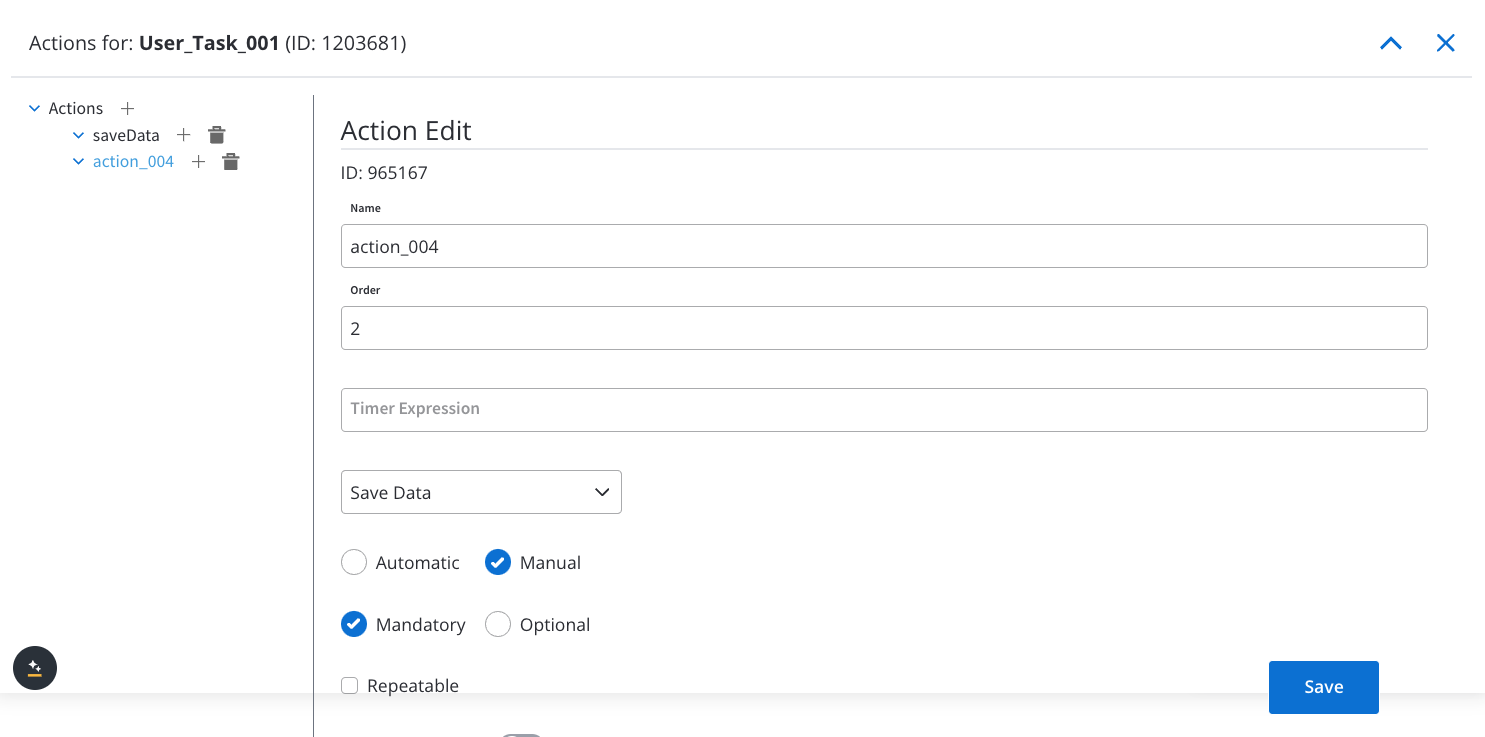
* You can add another node action if you want to assign an event handler to a table cell element (e.g, a text).
* Assign the event handler to that particular element.
* Make sure it is manual, optional and repeatable (can only be executed before mandatory actions).
## Common patterns
### Populate a table from an integration workflow
When your table data comes from an external API (via an integration workflow), the pattern is:
Use a **Service Task** with a **Start Integration Workflow** action. The workflow calls your API and returns the response to a process key (e.g., `application.users`).
Add a **Send Data to User Interface** action on the same node (or a subsequent one) to push the data to the frontend:
```json theme={"system"}
{
"application": ${application}
}
```
Set the Table's **Source Key** to the same key (e.g., `application.users`). Rows are generated automatically from the array.
The table source must be an array of objects. If your API returns a nested structure, use a business rule to extract the array before binding it to the table.
***
### Filter table data using form controls
The Table component has [built-in column filters](#filters) for per-column filtering. For **cross-component filtering** (e.g., dropdown selections that filter the entire table), use a business rule triggered by an event handler:
Configure each dropdown with a process data key (e.g., `filter.status`, `filter.category`).
Add a **manual, optional, repeatable** business rule action on the User Task node:
```javascript theme={"system"}
var originalData = input.application.users;
var selectedStatus = input.filter.status;
var filtered = originalData.filter(function(item) {
if (selectedStatus && item.status !== selectedStatus) return false;
return true;
});
output.displayed = { "users": filtered };
```
On each form control, add an event handler with:
* **Event:** `CHANGE`
* **Action Type:** `ACTION`
* **Node Action Name:** your filter business rule
This triggers the filter every time a dropdown value changes.
Set the Table's **Source Key** to the filtered key (e.g., `displayed.users`) instead of the original data.
Keep the original data in a separate key (e.g., `application.users`) so you can reset filters by copying it back to the displayed key.
***
### Reset table to original data
To add a "Reset filters" button, create another business rule that copies the original data back:
```javascript theme={"system"}
output.displayed = { "users": input.application.users };
output.filter = { "status": null, "category": null };
```
Attach this as an event handler (type `ACTION`) on a reset button.
***
## FAQs
The `table item key` is essential for identifying specific rows and cells within a table. When actions are triggered in table cells, this key ensures that the action applies to the correct item, allowing data to be saved accurately in the intended cell or row. Without this key, actions may not track or save data correctly.
While the Table component shares structural similarities with Collection, it is tailored specifically for tabular data. Unlike Collection, it supports column customization, row pagination, built-in filtering/sorting, and in-place row editing, streamlining the handling of tabular data.
Yes. You can use [conditional styling](../../conditional-styling) to dynamically update cell or row styles based on conditions, such as highlighting critical items or overdue entries.
No, nested tables (tables within other tables) are currently unsupported and are not planned for future updates. This limitation keeps the Table component optimized for its intended use without overcomplicating its structure.
Table cells support various actions:
* **Action**: Executes a predefined action within the cell.
* **Start Process Inherit**: Triggers workflows based on inherited process configurations.
* **Upload**: Allows direct file or data uploads within a cell.
Each of these actions requires a `table item key` to ensure data accuracy.
Pagination can be customized to control the number of entries displayed per page. Alternatively, you can enable scrollable view mode by disabling pagination, which provides a continuous, scrollable data view.
Yes. Enable the **Editable** toggle on individual columns in cell-level settings. Editing is triggered by double-click or the Edit button. The editor type (text, number, date, toggle, or single-select dropdown) is automatically determined by the column's data model type. Edits are validated and saved row-by-row.
Yes, the Table component requires a source in the form of an array of objects. The source allows the Table to dynamically populate cells based on the data structure, ensuring rows and columns align with your data set.
Custom actions can be configured using the UI Designer. Each action added to a cell will use the `table item key` to perform tasks such as saving edits, initiating workflows, or uploading files directly from the table.
Yes, the Table component supports JavaScript expressions to control visibility dynamically. By setting up expressions, you can create conditions that hide certain columns or rows when specific criteria are met.