> ## Documentation Index
> Fetch the complete documentation index at: https://docs.flowx.ai/llms.txt
> Use this file to discover all available pages before exploring further.
# Container
> A container in FlowX.AI is a versatile building block that empowers you to group components and arrange them as needed, providing flexibility in UI design. It can also serve as the root component for your design.
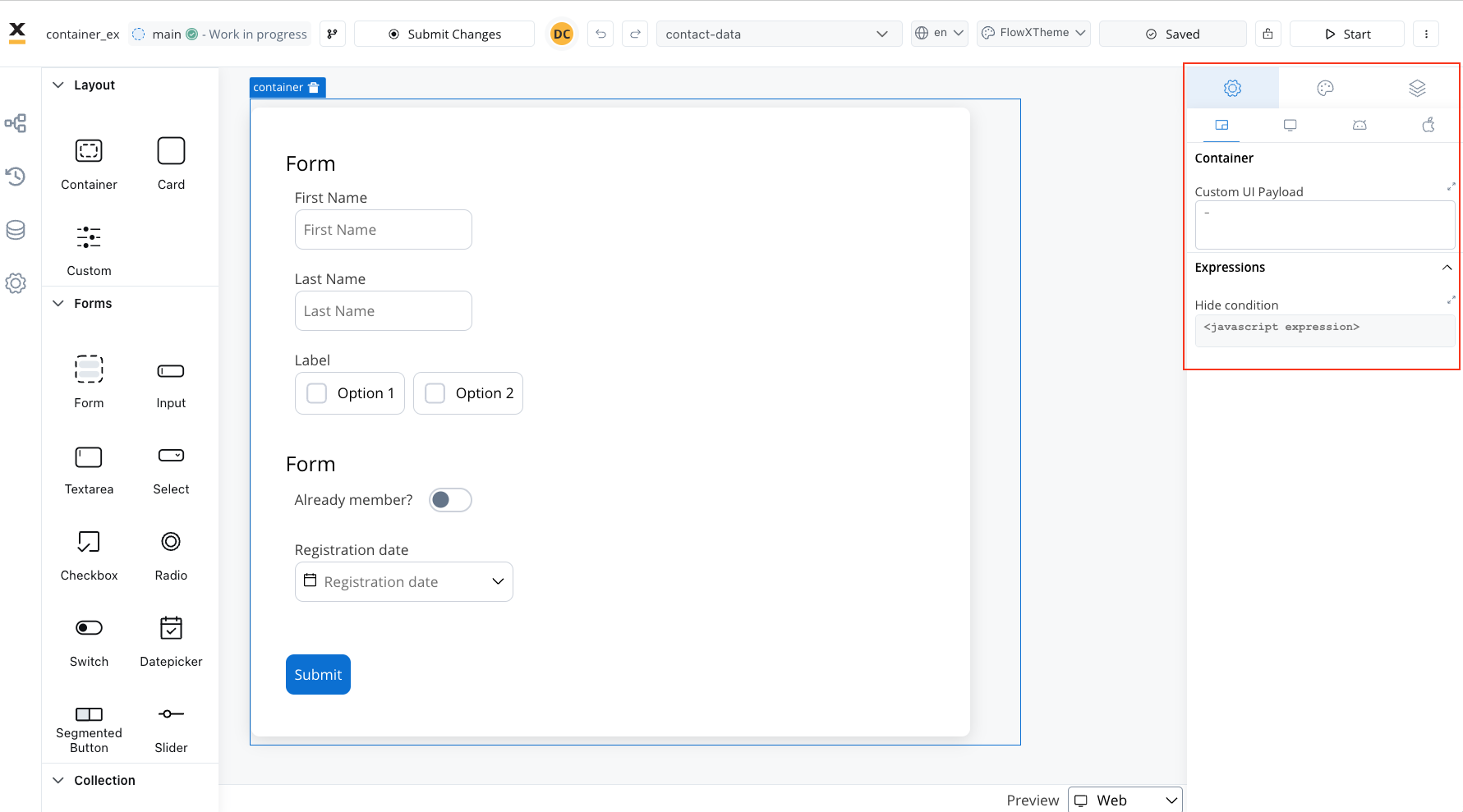
The following properties can be configured in the container:
## Properties and settings
### Settings (applicable across all platforms)
These settings added in the **Generic** tab are available and they apply to all platforms including Web, iOS, and Android.
#### When used as root
When employed as the root component, the container offers the following settings:
* **Custom UI Payload**: A valid JSON describing the data sent to the frontend when the process reaches a specific user task.
* **Expressions (Hide condition)**: JavaScript expressions utilized to dynamically hide components based on conditions.
#### When not used as root
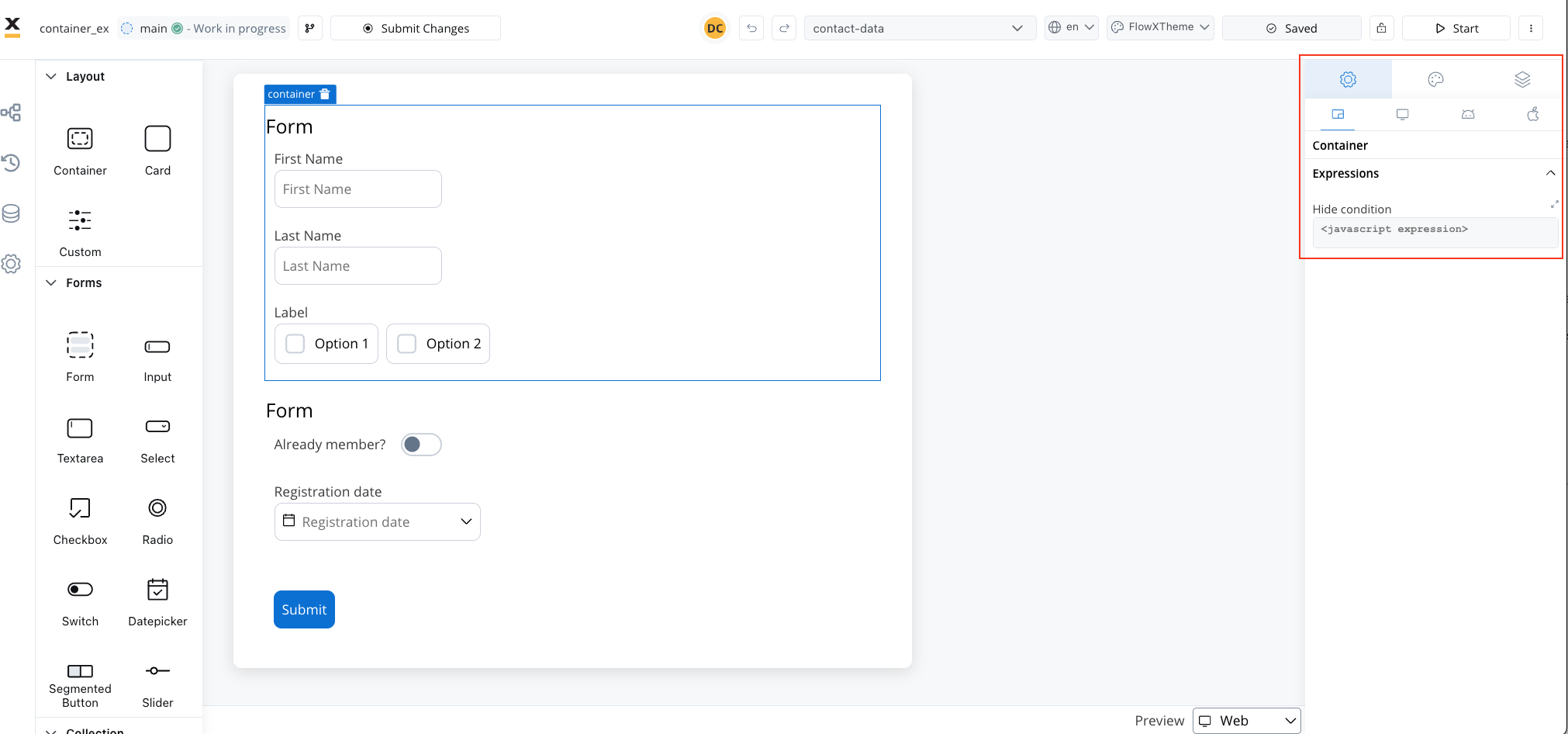
When the container is not used as the root, you can configure only the **Hide Condition** property.
By leveraging containers, you gain the ability to structure your UI elements efficiently, enhancing the overall design and usability of your application.
### Container settings overrides
You may want to override settings configured in the **Generic** tab to be displayed differently on mobile devices.
* **Hide expressions**: Use Overrides in the Settings tab to hide a container on a specific platform.
For instance, you can set a container to appear on all platforms, or create an override to hide it on mobile but show it on web.
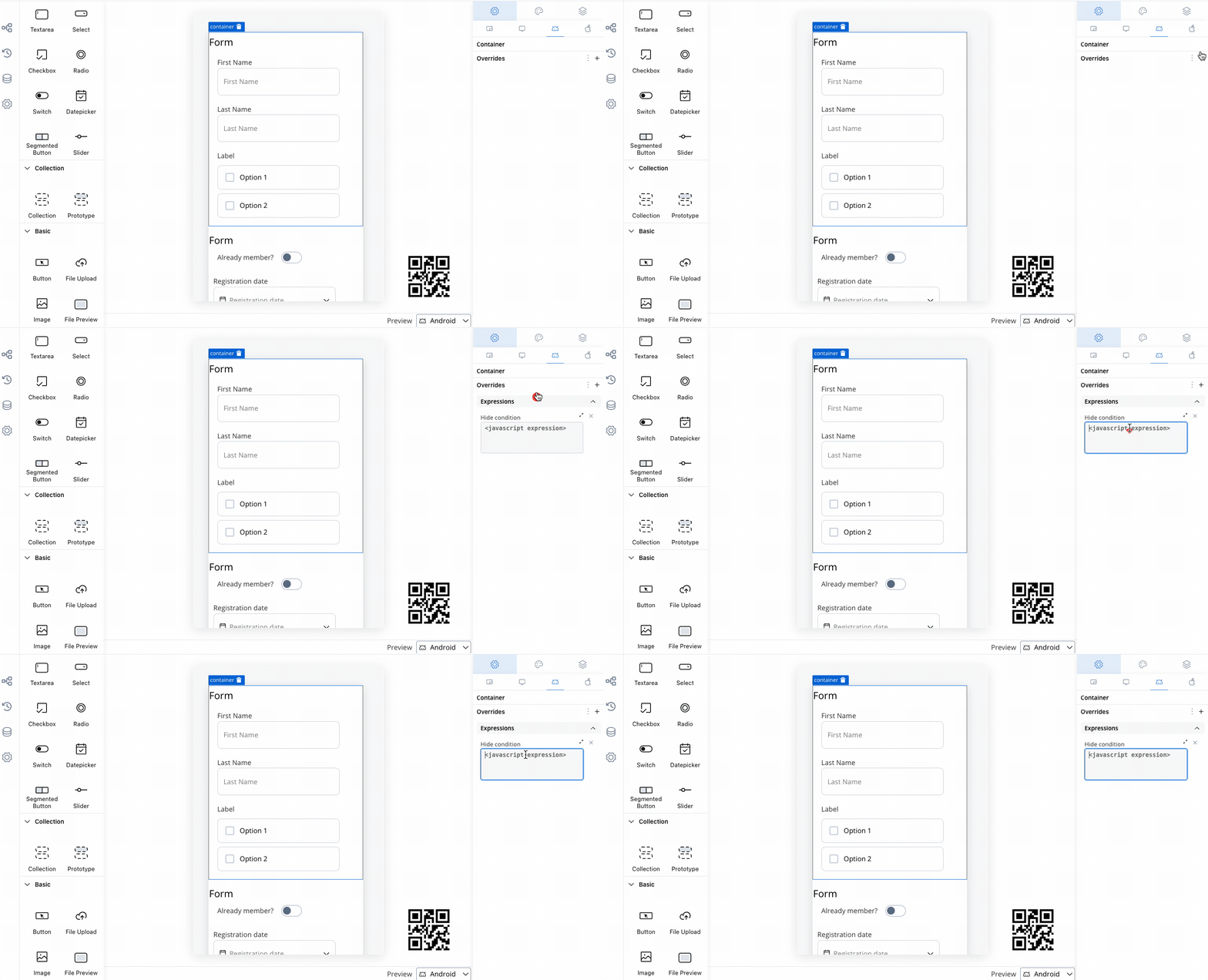
To achieve this:
1. Select a Container element in the UI Designer, then navigate to Settings -> your desired platform -> Overrides (+) -> Expressions -> Hide.
2. Add your JavaScript Hide condition.
## Styling
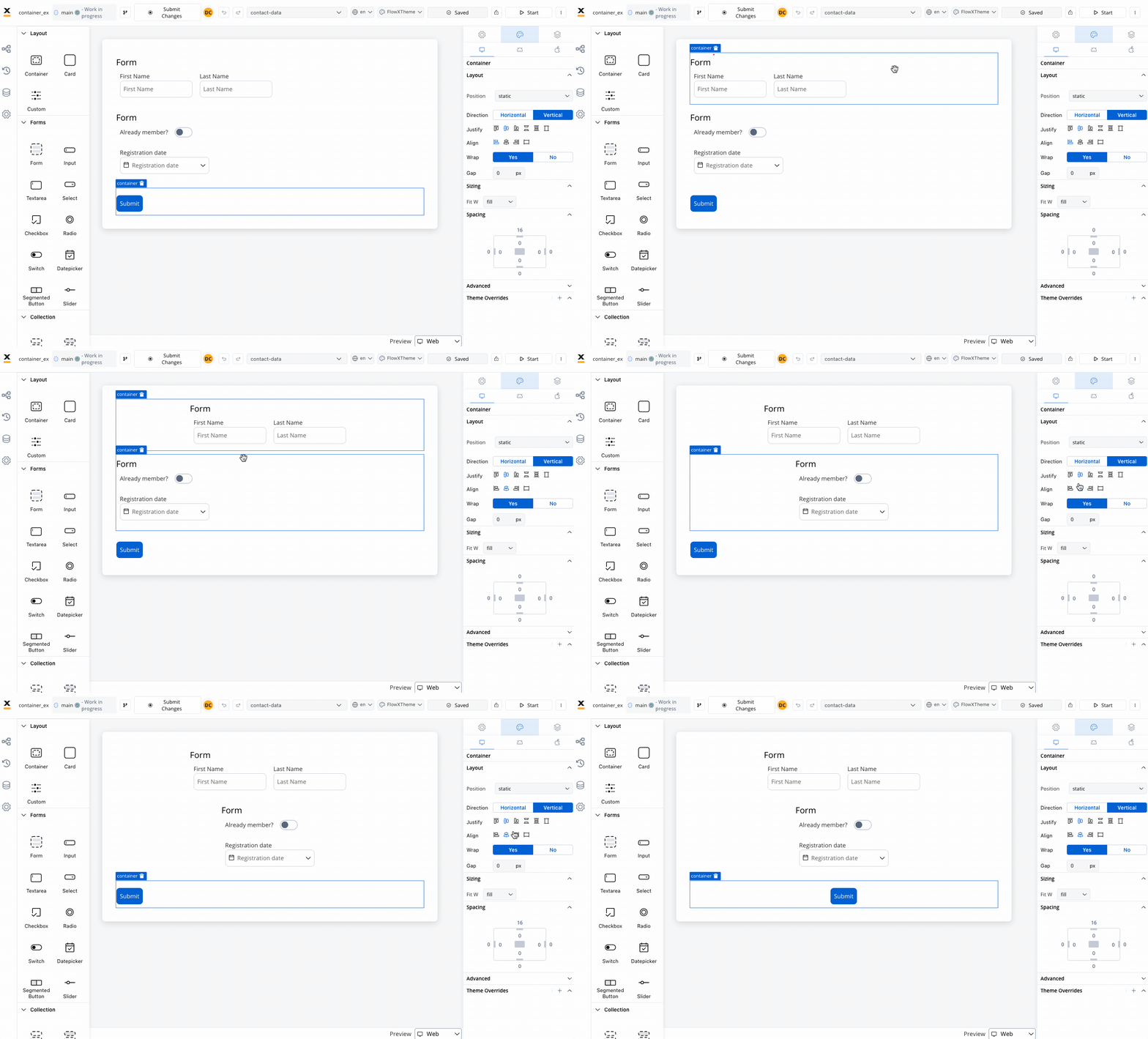
When designing for the web, consider the layout options available for the container. These options include:
* **Position**
* **Static**: This style remains fixed and does not scroll along with the page content.
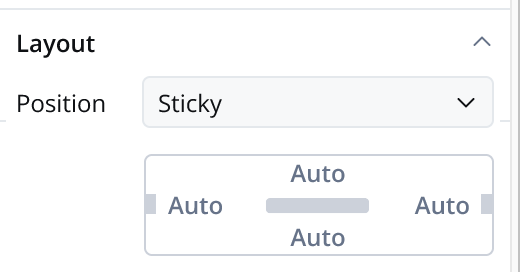
* **Sticky**: When the sticky property is enabled, the container maintains its position even during scrolling.
* **Sticky layout**: You have the option to specify minimum distances between the container and its parent element while scrolling. At runtime, sticky containers will keep their position on scroll relative to top/ bottom/ right/ left margin of the parent element.
* **Direction**: Choose between **Horizontal** or **Vertical** alignment to define the flow of components. For example, select Horizontal for a left-to-right layout.
* **Justify (H)**: Specify how content is aligned along the main axis. For instance, select end to align items to the end of the container.
* **Align (V)**: Align components vertically within their container using options such as top, center, or bottom alignment.
* **Wrap**: Enable wrapping to automatically move items to the next line when they reach the end of the container. Useful for creating multi-line layouts.
* **Gap**: Define the space between components to control the distance between each item. Adjusting the gap enhances visual clarity and organization.
Adjusting the size of components is crucial for a responsive design. Fit W (width) offers three options:
* **fill**: Fills the available space.
* **fixed**: Maintains a fixed width.
* **auto**: Adjusts the width automatically based on content.
Similar styling considerations apply to iOS as for web.
However, there are exceptions, particularly with **Sticky layout**:
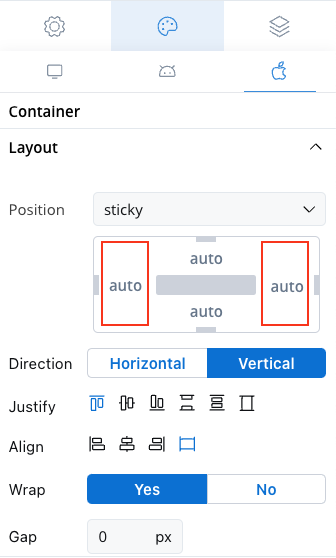
In mobile configurations, the right and left properties for **Sticky layout** are ignored by the iOS renderer.
Similar styling considerations apply to Android as for web.
However, there are exceptions, particularly with **Sticky layout**:

In mobile configurations, the right and left properties for **Sticky layout** are ignored by the Android renderer.
### Theme overrides
Customize the appearance by overriding style options coming from your default theme. Available overrides:
* Border width
* Border radius
* Border color
* Background color
* Shadow
More layout demos available below:
For more information about styling and layout configuration, check the following section: