> ## Documentation Index
> Fetch the complete documentation index at: https://docs.flowx.ai/llms.txt
> Use this file to discover all available pages before exploring further.
# Slider
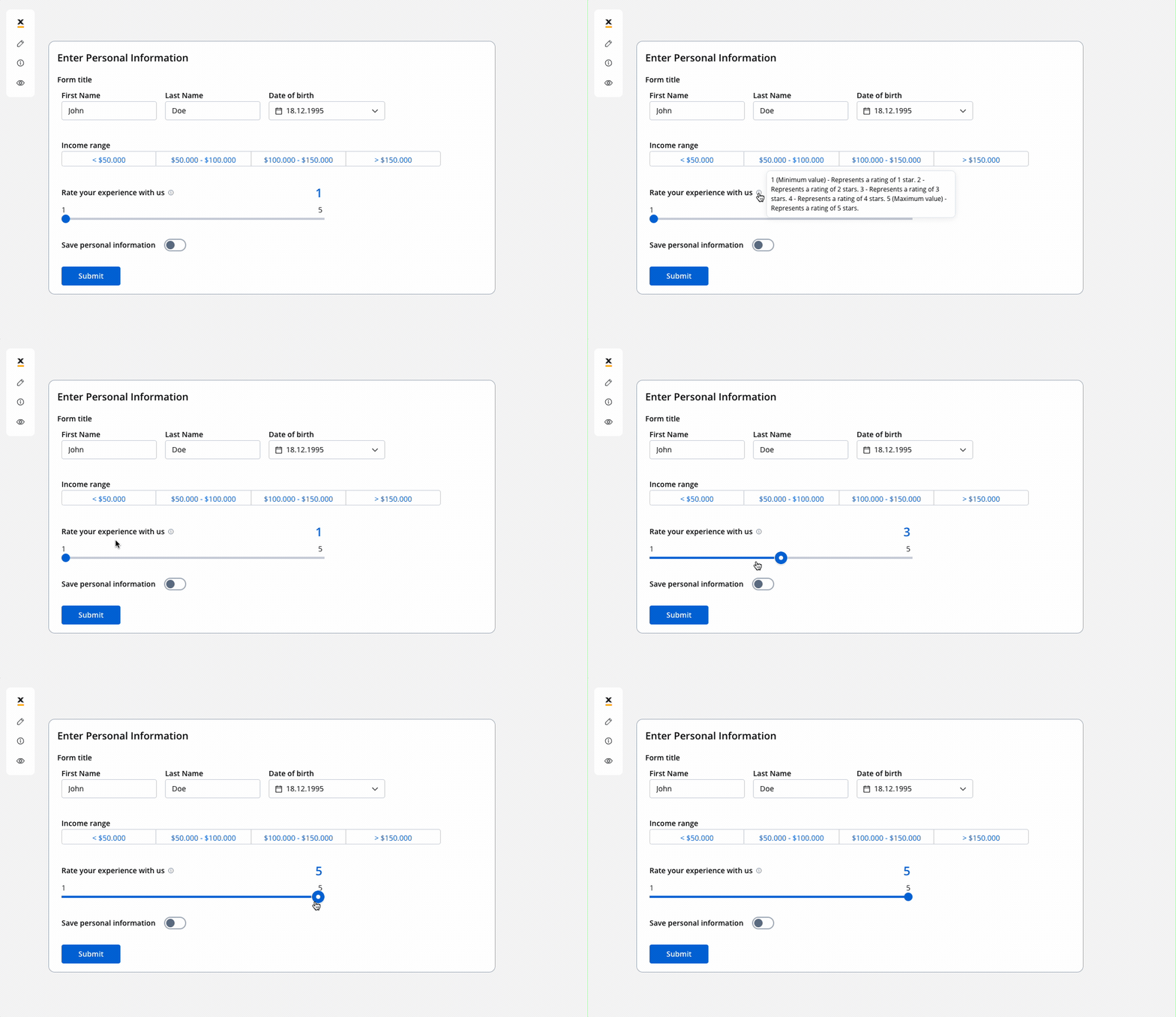
> It allows you to pick only one option from a group of options, and you can choose to have between 2 and 5 options in the group. The slider helps improve usability in your app.
## Configuring the slider element
### Slider generic settings
The available configuration options for this form element are:
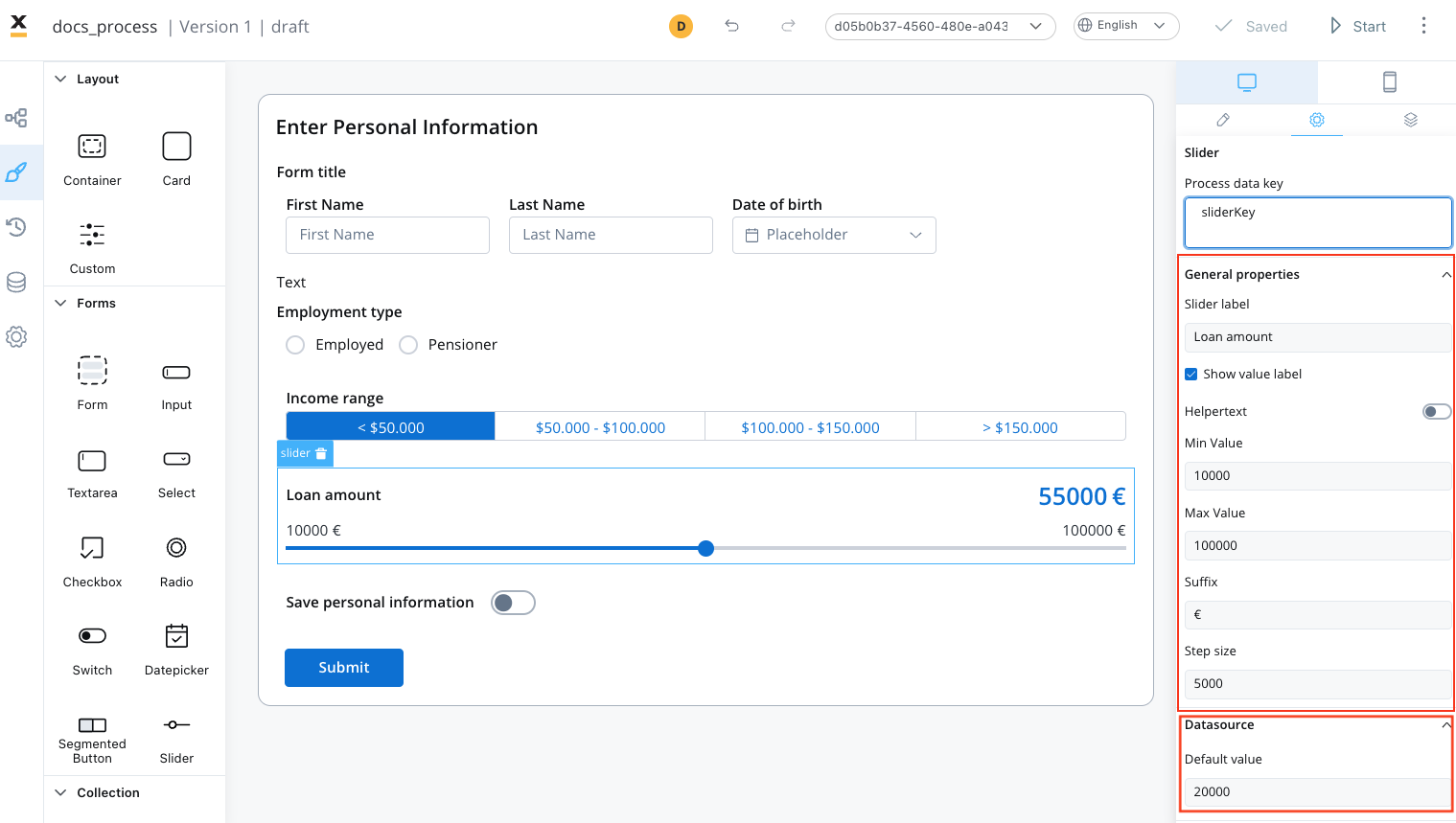
* [**Process data key**](#process-data-key)
* [**Properties**](#properties)
* [**Datasource**](#datasource)
* [**Validators**](#validators)
* [**Expressions**](#expressions)
* [**Event handlers**](#event-handlers)
* [**Slider styling**](#slider-styling)
#### Process data key
Process data key establishes the binding between the slider element and process data, enabling its later use in [decisions](../../../node/exclusive-gateway-node), [business rules](../../../actions/business-rule-action/business-rule-action) or [integrations](../../../node/message-send-received-task-node#from-integration).
#### Properties
* **Label**: The visible label for the slider element.
* **Show value label**: A toggle option that determines whether the current selected value of the slider is displayed as a label alongside the slider handle.
* **Helpertext**: Additional information about the slider element, which can be optionally hidden within an infopoint.
* **Min Value** : The minimum value or starting point of the slider's range, it defines the lowest selectable value on the slider.
* **Max Value**: The maximum value or end point of the slider's range, it sets the highest selectable value on the slider.
* **Suffix**: An optional text or symbol that can be added after the displayed value on the slider handle or value label, it is commonly used to provide context or units of measurement.
* **Step size**: The increment or granularity by which the slider value changes when moved, it defines the specific intervals or steps at which the slider can be adjusted, allowing users to make more precise or discrete value selections.
#### Datasource configuration
**Default Value**: The default value of the slider (static value - integer) the initial value set on the slider when it is first displayed or loaded, it represents a static value (integer), that serves as the starting point or pre-selected value for the slider, users can choose to keep the default value or adjust it as desired.
#### Validators
The following validators can be added to a slider: `required` and `custom`. For more information, see the [validators documentation](../../validators).
#### Hide/disable expressions
* **Hide condition**: A JavaScript expression that hides the sloder element when it returns a truthy value.
* **Disabled condition**: A JavaScript expression that disables the slider element when it returns a truthy value.
It’s important to make sure that disabled fields have the same expression configured under the path expressions → hide.
#### Event handlers
Event handlers can be added to the slider element to define its behavior and interactions.
* **Event**: Possible value - `CHANGE`.
* **Action Type**: Select the action type. For more information, see the [Event Handlers documentation](../../event-handlers).
### Multiple sliders
You can also use multiple sliders UI elements that are interdependent, as you can see in the following example:
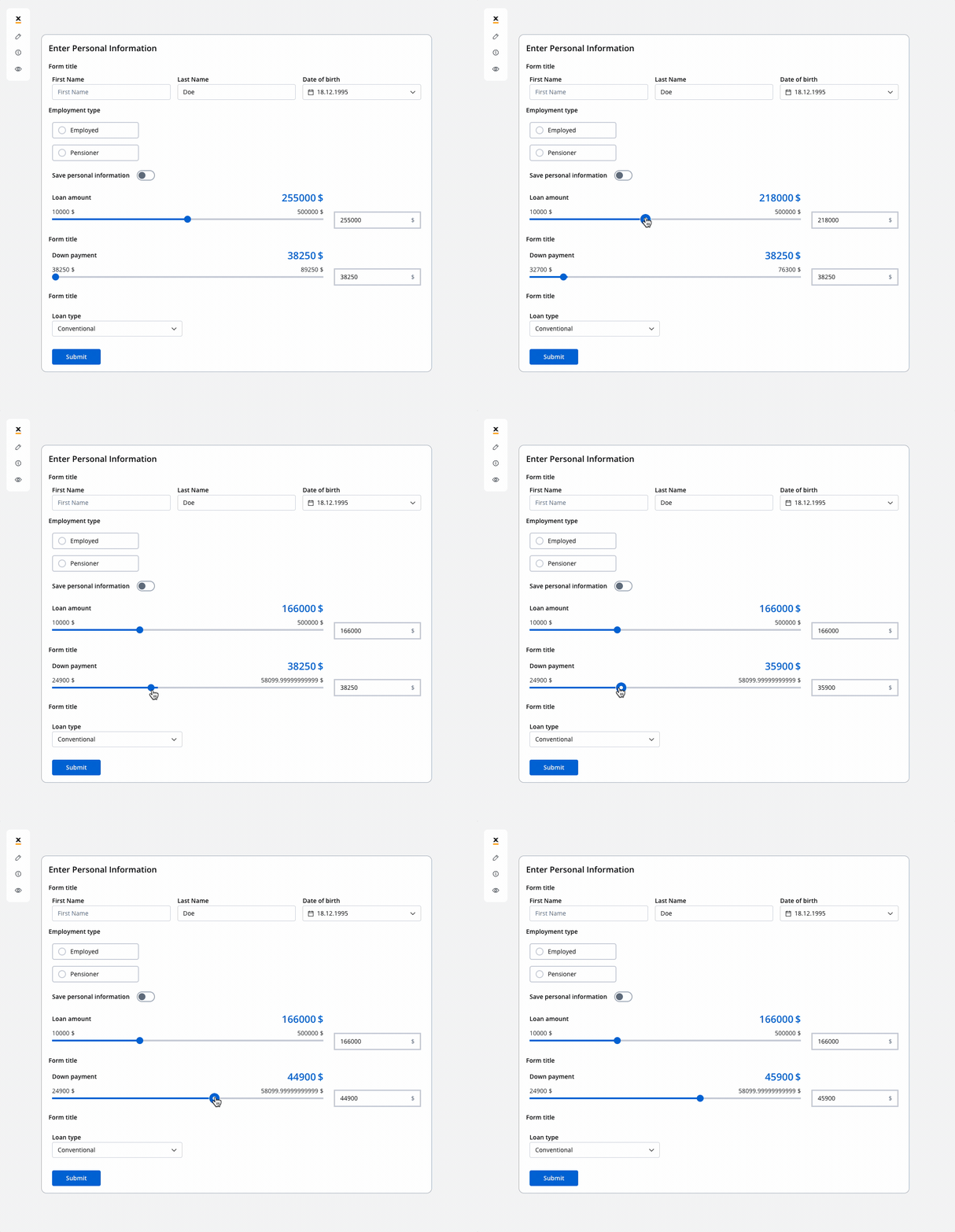
You can improve the configuration of the slider using computed values as in the example above. These values provide a more flexible approach for handling complex use cases. You can find an example by referring to the following documentation:
[**Dynamic & computed values**](../../dynamic-and-computed-values#computed-values)
### Slider settings overrides
There are instances where you may need to tailor settings configured in the **Generic** settings tab. This proves especially beneficial when you wish to adjust these settings to appear differently across various platforms such as Web, Android, or iOS.
Available override settings:
* Properties:
* **Label**: Override the slider label.
* **Helpertext**: Override helper text/info point.
* **Show value**: Override the show value option.
* **Suffix**: Override the suffix.
* Expressions:
* **Hide**: Override the hide expression.
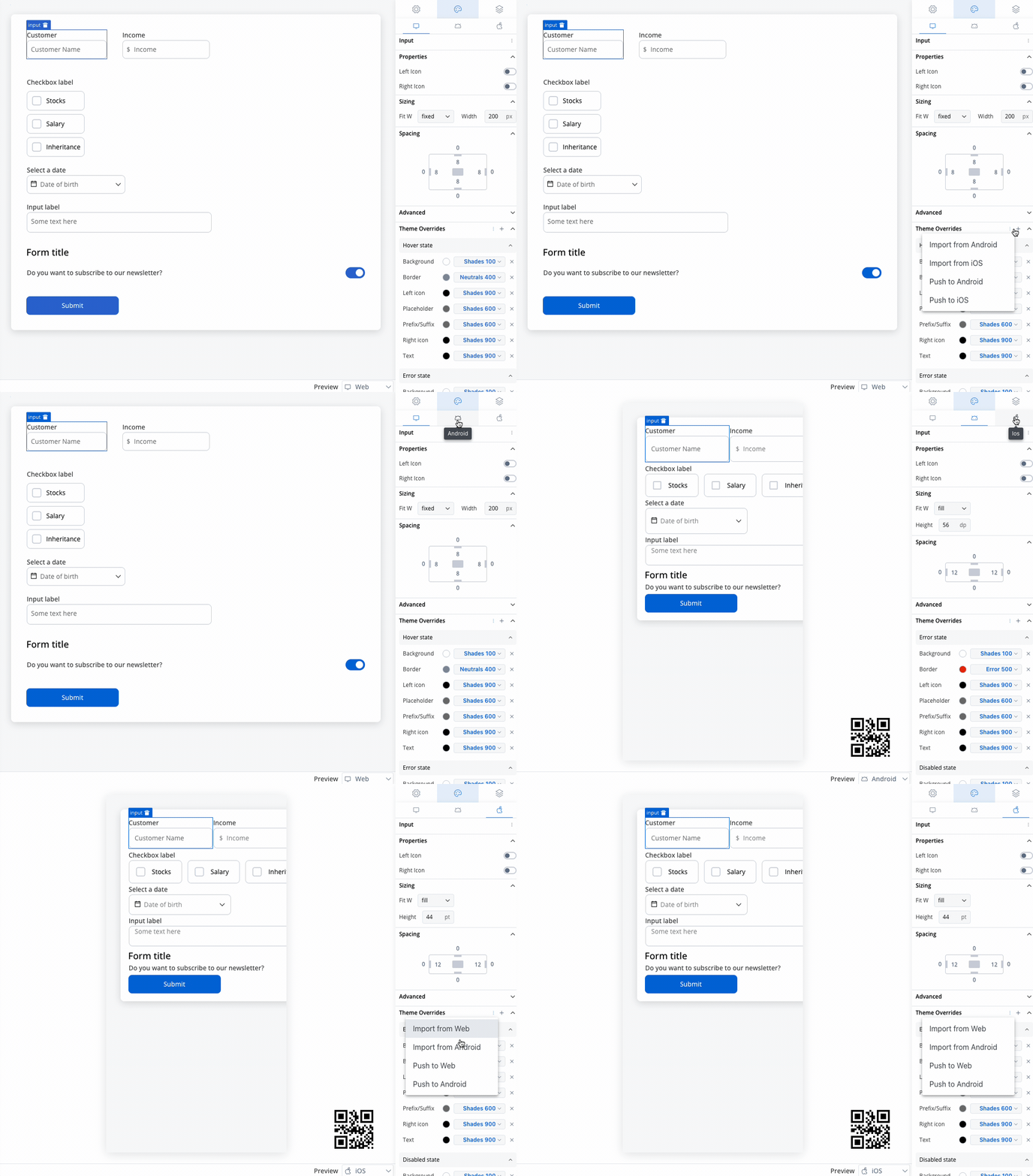
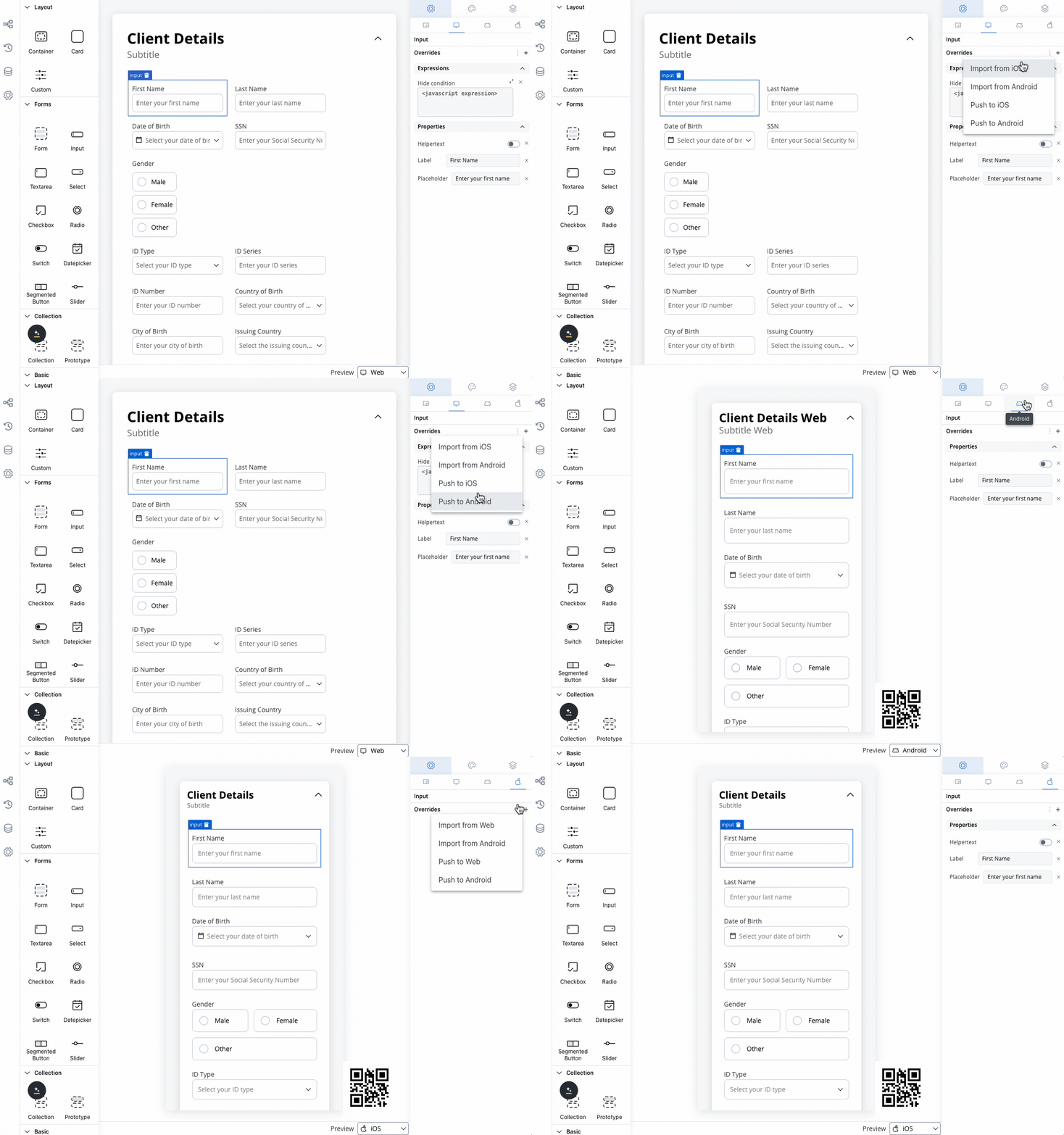
Overrides can always be imported/pushed from one platform to another:
### Slider styling
#### Sizing
Adjusting the size of components is crucial for a responsive design. Fit W (width) offers three options:
* **fill**: Fills the available space.
* **fixed**: Maintains a fixed width.
* **auto**: Adjusts the width automatically based on content.
Similar styling considerations apply to iOS as for web.
Similar styling considerations apply to Android as for web.
#### Slider style overrides options
Theme overrides refer to the ability to modify or customize the appearance and behavior of UI components by overriding default theme settings. This can be applied at various levels, such as specific elements or entire sections, and can be platform-specific (Web, iOS, Android).
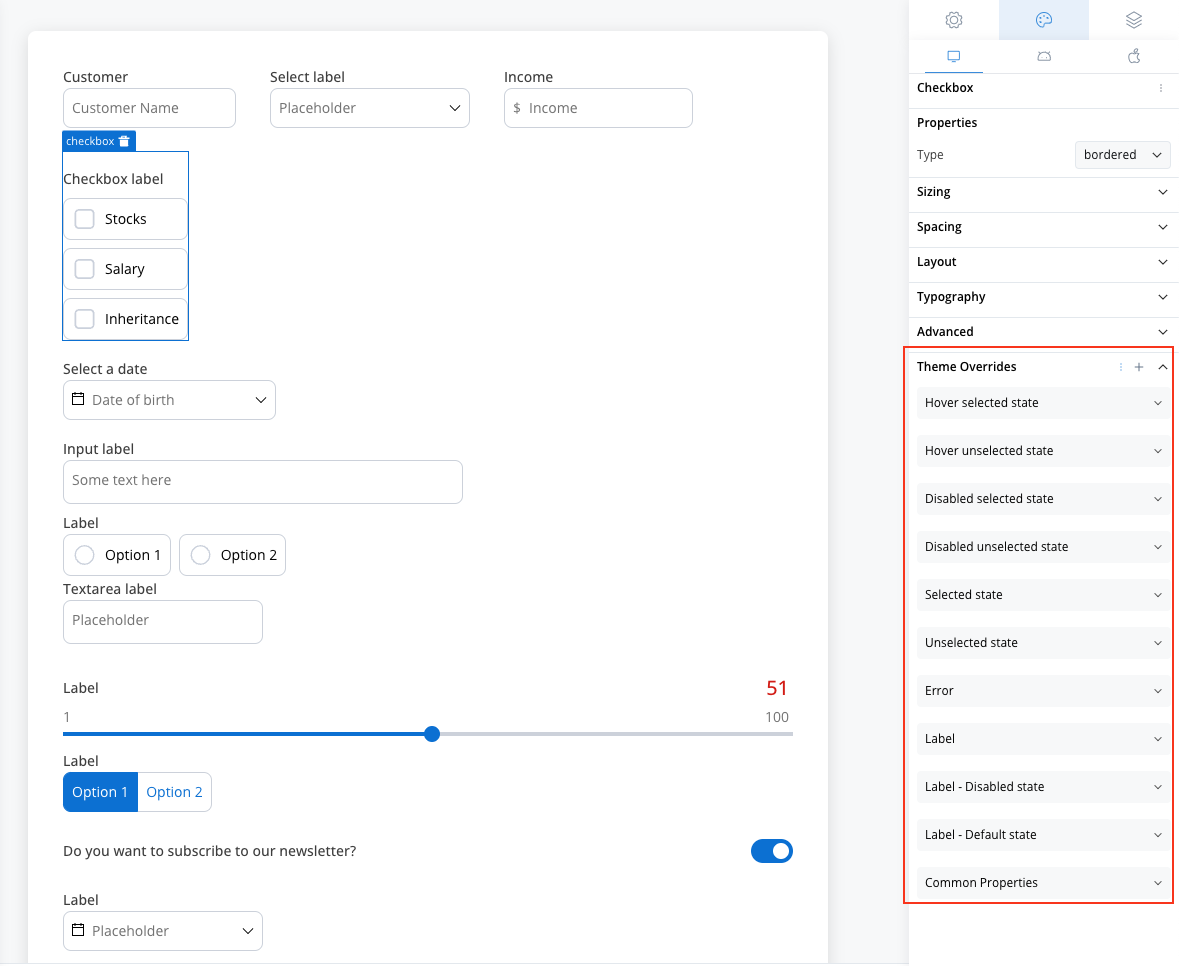
Style options:
* Limits font **\[FONT]**
* Text style **\[FONT]**
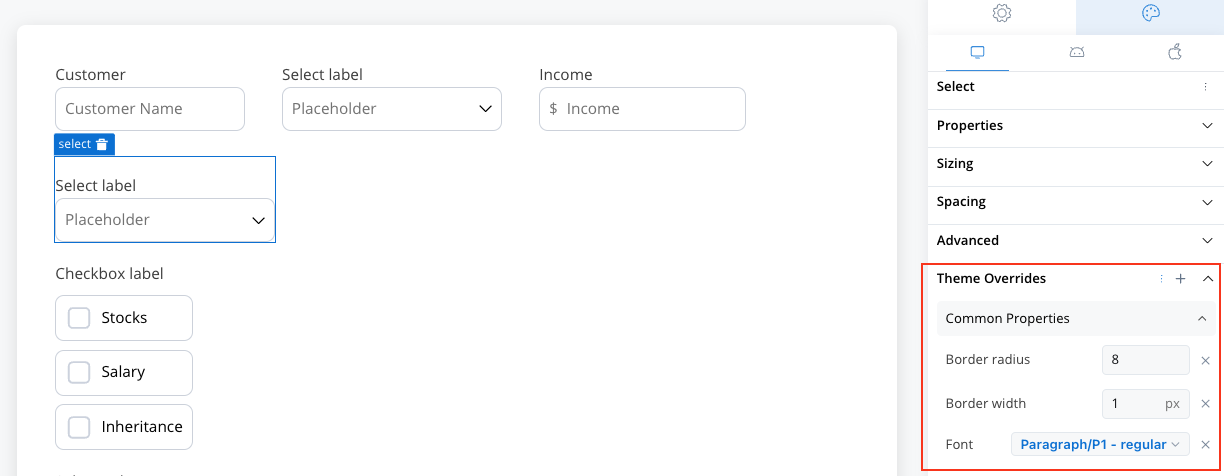
* Default state
* Text color **\[COLOR]**
* Disabled state
* Text color **\[COLOR]**
* Text style **\[FONT]**
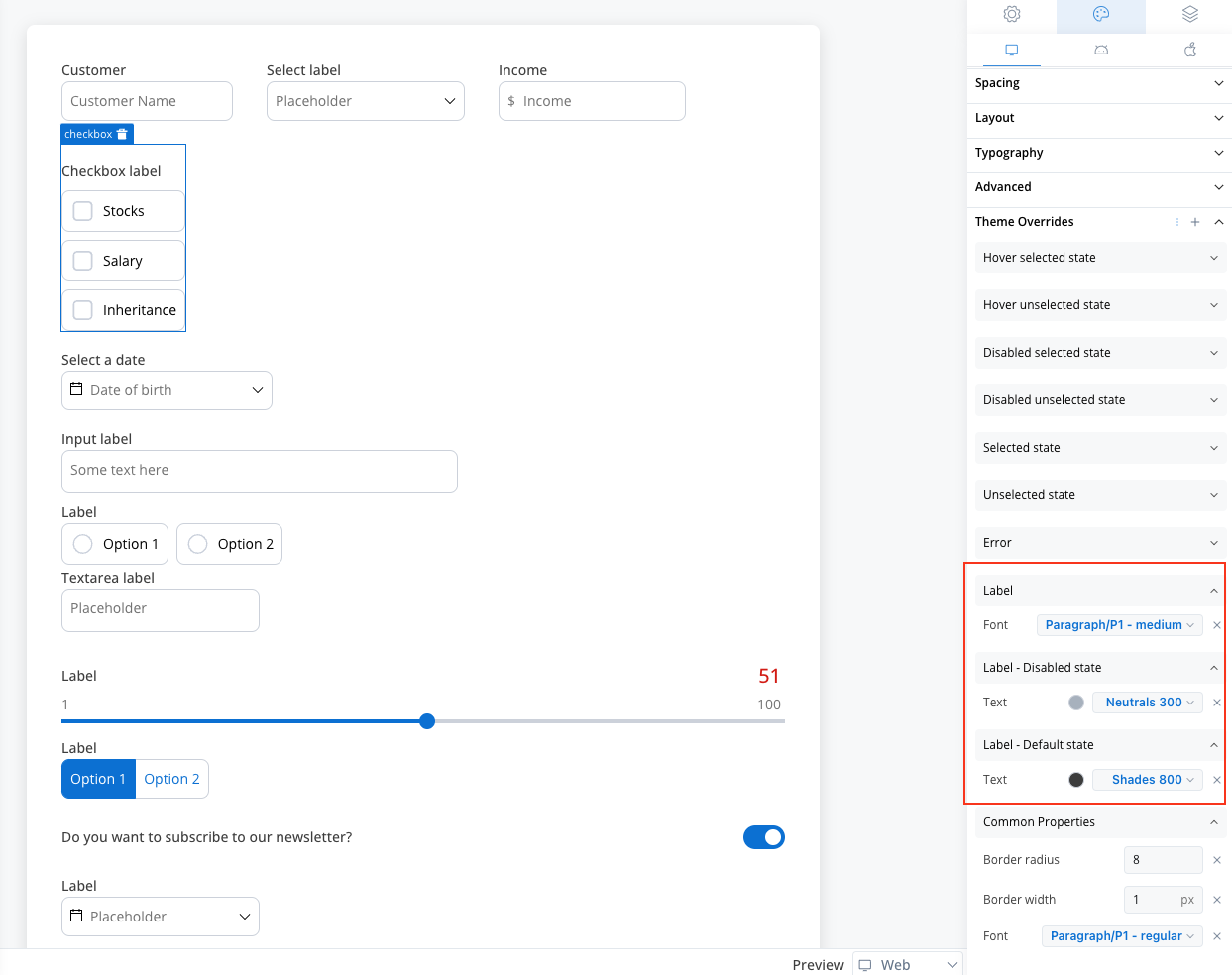
* Text color **\[COLOR]**
* Text style **\[FONT]**
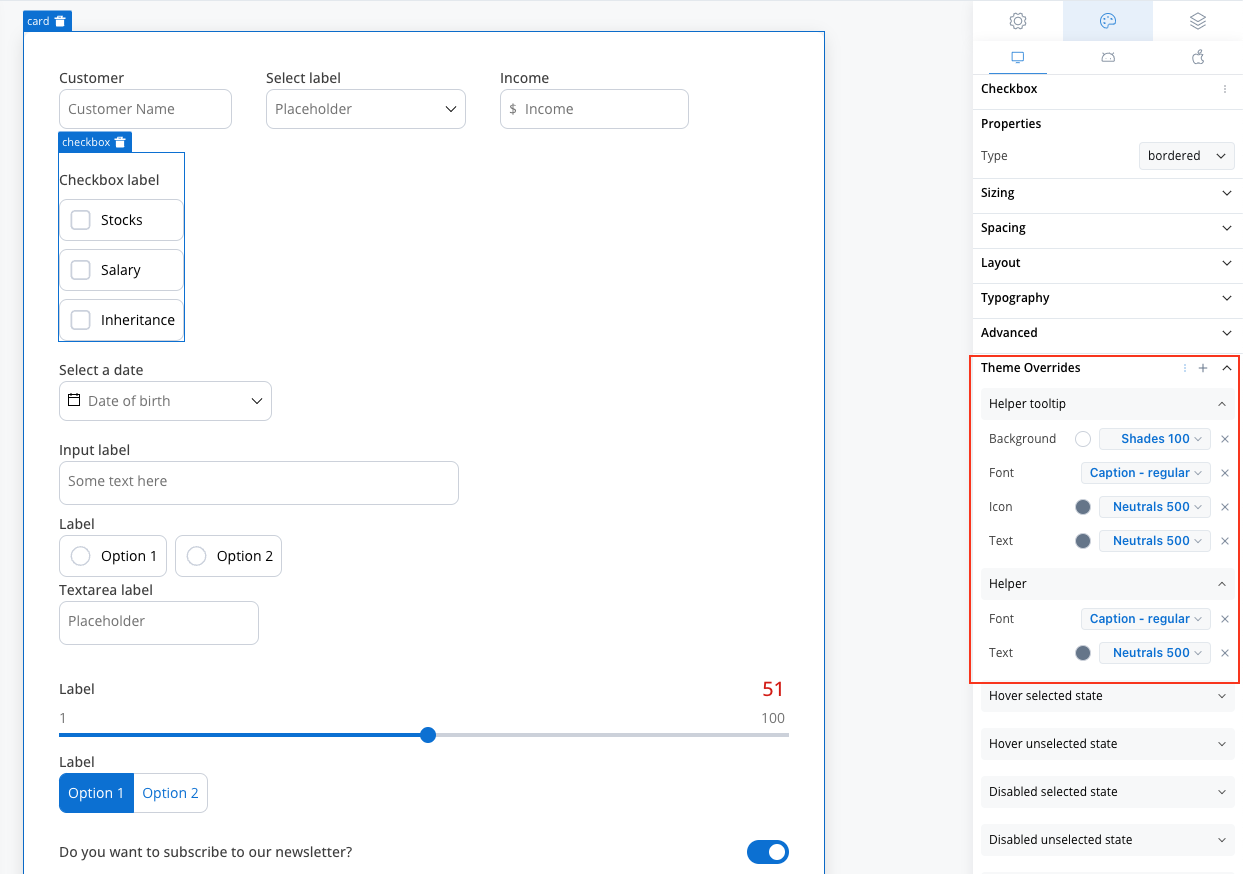
* Helper Tooltip
* Text style **\[FONT]**
* Text color **\[COLOR]**
* Background color **\[COLOR]**
* Icon Color **\[COLOR]**
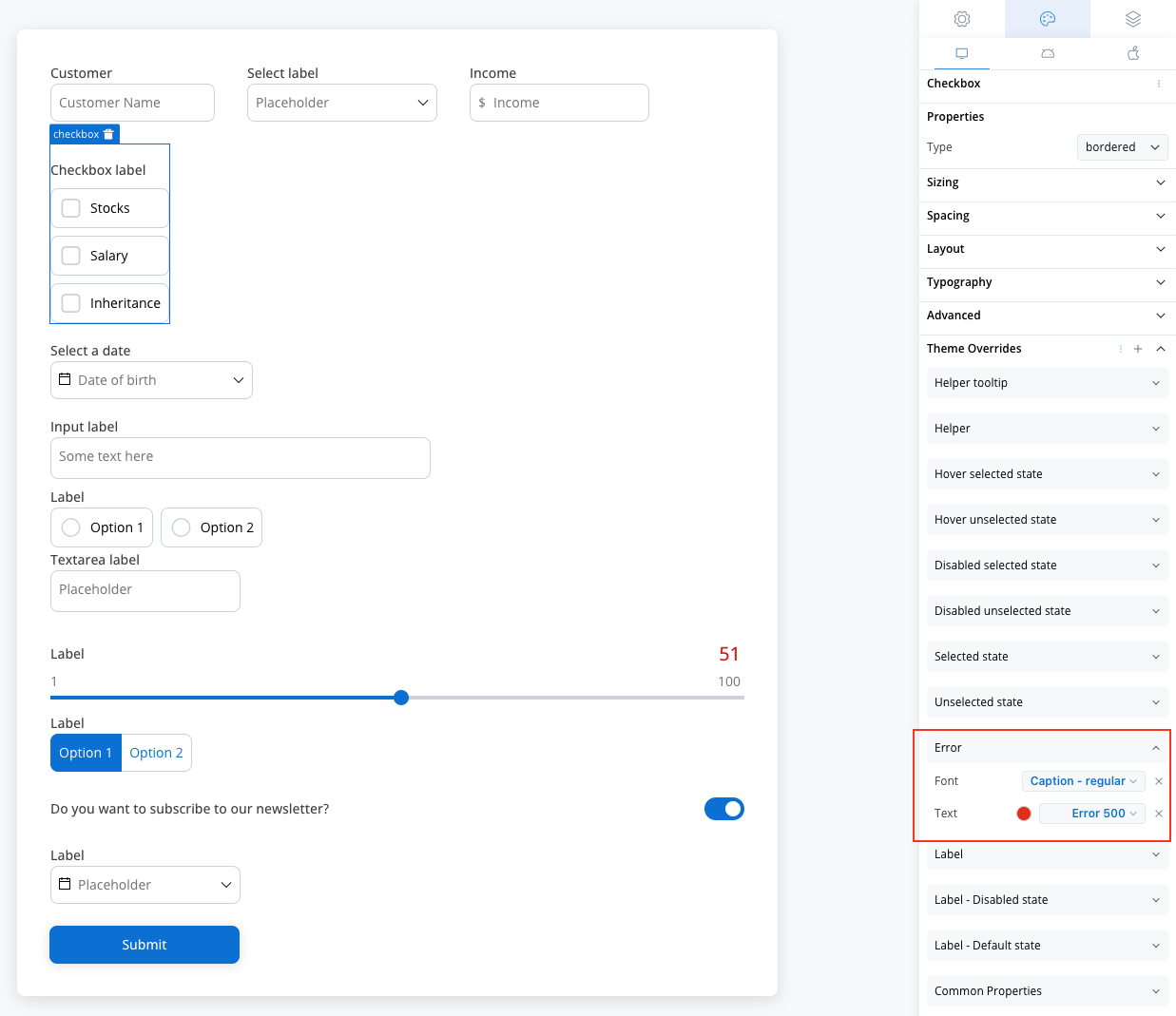
* Text color **\[COLOR]**
* Text style **\[FONT]**
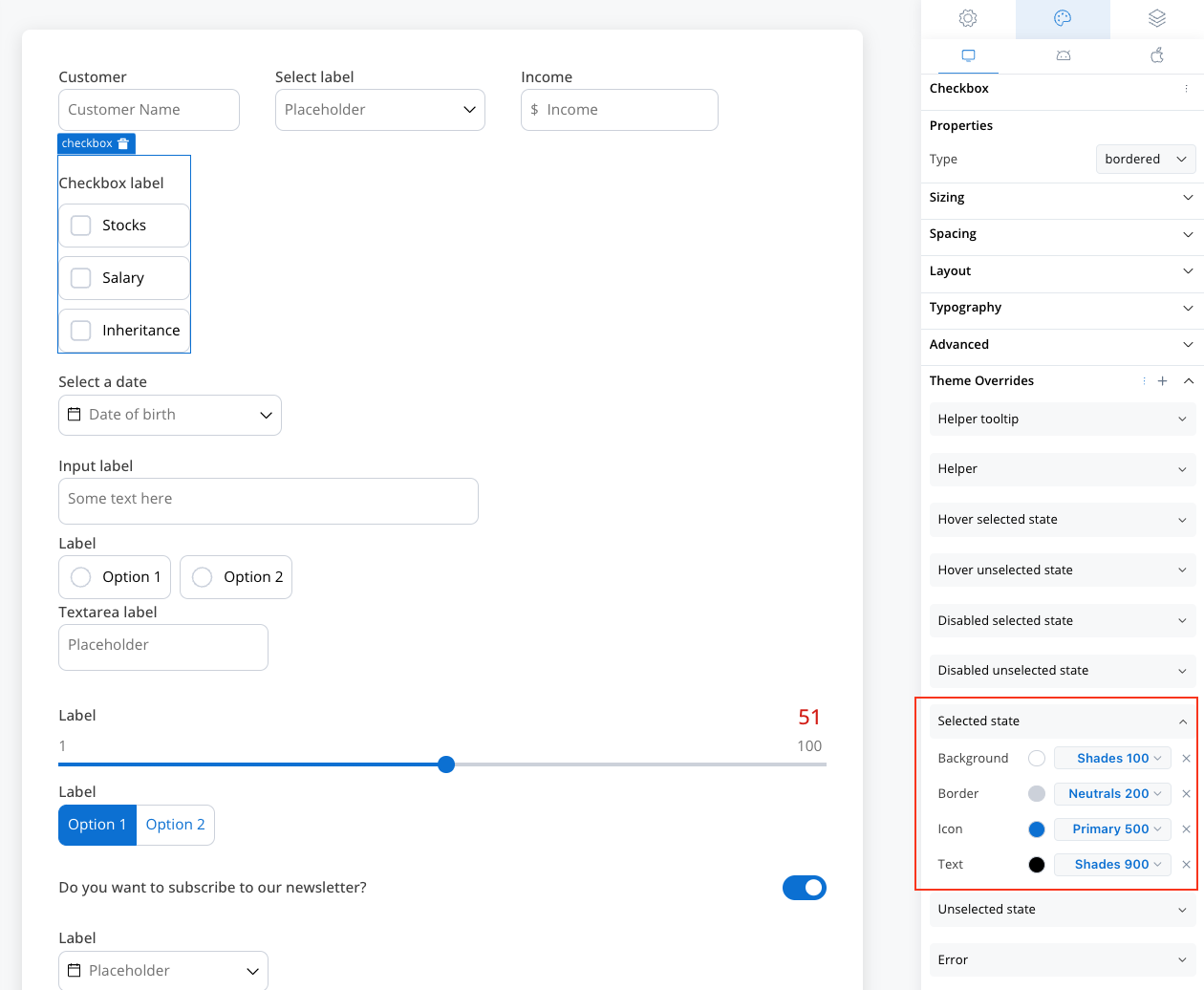
* Empty **\[COLOR]**
* Filled **\[COLOR]**
* Knob color **\[COLOR]**
* Limits **\[COLOR]**
* Value **\[COLOR]**
On iOS, overrides for the **Knob** are not available.
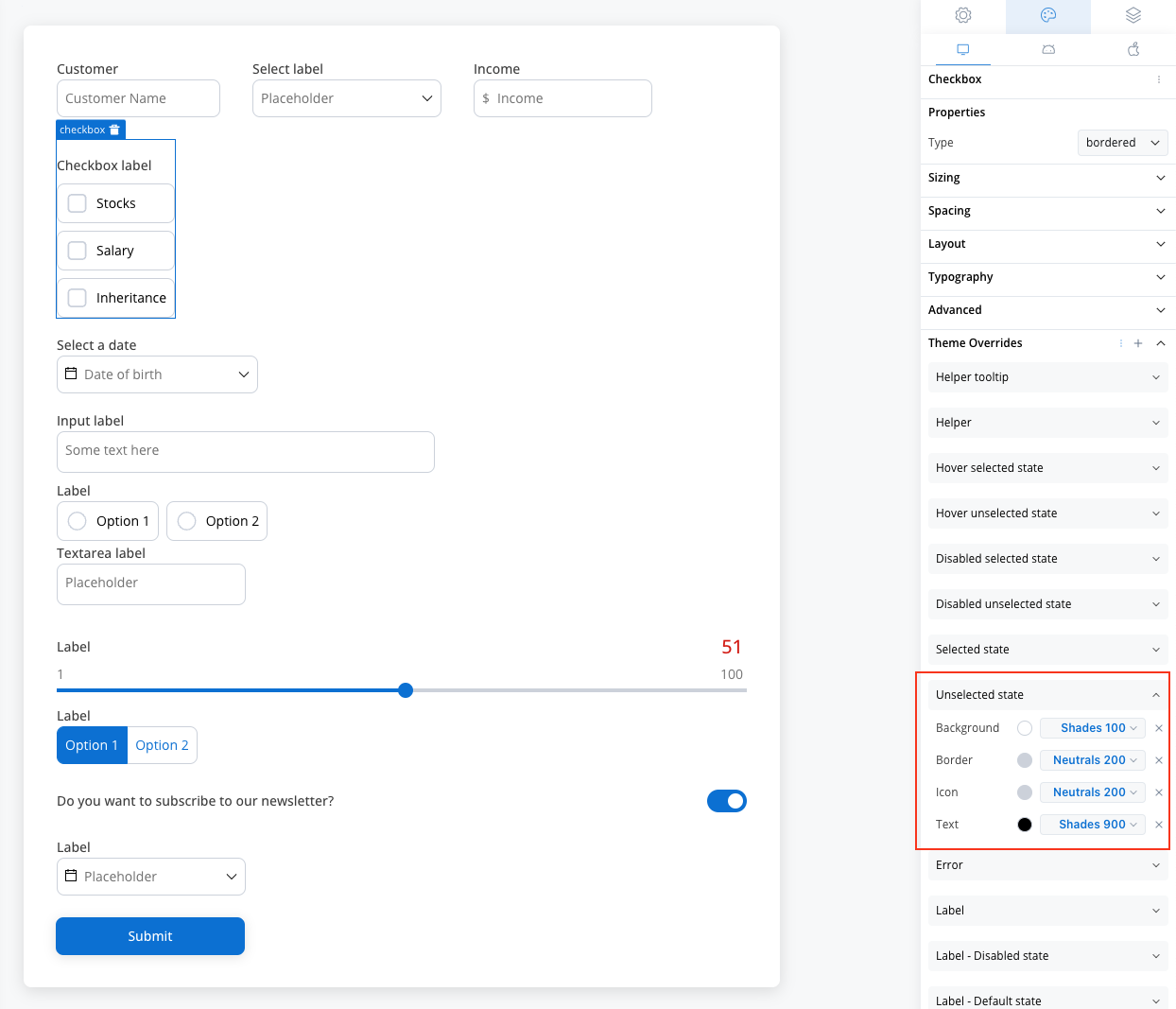
* Empty **\[COLOR]**
* Filled **\[COLOR]**
* Knob color **\[COLOR]**
* Limits **\[COLOR]**
* Value **\[COLOR]**
On iOS, overrides for the **Filled** and **Empty** states, as well as the **Knob**, are not available.
You can import or push the overrides from one platform to another without having to configure them multiple times.