> ## Documentation Index
> Fetch the complete documentation index at: https://docs.flowx.ai/llms.txt
> Use this file to discover all available pages before exploring further.
# File preview
> Preview file contents inside a UI flow without fully opening the file, using the File Preview component.
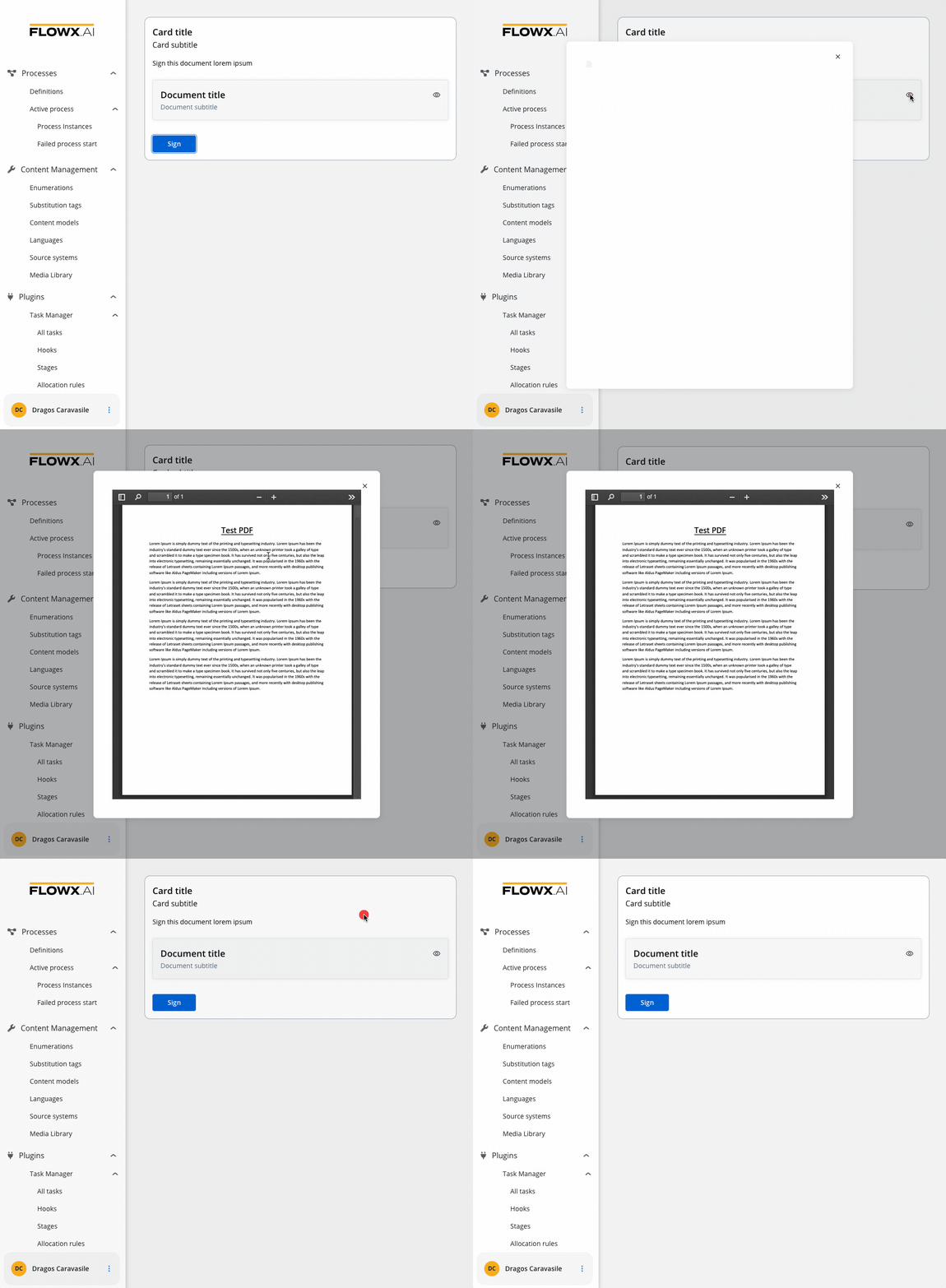
File preview UI elements offer various benefits such as conveying information, improving the aesthetic appeal of an interface, providing visual cues and feedback or presenting complex data or concepts in a more accessible way.
## Configuring a File preview element
A File Preview element can be configured for both mobile and web applications.
### File preview properties (web)
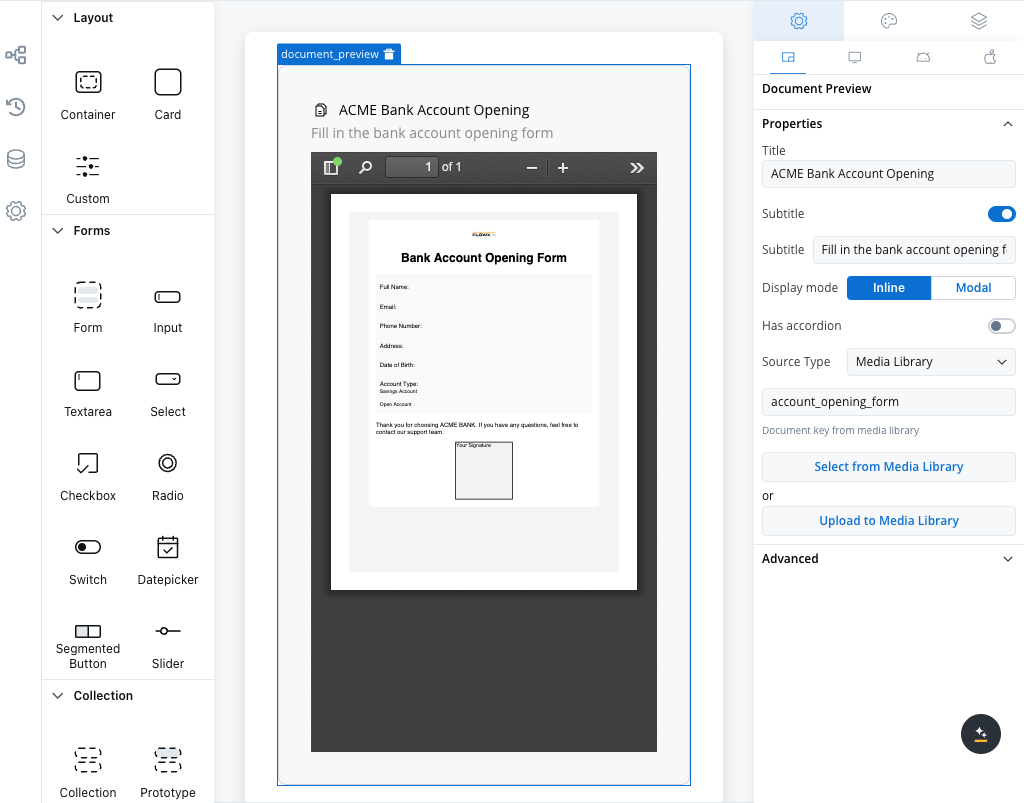
The settings for the File Preview element include the following properties:
* **Title**: Specifies the title of the element. If the file is downloaded or shared, the file name should serve as the title used in the preview component.
* **Subtitle**: Allows for the inclusion of a subtitle for the element.
* **Display mode**: Depending on the selected display method, the following properties are available:
* **Inline** → **Has accordion**:
* `false`: Displays the preview inline without an expand/collapse option.
* `true` (Default View: Collapsed): Displays the preview inline with an expand/collapse option, initially collapsed.
* `true` (Default View: Expanded): Displays the preview inline with an expand/collapse option, initially expanded.
* **Modal** → view icon is enabled
* **Has accordion**: Introduces a Bootstrap accordion, facilitating the organization of content within collapsible items. It ensures that only one collapsed item is displayed at a time.
* **Source Type**:
* **Media Library**: Refers to PDF documents uploaded in the Media Library.
PDF documents uploaded to the Media Library must adhere to a maximum file size limit of 10 MB.
* **Process Data**: Identifies the key location within the process where the document is sourced, establishing the linkage between the document and process data.
* **Static**: Denotes the document's URL, serving as a fixed reference point.
It's worth noting that the inline modal view can raise accessibility issues if the file preview's height exceeds the screen height.
### File preview properties (mobile)
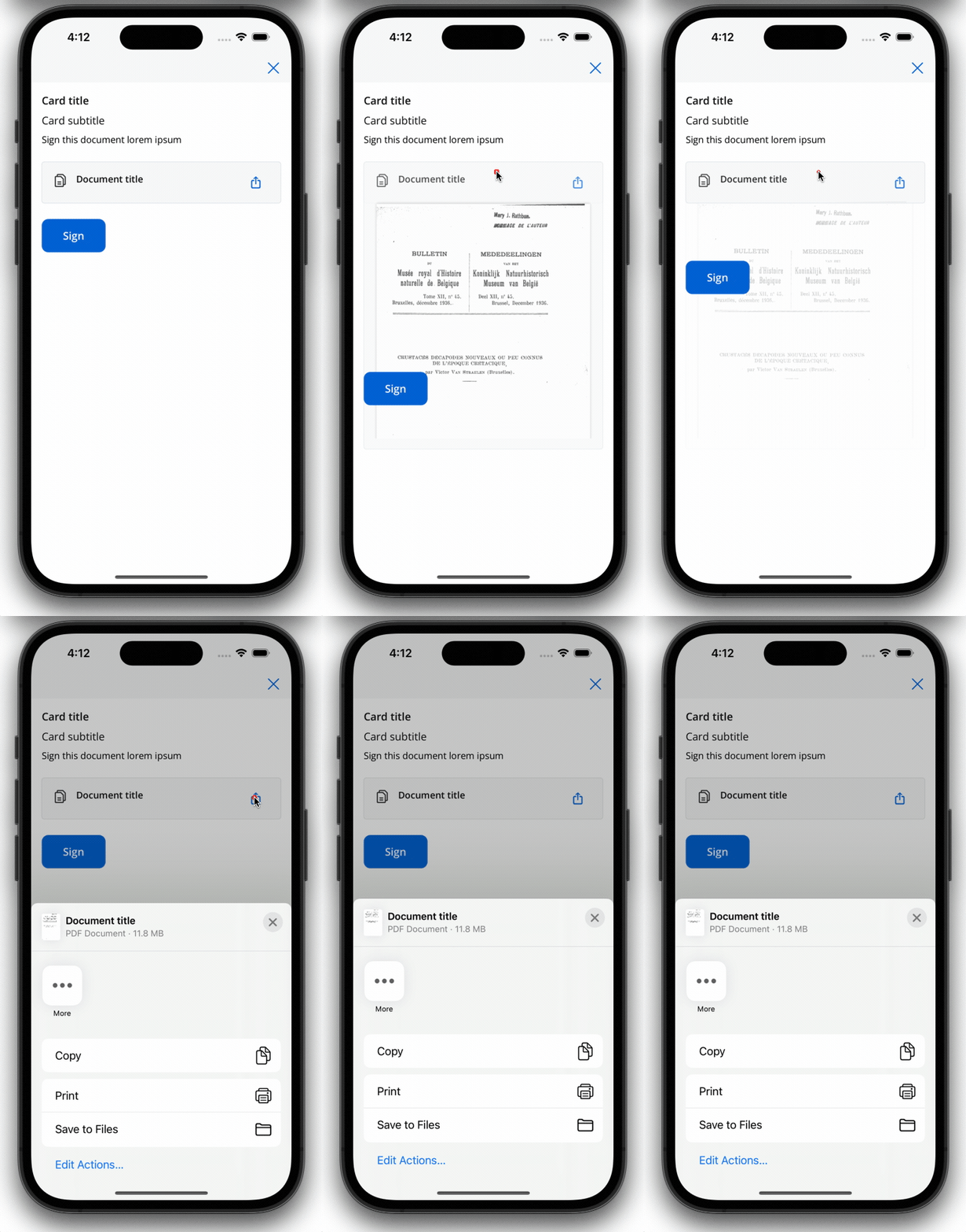
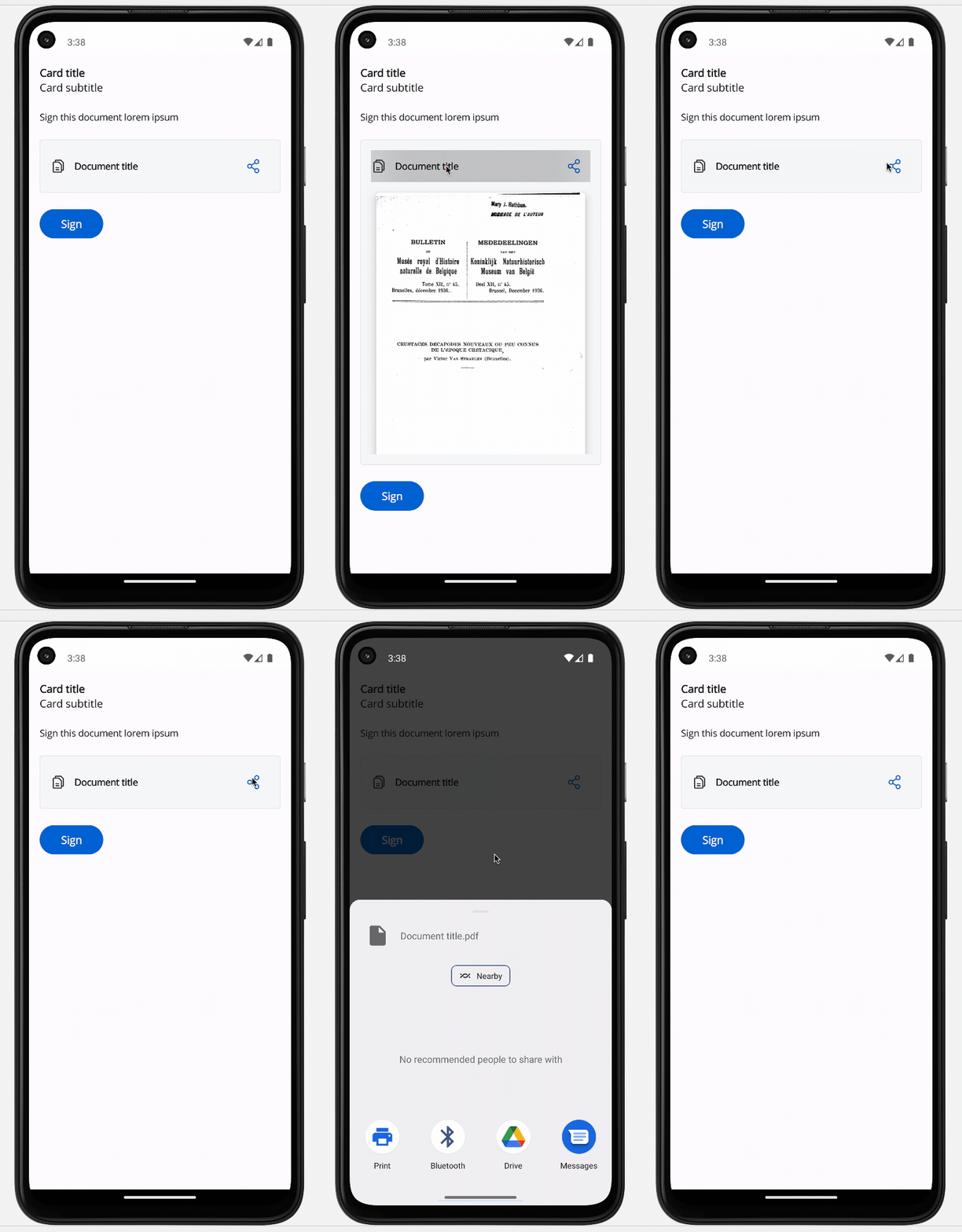
Both iOS and Android devices support the share button.
#### iOS
#### Android
### File preview styling
The File Preview styling property enables you to customize the appearance of the element by adding valid CSS properties. For more information, see the [styling documentation](../../ui-designer/ui-designer#styling).
When drag and drop a File Preview element in UI Designer, it comes with the following default styling properties:
#### Sizing
* **Fit W** - auto
* **Fit H** - fixed / Height - 400 px
## File Preview example
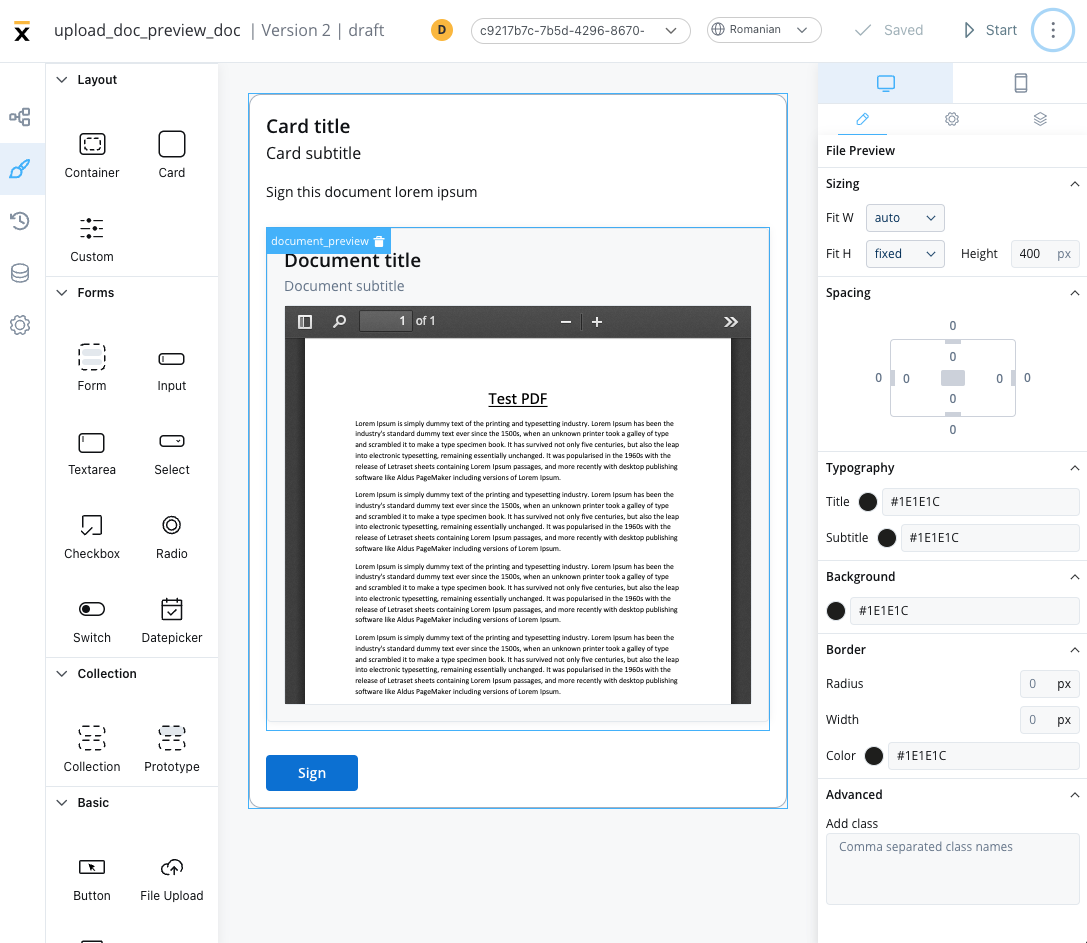
Below is an example of a File Preview UI element with the following properties:
* **Display mode** - Inline
* **Has accordion** - True
* **Default view** - Expanded
* **Source Type** - Static