> ## Documentation Index
> Fetch the complete documentation index at: https://docs.flowx.ai/llms.txt
> Use this file to discover all available pages before exploring further.
# File download
> Let end users download a file from a rendered app using the Download component.
export const release_0 = "5.10"
SaaS · {release_0}
**Available on SaaS with FlowX.AI {release_0}.** This feature is live on managed (SaaS) deployments now. Self-hosted deployments receive it with the next LTS release.
The **Download** component renders as a button that downloads a file when the end user clicks it — for example, a generated contract, an uploaded document, or a static form. You configure which file it serves through the component's **Download** action.
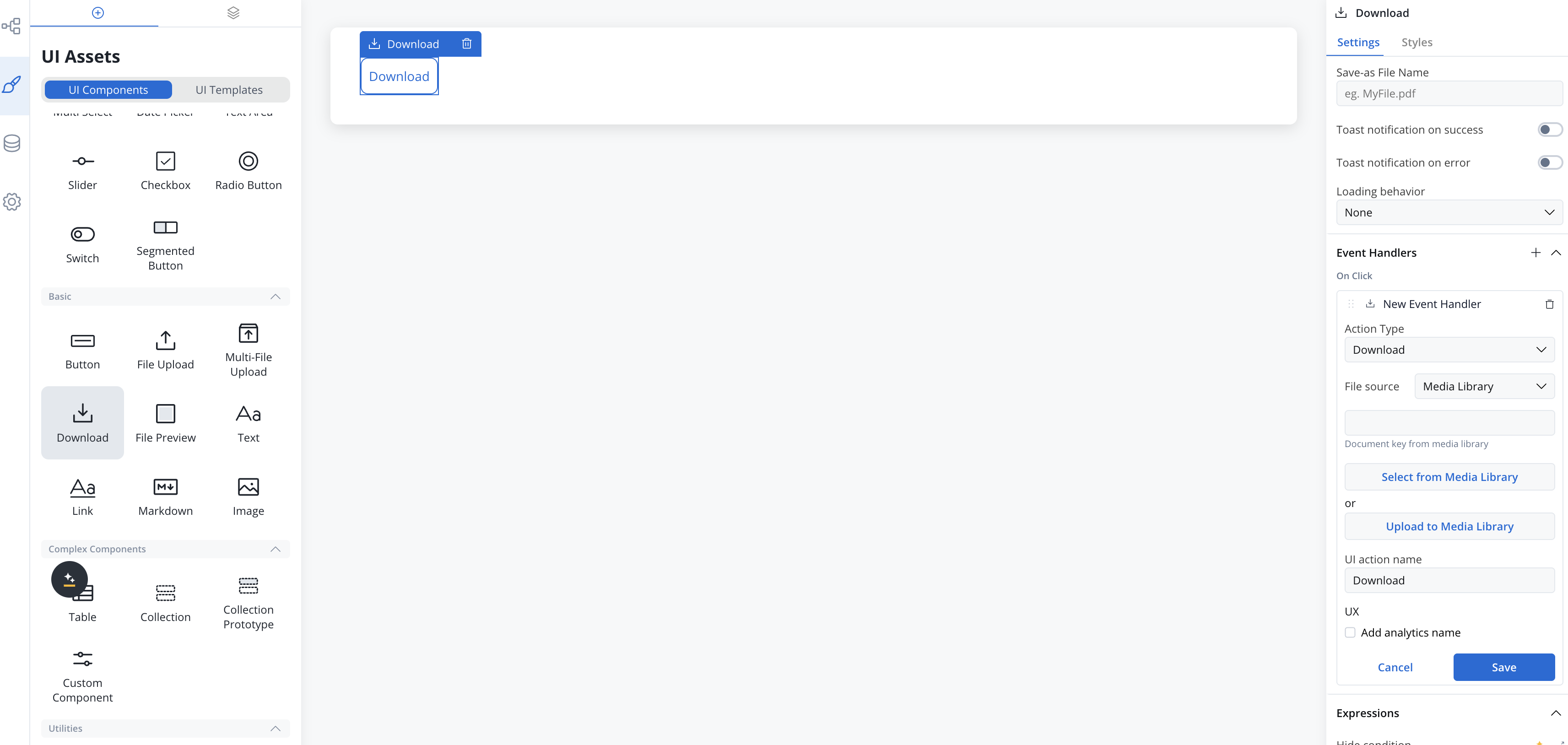
## Configuring a Download component
The component sits in the **Basic** category of the component palette. Drop it inside a container or card — it is available in both process user tasks and UI Flows, on web and mobile layouts, including collection prototypes and headers/footers. It cannot be placed directly inside forms or table cells.
### Properties
* **Label**: The button text. **Default:** `Download`
* **Save-as File Name**: Optional file name used when saving the downloaded file (e.g., `MyFile.pdf`); supports `${}` expressions. When left empty, files stored in the Documents plugin keep their original file name.
* **Toast notification on success**: Toggle **ON** to show a confirmation toast after the download completes, with a configurable **Success Message** (default: `File downloaded`).
* **Toast notification on error**: Toggle **ON** to show a toast when the download fails, with a configurable **Error Message** (default: `There was an error downloading the file`).
* **Loading behavior**: **None** or **Overlay**. With **Overlay**, a loading indicator with a configurable **Loading message** (default: `Downloading...`) is shown while the file is being fetched.
The notification and loading options apply to the web renderer. On Android they are not available — the component downloads the file without toasts or a loading overlay.
### Selecting the file to download
The Download component offers a single **Download** action on click, added in the component's **Event Handlers** section. The **File source** select determines where the file comes from:
* **Media Library**: Serve a PDF document from the project's Media Library — pick one with **Select from Media Library** or add a new one with **Upload to Media Library**.
* **Process Data** (in a process) / **Local Variables** (in a UI Flow): Point to the data key where the document reference is found — for example, the output of an upload action or a document-generation node. In a UI Flow, an additional **Location** select declares whether the key holds a **URL** or a **Document plugin** reference.
* **Static**: A fixed URL of the document.
Files stored in the Documents plugin (and FlowX download URLs) are fetched and saved directly with the resolved file name. A plain external URL opens in a new browser tab instead of downloading, and the success/error notifications do not apply to it.
### Styling
The Download component renders as a button and reuses button styling: a **Type** (default `ghost`), an optional **Icon** with configurable position, and valid CSS properties per platform. For more information, see the [styling documentation](../../ui-designer/ui-designer#styling).
## Platform support
Configured in the FlowX Designer, with runtime support on the **web** and **Android** renderers.
## Related resources
Preview file contents inside a UI without opening the file
Let users upload one or more files from a rendered app
## Related topics
- [Listing stored files](/5.9/docs/platform-deep-dive/core-extensions/content-management/documents-plugin/listing-stored-files.md)
- [Converting files](/5.9/docs/platform-deep-dive/core-extensions/content-management/documents-plugin/converting-documents-to-different-formats.md)
- [FlowX.AI 5.10 Release Notes](/release-notes/v5.x/v5.10.0-july-2026/v5.10.0-july-2026.md)
- [FlowX.AI 5.7.0 Release Notes](/release-notes/v5.x/v5.7.0-april-2026/v5.7.0-april-2026.md)
- [FlowX.AI 5.6.0 Release Notes](/release-notes/v5.x/v5.6.0-march-2026/v5.6.0-march-2026.md)