> ## Documentation Index
> Fetch the complete documentation index at: https://docs.flowx.ai/llms.txt
> Use this file to discover all available pages before exploring further.
# Collection Prototype
> Create dynamic, data-driven interfaces with different layouts based on item properties using collection prototypes.
Collection prototypes allow you to display items within a collection using different layouts based on their properties, creating more dynamic and context-aware user interfaces.
## What are collection prototypes?
Collection prototypes are specialized components that define different display formats for items within a single collection. They act as templates that are applied conditionally based on item properties, allowing you to:
* Display collection items with different layouts based on their data properties
* Create visually distinct displays for featured or highlighted items
* Apply specialized formatting for different item types or states
* Integrate custom components for enhanced functionality
* Add interactive features like item selection
Collection prototypes always work as child components within a parent [Collection component](../collection). While a Collection iterates through a data array, Collection Prototypes determine how each individual item should be displayed.
## How collection prototypes work
### Core concepts
Collection prototypes use a simple mechanism to determine which layout to apply to each item. The behavior depends on whether you have one or multiple prototypes:
The data property used to determine which prototype to apply (e.g., `type`, `status`, `priority`)
The specific value that triggers this prototype layout (e.g., `featured`, `active`, `high`)
### When to configure PIK and PIV
**Configuration**: PIK and PIV are **optional** and should **not** be configured
If you have only one collection prototype, the system will automatically use that prototype for all items in the array, regardless of their properties. In this case, leave both PIK and PIV empty.
**Configuration**: PIK and PIV are **required** and **both must be completed**
When using multiple collection prototypes, both PIK and PIV must be properly configured for each prototype. The configuration is only valid if both fields are completed.
When the collection renders, each item is evaluated against all available prototypes. The first prototype whose identifier key and value match the item's data is used to render that item.
### Visual examples
**Use case**: Displaying a list of menu items where all items have the same layout
```javascript theme={"system"}
// Data structure - all items use the same prototype
[
{
"name": "Margherita Pizza",
"price": 12.99,
"description": "Classic tomato and mozzarella"
},
{
"name": "Caesar Salad",
"price": 8.99,
"description": "Fresh romaine with parmesan and croutons"
}
]
```
**Configuration**:
* PIK: *(leave empty)*
* PIV: *(leave empty)*
Since all items use the same layout, no prototype identification is needed.
**Use case**: Restaurant menu with different layouts for main courses vs desserts
```javascript theme={"system"}
// Data structure with type field for prototype identification
[
{
"name": "pizza",
"type": "main course",
"price": 15.99,
"ingredients": ["tomato", "mozzarella", "basil"]
},
{
"name": "cremsnit",
"type": "dessert",
"price": 6.99,
"sweetness": "medium"
}
]
```
**Configuration for main course prototype**:
* PIK: `type`
* PIV: `main course`
**Configuration for dessert prototype**:
* PIK: `type`
* PIV: `dessert`
Each item's `type` property determines which prototype layout to use.
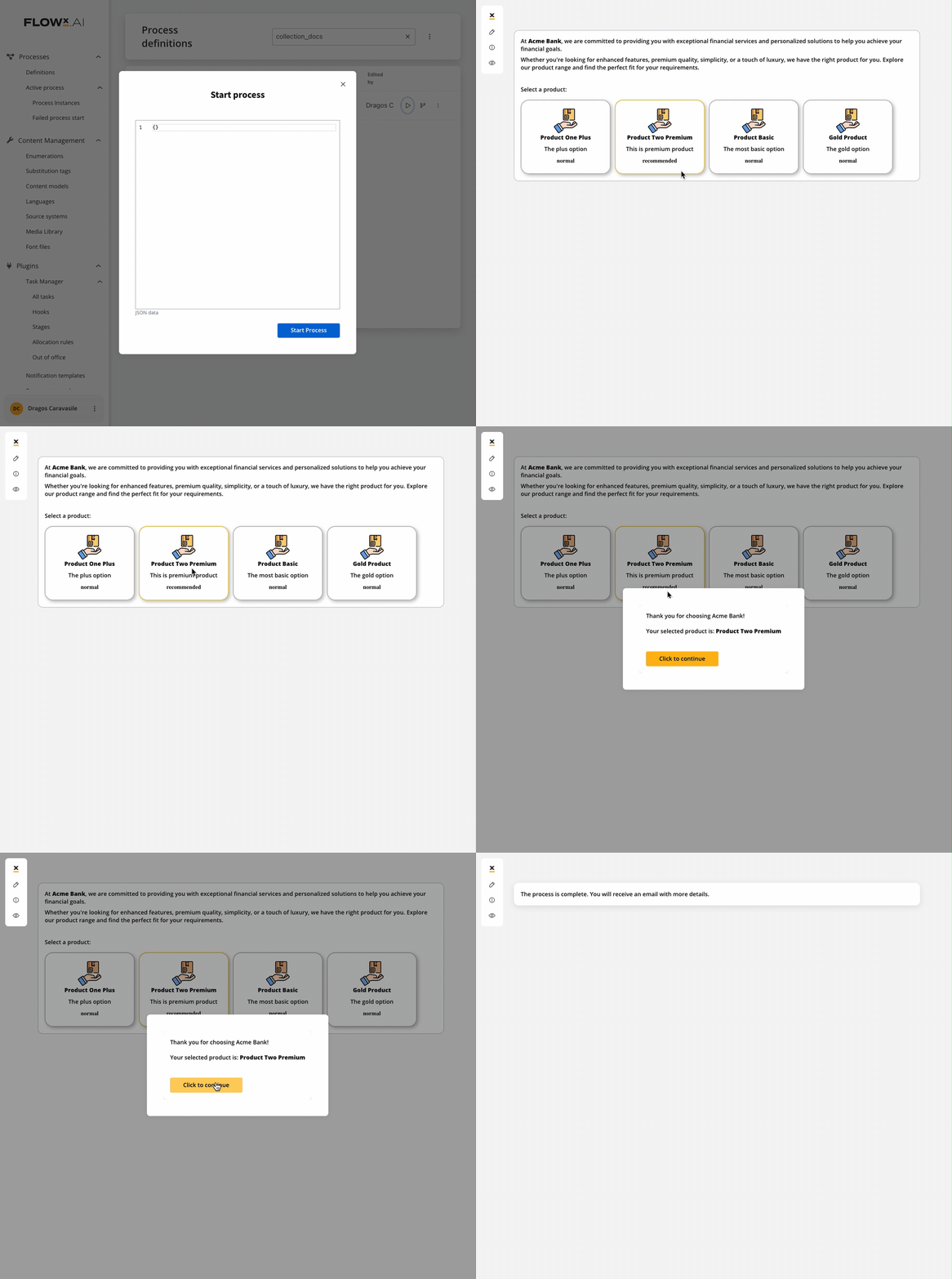
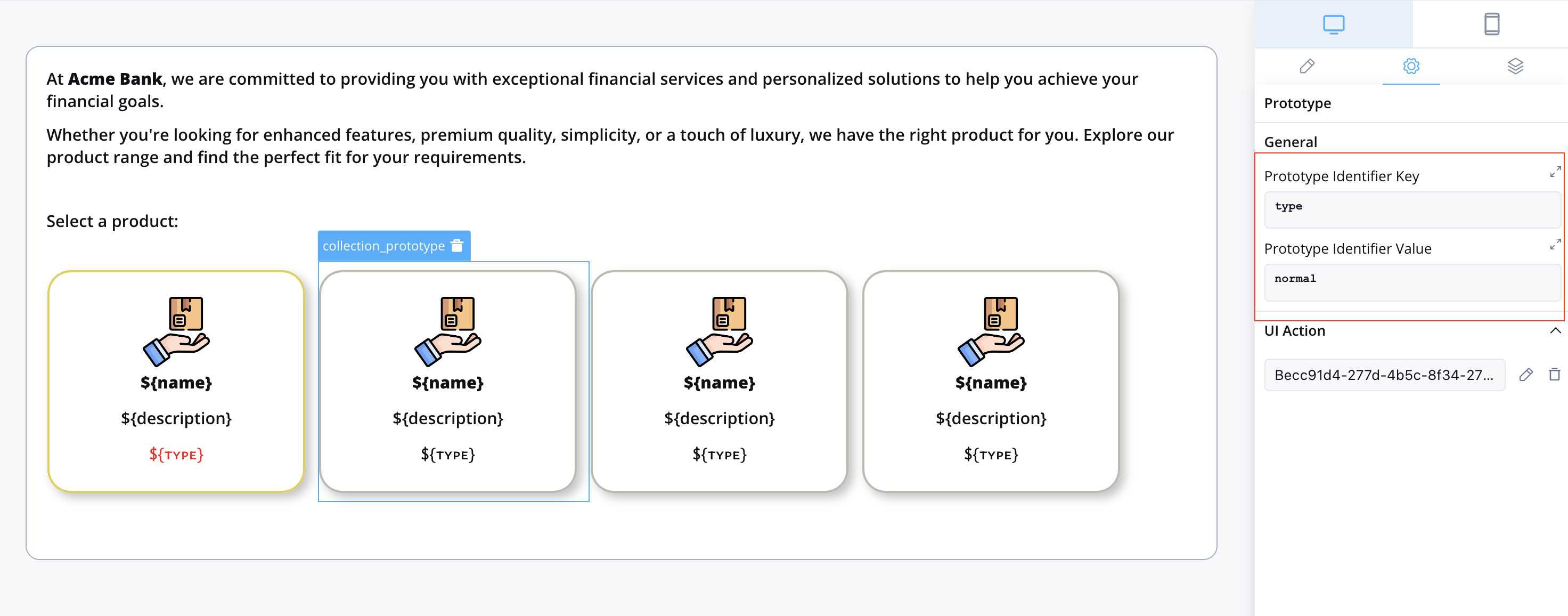
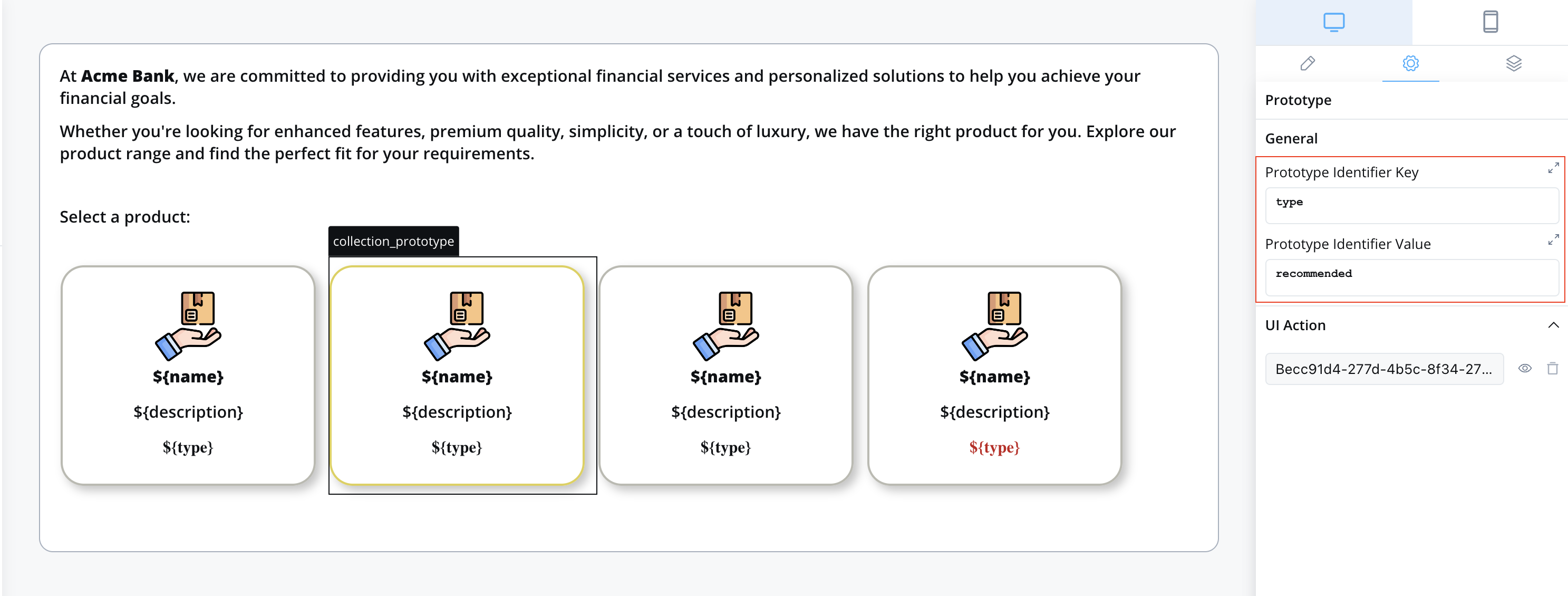
## Implementation guide
### 1. Prepare your data
Before implementing collection prototypes, you need to prepare the data structure that will determine which prototype applies to each item.
#### Using a service task node
The most common approach is to use a Service Task node with business rules:
In the FlowX.AI Designer, add a **Service Task** node before your User Task node and connect them with a sequence flow.
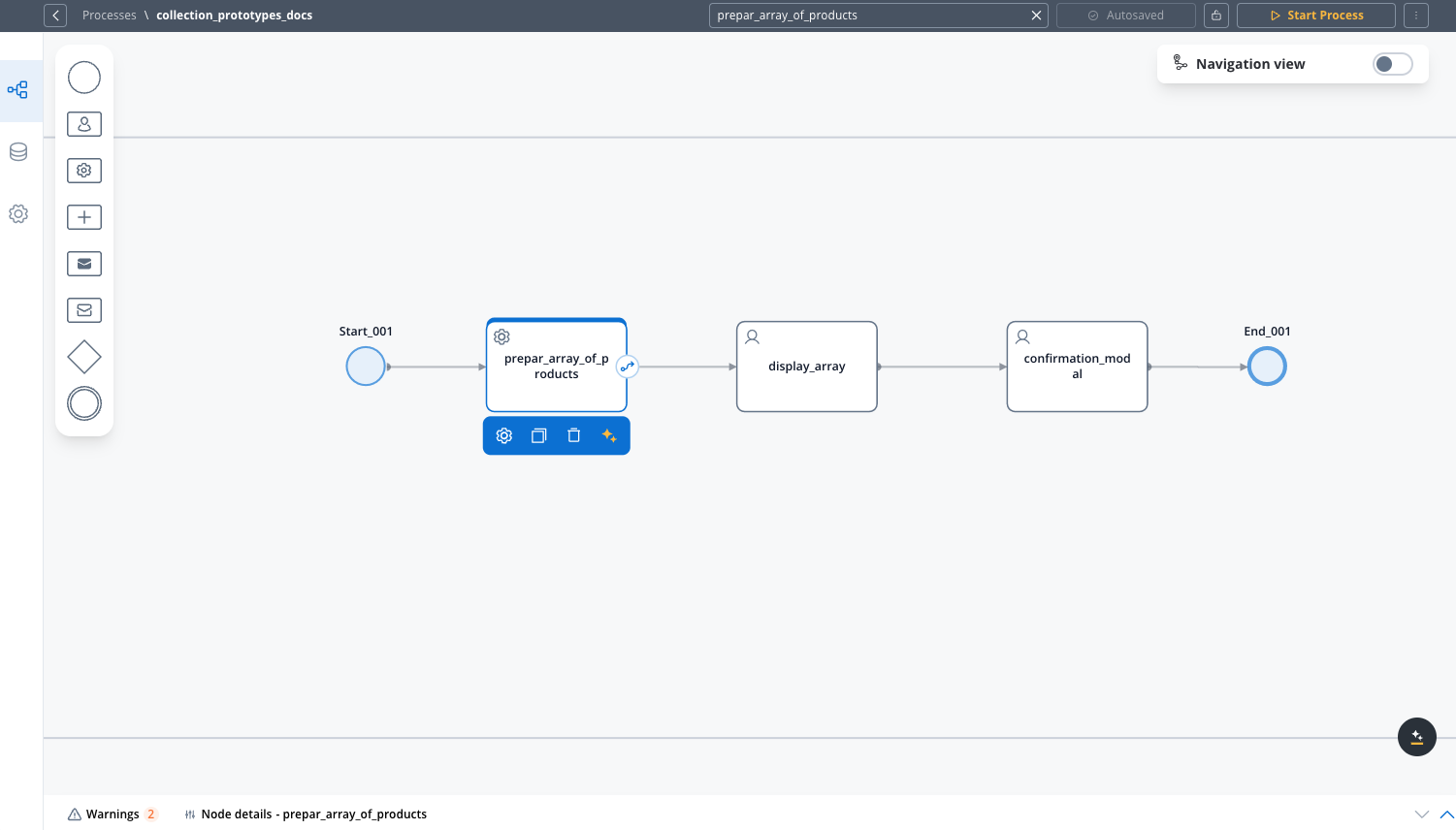
Select your Service Task node, go to the **Business Rules** tab, and add a new business rule or edit an existing one.
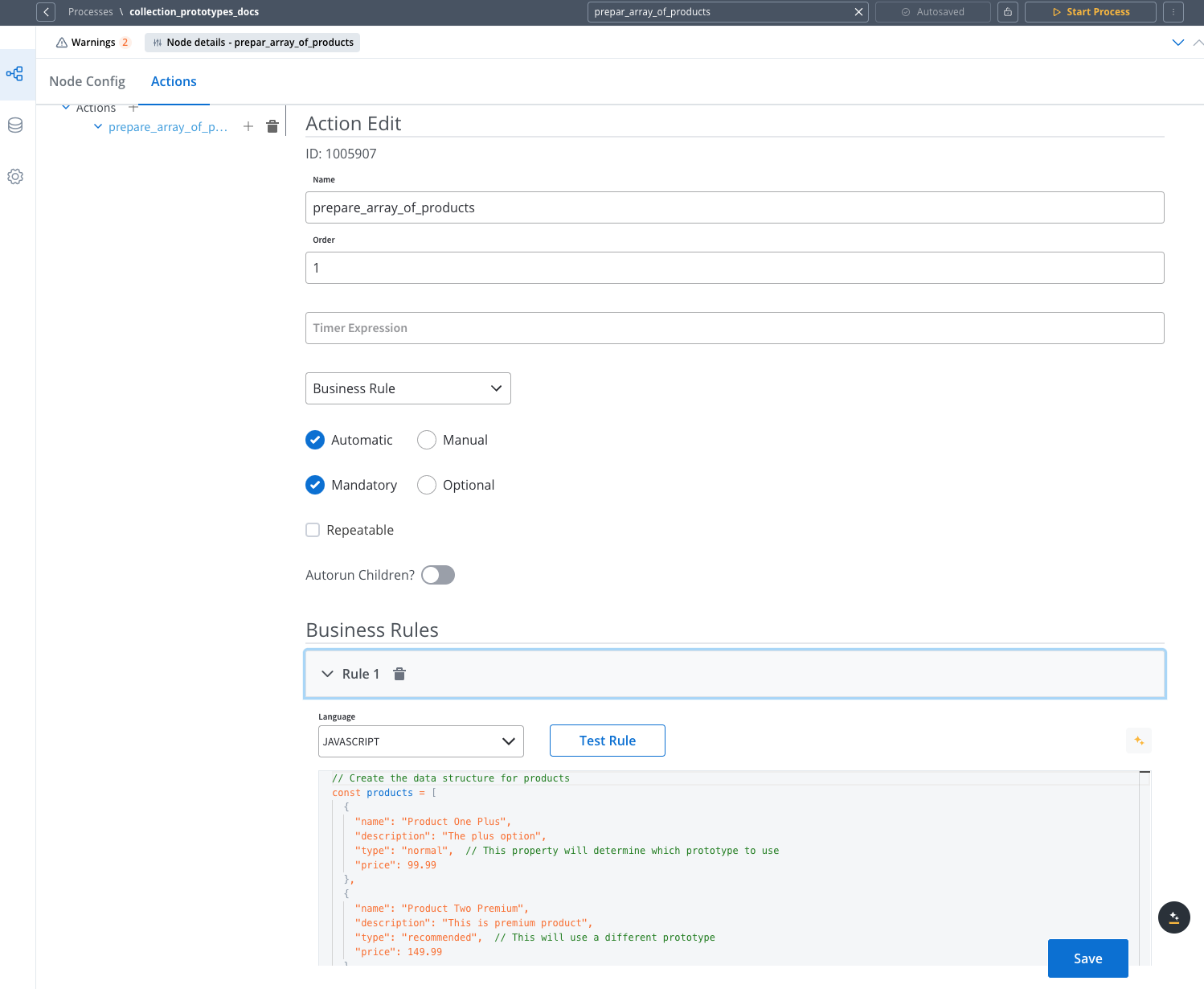
Use JavaScript to create your data structure and assign it to the process context:
```javascript theme={"system"}
// Create the data structure for products
const products = [
{
"name": "Product One Plus",
"description": "The plus option",
"type": "normal", // This property will determine which prototype to use
"price": 99.99
},
{
"name": "Product Two Premium",
"description": "This is premium product",
"type": "recommended", // This will use a different prototype
"price": 149.99
},
{
"name": "Product Basic",
"description": "The most basic option",
"type": "normal",
"price": 49.99
}
];
// Add the products array to the process data
output.put("products", products);
```
Save your configuration, and test your business rule by using the **Test Rule** feature in the business rules editor to make sure the data is correctly added to the process context.
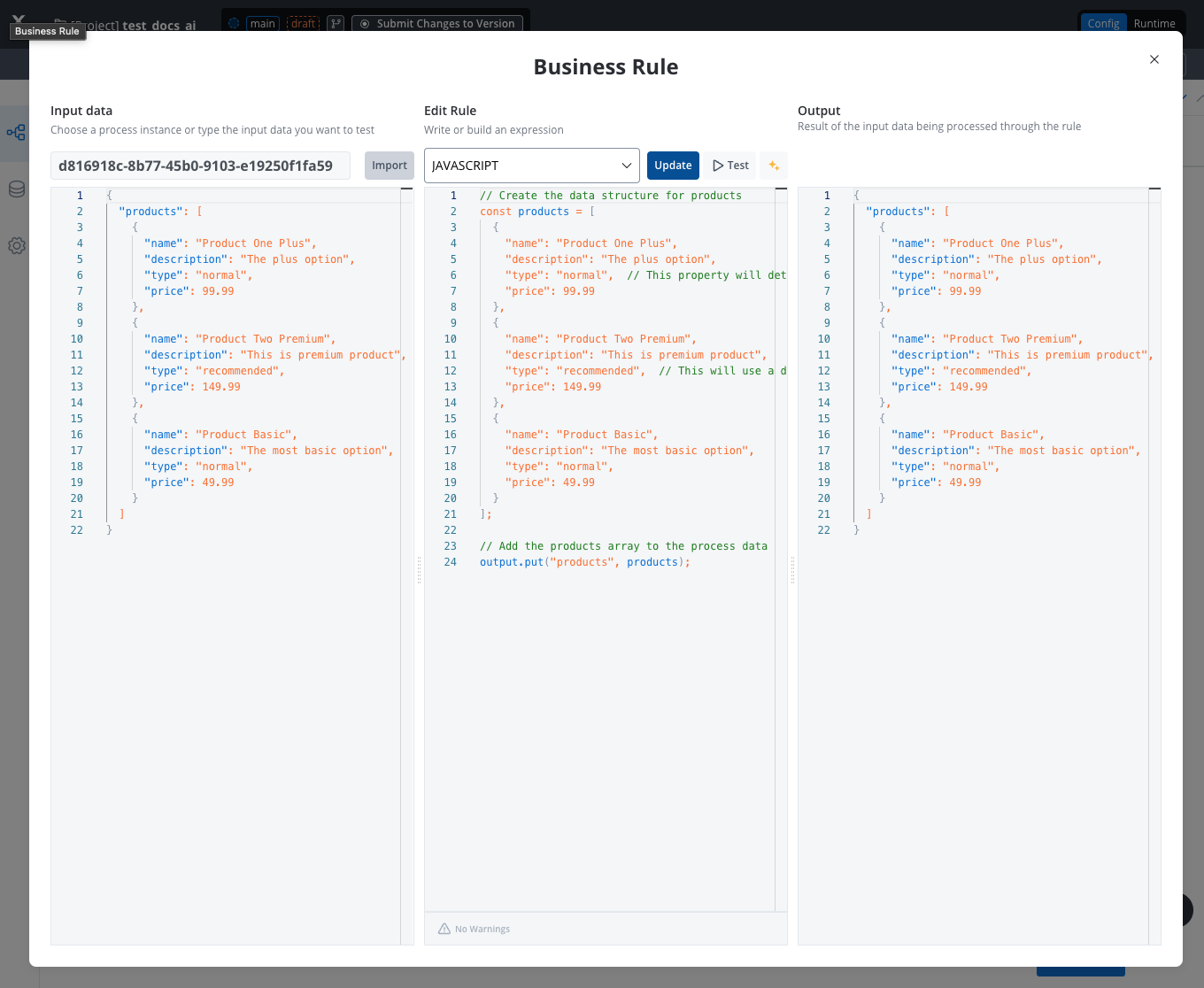
### 2. Create the UI components
Once your data is prepared, you can implement the collection and its prototypes in the UI Designer:
In the FlowX.AI Designer, create or select an existing **User Task** node in your process and click the **brush icon** to open the UI Designer.
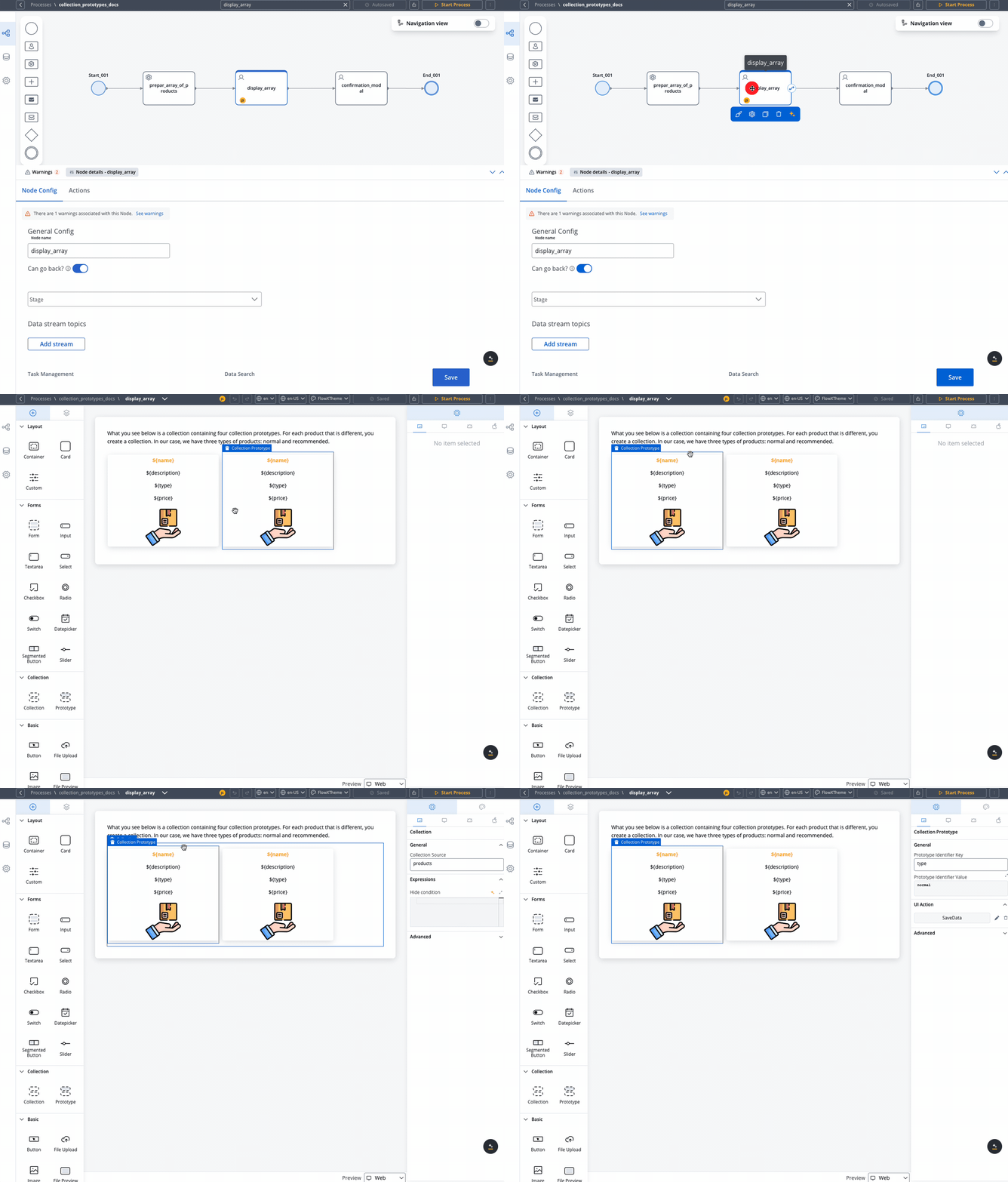
Add a **root component** (like a Card or Container) to your node, then add a **Collection** component inside it. Configure the Collection's **source** to point to your data array (e.g., `products`).
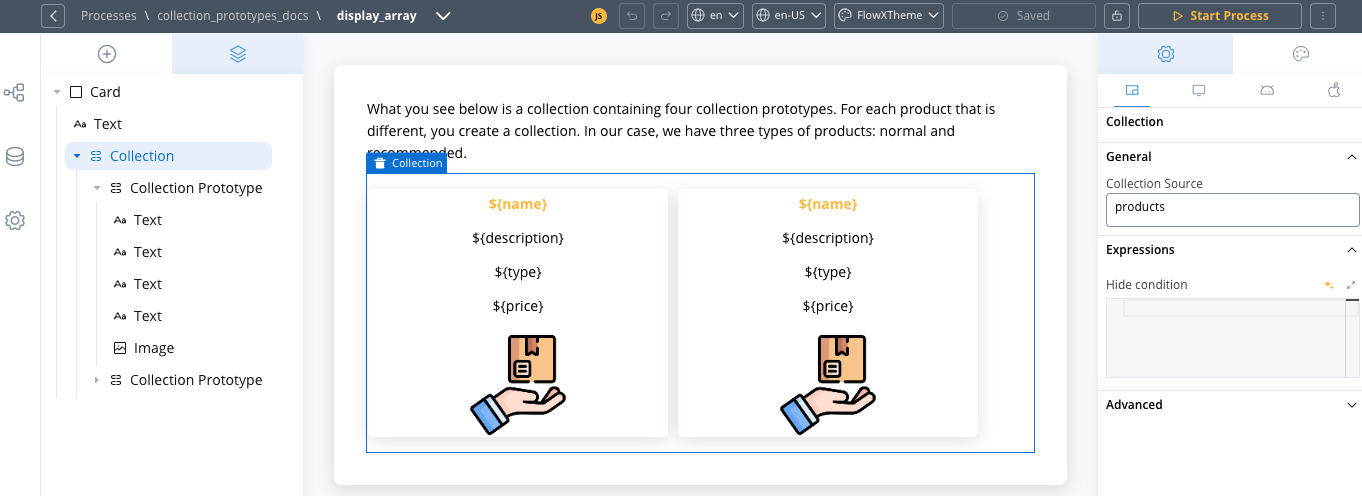
The `collectionSource` property specifies the process key where your list can be found. It should be a valid array of objects. For example, if your data is at `processData.products`, you would set the source to `products`.
For a single prototype that applies to all items:
1. Click on your Collection component to select it
2. Add a **Collection Prototype** as a child component
3. **Leave PIK and PIV empty** - no configuration needed
4. The prototype will automatically apply to all items in the collection
This is the most common scenario when all items in your collection should have the same layout.
For different display types based on item properties:
1. Click on your Collection component to select it
2. Add a **Collection Prototype** as a child component
3. Configure the prototype's settings:
* **Prototype Identifier Key**: The field to check (e.g., `type`)
* **Prototype Identifier Value**: The value to match (e.g., `normal`)
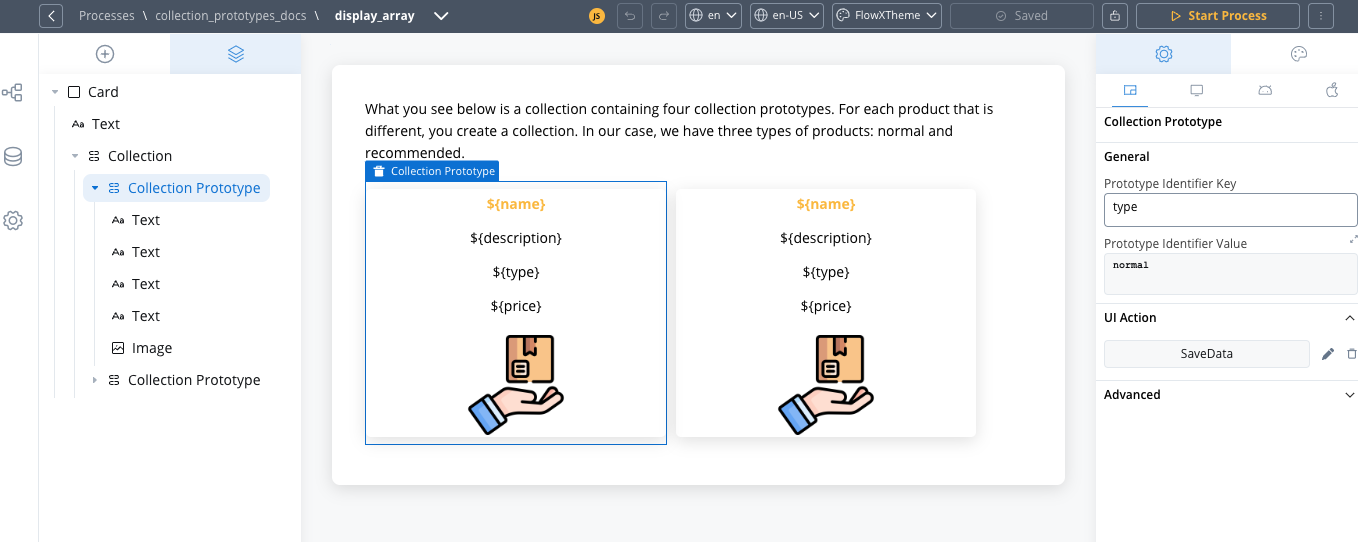
4. Repeat for each different prototype you need, using different identifier values
Both PIK and PIV must be configured for each prototype when using multiple prototypes.
For each prototype, add the UI components that will display your data:
1. Select a Collection Prototype
2. Add components like **Text**, **Image**, **Button**, etc.
3. Configure each component to use relative paths to the collection item data saved in the Data Model:
* Use text UI element with the key `${name}`
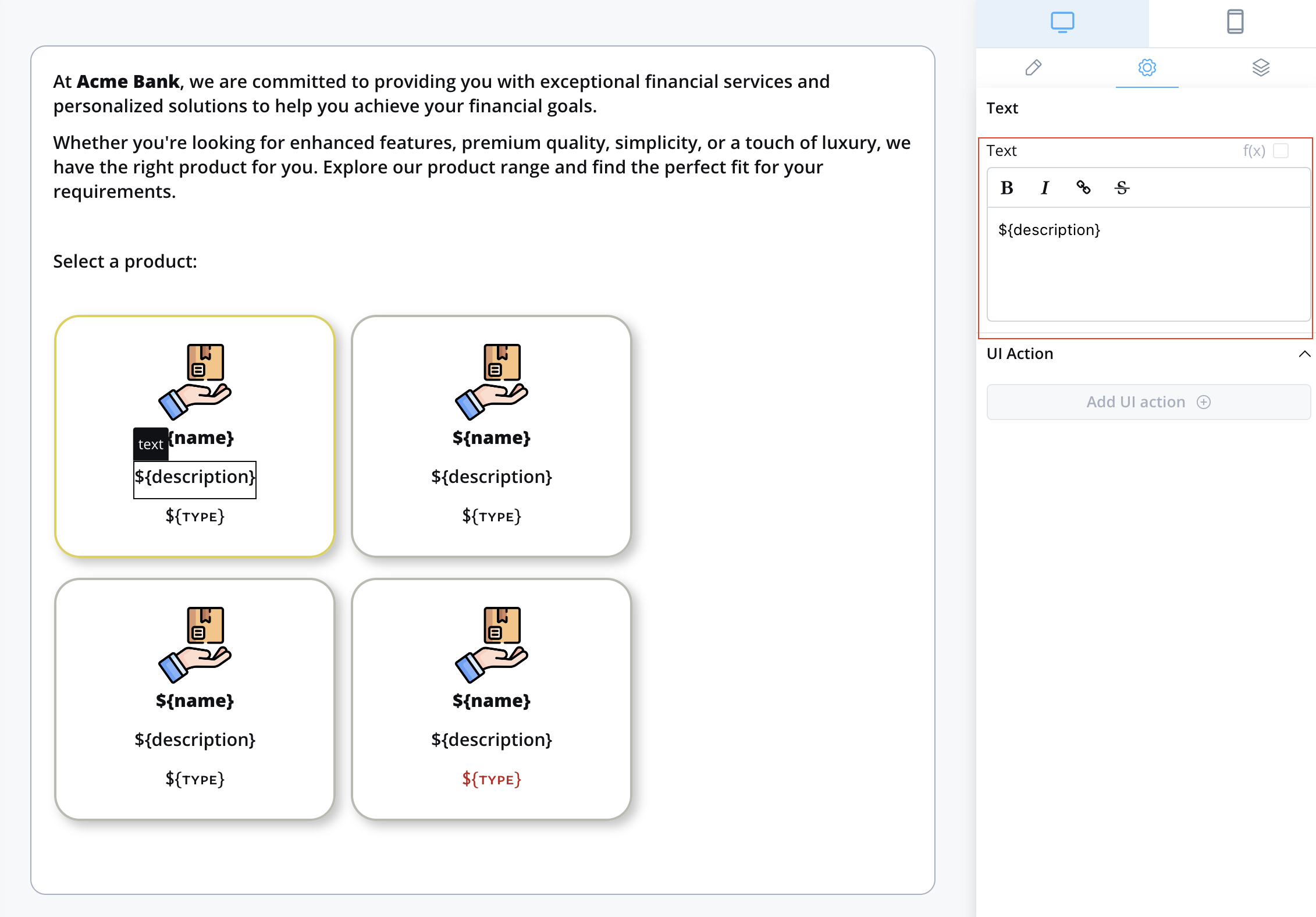
* Use text UI element with the key `${description}`
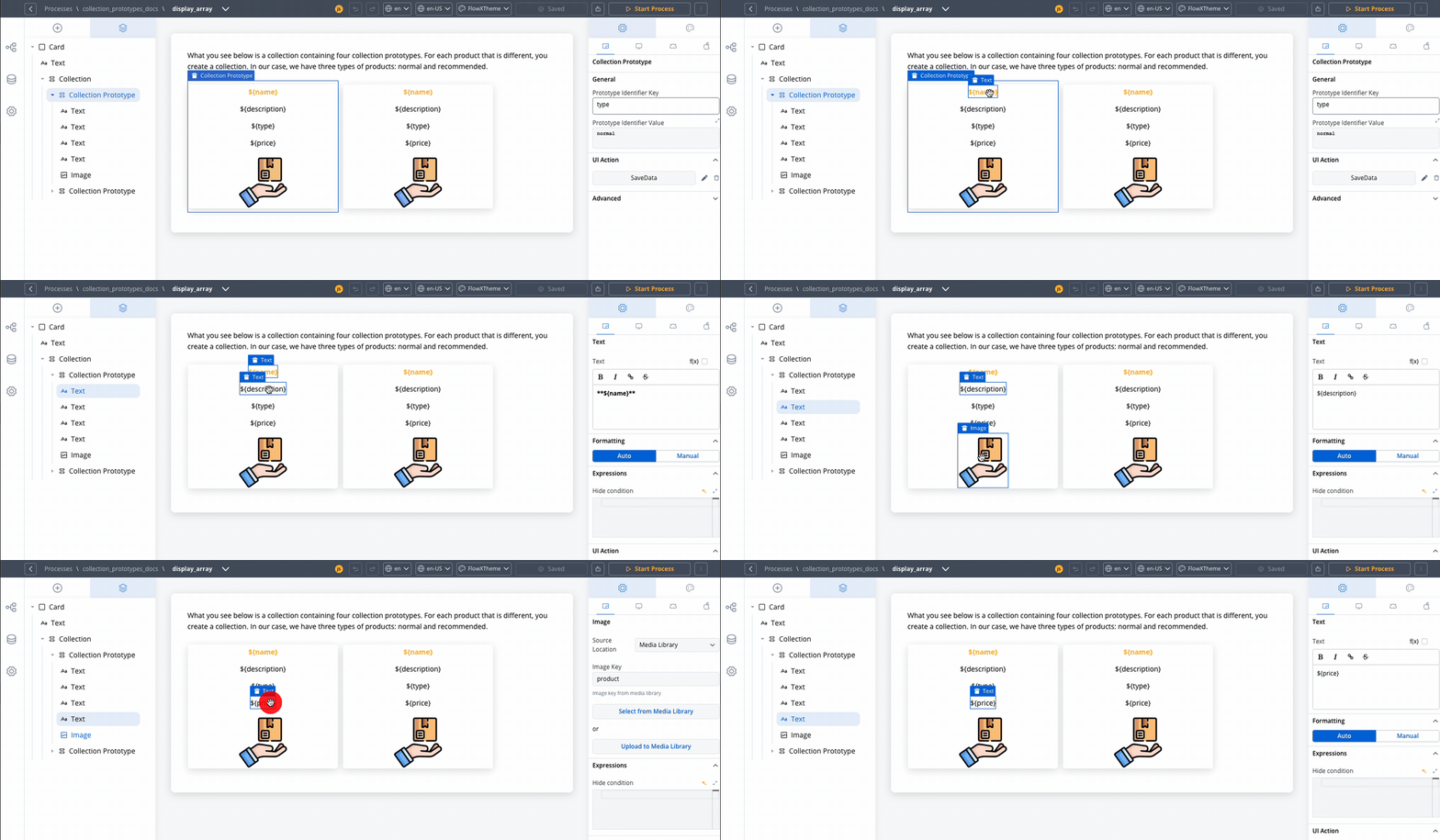
Components within a collection use **relative paths** to the collection source. This means that wherever the collection is found inside the process data, the components inside the collection need their keys configured relative to that collection.
### 3. Add interactivity
To make your collection items interactive, such as allowing users to select an item:
Add an [Action](../../../actions/actions) to your [User task node](../../../node/user-task-node):
1. Go back to the process designer
2. Select your User Task node
3. Go to the **Actions** tab
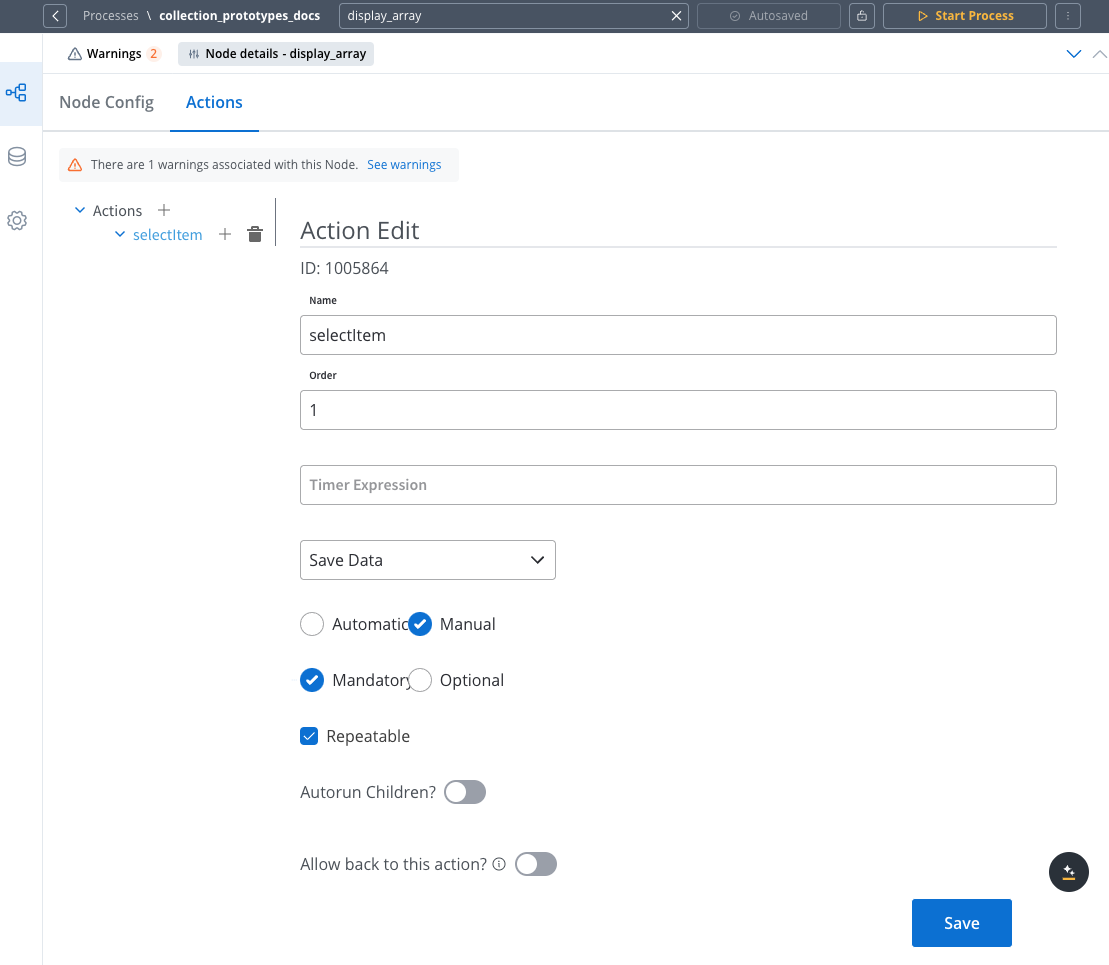
4. Add a new action with:
* Type: **Manual**
* Name: (e.g., `selectItem`)
**Configuration options:**
* Set as **Manual** since users trigger it
* Mark as **Mandatory** if selection is required to proceed
* Enable **Repeatable** for changeable selections
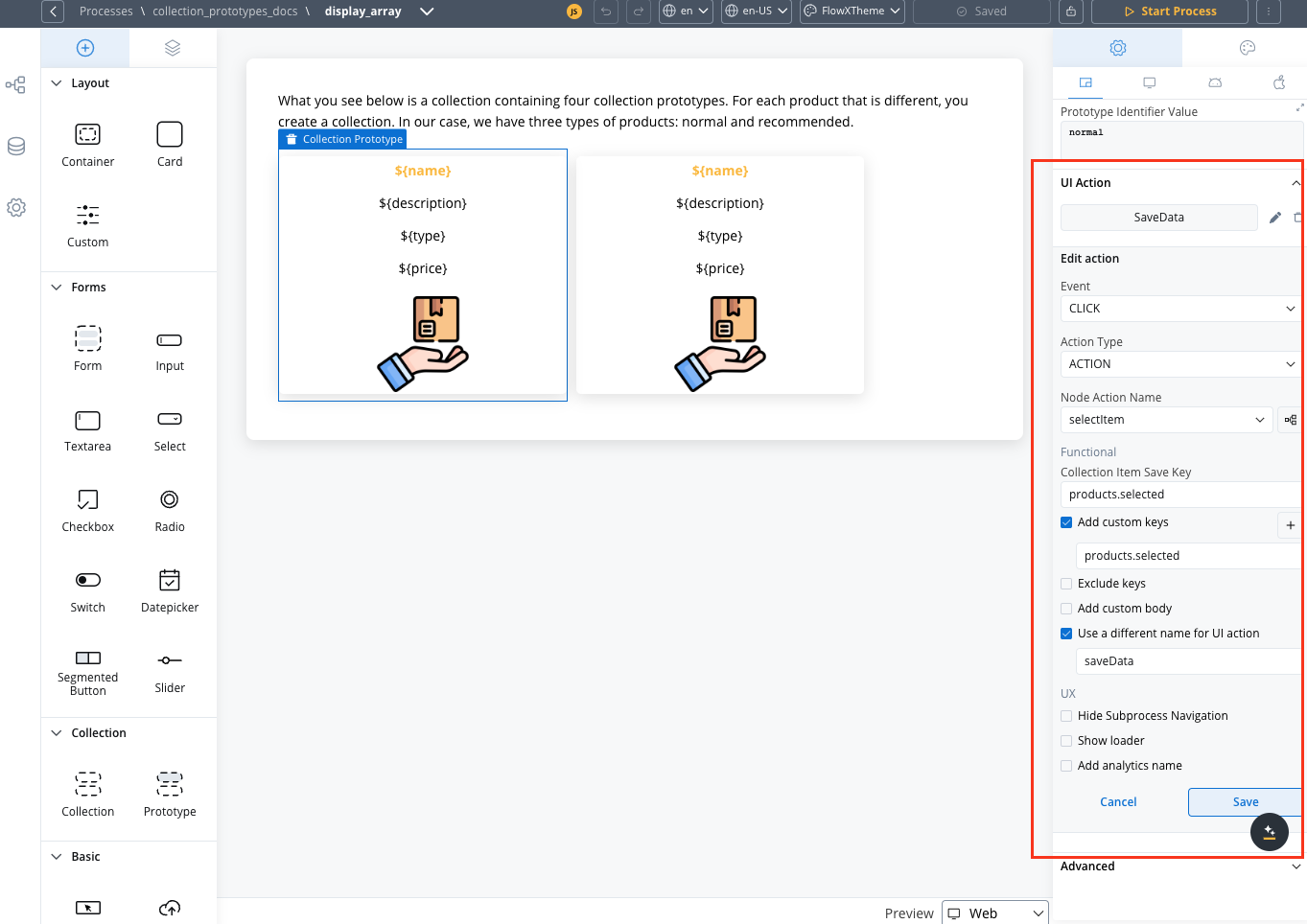
Add an event handler to your collection prototype:
1. Return to the UI Designer
2. Select the component in your prototype that should trigger the action
3. In the Settings panel, add an event handler
4. Add a **Collection Item Save Key**.
5. Add a **Custom Key** and make sure it matches the **Collection Item Save Key**.
Save your changes and test your process to verify that:
* Different items display with the correct prototype layouts
* Interactive elements work as expected
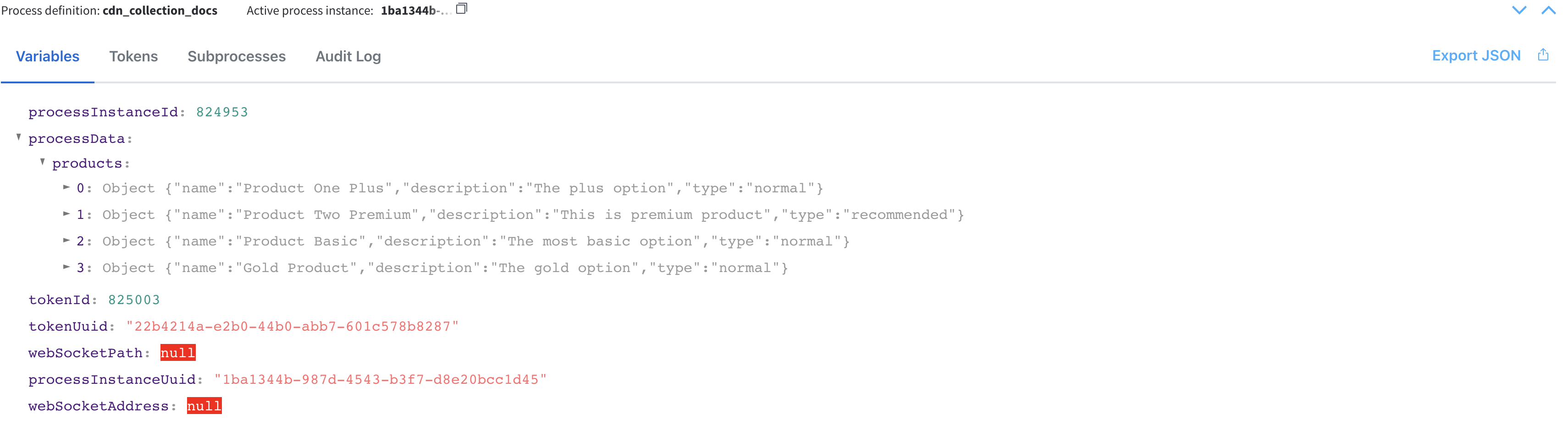
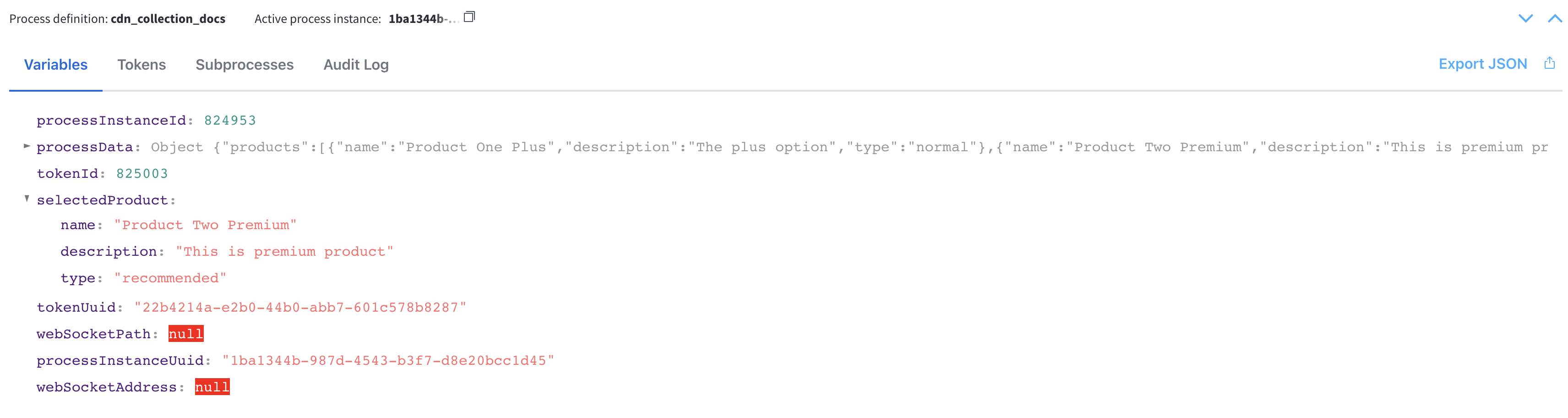
* Selected data is properly saved to your process data
## Best practices
### Working with custom components
When integrating custom components into collection prototypes, follow these best practices:
1. **Use relative paths for data access**
* Configure input keys relative to collection items
* Example: Use `name` instead of `app.clients.name`
2. **Maintain consistent data structures**
* Ensure required data exists in collection items
* Follow consistent data patterns across all items
### Data access patterns
Components use full paths from data root:
```jsx theme={"system"}
// Input keys:
// app.name
// app.signatureImageURL
data: {
app: {
name: "John Doe",
signatureImageURL: "http://example.com/signature1.png"
}
}
```
Components use relative paths:
```jsx theme={"system"}
// Input keys:
// name
// signatureImageURL
data: {
name: "John Doe",
signatureImageURL: "http://example.com/signature1.png"
}
```
### Performance optimization
* Limit the number of items in your collection when possible
* Simplify complex prototype layouts
* Consider pagination for large data sets
* Optimize images and other media within prototypes
* Avoid deeply nested components within prototypes
**Pro tips:**
* Test your collection prototypes with various data scenarios
* Verify data flow through the entire selection process
* Monitor the process data for correct updates
* Ensure your UI provides clear visual feedback when an item is selected
## Troubleshooting
When working with collection prototypes, you might encounter some common issues:
### Common issues and solutions
**Symptoms:**
* Collection items appear with incorrect layouts
* All items use the same prototype regardless of identifier values
* Some items don't render at all
**Solutions:**
**For single prototype scenarios:**
* Ensure PIK and PIV fields are **left empty** - they should not be configured
* If you accidentally configured PIK/PIV for a single prototype, clear both fields
**For multiple prototype scenarios:**
* Verify that your **Prototype Identifier Key** exactly matches the property name in your data
* Ensure the **Prototype Identifier Value** matches the expected values in your data
* **Both PIK and PIV must be configured** - partial configuration will not work
* Check for case sensitivity issues in both keys and values
* Validate your data structure using the process debugger
* Confirm that the parent Collection component has the correct source path
Configuration is only valid when both PIK and PIV are properly completed for multiple prototypes, or both are left empty for single prototypes.
**Symptoms:**
* Clicking on items doesn't trigger the expected action
* Selected data isn't saved to the process
* No visual feedback when items are selected
**Solutions:**
* Confirm that the **Collection Item Save Key** matches exactly with the **Data to send** field in your node action
* Verify that your node action is properly configured as **Manual** and **Repeatable** if needed
* Check that the event handler is attached to the correct element within the prototype
* Ensure the node action has the correct permissions and is properly linked
* Verify that your root UI element includes the necessary Message parameters to pass data
**Symptoms:**
* Components inside prototypes show empty or incorrect data
* Dynamic content doesn't update properly
* Error messages in the console related to undefined properties
**Solutions:**
* Remember that components inside collections must use relative paths (e.g., `name` instead of `app.clients.name`)
* Verify your data structure matches what the components expect
* Use the process debugger to inspect the actual data being passed to the collection
* Check for null or undefined values that might cause rendering issues
* Ensure your data is properly structured as an array of objects
### Known limitations
* **Nested collections** (collections inside collection prototypes) may cause performance issues and should be used sparingly
* **Deep data structures** might require careful handling of relative paths for proper data binding
### Debugging tips
1. **Use process data inspection:**
* Monitor the process data before and after interactions with collection prototypes
* Verify that selected items are correctly saved to the expected process data keys
2. **Test with simplified data:**
* Start with a minimal data set to confirm basic functionality
* Gradually add complexity to identify where issues might occur
3. **Isolate components:**
* Test individual UI components outside the collection context
* Add components to prototypes one by one to identify problematic elements
## Frequently asked questions
Yes, you can create platform-specific overrides for your collection prototypes. Configure different layouts, spacing, and styling for Web, iOS, and Android platforms through the platform tabs in the UI Designer.
If an item doesn't have the specified identifier key or value, it won't match any prototype. Consider adding a default prototype with a common value like "default" and ensure all items have at least this value as a fallback.
**Leave PIK and PIV empty** when:
* You have only one collection prototype
* All items in your collection should use the same layout
**Configure both PIK and PIV** when:
* You have multiple collection prototypes
* Different items should display with different layouts based on their properties
* Both fields must be completed for the configuration to work
This logic has been unchanged since 2021 and is a fundamental aspect of how collection prototypes work.
No, prototype identifier values must be static strings that exactly match the values in your data. However, you can transform your data before it reaches the collection to achieve dynamic prototype selection.
There's no hard limit on the number of prototypes, but for performance and maintainability reasons, it's recommended to keep the number reasonable (typically under 5-7 different prototypes).
A **Collection** is a container that iterates through an array of data items, while a **Collection Prototype** defines how each individual item should be displayed based on its properties. You need at least one Collection Prototype inside a Collection, but you can have multiple prototypes to handle different item types or states.
## Code examples
### Different prototype layouts based on item status
This example shows how to display items differently based on their status (active, pending, completed):
```java Process Data Setup theme={"system"}
// Setting up process data with items of different statuses
output.put("processData", {
"tasks": [
{
"id": "task-001",
"title": "Review application",
"description": "Initial review of customer application",
"status": "active",
"priority": "high"
},
{
"id": "task-002",
"title": "Verify documents",
"description": "Check submitted documentation for completeness",
"status": "pending",
"priority": "medium"
},
{
"id": "task-003",
"title": "Send confirmation",
"description": "Email confirmation to customer",
"status": "completed",
"priority": "low"
}
]
});
```
```javascript Collection Configuration theme={"system"}
// Collection component configuration
{
"type": "COLLECTION",
"settings": {
"source": "tasks",
"direction": "vertical"
},
"children": [
// Active task prototype
{
"type": "COLLECTION_PROTOTYPE",
"settings": {
"prototypeIdentifierKey": "status",
"prototypeIdentifierValue": "active"
},
"children": [
// Active task UI elements with highlighted styling
]
},
// Pending task prototype
{
"type": "COLLECTION_PROTOTYPE",
"settings": {
"prototypeIdentifierKey": "status",
"prototypeIdentifierValue": "pending"
},
"children": [
// Pending task UI elements with standard styling
]
},
// Completed task prototype
{
"type": "COLLECTION_PROTOTYPE",
"settings": {
"prototypeIdentifierKey": "status",
"prototypeIdentifierValue": "completed"
},
"children": [
// Completed task UI elements with muted styling
]
}
]
}
```
### Multiple identifier keys for complex conditions
You can use multiple collection prototypes with different identifier keys to handle complex display logic:
```java Process Data with Multiple Attributes theme={"system"}
// Setting up process data with items having multiple attributes
output.put("processData", {
"notifications": [
{
"id": "notif-001",
"message": "Your application has been approved",
"type": "success",
"priority": "high",
"read": false
},
{
"id": "notif-002",
"message": "Please review updated terms",
"type": "info",
"priority": "low",
"read": true
},
{
"id": "notif-003",
"message": "Action required: Missing information",
"type": "warning",
"priority": "high",
"read": false
}
]
});
```
```javascript Multiple Prototype Configuration theme={"system"}
// Collection with multiple prototype conditions
{
"type": "COLLECTION",
"settings": {
"source": "notifications",
"direction": "vertical"
},
"children": [
// High priority unread success notification
{
"type": "COLLECTION_PROTOTYPE",
"settings": {
"prototypeIdentifierKey": "type",
"prototypeIdentifierValue": "success",
"additionalConditions": [
{
"key": "priority",
"value": "high"
},
{
"key": "read",
"value": false
}
]
},
"children": [
// UI elements for high priority unread success notifications
]
},
// Other prototypes for different combinations...
]
}
```
### Nested data structures
Working with nested data in collection prototypes:
```java Nested Data Structure theme={"system"}
// Setting up process data with nested objects
output.put("processData", {
"orders": [
{
"id": "order-001",
"customer": {
"name": "John Smith",
"tier": "premium"
},
"items": [
{ "name": "Product A", "quantity": 2 },
{ "name": "Product B", "quantity": 1 }
],
"status": "processing"
},
{
"id": "order-002",
"customer": {
"name": "Jane Doe",
"tier": "standard"
},
"items": [
{ "name": "Product C", "quantity": 3 }
],
"status": "shipped"
}
]
});
```
```javascript Accessing Nested Data theme={"system"}
// Collection prototype accessing nested data
{
"type": "COLLECTION",
"settings": {
"source": "orders",
"direction": "vertical"
},
"children": [
// Premium customer prototype
{
"type": "COLLECTION_PROTOTYPE",
"settings": {
"prototypeIdentifierKey": "customer.tier",
"prototypeIdentifierValue": "premium"
},
"children": [
// UI elements for premium customers
{
"type": "TEXT",
"settings": {
"text": "Premium Customer",
"style": "heading"
}
},
{
"type": "TEXT",
"settings": {
"text": "${customer.name}",
"style": "subheading"
}
},
// Collection for order items
{
"type": "COLLECTION",
"settings": {
"source": "items",
"direction": "horizontal"
},
"children": [
// Item prototype
{
"type": "COLLECTION_PROTOTYPE",
"settings": {},
"children": [
{
"type": "TEXT",
"settings": {
"text": "${name} (${quantity})",
"style": "body"
}
}
]
}
]
}
]
},
// Standard customer prototype
{
"type": "COLLECTION_PROTOTYPE",
"settings": {
"prototypeIdentifierKey": "customer.tier",
"prototypeIdentifierValue": "standard"
},
"children": [
// UI elements for standard customers
]
}
]
}
```
## Related components
The parent component that iterates through data arrays and contains Collection Prototypes
Add interactivity to Collection Prototypes — run actions on click, or use Run Local Script to update local data when an item is clicked