> ## Documentation Index
> Fetch the complete documentation index at: https://docs.flowx.ai/llms.txt
> Use this file to discover all available pages before exploring further.
# Chat
> Enable interactive AI agent conversations with end-users through a conversational interface in FlowX applications.
The Chat component provides a conversational interface for AI-powered interactions. It enables real-time messaging between users and AI agents within your FlowX applications.
## Overview
Send and receive messages instantly with streaming support
Connect to workflows powered by AI agents
Automatic session handling and persistence across page refreshes
Themeable components with independent styling for agent and user messages
## Adding to a UI Flow
Open your project and go to **UI Flows** from the left navigation menu.
Select an existing UI flow or create a new one.
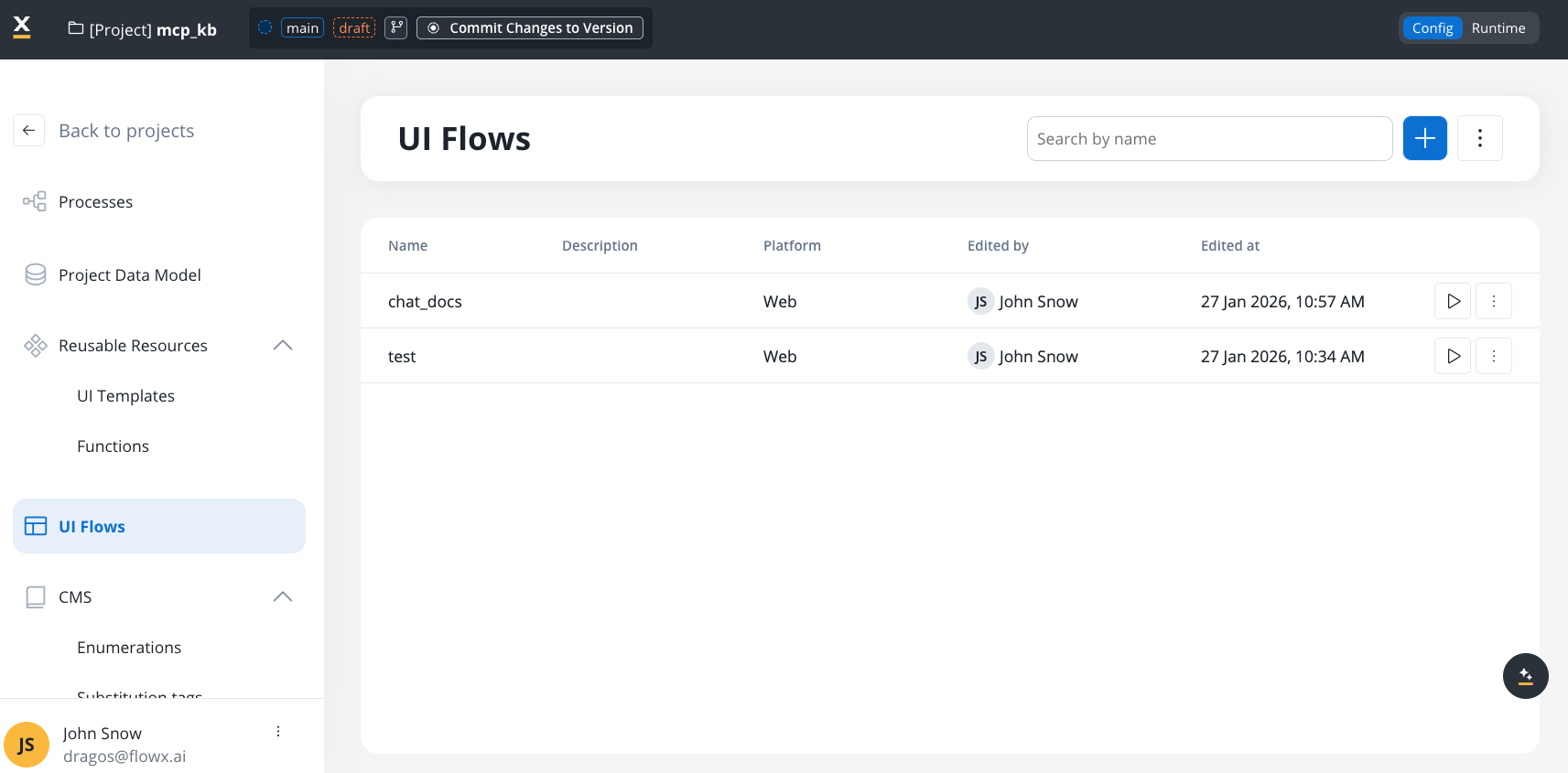
In the left sidebar, expand the **UI Assets** panel. Find Chat alongside Table, Collection, and other components.
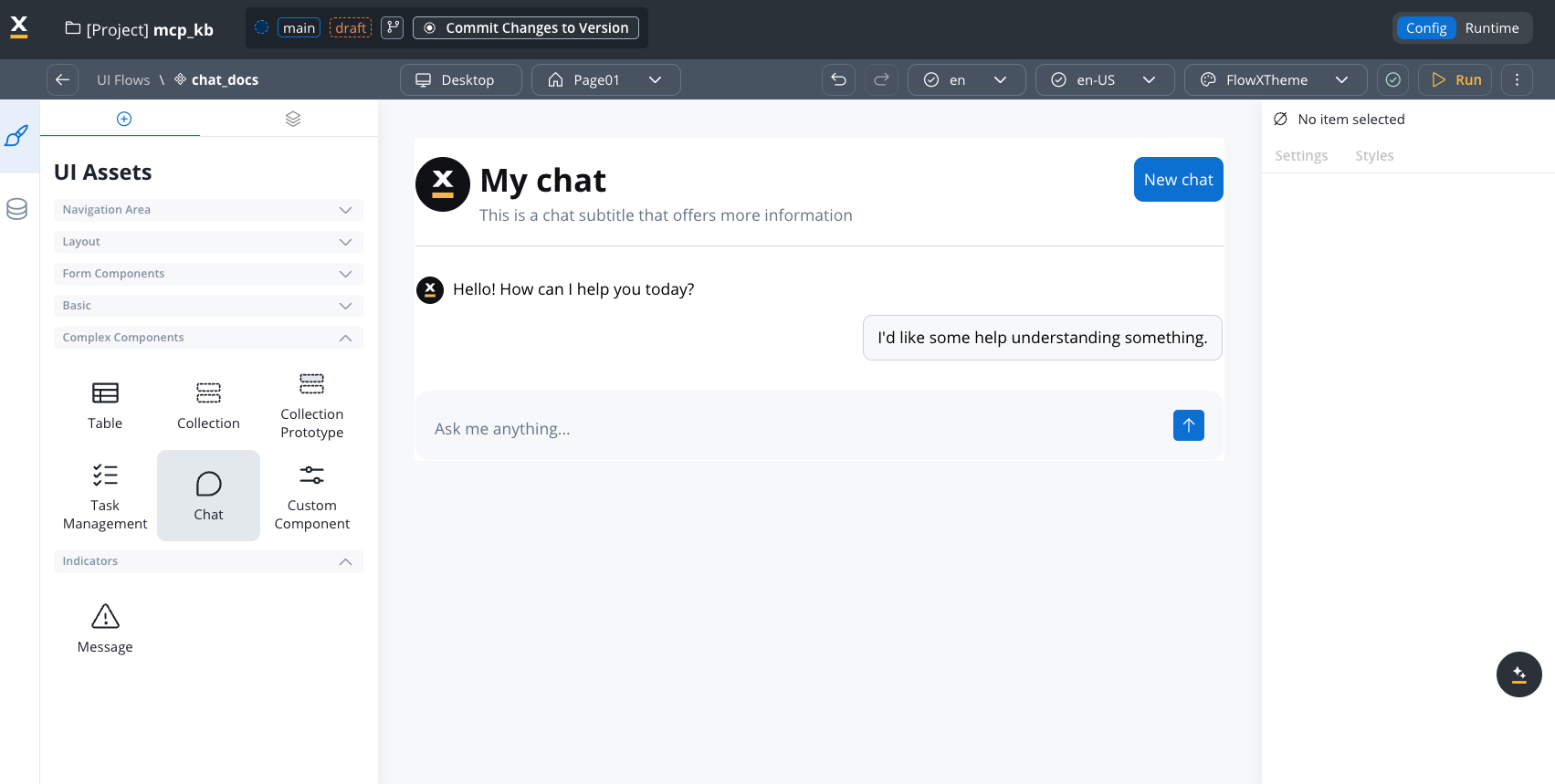
Drag **Chat** onto the canvas, then configure properties in the right panel.
***
## Configuration
### Required settings
| Property | Description |
| -------------------- | ------------------------------------------------------------- |
| **Workflow** | The agent workflow that handles chat interactions (required) |
| **Welcome Message** | Initial greeting shown when chat opens |
| **Thinking Message** | Text displayed while agent processes (default: "Thinking...") |
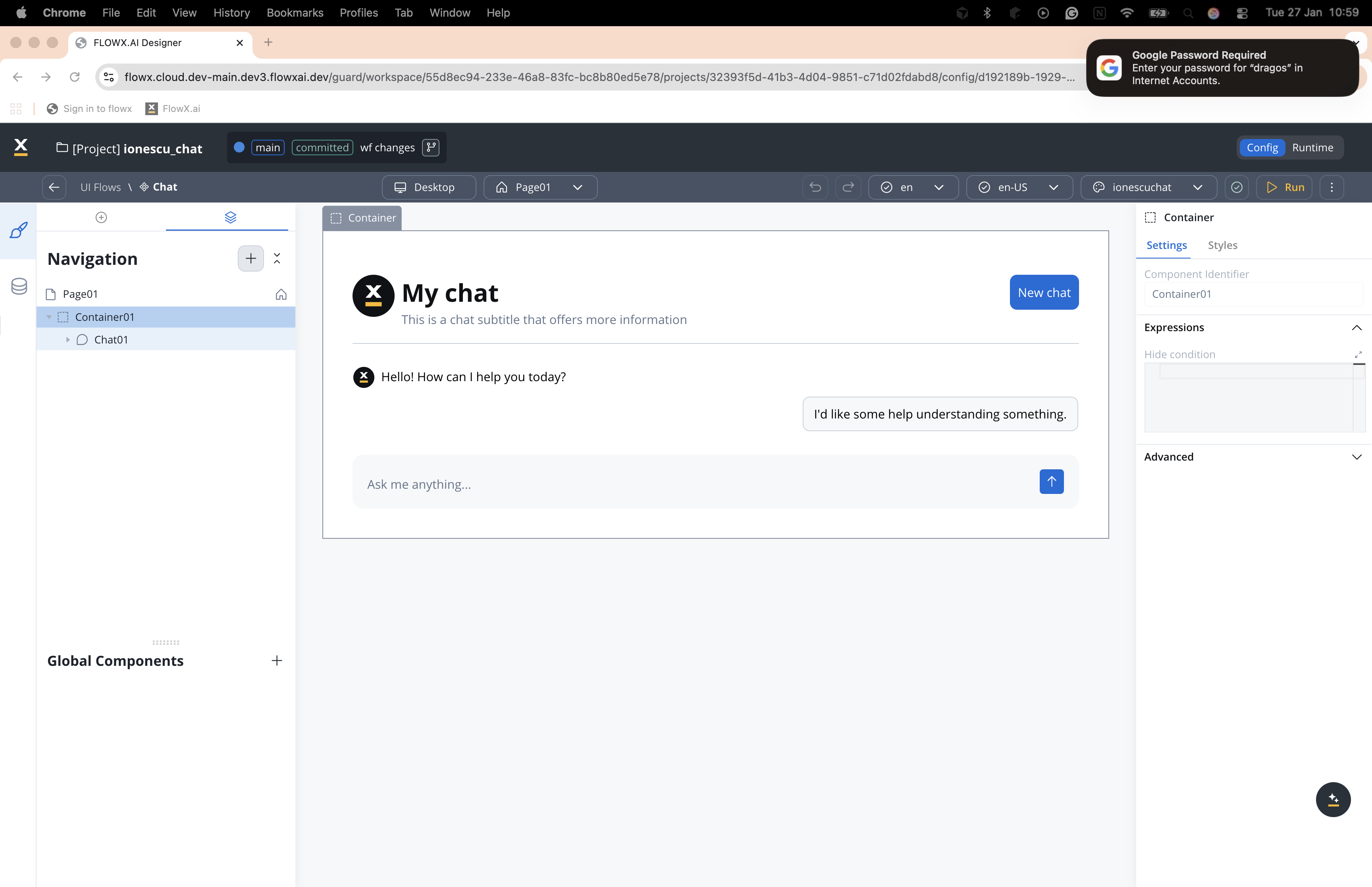
### Component hierarchy
The Chat component has configurable sub-components:
```
📁 Chat
├── 📄 Header (title, subtitle, new chat button)
├── 📁 Messages
│ ├── 💬 Agent Message (avatar, text styling)
│ ├── 💬 User Message (bubble styling)
│ └── 💡 Suggested Prompts (pre-configured prompt suggestions)
└── ⌨️ Input (placeholder, send button)
```
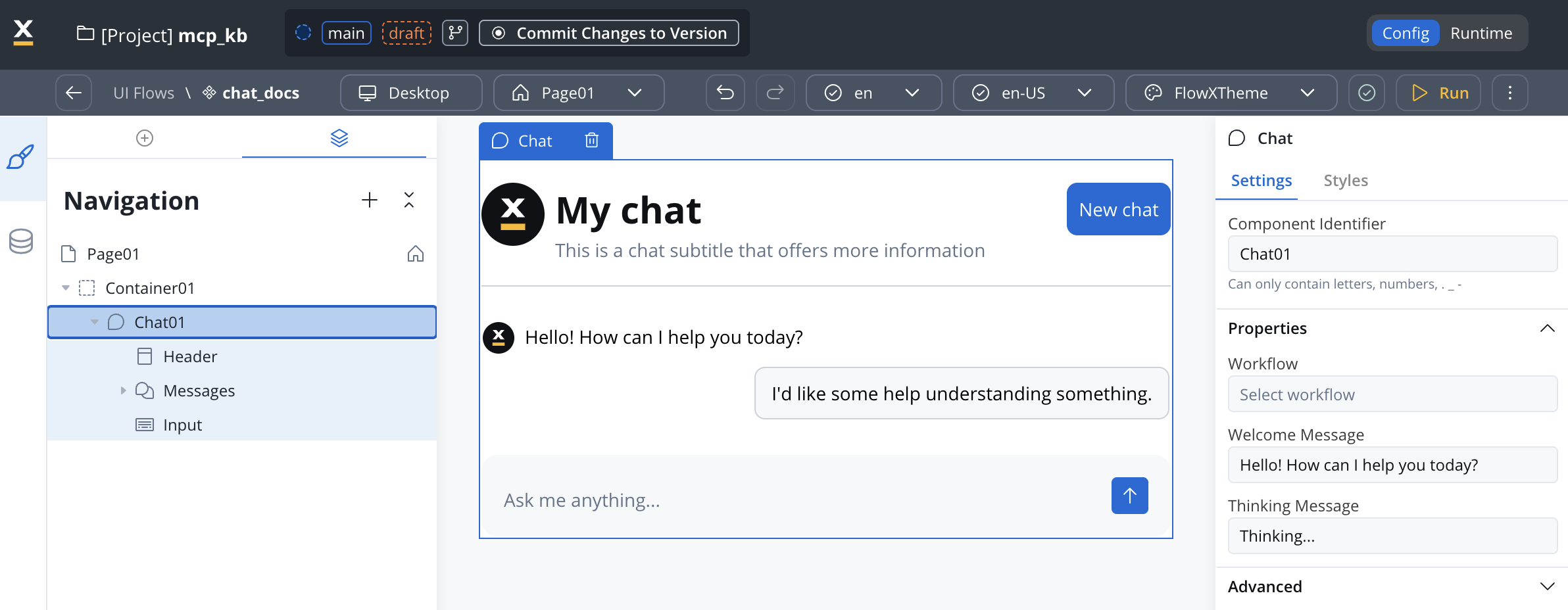
### Settings by sub-component
| Property | Description |
| -------------------- | -------------------------------------------------------- |
| **Workflow** | Select the workflow handling chat interactions |
| **Welcome Message** | Initial greeting (supports variables: `${customerName}`) |
| **Thinking Message** | Text shown during processing |
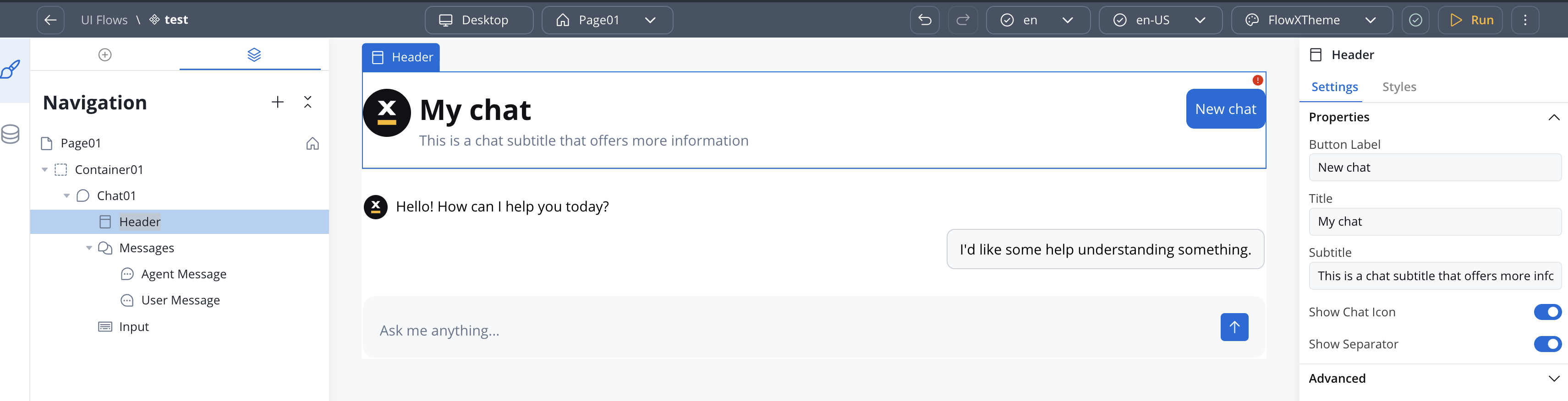
| Property | Description |
| ------------------ | ----------------------------- |
| **Button Label** | "New chat" button text |
| **Title** | Main header text |
| **Subtitle** | Secondary text below title |
| **Show Chat Icon** | Toggle avatar icon visibility |
| **Show Separator** | Toggle separator line |
| Property | Description |
| --------- | ------------------------------------------- |
| **Title** | Heading displayed on the chat history panel |
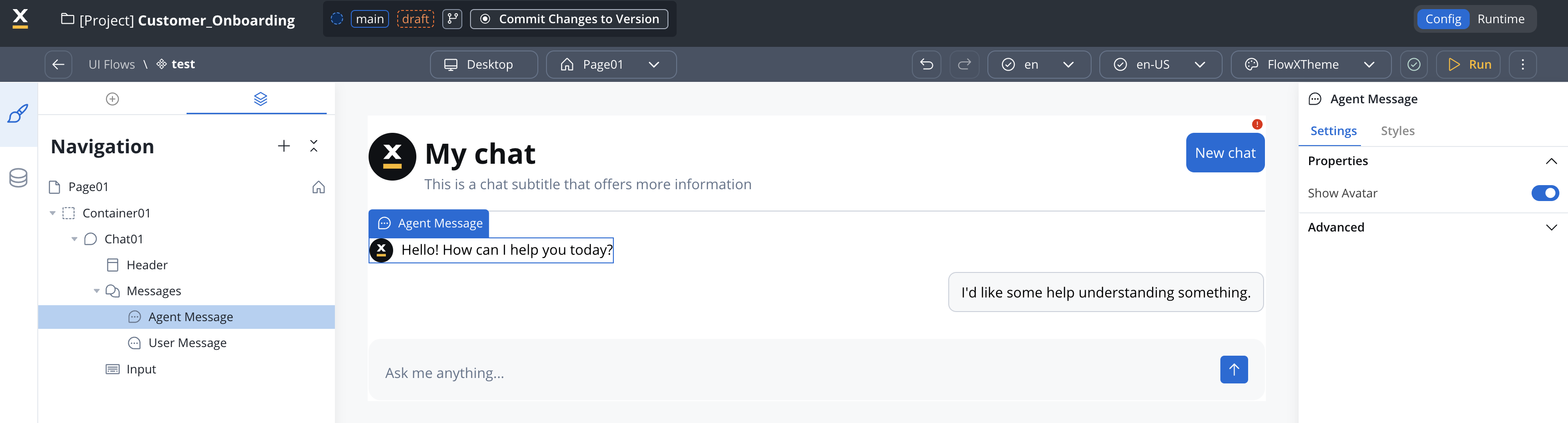
| Property | Description |
| --------------- | ------------------------------ |
| **Show Avatar** | Toggle agent avatar visibility |
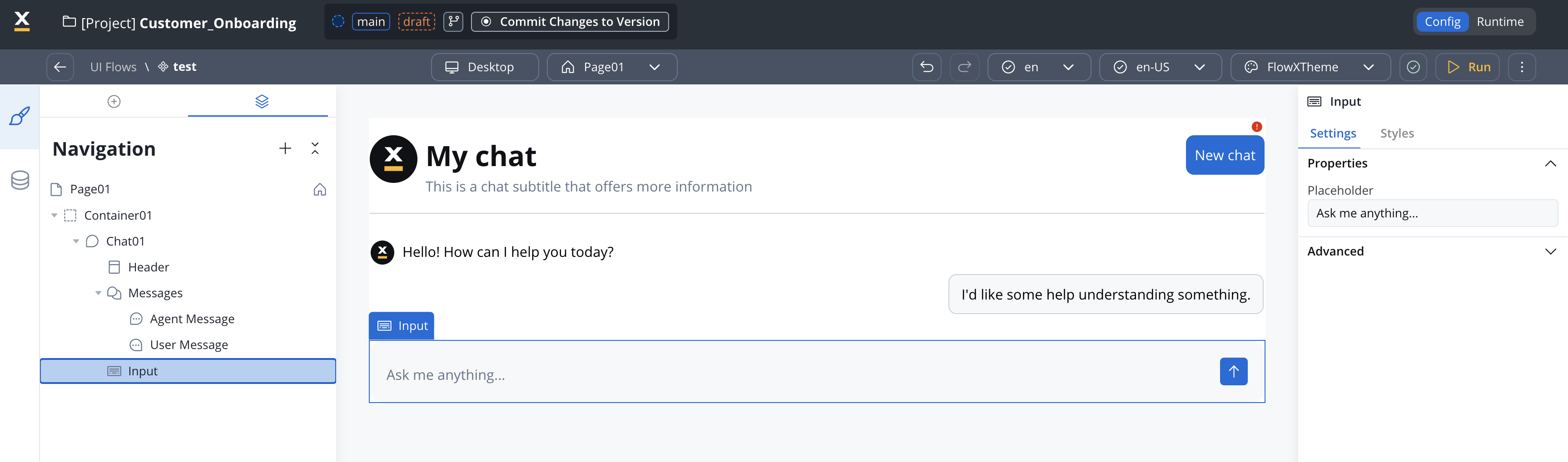
| Property | Description | Default |
| ---------------------- | ------------------------------------------------------------ | ------- |
| **Placeholder** | Hint text (e.g., "Ask me anything...") | — |
| **Enable Voice Input** | Show the microphone button so users can send voice messages. | `Off` |
For runtime behavior (recording limits, playback rules) see [Voice input](/5.9/ai-platform/chat-component#voice-input) in the Chat component reference.
Displays pre-configured prompt suggestions before the user types. Child of **Messages** (alongside Agent Message and User Message).
| Property | Type | Default | Description |
| ----------- | --------- | --------------------- | ----------------------------------------------------- |
| **Title** | string | `"Suggested Prompts"` | Heading text displayed above the suggestions |
| **Prompts** | string\[] | — | List of prompt strings shown as clickable suggestions |
Clicking a suggestion sends it as the user's message. Long prompts are truncated and revealed via tooltip.
***
## Styling
Configure visual styling through **Theme Admin** (Design Assets → Themes → Components → Chat).
### Themeable elements
| Element | Key properties |
| --------------------- | ----------------------------------------------------- |
| **Chat container** | Padding, border, background, shadow |
| **Header** | Title/subtitle text styles, separator |
| **Messages area** | Padding, gap between messages |
| **Agent Message** | Avatar icon, text style, background |
| **User Message** | Bubble border, radius, background, text |
| **Suggested Prompts** | Title text style, prompt chip appearance, hover state |
| **Input area** | Border, background, send icon |
All styling can be configured in Theme Admin for consistent branding. Changes preview in real-time.
***
## Display modes
The Chat component supports four display modes, including mobile chat and per-mode theme configuration.
When adding a Chat component, you select a display mode that controls how the chat renders and where it can be placed.
| Display mode | Description | Placement |
| -------------- | ---------------------------------------------------------- | ------------------------------ |
| **Inline** | Renders in place within the page layout (default) | Child of any container or card |
| **Overlay** | Positioned overlay panel with minimize and expand controls | Child of Page or Root Zone |
| **FullScreen** | Takes over the full viewport | Child of Page or Root Zone |
| **Floating** | Floating panel triggered by a FAB (Floating Action Button) | Child of Page or Root Zone |
You can change the display mode after creation if needed.
**Placement constraints:** Inline is only available when the parent is a **Container** or **Card**. Overlay, FullScreen, and Floating are only available when the parent is a **Page** or **Root Zone**. Unavailable options are disabled in the selection dialog.
### Sizing defaults
| Display mode | Default width | Default height | Notes |
| -------------- | --------------- | --------------- | ------------------------------------ |
| **Inline** | Fill (parent) | Fill (parent) | Supports Fill or Fixed sizing |
| **Overlay** | Configurable | Configurable | Positioned over content |
| **FullScreen** | Full viewport | Full viewport | No sizing controls |
| **Floating** | `420px` (fixed) | `640px` (fixed) | FAB at `right: 24px`, `bottom: 24px` |
For Inline, you can switch between **Fill** and **Fixed** sizing for both width and height. For Floating, width and height are fixed values you can customize in the style panel.
### Floating action button (FAB)
Floating and FullScreen modes include a **Floating Action Button** that triggers the chat. The FAB is configurable in the style panel:
| Property | Default | Description |
| ------------ | ----------------------------- | ------------------------ |
| **Width** | `56px` | FAB button width |
| **Height** | `56px` | FAB button height |
| **Position** | Right: `24px`, Bottom: `24px` | Fixed position on screen |
### Theming per display mode
Theme values are configured independently per display mode and per platform (Web, Android, iOS) through **Design Assets → Themes → Components → Chat**. Supported properties include padding and margin for each mode.
For complete runtime details, see the [Chat component reference](/5.9/ai-platform/chat-component#display-modes).
***
## Advanced documentation
For comprehensive documentation including runtime behavior, session management, custom persistence workflows, SDK integration, and troubleshooting:
Complete technical documentation in AI Platform section
## Related resources
High-level chat integration patterns
Launch conversational workflows with structured trigger messages
Ground AI responses in your data
AI capabilities overview