> ## Documentation Index
> Fetch the complete documentation index at: https://docs.flowx.ai/llms.txt
> Use this file to discover all available pages before exploring further.
# Dynamic & computed values
> Build dynamic, interactive UIs with dynamic and computed values that deliver personalized and responsive experiences to users.
## Dynamic values
Dynamic values give you the flexibility to fill various UI properties at runtime, based on process parameters or substitution tags. By doing so, your application can adapt to specific scenarios or user inputs.
Use this feature to fine-tune how your application appears and behaves without needing to rebuild or redeploy. The table below outlines which UI elements support dynamic values and the corresponding properties that can accept parameters or substitution tags.
| **Element** | **Properties** | **Accepts** |
| ------------------------------------------------------------------------------------------------------------------------------------------------------ | -------------------------------------------------------------------------------------------------------------------------------------- | ------------------------------------------------ |
| [**Form Elements**](./ui-component-types/form-elements)
*Input, Textarea, Select, Checkbox, Radio, Switch, Datepicker, Slider, Segmented Button* | - **Default Value**
- **Label**
- **Placeholder**
- **Helper Text**
- **Validators**
- **Prefix**, **Suffix** | **Yes:** Process parameters or Substitution tags |
| [**Document Preview**](./ui-component-types/file-preview) | - **Title**
- **Subtitle** | **Yes:** Process parameters or Substitution tags |
| [**Card**](./ui-component-types/root-components/card) | - **Title**
- **Subtitle** | **Yes:** Process parameters or Substitution tags |
| **Form** | - **Title** | **Yes:** Process parameters or Substitution tags |
| **Message** | - **Message** | **Yes:** Process parameters or Substitution tags |
| [**Button**](./ui-component-types/buttons), [**Upload**](./ui-component-types/buttons) | - **Label** | **Yes:** Process parameters or Substitution tags |
| **Select**, **Checkbox**, **Radio**, **Segmented Button**
(*Static source type only*) | - **Label**
- **Value** | **Substitution tags only** |
| **Text** | - **Text** | **Yes:** Process parameters or Substitution tags |
| **Link** | - **Link Text** | **Yes:** Process parameters or Substitution tags |
| **Modal**
*(`modalDismissAlert` properties)* | - **Title**
- **Message**
- **ConfirmLabel**
- **CancelLabel** | **Yes:** Process parameters or Substitution tags |
| **Step** | - **Label** | **Yes:** Process parameters or Substitution tags |
| **Tab** | - **Title** | **Yes:** Process parameters or Substitution tags |
Default Value is not available for the **Switch** element.
### How it works
* **Process Parameters**: At runtime, values can be injected from backend logic or state, such as the outcome of an API call or an action, which then populate the relevant UI element properties.
* **Substitution Tags**: Whenever a UI property references a substitution tag key (e.g., `test`), the application replaces it with the appropriate content at runtime. This is particularly useful for rapid localization, real-time data injection, and user-specific content.
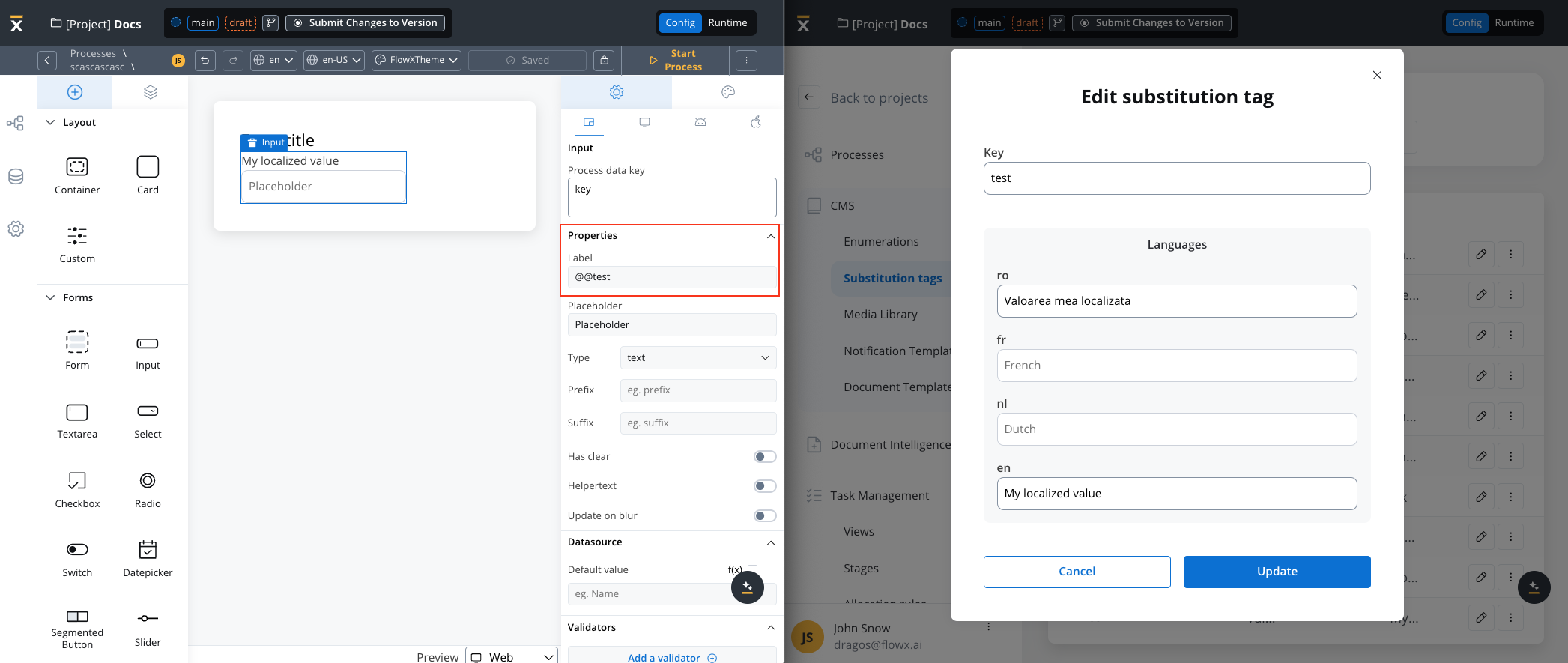
### Example using Substitution tags
Use keys beginning with "@@" to return their value. If a valid key isn't found, you'll get an empty string. If the key format is incorrect, the original string is returned.
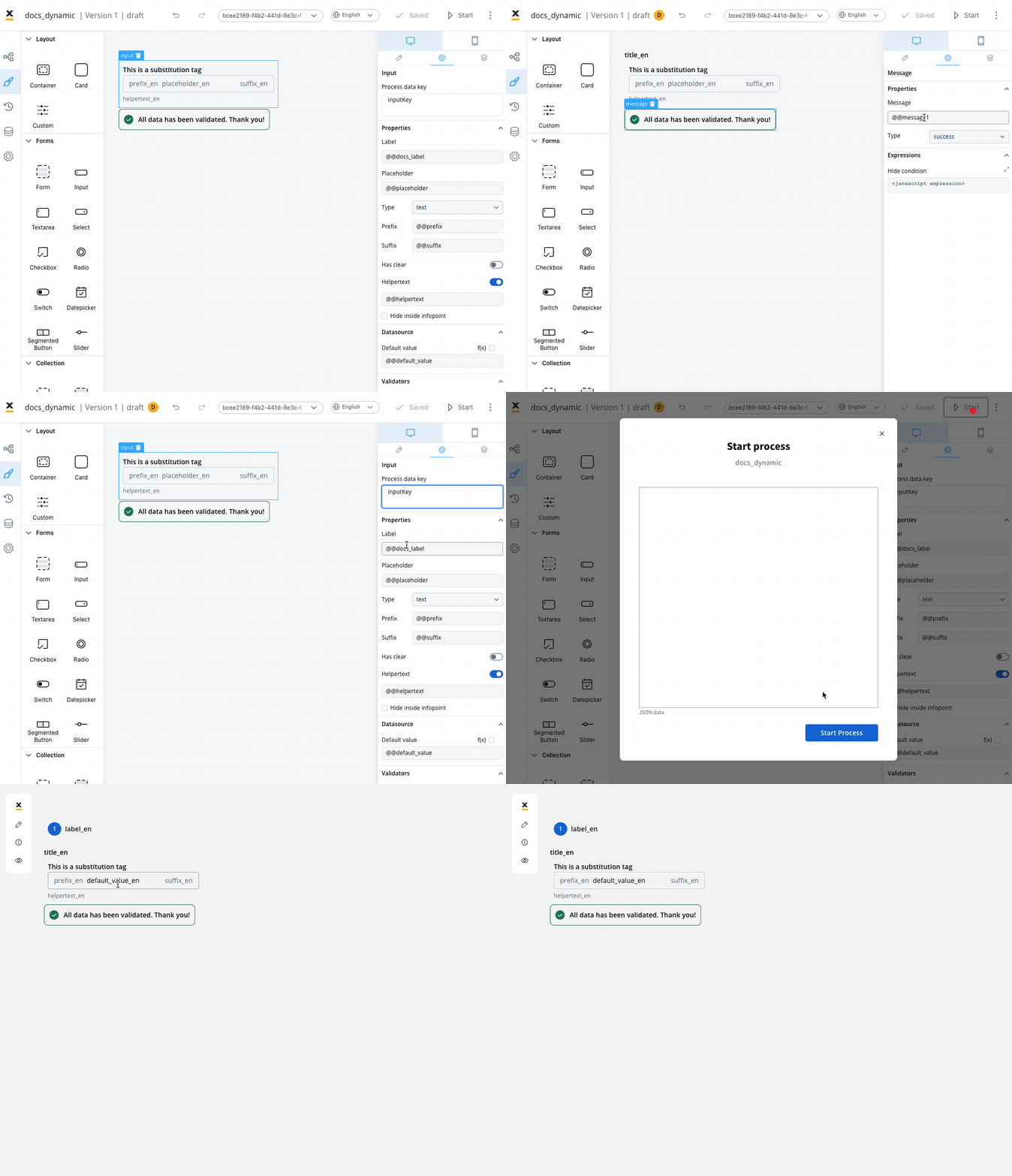
### Example using process parameters
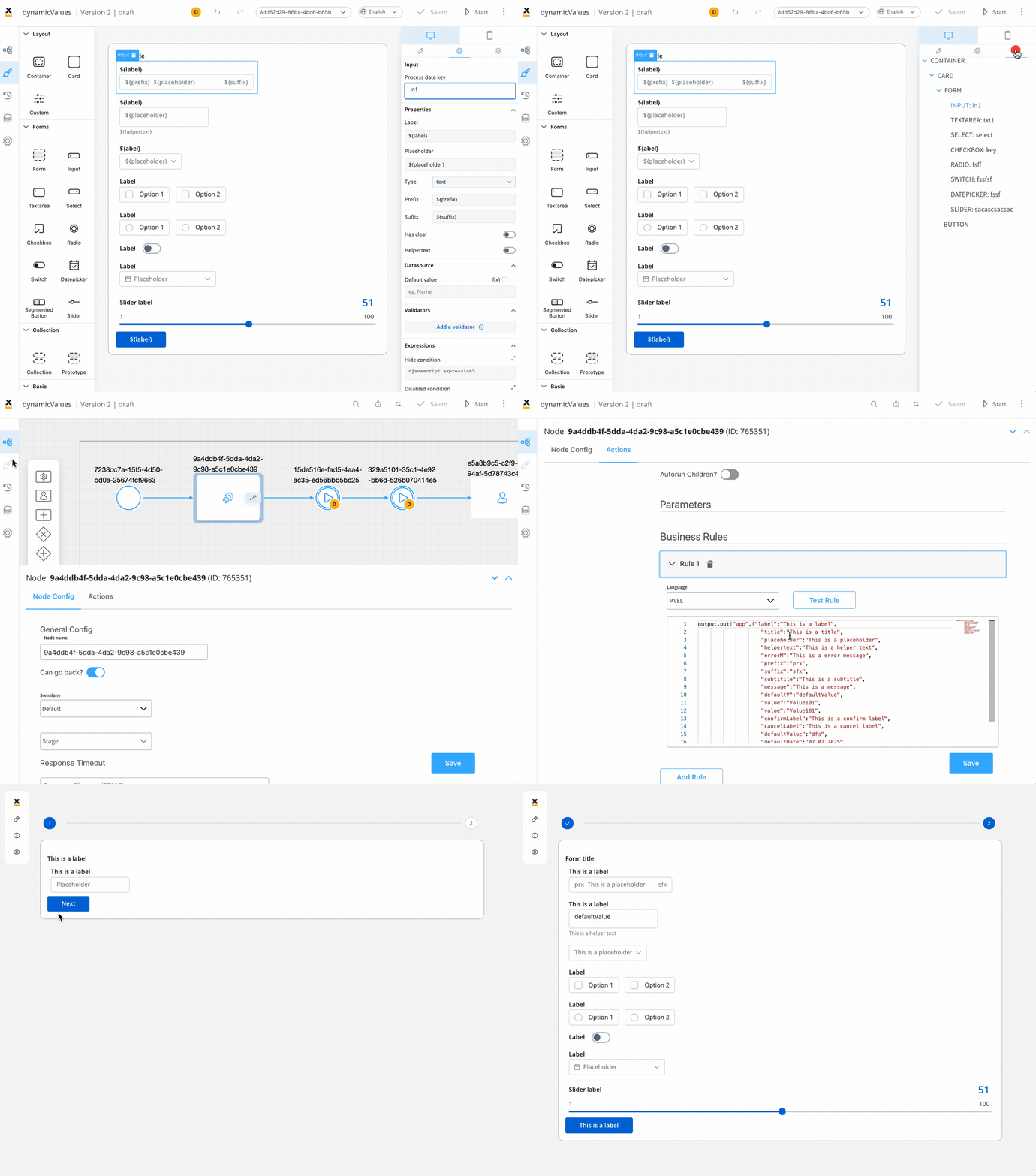
#### Business rule example
In the preceding example, an MVEL business rule demonstrates the population of specific keys with dynamic values from the task. This JSON object, assigned to the "app" key, captures the values for various UI properties:
```json theme={"system"}
///assigning a JSON object containing dynamic values for the specified keys to the "app" key
output.put("app",{"label":"This is a label",
"title":"This is a title",
"placeholder":"This is a placeholder",
"helpertext":"This is a helper text",
"errorM":"This is a error message",
"prefix":"prx",
"suffix":"sfx",
"subtitile":"This is a subtitle",
"message":"This is a message",
"defaultV":"defaultValue",
"value":"Value101",
"value":"Value101",
"confirmLabel":"This is a confirm label",
"cancelLabel":"This is a cancel label",
"defaultValue":"dfs",
"defaultDate":"02.02.2025",
"defaultSlider": 90});
```
Note that for releases **\< 3.3.0**, concatenating process parameters with substitution tags isn't supported when utilizing dynamic values.
## Computed values
Computed values present a method to dynamically generate values using JavaScript expressions. Beyond adhering to predefined values, computed values enable the manipulation, calculation, and transformation of data grounded in particular rules or conditions.
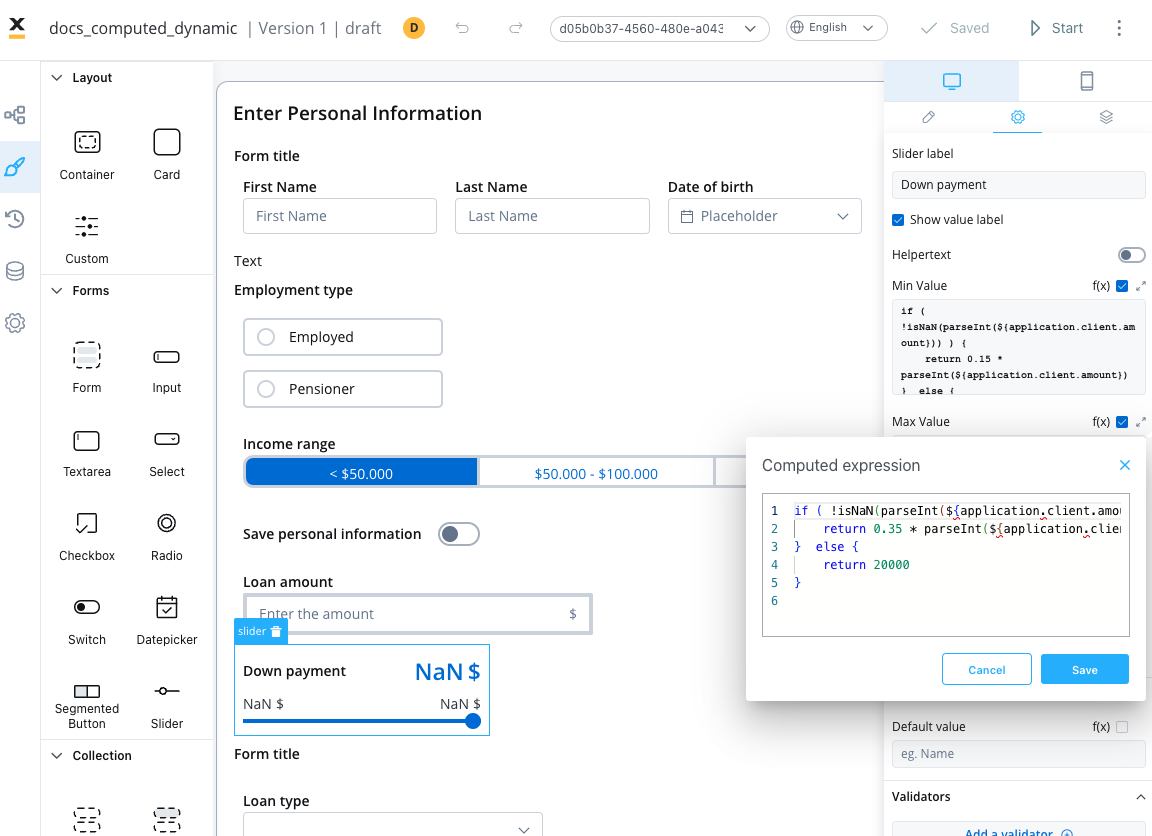
Computed values can be created via JavaScript expressions that operate on process parameters or other variables within the application.
To introduce a computed value, toggle the "Computed value" option (represented by the **f(x)** icon). This will transform the chosen field into a JavaScript editor.
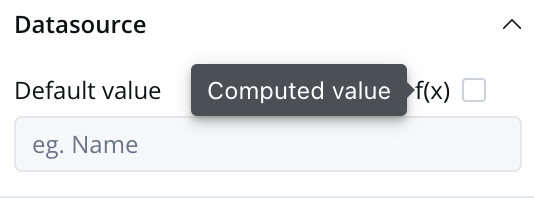
By enabling computed values, the application provides flexibility and the ability to create dynamic and responsive user interfaces.
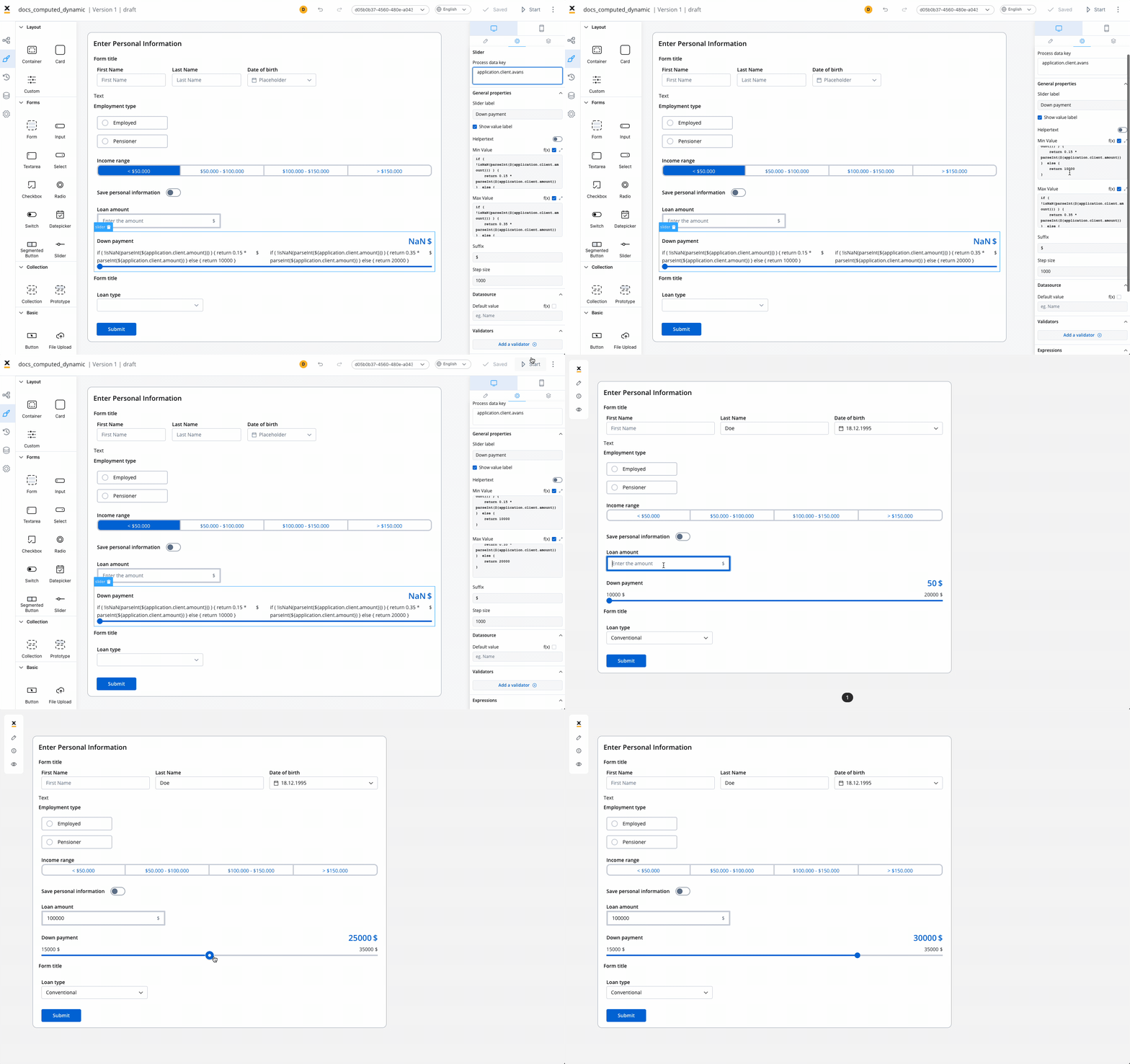
### Slider example (parsing keys as integers)
The instance above showcases computed values' usage in a Slider element. JavaScript expressions are used to dynamically compute minimum and maximum values based on a value sourced from a linked input UI element (connected via the process key `${application.client.amount}`).
#### Minimum Value
```js theme={"system"}
if ( !isNaN(parseInt(${application.client.amount})) ) {
return 0.15 * parseInt(${application.client.amount})
} else {
return 10000
}
```
* `!isNaN(parseInt(${application.client.amount}))`: This part ascertains whether the value in the input field `(${application.client.amount})` can be effectively converted to an integer using `parseInt`. Moreover, it validates that the outcome isn't `NaN` (i.e., not a valid number), ensuring input validity.
* If the input is a valid number, the minimum value for the slider is calculated as 15% of the entered value `(0.15 * parseInt(${application.client.amount}))`.
* If the input is not a valid number `(NaN)`, the minimum value for the slider is set to 10000.
#### Maximum Value
```js theme={"system"}
if ( !isNaN(parseInt(${application.client.amount})) ) {
return 0.35 * parseInt(${application.client.amount})
} else {
return 20000
}
```
* Similar to the previous expression, it checks if the value entered on the input field is a valid number using `!isNaN(parseInt(${application.client.amount}))`.
* If the input is a valid number, the maximum value for the slider is calculated as 35% of the entered value `(0.35 * parseInt(${application.client.amount}))`.
* If the input is not a valid number `(NaN)`, the maximum value for the slider is set to 20000.
#### Summary
In summary, the above expressions provide a dynamic range for the slider based on the value entered on the input field. If a valid numeric value is entered, the slider's range will be dynamically adjusted between 15% and 35% of that value. If the input is not a valid number, a default range of 10000 to 20000 is set for the slider. This can be useful for scenarios where you want the slider's range to be proportional to a user-provided value.
### Text example (using computed strings)
The following scenario outlines the functionality and implementation of dynamically displayed property types via a text UI element. This is done based on the chosen loan type through a select UI element in a user interface.
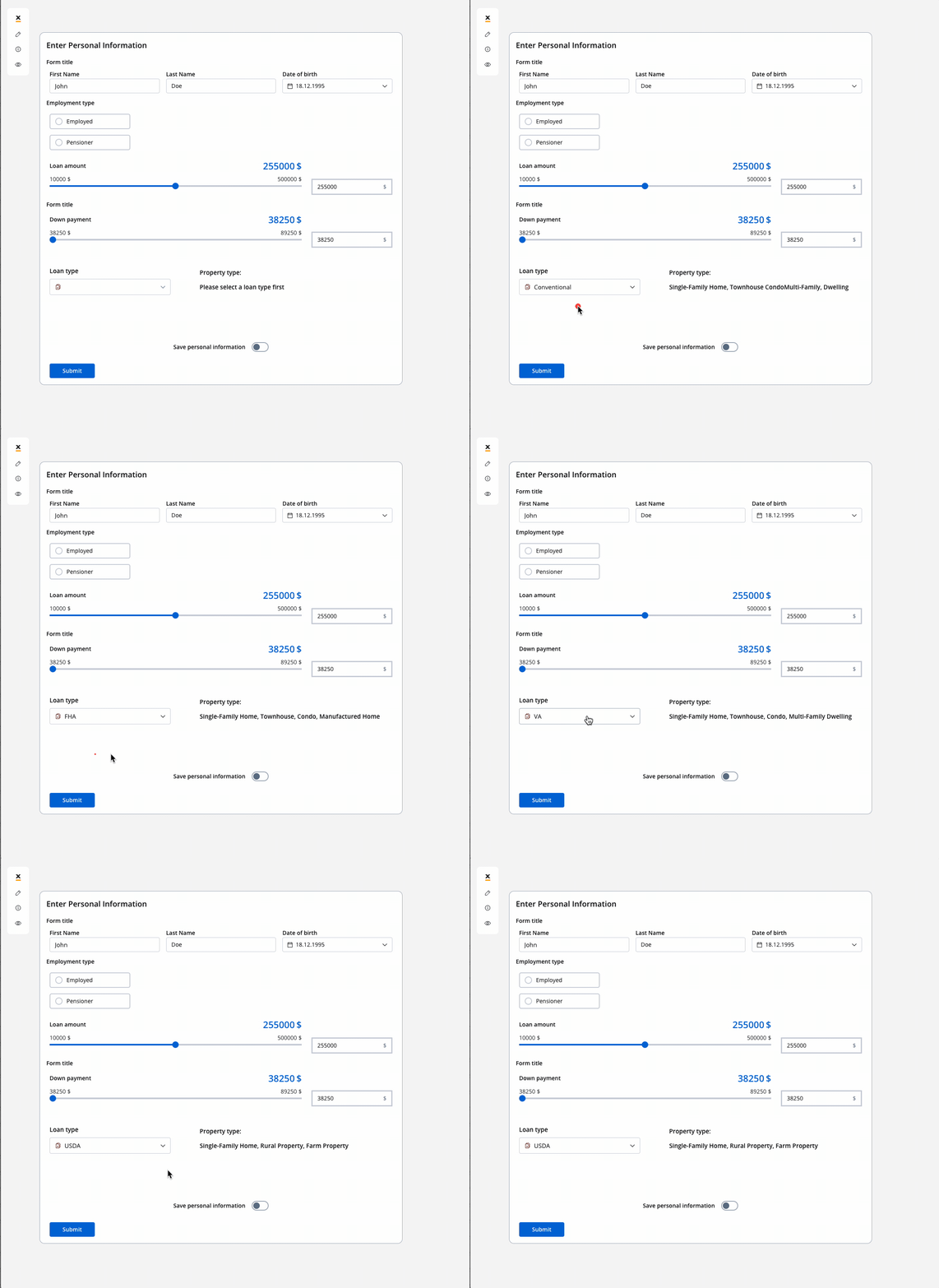
#### Scenario
The UI in focus showcases two primary UI elements:
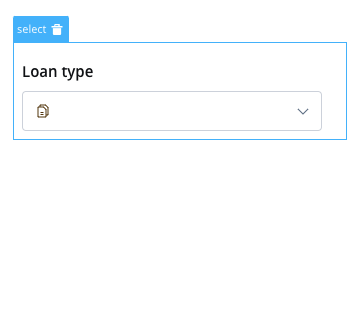
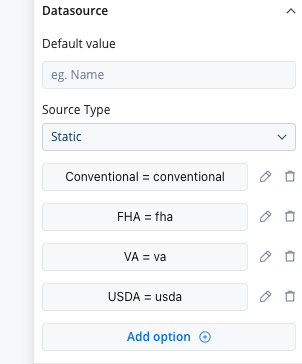
* Select Element - "Loan type": This element allows users to choose from different loan types, including "Conventional," "FHA," "VA," and "USDA."
* Text Element - "Property type": This element displays property types based on the selected loan type.
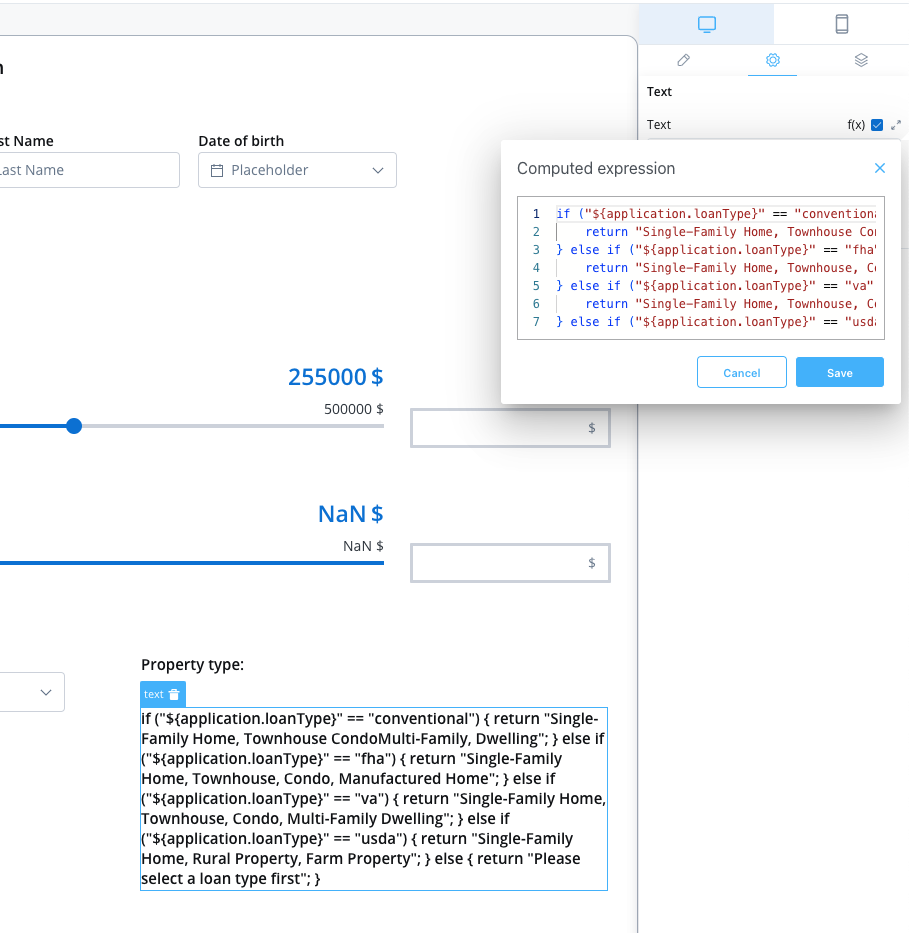
The following code snippet illustrates how the dynamic property types are generated based on the selected loan type (JavaScript is used):
```javascript theme={"system"}
if ("${application.loanType}" == "conventional") {
return "Single-Family Home, Townhouse CondoMulti-Family, Dwelling";
} else if ("${application.loanType}" == "fha") {
return "Single-Family Home, Townhouse, Condo, Manufactured Home";
} else if ("${application.loanType}" == "va") {
return "Single-Family Home, Townhouse, Condo, Multi-Family Dwelling";
} else if ("${application.loanType}" == "usda") {
return "Single-Family Home, Rural Property, Farm Property";
} else {
return "Please select a loan type first";
}
```
#### Summary
* **Loan Type Selection**: Users interact with the "Loan Type Select Element" to choose a loan type, such as "Conventional," "FHA," "VA," or "USDA."
* **Property Types Display**: Once a loan type is selected, the associated property types are dynamically generated and displayed in the "Text Element."
* **Fallback Message**: If no loan type is selected or an invalid loan type is chosen, a fallback message "Please select a loan type first" is displayed.
### Integration across the UI elements
The UI Designer allows the inclusion of JavaScript expressions for generating computed values. This functionality extends to the following UI elements and their associated properties:
| Element | Properties |
| -------------------------------------- | ----------------------------------- |
| Slider | min Value, max Value, default Value |
| Input | Default Value |
| Any UI Element that accepts validators | min, max, minLength, maxLength |
| Text | Text |
| Link | Link Text |
* **Slider**: The min value, max value, and default value for sliders can be set using JavaScript expressions applied to process parameters. This allows for dynamic configuration based on numeric values.
* **Any UI Element that accepts validators min, max, minLength, maxLength**: The "params" field for these elements can also accept JavaScript expressions applied to process parameters. This enables flexibility in setting validator parameters dynamically.
* **Default Value**: For input elements like text inputs or number inputs, the default value can be a variable from the process or a computed value determined by JavaScript expressions.
* **Text**: The content of a text element can be set using JavaScript expressions, allowing for dynamic text generation or displaying process-related information.
* **Link**: The link text can also accept JavaScript expressions, enabling dynamic generation of the link text based on process parameters or other conditions.
When working with computed values, it's important to note that they are designed to be displayed as integers and strings.
For input elements (e.g., text input), you may require a default value from a process variable, while a number input may need a computed value.
## Understanding the return statement
### Why the return statement is essential
When working with computed values in the UI Designer, **the `return` statement is mandatory** for your JavaScript expressions to function correctly. This is a fundamental requirement that ensures your computed values are properly evaluated and applied to UI elements.
**Technical Reason**: Computed values are executed as JavaScript functions in the UI Designer's evaluation engine. Like any JavaScript function, they must explicitly return a value to provide output to the calling context.
### The role of return in computed values
Computed values use JavaScript expressions that must explicitly return a value using the `return` statement. Without it, your expression will not produce any output, and the UI element will not receive the expected value.
**Critical**: If you forget the `return` statement, your computed value will evaluate to `undefined`, which can cause:
* UI elements to display blank or default values
* Validation rules to fail unexpectedly
* Slider ranges to become invalid
* Text elements to appear empty
#### ✅ Correct Implementation
```javascript theme={"system"}
// Slider minimum value calculation
if (!isNaN(parseInt(${application.client.amount}))) {
return 0.15 * parseInt(${application.client.amount});
} else {
return 10000;
}
```
#### ❌ Incorrect Implementation
```javascript theme={"system"}
// This will NOT work - missing return statements
if (!isNaN(parseInt(${application.client.amount}))) {
0.15 * parseInt(${application.client.amount}); // No return!
} else {
10000; // No return!
}
```
### Best practices for testing
#### Always include return statements
Every code path in your computed value expression should have a `return` statement.
#### Handle edge cases
```javascript theme={"system"}
// Good practice: Handle both valid and invalid inputs
if (!isNaN(parseInt(${application.client.amount}))) {
return 0.15 * parseInt(${application.client.amount});
} else {
return 10000; // Fallback value
}
```
#### Test different scenarios
When testing your computed values, ensure you test:
* **Valid input values** - Normal expected data
* **Invalid or empty input values** - `null`, `undefined`, empty strings
* **Edge cases** - Zero, negative numbers, very large numbers
* **Different data types** - Strings that look like numbers, boolean values
* **Network delays** - Process parameters that might not be loaded yet
**Pro Tip**: Use your browser's developer console to test computed value logic before implementing it in the UI Designer. You can copy your expression and test it with sample data.
#### Use meaningful default values
```javascript theme={"system"}
// Provide sensible defaults for fallback scenarios
if ("${application.loanType}" == "conventional") {
return "Single-Family Home, Townhouse, Condo, Multi-Family Dwelling";
} else {
return "Please select a loan type first"; // Clear user guidance
}
```
## Troubleshooting common issues
### Issue: Computed value not updating
**Symptoms**: UI element shows old values or doesn't change when process parameters change
**Solution**:
* Ensure every code path has a `return` statement
* Check that process parameter syntax uses `${}` correctly
* Verify the process parameter actually exists and has data
### Issue: Getting `undefined` values
**Symptoms**: UI elements appear blank or show "undefined"
**Solution**:
* Check that your JavaScript expression syntax is correct and includes `return`
* Add fallback `return` statements for all possible conditions
* Use defensive programming: `return ${application.value} || "default value"`
### Issue: Values not calculating correctly
**Symptoms**: Math operations produce unexpected results
**Solution**:
* Verify that process parameters are properly referenced with `${}` syntax
* Use `parseInt()` or `parseFloat()` for numeric operations
* Add type checking: `if (typeof ${application.value} === 'number')`
### Issue: Expression works in console but not in UI Designer
**Symptoms**: Logic works when tested separately but fails in computed values
**Solution**:
* Remember that process parameters use `${}` syntax, not regular JavaScript variables
* Ensure all code paths return values, not just the main logic
* Check for syntax errors specific to the UI Designer's JavaScript engine
## Summary
The `return` statement is not optional in computed values—it's a requirement. When testing your computed value rules:
1. **Always** include `return` statements in your JavaScript expressions
2. **Test** all possible code paths and scenarios
3. **Provide** meaningful fallback values for edge cases
4. **Verify** that your expressions work correctly across different input conditions
5. **Debug** using browser console before implementing in UI Designer
**Final Reminder**: Without the `return` statement, your computed values will not function as expected, and your UI elements will not receive the calculated values they need to display correctly. This is the #1 cause of computed value failures.
### Quick Reference: Common Return Patterns
```javascript theme={"system"}
// Simple conditional return
return ${application.value} > 100 ? "High" : "Low";
// Multiple conditions with fallback
if (${application.status} === "active") {
return "Status: Active";
} else if (${application.status} === "pending") {
return "Status: Pending";
} else {
return "Status: Unknown";
}
// Numeric calculations with validation
if (!isNaN(parseFloat(${application.amount}))) {
return parseFloat(${application.amount}) * 1.1;
} else {
return 0;
}
// String operations
return (${application.firstName} || "") + " " + (${application.lastName} || "");
```
***
## Hide and disable expressions
Hide and disable conditions are JavaScript expressions evaluated on the client side. They control whether a UI element is visible or interactive.
* **Hide condition**: hides the element when the expression evaluates to `true`
* **Disabled condition**: disables the element (greyed out, not interactive) when the expression evaluates to `true`
Hide/disable expressions use the same `${}` interpolation syntax as computed values, but they do **not** use the `return` statement. The expression is evaluated directly as a boolean.
### Syntax reference
| Pattern | Expression | Result |
| ----------------------------- | --------------------------------------------------------------------------------- | ------------------------------------------ |
| Hide if field is empty | `${application.income} === null \|\| ${application.income} === ""` | Hidden when income is null or empty string |
| Hide if field has a value | `${application.income} !== null && ${application.income} !== ""` | Hidden when income has a value |
| Disable based on value | `${application.name} === 'TEST'` | Disabled when name equals "TEST" |
| Show only for specific option | `${application.loanType} !== 'mortgage'` | Hidden unless loan type is "mortgage" |
| Hide based on boolean | `${application.isVIP} === false` | Hidden when isVIP is false |
| Hide based on number | `${application.amount} < 1000` | Hidden when amount is less than 1000 |
| Multiple conditions (AND) | `${application.age} >= 18 && ${application.consent} === true` | Hidden when both are true |
| Multiple conditions (OR) | `${application.status} === 'rejected' \|\| ${application.status} === 'cancelled'` | Hidden when either matches |
### Common pitfalls
Process data keys can be `null` (never set) or `""` (set to empty string). Always check for both:
```javascript theme={"system"}
// Wrong — misses empty strings
${application.income} === null
// Wrong — misses null values
${application.income} === ""
// Correct — catches both
${application.income} === null || ${application.income} === ""
```
When comparing to a string value, always wrap it in quotes:
```javascript theme={"system"}
// Wrong — compares to a variable named mortgage
${application.loanType} === mortgage
// Correct — compares to the string "mortgage"
${application.loanType} === 'mortgage'
```
Boolean fields may come as `true`/`false` or as strings `"true"`/`"false"` depending on the data source:
```javascript theme={"system"}
// Safe approach — handles both boolean and string
${application.isActive} === true || ${application.isActive} === 'true'
```
If a parent object might be null, accessing a child property will throw an error:
```javascript theme={"system"}
// Risky — fails if client is null
${application.client.status} === 'active'
// Safer — check parent first
${application.client} !== null && ${application.client.status} === 'active'
```
Values from form inputs may arrive as strings. Use explicit parsing if needed:
```javascript theme={"system"}
// May fail if amount is a string "1000"
${application.amount} > 500
// Safer for numeric comparisons
parseInt(${application.amount}) > 500
```
### Where expressions are used
| Context | Syntax | Uses `return`? | Evaluated |
| ----------------------- | ----------------------- | ------------------- | --------------------- |
| **Hide condition** | `${key} === value` | No | Client-side, boolean |
| **Disable condition** | `${key} === value` | No | Client-side, boolean |
| **Computed values** | `return ${key} + ...` | Yes | Client-side, any type |
| **Conditional styling** | `$key.field > value` | No | Client-side, boolean |
| **Gateway conditions** | MVEL/JS on process data | Depends on language | Server-side, boolean |
For more complex logic that depends on multiple data sources or requires server-side processing, consider using [Event Handlers](./event-handlers) (client-side JavaScript) or [business rules](../actions/business-rule-action/business-rule-action) (server-side) instead of hide/disable expressions.