> ## Documentation Index
> Fetch the complete documentation index at: https://docs.flowx.ai/llms.txt
> Use this file to discover all available pages before exploring further.
# Project data model
> Define reusable data types at the project level to ensure consistency across processes
## What is a project data model?
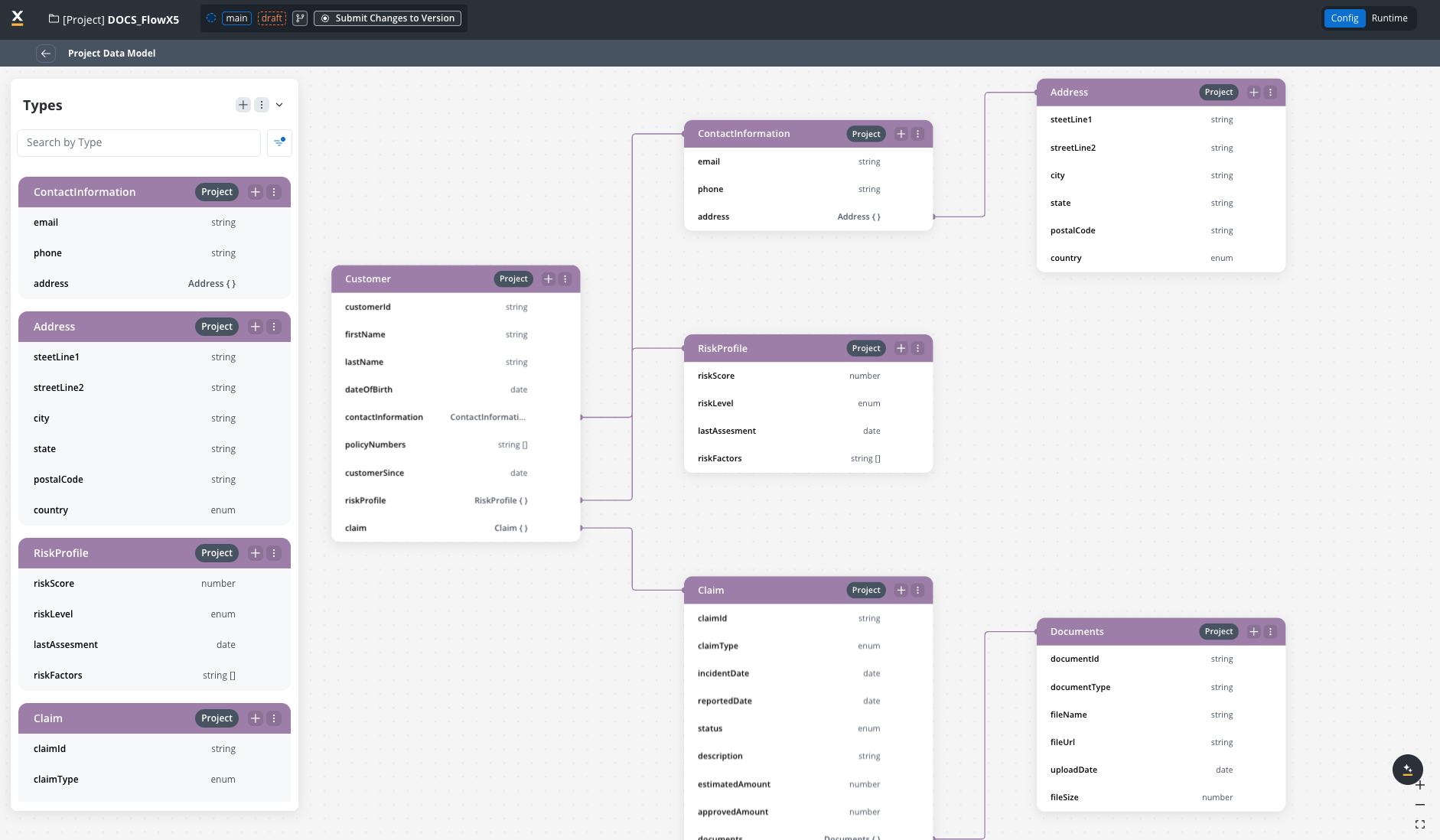
The Project Data Model (PDM) lets you define reusable data types at the project level. These data types propagate to the process data models, ensuring data consistency across your FlowX.AI applications, including in Reusable Functions, Persistence Layer schemas, and other components.
With PDM, you create a centralized data structure that serves as the foundation for all processes within your project. This ensures that core data types like Customer, Product, or Document maintain consistent definitions throughout your application.
## Key concepts
FlowX.AI supports several data model layers, each serving different purposes:
| Data Model Layer | Description |
| ------------------------ | ------------------------------------------------------------------------------------------------------------- |
| Process Data Model | Can use data types defined in the Project Data Model or Library Data Model. |
| Project Data Model (PDM) | Defines data types that can be reused across processes and other resources within the project |
| Library Data Model | Defined within a library. Allows data types to be reused across multiple projects, promoting standardization. |

A **data type** defines the structure of a particular set of data. For example, a `Customer` data type might contain attributes like `name`, `email`, and `address`.
An **attribute** is an individual property of a data type that specifies its data structure.
Data types and attributes can be categorized based on their usage:
* **Used/Unused**: A data type or attribute is considered "used" when it's incorporated into the structure of another data type.
* **Referenced/Unreferenced**: Refers to data types or attributes from the Project Data Model being used within a Process Data Model or a UI Template.
## Benefits of project data model
Ensures data structure consistency across multiple processes and resources
Define once, use many times across processes, business rules, and other components
Reduces development time by eliminating duplicate definitions
Centralized management of data structures
Promotes the use of common data structures across projects
## How to use the project data model
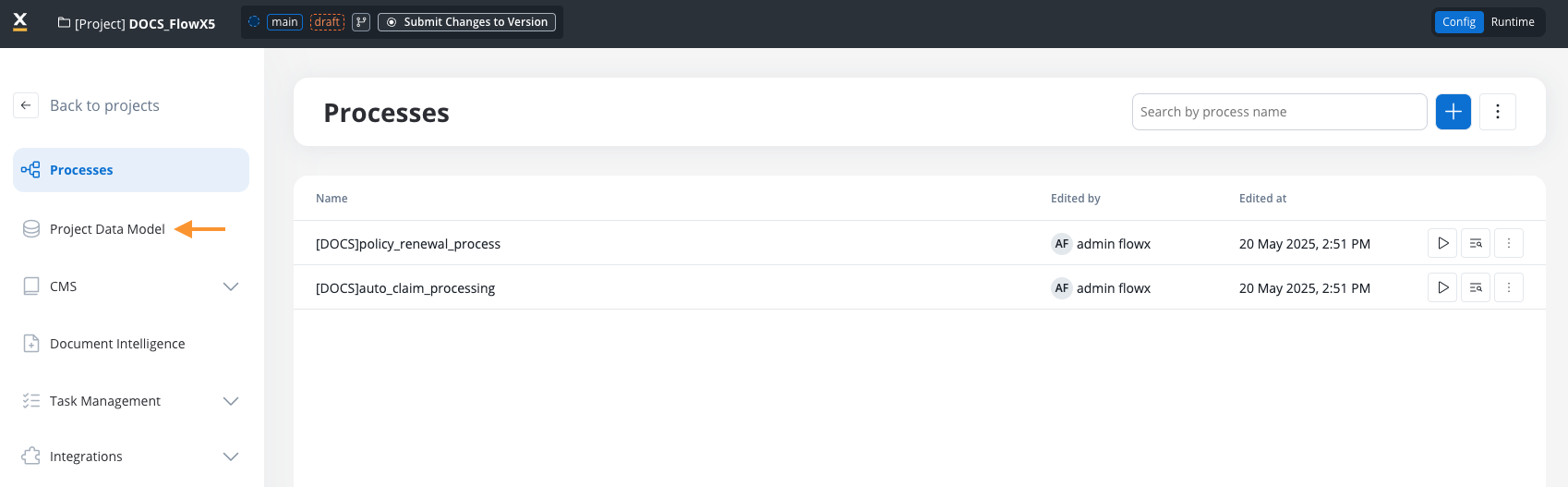
### Access the project data model
Open FlowX.AI Designer.
Select the project where you want to configure the Project Data Model.
Select "Project Data Model" from the project menu.
### Define a project data model
In the Project Data Model view, click **+** to add a new data type. A confirmation toast notifies you when the data type is created.
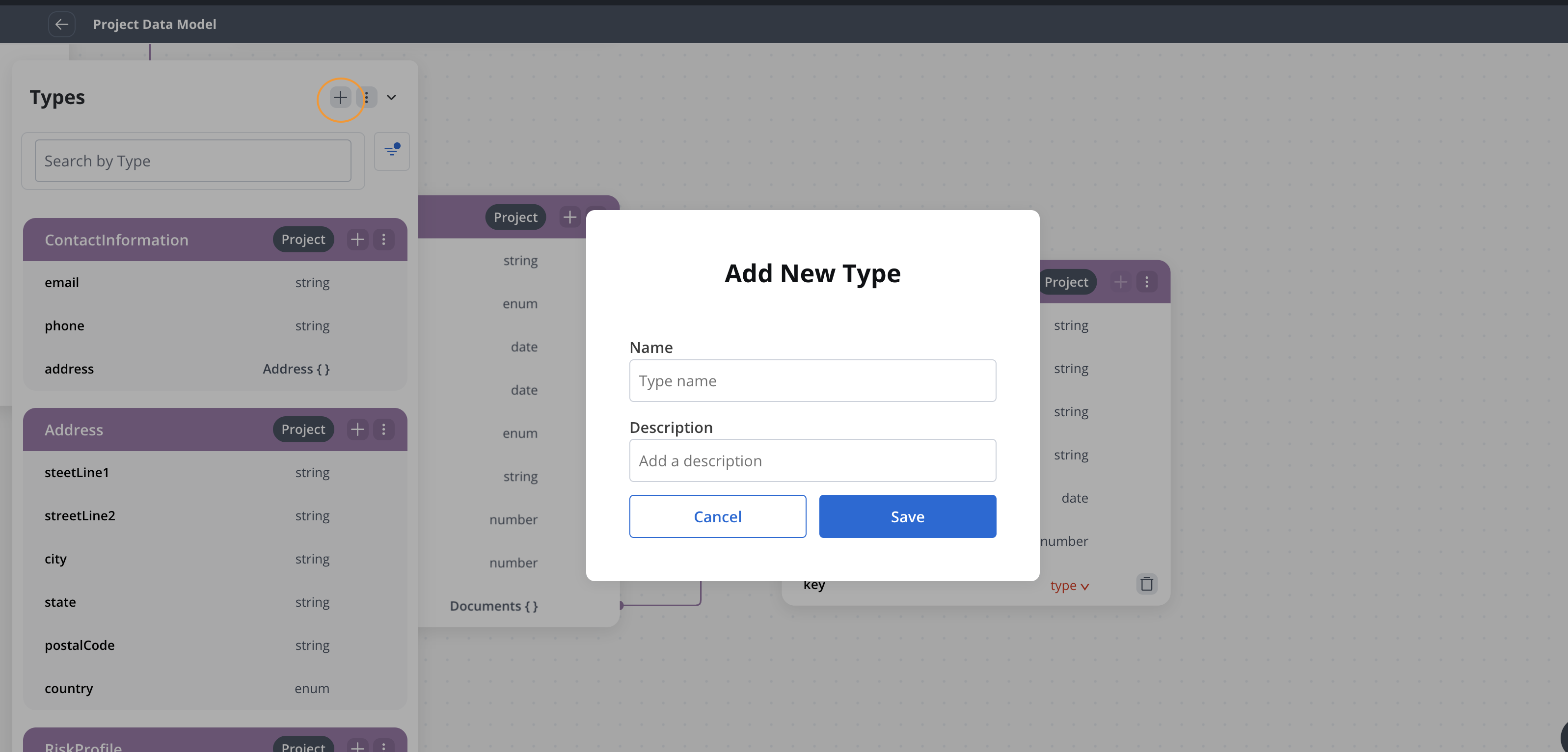
Provide a name for the data type.
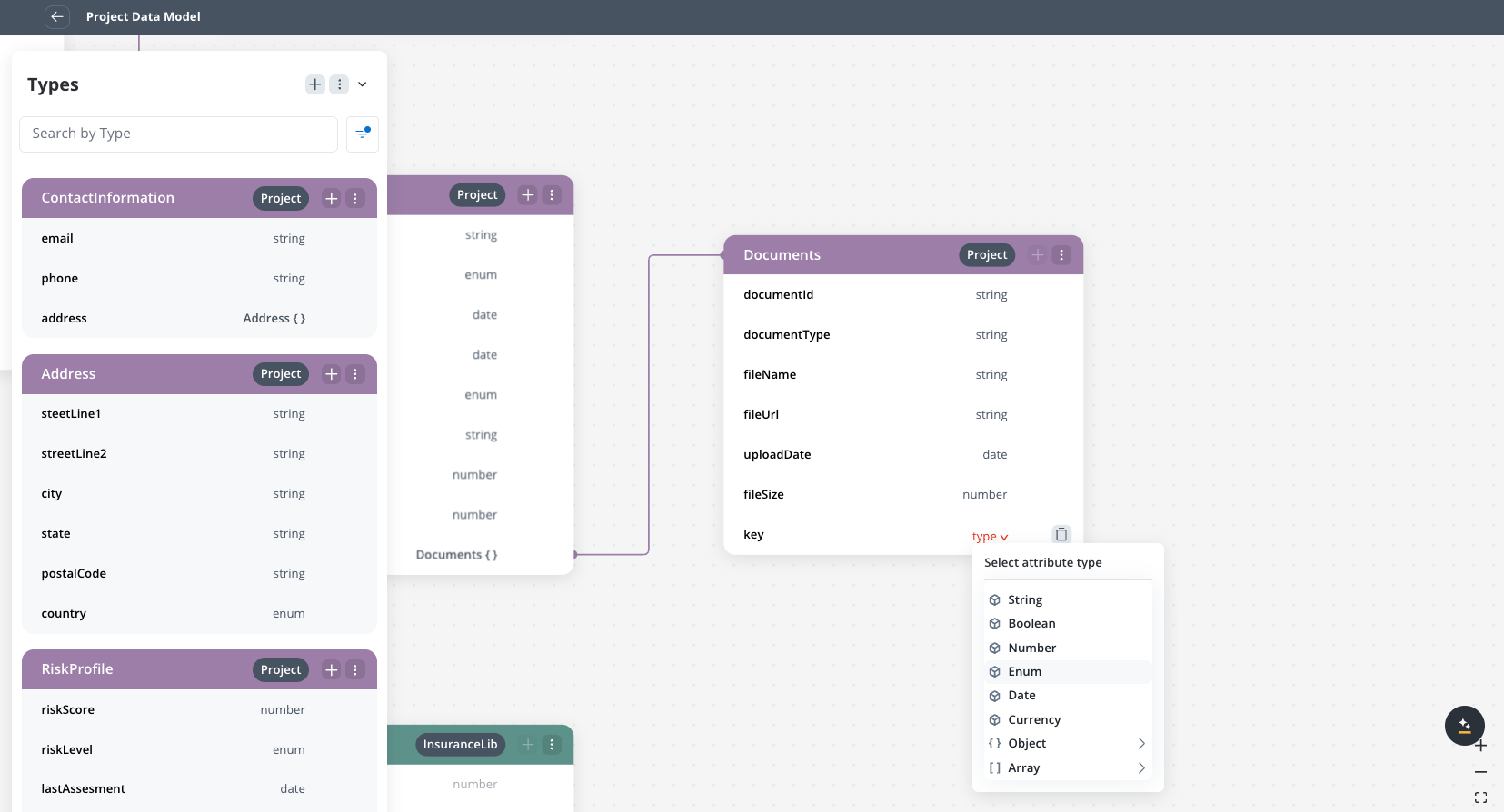
Each data type displays an **Add attribute** button for creating the first attribute. After the first attribute exists, the button appears only on hover over the data type.
When you select an attribute, a **settings side panel** opens on the right where you can configure:
* Attribute name and type (string, number, boolean, object, array, enum)
* Validations, sensitive data, and reporting settings
* Example values for data mapping
### Manage data types
#### Add a data type
1. Click **+** in the Data Types panel.
2. Enter the name and properties of the data type.
3. Use the inline **Add attribute** button on the data type to add attributes.
4. Save changes.
### Edit a data type
Select the data type in the Project Data Model.
Click an attribute to open the **settings side panel** on the right with all configuration options.
Edit the attribute settings as needed. Changes are saved automatically.
### Attribute path
Each attribute displays a **path button** next to its name. Click it to view the full key path and copy it to your clipboard. This is useful when referencing keys in business rules, UI component bindings, or integration mappings.
Changes to data types propagate to all processes referencing them. If a process is using this data type, it will automatically get the updated structure.
However, changes do NOT propagate to UI Designer paths, which will need to be adjusted manually.
### Remove a data type
Select the data type to remove.
You can either delete an entire object or just a single attribute.
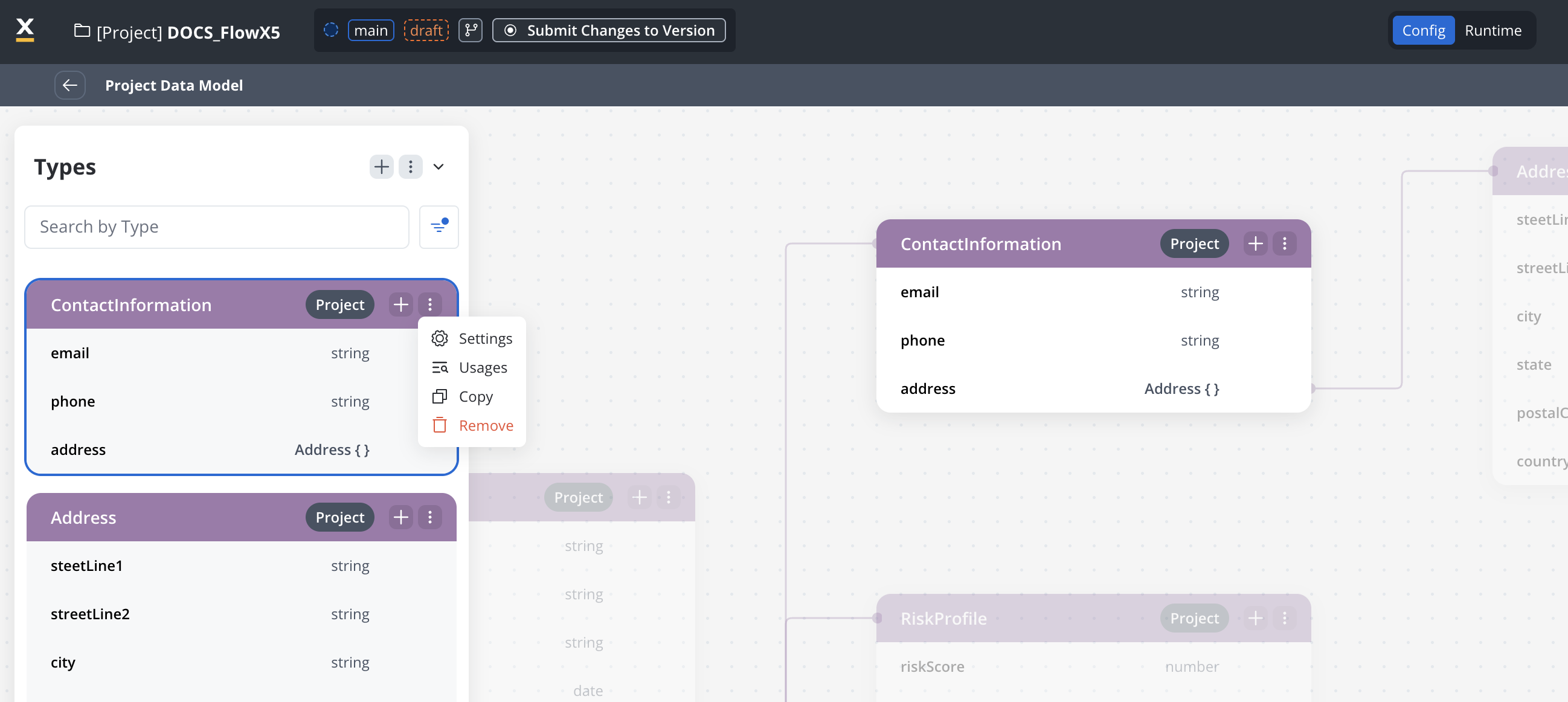
Click the remove button.
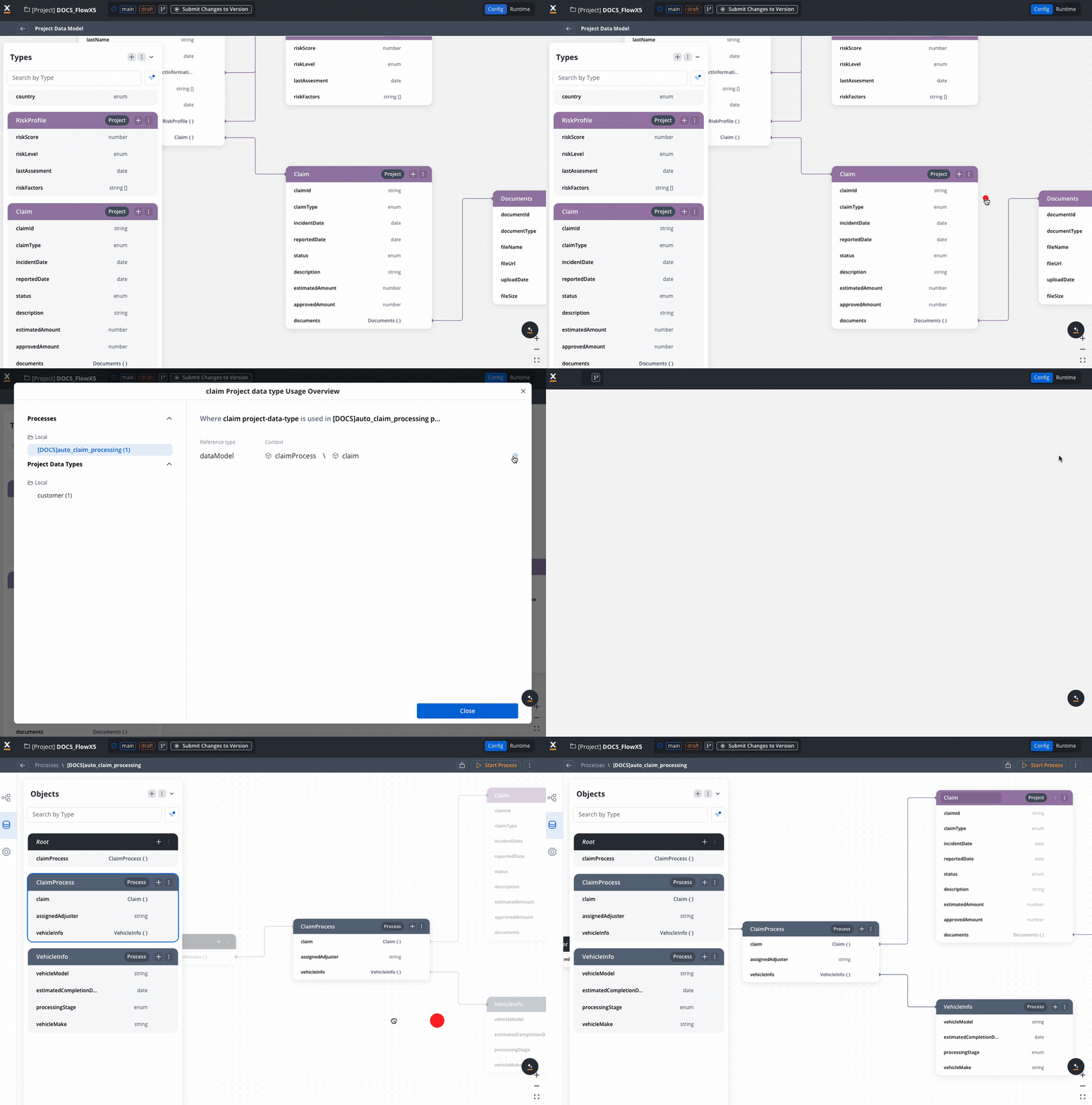
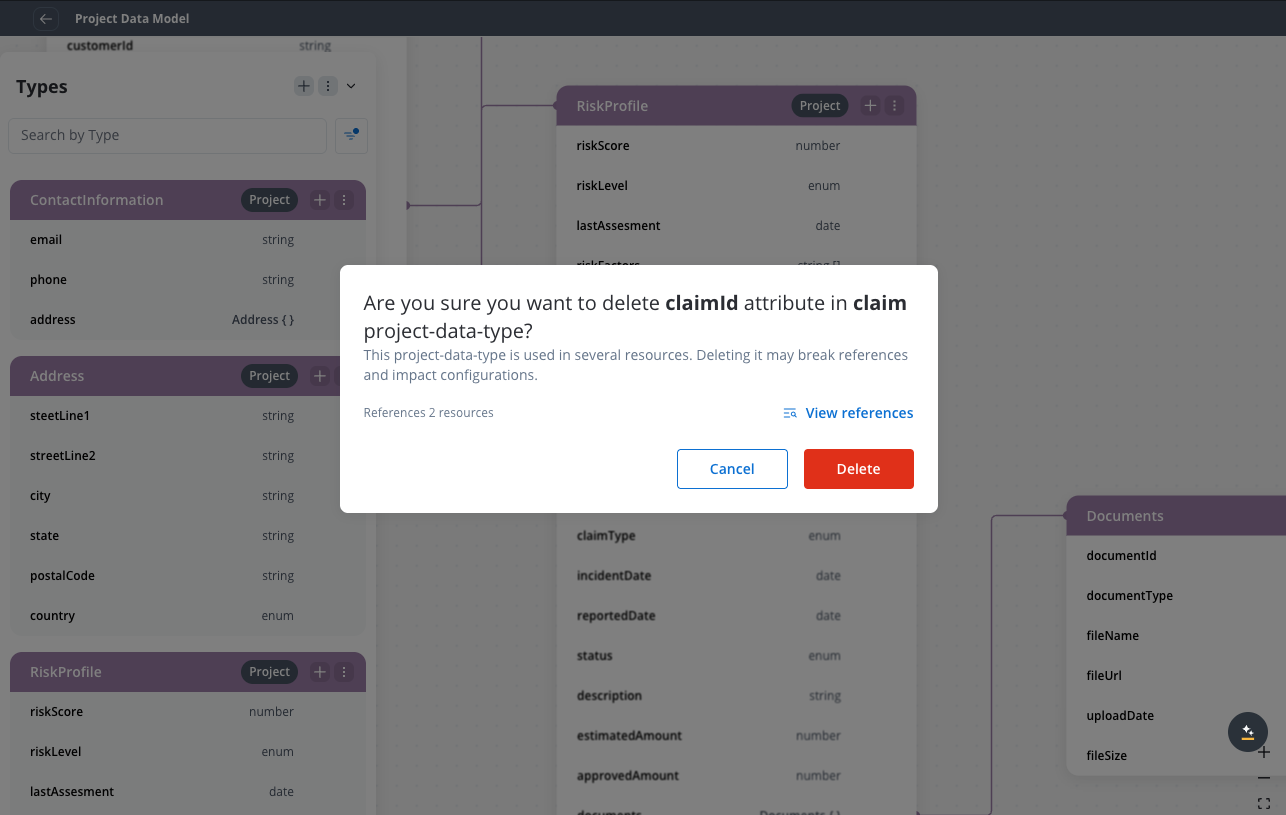
You can delete the data type even if it's in use. The system will show you a warning message indicating which processes reference the data type.
If the data type is in use by processes, you will receive a warning message showing which processes reference it. You can still proceed with the deletion, but this may affect the referenced processes.
### Working with referenced data types
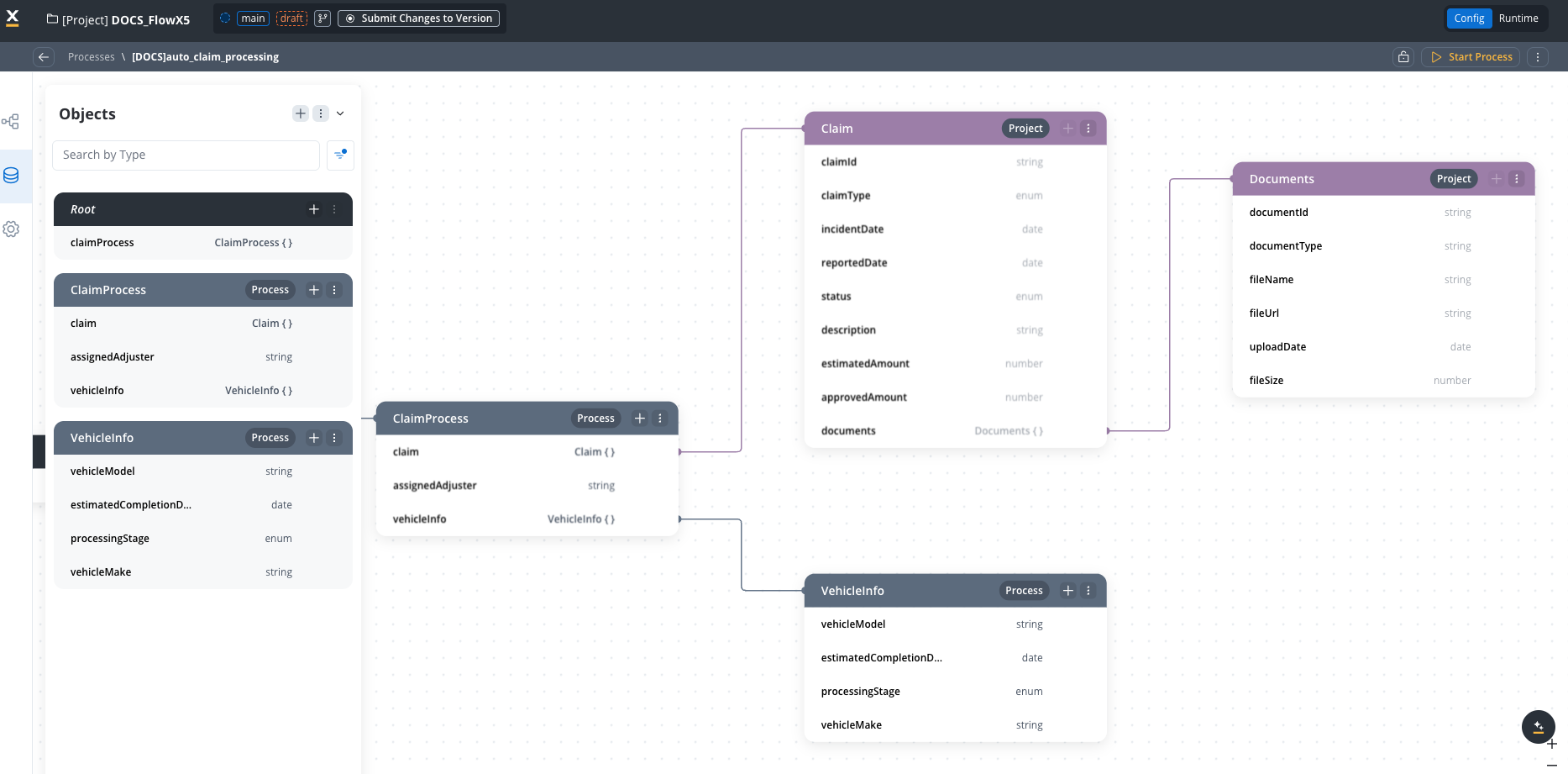
When a data type from the Project Data Model is used in a Process Data Model:
1. The Process Data Model will display the referenced data type.
2. The referenced data type cannot be modified at the process level.
3. Changes to the data type in the Project Data Model will propagate to all referencing processes.
## Common scenarios
Navigate to the Project Data Model.
Make changes to an existing key or attribute.
The changes automatically propagate to all processes using that key.
Referenced components in processes will be updated to reflect the changes, but UI Designer paths require manual adjustment.
Navigate to the Project Data Model.
Attempt to remove a key or object.
System checks if the key is in use by any process.
A warning modal shows references but allows deletion.
Navigate to the Project Data Model.
Change the type of an attribute (e.g., from string to boolean).
System will prompt for confirmation as this might break processes.
**Incompatible change**: References will be broken and removed from UI templates.
**Compatible change**: No changes to references are required.
### Use the Project Data Model in processes
1. Navigate to a process within your project.
2. Open the Process Data Model.
3. Project data types are available for selection.
4. Select the desired project data type to use in your process.
5. The data type is added to your Process Data Model, maintaining reference to the Project Data Model.
### Work with libraries
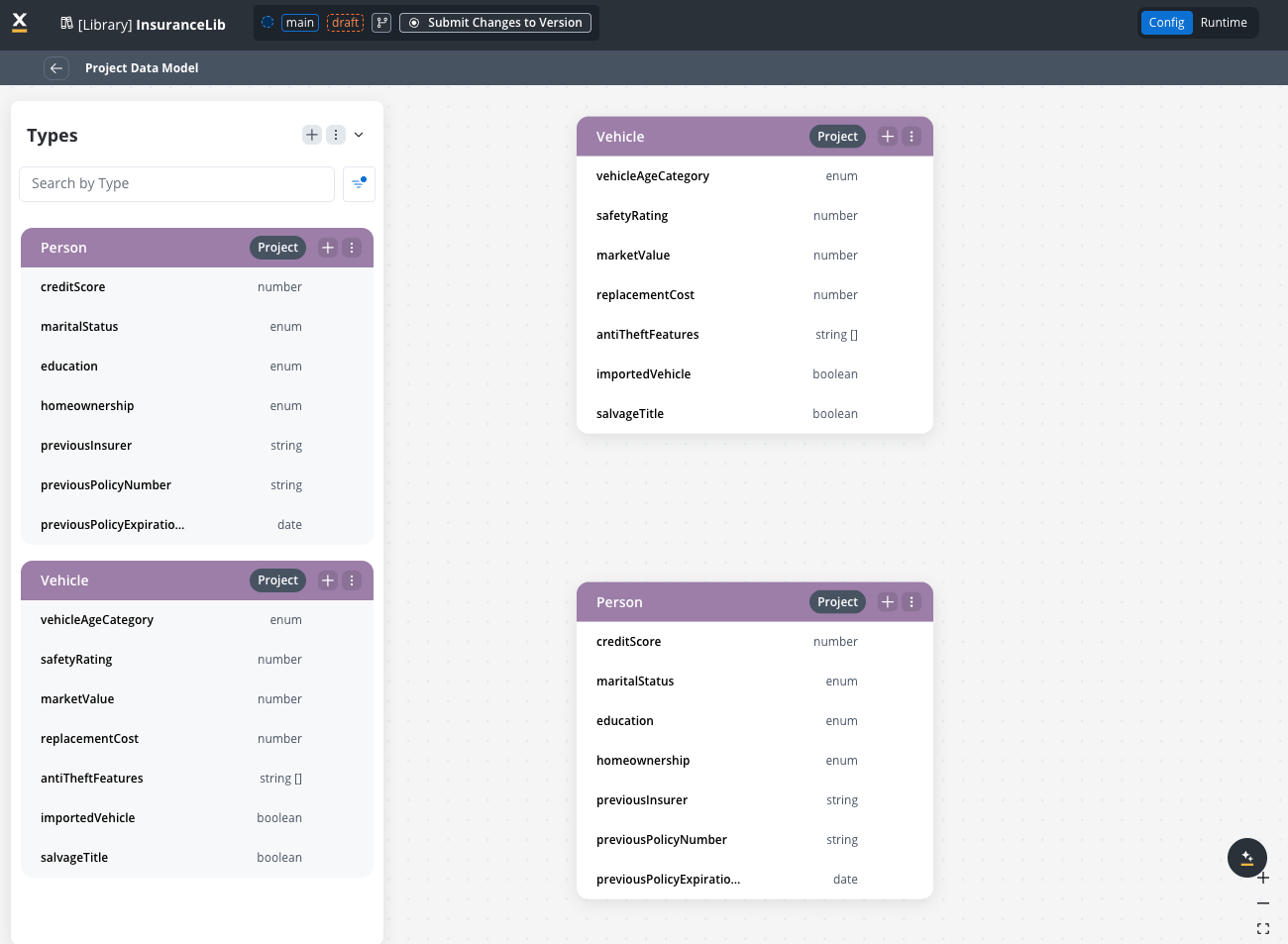
#### Integrate Library Data Models
1. Navigate to your project dependencies.
2. Add a library as a dependency. The library must have a build created.
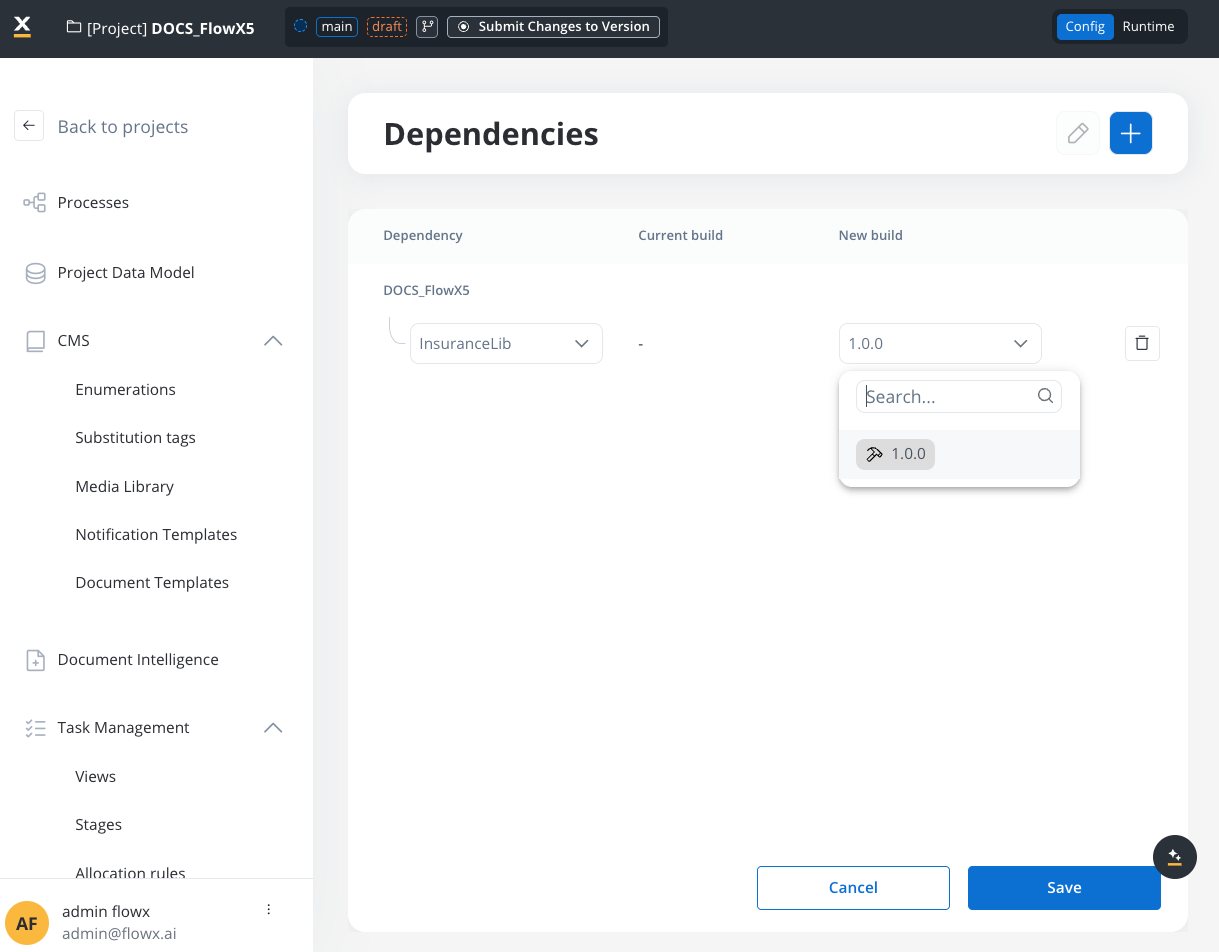
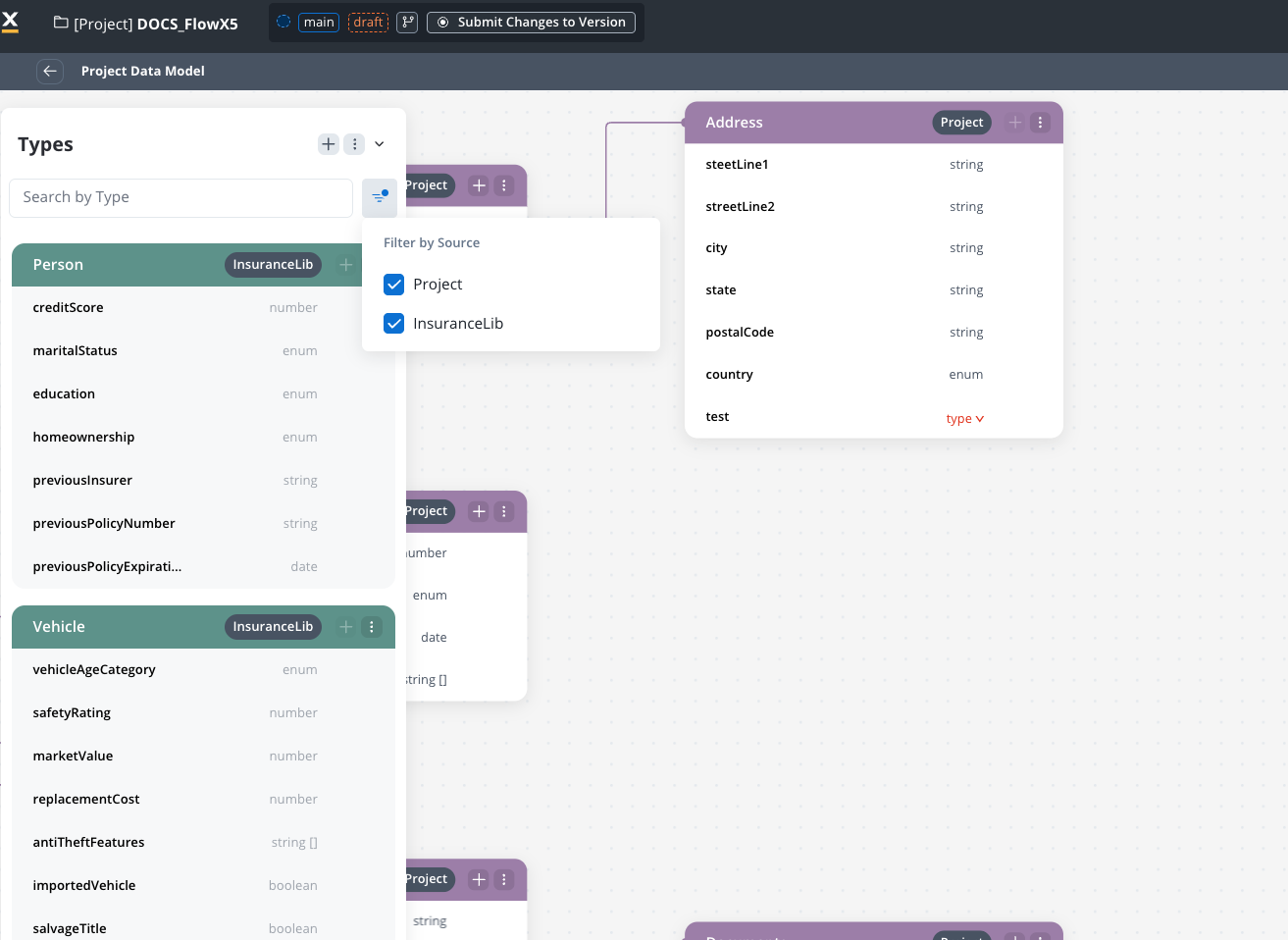
3. Library data types become available in your Project Data Model.
Library data types are not visible by default! You must select the library source in the filter to display them.
To filter by library types you can use the "Filter by source" feature.
4. You can now use the library data types in your data model.
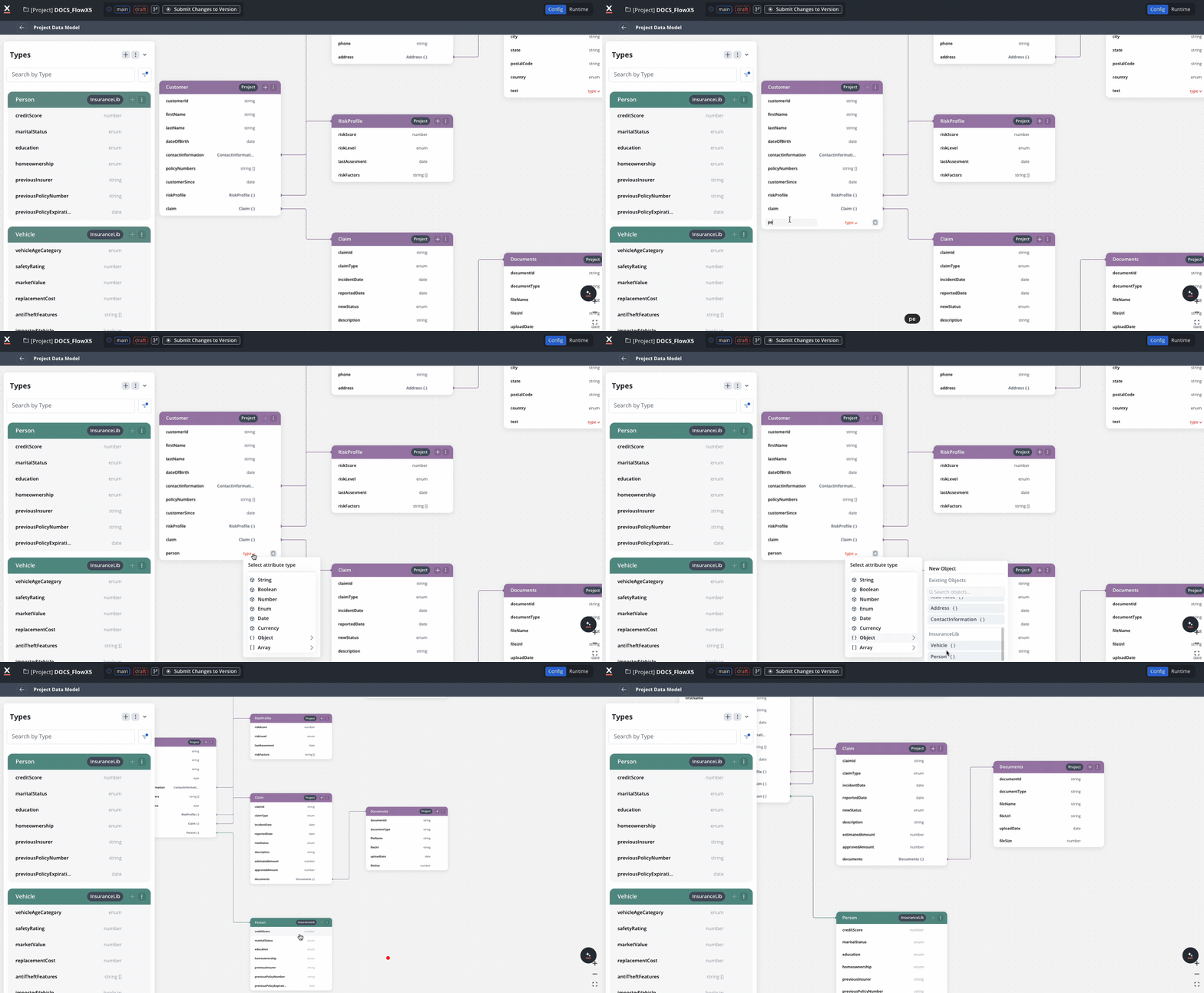
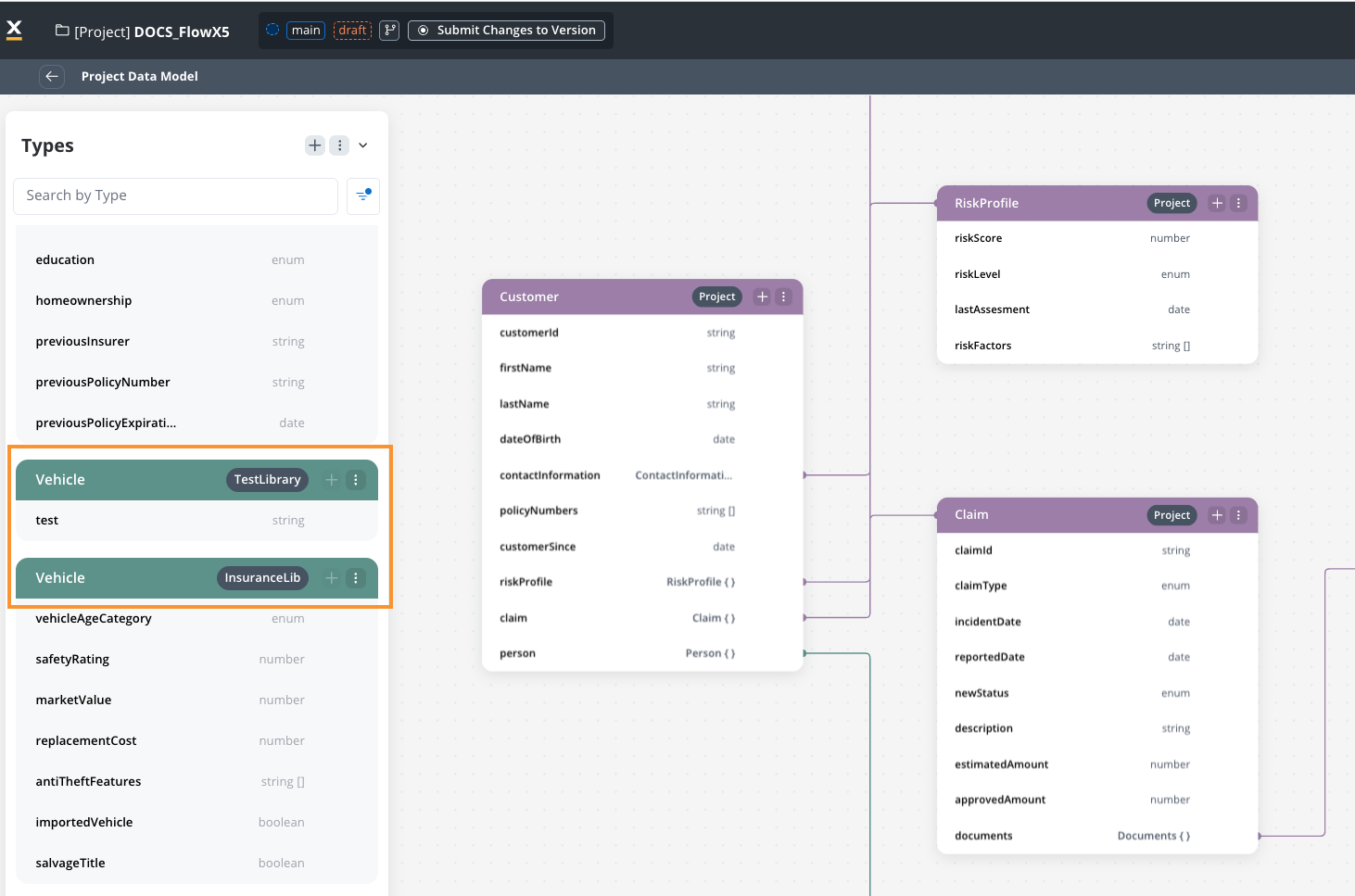
#### Handle duplicate types from libraries
When multiple libraries contain data types with the same name:
1. Both types will be visible in the Project Data Model with visual indicators.
2. Namespacing functionality will prevent technical issues.
## Configure reporting and sensitive data settings
You can configure reporting and sensitive data settings directly from the attribute settings side panel:
1. Go to the Project Data Model.
2. Select an attribute to open the **settings side panel**.
3. Toggle **Sensitive data** or **Use in Reporting** as needed.
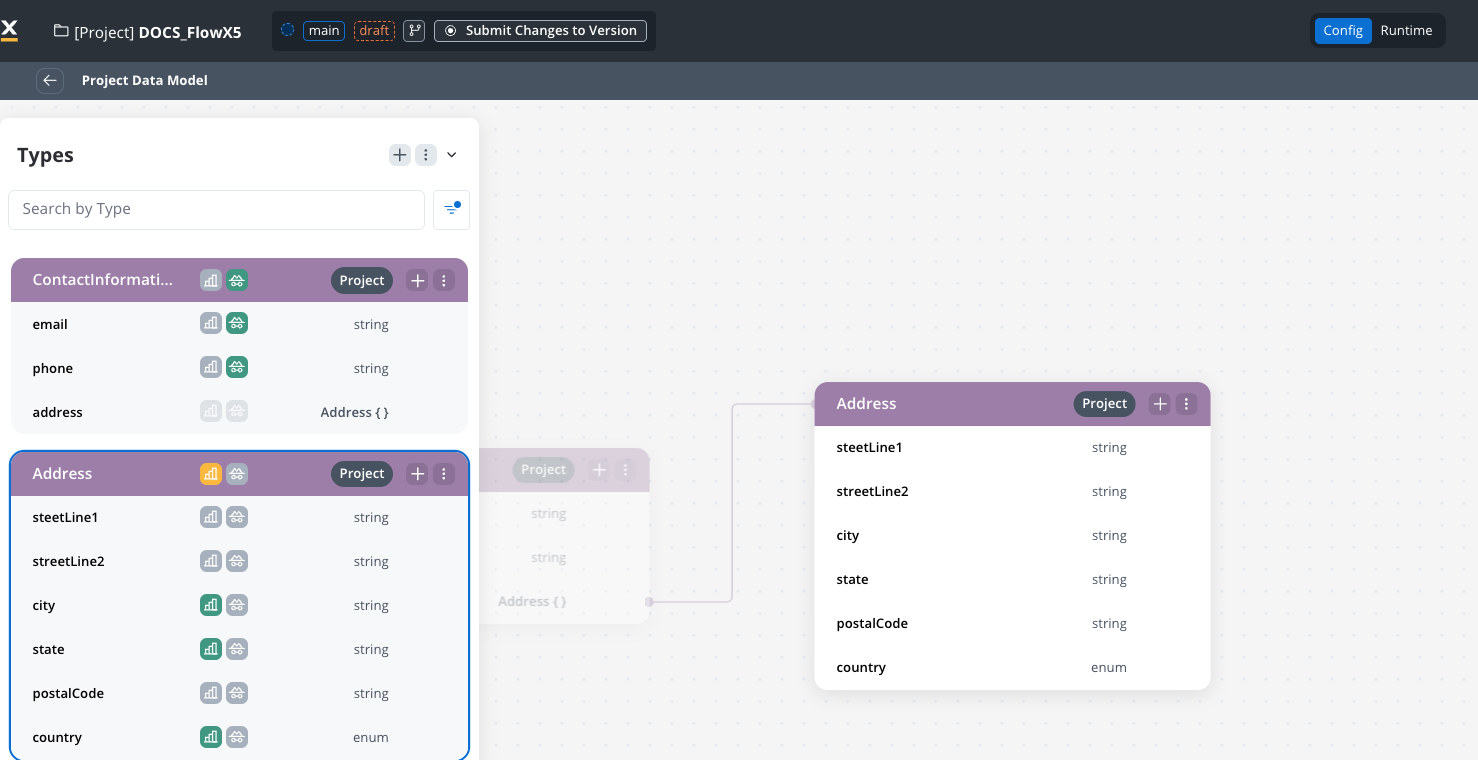
These settings apply to all instances of the attribute across processes.
You can also access these settings from the three-dots menu in the upper right corner of the side panel → **Show details**.
## Project Data Model after version commitment
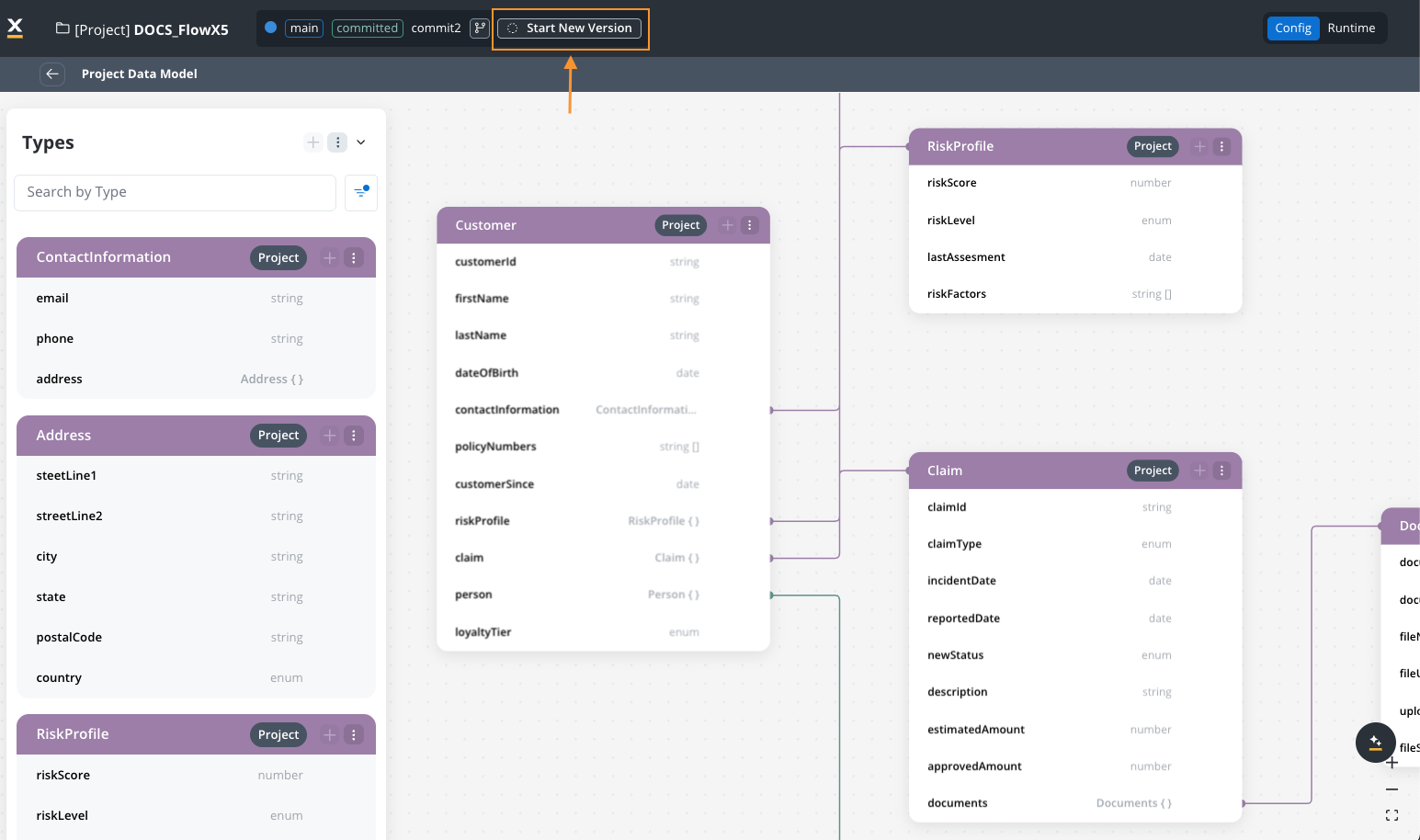
After committing a project version:
1. The Project Data Model becomes read-only.
2. You can still view the diagram and monitor usage.
3. This read-only configuration is available for any configuration on committed versions and applies also to resource data models.
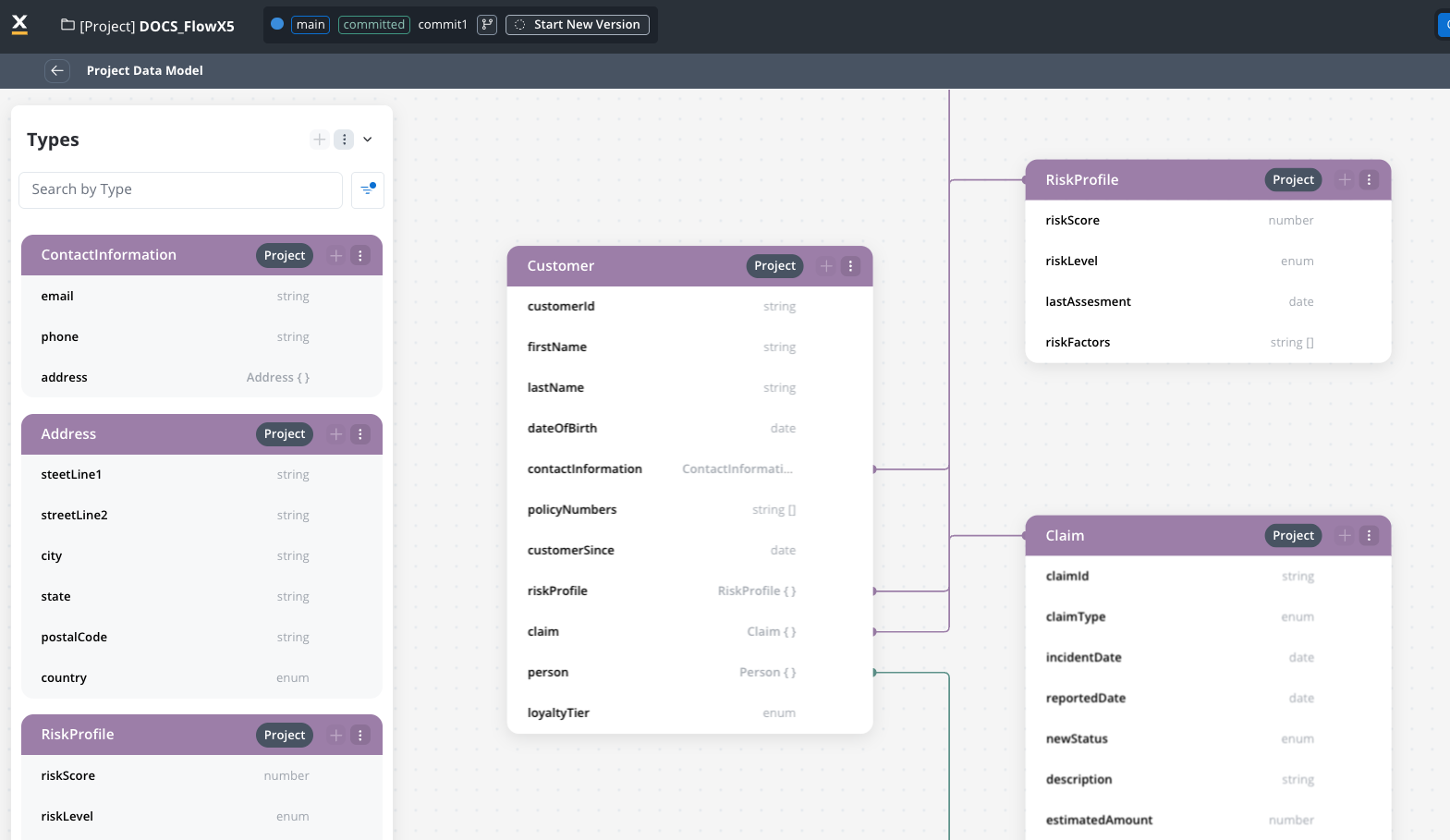
3. To make changes to the data model, you will require a new project version.
## Search and filter
The Project Data Model interface provides tools to help you find and work with your data types:
1. Navigate to the Project Data Model.
2. By default, only project-level types are displayed.
3. Use filters to view library types as well.
4. Use the search function to find specific types by name.
## Update library dependencies
When updating library dependencies:
1. Navigate to the dependencies section.
2. Select the new library version.
3. The system will inform you of any breaking changes to data types.
4. You can decide whether to proceed with the update.
5. If you proceed, changes will propagate to processes according to compatibility rules.
## Real-world example: Insurance claims processing
This example demonstrates how an insurance company uses project data model for their claims processing system.
The insurance company created these data types in their Project Data Model:
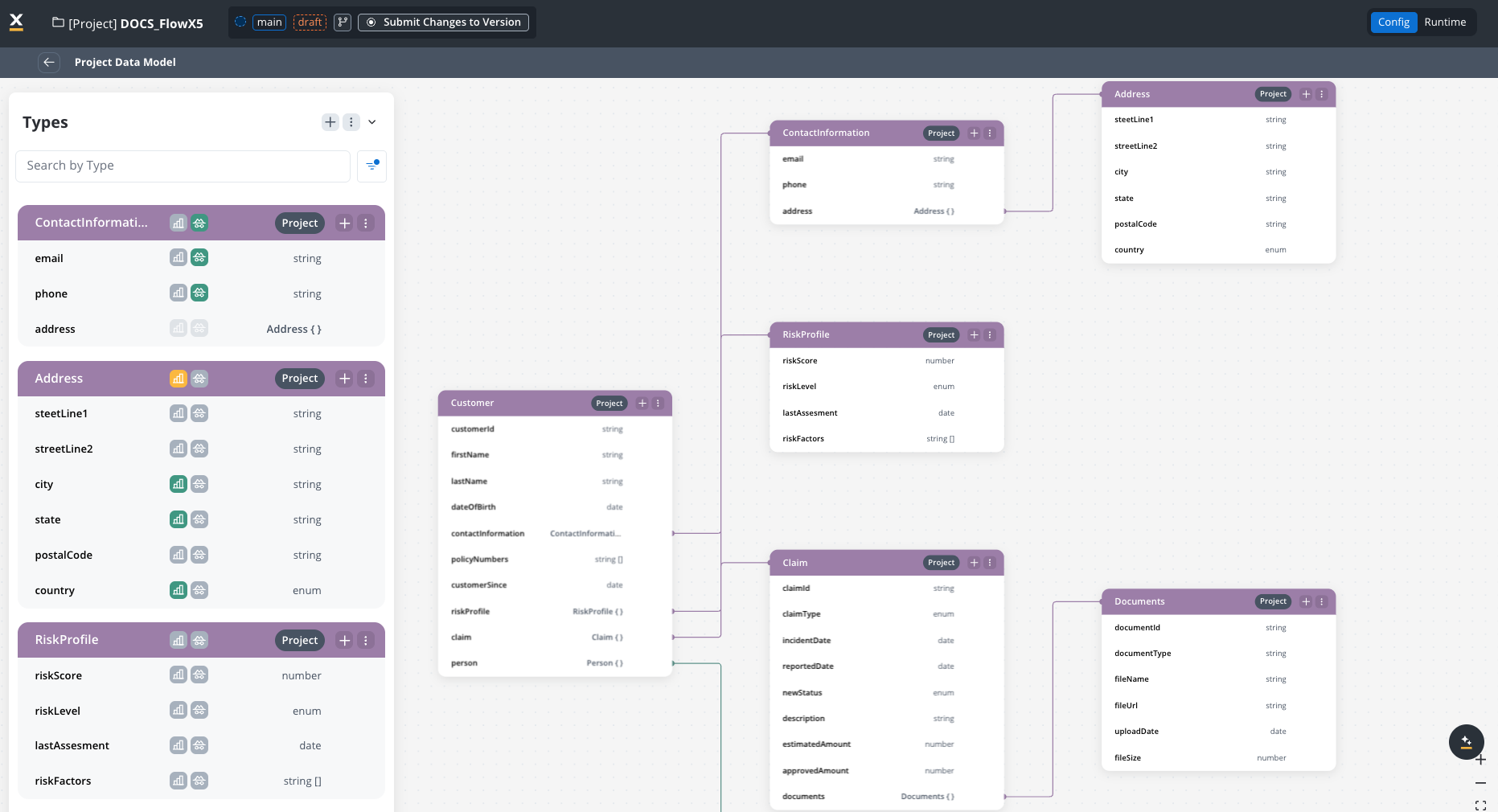
1. **Customer**
* `customerId`: string
* `firstName`: string
* `lastName`: string
* `dateOfBirth`: date
* `contactInformation`: ContactInfo (reference)
* `policyNumbers`: array of string
* `customerSince`: date
* `riskProfile`: RiskProfile (reference)
* *Settings*: Sensitive data = True, Used in reporting = True
2. **ContactInfo**
* `email`: string
* `phone`: string
* `address`: Address (reference)
* *Settings*: Sensitive data = True, Used in reporting = False
3. **Claim**
* `claimId`: string
* `policyNumber`: string (reference to Policy)
* `claimType`: enum \["Auto", "Property", "Medical", "Liability"]
* `incidentDate`: date
* `reportedDate`: date
* `status`: enum \["New", "Under Review", "Pending Documents", "Approved", "Denied", "Closed"]
* `estimatedAmount`: number
* `approvedAmount`: number
* `documents`: array of Document (reference)
* *Settings*: Sensitive data = False, Used in reporting = True
4. **Document**
* `documentId`: string
* `documentType`: string
* `fileName`: string
* `fileUrl`: string
* `uploadDate`: date
* *Settings*: Sensitive data = False, Used in reporting = False
The company created multiple processes using the PDM:
**Root**: ClaimProcess
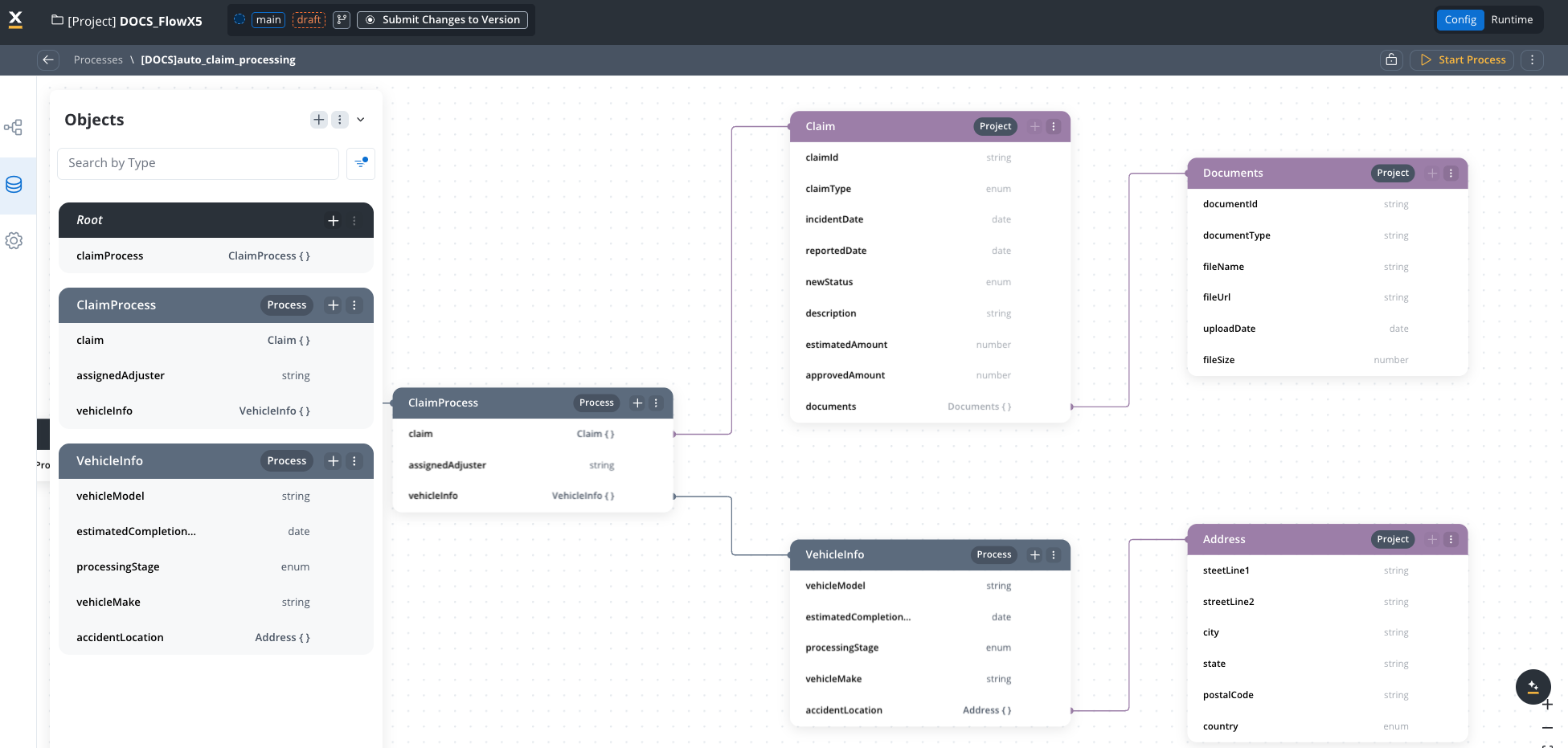
**Data Structure**:
* **ClaimProcess** (Process-specific type)
* `claim`: Claim (reference from PDM)
* `assignedAdjuster`: string
* `vehicleInfo`: AutoClaimDetails (reference)
* `processingStage`: enum \["Initial Review", "Damage Assessment", "Liability Determination", "Settlement Negotiation", "Payment Processing"]
* **AutoClaimDetails** (Process-specific type)
* `vehicleMake`: string
* `vehicleModel`: string
* `vehicleYear`: number
* `vin`: string
* `accidentLocation`: Address (reference from PDM)
* `damageDescription`: string
**Root**: RenewalProcess
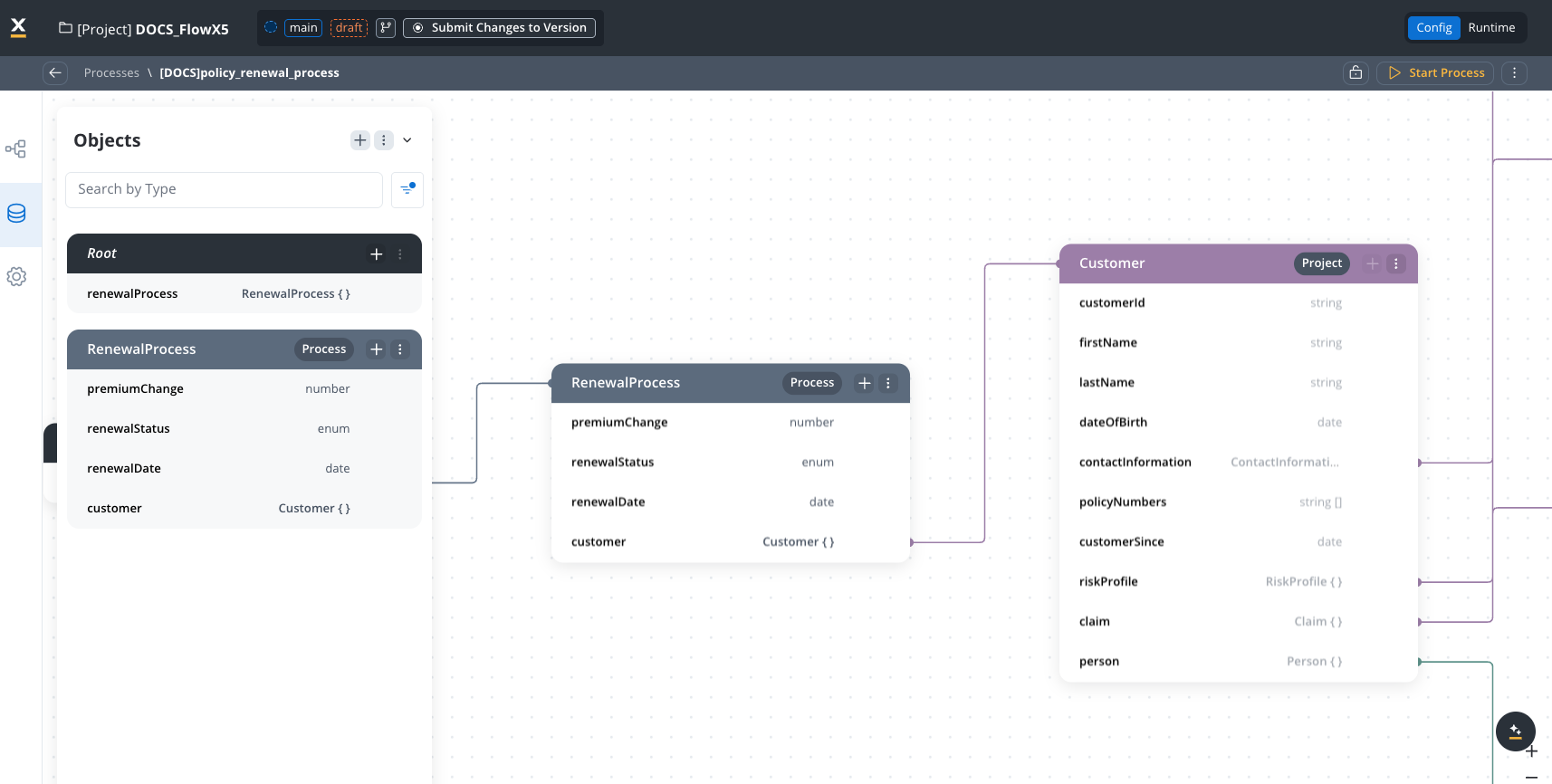
**Data Structure**:
* **RenewalProcess** (Process-specific type)
* `customer`: Customer (reference from PDM)
* `renewalDate`: date
* `premiumChange`: number
* `renewalStatus`: enum \["Pending Review", "Offer Generated", "Offer Sent", "Accepted", "Declined", "Expired"]
1. A configurator adds a new attribute `loyaltyTier` to the Customer data type in the PDM.
2. This attribute is an enum \["Bronze", "Silver", "Gold", "Platinum"].
3. The new attribute automatically propagates to all processes using the Customer data type.
4. The Policy Renewal Process now has access to the customer's loyalty tier without any process-level changes.
 1. A configurator tries to remove the `contactInformation` attribute from the Customer data type.
2. The system displays a warning that the attribute is in use by multiple processes.
3. The configurator is prevented from making the change until the references are resolved.
1. A configurator tries to remove the `contactInformation` attribute from the Customer data type.
2. The system displays a warning that the attribute is in use by multiple processes.
3. The configurator is prevented from making the change until the references are resolved.
 1. The company uses a "Common Insurance Standards" library with standardized data types.
2. After setting the library as a dependency, they can use the library's "Vehicle" data type in their PDM.
3. When the library updates, the configurator can choose to adopt the changes.
This example shows how the Project Data Model:
* **Ensures data consistency**: Core entities like Customer and Policy maintain consistent structures across all processes and resources.
* **Promotes reusability**: Common data types are defined once and reused in in multiple processes, business rules, and other resources.
* **Simplifies changes**: Updates to data types are propagated automatically to all processes.
* **Enforces governance**: Sensitive data is marked at the project level for consistent handling.
* **Allows flexibility**: Process-specific data can extend the PDM while maintaining core data integrity.
## Export and import
You can export and import project data types to transfer them between projects or environments.
### Exporting
To export project data types:
1. Open the context menu on the Project Data Model page
2. Select **Export**
3. The data types are downloaded as a ZIP file
### Importing
To import project data types:
1. Open the context menu on the Project Data Model page
2. Select **Import**
3. Select the ZIP file exported from another project or environment
4. If data types with the same identifiers already exist, a **Review Resource Identifiers Conflicts** modal appears
5. Choose a strategy for each conflicting data type (or use **Apply to all**):
* **Keep both** - imports the data type as a new copy alongside the existing one
* **Replace** - overwrites the existing data type with the imported version
* **Skip this one** - keeps the existing data type unchanged
6. Click **Continue** to complete the import
Importing is only available for work-in-progress (WIP) project versions. You cannot import into a committed version.
***
## Best practices
**Plan before implementation**: Design your Project Data Model before creating processes to ensure consistency.
**Always provide example values**: Example values will be used in data mapping and other operations.
**Use descriptive names**: Choose clear, descriptive names for data types and attributes.
**Document your model**: Add descriptions to data types and attributes for better understanding and for AI agents.
**Consider reusability**: Design data types with reusability in mind across processes and resources.
**Review impact of changes**: Before modifying data types, check their usage across processes.
**Use libraries for cross-project standards**: For data types needed across multiple projects, define them in libraries.
**Maintain regularly**: Periodically review and clean up unused data types.
## Limitations
Custom Data Types from the Project or Library Data Model level cannot be modified at the resource level.
Removing or changing Data Types in use may break resources using it.
Project Data Model becomes read-only after version commitment. This is available for any configuration on commited versions; it applies also for resources data models.
Library builds with breaking changes to Data Types require usage review.
Data Types defined at the Project or Library level can be referenced in the data models of Processes, Reusable Functions, and Reusable UI Templates.
## Troubleshooting
You're trying to edit a data type from the PDM within a process, but the fields are read-only.
Make changes at the project level instead:
1. Navigate to the Project Data Model
2. Locate and edit the data type
3. Save changes
4. The changes will propagate to all processes
You're trying to delete a data type, but receive an error that it's in use.
Either:
* Remove all references to the data type first
* Create a new version of your project to make the change
After changing a data type (e.g., from string to number), references are broken in processes.
Review affected processes and update references manually:
1. Check the warning message that lists affected processes
2. Open each process
3. Update UI templates or other components that referenced the changed attribute
When updating a library dependency, you receive warnings about breaking changes to data types.
Carefully review the changes and their impact before proceeding:
1. Check which data types are affected
2. Review how these types are used in your processes
3. Decide whether to proceed with the update or maintain the current version
***
## Academy courses
Learn attribute types, JSON format, and data modeling fundamentals
Configure dynamic dropdowns and data-driven UI from process data
**Academy playground** — explore the [**DataModel101**](https://designer-workshop-51x.playground.flowxai.dev/workspace/00000000-0000-0000-0000-000000000001/projects/248681ec-3ba4-40e1-95ce-60a0856280ff/config/a38b8942-8eaf-41aa-8e80-e32d74bc9273/processes) project for hands-on data modeling examples.
1. The company uses a "Common Insurance Standards" library with standardized data types.
2. After setting the library as a dependency, they can use the library's "Vehicle" data type in their PDM.
3. When the library updates, the configurator can choose to adopt the changes.
This example shows how the Project Data Model:
* **Ensures data consistency**: Core entities like Customer and Policy maintain consistent structures across all processes and resources.
* **Promotes reusability**: Common data types are defined once and reused in in multiple processes, business rules, and other resources.
* **Simplifies changes**: Updates to data types are propagated automatically to all processes.
* **Enforces governance**: Sensitive data is marked at the project level for consistent handling.
* **Allows flexibility**: Process-specific data can extend the PDM while maintaining core data integrity.
## Export and import
You can export and import project data types to transfer them between projects or environments.
### Exporting
To export project data types:
1. Open the context menu on the Project Data Model page
2. Select **Export**
3. The data types are downloaded as a ZIP file
### Importing
To import project data types:
1. Open the context menu on the Project Data Model page
2. Select **Import**
3. Select the ZIP file exported from another project or environment
4. If data types with the same identifiers already exist, a **Review Resource Identifiers Conflicts** modal appears
5. Choose a strategy for each conflicting data type (or use **Apply to all**):
* **Keep both** - imports the data type as a new copy alongside the existing one
* **Replace** - overwrites the existing data type with the imported version
* **Skip this one** - keeps the existing data type unchanged
6. Click **Continue** to complete the import
Importing is only available for work-in-progress (WIP) project versions. You cannot import into a committed version.
***
## Best practices
**Plan before implementation**: Design your Project Data Model before creating processes to ensure consistency.
**Always provide example values**: Example values will be used in data mapping and other operations.
**Use descriptive names**: Choose clear, descriptive names for data types and attributes.
**Document your model**: Add descriptions to data types and attributes for better understanding and for AI agents.
**Consider reusability**: Design data types with reusability in mind across processes and resources.
**Review impact of changes**: Before modifying data types, check their usage across processes.
**Use libraries for cross-project standards**: For data types needed across multiple projects, define them in libraries.
**Maintain regularly**: Periodically review and clean up unused data types.
## Limitations
Custom Data Types from the Project or Library Data Model level cannot be modified at the resource level.
Removing or changing Data Types in use may break resources using it.
Project Data Model becomes read-only after version commitment. This is available for any configuration on commited versions; it applies also for resources data models.
Library builds with breaking changes to Data Types require usage review.
Data Types defined at the Project or Library level can be referenced in the data models of Processes, Reusable Functions, and Reusable UI Templates.
## Troubleshooting
You're trying to edit a data type from the PDM within a process, but the fields are read-only.
Make changes at the project level instead:
1. Navigate to the Project Data Model
2. Locate and edit the data type
3. Save changes
4. The changes will propagate to all processes
You're trying to delete a data type, but receive an error that it's in use.
Either:
* Remove all references to the data type first
* Create a new version of your project to make the change
After changing a data type (e.g., from string to number), references are broken in processes.
Review affected processes and update references manually:
1. Check the warning message that lists affected processes
2. Open each process
3. Update UI templates or other components that referenced the changed attribute
When updating a library dependency, you receive warnings about breaking changes to data types.
Carefully review the changes and their impact before proceeding:
1. Check which data types are affected
2. Review how these types are used in your processes
3. Decide whether to proceed with the update or maintain the current version
***
## Academy courses
Learn attribute types, JSON format, and data modeling fundamentals
Configure dynamic dropdowns and data-driven UI from process data
**Academy playground** — explore the [**DataModel101**](https://designer-workshop-51x.playground.flowxai.dev/workspace/00000000-0000-0000-0000-000000000001/projects/248681ec-3ba4-40e1-95ce-60a0856280ff/config/a38b8942-8eaf-41aa-8e80-e32d74bc9273/processes) project for hands-on data modeling examples.