> ## Documentation Index
> Fetch the complete documentation index at: https://docs.flowx.ai/llms.txt
> Use this file to discover all available pages before exploring further.
# Permission-based expressions
> Control UI element visibility and interaction based on user roles, usernames, and process data for granular access control.
Control what users see and edit within the same process instance based on their roles, usernames, or process data. One process definition automatically adapts to different users, providing role-specific interfaces and access control.
## Overview
Permission-based expressions enable you to:
* **Customize UI per role**: Different roles see different UI elements within the same process
* **Enable read-only access**: Users view and navigate process instances without making changes
* **Support concurrent work**: Multiple users with different permissions work on the same instance
* **Adapt dynamically**: UI changes in real-time based on user permissions and process data
**Use case examples**: A loan application where applicants see only input fields, reviewers see approval buttons, and managers see all data but in read-only mode. One process definition serves all roles.
## Prerequisites
Before configuring permission-based expressions:
* Process definition created with swimlanes configured
* User roles defined in the platform
* **Allow multiple executors** enabled at the swimlane level (in process Settings → Permissions tab)
* Understanding of your access control requirements
## Permission capabilities
### Partial editing
Tailor UI element access for specific users, roles, or usernames within the same swimlane:
* **Role-based control**: Different roles see different UI elements
* **Username-specific access**: Individual users get customized interfaces
* **Data-driven permissions**: Process data determines what users can access
### Read-only access
Enable users to view and navigate process instances without modification:
* Users can navigate through user tasks and view data
* All input fields and buttons are non-interactive
* Hide and disable conditions continue to apply
* Navigation between tasks remains available
**Configuration required**: Enable "Allow Read-Only Process Configuration" in process General settings, then assign **View** permission to appropriate roles at the swimlane level.
### Multiple executors
Multiple users with different roles work concurrently on the same process instance within a swimlane:
* Different permission levels (Execute, Self-assign, View) assigned to different roles
* Each user sees their role-specific interface
* Changes are synchronized across all active users
* Essential for collaborative workflows with varied responsibilities
## How permissions work
Permission-based expressions combine three key elements to control UI behavior:
### 1. Swimlane role configuration
Configure base permissions at the swimlane level:
* Assign roles (Execute, Self-assign, View) to user groups
* Enable **Allow multiple executors** to activate permission-based expressions
* Set minimum access level for each role
### 2. UI element conditions
Apply conditions to individual UI components to control visibility and interaction:
**Hide condition**
* Completely removes the UI element from the interface
* Available for all component types
* Element doesn't occupy any space in the layout
**Disable condition**
* Shows the element but prevents user interaction
* Available for forms, form elements, and buttons
* Element appears grayed out or visually disabled
### 3. Condition precedence
When both hide and disable conditions exist on the same element, **disable takes precedence**. The element will be shown in a disabled state rather than hidden.
## Configuring permission-based expressions
Follow these steps to set up permission-based UI control for your process:
Navigate to **Process Settings → Permissions** tab and enable **Allow multiple executors** for your swimlane.
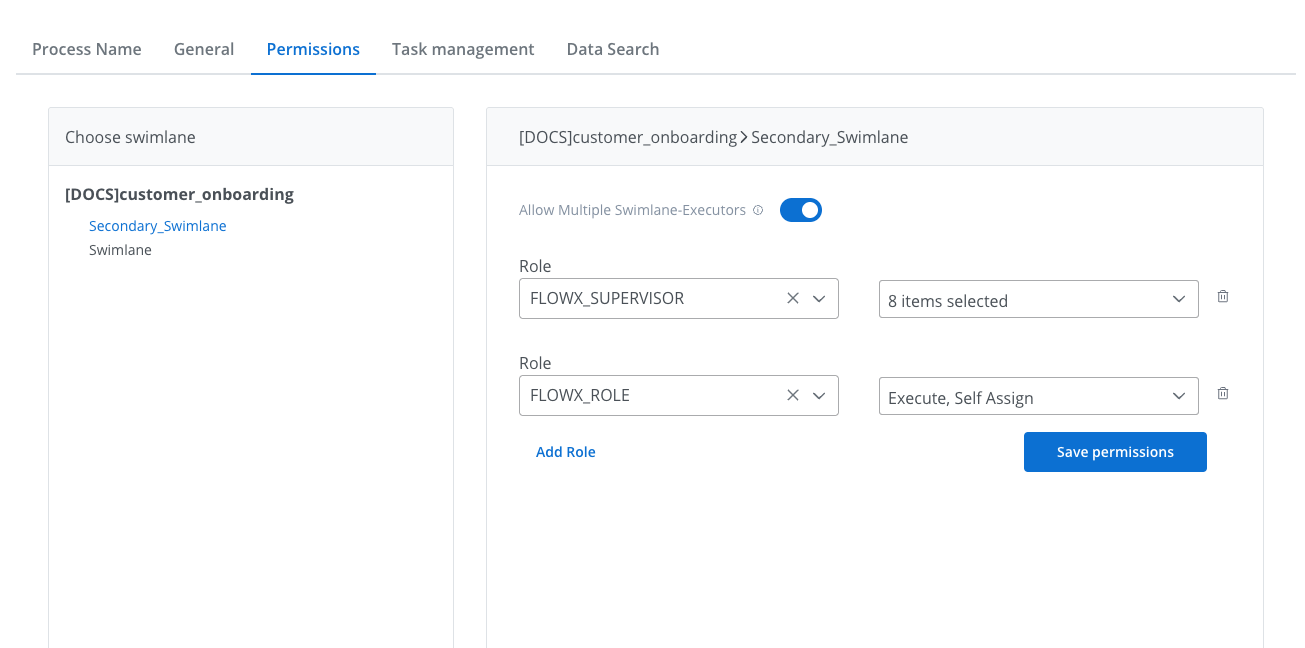
Configure role permissions (Execute, Self-assign, View) for each role that will access this swimlane.
Navigate to the **UI Designer** tab and select the component you want to configure with permission-based visibility or interaction controls.
In the component properties panel, expand the **Permissions** section.
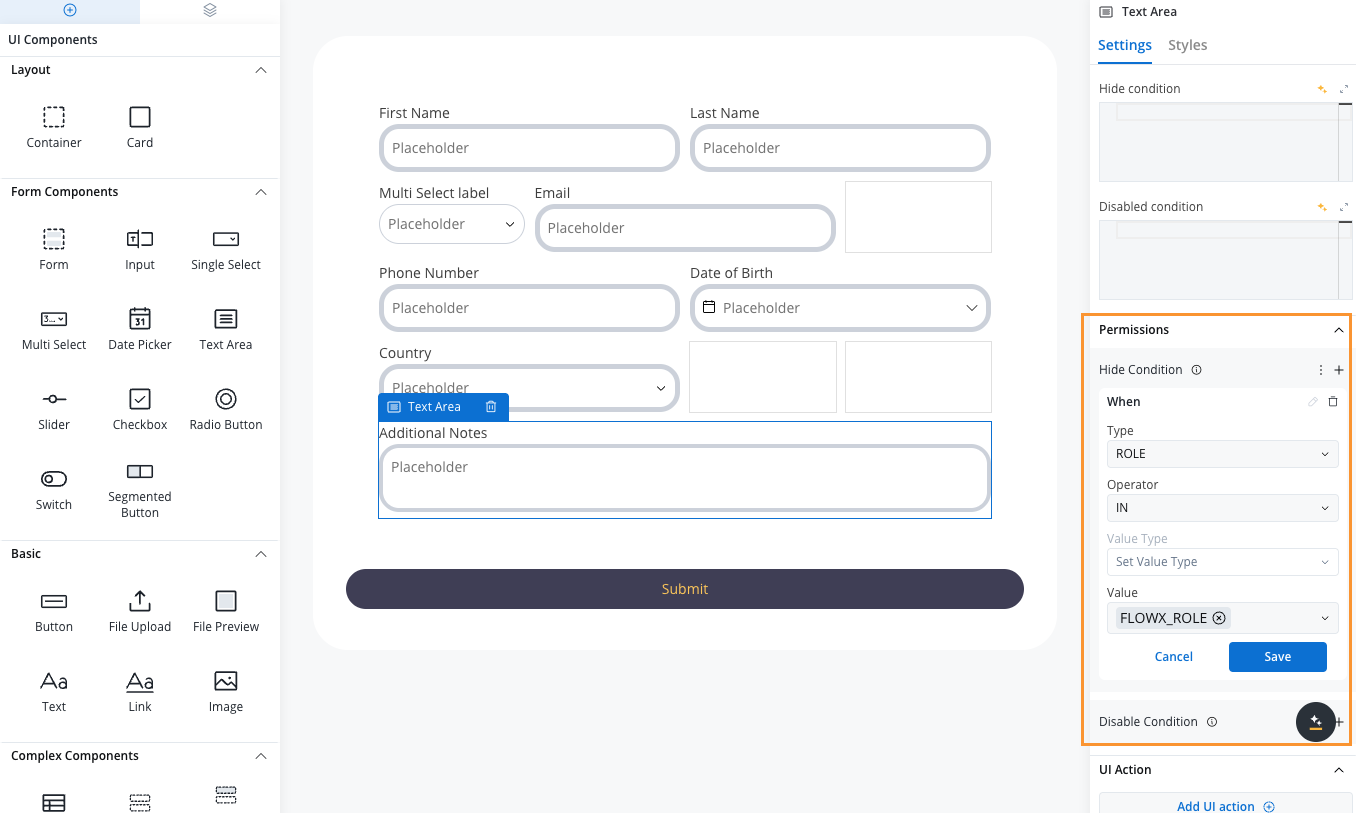
Click the **+** button next to your desired condition type:
* **Hide Condition**: Available for all component types
* **Disable Condition**: Available for forms, form elements, and buttons
Define the permission logic using these parameters:
**Type**: Who the condition applies to
* **USERNAME**: Target specific usernames
* **ROLE**: Target users with specific roles
**Operator**: How to evaluate the condition
* **IN**: Condition applies when user matches the value
* **NOT\_IN**: Condition applies when user does NOT match the value
**Value Type**: Where permission data comes from
* **SWIMLANE\_OWNER**: Current swimlane owner (automatic, no value needed)
* **PROCESS\_DATA**: Reference data stored in the process instance
* **CONFIGURATION\_SWIMLANE\_ROLE**: Use roles configured at swimlane level
**Value**: The actual permission data (depends on Value Type)
* **PROCESS\_DATA**: Process data keypath (e.g., `${app.client.userList}`)
* **CONFIGURATION\_SWIMLANE\_ROLE**: Array of role names (e.g., `["ROLE_1", "ROLE_2"]`)
* **SWIMLANE\_OWNER**: Not applicable (determined automatically)
Use `CONFIGURATION_SWIMLANE_ROLE` for static role-based permissions. Use `PROCESS_DATA` for dynamic, context-dependent permissions determined during process execution.
Click **Save** to apply your permission-based expression. Test the behavior by accessing the process with different user roles.
## Common expression patterns
Use these examples as templates for typical permission scenarios:
### Role-based access control
Hide or disable elements for specific roles configured at the swimlane level:
```javascript theme={"system"}
{
"type": "ROLE",
"operator": "IN",
"valueType": "CONFIGURATION_SWIMLANE_ROLE",
"value": ["ROLE_MANAGER", "ROLE_SUPERVISOR"]
}
```
**Use case**: Show approval buttons only to managers and supervisors.
### Dynamic username lists
Control access based on usernames stored in process data:
```javascript theme={"system"}
{
"type": "USERNAME",
"operator": "IN",
"valueType": "PROCESS_DATA",
"value": ["${app.client.authorizedUsers}"]
}
```
**Use case**: Display sensitive data only to users listed in an authorized users array populated during process execution.
When using `PROCESS_DATA`, ensure data is mapped to the keypath **before** users reach the user task. Arrays must contain username or role strings.
### Swimlane owner restrictions
Limit access to the current swimlane owner only:
```javascript theme={"system"}
{
"type": "USERNAME",
"operator": "IN",
"valueType": "SWIMLANE_OWNER"
}
```
**Use case**: Allow only the task owner to edit specific fields, while other team members can view but not modify.
### Exclusion patterns
Hide elements from specific users or roles using `NOT_IN`:
```javascript theme={"system"}
{
"type": "ROLE",
"operator": "NOT_IN",
"valueType": "CONFIGURATION_SWIMLANE_ROLE",
"value": ["ROLE_EXTERNAL_USER", "ROLE_VIEWER"]
}
```
**Use case**: Hide internal notes or administrative actions from external users and read-only viewers.
## Advanced: Cross-swimlane references
### Limitation
`SWIMLANE_OWNER` references only the owner of the **current swimlane**. You cannot directly reference owners from other swimlanes in the same process.
### Workaround: Store owners in process data
To reference users from other swimlanes, explicitly store their information in process data during swimlane transitions:
```javascript Store swimlane owners during process execution theme={"system"}
// Map during swimlane transitions or process start
{
"swimlaneOwners": {
"frontOffice": "john.doe@company.com",
"backOffice": "jane.smith@company.com",
"supervisor": "manager@company.com"
}
}
```
```javascript Reference stored swimlane owner theme={"system"}
// Use in permission expression on any swimlane
{
"type": "USERNAME",
"operator": "IN",
"valueType": "PROCESS_DATA",
"value": ["${app.swimlaneOwners.frontOffice}"]
}
```
Cross-swimlane owner references require explicit data mapping. Design your process to capture user information during swimlane transitions or use business rules to populate owner data.
**Implementation approach**:
1. Add a Business Rule node at the start of each swimlane
2. Capture the current user's username
3. Store it in your process data structure (e.g., `swimlaneOwners.{swimlaneName}`)
4. Reference this stored data in permission expressions on other swimlanes
## Best practices
Follow these guidelines for effective permission-based expressions:
**Design principles**:
* **Start simple**: Begin with role-based permissions before adding complex data-driven logic
* **Test thoroughly**: Validate permission behavior with all user roles before deployment
* **Document your logic**: Add comments in your process explaining complex permission patterns
* **Minimize conditions**: Too many conditions can make UI behavior unpredictable and hard to maintain
* **Use consistent naming**: Follow a standard naming convention for roles and process data keys
* **Plan for edge cases**: Consider what happens when process data is missing or null
* **Performance consideration**: Complex permission expressions on many components can impact rendering performance
**Common pitfalls to avoid**:
* Don't create circular dependencies between hide and disable conditions
* Don't forget to test with users who have no assigned roles
* Don't rely on process data that might not be populated yet
* Don't use permission expressions as a substitute for proper swimlane role configuration
## Related resources
Set up user roles and permissions at the platform level
Learn about swimlane configuration and role assignment
Design user interfaces with permission-aware components
Complete guide to process definition configuration