> ## Documentation Index
> Fetch the complete documentation index at: https://docs.flowx.ai/llms.txt
> Use this file to discover all available pages before exploring further.
# Navigation best practices
> Guidelines for choosing the right navigation patterns, understanding valid combinations, and avoiding common misconfigurations in FlowX process design.
## Choosing the right navigation pattern
Picking the correct navigation area type is one of the most impactful decisions in process design. A wrong choice leads to broken flows, inconsistent behavior across platforms, and poor user experience.
Use this guide to decide **when** to use each navigation type and **how** to combine them correctly.
***
## Before you start
The foundational principles and per-rule classification (tier, platform, why, alternative) live on a dedicated page. Read them first, then come back here for practical decisions on how to combine patterns.
Guiding principles, modal rules, and subprocess rules with platform tags and examples.
***
## Page vs modal: the core decision
The most common mistake is using a modal when a page is needed, or chaining modals together. Whether modal chaining is acceptable depends on the platform — see [Chaining modals](./design-principles#chaining-modals-depends-on-platform-and-on-whether-subprocesses-are-involved) for the full rule. Here is how to decide between page and modal:
* The user needs to **complete a full step** in a flow (data entry, review, confirmation)
* The content is **part of the main journey** and not an interruption
* The user might need to **navigate back** to this screen
* The flow involves **multiple sequential tasks** (use Wizard navigation type)
* The content is **complex or long** (forms, tables, document reviews)
**Examples:** Personal data form, account setup steps, document upload, application review
FlowX strongly recommends the use of modals only when you need to temporarily interrupt the normal (root) flow of the app, to present a focused task or message to the user, requiring the user to interact with it before returning to the main flow.
* The user needs to handle a **brief, focused interruption** before returning to the main flow
* The task is **self-contained** and resolves with a single action (confirm, dismiss, acknowledge)
* You need to show a **confirmation dialog** ("Are you sure?")
* You need to display **supplementary information** without losing context (terms & conditions, help text)
**Examples:** Confirmation dialogs, terms acceptance, single-field verification-code input, informational pop-ups
### Quick decision flowchart
Ask yourself these questions in order:
If the user will **do one thing and return** to where they were, consider a **Modal**.
If the user is **progressing to a new step** in the flow, use a **Page** (or Step in a Stepper).
If finishing a task in a modal leads to navigating to another screen, and not just dismissing the modal, then the modal should be a root navigation area.
This is the most common mistake. If your modal opens another modal or navigates to a page after completion, it should not be nested inside another navigation area.
If the screen has **multiple form fields, validation logic, or scrollable content**, use a **Page**.
Modals work best for **simple, focused interactions** (1-3 fields maximum).
Modals have **no back navigation**. If users might need to return to this screen from a later step, it must be a **Page** within a Stepper or Wizard.
***
## Modal rules
For the full set of modal rules (tier, platform, why, and alternatives), see [Process design principles → Modal design](./design-principles#modal-design).
A modal should not contain child navigation areas. It can contain user tasks and trigger workflows (including via On Load events), but it is not a container for pages, steppers, or other navigation structures.
### What "child navigation areas" means
In the Designer's **Navigation view**, you build a tree of navigation areas. **Child navigation areas** are areas nested inside a parent. Here is what a correct vs incorrect navigation tree looks like:
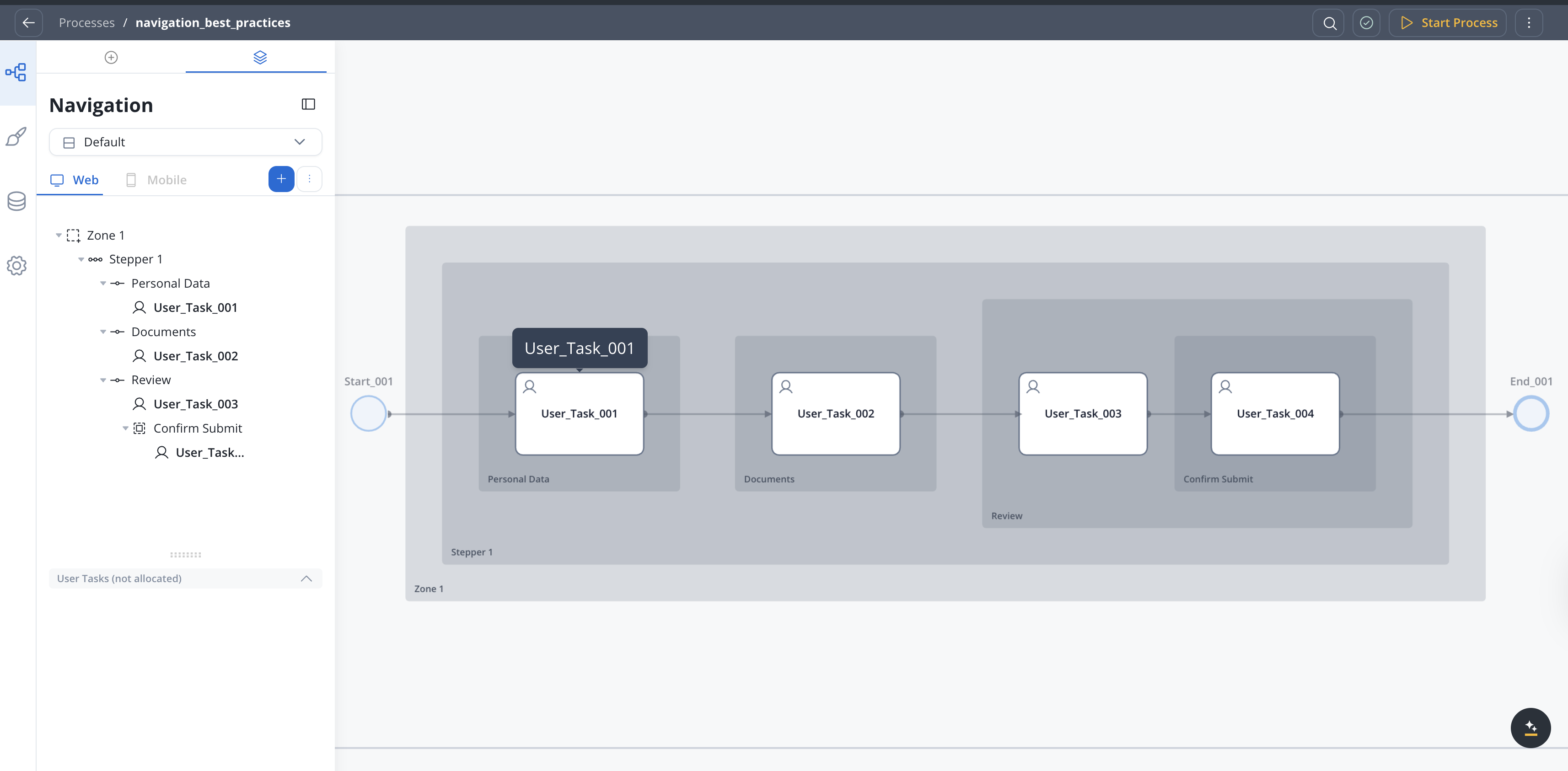
The modal sits under a Step as a **leaf** — it contains user tasks but no child navigation areas.
```
📂 Zone 1
└── 📋 Stepper 1
├── ─○ Step - "Personal Data"
├── ─○ Step - "Documents"
└── ─○ Step - "Review"
└── 🪟 Modal - "Confirm Submit" ← leaf, no child areas
```
The modal is triggered as a brief interruption (e.g., "Are you sure?") and dismissed to return to the step.
Here the modal is used as a **navigation container** with areas nested inside it. The Designer allows this, but it causes rendering and dismiss behavior issues.
```
🪟 Modal - "Verification flow"
└── 📂 Zone ❌ zone nested inside modal
└── 📋 Stepper
├── ─○ Step - "Enter code" ❌ flow steps inside modal
└── ─○ Step - "Verify code"
```
Another common mistake: using multiple separate Modal navigation areas as sequential flow steps:
```
📄 Page - "Enter Phone"
🪟 Modal - "Sending..." ❌ modal used as loader
🪟 Modal - "Enter code" ❌ second separate modal in sequence
📄 Page - "Confirmation"
```
For multi-step interactions that must stay inside a modal on mobile, use **one** Modal navigation area with multiple User Tasks inside, not two separate Modal areas. See [Chaining modals](./design-principles#chaining-modals-depends-on-platform-and-on-whether-subprocesses-are-involved).
**Rule of thumb:** A modal can contain user tasks, but never other navigation areas. Don't nest pages, steppers, tabs, or other modals inside it.
### How modals fit in the navigation flow
A modal should overlay the current screen as a **temporary interruption** and return to the same context when dismissed:
```
Main flow: [Page A] → [Page B] → [Page C]
↓ ↑
[Modal] ← brief interruption, returns to Page B or advances to Page C
```
Do **not** chain separate modals as sequential steps in the navigation:
```
❌ [Page] → [Modal A] → [Modal B] → [Page] ← two separate Modal navigation areas
❌ [Page] → [Modal] → [Page] → [Modal] ← modals are not steps in a flow
```
What actually happens depends on the platform:
* **Web:** opening a second modal replaces the first in the DOM. You cannot return to the first modal. If that loss of back-navigation is acceptable, it is a valid (though discouraged) design.
* **Mobile:** the OS auto-pops the current modal on forward navigation, so two separate modals cannot coexist. **For multi-step interactions inside a modal**, put multiple User Tasks inside a **single Modal navigation area** — mobile renders each User Task as a linked screen within the same modal with a built-in back button. This is the recommended pattern, not a workaround.
See [Chaining modals](./design-principles#chaining-modals-depends-on-platform-and-on-whether-subprocesses-are-involved) and [Max modal depth is 1](./design-principles#max-modal-depth-is-1) for the canonical rules.
In **UI Flows**, modals are navigation areas that you navigate to using the **Navigate To** action. The modal adds a `modalId` to the URL, which supports deep linking and survives page refresh. Use the **Dismiss modal** option or browser back to close.
***
## Valid navigation combinations
### Navigation area nesting reference
The table below shows what the Designer allows you to add as child areas, and what you should actually use.
| Parent area | Designer allows | Recommended use |
| ----------------- | ------------------------------------------------------- | ----------------------------------------------------------------------------------------------------------------------------------------------------------------- |
| **Root** (blue +) | Stepper, Tab Bar, Page, Modal, Zone, Parent Process | Web: start with Zone for header/footer layouts, or Page/Stepper for simpler flows. Mobile: Tab Bar must be root for multi-section apps; otherwise Page or Stepper |
| **Zone** | Zone, Stepper, Tab Bar, User Tasks, Embedded Subprocess | Stepper for multi-step flows, Tab Bar for section-based layouts |
| **Stepper** | Step | Add one Step per stage in the flow |
| **Step** | User Tasks, Embedded Subprocess | One User Task per Step on mobile (1 UT = 1 screen) |
| **Tab Bar** | Tab | One Tab per section |
| **Tab** | Zone, Modal, Tab Bar, User Tasks, Embedded Subprocess | Zone or Tab Bar for complex tab content (web); on mobile, prefer User Tasks or Modal |
| **Page** | Modal, Zone, Tab Bar, User Tasks, Embedded Subprocess | Modal for brief interruptions only |
| **Modal** | Zone, Tab Bar, User Tasks, Embedded Subprocess | **Don't nest navigation areas under modals** — treat as leaf |
The Designer applies the same allowed-children rules across web and mobile for Process navigation. Platform differences appear at runtime in the mobile renderers.
**Mobile-specific behavior to design around:**
* **Tab Bar must be the root navigation area on mobile.** If it appears anywhere else, the renderer will not behave correctly.
* **Zone is not rendered on mobile.** On web it gives header/footer layouts; on mobile it is treated as a Page. Plan for this.
* **One User Task per Page, Step, Tab, or Modal on mobile.** Mobile renders 1 UT as 1 screen, so multiple UTs under the same area is a misconfiguration.
* **Nested navigation areas inside a Modal** are unsupported on mobile (iOS does not render them; Android renders them but the user experience is unpredictable). Treat the modal as a leaf.
### Patterns that work
Zone (header/footer) containing a Stepper with Steps. Each Step holds user tasks with form content.
**Use for:** multi-step flows with persistent header/footer on web. Not available on mobile, where Zone is not rendered (treated as a Page).
Stepper with Steps for each stage. One Step contains a Modal for a brief confirmation before submission.
**Use for:** forms that need an "Are you sure?" prompt before submit.
Single Page area with Wizard navigation type. Displays user tasks one at a time with Next/Back buttons.
**Use for:** sequential data entry without visible step indicators on web. Not available on mobile (Wizard navigation does not exist).
Tab Bar at root level with Tabs for each section. Each Tab can contain its own content and actions.
**Use for:** Multi-section apps where users switch between areas.
### Patterns that break
Two separate Modal navigation areas chained sequentially. On web the second replaces the first in the DOM; on mobile the OS auto-pops the first.
**Fix on web:** use Stepper steps or Wizard pages. **Fix on mobile:** put multiple User Tasks inside a single Modal navigation area (internal modal navigation).
Page → Modal → Page where the modal is a step in the journey, not an interruption.
**Fix:** Replace the modal with a Page or Step.
Opening a modal to show a loading spinner while a backend operation completes.
**Fix:** Use the loading state properties on UI components (loader overlays, skeleton screens).
Zone → Stepper → Stepper → Stepper (more than 2 levels of stepper nesting).
**Fix:** Break the flow into separate processes or subprocesses.
A process cycle that loops back into a modal already in the current navigation path.
**Fix:** Resolve the modal before re-entering the loop, or replace the modal with a Page or Step.
One event that both dismisses the current modal and opens another.
**Fix:** Split into two user-triggered actions, or replace with a Page/Step transition.
A modal user task that triggers a Call Activity. The modal is dismissed and not restored when the Call Activity completes.
**Fix:** Resolve the modal first, then transition to the Call Activity from a Page or Step.
A modal that closes on a timer, backend event, or automatic flow progression rather than user interaction.
**Fix:** Require an explicit user action (confirm, cancel, dismiss button, backdrop click) to close the modal.
***
## Common scenarios
### Phone verification with a sent code
Use a **Stepper** or **Page with Wizard** navigation:
1. **Step 1 (Page):** user enters phone number
2. **Step 2 (Page):** user enters the verification code with a resend option
3. **Step 3 (Page):** confirmation, next step in the flow
Each step is a proper page with back navigation support and clear progress indication.
❌ Page (enter phone) → Modal (show "sending code" loader) → Modal (enter code) → Page (confirmation)
This chains modals as flow steps and uses a modal as a loader. It will not work correctly.
### Confirmation before submission
Use a **Modal** for the confirmation dialog:
1. User completes the form on a **Page**
2. User clicks **Submit**
3. A **Modal** appears: "Are you sure you want to submit?"
4. User confirms → modal dismisses → process continues
The modal is a brief interruption with a single action.
❌ Navigating to a separate confirmation **Page** for a simple yes/no question wastes a navigation step.
❌ Using a modal that then opens *another* modal for success/error feedback.
### Terms and conditions
Use a **dismissable Modal**:
1. User reaches a step that requires accepting terms
2. User clicks "View Terms" → a **Modal** opens with the full text
3. User reads and dismisses the modal
4. User checks the acceptance checkbox on the **Page** and continues
Configure the modal as dismissable (backdrop click or close button).
❌ Making the terms page a full navigation step in the Stepper, forcing the user through it sequentially.
❌ Embedding long scrollable legal text directly in the form page.
### Multi-section dashboard
Use a **Tab Bar** with **Pages** for each section:
* Tab 1: Account overview (Page)
* Tab 2: Transaction history (Page)
* Tab 3: Settings (Page with Wizard if multi-step)
On mobile, the Tab Bar must be the root navigation area.
❌ Using modals to show different sections.
❌ Nesting Tab Bars more than 2 levels deep.
***
## Navigation selection guide
| Scenario | Navigation type | Why |
| ---------------------------------------- | --------------------------- | ----------------------------------------------------- |
| Multi-step form with progress | **Stepper** | Users see where they are and can go back |
| Sequential tasks without step indicators | **Page (Wizard)** | Guided flow with Next/Back, no visible steps |
| All fields on one screen | **Page (Single page form)** | Parallel display, use cards to group sections |
| Brief confirmation or acknowledgment | **Modal** | Quick interruption, single action, dismiss and return |
| Supplementary info (help, terms) | **Modal (dismissable)** | Read-only content that doesn't affect the main flow |
| Multi-section app | **Tab Bar** | Parallel access to different areas |
| Persistent header/footer (web) | **Zone** | Layout container for branding and global actions |
***
## Related resources
Configuration reference for all navigation area types.
General best practices for building interfaces.