> ## Documentation Index
> Fetch the complete documentation index at: https://docs.flowx.ai/llms.txt
> Use this file to discover all available pages before exploring further.
# Data mappers
> Visually map data transfers between components while maintaining full backward compatibility.
## Overview
Use Data Mappers to define how data flows between components. Add JavaScript transformations for complex scenarios.
### Key concepts
Send data to another component to trigger execution
* Parent processes
* Integration flows
* Business rules
Receive input from a source component to execute
* Subprocesses
* Workflows
* Business rules
### Parameters & variables
Configure parameters and variables on the **Data Model** tab at process level.
**Input Parameters**: Define the structure your component expects to receive for successful execution.
**Input Variables**: Send actual data from source to destination component for execution.
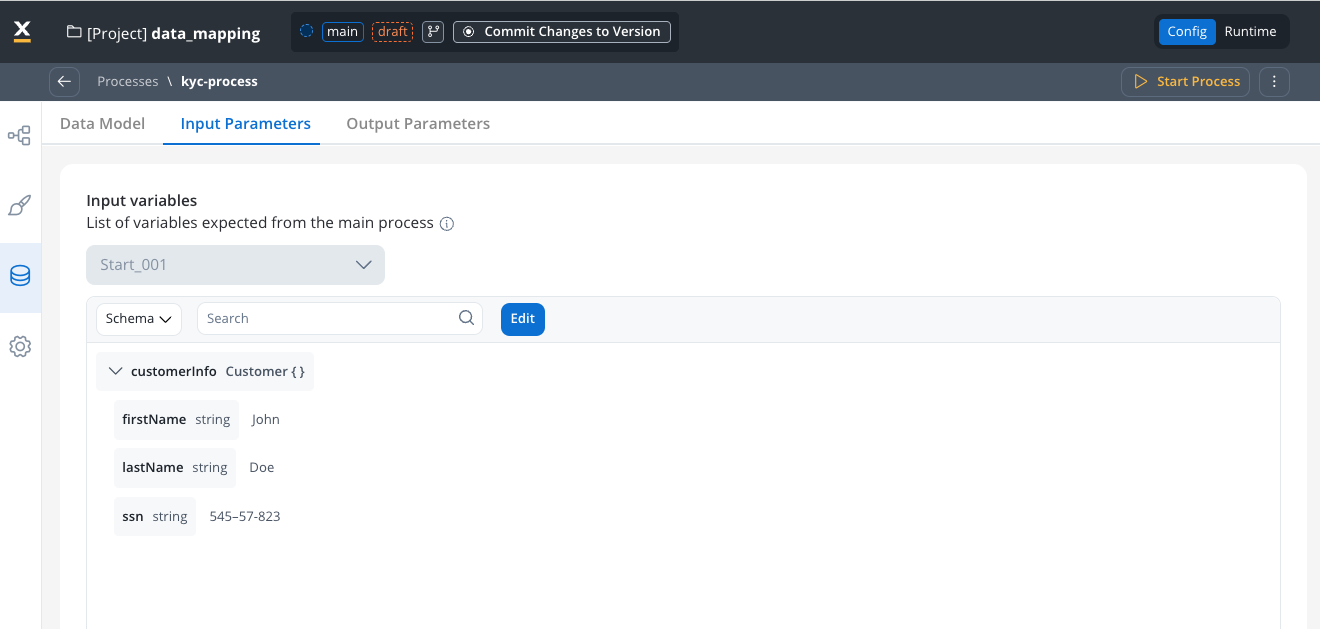
**Output Parameters**: Define the structure your component returns to the source component after execution.
**Output Variables**: Return actual data from destination to source component after execution.
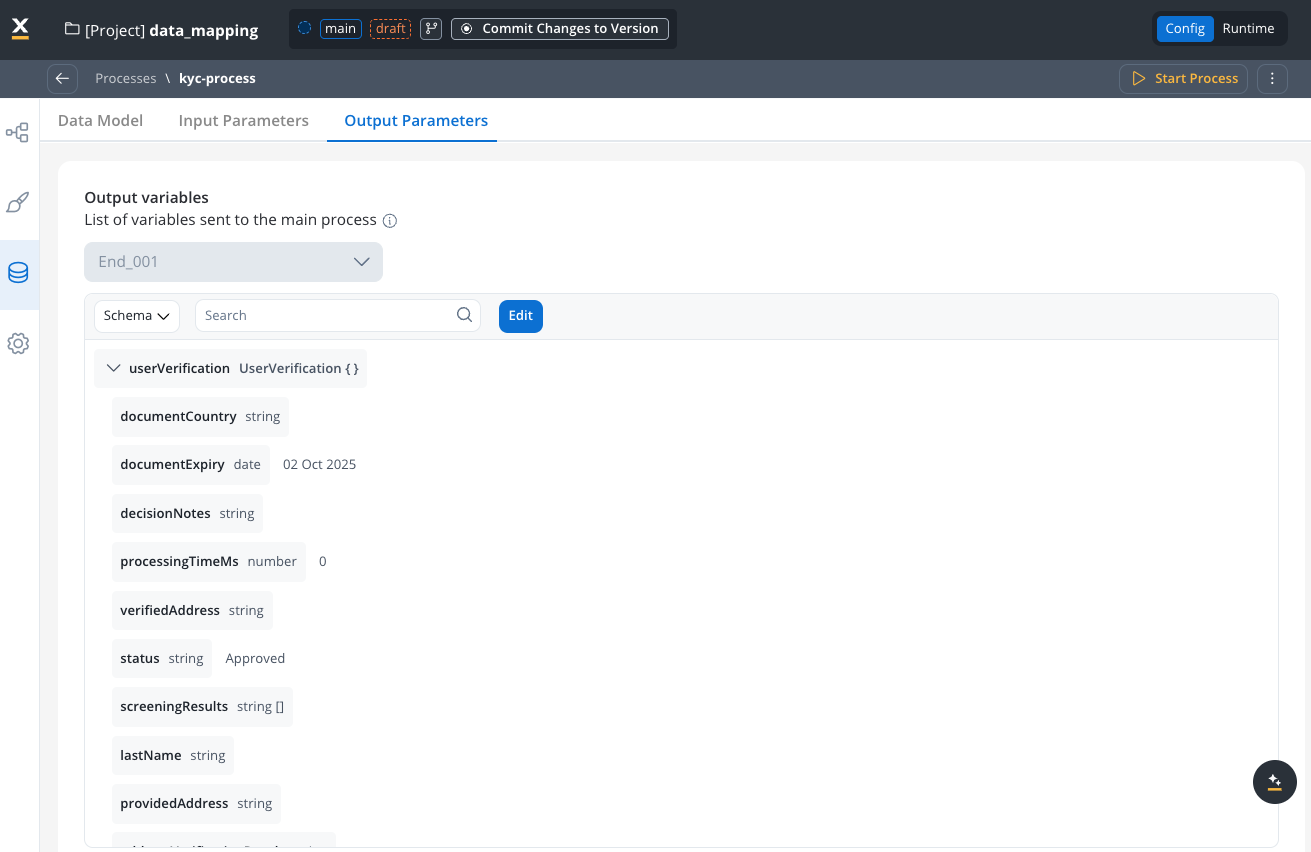
#### Parameter types by origin
Established before the mapping action (e.g., input of a subprocess or workflow). These typically belong to **destination components** with fixed requirements.
Defined during the mapping process. Associated with **source components** that specify where destination component data comes from.
## Prerequisites
Plan your Data Model carefully before implementing Data Mappers. Proper setup ensures success.
### Data Model hierarchy
Understand the data model hierarchy to implement Data Mappers effectively:
**Organization Level**: Define reusable data structures (e.g., "customer", "client type") that you can share across all processes and workflows within your project.
**Enterprise Level**: Create organization-wide standardized data types that you can reuse across multiple projects by including the library as a dependency.
**Process Level**: Define process-specific data structures while leveraging reusable components from project and library levels.
### Setup requirements
**Critical**: Define your project data model before creating processes. This enables:
* Reusability across processes and workflows
* Consistent data structures
* Improved error prevention
* Enhanced mapping experience
Add meaningful example values to your data model attributes. This helps you:
* Visualize attribute meaning and expected values
* Test without separate mock data
* Improve your configuration experience
Design data structures that can be shared across multiple components:
* Customer information structures
* Common business entities
* Standardized response formats
## Configuration
### Setting up process parameters
* Open the process you want to configure
* Navigate to the **Data Model**
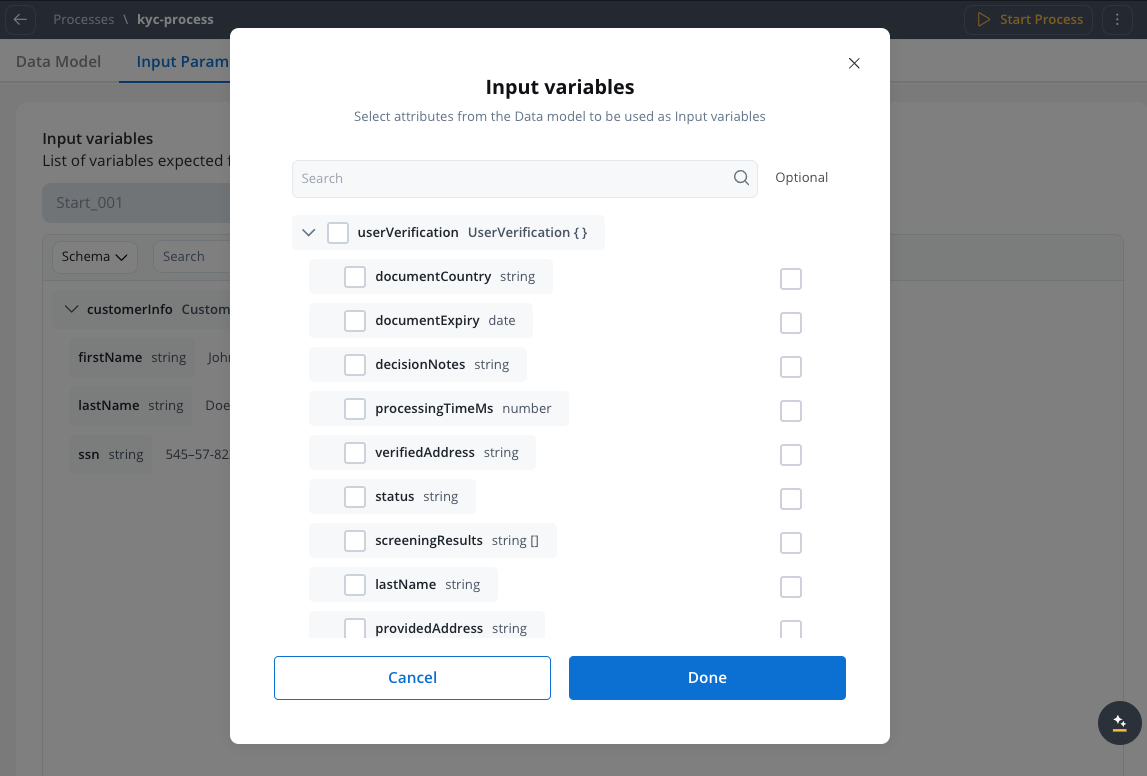
* Select the **Input parameters** tab and click "Define parameters"
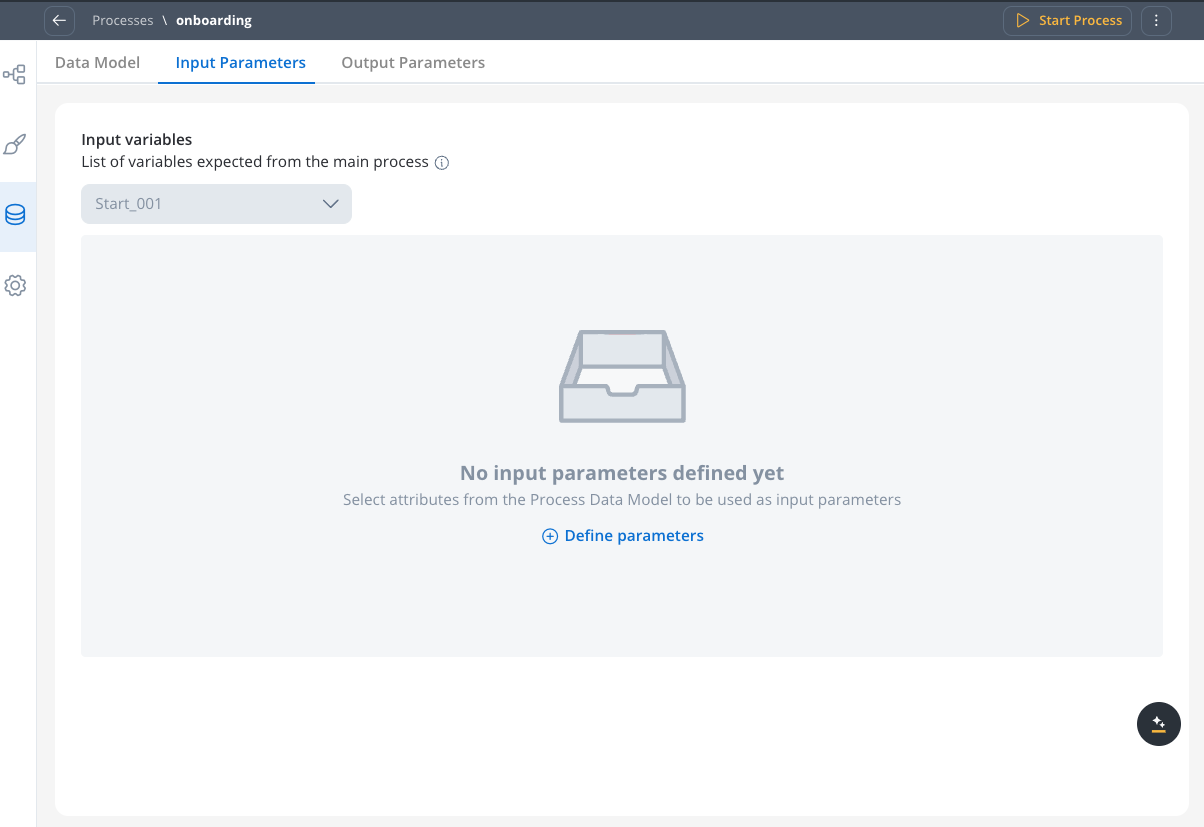
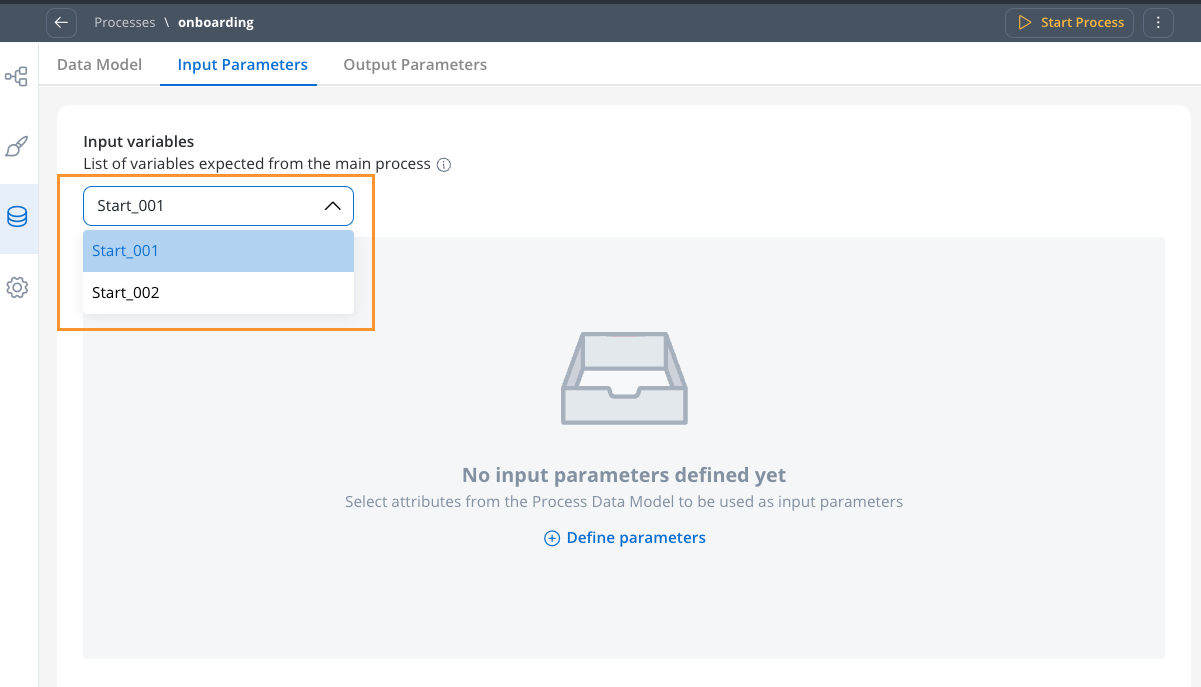
Define parameters for each start node separately when you have multiple start nodes. Select nodes from the dropdown.
* Define the schema based on the process's Data Model
* Mark fields as optional if your component can function without those parameters. The optional flag indicates your component can operate without these parameters throughout its entire operation, not just during mapping.
* **Note**: This centralizes input definition at the subprocess level, replacing the previous "data to send" configuration on the parent process
* Navigate to the **Data Model**
* Select the **Output parameters** tab
* Define the schema based on the process's Data Model
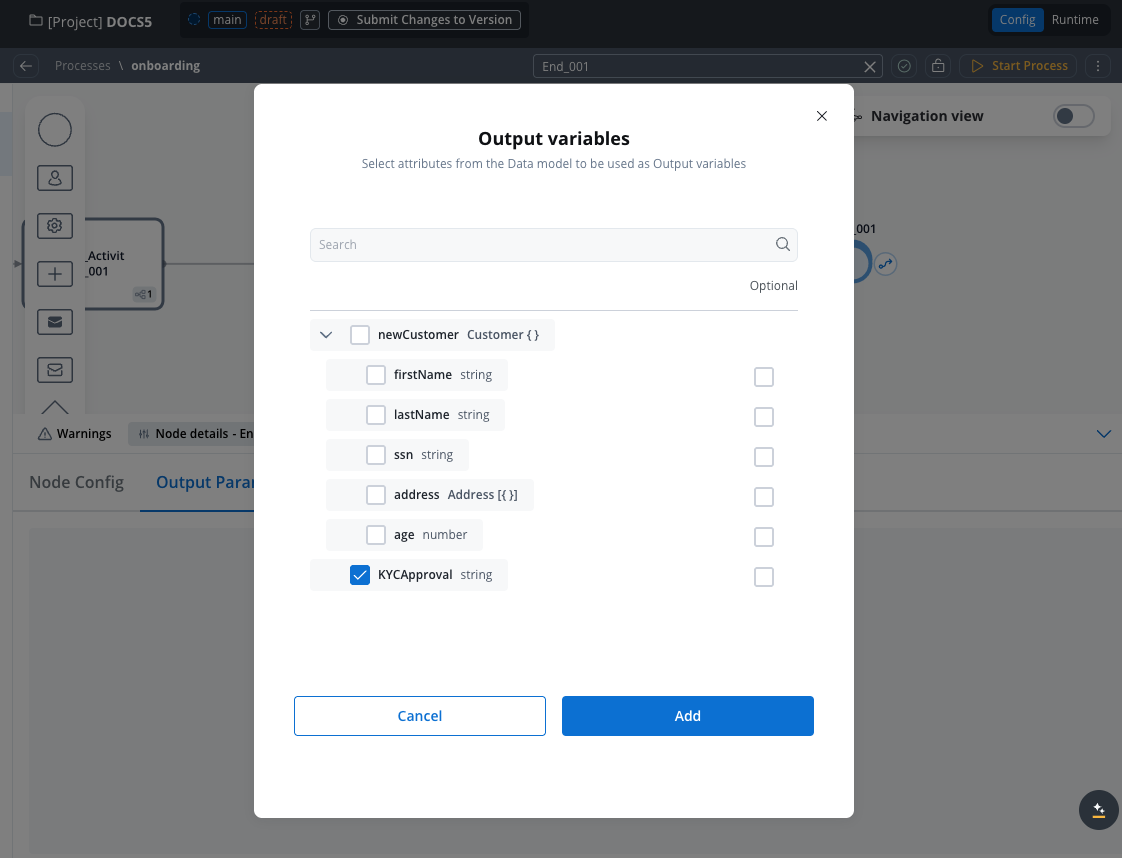
* View all start or end nodes when your subprocess has multiple nodes
* Use this for scenarios with exclusive gateways
* Configure parameters independently for each node
**Process Start Prompts**: When you start a process with defined input parameters, the system generates input prompts based on required parameters to help with testing and validation.
## Mapping scenarios
### Call activity mapping
#### Synchronous call activity
```yaml Prerequisites theme={"system"}
- Parent process with defined Data Model
- Child process with input/output parameters on Data Model
- Project-level data model for reusable structures
```
```yaml Configuration Steps theme={"system"}
1. Define call-activity type node
2. Select subprocess to be called
3. Choose Data Mapper implementation (default)
4. Configure input/output mapping
5. Test mapping with example values
6. Save configuration
```
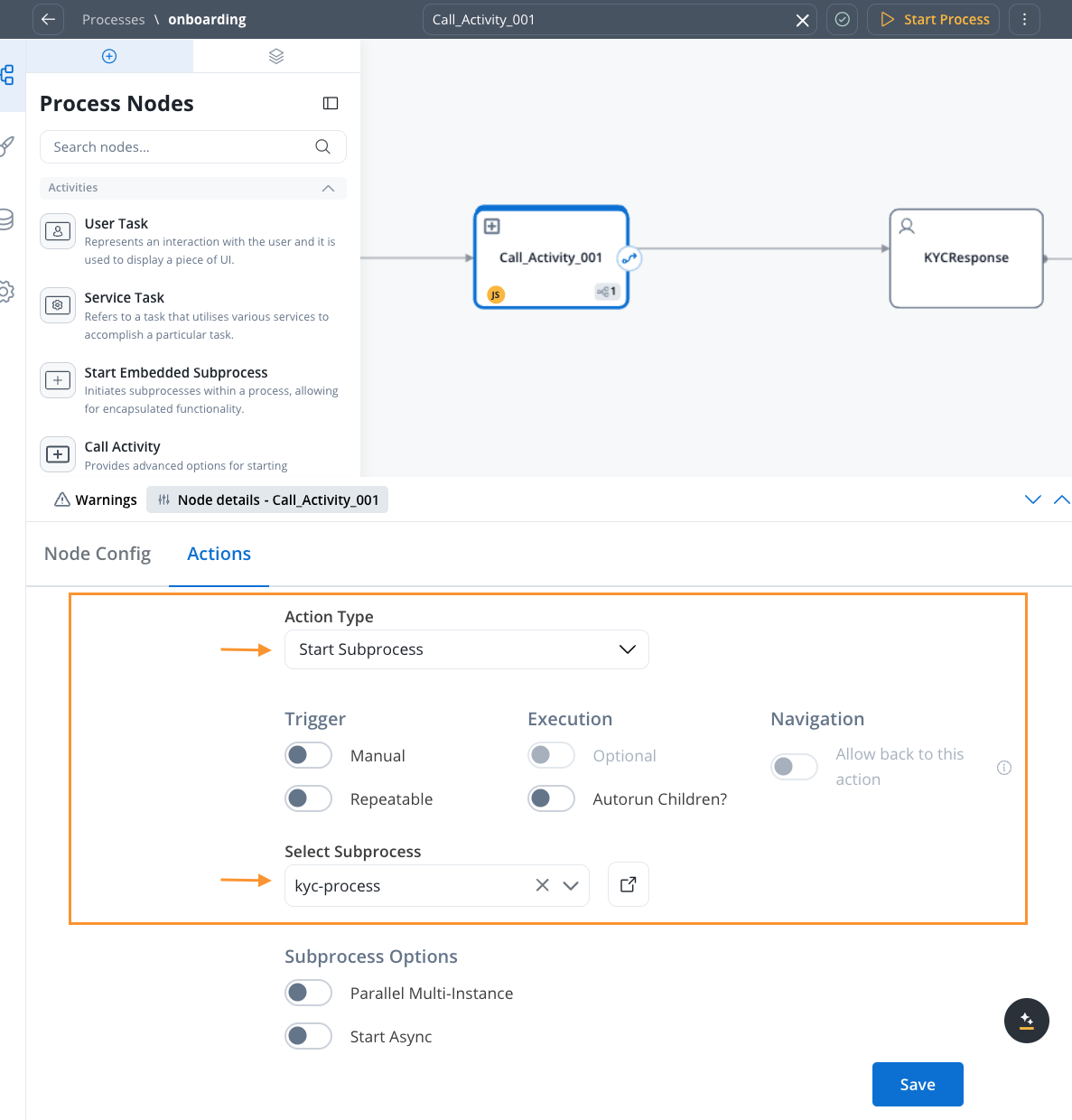
* In a process, define a **call-activity** type node
* Select the subprocess to be called
* **Data Mapping is now the default option**
* Toggle to "Switch to legacy mapping" if needed for backward compatibility
The new Data Mapping functionality is now the default option, while legacy mapping remains accessible via a toggle for backward compatibility.
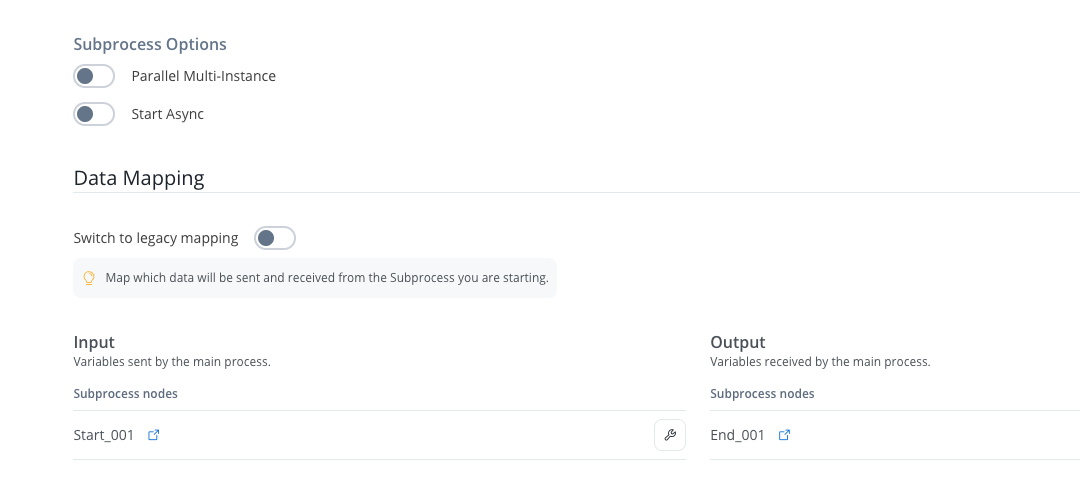
Existing actions that were configured before this update automatically retain legacy mapping—there is no need for you to modify them unless you want to switch to the new Data Mapping.
* View the subprocess's input parameters
* Click the "key icon" next to the parameter
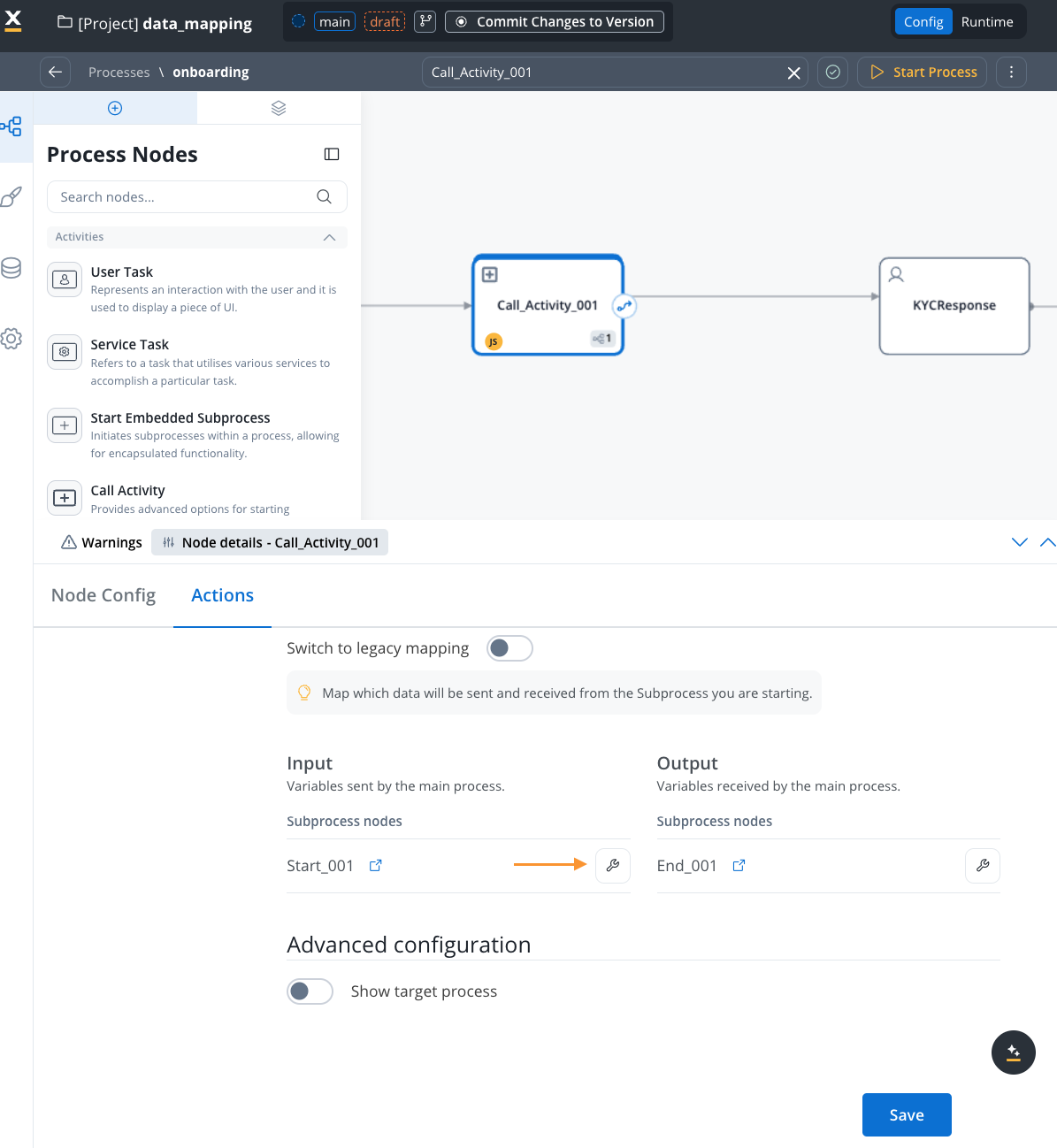
* **Source Component**: Current process (parent)
* **Destination Component**: Subprocess input parameters
* **Mapping Options**:
* **Individual Mapping**: Map each attribute individually using interpolation syntax: `${variableName}`
* **Auto-populate Mapping**: Select the data model types from dropdown for automatic mapping of all attributes
* **Quick Mapping**: If source and destination have the same data type, use dropdown for automatic mapping of all attributes
**Auto-populate Feature**: Instead of manually typing variable paths, select your data model types from the dropdown and the system will automatically populate all the mappings for you.
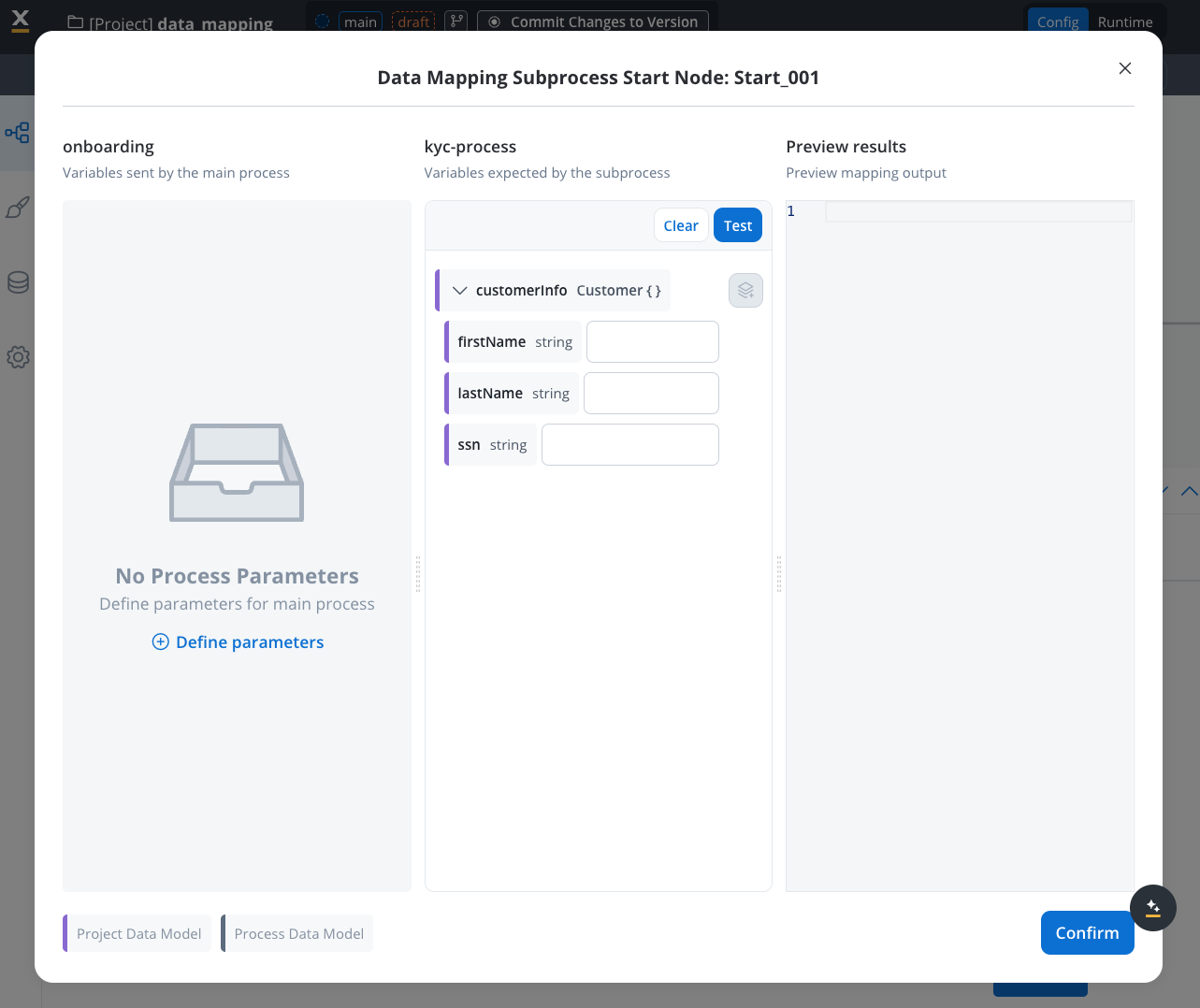
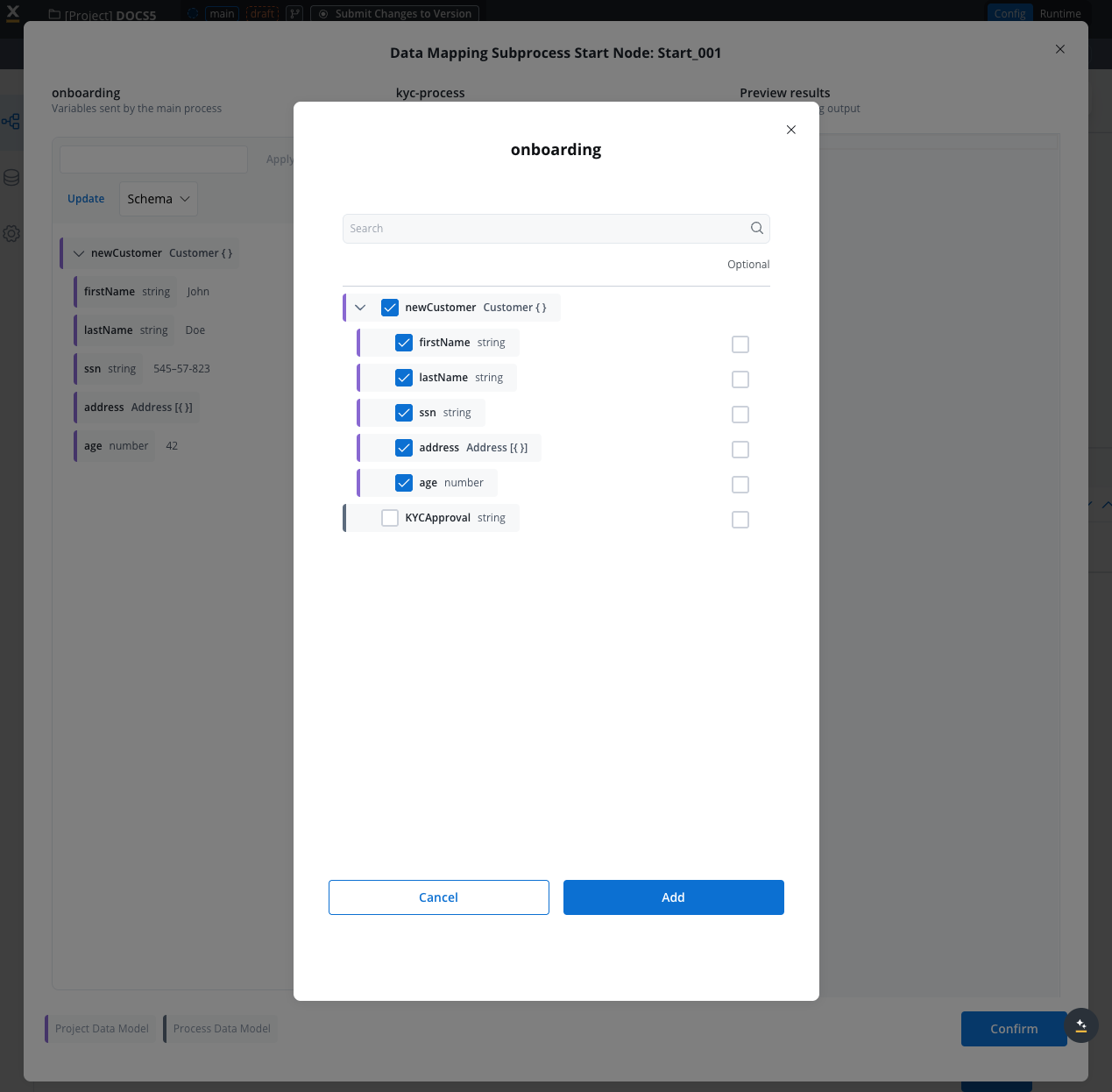
* **Display Options**: You can view variables as schema or JSON format for better visualization
* **Variable Format**: When mapping manually, use interpolation syntax `${variableName}` - this format differs from process keys
* **Testing**: Click the "test" button to visualize the JSON payload using example values from your data model
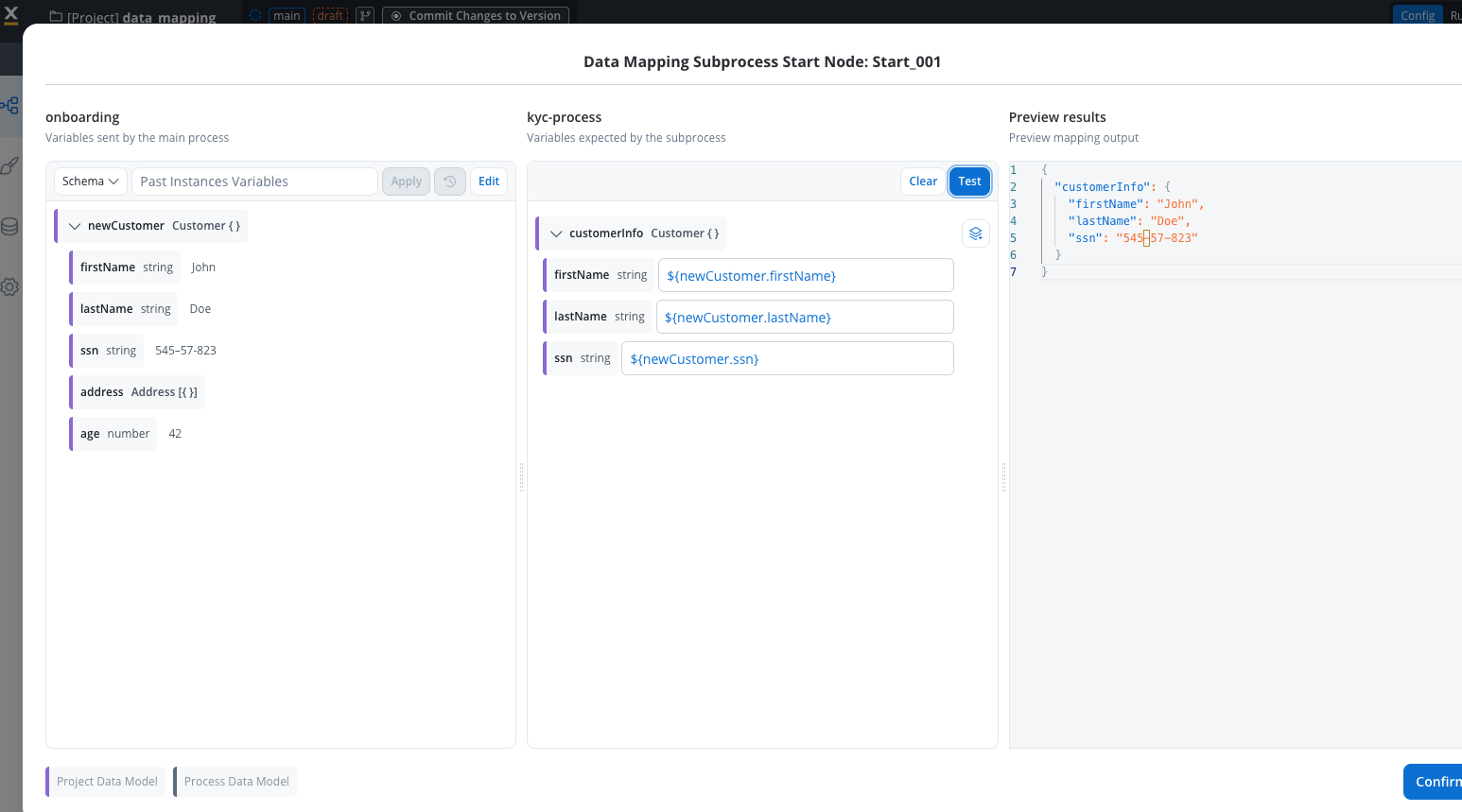
* Select the **Output** tab
* View subprocess's output parameters
* Select attributes in parent process data model for storing output
* Map subprocess output parameters (source) to parent process parameters (destination)
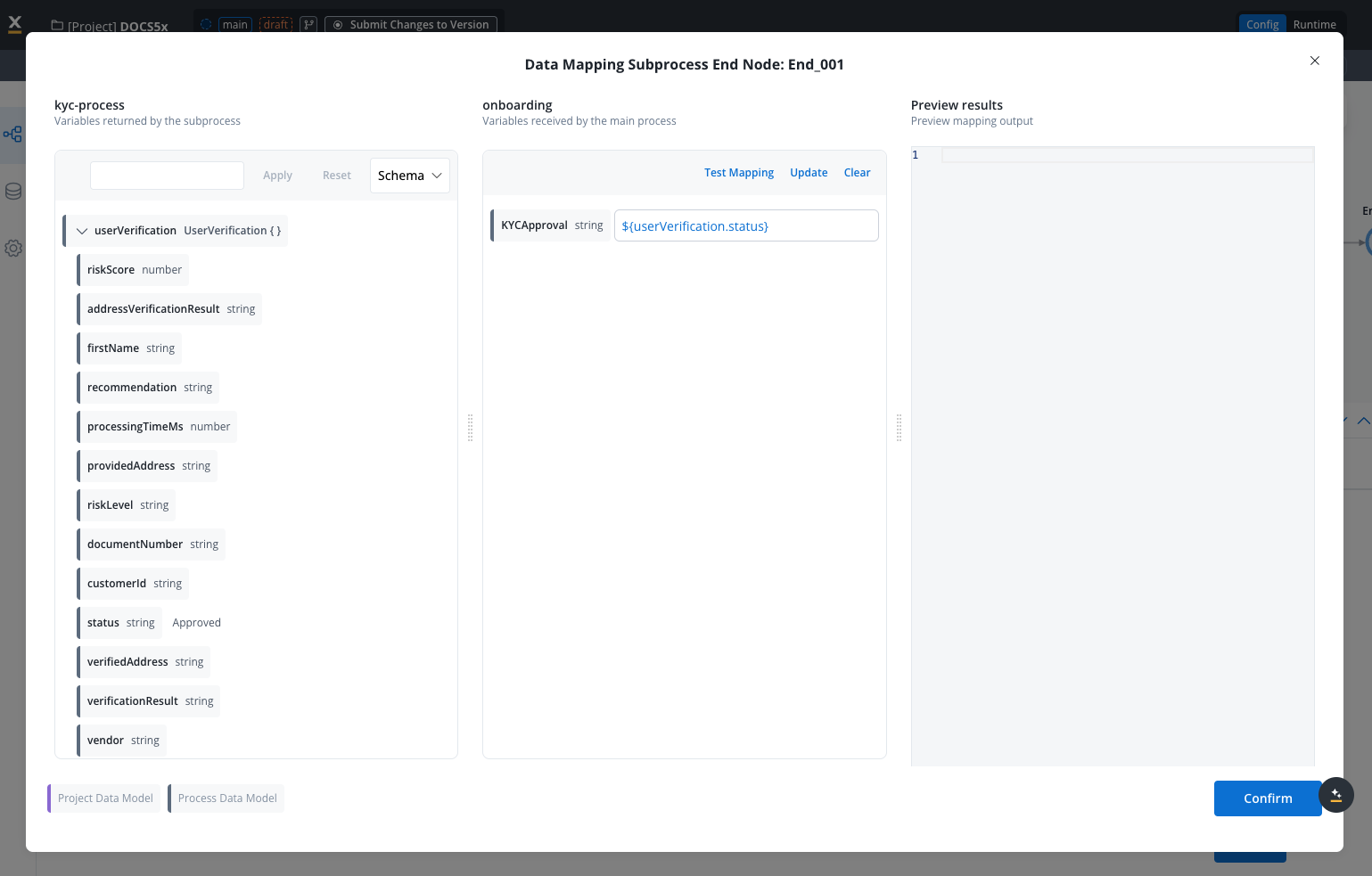
**JavaScript Transformation**:
To access JavaScript transformations, click the **function icon** next to the variable you want to transform.
* **Use JavaScript functions** for data transformation and combination
* **Syntax Requirements**: All computed values must use `return` statements
* **Example**: `return ${userVerification.status} + " on " + ${userVerification.verificationDate}`
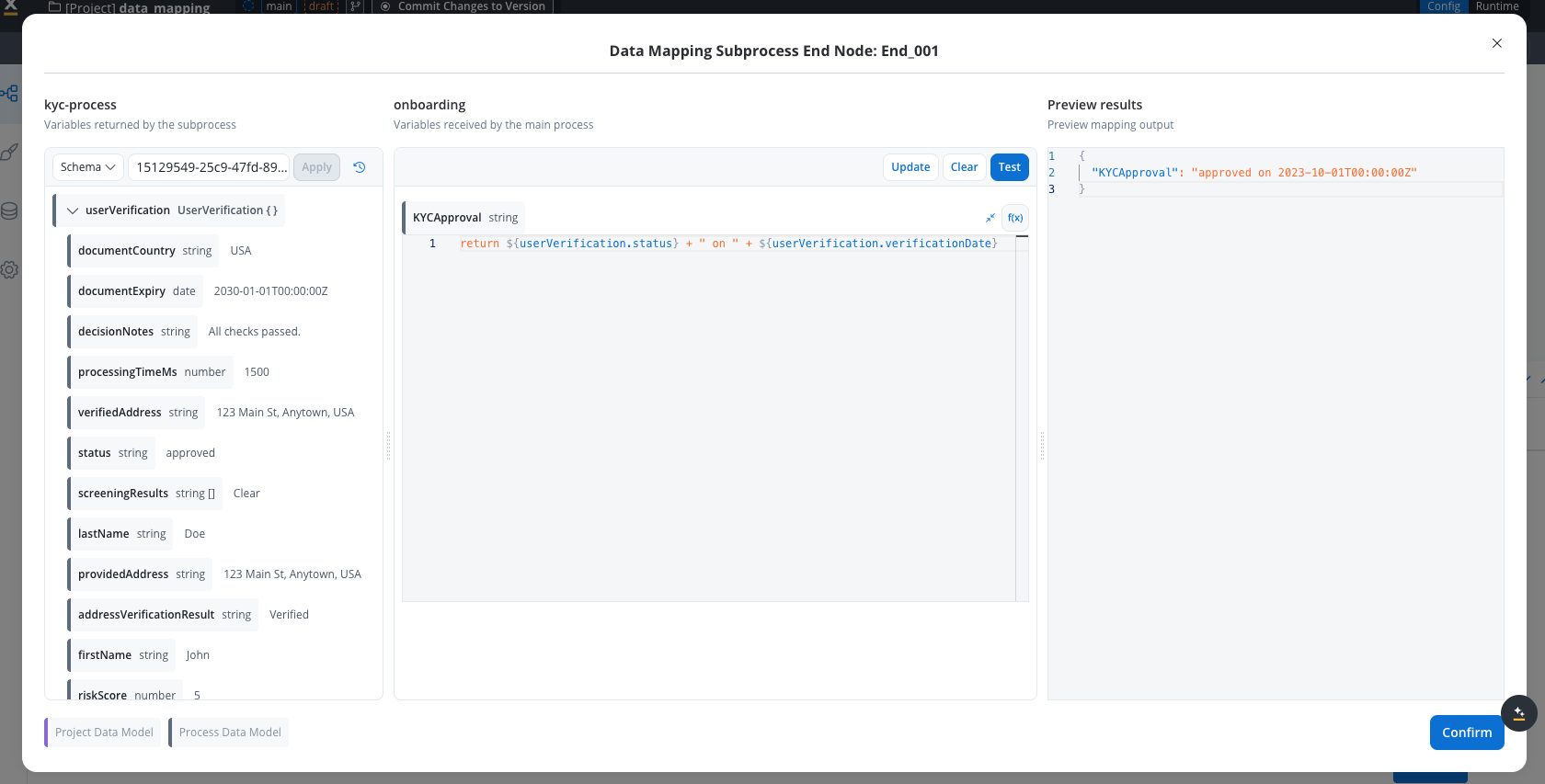
**Data Reference Syntax**:
* **Dynamic values**: Use `${variableName}` syntax to reference dynamic values (same as used for variable mapping)
* **Example**: `return ${approverName} + " approved on " + ${date}`
**Testing and Persistence**:
* **Testing**: Use test button to see transformed output with example values
* **Value Persistence**: Previous values are saved until you click "confirmation" and "save"
* **Error Handling**: JavaScript errors trigger when functions encounter issues (e.g., reading property from undefined object)
**Type Handling**:
* System sends configured data even with type mismatches (e.g., string to number)
* Always validate your transformations before saving
Save the mapping configuration for both input and output
#### Asynchronous call activity
For async nodes, output cannot be mapped as the parent process doesn't wait for completion.
* Define **call-activity** node or **Start Subprocess** action on User Task
* Select subprocess to be called
* Check the **Run async** toggle
* Choose Data Mapper implementation
* Map input parameters from parent process (source) to subprocess (destination)
* Save input mapping configuration
### Parallel multi-instance mapping
Use parallel multi-instance mapping when you need to start multiple subprocess instances simultaneously—one for each element in an array from the parent process.
**When to use**: This pattern is ideal for batch processing scenarios like processing multiple shipping orders, validating multiple documents, or handling multiple customer requests in parallel.
#### Configuration options
When **Parallel Multi-instance** is enabled on a Call Activity node or Start Subprocess action, configure these options:
| Option | Description |
| ------------------------- | ---------------------------------------------------------------------------------------- |
| **Input Array** | The array from the parent process. Each element spawns a subprocess instance. |
| **Output Array** | The array in the parent process where subprocess results are collected. |
| **Correlation Attribute** | The attribute used to match subprocess results back to the correct parent array element. |
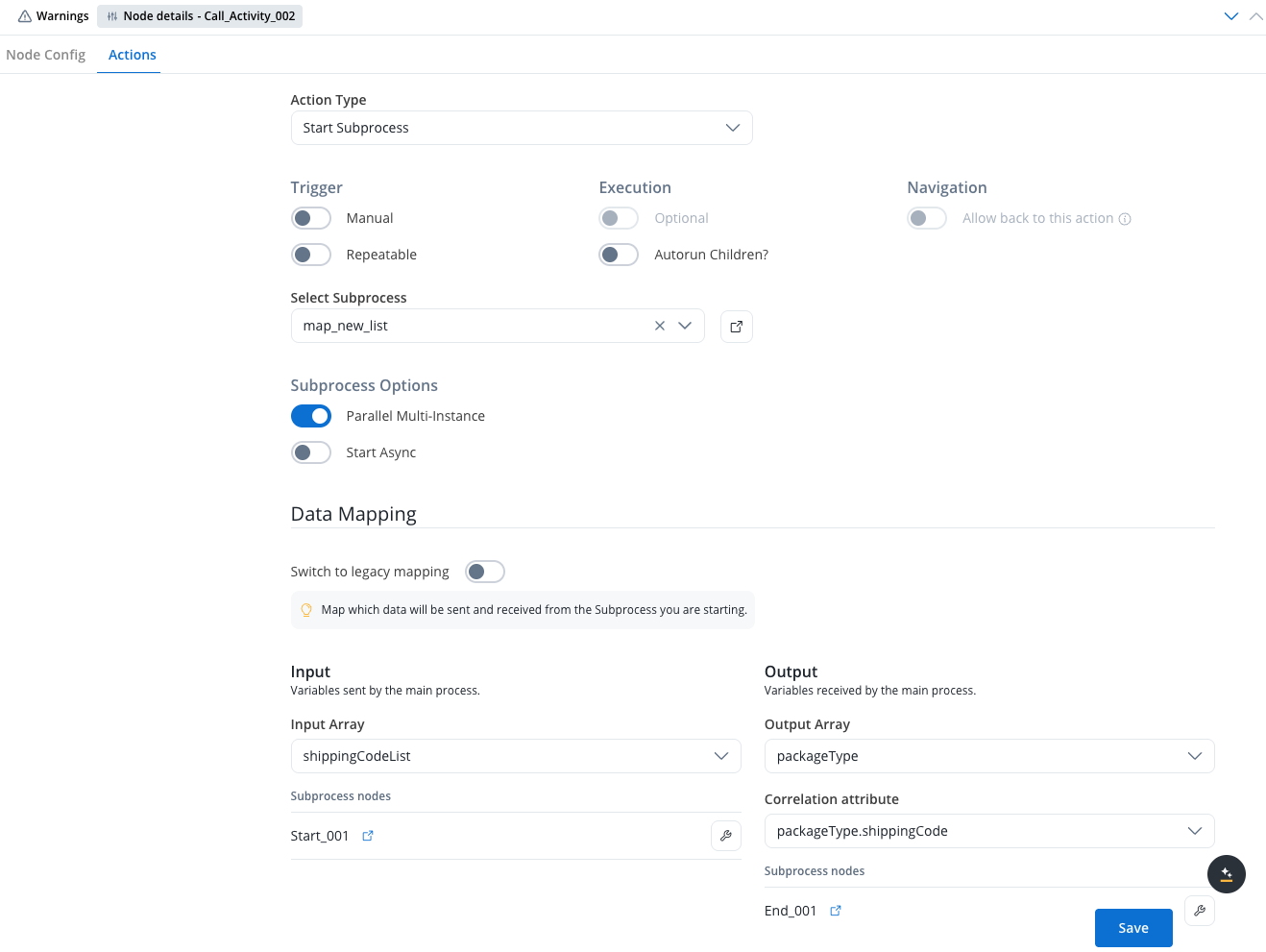
#### Data mapping configuration
* Open the **Call Activity** node or **Start Subprocess** action
* Enable the **Parallel Multi-instance** toggle
* **Input Array**: Specify the parent process array containing the data to process (e.g., `ordersList`)
* **Output Array**: Specify where to store the subprocess results (e.g., `processedOrdersList`)
* Click to open the mapping modal
* Map array element attributes to subprocess input parameters
* **Example**: Map `${item.orderId}` from parent array to `orderId` in subprocess
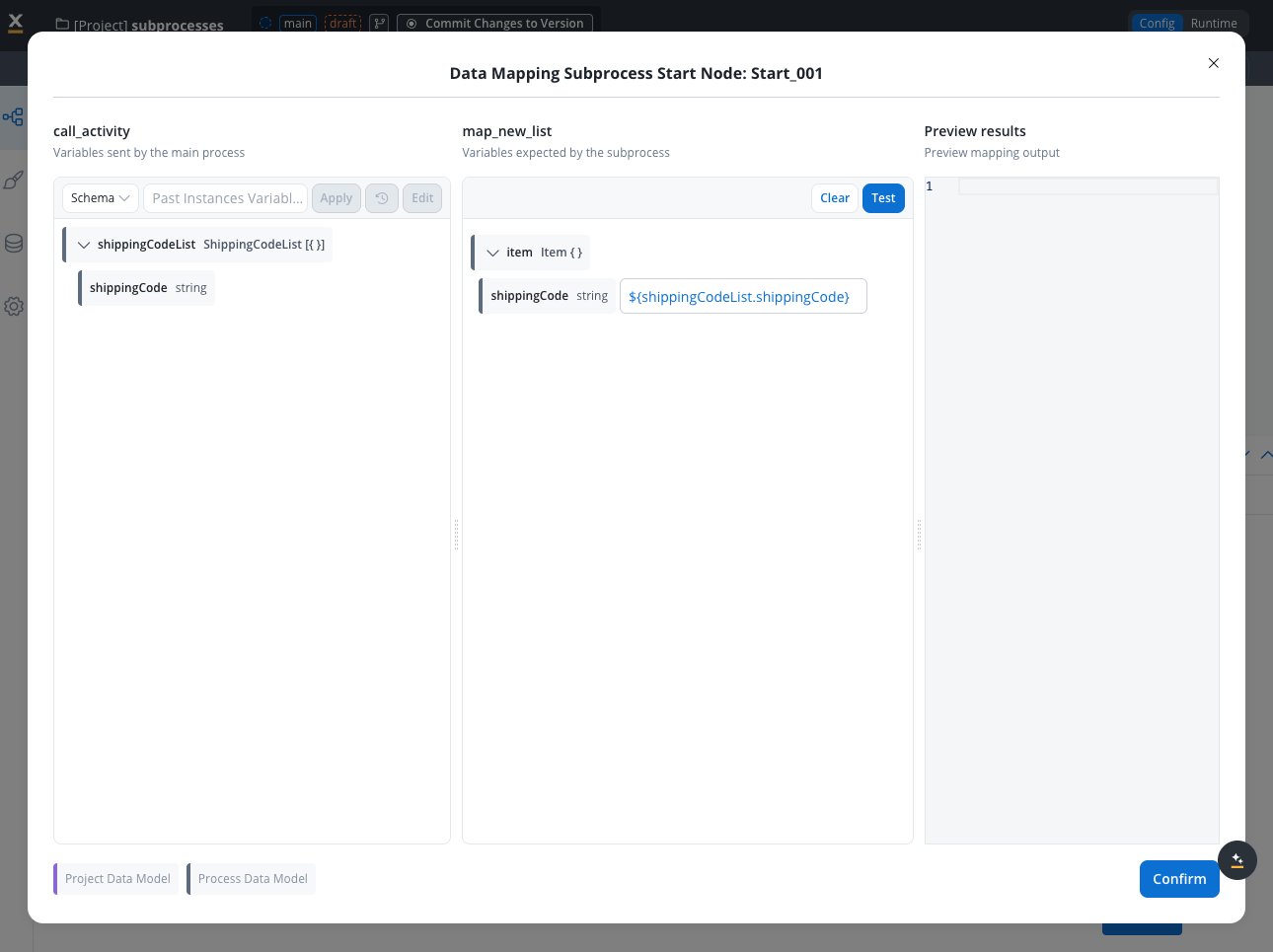
* Map subprocess output parameters back to the parent output array
* Each subprocess instance's result is added to the output array
* Define which attribute correlates subprocess results with parent data
* This determines whether results **update existing** or **insert new** array elements
#### Correlation attribute behavior
When subprocess results return, the correlation attribute determines how data is handled:
When the correlation attribute value **matches** an element in the parent array, that element is updated with the subprocess result.
When the correlation attribute value **doesn't match** any element in the parent array, the result is inserted as a new element.
#### Example: Processing shipping codes
**Scenario**: Process multiple shipping codes in parallel, determining package type for each.
Create an array of shipping codes using a business rule:
```java theme={"system"}
import java.util.*;
def mapValues(shippingCode) {
return {
"shippingCode": shippingCode
}
}
shippingCodeList = [];
shippingCodeList.add(mapValues("12456"));
shippingCodeList.add(mapValues("146e3"));
shippingCodeList.add(mapValues("24356"));
shippingCodeList.add(mapValues("54356"));
output.put("shippingCodeList", shippingCodeList);
```
* Enable **Parallel Multi-instance**
* Set **Input Array**: `shippingCodeList`
* Set **Output Array**: `packageType`
* Set **Correlation Attribute**: `shippingCode`
* Map `${item.shippingCode}` → subprocess `shippingCode` input parameter
In the subprocess, process each shipping code:
```java theme={"system"}
import java.util.*;
map = new HashMap();
if (input.item.shippingCode.startsWith("1")) {
map.package = "Fragile";
} else {
map.package = "Non-fragile";
}
map.shippingCode = input.item.shippingCode;
output.put("result", map);
```
Each subprocess returns its result, which is collected in the parent's output array:
```json theme={"system"}
{
"package": "Non-fragile",
"shippingCode": "54356"
}
```
**Array changes reset mappings**: When you modify the input or output array configuration and save, any existing mappings are automatically deleted. Reconfigure your mappings after changing array definitions.
**Sync mode behavior**: When parallel subprocesses run in sync mode and the parent process token advances (due to another action), unfinished subprocesses are automatically dismissed.
## Transforming arrays
When a parameter is an array, the data mapping panel maps it **wholesale**, you cannot map individual elements or sub-attributes from the UI. To filter, reshape, or compute over an array, switch to **function mode** by clicking the **f(x)** icon next to the parameter and use JavaScript on the resolved value.
The `${...}` interpolation syntax resolves a **path** to its value, it does not evaluate JavaScript inside the braces. Method calls like `${application.documents.filter(...)}` will fail. Place the placeholder first, then chain methods on the result.
**Default mapping** (pass the array through, no transformation):
```js theme={"system"}
return ${application.documents};
```
**Filter an array**, keep only documents with `id` equal to 1:
```js theme={"system"}
return (${application.documents} || []).filter(doc => doc?.id === 1);
```
**Map to a new shape**, extract a single field from each element:
```js theme={"system"}
return (${application.documents} || []).map(doc => ({ documentId: doc.id }));
```
**Combine filter and map**:
```js theme={"system"}
return (${application.documents} || [])
.filter(doc => doc?.status === "APPROVED")
.map(doc => doc.id);
```
Always default to `|| []` when chaining array methods on a placeholder. If the source path resolves to `undefined` (parameter not yet populated), `.filter()` and `.map()` would throw, the empty-array fallback keeps the mapping safe.
## Testing and validation
### Testing methodology
* Use example values from your data model for testing
* No need for separate mock data
* Values automatically populate in test scenarios
* **Auto-populate benefit**: Example values help visualize attribute meaning and expected data
* Click "test" button to visualize JSON payload
* See exactly what data will be sent to destination component
* Verify transformations work as expected
* **Display formats**: View results as schema or JSON for better understanding
* Verify interpolation syntax `${variableName}` is correctly formatted
* Test both manual mappings and auto-populated ones
* Ensure data type compatibility between source and destination
The interpolation format `${variableName}` used in Data Mappers differs from process key formats. Pay attention to this when manually entering variable paths.
* Use information from previous sessions in testing
* Validate real-world scenarios
* Ensure data flows correctly end-to-end
* When testing data coming from subprocesses, you need to check for the UUID instance of the subprocess and copy paste it in the instance field of the test data, as shown in the demo below:
### JavaScript transformation testing
* All computed values must include `return` statements
* Use clear parameter notation (e.g., `userVerification.status`)
* Functions must handle potential undefined values
* System sends data even with type mismatches
* JavaScript errors trigger for undefined object property access
* Test transformations thoroughly before deployment
* Previous values are saved during configuration
* Only lost upon clicking "confirmation" and "save"
* Allows iterative testing and refinement
## Managing parameter changes
Different types of parameter changes require different handling - some propagate automatically while others need manual updates.
### Automatic propagation
These changes propagate automatically to input/output parameters and mappings:
**Automatic removal**: When you delete an attribute from the data model, it disappears from input/output parameters and mappings
**Automatic update**: When you rename an attribute in the data model, the change reflects in input/output parameters and mappings
### Manual intervention required
**Manual addition**: When you add new attributes to the data model, you must manually:
1. Add them to input/output parameters
2. Configure them in the data mapper
### Data Model propagation timing
Propagation speed varies by data model type:
When you don't alter data type structure (e.g., adding attributes or changing types), updates propagate as follows:
* **Project data model**: Immediately
* **Library data model**: After the dependency build is updated
### Best practices for parameter changes
Always test your mappings after any data model changes to ensure they function correctly.
## Use cases
Configure data mappers for these scenarios:
Mappings can be configured whether the subprocess is triggered from:
* **Call Activity node**: Direct subprocess invocation within process flow
* **User Task node**: Subprocess triggered by user interaction
Both scenarios support full input and output parameter mapping capabilities.
Data mappers handle different subprocess execution patterns:
* **Synchronous execution**: Parent process waits for completion, enabling both input and output mapping
* **Asynchronous execution**: Parent process continues without waiting, supporting input mapping only
* **Single instance**: One subprocess instance per trigger
* **Parallel multi-instance**: Multiple subprocess instances started simultaneously from an array. See [Parallel multi-instance mapping](#parallel-multi-instance-mapping) for detailed configuration.
When integrating a pre-defined reusable UI template into a User Task node:
* Map data from parent process to template input parameters
* Configure template output to flow back to parent process
* Enable consistent UI behavior across multiple processes
## Real-world examples
### Example 1: Monthly income collection
**Scenario**: A subprocess collects monthly income information from users and passes it back to the parent process.
* **UI Behavior**: Modal appears asking user to select currency and enter income amount
* **Data Collection**: User enters monthly income value
* **Requirement**: Pass collected data back to parent process
**In the subprocess**:
* Add `monthlyIncome` variable to the data model
* Navigate to **Output Parameters** tab
* Define `monthlyIncome` as an output parameter
**In the parent process**:
* Initially no input parameters needed (not sending data to subprocess)
* Focus on receiving output data
* Open the **call activity** node in parent process
* Navigate to **Input and Output Parameters** section
* **Output mapping**: Connect subprocess output to parent process variable
**Variable format**: Use `${monthlyIncome}` (interpolation syntax)
**Auto-mapping shortcut**: Select data model types from dropdown to automatically populate mappings instead of manual entry.
* **Subprocess variable**: `monthlyIncome`
* **Parent process variable**: `incomePerMonth` (renamed for clarity)
* **Mapping**: `${monthlyIncome}` → `incomePerMonth`
* **Result**: Two distinct data models successfully connected
### Example 2: Time-off approval with JavaScript transformation
**Scenario**: A colleague submits a time-off request, requiring approval with enhanced data transformation.
* **Input data**: Start/end dates, requester information
* **UI Behavior**: Modal shows request details with approve/deny options
* **Output requirement**: Return approval status + approver name
* **Parent process sends**:
* Approver name
* Request details (start date, end date)
* **Subprocess receives**: Input parameters for display
**Configuration**: Parent process output parameters → Subprocess input parameters
**Goal**: Combine approval decision with approver identity
* Click the **function icon** next to the output variable
* **Script example**:
```javascript theme={"system"}
return ${approverName} + " approved on " + new Date().toISOString()
```
**Dynamic value syntax**:
* Use `${variableName}` to reference dynamic values: `${approverName}`
Always include `return` statements in JavaScript transformations.
* Click **test** button to preview transformed output
* Verify JavaScript logic with example data
* **Result**: Enriched data flows back to parent process
**Key Takeaway**: Data Mappers enable not just data transfer, but also data enrichment and transformation through JavaScript, making them versatile tools for complex business workflows.
## Best practices
Establish project and library data models before creating processes for maximum reusability
Include meaningful example values in data models to improve testing and configuration experience
Design data structures that can be shared across multiple components and processes
Validate mappings and transformations with various data scenarios before deployment
Note any dependencies between mapped parameters and transformation logic
Use quick mapping for components with identical data types to speed up configuration
## FAQs
**It depends on the change type**:
* **Deleted attributes**: Automatically removed from mappings
* **Renamed attributes**: Automatically updated in mappings
* **New attributes**: You must manually add and configure them
Always test your mappings after making parameter changes to ensure they still function correctly.
When you start a subprocess using Data Mappers:
* **No need to configure "Append Data to Parent Process" action** in the subprocess anymore
* For **synchronous subprocesses**: Output automatically flows back to parent process
* For **asynchronous subprocesses**: You can configure input mapping, and the subprocess can append data back to the parent process asynchronously
You can define input and output parameters for each end node separately:
* Navigate to **Data Model** → **Input/Output Parameters**
* Select the specific node from the dropdown
* Configure parameters independently for each end node
Use this for processes with exclusive gateways where different entry points need different data structures.
**Known limitation**: When you send a currency variable with amount and code as input, the system doesn't transmit the code because inputs don't collect the code from currency fields.
**Solutions**:
* Set the code as optional in the output parameters, OR
* Gather the code separately using a segmented button or other input method
Handle this properly to avoid mapping errors.
## Current limitations
Current limitations to be aware of:
* **Array to Object Mapping**: Cannot map array → object for scenarios when you edit or add an item in a collection *(estimated fix: 5.X Feature)*
* **Currency Code Transmission**: When mapping currency variables as input, only the amount is sent - the currency code is not transmitted
* **Workaround Required**: Either make code optional in output parameters or collect currency code through separate input methods
## Related documentation
Learn about call activity nodes and subprocess execution
Discover workflow automation and external system integration
Understand process data structure and management