> ## Documentation Index
> Fetch the complete documentation index at: https://docs.flowx.ai/llms.txt
> Use this file to discover all available pages before exploring further.
# Send message/receive message tasks
> Send message task and Receive message task nodes are used to handle the interaction between a running process and external systems. This is done using Kafka send actions or start integration workflow actions.
## Send message task
This node is used to configure messages that should be sent to external systems.

### Configuring a send message task
Node configuration is done by accessing the **Node Config** tab. You have the following configuration options for a send message task:
#### General Config
Inside the **General Config** tab, you have the following properties:
* **Node Name**: The name of the node
* [**Stage**](../../platform-deep-dive/core-extensions/task-management/using-stages): Assign a stage to the node
To configure a send message task, you first need to add a new node and then configure an **action** (**Kafka Send Action** or **Start Integration Workflow** type):
1. Open **Process Designer** and start configuring a process.
2. Add a **send message task** node.
3. Select the **send message task** node and open the **Node Configuration**.
4. Add an **action** , the type of the action set to **Kafka Send Action** or **Start Integration Workflow**.
5. A few action parameters will need to be filled in depending on the selected action type.
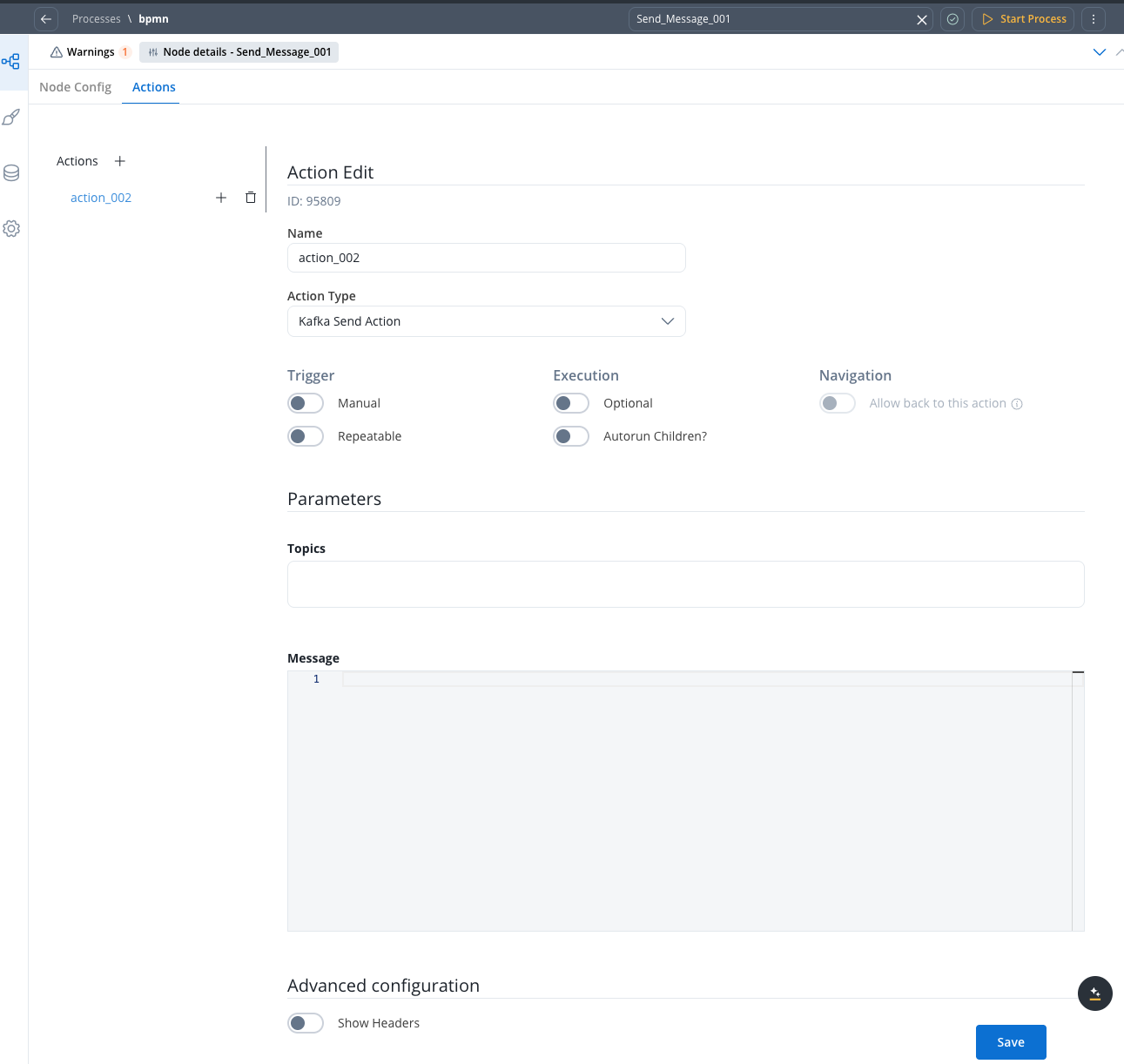
Multiple options are available for this type of action and can be configured via the FlowX.AI Designer. To configure and [add an action to a node](../../flowx-designer/managing-a-project-flow/adding-an-action-to-a-node), use the **Actions** tab at the node level, which has the following configuration sections:
* [Action Edit](#action-edit)
* [Trigger](#trigger)
* [Execution](#execution)
* [Navigation](#navigation)
* [Parameters](#parameters)
* [Advanced configuration](#advanced-configuration)
#### Action Edit
* **Name**: The name of the action
* **Action Type**: The type of the action, should be set to **Kafka Send Action** for actions used to send messages to external systems, or **Start Integration Workflow** to trigger [**workflows**](../../platform-deep-dive/integrations/integration-designer#workflows)
Additional fields like **Order** and **Timer Expression** may also be available in certain configurations to control action execution order and timing.
#### Trigger
* **Manual**: When enabled, the action must be triggered manually by the user. When off (automatic), the action triggers automatically when the process flow reaches this step
* **Repeatable**: When enabled, the action can be triggered multiple times
#### Execution
* **Optional**: When enabled, the action is optional and the process can continue without it being executed. When off (mandatory), the action must be completed before advancing to the next node
* **Autorun Children**: When enabled, child actions (defined as mandatory and automatic) run immediately after the parent action completes
#### Parameters
Parameters define the message details for the Kafka send action:
* **Topics**: The Kafka topic name where the message should be sent
* **Message**: The message payload to send (can include process variables using `${variableName}` syntax)
Parameters can be added either using the **Custom** option (where you configure everything on the spot) or by using **From Integration** to import parameters already defined in an integration.
For more information, see the [Integrations Management documentation](../../platform-deep-dive/integrations/integration-designer).
#### Advanced configuration
* **Show Headers**: When enabled, allows you to configure custom headers for the Kafka message (for example, `processInstanceId`)
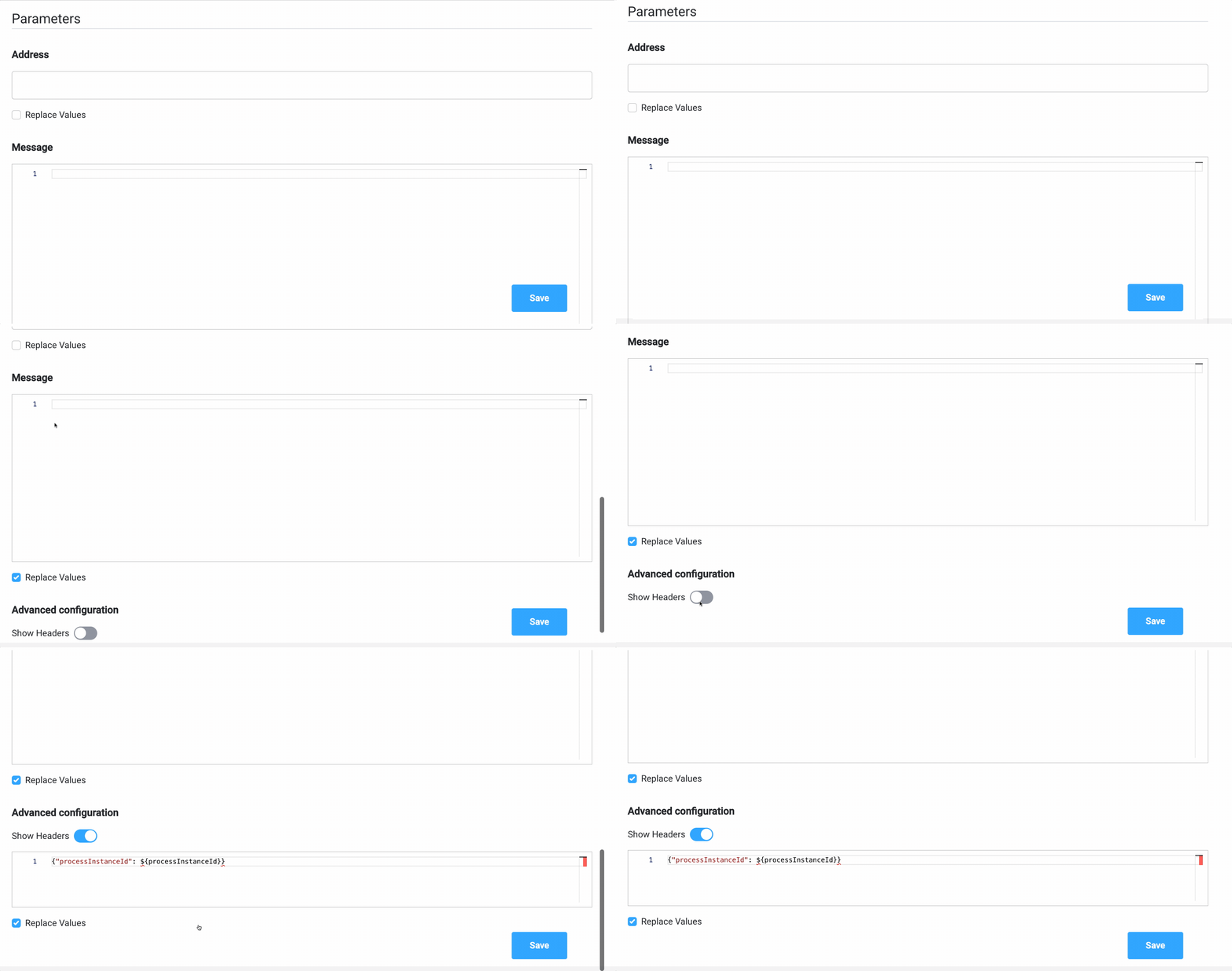
For more information about Kafka, check the following sections:
### Example of a send message task usage
Send a message to a CRM integration to request a search in the local database:
#### Action Edit
* **Name** - pick a name that makes it easy to figure out what this action does, for example, `sendRequestToSearchClient`
* **Action Type** - Kafka Send Action
#### Trigger
* **Manual** - off (automatic trigger)
* **Repeatable** - off (it only needs to run once)
#### Execution
* **Optional** - off (mandatory - the action must be completed before advancing to the next node)
* **Autorun Children** - enabled (if there are child actions, they run automatically)
#### Parameters
* **Topics** - `ai.flowx.in.crm.search.v1` - the Kafka topic on which the CRM listens for requests
* **Message**:
```json theme={"system"}
// Example of a message payload
{ "clientType": "${application.client.clientType}", "personalNumber": "${personalNumber.client.personalNumber}" }
```
#### Advanced configuration
* **Show Headers**: When enabled, allows you to configure custom headers for the Kafka message (for example, `processInstanceId`, correlation IDs, or other metadata)
## Receive Message Task
This type of node is used when we need to wait for a reply from an external system.

The reply from the external system will be saved in the process instance values, on a specified key.
For example, let's think about a CRM microservice that waits to receive requests to look for a user in a database. It will send back the response when a topic is configured to listen for the response.
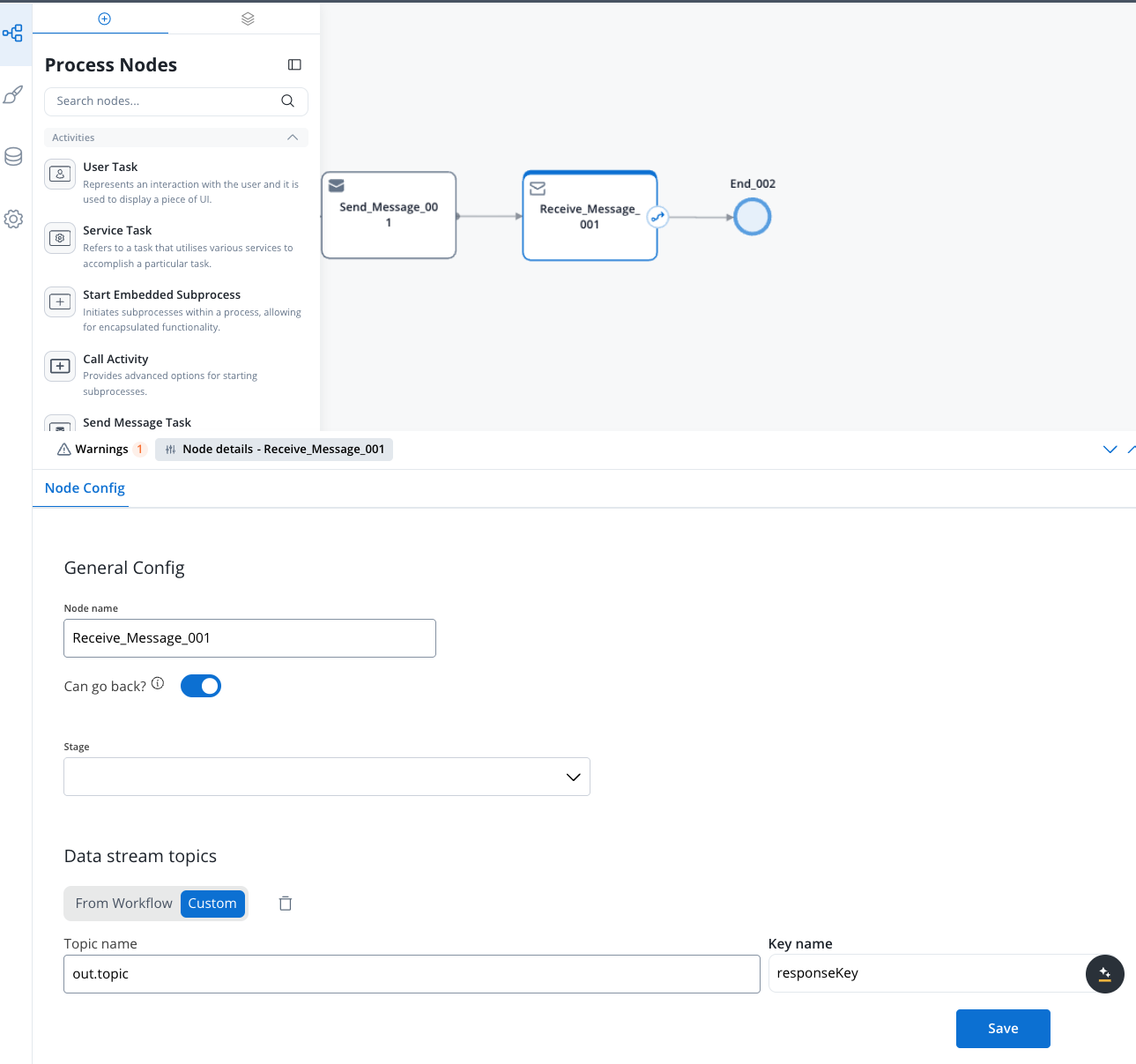
### Configuring a Receive Message Task
The values you need to configure for this node are the following:
### Data stream topics
* **Custom**: You can configure the topic name and key name manually
* **From Workflow**: You can select a workflow from the dropdown list.