> ## Documentation Index
> Fetch the complete documentation index at: https://docs.flowx.ai/llms.txt
> Use this file to discover all available pages before exploring further.
# Combine UI Flows, processes, and workflows
> Connect a UI Flow, a process, and a workflow in one FlowX app. See which action starts each one, where its output lands, and what happens when a process ends.
## How do UI Flows, processes, and workflows fit together?
A UI Flow is the app shell the user navigates. It starts a **process** with the **Start Process** action or the **Process Renderer** component, and it calls a **workflow** directly with the **Start Workflow** action. A process calls a workflow with the **Start Integration Workflow** action and reads the result with a **Receive Message Task**.
Data travels forward through these hops, and comes back only from workflows. A workflow's output returns to whatever started it. A process's data never returns to the UI Flow that started it.
```mermaid theme={"dark"}
flowchart LR
UF["UI Flow
(screens and navigation)"]
P["Process
(stateful BPMN journey)"]
W["Workflow
(integrations and data)"]
UF -- "Start Process action
or Process Renderer" --> P
UF -- "Start Workflow action
(output merges into UI Flow data)" --> W
P -- "Start Integration Workflow action
(output returns via Receive Message Task)" --> W
```
The diagram shows three resources. A UI Flow points to a process (Start Process action or Process Renderer) and to a workflow (Start Workflow action). A process points to a workflow (Start Integration Workflow action). No arrow returns from the process to the UI Flow.
To decide which resource a piece of your app should be, see [Workflow, process, or UI Flow: which one do I use?](/5.9/docs/platform-deep-dive/integrations/integration-designer#workflow-process-or-ui-flow-which-one-do-i-use) and [When to use UI Flows](/5.9/docs/building-blocks/ui-flows#when-to-use-ui-flows).
***
## What can start what?
| From | To | How | Where the result lands |
| - | - | - | - |
| UI Flow | Workflow | [Start Workflow action](/5.9/docs/building-blocks/ui-flows#configuring-the-start-workflow-action) | Merged into the UI Flow's session data, so components bound to those keys update |
| UI Flow | Process | [Start Process action](/5.9/docs/building-blocks/ui-flows#configuring-the-start-process-action) | The process replaces the UI Flow view. Process data stays in the process |
| UI Flow | Process | [Process Renderer component](/5.9/docs/building-blocks/ui-flows#process-renderer-component) (web only) | The process runs inside a UI Flow page or modal. Process data stays in the process |
| Process | Workflow | [Start Integration Workflow action](/5.9/docs/building-blocks/actions/start-integration-workflow) | Process data, at the keys mapped on the [Receive Message Task](/5.9/docs/building-blocks/node/message-send-received-task-node#receive-message-task) |
| Chat-driven workflow | UI Flow | [Navigate in UI Flow node](/5.9/ai-platform/chat-driven-workflows#navigate-in-ui-flow-node) | The destination page opens with the parameters the node passes |
The process only receives what you pass when you start it. The Start Process action (**Add start params**) and the Process Renderer (**Start Params**) each take a JSON object with `${key}` expressions, resolved from the UI Flow's data when the process starts. A process can't read any other UI Flow data.
**Add forms to validate** on a Start Process action only checks that the selected forms are valid before the process starts. It doesn't send their values. To pass a field value to the process, reference its key in the start parameters.
***
## What happens when a process started from a UI Flow ends?
On web, the UI Flow does not take back control when the process ends. With the Start Process action, the last process screen stays on display with its values cleared, and no process data is passed back to the UI Flow. The user returns to the UI Flow page with the browser back button, and the page shows the UI Flow data as they left it.
Design for this when a UI Flow starts a process:
* End the journey on a user task that confirms the outcome, and keep the user on it, rather than relying on the process end to move the user on.
* Save anything the UI Flow needs to show later (an application status, a reference number) somewhere the UI Flow can load it, for example with a workflow on the page's On Load event.
* When the process runs in a Process Renderer, browser back and breadcrumb navigation follow the rules in [Process Renderer navigation behavior](/5.9/docs/building-blocks/ui-flows#navigation-behavior).
Newer releases add configurable actions that run when a Process Renderer's process ends. See [Process end handling](/5.9/docs/building-blocks/ui-flows#process-end-handling) for availability.
***
## Example: a loan portal that starts a process, which calls a workflow
Acme Bank builds a loan portal in three pieces:
* **LoanPortal** (UI Flow): a home page with a form for **Loan amount** and **Term (months)**, and an **Apply** button.
* **loanApplication** (process): Start → Init Data → Calculate estimate → Receive estimate → Review estimate → End.
* **calculateLoanEstimate** (workflow): takes an amount and a term and returns the monthly payment and total repayment. It's the workflow built in [Build your first UI Flow](/5.9/docs/getting-started/building-your-first-ui-flow).
The **Apply** button has a **Start Process** action that selects `loanApplication`, adds the form under **Add forms to validate**, and passes the two form values under **Add start params**:
```json theme={"dark"}
{
"application": {
"amount": ${loanAmount},
"termMonths": ${termMonths}
}
}
```
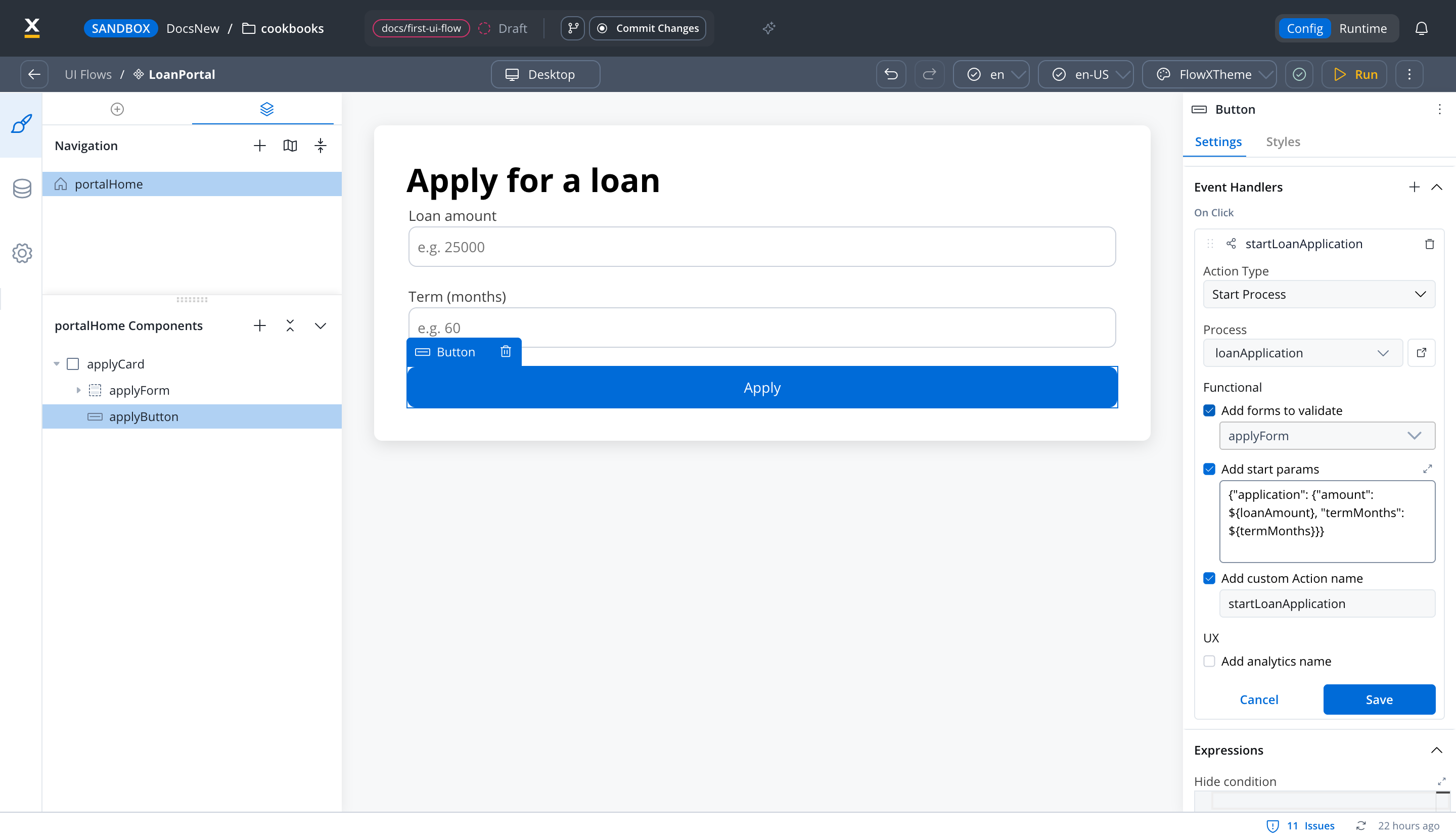
Clicking **Apply** with empty fields shows the form's required-field messages and starts nothing. With valid values, the process replaces the UI Flow view.
The **Calculate estimate** node has a **Start Integration Workflow** action that starts `calculateLoanEstimate` with the amount and term from `application`. The **Receive estimate** node is a Receive Message Task that maps the workflow output into the process data.
The **Review estimate** user task displays the mapped values. For 25,000 over 60 months, it shows a monthly payment of 489.15 and a total repayment of 29349.22.
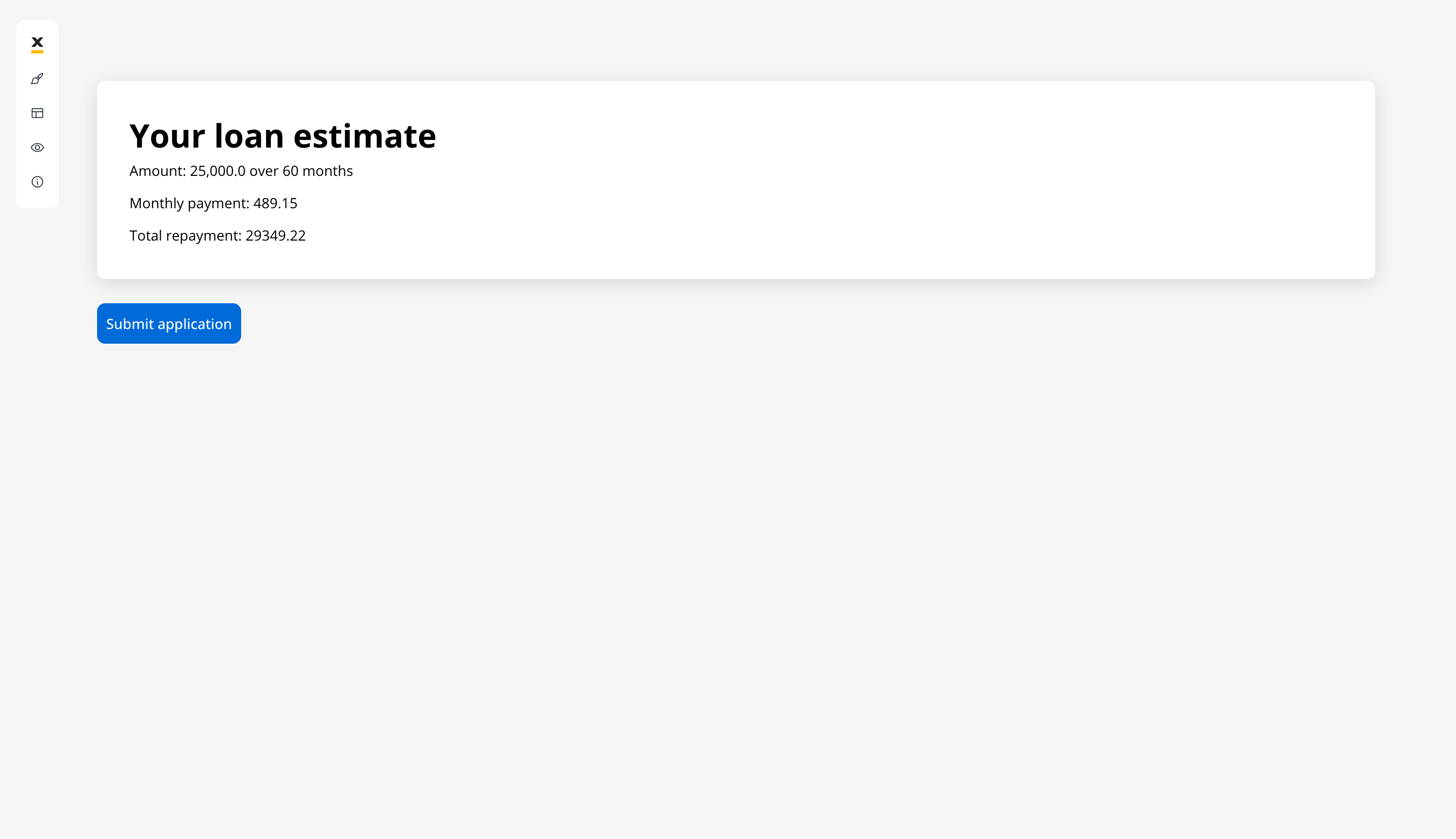
**Submit application** completes the user task and the process reaches its End node. The review screen stays on display with its values cleared. Browser back returns the user to the LoanPortal home page, with the form values still filled in.
If the portal only needed to show the estimate, without a review step or any state to keep, the **Apply** button could call `calculateLoanEstimate` with a **Start Workflow** action instead, and the result would land directly in the UI Flow's data. That's the pattern [Build your first UI Flow](/5.9/docs/getting-started/building-your-first-ui-flow) uses.
***
## Related resources
Start Process, Start Workflow, and Process Renderer configuration
Call a workflow from a process and receive its output
A UI Flow that calls a workflow directly
Build the workflows that UI Flows and processes call
## Related topics
- [UI Flows](/5.9/docs/building-blocks/ui-flows.md)
- [Integration Designer](/5.9/docs/platform-deep-dive/integrations/integration-designer.md)
- [FlowX.AI 5.10.0 Release Notes](/release-notes/v5.x/v5.10.0-july-2026/v5.10.0-july-2026.md)
- [FlowX.AI 5.3.0 Release Notes](/release-notes/v5.x/v5.3.0-december-2025/v5.3.0-december-2025.md)
- [FlowX.AI 5.5.0 Release Notes](/release-notes/v5.x/v5.5.0-february-2026/v5.5.0-february-2026.md)
This documentation is built and hosted on [Mintlify](https://mintlify.com), a developer documentation platform.