> ## Documentation Index
> Fetch the complete documentation index at: https://docs.flowx.ai/llms.txt
> Use this file to discover all available pages before exploring further.
# Upload file action
> An Upload File action is an action type that allows you to upload a file to a service available on Kafka.
**Why is it useful?** The action will receive a file (or multiple files) from the frontend and send it to Kafka, and will also attach some metadata.
The Upload File action supports two modes:
Used with the [File Upload Button](../ui-designer/ui-component-types/buttons#file-upload-button). The SDK sends a single temp file ID (`{actionName}TempFileId`).
Used with the [Multiple File Upload](../ui-designer/ui-component-types/multiple-file-upload) component. The SDK sends a list of temp file IDs (`{actionName}TempFileIds`).
The process engine automatically detects which mode to use based on the parameter key present in the process instance data.
## Configuring an Upload file action
Multiple options are available for this type of action and can be configured via the **FlowX.AI Designer**. To configure an Upload File action, use the **Actions** tab at the [task node level](../../flowx-designer/managing-a-project-flow/adding-an-action-to-a-node), which has the following configuration options:
* [Action Edit](#action-edit)
* [Back in steps (for Manual actions)](#back-in-steps)
* [Parameters](#parameters)
* [Data to send (for Manual actions)](#data-to-send)
* [UI Configuration](#ui-configuration)
### Action edit
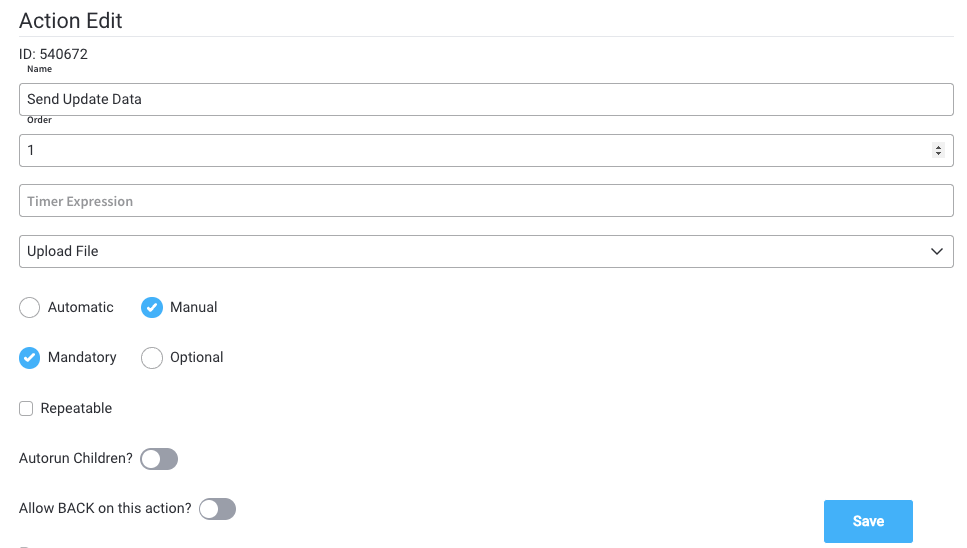
* **Name** - used internally to make a distinction between different actions on nodes in the process. We recommend defining an action naming standard to be able to quickly find the process actions
* **Order** - if multiple actions are defined on the same node, the running order should be set using this option
* **Timer expression** - it can be used if a delay is required on that action. The format used for this is [ISO 8601 duration format ](https://www.w3.org/TR/NOTE-datetime)(for example, a delay of 30 seconds will be set up as `PT30S`)
* **Action type** - should be set to **Upload File**
* **Trigger type** (options are Automatic/Manual) - choose if this action should be triggered automatically (when the process flow reaches this step) or manually (triggered by the user); in most use cases, this will be set to automatic
* **Required type** (options are Mandatory/Optional) - automatic actions can only be defined as mandatory. Manual actions can be defined as mandatory or optional.
* **Repeatable** - should be checked if the action can be triggered multiple times
* **Autorun Children** - when this is switched on, the child actions (the ones defined as mandatory and automatic) will run immediately after the execution of the parent action is finalized
### Back in steps
* **Allow BACK on this action** - back in process is a functionality that allows you to go back in a business process and redo a series of previous actions in the process. For more details, check [Moving a token backwards in a process](../../flowx-designer/managing-a-project-flow/moving-a-token-backwards-in-a-process) section.
### Parameters
* **Address** - the Kafka topic where the file will be posted
* **Document Type** - other metadata that can be set (useful for the [document plugin](../../../../platform-deep-dive/core-extensions/content-management/notifications-plugin/sending-a-notification))
* **Folder** - allows you to configure a value by which the file will be identified in the future
* **Advanced configuration (Show headers)** - this represents a JSON value that will be sent on the headers of the Kafka message
### Data to send
* **Keys** - are used when data is sent from the frontend via an action to validate the data (you can find more information in the [User Task configuration](../node/user-task-node) section)
**Data to send** option is configurable only when the action **trigger type** is **Manual**.
## UI configuration
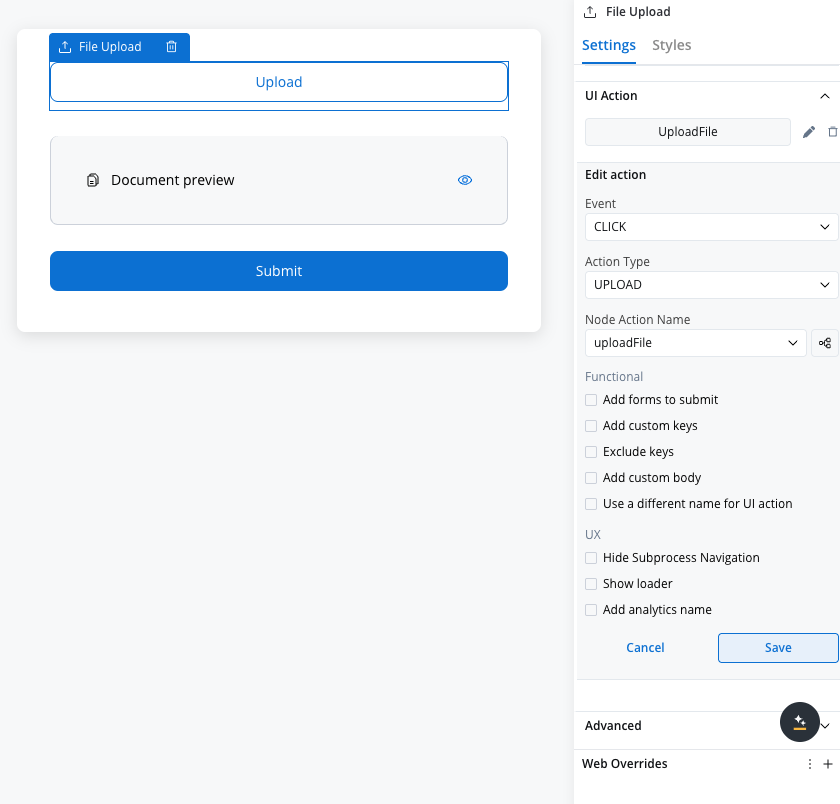
When configuring the event handler that corresponds to the Upload File node action, you must set the **Action Type** to **Upload**. This ensures proper integration between the frontend interface and the backend upload functionality.
***
## Single vs. multi-file processing
When the Upload File action executes, the process engine checks for two mutually exclusive parameter keys:
| Key pattern | Type | Behavior |
| ------------------------- | -------------------------- | ----------------------------------------------------------------------------- |
| `{actionName}TempFileId` | `String` (single UUID) | **Single-file path** — sends a `DocumentPayload` to Kafka (existing behavior) |
| `{actionName}TempFileIds` | `List` (UUID list) | **Multi-file path** — sends a `BulkDocumentPayload` to Kafka |
If neither key is present, the action returns an error and no Kafka message is published.
### Multi-file Kafka topics
When the multi-file path is triggered, the following dedicated Kafka topics are used:
| Direction | Topic pattern | Description |
| -------------------------------- | ----------------------------------------------- | ------------------------ |
| Process engine → document plugin | `plugin.document.trigger.persist.document.bulk` | Bulk persist request |
| Document plugin → process engine | `plugin.document.persist.document.bulk.results` | Per-file persist results |
### Multi-file request payload
```json theme={"system"}
{
"documents": [
{
"tempFileId": "550e8400-e29b-41d4-a716-446655440000",
"customId": "119246",
"documentType": "CONTRACT",
"shouldOverride": false
},
{
"tempFileId": "a3bb189e-8bf9-3888-9912-ace4e6543002",
"customId": "119246",
"documentType": "CONTRACT",
"shouldOverride": false
}
]
}
```
`shouldOverride` is always `false` for multi-file uploads. All files share the same `customId` and use `documentType` from the action configuration (typically `BULK`). This means files accumulate — re-uploading adds new documents rather than replacing existing ones.
### Partial success handling
The document plugin processes each file individually. If one file fails, the remaining files continue processing — successfully persisted files are not rolled back. The response includes a per-file status so your process logic can handle partial failures.
***
## Example: single file upload
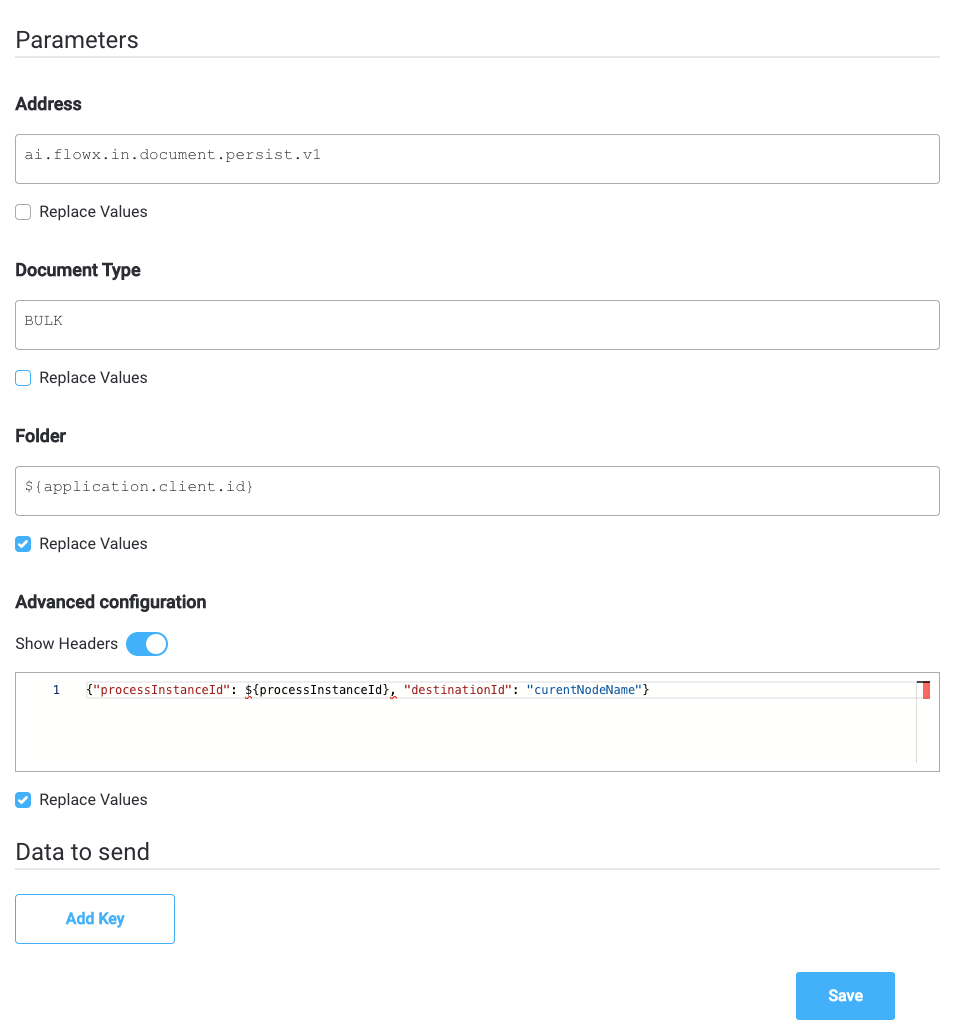
An example of **Upload File Action** is to send a file to the [document plugin](../../../../platform-deep-dive/core-extensions/content-management/notifications-plugin/sending-a-notification). In this case, the configuration will look like this:
**Parameters configuration**
* **Address (topicName)** - will be set to (the id of the document plugin service) `ai.flowx.in.document.persist.v1`
* **Document Type** - metadata used by the document plugin, here we will set it to`BULK`
* **Folder** - the value by which we want to identify this file in the future (here we use the **client.id** value available on the process instance data: `${application.client.id}`
**Advanced configuration**
* **Headers** - headers will send extra metadata to this topic -`{"processInstanceId": ${processInstanceId}, "destinationId": "currentNodeName"}`)
***
## Academy courses
Hands-on course covering data stream topics, upload actions, and file preview UI elements
**Academy playground** — explore the [**uploadFilePreview**](https://designer-workshop-51x.playground.flowxai.dev/workspace/00000000-0000-0000-0000-000000000001/projects/c0352c70-947e-4276-bd13-bb5cad2b547d/config/2457e456-2219-463c-af30-b92fe19c7703/processes) project for a working file upload and preview implementation.