> ## Documentation Index
> Fetch the complete documentation index at: https://docs.flowx.ai/llms.txt
> Use this file to discover all available pages before exploring further.
# Send data to user interface
> Push real-time updates from the process to the client over a single long-lived HTTP connection using Server-Sent Events (SSE).
**Why is it useful?** It provides real-time updates and communication between the **process** and the frontend application.
This action pushes data to the **UI only** via SSE. It does not modify the parent process data model. To persist data from a subprocess into the parent process, use [Append Params to Parent Process](./append-params-to-parent-process). For a comparison of all data passing mechanisms, see [Subprocess management - How data flows](../process/subprocess#how-data-flows-between-subprocess-and-parent).
## Configuring a Send data to user interface action
Multiple options are available for this type of action and can be configured via the **FlowX.AI Designer**. To configure a Send data to user interface, use the **Actions** tab at the [task node level](../../flowx-designer/managing-a-project-flow/adding-a-new-node), which has the following configuration options:
* [Action Edit](#action-edit)
* [Parameters](#parameters)
* [Data to send (for Manual actions)](#data-to-send)
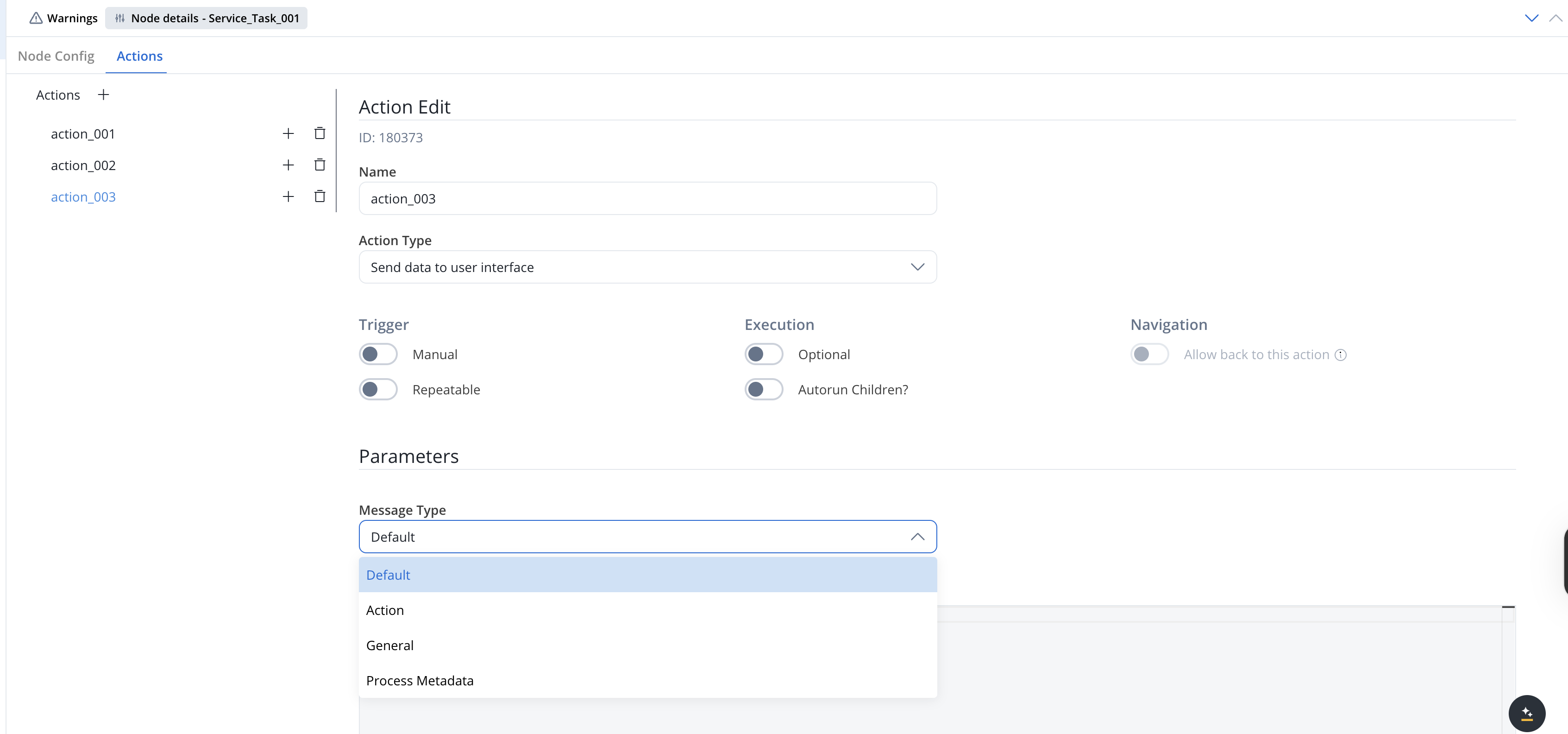
### Action Edit
* **Name** — internal identifier for the action. We recommend defining a naming standard so actions are easy to find.
* **Action Type** — set to **Send data to user interface**.
The remaining options are grouped into three columns:
**Trigger**
* **Manual** — when ON, the action runs only after a user triggers it (for example, from a button in a UI Task). When OFF, the action runs automatically as soon as the token reaches the node.
* **Repeatable** — when ON, the action can be triggered multiple times.
**Execution**
* **Optional** — automatic actions cannot be optional. Manual actions can be optional or required.
* **Autorun Children?** — when ON, child actions (mandatory and automatic) run immediately after this action finishes.
**Navigation**
* **Allow back to this action** — when ON, the user can return to this action via the back-in-process functionality. The toggle is enabled only when **Manual** is ON. For details, see [Moving a token backwards in a process](../../flowx-designer/managing-a-project-flow/moving-a-token-backwards-in-a-process).
### Parameters
The following fields are required for a minimum configuration of this type of action:
* **Message Type** — one of four options. Each maps to a distinct SSE `messageType` on the wire:
* **Default** (sent as `data`) — push a JSON payload to the UI. Most common case.
* **Action** (sent as `runAction`) — tell the UI to perform an action. The Message must define a `type` field set to one of the supported [action types](../ui-designer/event-handlers#action-types) (`DISMISS`, `ACTION`, `START_PROCESS_INHERIT`, `UPLOAD`, `EXTERNAL`).
* **General** (sent as `generalData`) — push the process's general data (configured under **Process Settings → General**) to the UI.
* **Process Metadata** (sent as `processMetadata`) — push process instance metadata to the UI.
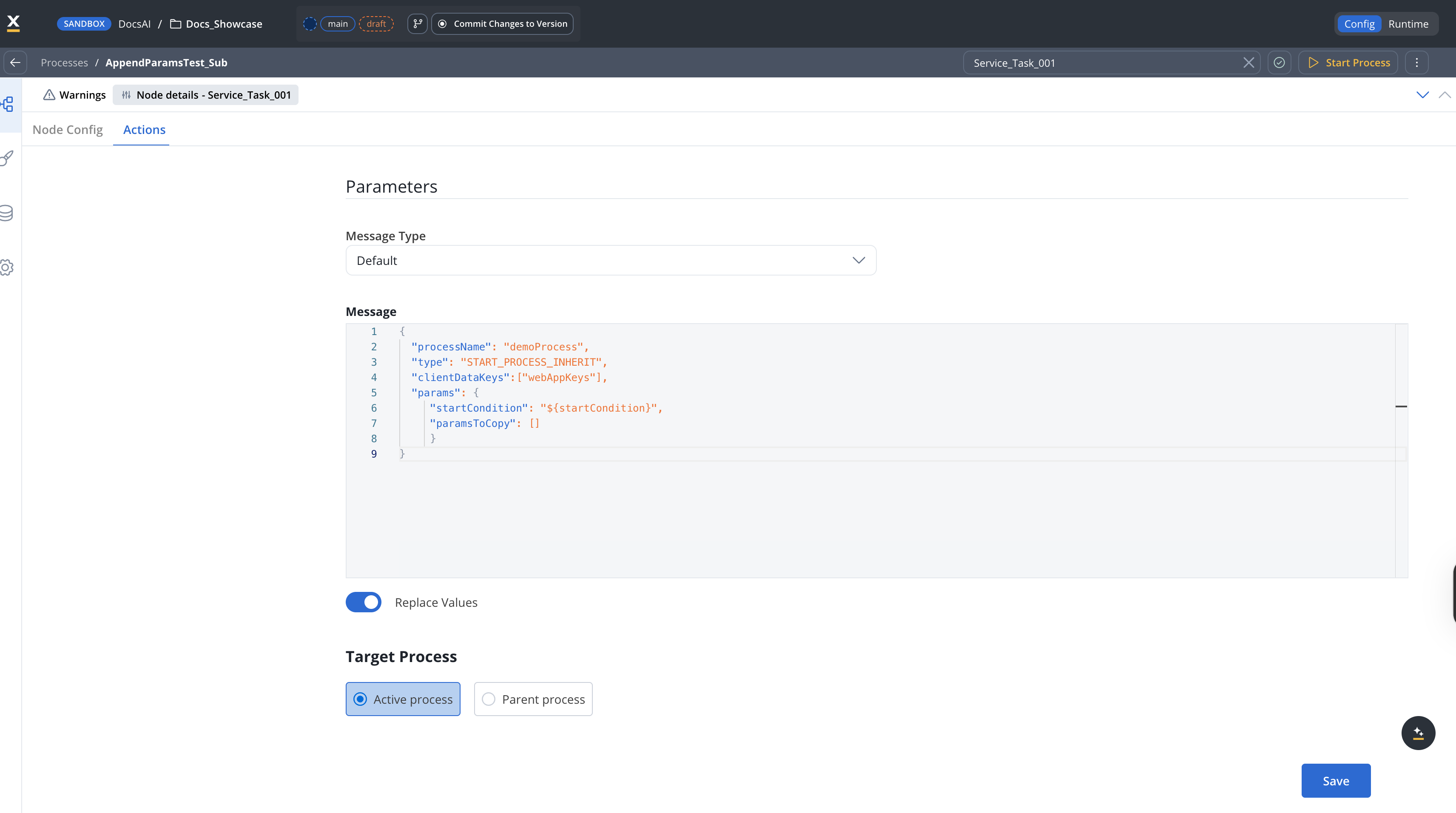
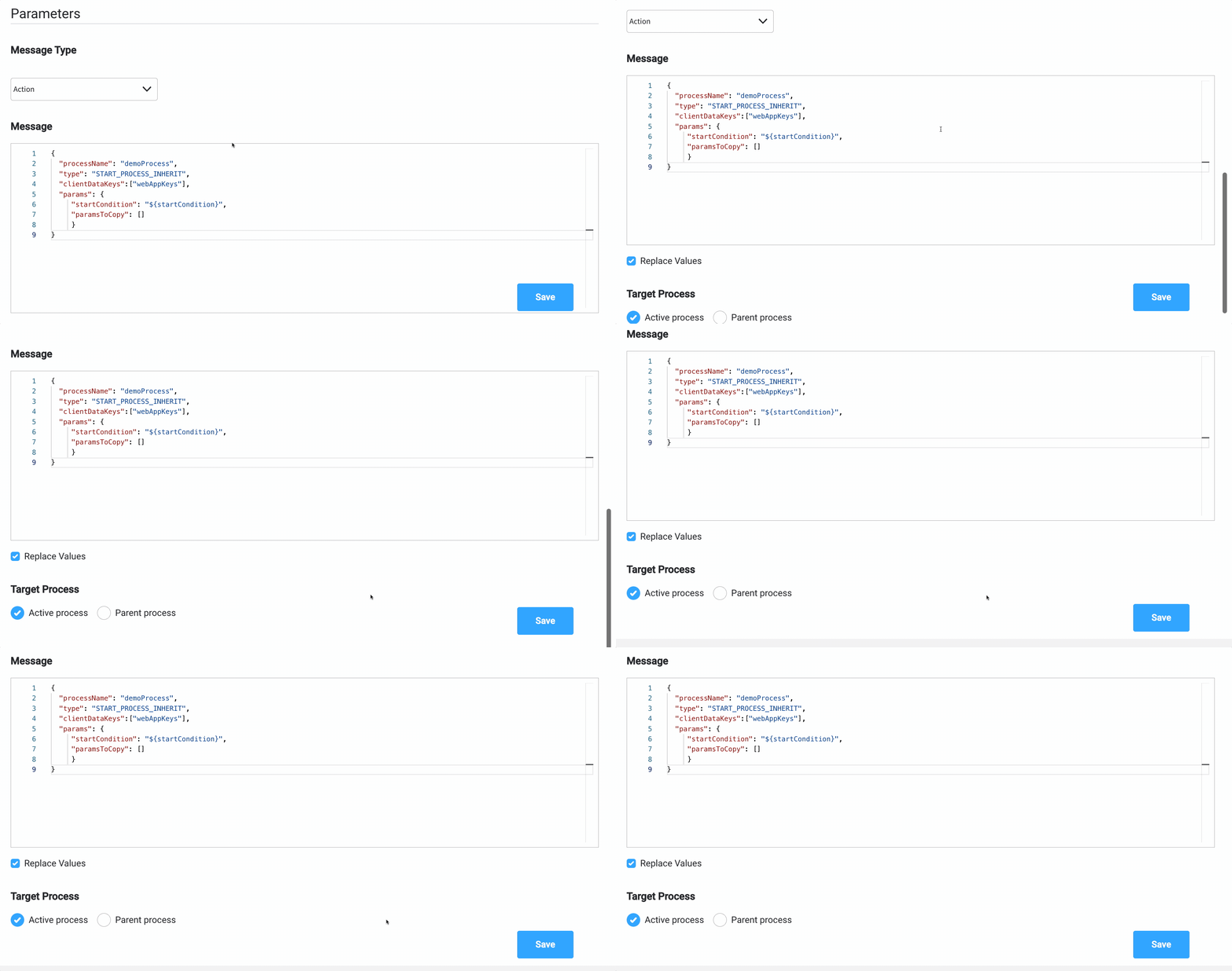
To start a new process from a Send data to user interface action, set **Message Type** to **Action** and define a **Message** with the following format:
```json theme={"system"}
{
"processName": "demoProcess",
"type": "START_PROCESS_INHERIT",
"clientDataKeys":["webAppKeys"],
"params": {
"startCondition": "${startCondition}",
"paramsToCopy": []
}
}
```
* `paramsToCopy` — choose which keys from the parent process parameters are copied to the subprocess
* `withoutParams` — choose which keys from the parent process parameters are excluded when copying
* **Message** — the JSON payload to send. You can use constant values and substitutions from process instance data.
* **Replace Values** — toggle next to the Message field, ON by default. When ON, `${...}` placeholders in the message are replaced with the corresponding values from process instance data before the message is sent. When OFF, the message is sent as literal text, with `${...}` placeholders left unresolved. The same toggle appears on other action parameters (for example, on Start Subprocess) and behaves the same way: it controls placeholder substitution for that parameter, before the action executes.
* **Target Process** — the running process instance the message is sent to. Options: **Active process** (`${processInstanceUuid}`) or **Parent process** (`${parentProcessInstanceUuid}`).
When this action runs inside a subprocess (started via [Start Subprocess](./start-subprocess-action), a [Call activity node](../node/call-subprocess-tasks/call-activity-node), or an embedded subprocess), set **Target Process** to **Parent process** to push the message to the user's UI session bound to the parent process.
### Data to send
* **Keys** - are used when data is sent from the frontend via an action to validate the data (you can find more information in the [User task configuration](../node/user-task-node) section)
**Data to send** is configurable only when the **Manual** toggle is ON.
### Send update data example
To send the latest value from the [process instance](../../projects/runtime/active-process/process-instance) data found at `application.client.firstName` key, to the frontend app, you can do the following:
1. Add a **Send data to user interface**.
2. Set the **Message Type** to **Default** (this is default value for `data`).
3. Add a **Message** with the data you want to send:
* `{ "name": "${application.client.firstName}" }`
4. Choose the **Target Process**.