> ## Documentation Index
> Fetch the complete documentation index at: https://docs.flowx.ai/llms.txt
> Use this file to discover all available pages before exploring further.
# Reconcile supplier invoices against purchase orders
> Receive supplier invoices by email, extract them with AI, match each one against its purchase order in a FlowX Database, approve clean matches automatically, and route every exception to a reviewer.
Accounts payable (AP) teams in logistics check every carrier invoice against the purchase order (PO) it bills: same vendor, same currency, the agreed rates, no extra lines. Most invoices match and only need a signature. The ones that don't are why the check exists. This cookbook automates the matching and keeps a person in the loop only for the exceptions.
You build a pipeline for two fictional carriers, Acme Freight SRL and Northwind Haulage Ltd. An invoice arrives as a PDF attachment, AI extracts it into structured data, a script compares it with the PO stored in a FlowX Database, and the process either approves it automatically or opens a review task that lists every difference it found.
**Prerequisites**: a project in your workspace, access to FlowX.AI Designer, and the AI platform turned on for your environment (the workflow uses the **Document Extraction** node). To receive real invoices you also need an IMAP mailbox. You can build and test everything without one: the workflow runs on uploaded test files and the process accepts mock email content. If integration workflows are new to you, start with [Call an external API from a process](./call-external-api), which covers the send, workflow, receive round trip this cookbook builds on.
***
## The pattern
Two halves, joined by one workflow call:
1. A **FlowX Database** holds the approved purchase orders that invoices are matched against.
2. An **integration workflow** does the matching: it extracts the invoice, looks up its PO, and returns `MATCHED` or `EXCEPTION` together with the list of reasons. It never decides anything a person should decide.
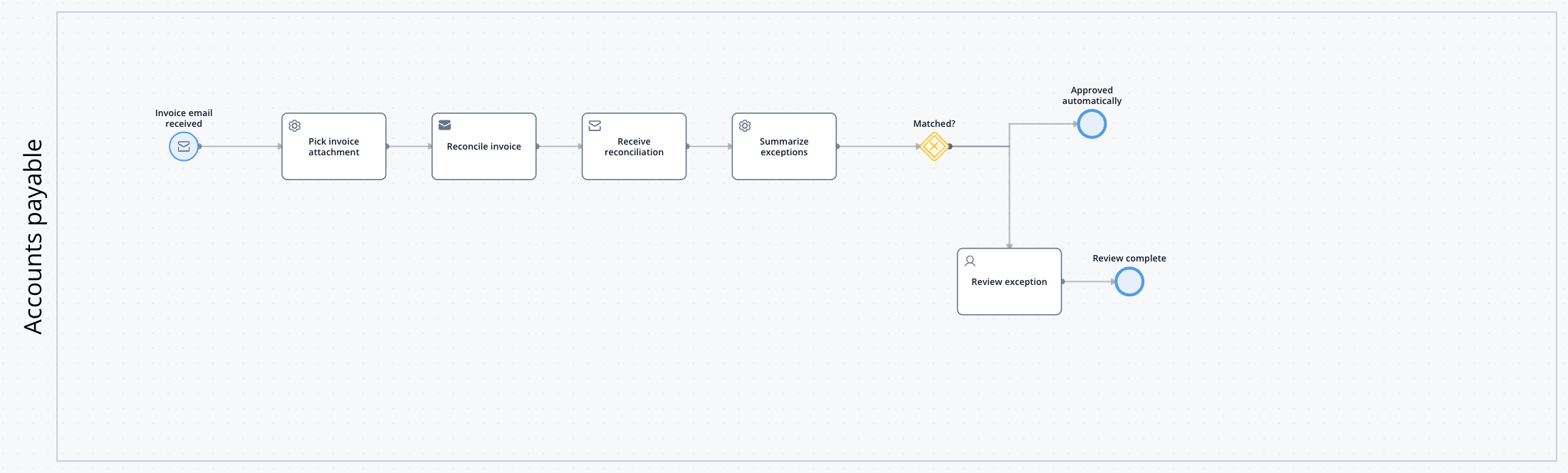
3. A **process** owns the business flow: an **Email Trigger** starts it for each invoice email, it hands the attachment to the workflow, and it routes the result either to automatic approval or to a reviewer.
Keeping the matching in the workflow means you can test it on sample PDFs in isolation, long before a mailbox is connected.
***
## Step 1: Store the purchase orders
In your project, create two data types:
| Data type | Attribute | Type |
| - | - | - |
| `PurchaseOrderLine` | `description` | String |
| | `quantity` | Number |
| | `unitPrice` | Number |
| `PurchaseOrder` | `poNumber` | String |
| | `vendorName` | String |
| | `currency` | String |
| | `subtotal` | Number |
| | `status` | String |
| | `lines` | Array of `PurchaseOrderLine` |
Go to **Integrations** → **Data Sources**, add a **FlowX Database** named `PurchaseOrders`, and select `PurchaseOrder` as its schema. Keep the default partition key `_id`.
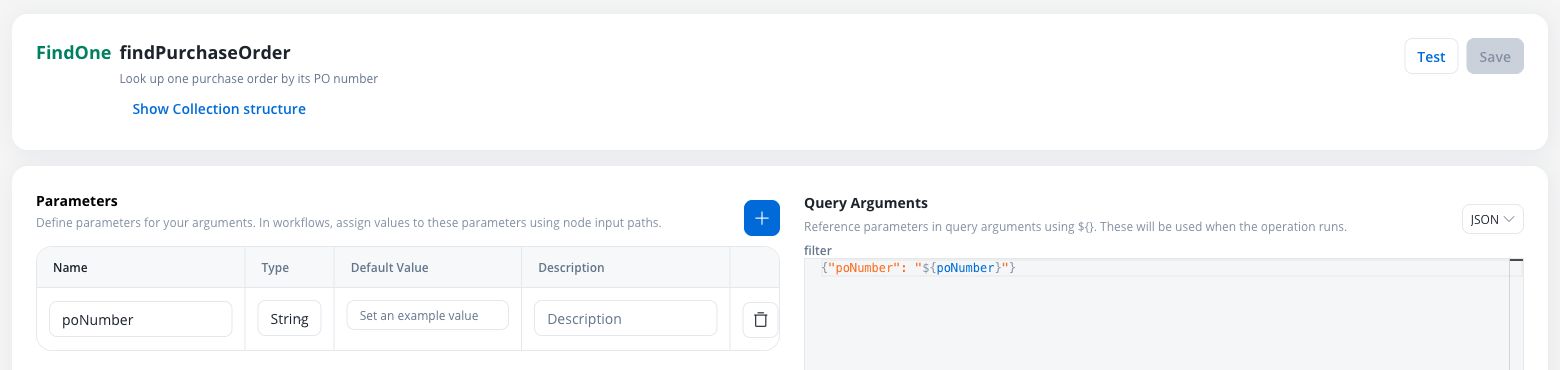
Add a **FindOne** operation named `findPurchaseOrder` with one String parameter, `poNumber`, and this filter:
```json theme={"dark"}
{"poNumber": "${poNumber}"}
```
Add an **InsertMany** operation named `insertPurchaseOrders` with an Object parameter `orders` and the payload `${orders}`. Then create a run-once workflow, `seedPurchaseOrders`: a **Script** node that builds the orders, followed by a **Data Source** node that calls `insertPurchaseOrders` with `orders` bound to `${orders}`.
```javascript theme={"dark"}
output.orders = [
{
poNumber: "PO-4501",
vendorName: "Acme Freight SRL",
currency: "EUR",
subtotal: 2035.00,
status: "OPEN",
lines: [
{ description: "Road freight FTL Bucharest - Vienna", quantity: 1, unitPrice: 1850.00 },
{ description: "Fuel surcharge", quantity: 1, unitPrice: 185.00 }
]
},
{
poNumber: "PO-4502",
vendorName: "Northwind Haulage Ltd",
currency: "EUR",
subtotal: 730.00,
status: "OPEN",
lines: [
{ description: "Container handling, 40 ft", quantity: 4, unitPrice: 120.00 },
{ description: "Customs clearance", quantity: 1, unitPrice: 250.00 }
]
},
{
poNumber: "PO-4503",
vendorName: "Acme Freight SRL",
currency: "EUR",
subtotal: 3200.00,
status: "OPEN",
lines: [
{ description: "Road freight FTL Constanta - Budapest", quantity: 2, unitPrice: 1600.00 }
]
}
];
```
Run the workflow once, then check the **Documents** tab of `PurchaseOrders`: it lists the three orders. In a real deployment, your ERP feeds this collection instead.
For the other operation types and how their parameters bind in workflows, see [FlowX Database](/5.9/docs/platform-deep-dive/integrations/flowx-database).
***
## Step 2: Extract the invoice
Create a workflow named `reconcileInvoice`. It takes one input, the path of the invoice file in the Document Plugin, and returns the reconciliation result.
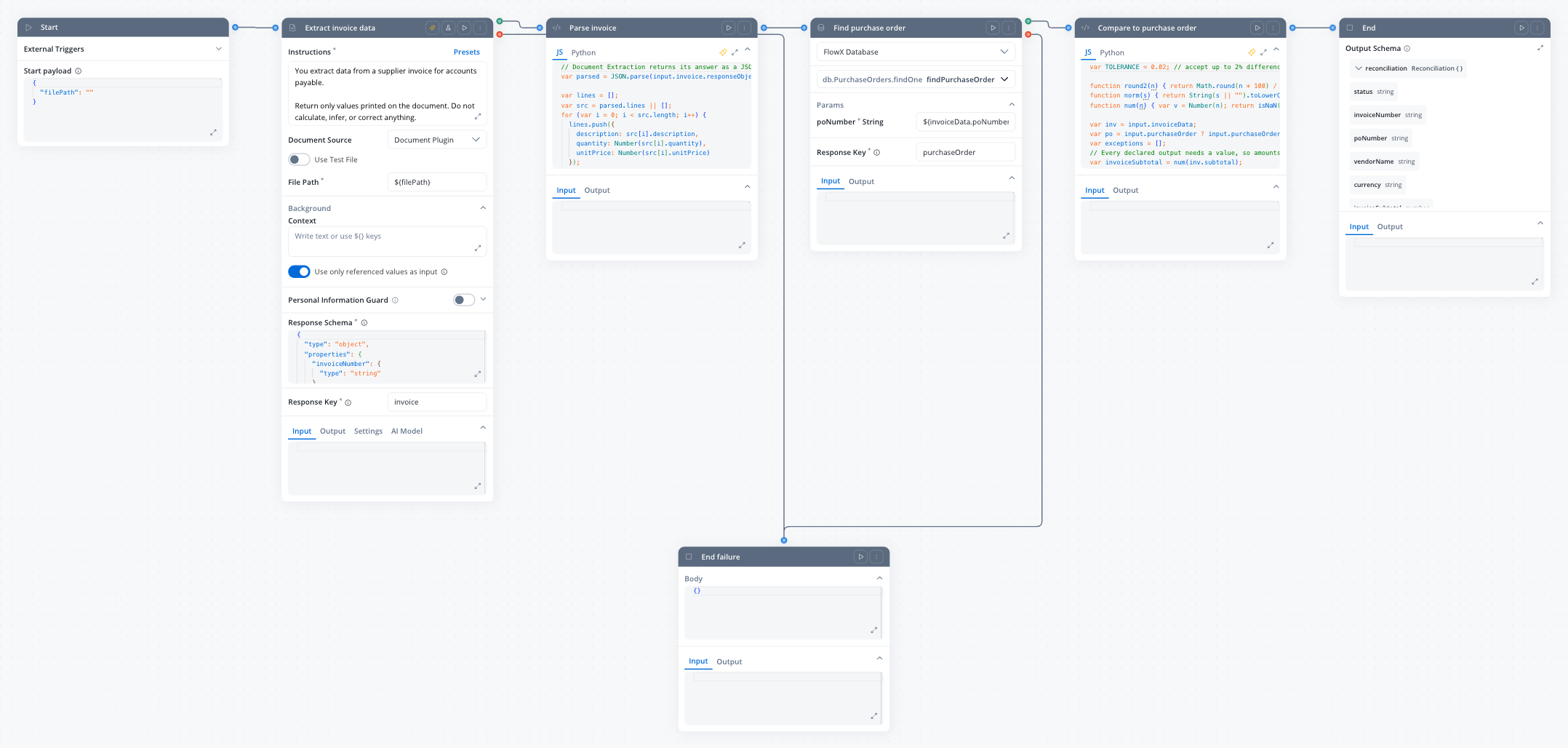
In the workflow's data model, add a String attribute `filePath` and declare it as the Start node's input parameter.
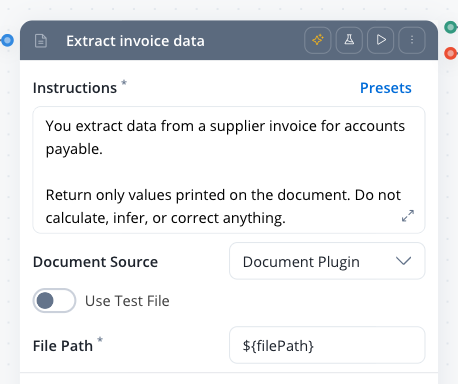
Add a **Document Extraction** node named `Extract invoice data` after Start:
* **Presets**: **Metadata Generation**, then replace the prefilled instructions with the ones below
* **Document Source**: **Document Plugin**
* **File Path**: `${filePath}`
* **Response Key**: `invoice`
**Instructions:**
```text theme={"dark"}
You extract data from a supplier invoice for accounts payable.
Return only values printed on the document. Do not calculate, infer, or correct anything.
- invoiceNumber, poNumber: copy exactly as printed, including prefixes such as "PO-".
- vendorName: the legal name of the company issuing the invoice, not the bill-to party.
- currency: the ISO 4217 code, for example EUR.
- subtotal: the amount before VAT, as a number without thousands separators.
- lines: one entry per invoice line, with quantity and unitPrice as numbers.
If a value is not on the document, return null for it.
```
**Response Schema:**
```json theme={"dark"}
{
"type": "object",
"properties": {
"invoiceNumber": { "type": "string" },
"invoiceDate": { "type": "string" },
"poNumber": { "type": "string" },
"vendorName": { "type": "string" },
"currency": { "type": "string" },
"subtotal": { "type": "number" },
"lines": {
"type": "array",
"items": {
"type": "object",
"properties": {
"description": { "type": "string" },
"quantity": { "type": "number" },
"unitPrice": { "type": "number" }
}
}
}
}
}
```
Connect the node's failure branch to an **End** node named `End failure`. An unreadable file or a model error then ends the run visibly instead of passing empty data downstream.
The instructions ask for values **as printed** and forbid calculation. Matching is the script's job: a model that "helpfully" corrects a wrong subtotal hides exactly the discrepancy AP needs to see.
***
## Step 3: Match the invoice against its purchase order
Add a **Script** node named `Parse invoice` on the extraction node's success branch. Document Extraction returns its answer as a JSON **string** in `responseObjects[0]`, so parse it and copy the fields into a plain object:
```javascript theme={"dark"}
// Document Extraction returns its answer as a JSON string
var parsed = JSON.parse(input.invoice.responseObjects[0]);
var lines = [];
var src = parsed.lines || [];
for (var i = 0; i < src.length; i++) {
lines.push({
description: src[i].description,
quantity: Number(src[i].quantity),
unitPrice: Number(src[i].unitPrice)
});
}
output.invoiceData = {
invoiceNumber: parsed.invoiceNumber,
poNumber: parsed.poNumber,
vendorName: parsed.vendorName,
currency: parsed.currency,
subtotal: Number(parsed.subtotal),
lines: lines
};
// The raw extraction is no longer needed downstream
output.invoice = {};
```
Add a **Data Source** node named `Find purchase order`. Select the `PurchaseOrders` database and the `findPurchaseOrder` operation, set the `poNumber` parameter to `${invoiceData.poNumber}`, and set **Response Key** to `purchaseOrder`. Connect its failure branch to `End failure`.
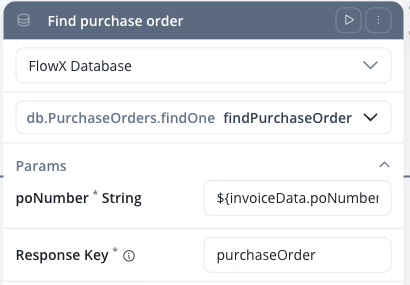
A FindOne result lands one level down, at `purchaseOrder.data`.
Add a **Script** node named `Compare to purchase order`. It checks the PO's status, vendor, currency, subtotal, and every invoice line, and collects one readable message per difference:
```javascript theme={"dark"}
var TOLERANCE = 0.02; // accept up to 2% difference on amounts
function round2(n) { return Math.round(n * 100) / 100; }
function norm(s) { return String(s || "").toLowerCase().trim(); }
function num(n) { var v = Number(n); return isNaN(v) ? 0 : v; }
var inv = input.invoiceData;
var po = input.purchaseOrder ? input.purchaseOrder.data : null;
var exceptions = [];
// Every declared output needs a value, so amounts default to 0 instead of null
var invoiceSubtotal = num(inv.subtotal);
var poSubtotal = 0;
var variance = 0;
if (!po || !po.poNumber) {
exceptions.push("No purchase order found for " + (inv.poNumber || "an invoice without a PO number"));
} else {
poSubtotal = num(po.subtotal);
variance = round2(invoiceSubtotal - poSubtotal);
if (po.status !== "OPEN") {
exceptions.push("Purchase order " + po.poNumber + " is " + po.status);
}
if (norm(po.vendorName) !== norm(inv.vendorName)) {
exceptions.push("Vendor mismatch: invoice from " + inv.vendorName + ", PO issued to " + po.vendorName);
}
if (po.currency !== inv.currency) {
exceptions.push("Currency mismatch: invoice in " + inv.currency + ", PO in " + po.currency);
}
if (Math.abs(variance) > poSubtotal * TOLERANCE) {
exceptions.push("Subtotal differs from PO by " + variance + " " + inv.currency);
}
// Line check: each invoice line must match a PO line on description, quantity, and unit price
var poLines = po.lines || [];
var invLines = inv.lines || [];
for (var i = 0; i < invLines.length; i++) {
var line = invLines[i];
var match = null;
for (var j = 0; j < poLines.length; j++) {
if (norm(line.description).indexOf(norm(poLines[j].description)) === 0) { match = poLines[j]; break; }
}
if (!match) {
exceptions.push("Line not on PO: " + line.description);
continue;
}
var poPrice = num(match.unitPrice);
if (Math.abs(num(line.unitPrice) - poPrice) > poPrice * TOLERANCE) {
exceptions.push("Unit price for " + match.description + ": invoiced " + line.unitPrice + ", PO " + poPrice);
}
if (num(line.quantity) > num(match.quantity)) {
exceptions.push("Quantity for " + match.description + ": invoiced " + line.quantity + ", PO " + match.quantity);
}
}
}
output.reconciliation = {
status: exceptions.length === 0 ? "MATCHED" : "EXCEPTION",
invoiceNumber: inv.invoiceNumber || "",
poNumber: inv.poNumber || "",
vendorName: inv.vendorName || "",
currency: inv.currency || "",
invoiceSubtotal: invoiceSubtotal,
poSubtotal: poSubtotal,
variance: variance,
exceptions: exceptions
};
// Last consumer of these keys: drop them so they don't ride along in the token
output.purchaseOrder = {};
output.invoiceData = {};
```
A line matches a PO line when its description **starts with** the PO line's description, so a carrier that prints `Road freight FTL Bucharest - Vienna, 13.6 m trailer` still matches the PO line `Road freight FTL Bucharest - Vienna`.
In the workflow's data model, add an object `reconciliation` with `status`, `invoiceNumber`, `poNumber`, `vendorName`, and `currency` (String), `invoiceSubtotal`, `poSubtotal`, and `variance` (Number), and `exceptions` (Array of String). Declare it as the output of the success **End** node.
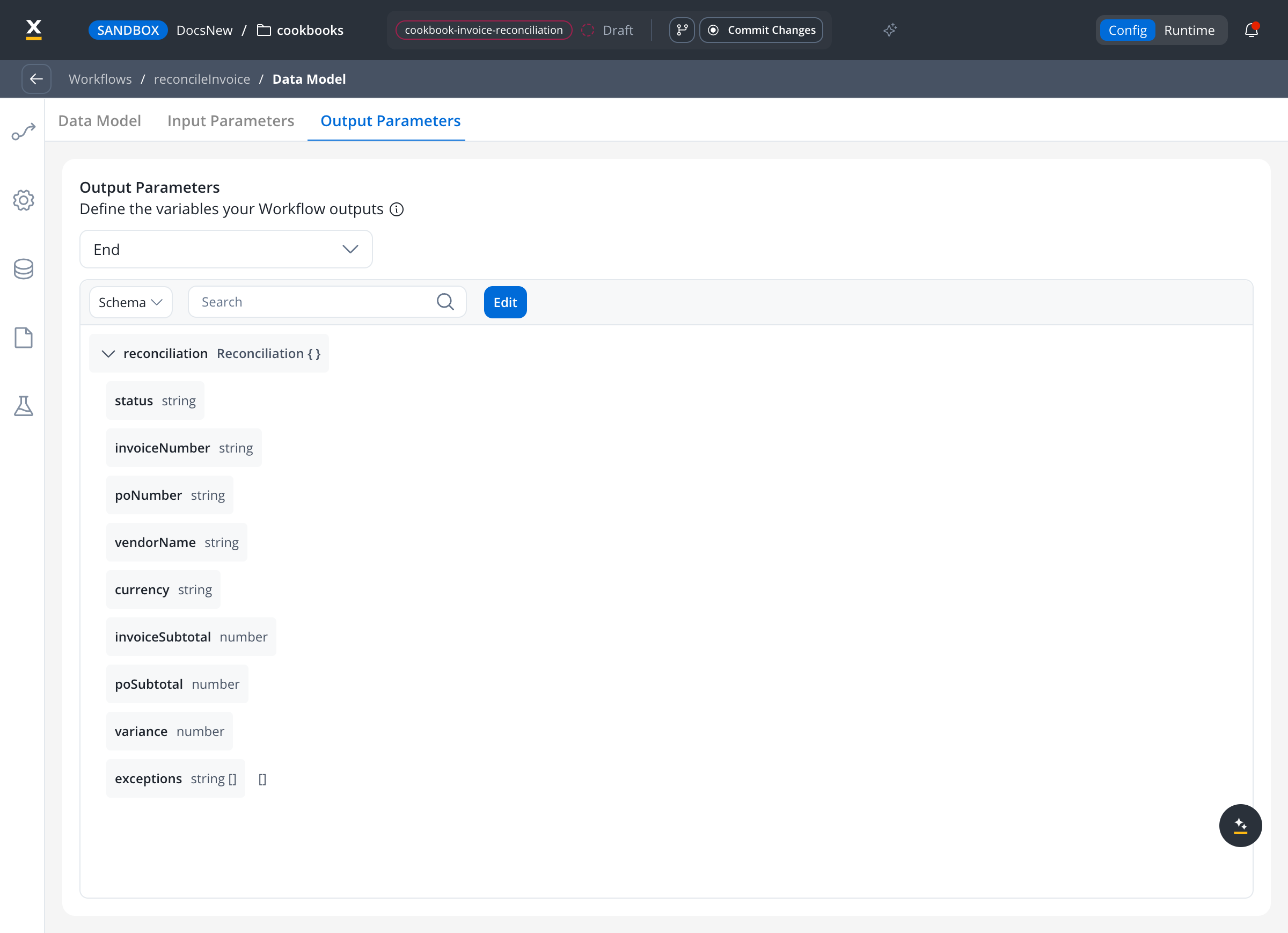
Declared output parameters are a runtime contract: a parameter that resolves to no value when the run reaches the End node fails the run. That is why the Compare script defaults every field to `""` or `0` instead of `null`, including when no PO is found. See [mandatory output parameters missing](/5.9/docs/resources/error-glossary#the-mandatory-output-parameters-of-the-workflow-are-missing-at-runtime).
Script nodes receive workflow data as Java-backed objects, not plain JavaScript. Both scripts read fields one by one and loop with an index instead of calling `.map()` or `JSON.stringify()` on their input, and they only put plain objects in `output`. Clearing `invoice`, `purchaseOrder`, and `invoiceData` with `{}` once they are consumed keeps the data that travels between nodes small.
***
## Step 4: Test the workflow on sample invoices
Create two PDF invoices to test with. Any tool that prints a PDF works; what matters is the content:
| | Matched invoice | Exception invoice |
| - | - | - |
| **Issued by** | Acme Freight SRL | Northwind Haulage Ltd |
| **Invoice number** | `AF-2026-0917` | `NH-3310` |
| **PO number** | `PO-4501` | `PO-4502` |
| **Lines** | Road freight FTL Bucharest - Vienna, 13.6 m trailer: 1 × 1,850.00
Fuel surcharge: 1 × 185.00 | Container handling, 40 ft: 4 × 135.00
Customs clearance: 1 × 250.00 |
| **Subtotal** | EUR 2,035.00 | EUR 790.00 |
On the extraction node, turn on **Use Test File**, attach a sample invoice, and click **Run Workflow**. The run details show each node's input and output. The two invoices produce:
| Invoice | `status` | `variance` | `exceptions` |
| - | - | - | - |
| Acme Freight `AF-2026-0917` | `MATCHED` | `0` | none |
| Northwind Haulage `NH-3310` | `EXCEPTION` | `60` | `Subtotal differs from PO by 60 EUR`
`Unit price for Container handling, 40 ft: invoiced 135, PO 120` |
The Northwind invoice bills container handling at 135.00 against an agreed 120.00, which is 12.5% above the rate and well past the 2% tolerance.
Turn **Use Test File** off again before you connect the process. With it on, the node ignores `${filePath}` and extracts the test file on every run.
***
## Step 5: Receive invoices by email
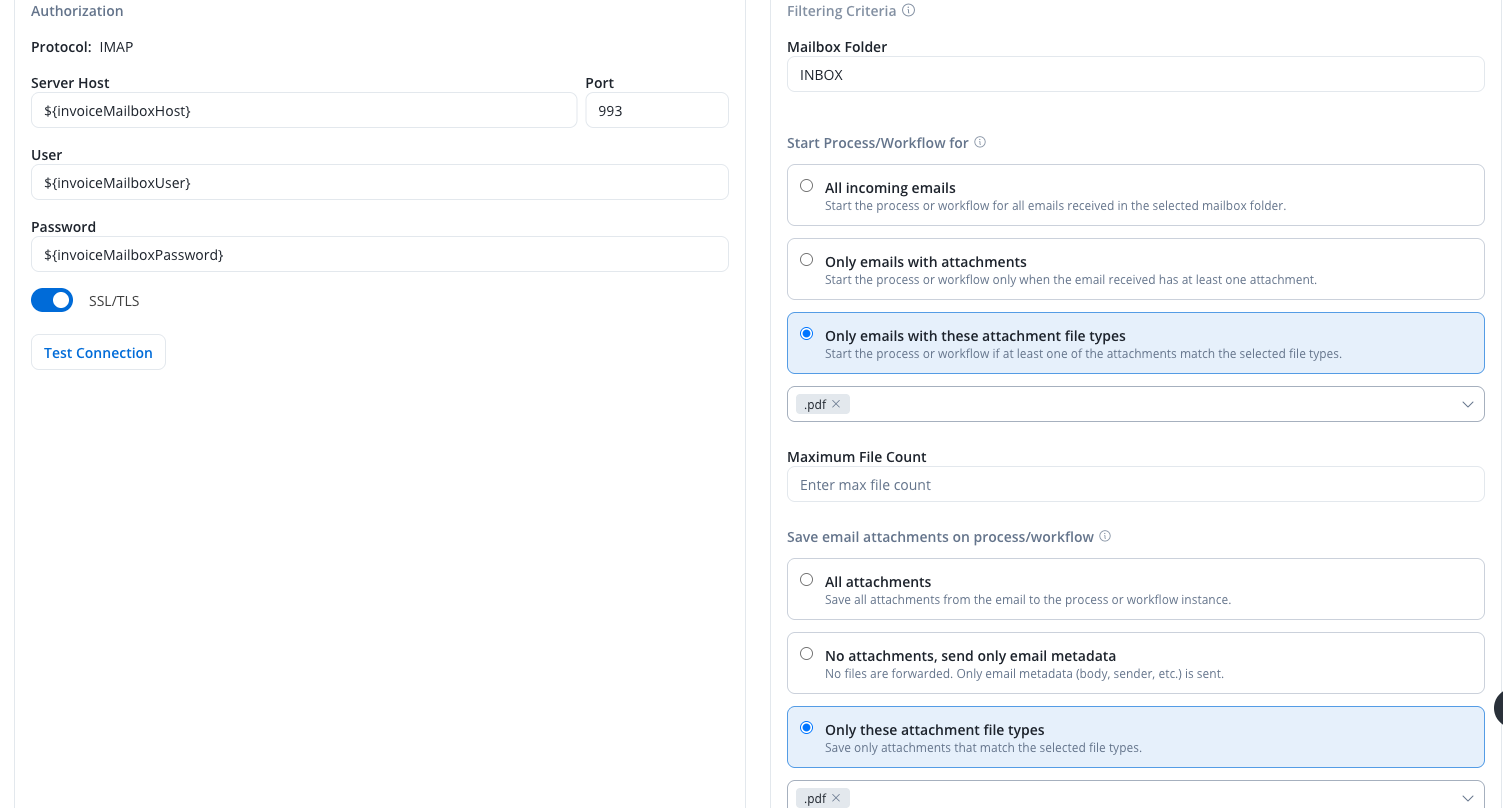
Go to **Integrations** → **Data Sources** and add an **Email Trigger** named `Invoice mailbox`. Enter the IMAP connection of your AP mailbox. Reference the host, user, and password as configuration parameters (`${configParam}`) instead of typing them in, so each environment uses its own mailbox and the password never sits in the project.
Under the filtering criteria, set:
* **Start Process/Workflow for**: **Only emails with these attachment file types**, `.pdf`
* **Save email attachments on process/workflow**: **Only these attachment file types**, `.pdf`
Emails without a PDF are then rejected and listed under **Failed Triggers**, and a signature image or logo attached next to the invoice never reaches the process.
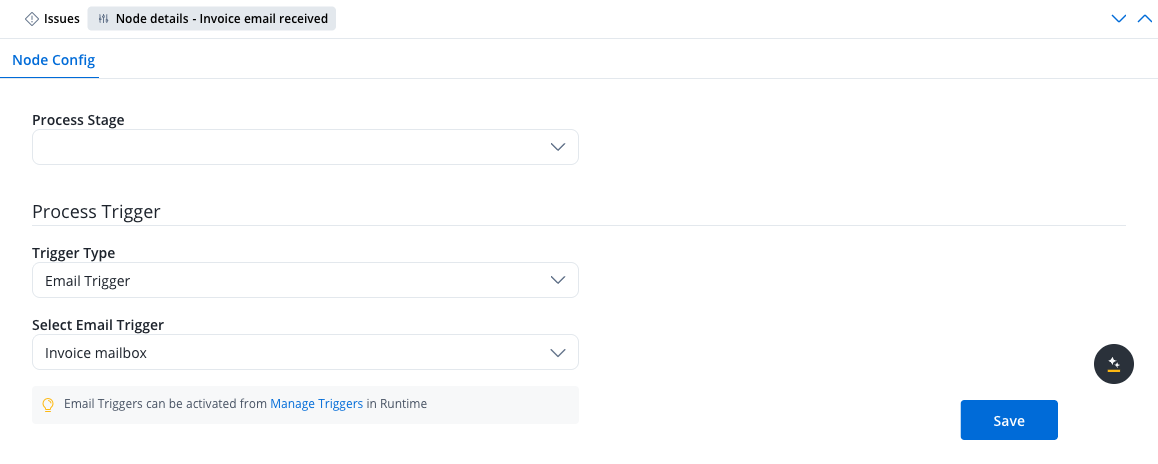
Create a process named `invoiceIntake` with a swimlane named `Accounts payable`. Its start node is a **Message Start Event** named `Invoice email received`. In its node config, set **Trigger Type** to **Email Trigger** and select `Invoice mailbox`.
Each accepted email starts one process instance. Before the first node runs, the platform stores the attachments in the Document Plugin and adds them to the instance data at `emailMessage.fileAttachments`, one entry per file with its `filePath`. For the full email schema, see [Email Trigger](/5.9/docs/platform-deep-dive/integrations/email-trigger#email-data-schema).
***
## Step 6: Hand the invoice to the workflow
Add a **Service Task** named `Pick invoice attachment` with a business rule action:
```javascript theme={"dark"}
// The reconciliation workflow takes one file path: pass the first attachment's path as a plain key
var attachments = input.emailMessage ? input.emailMessage.fileAttachments : null;
var path = "";
if (attachments != null && attachments.length > 0) {
path = attachments[0].filePath;
}
output.invoice = { filePath: path };
```
The trigger forwards PDFs only, so the first attachment is the invoice. If your suppliers send several invoices in one email, start the workflow once per attachment instead.
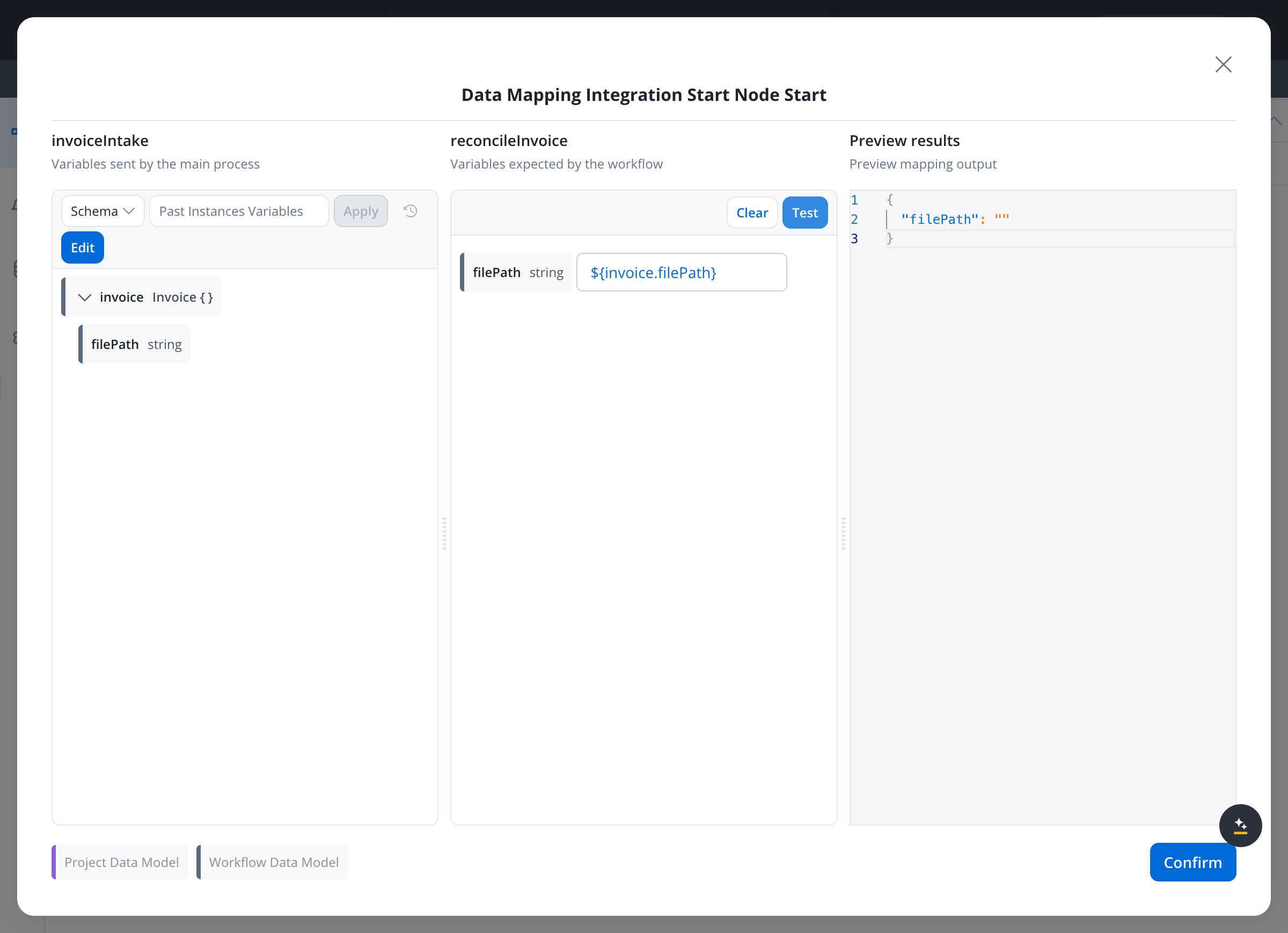
Add a **Send Message Task** named `Reconcile invoice` with a **Start Integration Workflow** action. Select `reconcileInvoice` and map its `filePath` input to `${invoice.filePath}`.
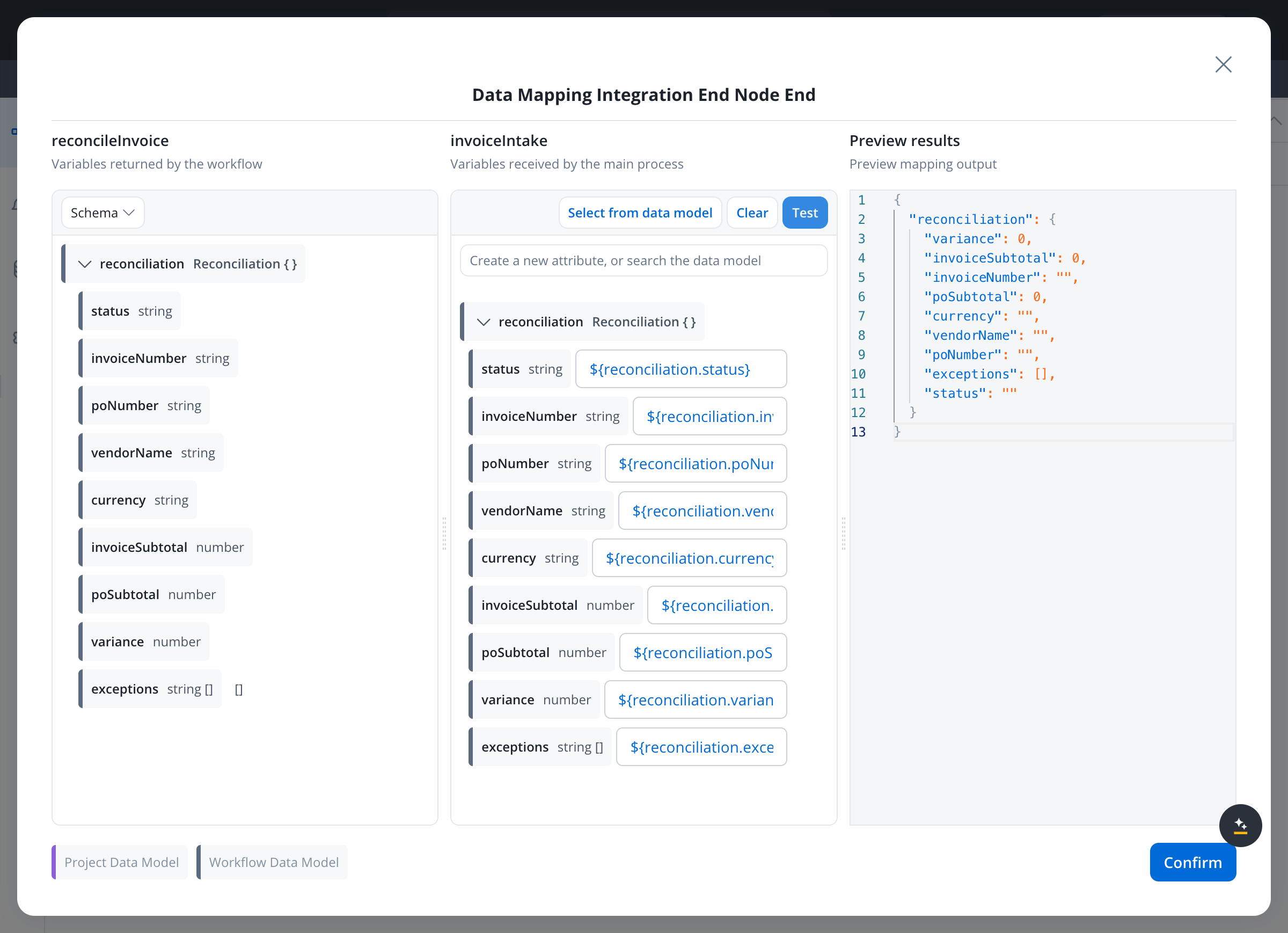
Add a **Receive Message Task** named `Receive reconciliation`. Add a data stream with **Source** set to **Workflow**, select `reconcileInvoice`, and in the **Output Mapping** of its success End node map each of the nine `reconciliation` fields to the process attribute of the same name. Click **Update**, then save the node.
For how data streams and mapping modes work, see [Send and Receive Message Tasks](/5.9/docs/building-blocks/node/message-send-received-task-node).
***
## Step 7: Route exceptions to a reviewer
Add a **Service Task** named `Summarize exceptions` with a business rule that joins the list into one block of text the review form can show:
```javascript theme={"dark"}
// Join the exception list into one line for the reviewer's form
var list = input.reconciliation.exceptions;
var parts = [];
if (list != null) {
for (var i = 0; i < list.length; i++) { parts.push(list[i]); }
}
var rec = input.reconciliation;
rec.exceptionSummary = parts.join("\n");
output.reconciliation = rec;
```
Add an **Exclusive Gateway** named `Matched?`. Send the flow to an **End** node named `Approved automatically` when `input.reconciliation.status == "MATCHED"`, and to a **User Task** named `Review exception` otherwise.
Place `Review exception` in a navigation area (for example a **Page** named `Invoice review`), then open its UI and add a **Card** titled `Review invoice exception` that holds a **Form** with:
| Component | Key | Label |
| - | - | - |
| Input | `reconciliation.invoiceNumber` | Invoice number |
| Input | `reconciliation.poNumber` | Purchase order |
| Input | `reconciliation.vendorName` | Vendor |
| Input | `reconciliation.currency` | Currency |
| Input (number) | `reconciliation.invoiceSubtotal` | Invoice subtotal |
| Input (number) | `reconciliation.poSubtotal` | PO subtotal |
| Text Area | `reconciliation.exceptionSummary` | Exceptions |
| Radio | `review.decision` | Decision: **Approve for payment** or **Reject and return to vendor** |
| Text Area | `review.comment` | Comment |
Add a **Submit review** button that runs the user task's `saveData` action, and connect the task to an **End** node named `Review complete`.
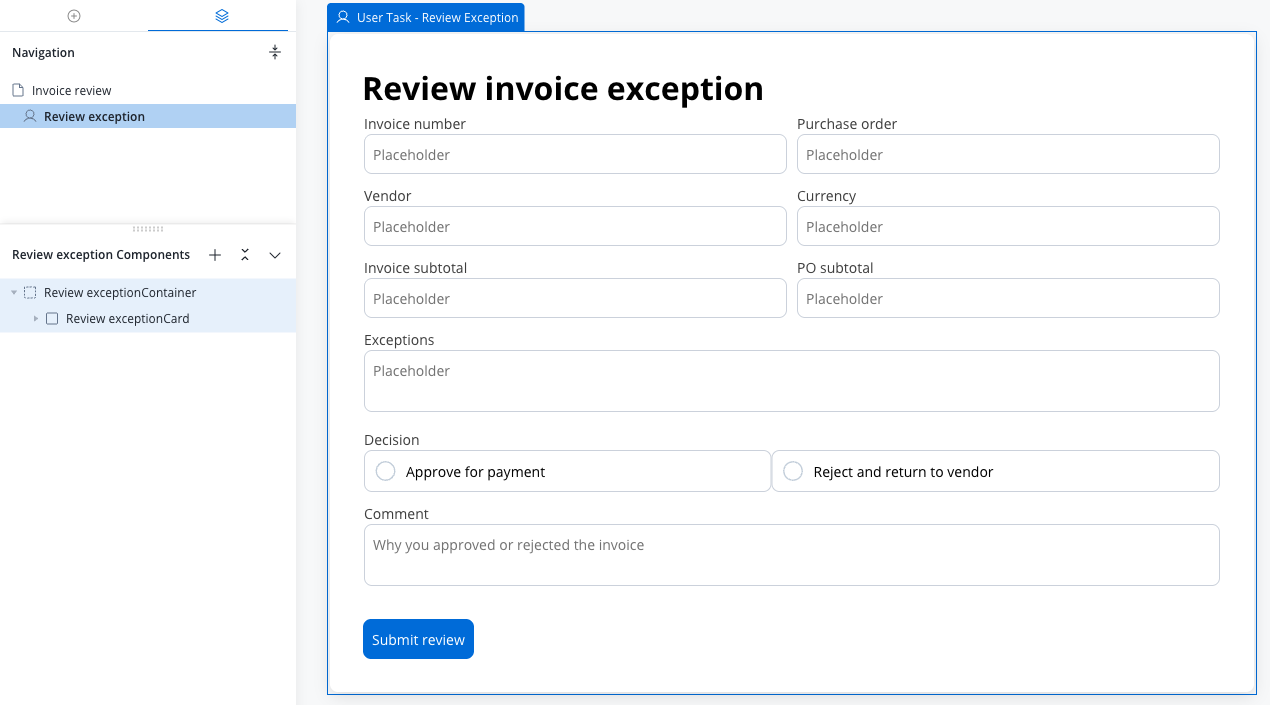
A user task outside a navigation area doesn't render at runtime. Designer flags it on the node: "The Node is not included in a Navigation Area and will not be rendered properly." See [Navigation areas](/5.9/docs/building-blocks/process/navigation-areas).
The reviewer sees the invoice and PO values side by side with every difference already spelled out, so the decision takes seconds. To act on it, add the next step after `Review exception`: post approved invoices to your ERP, or send the rejection and the reviewer's comment back to the vendor with a [Send Notification action](/5.9/docs/building-blocks/actions/send-notification-action).
***
## Step 8: Run it end to end
Start `invoiceIntake` with mock email content instead of a real email: fill in a subject, a sender, and a body, and upload the Northwind sample invoice. See [Testing with mock email content](/5.9/docs/platform-deep-dive/integrations/email-trigger#testing-with-mock-email-content).
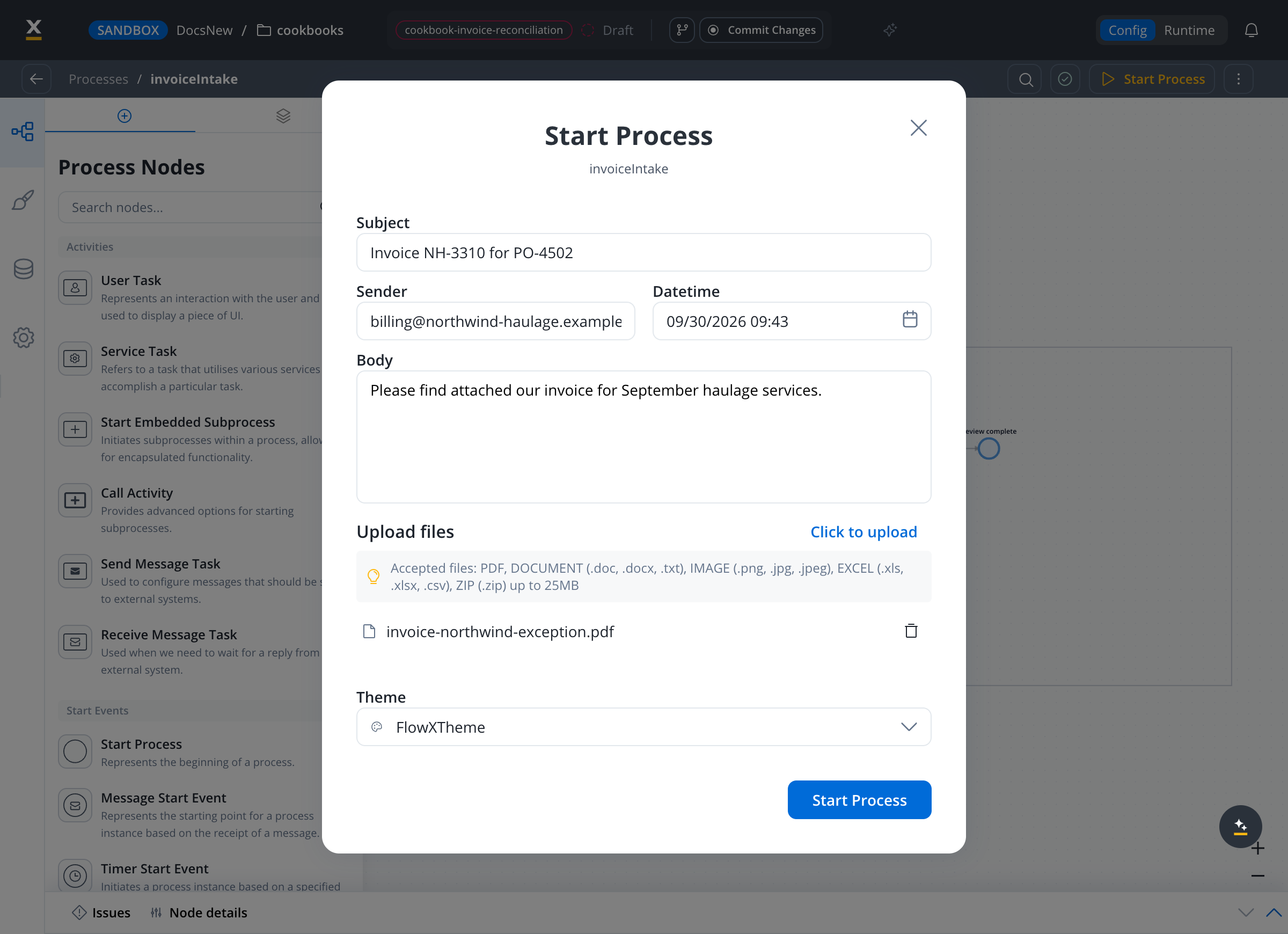
The instance stops at `Review exception` with both differences listed. Choose a decision, add a comment, and click **Submit review**. The instance finishes at `Review complete`.
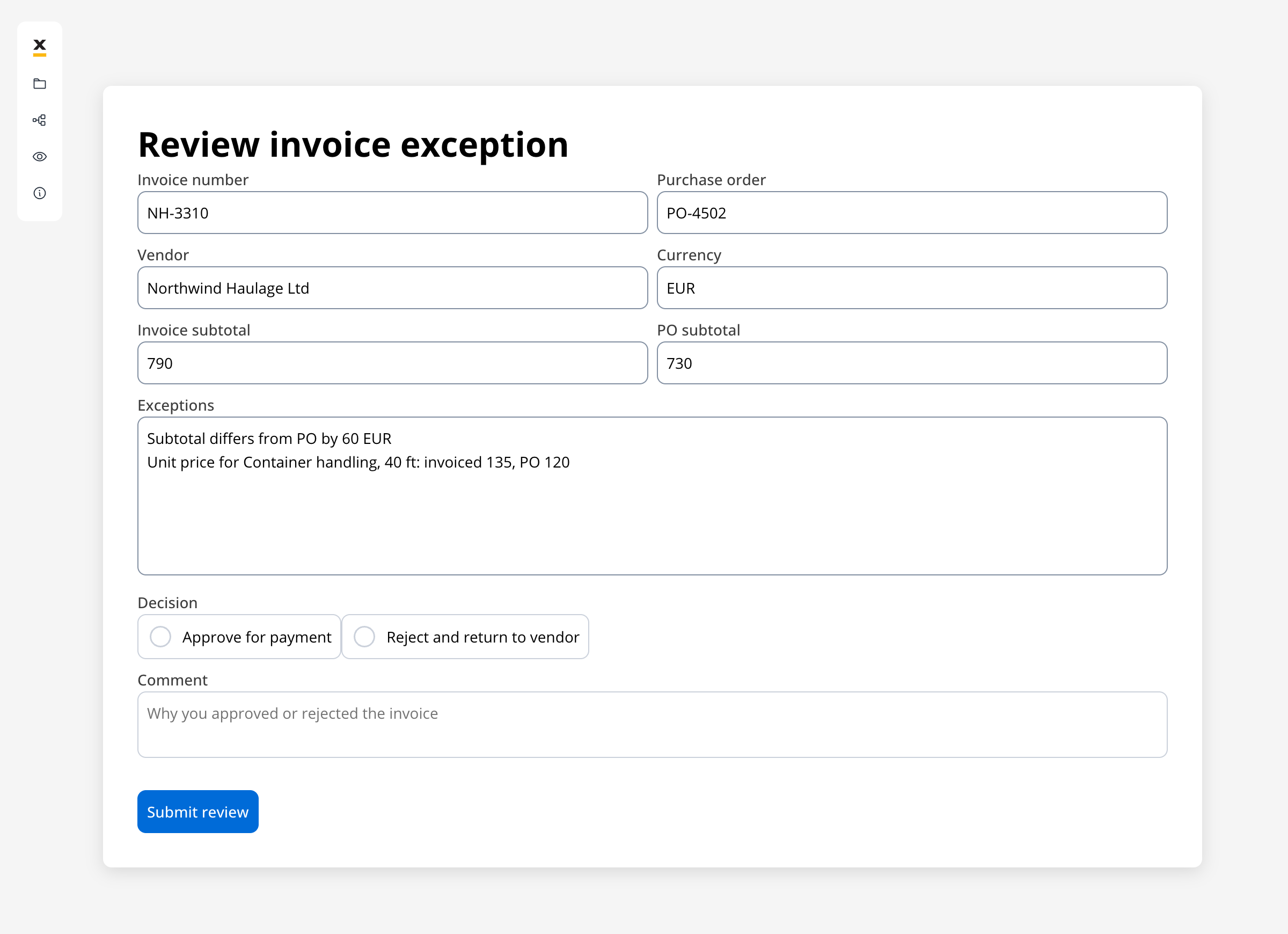
Start a second instance with the Acme Freight invoice. It passes the gateway and finishes at `Approved automatically` without creating a task.
Activate `Invoice mailbox` from **Manage Triggers** in **Runtime Settings**. From then on, each PDF invoice that arrives in the mailbox starts an instance.
You built an AP pipeline that reads invoices from a mailbox, extracts them with AI, matches them against purchase orders in a FlowX Database, approves clean matches on its own, and sends each exception to a person with the reasons attached.
***
## Adapt the matching rules
The Compare script is the one place where AP policy lives. Common changes:
* **Tolerance**: `TOLERANCE = 0.02` accepts a 2% difference on the subtotal and on unit prices. Set it to `0` for exact matching, or split it into separate rate and total tolerances.
* **Partial deliveries**: the quantity check only flags invoiced quantities *above* the PO. To bill against the remaining PO balance, store the quantity invoiced so far on each PO line and compare against the balance.
* **Duplicate invoices**: add a FlowX Database of processed invoice numbers, look it up before the comparison, and raise an exception when the vendor has billed the same number before.
* **Line matching**: prefix matching on descriptions suits carriers that append details. When suppliers print item codes, add a `code` attribute to `PurchaseOrderLine` and match on it instead.
***
## When it fails
| Symptom | Likely cause | Where to look |
| - | - | - |
| Every invoice gets `No purchase order found for ...` | The invoice prints the PO number differently from the database, for example `4502` instead of `PO-4502`. | The `Parse invoice` output in the workflow run details. Normalize the number there, or adjust the extraction instructions. |
| Lines are reported as `Line not on PO` although they are | The printed description doesn't start with the PO line's description. | The Compare script's line matching. See [Adapt the matching rules](#adapt-the-matching-rules). |
| `vendorName` holds your own company's name | The model read the bill-to party. | The extraction instructions, which ask for the issuing company. Make the rule stricter for your invoice layouts. |
| `The mandatory output parameters of the workflow are missing at runtime.` | A declared output field resolved to no value. | [Glossary entry](/5.9/docs/resources/error-glossary#the-mandatory-output-parameters-of-the-workflow-are-missing-at-runtime). Default every output field in the Compare script. |
| An email doesn't start an instance | The trigger isn't active, or the email has no PDF attachment. | **Manage Triggers** and **Failed Triggers**, see [Email Trigger](/5.9/docs/platform-deep-dive/integrations/email-trigger#handling-failed-triggers). |
| The review task doesn't render | `Review exception` isn't in a navigation area. | The node's navigation area in the process UI. |
A failed workflow reply is **not retried**. An instance whose reconciliation failed stays at `Receive reconciliation`. After fixing the configuration, test with a new process instance.
***
## Related resources
Connection settings, filtering criteria, the email data schema, and mock email testing.
Operations, parameters, and how Data Source nodes bind them in workflows.
The general pattern behind this cookbook, and when to compare with AI instead of rules.
Classify and extract several document types in one flow.
## Related topics
- [Cookbooks](/5.9/cookbooks/overview.md)
- [Agent Builder use cases](/5.9/ai-platform/agent-builder/use-cases.md)
- [Oracle Database](/5.9/docs/platform-deep-dive/integrations/oracle-database.md)
- [Agent catalog](/5.9/ai-platform/agent-catalog.md)
- [Document processing pipeline](/5.9/ai-platform/tutorials/document-processing.md)