> ## Documentation Index
> Fetch the complete documentation index at: https://docs.flowx.ai/llms.txt
> Use this file to discover all available pages before exploring further.
# Mortgage advisor chatbot
> Build a Chat Driven conversational AI mortgage advisor with built-in session memory, intent routing, a knowledge base, and hybrid AI + business rule recommendations.
**Preview**
Agent Builder is currently in preview and may change before general availability.
In this tutorial, you build a **mortgage advisor chatbot** — a Chat Driven conversational AI app that guides users through mortgage product selection. The app detects what the user wants, answers questions from a knowledge base, collects financial data across conversation turns, and generates personalized recommendations using a combination of AI and deterministic business rules.
**What you will build:**
* A **main Chat Driven workflow** that uses an **Intent Classification Agent** to route messages
* **Built-in session memory** that carries financial data across conversation turns
* A **knowledge base Q\&A** handler that answers mortgage questions from uploaded documents
* A **data collection** handler that extracts user financial data from free-text messages
* A **personalized offer** generator using hybrid AI extraction + business rule calculations
* A **small talk** responder and **fallback handler**
**AI node types used:** Intent Classification Agent, Text Generation, Custom Agent (with Knowledge Base and Send as Chat Reply)
**Patterns demonstrated:** [Intent classification](../patterns/intent-classification-routing), [Knowledge base RAG](../patterns/knowledge-base-rag), [Hybrid AI + business rules](../patterns/hybrid-ai-rules), [Session state management](../patterns/session-state-management)
***
## Architecture overview
The app is a **Chat Driven workflow** that uses an **Intent Classification Agent** to classify each user message and route it to the right handler. Each intent maps to a separate output branch on the node, eliminating the need for a Condition node. Each handler terminates in a Custom Agent node with **Send as Chat Reply** enabled, which delivers the response directly to the Chat component and updates session memory.
```mermaid theme={"system"}
flowchart TD
A["Start
(Chat Session ID, User Message)"] --> B["Intent Classification Agent"]
B -- "Greetings" --> C["answerSmalltalk
(Custom Agent → chat reply)"]
B -- "Offer" --> D["answerPersonalisedOffer
(Subworkflow: Hybrid AI + Rules → chat reply)"]
B -- "Knowledge QA" --> E["knowledgeBaseQA
(Custom Agent + KB → chat reply)"]
B -- "Data Input" --> F["handleDataInput
(Script → Custom Agent → chat reply)"]
B -- "No Match" --> G["fallback
(Custom Agent → chat reply)"]
C --> H["End Flow"]
D --> H
E --> H
F --> H
G --> H
```
In Chat Driven workflows, responses are delivered to the user by Custom Agent nodes with **Send as Chat Reply** enabled, not by the End Flow node. The End Flow node has no body configuration.
***
## Data model
In a Chat Driven workflow, the Start node provides **Chat Session ID**, **User Message**, and an optional **UI Flow Context** as dedicated input fields — you reference them as `${sessionId}`, `${userMessage}`, and `${context}` in downstream nodes. These are not keys you declare in the data model.
### mainChat data model
The mainChat workflow does not need any chat-specific keys in its data model — everything comes from the Start node fields and from handler subworkflow outputs.
### answerPersonalisedOffer data model
| Key | Type | Description |
| ----------------------------- | --------- | ------------------------------------------------------------------- |
| `clientProfile` | OBJECT | Client financial data (extracted by AI from message) |
| `clientProfile.age` | NUMBER | User age |
| `clientProfile.income` | NUMBER | Monthly income |
| `clientProfile.loan_amount` | NUMBER | Requested loan amount |
| `clientProfile.loan_duration` | NUMBER | Loan term in years |
| `filteredProducts` | OBJECT | Output from AI product filtering |
| `calculationResults` | OBJECT | Output from business rule calculations (DTI, max loan, PMT) |
| `rankedProducts` | OBJECT\[] | Scored and ranked product recommendations |
| `reportText` | STRING | Generated recommendation text consumed by the terminal Custom Agent |
**Built-in session memory**
Chat Driven workflows retrieve the latest 3 message turns plus a summary of earlier exchanges automatically. Any Custom Agent node with **Use Memory** enabled receives this history as LLM context, so data mentioned in earlier turns (age, income, loan amount) is available to later turns without manual persistence. See [Session state management](../patterns/session-state-management) and [Conversational workflows — Session memory](../conversational-workflows#session-memory).
***
## Prerequisites
Before starting, make sure you have:
* Access to a FlowX Designer workspace with AI Platform enabled
* Familiarity with creating workflows in FlowX
* A **Knowledge Base** data source with mortgage-related documents uploaded (see [Step 3](#step-3-build-the-knowledge-base-qa-handler))
***
## Step 1: Build the main orchestration workflow
Create a workflow named **`mainChat`** and select **Chat Driven** as the workflow type.
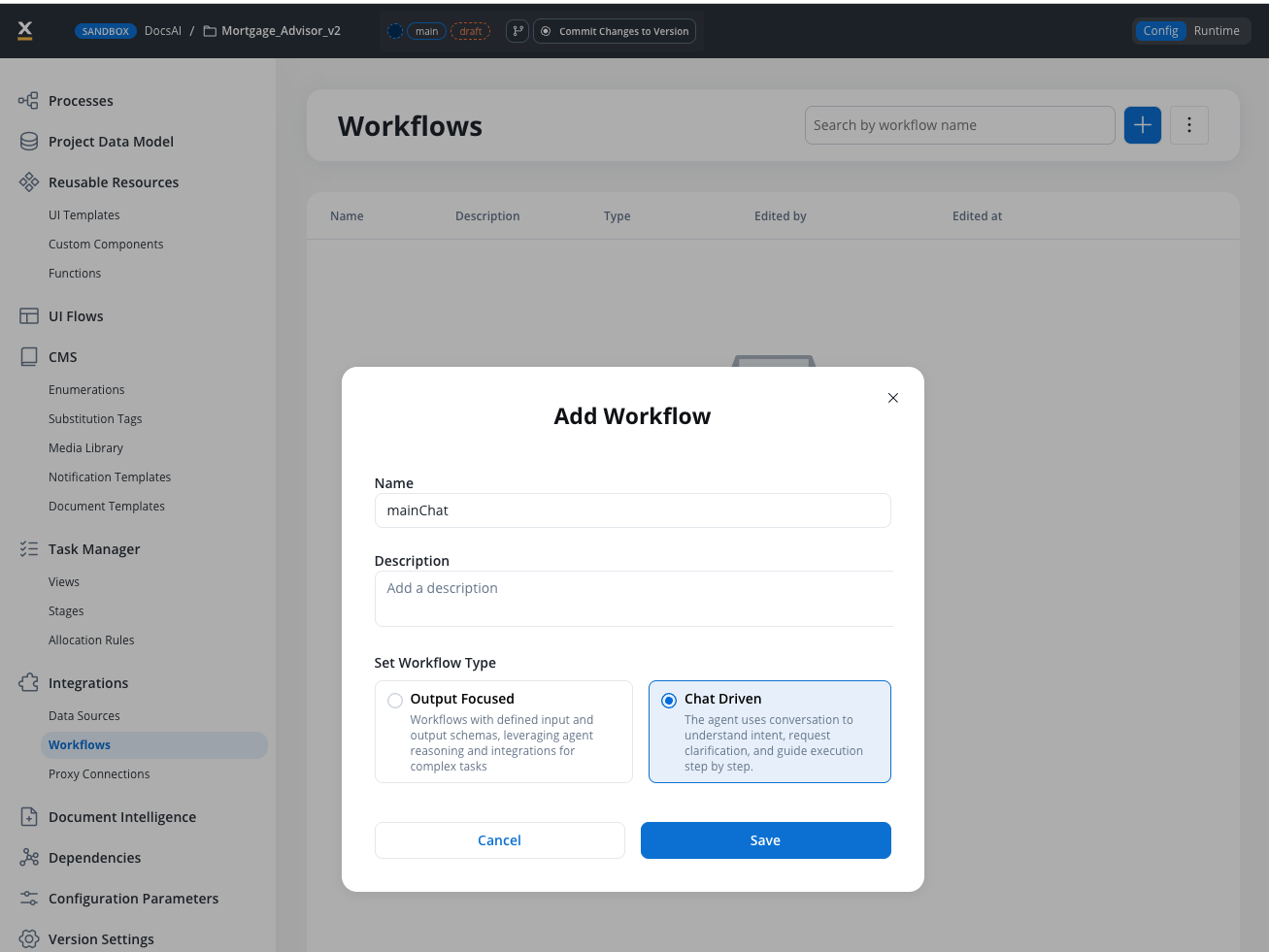
The workflow type cannot be changed after creation. Make sure you select **Chat Driven** — Output Focused workflows cannot be used from the Chat component.
### Review the Start node
The Start node is created automatically with three fields:
* **Chat Session ID** — a UUID populated by the Chat component at runtime (referenced as `${sessionId}`)
* **User Message** — the user's text message (referenced as `${userMessage}`)
* **UI Flow Context** — optional JSON object passed from the UI (referenced as `${context}`)
No Start body configuration is needed in Chat Driven workflows.
### Add the Intent Classification Agent
From the node palette, drag an **Intent Classification Agent** node (under **AI Agents**) onto the canvas and connect it to the **Start** node.
Configure the node:
**User Message:** `${userMessage}`
**Intents:**
| # | Label | What it covers |
| - | ------------- | ------------------------------------------------------------------------------------------------------------------ |
| 1 | `Greetings` | Greetings and small talk |
| 2 | `Offer` | The user asks for a product recommendation, a mortgage offer, product suggestions, or asks what mortgage fits them |
| 3 | `KB question` | Knowledge base questions about mortgage products or policies |
| 4 | `Data Input` | User providing or updating personal data like income, age, or loan details |
Intent labels are read by the classifier LLM as guidance — richer phrasing reduces misclassifications. If a plain label like `Offer` routes user phrases like "Give me recommendations" to the wrong branch, broaden the text to cover more phrasings (as shown above). Turn on **Include Reason for Selection** while tuning to see the classifier's rationale for each decision.
**Response Key:** `intentResult`
The **If No Intent Matches** branch is a default output port that fires when the classifier can't confidently match any intent. It's always present on the node — you just need to connect it to the fallback handler in Step 2.
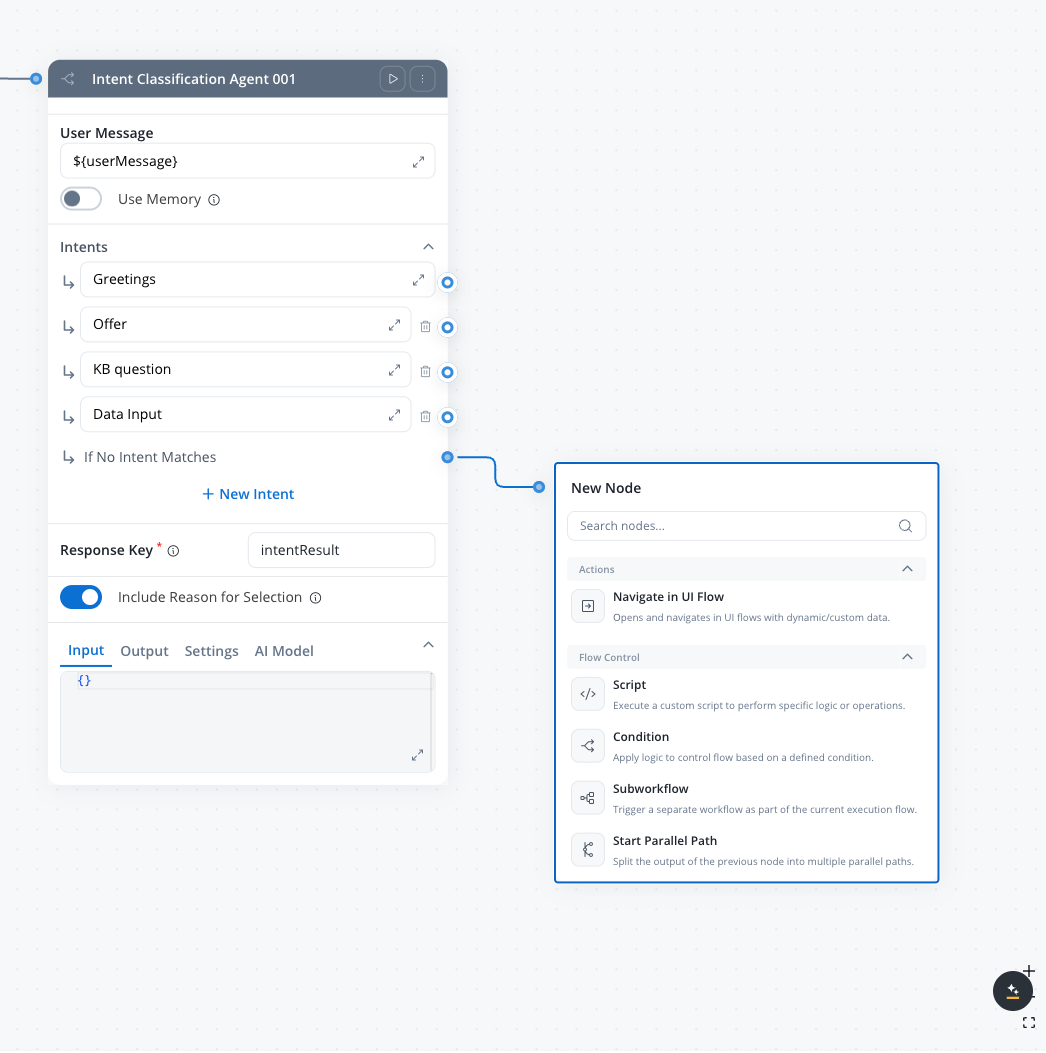
**Use Memory:** OFF for this tutorial. The Intent Classification Agent also supports the **Use Memory** toggle — leave it OFF if each user message should be classified on its own. Turn it ON only if you want the classifier to resolve ambiguous follow-ups ("yes", "the first one", "tell me more") against prior conversation turns.
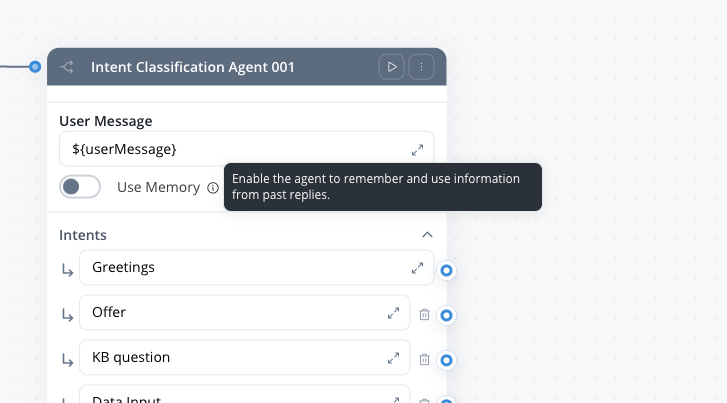
Toggle **Include Reason for Selection** ON while tuning intent labels. When enabled, the agent includes a rationale explaining why it chose each intent in its response — useful for diagnosing misclassifications. Turn it off once the intents are stable.
Each intent creates a separate output port on the node. When the agent classifies a message, the workflow continues along the matching branch — no Condition node needed.
### Connect handler nodes to each branch
Add the following nodes and connect each to its corresponding intent output:
| Intent branch | Handler node | Type |
| --------------------------- | ------------------------- | ----------------------------------------------------------- |
| **Intent 1** (Greetings) | `answerSmalltalk` | Custom Agent (inline, Send as Chat Reply) |
| **Intent 2** (Offer) | `answerPersonalisedOffer` | Subworkflow with terminal Custom Agent (Send as Chat Reply) |
| **Intent 3** (Knowledge QA) | `knowledgeBaseQA` | Custom Agent (inline, Knowledge Base + Send as Chat Reply) |
| **Intent 4** (Data Input) | `handleDataInput` | Script node → Custom Agent (Send as Chat Reply) |
| **No Match** | `fallback` | Custom Agent (inline, Send as Chat Reply) |
Each branch delivers its response directly via a Custom Agent node with **Send as Chat Reply** enabled. No response-normalizer script is needed — the Chat component receives each reply as Markdown and persists it to session memory automatically.
### Add the End Flow node
Add an **End Flow** node from the palette (it is not auto-created for Chat Driven workflows) and connect every handler branch to it. The End Flow node has no body configuration — responses are already delivered by the Custom Agent nodes upstream.
***
## Step 2: Build the inline handlers
The Greetings and No Match branches are handled by **Custom Agent** nodes placed directly in the `mainChat` workflow — no subworkflow needed.
**Shared Custom Agent settings for this tutorial**
Every Custom Agent in `mainChat` uses the same two defaults:
* **Use only prompt references as context:** ON — keeps each call scoped to the values referenced with `${...}` and reduces token usage. See [Custom Agent node](../conversational-workflows#use-only-prompt-references-as-context) for details.
* **Include Task for Prompt Suggestions:** OFF — turn ON only if you want AI-generated follow-up prompts shown in the Chat component (5.7.0+). See [Custom Agent node](../conversational-workflows#include-task-for-prompt-suggestions).
Only the **Use Memory** and **Send as Chat Reply** toggles vary per handler, so those are called out on each node below.
### answerSmalltalk (Custom Agent)
Add a **Custom Agent** node named `answerSmalltalk` to the Greetings branch.
**Operation Prompt:**
```text theme={"system"}
Role: You are a friendly and professional Mortgage Assistant. Your goal
is to respond to greetings or casual conversation in a warm, trustworthy
manner, and subtly steer the conversation back toward the user's
mortgage goals.
User message: ${userMessage}
Response Guidelines:
- Tone: Warm, professional, and pragmatic.
- Acknowledge & Validate: Respond directly to what the user said.
- Subtle Pivot: End your response with a gentle nudge toward the
mortgage process, without being pushy.
- Constraint: Keep the response under 3 sentences.
```
**Use Memory:** ON — lets the agent see the last few turns so it can tie small talk back to anything the user already shared.
**Send as Chat Reply:** ON — sends the response to the Chat component as Markdown and hides the Response Schema field.
With **Use Memory** enabled, you do not need to interpolate conversation history into the prompt manually. FlowX retrieves the latest 3 user/agent turns plus a summary and attaches them to the LLM call automatically.
### fallback (Custom Agent)
Add a **Custom Agent** node named `fallback` on the No Match branch.
**Operation Prompt:**
```text theme={"system"}
Role: You are a mortgage assistant. The user sent a message that did not
match any known intent (greetings, product offer, knowledge base
question, or data input).
User message: ${userMessage}
Respond with a short, friendly message that acknowledges you did not
understand and offers three concrete options the user can try: asking a
mortgage question, sharing their financial details, or requesting a
product recommendation. Keep it under 3 sentences.
```
**Use Memory:** OFF — the fallback response is self-contained.
**Send as Chat Reply:** ON.
***
## Step 3: Build the data input handler
The Intent 4 branch combines a **Script** node (for deterministic data extraction) followed by a **Custom Agent** node (to confirm what was captured and send the chat reply). Script nodes cannot send chat replies on their own — only Custom Agent nodes can.
### 3a: handleDataInput Script
Add a **Script** node named `handleDataInput` on the Intent 4 branch. Since the Intent Classification Agent already routed the message here, the script can assume the user is providing personal data and uses simple string matching to extract values.
The FlowX script runtime uses a subset of Python. Avoid `enumerate()`, `.get()` with defaults, and `import` statements — use basic loops and `in` checks instead.
**Script node (Python):**
```python theme={"system"}
message = ""
if "userMessage" in input:
message = input["userMessage"]
clientProfile = {}
if "clientProfile" in input:
clientProfile = input["clientProfile"]
words = message.lower().split()
cleanWords = []
for w in words:
cleaned = ""
for ch in w:
if ch.isalnum():
cleaned = cleaned + ch
cleanWords.append(cleaned)
words = cleanWords
numWords = len(words)
i = 0
while i < numWords:
word = words[i]
if word in ["years", "year"] and i > 0:
prev = words[i - 1]
if prev.isdigit():
val = int(prev)
if i < numWords - 1 and words[i + 1] == "old":
if val > 15 and val < 120:
clientProfile["age"] = val
else:
if val >= 1 and val <= 50:
clientProfile["loan_duration"] = val
if word == "age" and i < numWords - 1:
nxt = words[i + 1]
if nxt.isdigit() and int(nxt) > 15 and int(nxt) < 120:
clientProfile["age"] = int(nxt)
i = i + 1
i = 0
while i < numWords:
word = words[i]
if word in ["income", "salary", "earn", "earning", "make"]:
j = i + 1
while j < numWords and j < i + 4:
val = words[j]
if val.isdigit() and int(val) > 100:
clientProfile["income"] = int(val)
j = j + 1
i = i + 1
i = 0
while i < numWords:
word = words[i]
if word in ["loan", "borrow", "mortgage"]:
j = i + 1
while j < numWords and j < i + 5:
val = words[j]
if val.isdigit() and int(val) > 1000:
clientProfile["loan_amount"] = int(val)
j = j + 1
i = i + 1
collected = []
keys = list(clientProfile.keys())
k = 0
while k < len(keys):
key = keys[k]
collected.append(str(key) + ": " + str(clientProfile[key]))
k = k + 1
confirmationText = ""
if len(collected) > 0:
confirmationText = "Got it! I have recorded: " + ", ".join(collected) + ". What else can I help you with?"
else:
confirmationText = "I could not extract data. Please tell me your age, income, loan amount, or loan duration."
output["confirmationText"] = confirmationText
output["clientProfile"] = clientProfile
```
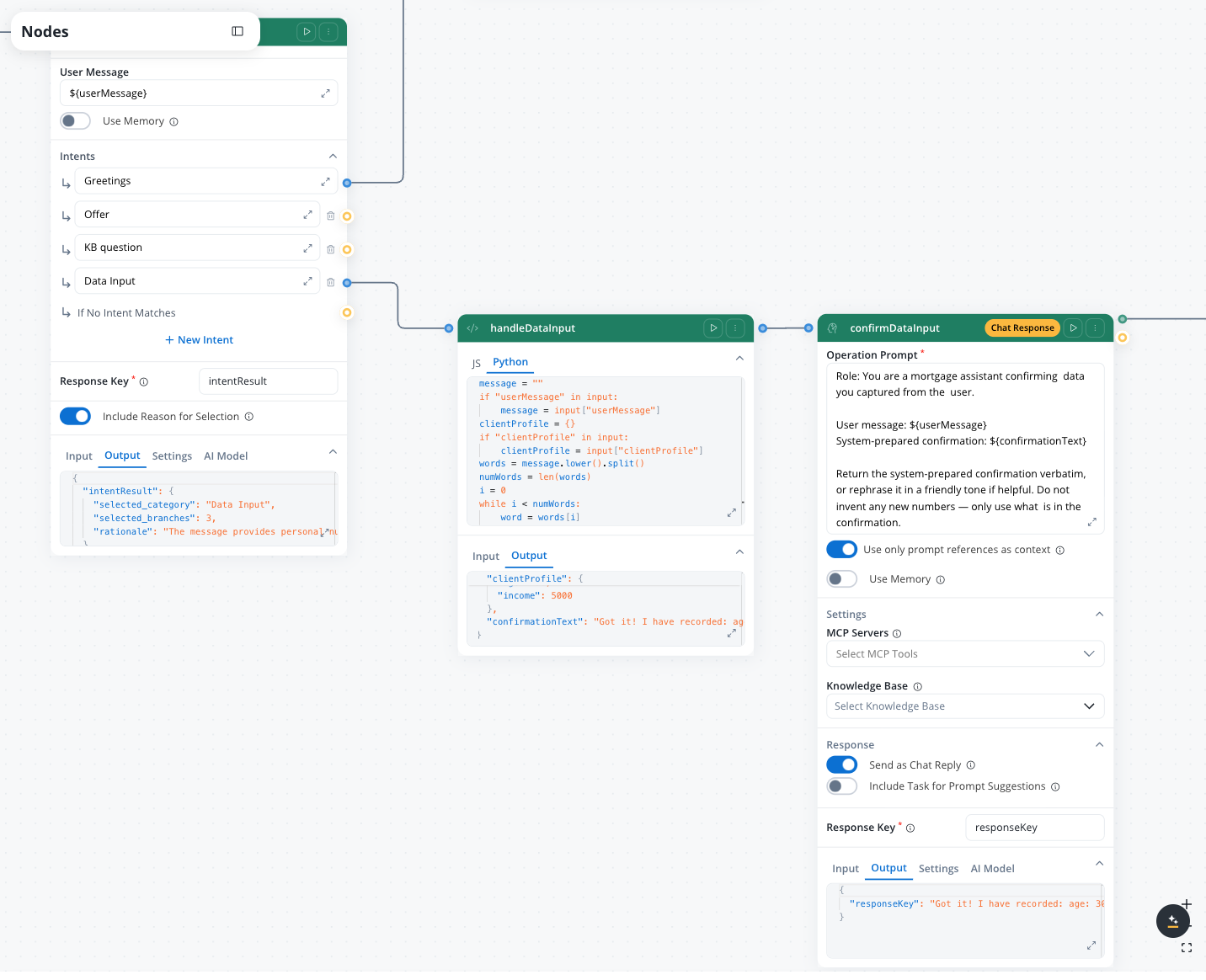
The age/duration disambiguation checks whether the word after a number + "years" is "old". For example, "30 years old" sets `age = 30`, while "25 years" sets `loan_duration = 25`.
### 3b: Confirmation Custom Agent
Add a **Custom Agent** node after `handleDataInput` to deliver the confirmation as a chat reply.
**Operation Prompt:**
```text theme={"system"}
Role: You are a mortgage assistant confirming data you captured from the
user.
User message: ${userMessage}
System-prepared confirmation: ${confirmationText}
Return the system-prepared confirmation verbatim, or rephrase it in a
friendly tone if helpful. Do not invent any new numbers — only use what
is in the confirmation.
```
**Use Memory:** OFF — the Script already captured everything it needed from the current message.
**Send as Chat Reply:** ON.
This two-node handler keeps extraction deterministic (Script) while letting the LLM phrase the response naturally (Custom Agent). You could also send `${confirmationText}` verbatim from a simpler Custom Agent without an LLM rewrite — trade off naturalness against token cost.
***
## Step 4: Build the knowledge base Q\&A handler
The Knowledge QA branch is a single **Custom Agent** node placed inline in the `mainChat` workflow (on the Intent 3 branch) with a Knowledge Base attached and **Send as Chat Reply** enabled.
### Set up the Knowledge Base
In the **Integration Designer**, add a new **Knowledge Base** data source. Name it something descriptive like `MortgageKnowledgeBase`.
Upload PDF documents covering:
* Mortgage product sheets (rates, terms, eligibility criteria)
* FAQ documents (common questions about mortgages, DTI, LTV)
* Regulatory guides (required documents, application process)
Wait for automatic chunking and vector indexing to complete.
Use the Knowledge Base test interface to verify that queries like "What is DTI?" and "What documents do I need?" return relevant chunks.
For detailed Knowledge Base setup, see the [Knowledge Base integration](/5.9/docs/platform-deep-dive/integrations/knowledge-base-integration/knowledge-base-overview) documentation.
### Configure the Custom Agent node
Add a **Custom Agent** node named `knowledgeBaseQA` on the Intent 3 branch. Enable the **Knowledge Base** setting and select your `MortgageKnowledgeBase` data source.
**Retrieval parameters:**
| Parameter | Value |
| -------------------------- | ------------------------------ |
| **Max. Number of Results** | `4` |
| **Min. Relevance Score** | `50` |
| **Metadata Filters** | No filters (search all stores) |
| **Search Type** | `hybrid` (5.7.0+) |
| **Re-rank** | ON (5.7.0+) |
**System Prompt:**
```text theme={"system"}
Role: You are a Mortgage Knowledge Base Expert who uses an integrated
Knowledge Base to provide accurate, data-grounded answers.
User question: ${userMessage}
Operating Procedure:
1. Query Analysis: Identify key terms from the user's question.
2. Knowledge Base Search: Find the most relevant document fragments.
3. Response Synthesis: Formulate a clear answer using ONLY the
information found.
Strict Rules:
- If the information is not in the Knowledge Base, respond:
"Our current knowledge base does not contain specific information
about this topic."
- Reference the source document when possible.
- Never fabricate rates, terms, or requirements.
- Keep responses concise (under 200 words).
```
**Use Memory:** ON — so the agent can resolve follow-ups like "what about the second one?" against the previous answer.
**Send as Chat Reply:** ON.
Without explicit grounding rules in the prompt, the LLM may fall back to its general training data and produce inaccurate mortgage information. Always include the "ONLY from knowledge base" instruction.
For more details on this pattern, see [Knowledge base RAG](../patterns/knowledge-base-rag).
***
## Step 5: Build the personalized offer handler
This is the most complex handler. It implements the [Hybrid AI + business rules](../patterns/hybrid-ai-rules) pattern — alternating between AI nodes and deterministic Script nodes. Because this branch benefits from structured intermediate data (calculation results, ranked products) that the other branches do not need, implement it as an **Output Focused subworkflow** called from `mainChat`, which returns a `reportText` string.
**Send as Chat Reply and Use Memory are Chat Driven only.** Custom Agent nodes inside an Output Focused workflow do not expose those toggles — you cannot deliver a chat reply from inside a subworkflow. Instead, the subworkflow returns `reportText` via End Flow, and a separate Custom Agent in `mainChat` (on the Offer branch, after the Subworkflow node) handles the chat reply.
Create a workflow named **`answerPersonalisedOffer`** with **Output Focused** as the workflow type.
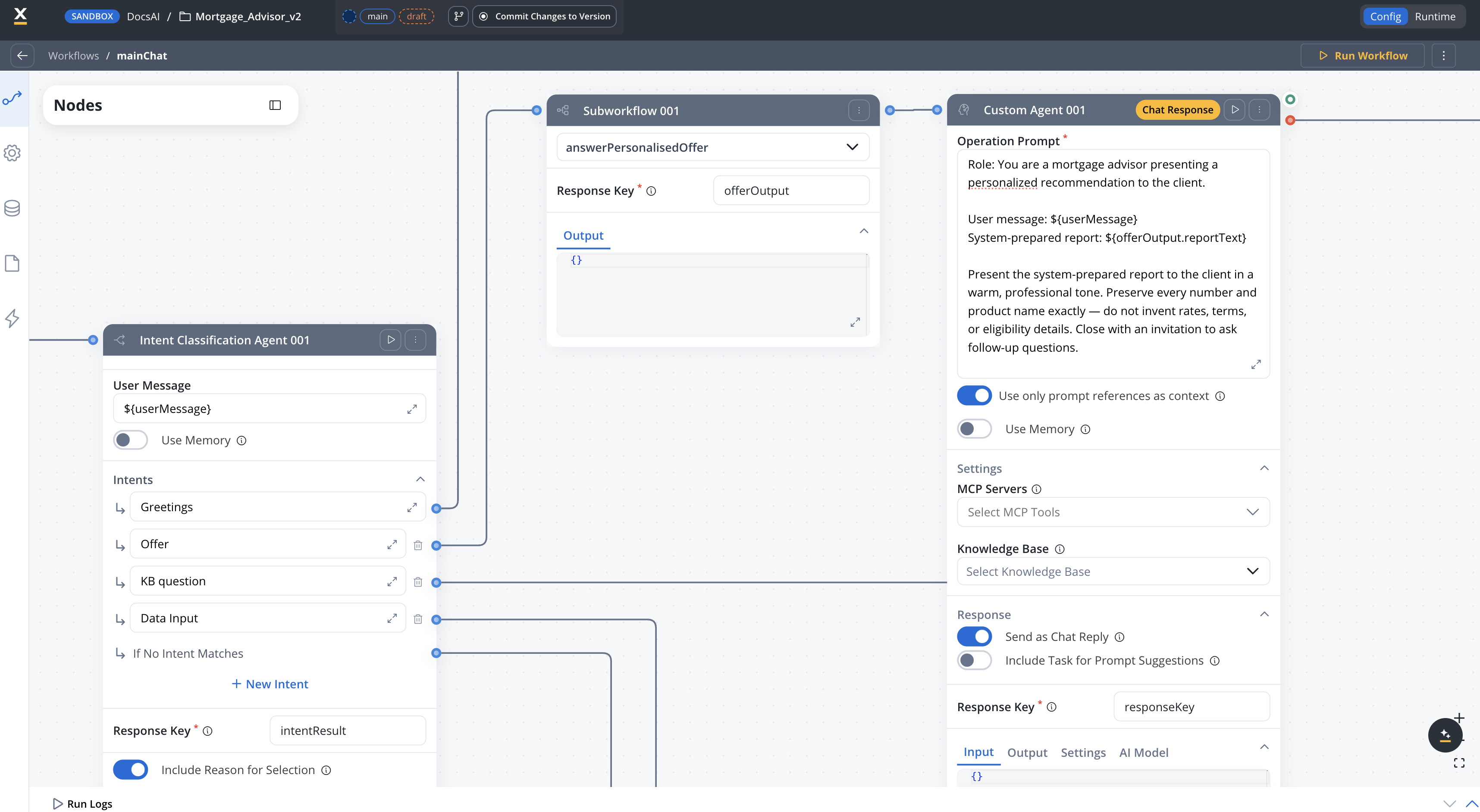
```text theme={"system"}
answerPersonalisedOffer (Output Focused):
Start
→ Text Understanding (extract client data + filter products)
→ Script (financial calculations: PMT, DTI, max loan)
→ Script (score, rank, and format report)
→ End Flow (outputs reportText)
mainChat (Chat Driven), Offer branch:
Intent Classification Agent → Offer output
→ Subworkflow (calls answerPersonalisedOffer, Response Key: offerOutput)
→ Custom Agent (Send as Chat Reply ON, reads ${offerOutput.reportText})
→ End Flow
```
In `mainChat`, connect a **Subworkflow** node on the Intent 2 branch that calls `answerPersonalisedOffer`, with Response Key `offerOutput`. Pass `${userMessage}` as the `userMessage` input. Then add a **Custom Agent** after the Subworkflow node to deliver the chat reply — see Step 5e below.
### Step 5a: AI understanding (extract and filter)
Add a **Text Understanding** node that extracts the client's financial profile from their message and filters the product catalog.
**Operation Prompt:**
```text theme={"system"}
You are a mortgage product filter. Extract the client's financial
details from their message and evaluate available products.
Client message: ${userMessage}
Available products:
1. fixed30 (Alpha Bank): 4.5% fixed, 30 years, min income 3000 EUR,
max LTV 80%, min age 21, max age at maturity 70, prepayment after
5 years, 20% down payment
2. variable20 (Beta Bank): 3.5% variable (EURIBOR 6M + 1.8%), 20 years,
min income 2500 EUR, max LTV 85%, min age 23, max age at maturity 65,
no prepayment first 3 years, 15% down payment
3. fixed15 (Gamma Bank): 4.0% fixed, 15 years, min income 4000 EUR,
max LTV 75%, min age 25, max age at maturity 60, prepayment anytime,
25% down payment
First extract from the message:
- age (number)
- monthly_income (number)
- loan_amount (number)
- loan_duration (number, in years)
Then for each product, evaluate eligibility and return JSON only:
{
"client": {"age": 0, "monthly_income": 0, "loan_amount": 0,
"loan_duration": 0},
"filtered_products": [
{"product_id": "fixed30", "qualitative_match_score": 0.8,
"match_reasons": "brief explanation", "disqualified": false}
]
}
Only include products where disqualified is false. Return ONLY valid
JSON, no other text.
```
**Response Schema:**
```json theme={"system"}
{
"type": "object",
"properties": {
"client": {
"type": "object",
"properties": {
"age": { "type": "number" },
"monthly_income": { "type": "number" },
"loan_amount": { "type": "number" },
"loan_duration": { "type": "number" }
}
},
"filtered_products": {
"type": "array",
"items": {
"type": "object",
"properties": {
"product_id": { "type": "string" },
"qualitative_match_score": { "type": "number" },
"match_reasons": { "type": "string" },
"disqualified": { "type": "boolean" }
}
}
}
}
}
```
**Response Key:** `filteredProducts`
### Step 5b: Business rules (financial calculations)
Add a **Script** node (JavaScript) for deterministic financial calculations. These must be auditable and reproducible.
AI node output in Script nodes arrives as **Java HashMaps**, not JavaScript objects. Use `.get("key")` to access properties and `.size()` / `.get(index)` for lists. Standard JavaScript methods like `Object.keys()` and `JSON.stringify()` do not work on these objects.
```javascript theme={"system"}
var fp = input.filteredProducts;
var client = fp.get("client");
var income = parseFloat(client.get("monthly_income")) || 0;
var loanAmount = parseFloat(client.get("loan_amount")) || 0;
var loanDuration = parseInt(client.get("loan_duration")) || 20;
var termMonths = loanDuration * 12;
function computePMT(principal, annualRate, months) {
var r = annualRate / 12;
if (r === 0) return principal / months;
return principal * (r * Math.pow(1 + r, months)) /
(Math.pow(1 + r, months) - 1);
}
var estimatedRate = 0.045;
var monthlyPayment = income > 0
? computePMT(loanAmount, estimatedRate, termMonths) : 0;
var dti = income > 0 ? monthlyPayment / income : 1;
var maxDtiShare = 0.43;
var allowablePayment = maxDtiShare * income;
var maxLoan = allowablePayment > 0
? allowablePayment * ((Math.pow(1 + estimatedRate / 12, termMonths) - 1) /
(estimatedRate / 12 * Math.pow(1 + estimatedRate / 12, termMonths)))
: 0;
output.calculationResults = {
monthlyPayment: Math.round(monthlyPayment * 100) / 100,
dti: Math.round(dti * 10000) / 10000,
maxLoanAmount: Math.round(maxLoan),
meetsEligibility: dti <= maxDtiShare,
requestedVsMax: loanAmount <= maxLoan ? "within_limits" : "exceeds_limits"
};
```
The alternating AI-then-rules structure creates a natural audit trail. For any final recommendation, you can trace exactly which AI filtered the products and which formula computed the financial results.
### Step 5c: Business rules (scoring, ranking, and report)
Add a second **Script** node (JavaScript) that scores products, ranks them, and generates the recommendation report text. The script writes the report to `reportText`, which the terminal Custom Agent node reads.
```javascript theme={"system"}
var calcResults = input.calculationResults || {};
var catalog = [
{id: "fixed30", bankName: "Alpha Bank", rate: 0.045,
allowsPrepayment: true, flexibleTerm: false, term: 30},
{id: "variable20", bankName: "Beta Bank", rate: 0.035,
allowsPrepayment: false, flexibleTerm: true, term: 20},
{id: "fixed15", bankName: "Gamma Bank", rate: 0.04,
allowsPrepayment: true, flexibleTerm: true, term: 15}
];
var fp = input.filteredProducts;
var aiProducts = fp.get("filtered_products");
var aiFiltered = [];
for (var i = 0; i < aiProducts.size(); i++) {
var p = aiProducts.get(i);
aiFiltered.push({
product_id: "" + p.get("product_id"),
qualitative_match_score:
parseFloat(p.get("qualitative_match_score")) || 0.7,
match_reasons: "" + p.get("match_reasons")
});
}
var WEIGHT_RATE = 0.35;
var WEIGHT_QUALITATIVE = 0.25;
var WEIGHT_LTV = 0.20;
var WEIGHT_FLEXIBILITY = 0.20;
var scored = [];
for (var i = 0; i < aiFiltered.length; i++) {
var product = aiFiltered[i];
var details = null;
for (var j = 0; j < catalog.length; j++) {
if (catalog[j].id === product.product_id) {
details = catalog[j];
break;
}
}
if (!details) continue;
var rateScore = 1 - (details.rate / 0.10);
var flexScore = (details.allowsPrepayment ? 0.5 : 0) +
(details.flexibleTerm ? 0.5 : 0);
var totalScore = (rateScore * WEIGHT_RATE) +
(product.qualitative_match_score * WEIGHT_QUALITATIVE) +
(0.8 * WEIGHT_LTV) +
(flexScore * WEIGHT_FLEXIBILITY);
scored.push({
productId: product.product_id,
bankName: details.bankName,
rate: details.rate,
term: details.term,
totalScore: Math.round(totalScore * 1000) / 1000,
matchReasons: product.match_reasons
});
}
scored.sort(function(a, b) { return b.totalScore - a.totalScore; });
var top = scored.slice(0, 3);
var mp = calcResults.monthlyPayment || 0;
var dti = calcResults.dti || 0;
var maxLoan = calcResults.maxLoanAmount || 0;
var eligible = calcResults.meetsEligibility !== false;
var report = "Mortgage Recommendation Report. ";
report += "Eligibility Assessment: ";
report += "Estimated monthly payment: " + mp + " EUR. ";
report += "Debt-to-income ratio: " + (dti * 100).toFixed(1) + "%. ";
report += "Maximum eligible loan: " + maxLoan + " EUR. ";
report += "Status: " + (eligible ? "Eligible" : "May need adjustment")
+ ". ";
report += "Top Recommendations: ";
for (var k = 0; k < top.length; k++) {
var p = top[k];
report += (k + 1) + ". " + p.bankName + " (" + p.productId + ") - "
+ (p.rate * 100) + "% for " + p.term + " years. ";
report += "Score: " + p.totalScore + ". " + p.matchReasons + ". ";
}
report += "Next Steps: Compare the options above, gather required "
+ "documents, and schedule a consultation with your preferred bank.";
output.reportText = report;
output.rankedProducts = top;
```
The report is generated as plain text in the Script node rather than fully inside an LLM node. This keeps the numbers deterministic and auditable. The terminal Custom Agent (Step 5d) rephrases the report into a friendly chat reply.
### Step 5d: End Flow (output the report)
Add an **End Flow** node after the scoring Script. Configure the End Flow body to expose `reportText` as a workflow output:
```json theme={"system"}
{
"reportText": "${reportText}"
}
```
That's it for the subworkflow — save `answerPersonalisedOffer`.
### Step 5e: Terminal Custom Agent in mainChat (Send as Chat Reply)
Switch back to `mainChat`. On the Offer branch, after the Subworkflow node, add a **Custom Agent** node. This is where the chat reply is delivered.
**Operation Prompt:**
```text theme={"system"}
Role: You are a mortgage advisor presenting a personalized
recommendation to the client.
User message: ${userMessage}
System-prepared report: ${offerOutput.reportText}
Present the system-prepared report to the client in a warm,
professional tone. Preserve every number and product name exactly —
do not invent rates, terms, or eligibility details. Close with an
invitation to ask follow-up questions.
```
**Use only prompt references as context:** ON (default)
**Use Memory:** OFF — the report is fully self-contained.
**Send as Chat Reply:** ON.
**Include Task for Prompt Suggestions:** OFF.
Connect this Custom Agent to the **End Flow** node on `mainChat`.
If you prefer zero LLM paraphrasing for compliance reasons, replace the Operation Prompt with `${offerOutput.reportText}` only and add an instruction: "Return the system-prepared report verbatim." The chat reply will then be the exact report string.
***
## Step 6: Connect to the chat UI
You have two options for wiring `mainChat` to a UI. Pick one.
### Option A: Chat-Based UI Flow (recommended, 5.7.0+)
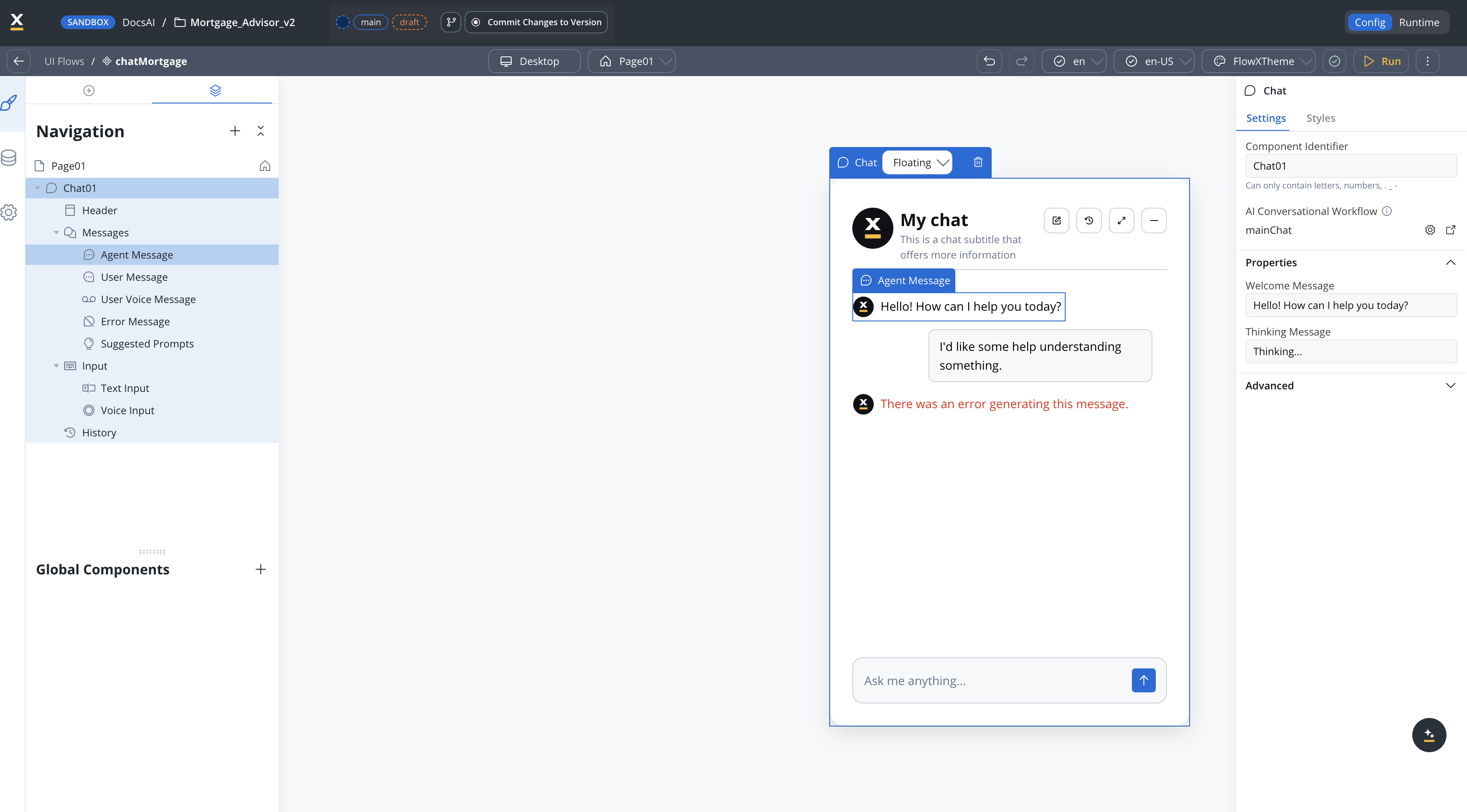
Go to **UI Flows** and create a new UI Flow, selecting **Chat-Based** as the experience type. Set `mainChat` as the default conversational workflow.
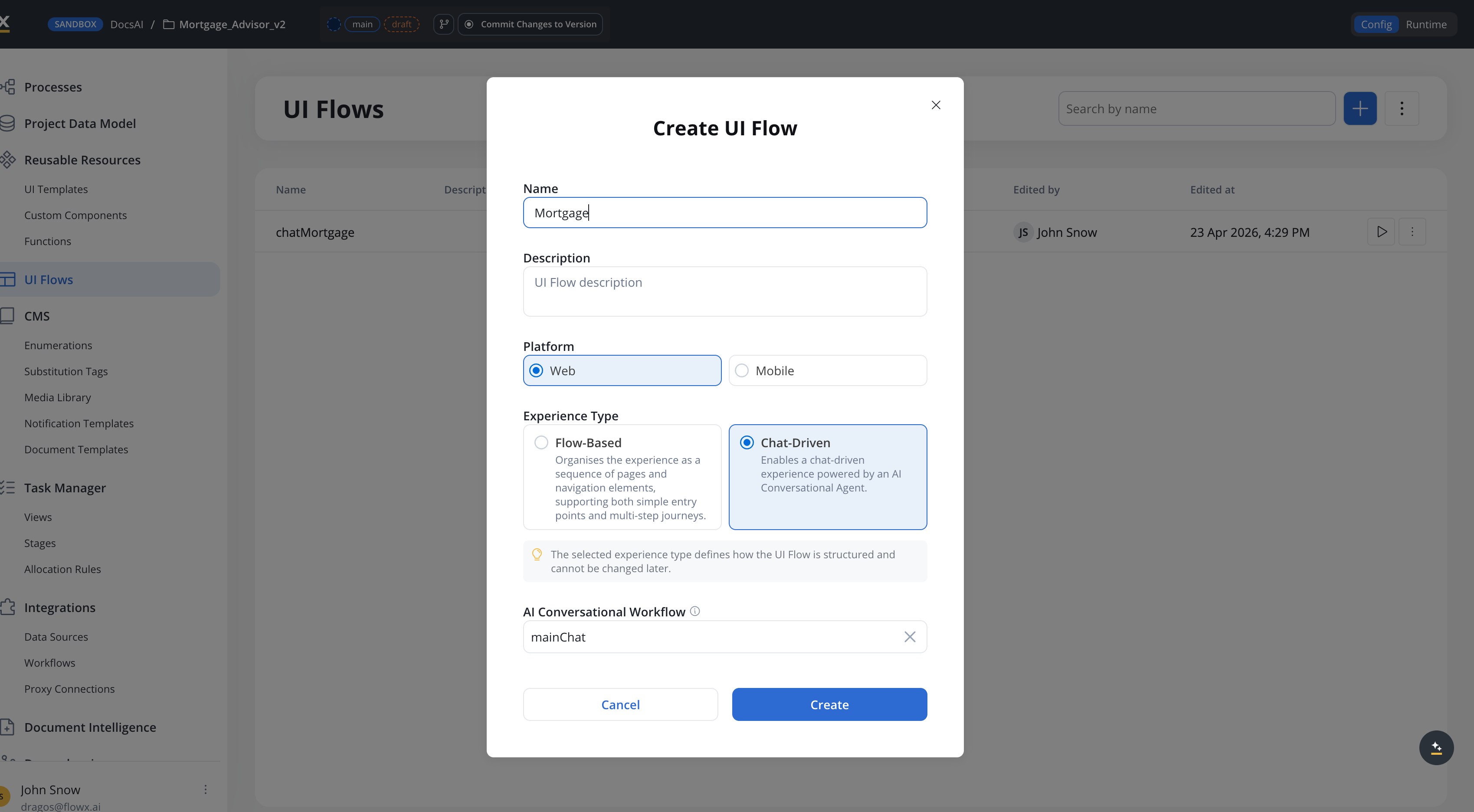
Any Chat component added to this UI Flow uses `mainChat` by default — no per-component configuration needed.
Click **Run** to preview the UI Flow and interact with the chatbot.
### Option B: Chat component per UI Flow page
Create a standard UI Flow (e.g., `chat`) and add a **Page**.
Drag a **Chat** component onto the page. In the component settings, set the **Workflow** property to `mainChat`.
Click **Run** to preview.
For details on configuring chat experiences with built-in session memory, see [Conversational workflows](../conversational-workflows). For the Chat component reference, see [Chat component](../chat-component).
***
## Step 7 (optional): Share captured data across turns
By default, the `answerPersonalisedOffer` subworkflow re-extracts all financial data from the **current** user message — it does not see conversation memory (memory is a Chat Driven feature, and the subworkflow is Output Focused). This means users must provide age, income, loan amount, and duration in a single Offer request.
If you want the subworkflow to reuse data the user shared in earlier turns (captured by `handleDataInput`), pass `clientProfile` from `mainChat` into the subworkflow.
In `answerPersonalisedOffer`, open the Data Model panel. Add `clientProfile` (OBJECT) if not already there, and toggle **Input Parameter** ON.
In `mainChat`, open the Subworkflow node on the Offer branch. Map the `clientProfile` input: `clientProfile ← ${clientProfile}`. The `clientProfile` key on the Chat Driven workflow is populated by `handleDataInput` on previous Data Input turns.
Chat Driven workflow data does not persist across workflow invocations — each new user message starts a fresh workflow. To carry `clientProfile` across turns, write it to a persistent store (e.g., a FlowX Database keyed by Chat Session ID) from `handleDataInput`, and read it back at the start of each `mainChat` invocation. See [Session state management](../patterns/session-state-management) for the pattern.
In the subworkflow's Step 5a prompt, reference `${clientProfile}` as prior context. Modify the extraction instruction:
```text theme={"system"}
Existing client profile (from earlier turns, may be empty):
${clientProfile}
Client message: ${userMessage}
Extract client data. Prefer values from the existing client profile
over the current message when both are available. Only fall back to
extracting from the current message for fields missing in the profile.
```
In the financial-calculations script, fall back to `input.clientProfile` when the AI extraction didn't find a field. Example guard for income:
```javascript theme={"system"}
var income = parseFloat(client.get("monthly_income")) || 0;
if (income === 0 && input.clientProfile) {
var cp = input.clientProfile;
income = parseFloat(cp.get ? cp.get("income") : cp.income) || 0;
}
```
Apply the same fallback for `loanAmount` and `loanDuration`.
This extension trades simplicity for multi-turn robustness. The base tutorial keeps the subworkflow stateless on purpose — it's easier to reason about and easier to test in isolation. Add this extension only when your users consistently spread financial data across multiple turns.
***
## Testing
Open `mainChat` and click **Run Workflow**. In the test modal, provide:
* **Chat Session ID** — any valid UUID (e.g., `550e8400-e29b-41d4-a716-446655440000`). Reuse the same UUID across test runs to verify multi-turn memory.
* **User Message** — the message to test (e.g., `What is a debt-to-income ratio?`).
The Chat Session ID must be a valid UUID. A plain string like `test-session-1` causes a runtime error: `Invalid UUID string`.
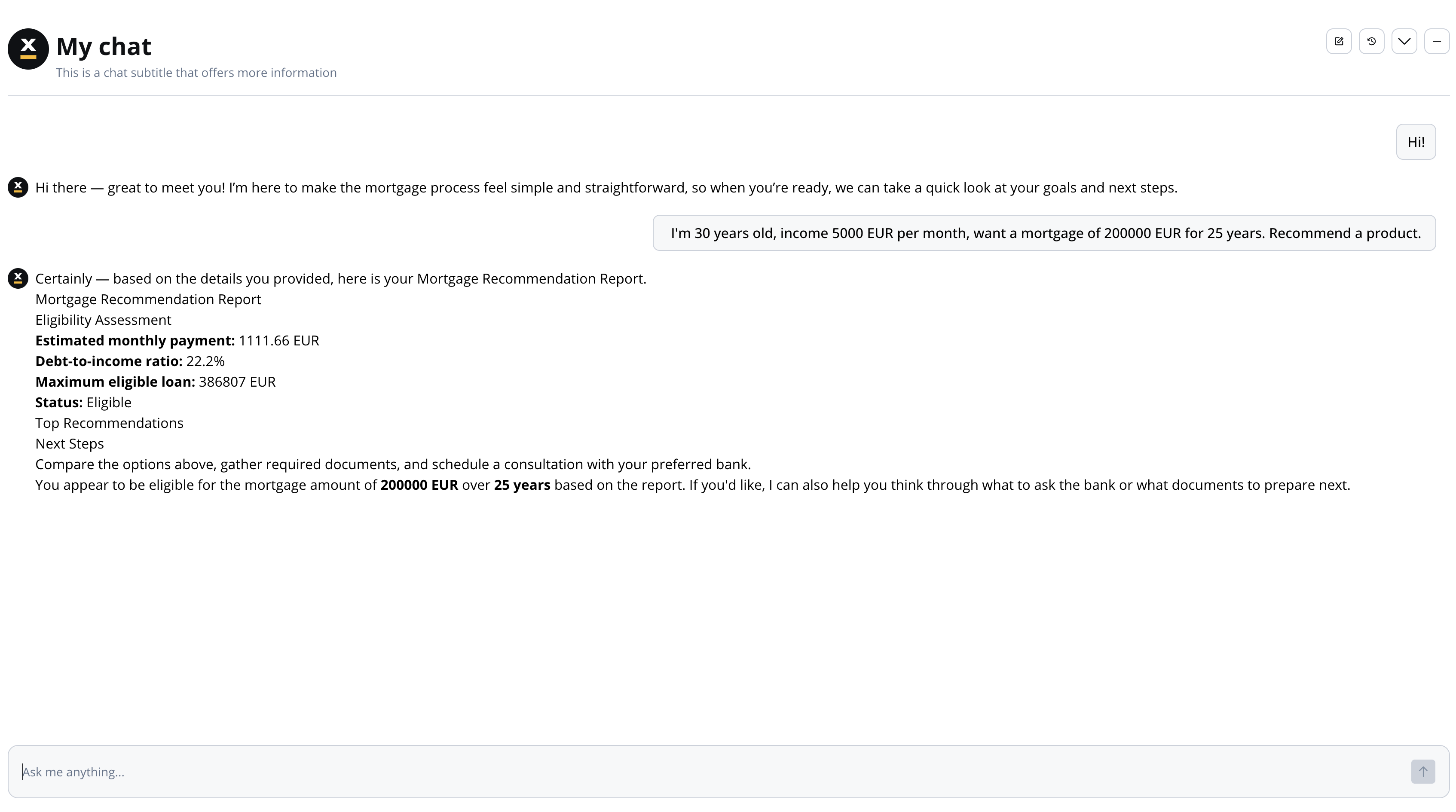
Run the UI Flow that embeds the Chat component. With built-in session memory, financial details captured in earlier turns are available to later turns — the user can spread data across messages:
| Turn | Message | Expected behavior |
| ---- | ----------------------------------------- | --------------------------------------------------------------------------------------------- |
| 1 | "Hi there!" | Greeting response, nudge toward mortgage |
| 2 | "I am 30 years old and my income is 5000" | Acknowledges data (age, income recorded) |
| 3 | "Loan of 200000 EUR for 25 years" | Acknowledges additional data (loan\_amount, loan\_duration recorded) |
| 4 | "Give me product recommendations." | Recommendation report using data from turns 2 and 3 (memory makes the prior values available) |
| Test message | Expected intent branch | Expected behavior |
| -------------------------------------- | ---------------------- | ------------------------------- |
| "What documents do I need to apply?" | Knowledge QA | Answer from knowledge base |
| "asdfghjk" | No Match | Fallback response |
| "I changed my mind, my income is 6000" | Data Input | Updates income, confirms change |
***
## What you learned
In this tutorial, you built a full-featured Chat Driven app that demonstrates:
* **Chat Driven workflow basics** — dedicated Start node fields, `${userMessage}` interpolation, simplified End Flow ([guide](../conversational-workflows))
* **Built-in session memory** — multi-turn context without manually persisting conversation history
* **Intent classification and routing** — using an Intent Classification Agent to classify messages and route to handler branches automatically ([pattern](../patterns/intent-classification-routing))
* **Send as Chat Reply** — delivering responses to the Chat component directly from Custom Agent nodes
* **Knowledge base RAG with re-ranking** — grounding answers in uploaded documents using a Custom Agent with Knowledge Base, hybrid search, and re-rank ([pattern](../patterns/knowledge-base-rag))
* **Hybrid AI + business rules** — combining AI qualitative filtering with deterministic financial calculations for auditable recommendations ([pattern](../patterns/hybrid-ai-rules))
***
## Extending the chatbot
Once the base app works, these Chat Driven features can add polish and context-awareness:
* **[AI Triggers](../conversational-workflows#ai-triggers)** (5.7.0+) — let different UI Flow pages launch `mainChat` with parameterized starting messages, e.g., "Help me refinance order \${orderId}" from an account page
* **[Navigate in UI Flow node](../conversational-workflows#navigate-in-ui-flow-node)** — add an action branch that opens a mortgage application form with pre-filled data when the user accepts a recommendation
* **[Conversation Context](../conversational-workflows#setting-context-from-a-ui-flow)** (5.7.0+) — pass UI state (active customer ID, current page) to the workflow via the Start node's **UI Flow Context** field
* **[Knowledge Base metadata filters](/5.9/docs/platform-deep-dive/integrations/knowledge-base-integration/managing-content#user-defined-metadata)** — as the KB grows beyond a handful of documents, tag each store (e.g., `topic: basics | application | faq`) and pass metadata filters to the KB Q\&A Custom Agent to scope retrieval to the right subset. The 5.7.0 query builder supports typed operators and AND/OR grouping.
***
## Next steps
Full reference for Chat Driven workflows, AI Triggers, and session memory
Deep-dive into the patterns used in this tutorial
Detailed configuration reference for all AI node types
Create and manage Knowledge Bases for RAG