> ## Documentation Index
> Fetch the complete documentation index at: https://docs.flowx.ai/llms.txt
> Use this file to discover all available pages before exploring further.
# Speech to Text
> Transcribe audio to text within integration workflows.
## Overview
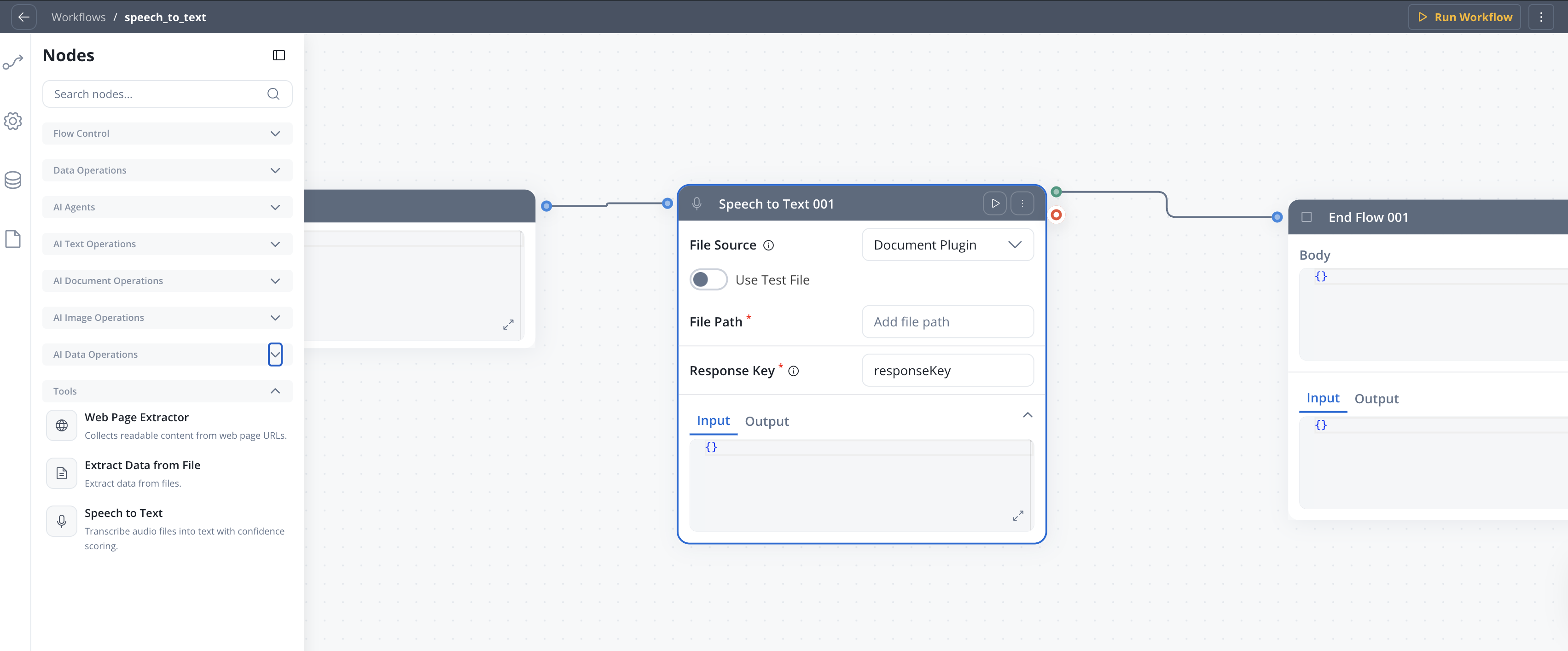
The **Speech to Text** node is a workflow node that transcribes audio files into text. It reads audio from a configured source, sends it to the speech-to-text service, and returns the transcript along with language detection and confidence metadata. The node works in both standard and conversational workflows, and integrates with the FlowX Document Plugin for file storage.
Convert audio recordings to text with language detection and confidence scores
Read audio from Document Plugin, S3, or directly from chat voice input
Automatically processes voice messages in conversational workflows
Upload sample audio to validate your workflow before connecting a live source
***
## Configuration
Open your workflow in **Integration Designer**.
Add a **Speech to Text** node from the node palette.
Configure the settings described below.
***
### File Source
Where the audio file is located.
| Source | Description | Availability |
| ------------------- | --------------------------------------------------------------- | ----------------------------- |
| **Document Plugin** | Read audio from a file stored in the FlowX Document Plugin | Standard workflows |
| **S3 Protocol** | Read audio from S3-compatible storage | Standard workflows |
| **Chat Input** | Automatically receive audio from a voice message in the chat UI | Conversational workflows only |
In conversational workflows, the file source is set to **Chat Input** automatically.
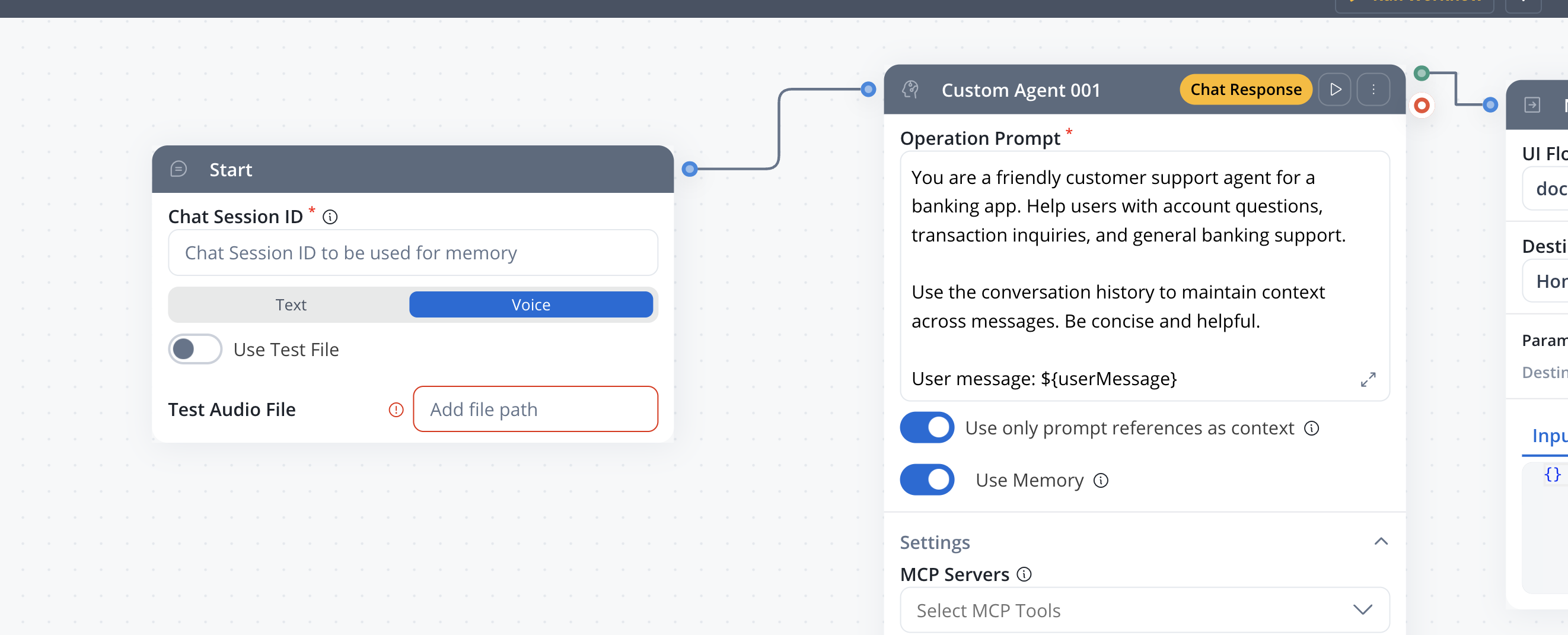
Upload and use a sample audio file for testing without connecting a live source. When turned on, **File Path** becomes a dropdown of available test files instead of a free-text input.
**Default:** OFF
Path to the audio file. The control changes based on **Use Test File**:
* **Use Test File OFF** — free-text input. Supports `${expression}` placeholders for dynamic values from workflow data. Only meaningful when **File Source** is `Document Plugin` or `S3 Protocol`.
* **Use Test File ON** — dropdown labelled **Select Test File**, listing the test files uploaded to this node.
**Example:** `${inputData.audioFilePath}`
The key under which the transcript and metadata are stored in the workflow data.
**Example:** `speechResult`
***
## Supported audio formats
| Format | MIME Type |
| ------ | ------------- |
| MP3 | `audio/mpeg` |
| WAV | `audio/wav` |
| M4A | `audio/x-m4a` |
| AAC | `audio/aac` |
| OGG | `audio/ogg` |
## File size limits
| Workflow type | Maximum size |
| -------------- | ------------ |
| Conversational | 5 MB |
| Standard | 10 MB |
Test files support the same audio formats listed above, with a maximum size of 15 MB.
***
## Output
The node writes the transcript and metadata under the configured **Response Key**.
**Standard workflows** output nested under the response key:
```json theme={"system"}
{
"responseKey": {
"transcript": "The transcribed text content",
"language": "en",
"confidence": 1.0,
"responseTime": 2.34,
"audioFileName": "recording.mp3"
}
}
```
**Conversational workflows** output at the top level for chat integration:
```json theme={"system"}
{
"userMessage": "The transcribed text content",
"userMessageConfidence": 1.0
}
```
| Field | Type | Description |
| -------------------------------------- | ------ | ----------------------------------------------- |
| `transcript` / `userMessage` | string | The transcribed text |
| `language` | string | Detected language code (e.g., `en`, `fr`, `de`) |
| `confidence` / `userMessageConfidence` | number | Confidence score (0.0 to 1.0) |
| `responseTime` | number | Processing time in seconds |
| `audioFileName` | string | Original audio file name |
***
## Conversational workflow integration
In conversational workflows, the Speech to Text node works with the [Chat component](/5.9/ai-platform/chat-component) voice input feature:
1. A user records a voice message in the chat UI
2. The audio file is sent to the workflow as a chat input
3. The Speech to Text node (with **Chat Input** file source) transcribes the audio
4. The transcript is set as the `userMessage`, making it available to downstream nodes (Custom Agent, Intent Classification) as if the user had typed it
When processing chat voice input, the audio file metadata is preserved in the conversation context. This allows conversation history to reference which messages originated from voice input.
***
## Node connections
The Speech to Text node has two output handles:
| Handle | Description |
| ----------- | ---------------------------------------------------------------------------- |
| **Success** | The transcription completed and output is available under the response key |
| **Fail** | The transcription failed (unsupported format, file not found, service error) |
Connect downstream nodes to the appropriate handle to manage both successful and failed transcription scenarios.
***
## Best practices
Use **Chat Input** for conversational workflows and **Document Plugin** or **S3** for standard workflows.
Audio files exceeding the size limit (5 MB conversational, 10 MB standard) will fail. Validate file size before reaching the node if the source is user-provided.
Upload a sample audio file to validate your workflow configuration before connecting to a live source.
Always connect the **Fail** handle to a fallback path, especially when processing user-uploaded audio that may be in an unsupported format.
***
## Related resources
Voice input and conversational UI for chat-based workflows
Build multi-turn conversations with AI Triggers and context
Overview of all AI workflow node types
Build and manage integration workflows