> ## Documentation Index
> Fetch the complete documentation index at: https://docs.flowx.ai/llms.txt
> Use this file to discover all available pages before exploring further.
# Intent Classification
> Classify user messages and route workflows to different branches using AI-powered intent detection.
## Overview
The **Intent Classification** node is a specialized [Integration Designer](/5.9/docs/platform-deep-dive/integrations/integration-designer) workflow node that combines AI-powered message classification with workflow branching in a single node. It analyzes a user message, classifies it into one of your defined intents using an LLM, and automatically routes the workflow to the matching branch — replacing the previous two-node pattern (TEXT\_UNDERSTANDING + Condition).
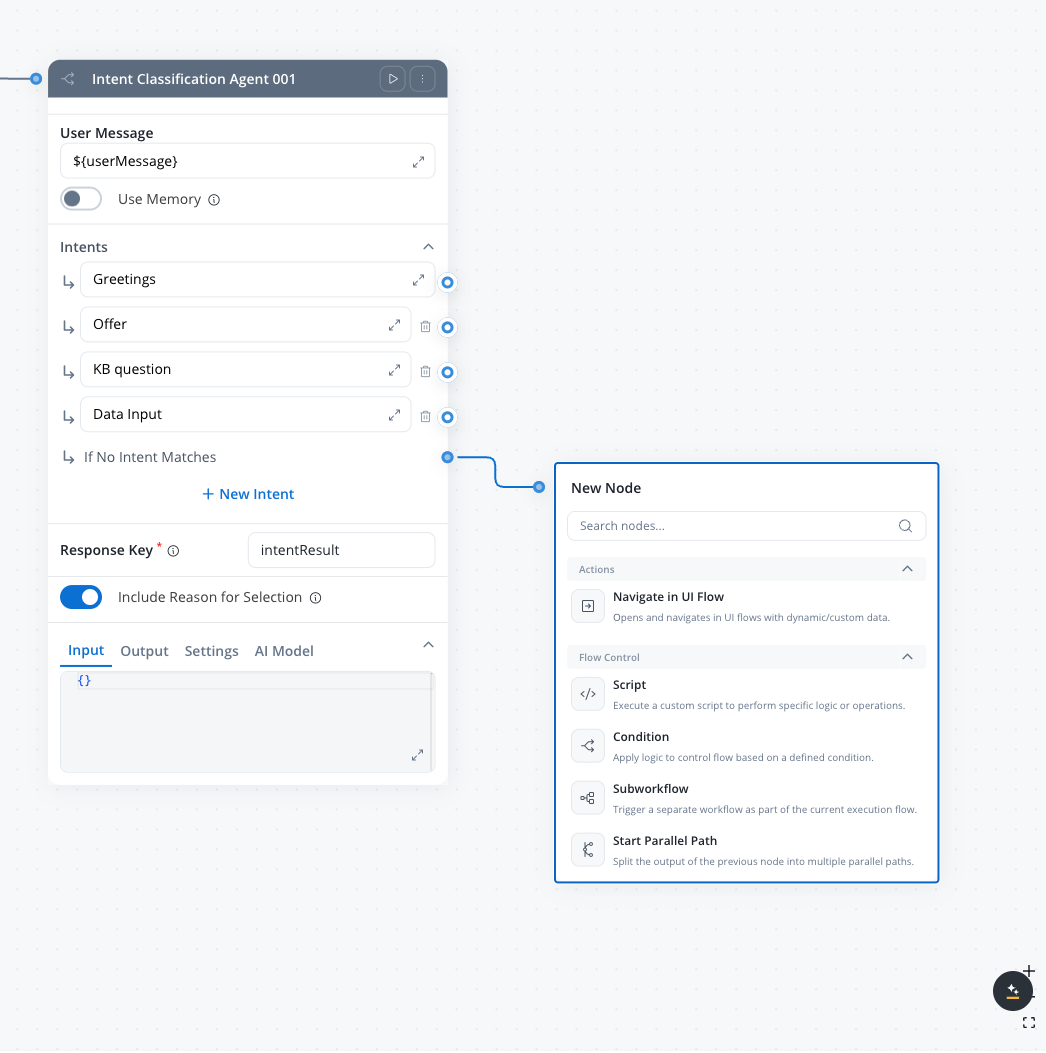
The Intent Classification node is available in Integration Designer workflows alongside other node types like REST Endpoint, Script, Condition, and Custom Agent. For BPMN process workflows, use the [Start Integration Workflow](/5.9/docs/building-blocks/actions/start-integration-workflow) action to invoke workflows that contain Intent Classification nodes.
Combines LLM classification and conditional branching — no separate Condition node needed
Define intents as plain-text descriptions instead of code expressions
Optionally use past conversation context for more accurate classification
Automatic "If No Intent Matches" branch handles unrecognized inputs
### How it compares to the pattern approach
| Aspect | Pattern (TEXT\_UNDERSTANDING + Condition) | Intent Classification node |
| ------------------- | ----------------------------------------- | ------------------------------ |
| **Nodes required** | 2 (classify, then route) | 1 (classify and route) |
| **Conditions** | Python/JavaScript expressions | Natural language descriptions |
| **Max branches** | Unlimited | 10 intents + fallback |
| **Response schema** | Manual JSON schema | Automatic (handled internally) |
| **Rationale** | Must be added to prompt manually | Built-in toggle |
***
## Configuration
Open your workflow in **Integration Designer**.
Add an **Intent Classification** node from the **AI Agents** category in the left panel.
Set the **User message** field to the input text that should be classified. Use `${}` syntax to reference workflow data keys.
Add intent descriptions — each intent becomes a separate output branch on the node.
Connect each intent branch and the fallback branch to downstream nodes in your workflow.
***
### Personal Information Guard
Detects and replaces personal data in messages before they reach the model. A system instruction is automatically added so the agent handles redacted content naturally.
**Default:** OFF
When turned on, the following sub-options become available:
* **Detection Algorithm Sensitivity** — One of **Strict**, **Balanced** (default), **Relaxed**, or **Custom**. Controls how aggressively the detector flags potential matches.
* **Detection Target** — Check **Node Input**, **Node Output**, or both to choose which payloads are scanned.
* **Personal Info Types** — Opens the **Customize Entities** modal, the picker for which of the 24 supported entity types (Universal + Regional EN + Regional RO) should be detected. All 24 are enabled by default. See the [Extract Data from File](./extract-data-from-file#personal-information-guard) reference for the full entity list.
***
### User Message
The text input to classify. Use `${}` syntax to reference workflow data keys.
**Example:** `${userMessage}`
Reference a workflow data key that contains the user's message rather than hardcoding text. This allows the node to classify different messages at runtime.
***
### Use Memory
When turned on, the node sends the session ID to the AI platform and appends conversation history to the LLM call. This provides context from past messages for more accurate classification. See [Memory Capabilities](/5.9/ai-platform/agent-builder/memory-capabilities) for details on how memory retrieval and summarization work.
**Default:** OFF
Turn on memory when classifying messages in multi-turn conversations where context matters — for example, distinguishing "yes" (confirming a previous offer) from "yes" (answering a question).
***
### Intents
A list of intent descriptions that define the classification categories. Each intent becomes an output branch on the node.
* **Minimum:** 1 intent + fallback
* **Maximum:** 10 intents + fallback
* Each intent description can be up to 3 lines of text
* The **If No Intent Matches** fallback branch is always present and cannot be removed
**Example intents:**
| Intent | Description |
| -------- | ----------------------------------------------------------------------- |
| Intent 1 | The user is asking about product features, pricing, or availability |
| Intent 2 | The user wants to update their personal information or submit documents |
| Intent 3 | The user is greeting or making small talk |
| Fallback | If No Intent Matches |
For best accuracy, classify up to 10 intents per node. If you need more intents, chain multiple Intent Classification nodes to narrow down in stages.
***
### Response key
The key where the classification result is stored in the workflow data.
**Example:** `classificationResult`
***
### Include Reason for Selection
When turned on, the agent includes a rationale explaining why it chose this intent in its response.
**Default:** OFF
Turn on rationale during development and testing to understand classification decisions. You can turn it off in production to reduce response size.
***
## Output
The node stores its classification result under the configured **Response key** in the workflow data. The output contains:
| Field | Type | Description |
| ----------------- | ------ | ----------------------------------------------------------------------------------------------- |
| `selected_intent` | string | The description text of the matched intent |
| `selected_branch` | number | The branch number (1–11) corresponding to the matched intent |
| `rationale` | string | Explanation of why the LLM chose this intent (only when **Include Reason for Selection** is ON) |
**Example output:**
```json theme={"system"}
{
"selected_intent": "The user is asking about product features, pricing, or availability",
"selected_branch": 1,
"rationale": "The user asked 'How much does the premium plan cost?' which is a direct inquiry about pricing."
}
```
### Workflow routing
After classification, the node routes the workflow token to the matching branch:
* **Intent branches** — the workflow continues along the branch whose intent description matched the user message
* **If No Intent Matches** — the fallback branch activates when the LLM response doesn't match any defined intent
This routing works like a Condition (Fork) node, but conditions are evaluated by the LLM using natural language instead of code expressions.
***
## Examples
**Scenario:** Route customer messages to specialized support handlers.
**Intents:**
1. The customer is reporting a technical issue or bug
2. The customer is asking about billing, payments, or invoices
3. The customer wants to cancel or modify their subscription
4. The customer is asking a general question about the product
**Fallback:** Routes to a human agent handoff workflow.
Each branch connects to a specialized handler — for example, the billing branch triggers a workflow that looks up the customer's invoice history, while the technical issue branch creates a support ticket.
**Scenario:** Classify banking customer requests in a conversational workflow.
**Intents:**
1. The user wants to check their account balance or transaction history
2. The user wants to transfer money or make a payment
3. The user is asking about loan or mortgage options
4. The user is greeting or making small talk
**Configuration:**
* **Use memory:** ON (to understand context in multi-turn conversations)
* **Include Reason for Selection:** OFF (production deployment)
The balance branch queries the account API, the transfer branch starts the payment workflow, and the loan branch triggers a knowledge base lookup.
**Scenario:** Classify incoming emails and route to appropriate processing.
**Intents:**
1. The message is a complaint or escalation requiring urgent attention
2. The message is a new business inquiry or sales lead
3. The message is a support request with a reference to an existing ticket
4. The message is informational (newsletter reply, out-of-office, automated notification)
**Fallback:** Routes to a manual review queue.
**Configuration:**
* **Use memory:** OFF (each email is independent)
* **Include Reason for Selection:** ON (for audit trail)
***
## Best practices
Describe each intent clearly and distinctly. Vague or overlapping descriptions reduce classification accuracy.
For more than 10 categories, use a first node to classify into broad groups, then a second node to classify within each group.
Connect the fallback branch to meaningful handling — a clarification prompt, a human handoff, or a default response.
Turn on Include Reason for Selection during development to understand why the LLM routes to unexpected branches.
***
## Related resources
Learn about Integration Designer workflows and all available node types
Overview of all AI node types in Agent Builder
Alternative approach using TEXT\_UNDERSTANDING + Condition nodes
Multi-turn chat with session memory
AI agents with MCP tools in Integration Designer workflows
Build multi-turn chat experiences with intent routing