> ## Documentation Index
> Fetch the complete documentation index at: https://docs.flowx.ai/llms.txt
> Use this file to discover all available pages before exploring further.
# Extract Data from File
> Configure the Extract Data from File AI node to extract text and data from documents and images using LLM, OCR, or text parsing strategies.
## Overview
The **Extract Data from File** node extracts text and structured data from documents and images within Agent Builder workflows. It supports multiple extraction strategies so you can balance accuracy, speed, and cost based on your document types.
### Supported file formats
| Category | Formats |
| --------- | -------------------------------- |
| Documents | PDF, DOCX, XLSX, XLS, XLSM, PPTX |
| Images | JPG, PNG, TIFF |
Image files are automatically converted to PDF before processing. This conversion is handled by the Document Parser service.
***
## Configuration
To add the node to an Agent Builder workflow:
Open your workflow in **Agent Builder**.
Add an **Extract Data from File** node from the **Document Operations** category.
Configure the extraction settings described below.
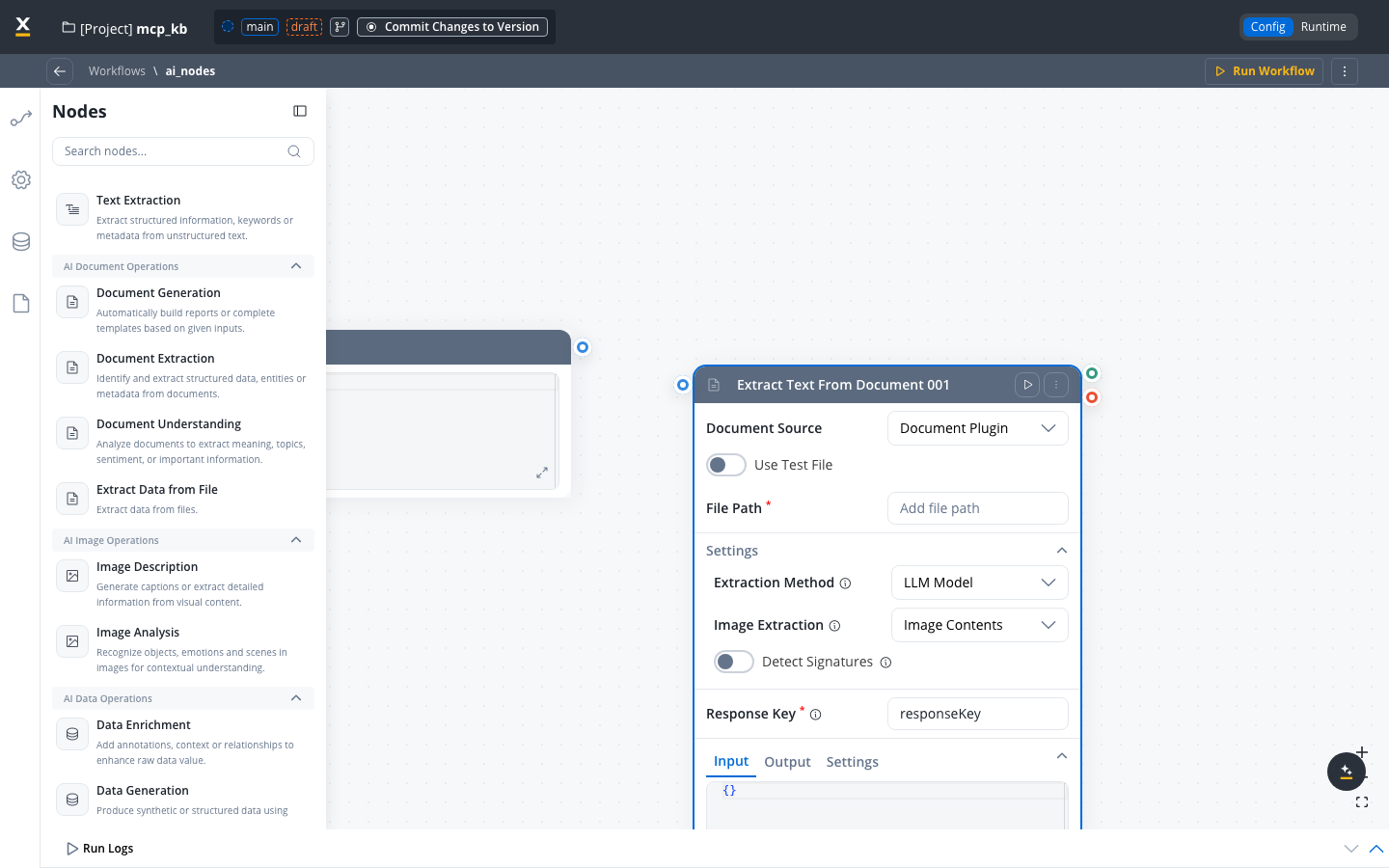
### Document source
The source system for the document. Select **Document Plugin** to use files stored in the FlowX Documents Plugin.
**Default:** `Document Plugin`
### Use test file
Toggle **ON** to use a test file during workflow configuration and testing, without requiring a live file path from process data.
**Default:** OFF
### File path
The path to the input file to process. This can reference a file stored in the Documents Plugin.
When **Use Test File** is turned off, map this field to a process variable or workflow data key that contains the file path at runtime.
***
### Response key
The key where the extraction results are stored in the workflow data.
**Example:** `extractedData`
***
### Extraction method
Select the method used to extract content from the file. Each method has different accuracy, speed, and cost characteristics.
| Method | Best for | Speed | Cost | Accuracy |
| ---------------- | ------------------------------------------------------------ | ------ | ------ | ---------- |
| **Automatic** | Mixed document sets where you don't know the format up front | Varies | Varies | Varies |
| **LLM Model** | Complex layouts, handwritten text, mixed content | Slow | High | High |
| **OCR Engine** | Scanned documents, image-heavy files | Medium | Medium | Medium |
| **Text Parsing** | Clean digital PDFs with selectable text | Fast | Free | Low–Medium |
The platform selects the best extraction method for each document automatically — *"AI will choose the best method for each document."* Use it for mixed document sets where the format varies and you don't want to pick a strategy per file.
Uses AI vision models (such as GPT-4o) to analyze document content. This strategy provides the highest accuracy and can handle:
* Complex page layouts with multiple columns
* Handwritten text and annotations
* Mixed content (text, tables, images on the same page)
* Documents with non-standard formatting
LLM Model is the most expensive strategy due to AI API calls per page. Use it when accuracy is critical and the document structure is complex.
Uses Optical Character Recognition engines (Tesseract, RapidOCR, or EasyOCR) to extract text from images and scanned documents. Best for:
* Scanned paper documents
* Photographed documents
* Image-heavy files where text is embedded in images
The OCR engine used is configured at the service level. See the [Document Parser setup guide](/5.9/setup-guides/document-parser-setup) for engine selection.
Extracts text directly from the document file without AI or OCR processing. Best for:
* Clean digital PDFs with selectable text
* Documents generated by software (not scanned)
* High-volume processing where speed matters
Text Parsing is the fastest and most cost-effective option. Use it as a first pass and fall back to OCR or LLM for documents with low extraction quality.
***
### Image extraction options
When using **LLM Model** or **OCR Engine**, you can configure how images found within the document are handled.
Select how images embedded in the document should be processed.
| Option | Description | When to use |
| --------------------- | -------------------------------------- | ------------------------------------------------------------------------- |
| **Image Description** | Generates a text description of images | When you need to understand what images depict (charts, photos, diagrams) |
| **Image Contents** | Extracts text and data from images | When images contain text, tables, or data you need to capture |
LLM Model supports both Image Description and Image Contents. OCR Engine supports only Image Contents.
Image extraction options are not available when using the Text Parsing strategy, since Text Parsing only handles selectable text content.
***
### Signature detection
Turn on detection of signatures within the document.
**Default:** OFF
When enabled, the node identifies areas of the document that contain signatures and includes their locations in the extraction results.
Signature detection is only available when using **LLM Model** or **OCR Engine** strategies. It is not available for Text Parsing.
### Personal Information Guard
Detects and replaces personal data in messages before they reach the model. A system instruction is automatically added so the agent handles redacted content naturally.
**Default:** OFF
When turned on, the following sub-options become available:
* **Detection Algorithm Sensitivity** — One of **Strict**, **Balanced** (default), **Relaxed**, or **Custom**. Controls how aggressively the detector flags potential matches.
* **Detection Target** — Check **Node Input**, **Node Output**, or both to choose which payloads are scanned.
* **Personal Info Types** — Opens the **Customize Entities** modal, the picker for which of the 24 supported entity types should be detected. All 24 are enabled by default. Entities are grouped into **Universal** and **Regional** (per-locale) sets.
**Universal (8)**
`EMAIL`, `PHONE`, `CREDIT_CARD`, `IBAN`, `MAC_ADDRESS`, `CRYPTO_WALLET`, `PERSON`, `ADDRESS`
**Regional — EN (6)**
`SSN`, `US_PASSPORT`, `US_BANK_ACCOUNT`, `US_ITIN`, `UK_NHS`, `EU_VAT_ID`
**Regional — RO (10)**
`CNP`, `CUI`, `RO_IBAN`, `RO_PHONE`, `RO_PASSPORT`, `RO_ID_CARD`, `LICENSE_PLATE`, `HEALTH_CARD`, `POSTAL_CODE`, `LANDLINE`
***
## Examples
**Scenario:** Extract line items and totals from a scanned paper invoice.
**Configuration:**
* **Extraction Method:** OCR Engine
* **Image Extraction:** Image Contents
* **Detect Signatures:** ON (to capture the approval signature)
The OCR engine processes the scanned image, extracts text from both the document body and any embedded images (such as company logos with text), and identifies signature areas.
**Scenario:** Extract text and understand visual elements from a contract that includes charts and diagrams.
**Configuration:**
* **Extraction Method:** LLM Model
* **Image Extraction:** Image Description
* **Detect Signatures:** OFF
The LLM analyzes each page, extracts the contract text, and generates descriptions of charts and diagrams (for example, "Bar chart showing quarterly revenue growth from Q1 to Q4 2025").
**Scenario:** Extract text from a digitally generated report PDF.
**Configuration:**
* **Extraction Method:** Text Parsing
* **Image Extraction:** N/A (not available for Text Parsing)
* **Detect Signatures:** N/A (not available for Text Parsing)
Text Parsing directly extracts the selectable text from the PDF with no AI or OCR processing, making it the fastest and lowest-cost option.
***
## Best practices
For digital PDFs, try Text Parsing first. Only use OCR or LLM if the results are insufficient.
Use OCR for scanned documents, LLM for complex layouts, and Text Parsing for clean digital files.
LLM processing costs increase linearly with page count. For high-volume workloads, use Text Parsing or OCR where possible.
Turn off signature detection and image extraction when not needed to reduce processing time and cost.
***
## Related resources
Configure the Document Parser service, parsing engines, and deployment sizing
Overview of all AI node types available in Agent Builder
Get started with Agent Builder workflows
See real-world Agent Builder workflow examples